Cambridge Nationals in ICT Unit 1 (R001) Revision Notes - Name: _ Class
←
→
Page content transcription
If your browser does not render page correctly, please read the page content below
Cambridge Nationals in ICT
                 Unit 1 (R001) Revision Notes

       Name: ______________________
       Class: ______________________

                   Exam Questions at the back of this Booklet
                 (Other revision resources can be found on the school website)

Issue Dec 2013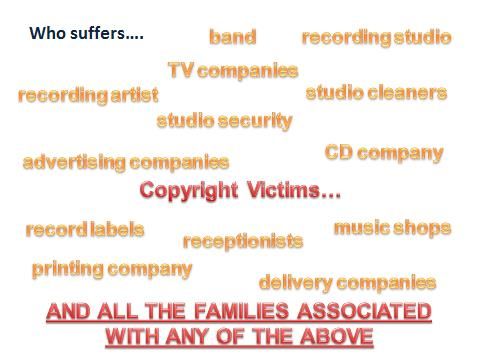
Contents
Features and Purposes of Computing Devices ................................................................................................................. 3
   Input Devices................................................................................................................................................................. 3
   Other Input Devices: Sensors ........................................................................................................................................ 4
   Output Devices.............................................................................................................................................................. 4
Operating Systems ............................................................................................................................................................ 5
   Utility Software ............................................................................................................................................................. 6
Storage and Connectivity Devices ..................................................................................................................................... 8
   Office Configurations .................................................................................................................................................... 9
Connectivity .................................................................................................................................................................... 11
   Connecting to Wi Fi ..................................................................................................................................................... 12
Monitoring Employees .................................................................................................................................................... 13
Teleworking..................................................................................................................................................................... 14
Video Conferencing ......................................................................................................................................................... 15
Data Capture Methods.................................................................................................................................................... 15
   Online and Paper Based Forms ................................................................................................................................... 15
   Automated Methods................................................................................................................................................... 16
   Data Validation............................................................................................................................................................ 16
   Verification Checks:..................................................................................................................................................... 16
   Factors Affecting Choice of Data Capture Method ..................................................................................................... 17
   Encoding Data ............................................................................................................................................................. 18
File Formats..................................................................................................................................................................... 18
   Security Measures to Protect Data ............................................................................................................................. 19
   How Businesses Protect Data ..................................................................................................................................... 19
Data Transfer Technologies ............................................................................................................................................ 20
   Backup and Recovery Systems & Choice of System ................................................................................................... 21
Business Communications .............................................................................................................................................. 22
   Diary management software ...................................................................................................................................... 22
   Working Collaboratively on Documents ..................................................................................................................... 23
ICT Law ............................................................................................................................................................................ 23
 The Data Protection Act ................................................................................................................................................ 23
   The Computer Misuse Act........................................................................................................................................... 24
   Health and Safety At Work Act ................................................................................................................................... 24
   Copyright Downloading Music and Copyright Issues.................................................................................................. 25
   Computer Misuse Act.................................................................................................................................................. 26
   Implications of Data misuse on an Organisation ........................................................................................................ 26
Threats to Data ............................................................................................................................................................... 27

                                                                                                                                                                                     2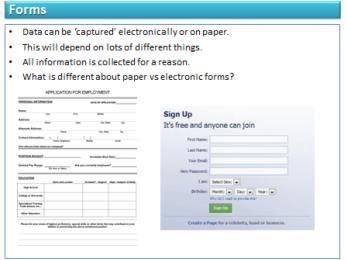
Features and Purposes of Computing Devices
Lots of different people use lots of different devices to access IT. It depends on all sorts of things which one you use.
Item Features Purpose
Large screen Business people to use in multiple
Full keyboard locations.
Touchpad mouse Students to use between home/college.
Laptop Full computer Office/Multimedia/Gaming
Portable
Small screen Mobile users who need a basic computer
Very light on the move.
Portable Family – entertainment.
Netbook
Long battery life Commuters working on the move.
Web cam
Large touch screen Schools to promote learning
Apps Entertainment
Graphical interface Web browsing.
Tablet Wifi / 3G Basic working
Touch screen People who need a phone and business
Apps utilities (email, web, calendar)
Graphical Interface Entertainment: music, games and other
Long battery life apps on the go.
Smartphone Mobile phone Socially: People to use social media on
Internet access the go.
Very thin Gamers
Large screen Commuters – very lightweight so easily
Very powerful portable.
Ultrabook Long battery life Business/School/Entertainment
Wifi
Input Devices
An input device is something which lets you put information into a computer. Here are some common input devices.
Microphone This would be used to make recordings or as voice control – giving the computer commands. It could
also be used to dictate a document.
Graphics This is like a really large touchpad mouse except you can draw on it with a special stylus. What you
Tablet draw appears on the computer. Bit like digital paper
Mouse Moving around a computer.
Touch Moving around a computer or applications using your hands instead of a mouse
Screen
Keyboard Still the most common way of quickly typing in text into a computer
Touch Pad On mobile devices like laptops where a normal mouse would not be convenient, this is a small square.
Moving your finger over it controls the cursor.
3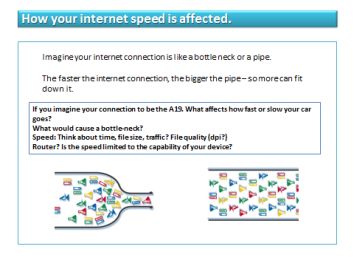
Other Input Devices: Sensors
There are other input devices. The ones mentioned on the previous page are all manual; that means the user has to
use them to get data in.

But what if it is not convenient? For example what if you needed to measure temperature in a volcano? A keyboard
would not be idea. What if you also wanted to take temperature measurements every 0.01 of a second? Humans are
just not fast (or accurate) enough.

Because of this, there are things called ‘sensors’ which are used all around us.

Sensor         For                                   Example
Heat           Temperature                           Greenhouse / Home central heating.
                                                     Fire detection systems.
Light          Level of light                        Security lights, street lights
                                                     Phone sensor (auto-adjusts brightness)
Pressure       Whether extra pressure has been       Car park barriers, burglar alarms
               applied on a surface.                 For example when a car moves over a pressure pad, the barrier
                                                     raises in a car park.
Tilt           The orientation of something          Mobile phones. For example if you put your phone landscape,
                                                     the screen rotates for you.
Touch          Two things have come into             Mobile phones / touch screens. These are everywhere.
               contact
Sound          Noise levels                          Security system or in public houses. It detects if noise is too loud
                                                     and alerts somebody.

Output Devices
An output device is something which is used to display or return information to a user.

Screen                     Used for displaying information.
Printer                    Used for producing a hard copy of information which can be taken away from a computer
Touch Screen               Used for interacting with a computer
Projector                  Displaying information from a computer for an audience on a large screen
Speakers                   Used for hearing sounds, music.

Summarise the key points of this section here:

                                                                                                                        4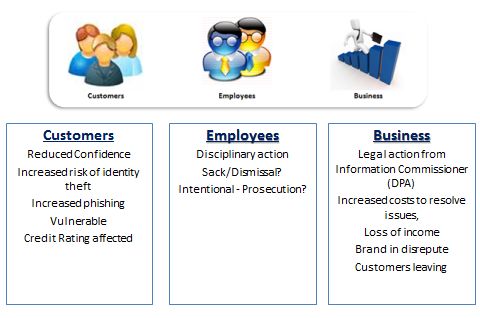
Operating Systems
An operating system is what every computing device has to have. It allows us to interact (use) a computer. Without
it, your computer would just be plastic and metal. It controls everything the computer does.
An operating system (or OS) is a computer program which controls everything the computer does
(absolutely everything!!!).
It is essential software. Without it, a computer cannot run (It will not know what to do!!!)
Jobs of the OS:
Load and run applications
Share out (and manage) memory
Communicate with peripherals
Accept data from input devices
Provide an interface
Basic Features Geeky Features
WIMP (Windows, Icons, Menus and Pointers) Manage memory
Search facilities Save, Print
Help Provide an interface
Personalisation (changed backgrounds etc) Shortcuts for experts
Disability access Run software
Touch? Drag? Communicate with devices.
Storage Process inputs
Sound
Icons
windows
gadgets
The desktop
menu
5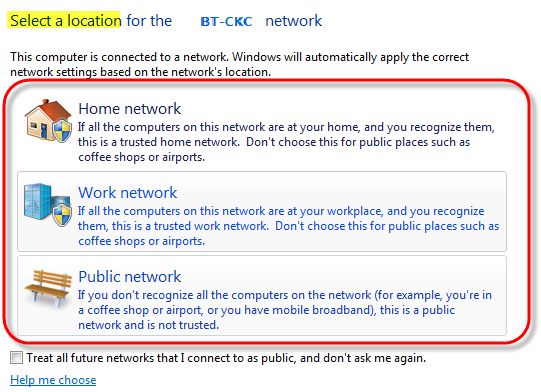
There are lots of different operating systems which you need to know about. Here they are…

   Operating
                       Devices                       Features                                  Purpose
    System
                                    Windows, Icons, Menus Pointers
                                    Start Menu                                Can run a wide range of software:
                     Desktop PC     Customisable background, icons.           Business – E.g. to use Office
                       Laptop       windows files, folders.                   Personal – Gaming, Entertainment
                      Netbook       Shortcuts (e.g. CTRL+C etc)               Social – Internet browsing etc.
                     Ultra Book     Separate usernames and passwords.
                                    Accessibility features (magnify,          Mainly for ‘working’ computers where
    Windows                         narrator etc)                             people do lots of different things.
                                    F1 Help
                                    App Store                                 Downloading and running apps on the
                                    Music                                     go via the app store. These can be for
                                    Camera                                    entertainment, business or social
                                    Bluetooth                                 purposes.
                         iPad
                                    Email/Internet
   Apple iOS           IPhone
                                    3G/WiFi                                   Entertainment devices.
                        iPod
                                    iCloud                                    Business – can use the calendar, email
                                    Siri Voice Control                        and internet features.
                                                                              Socially – social media links and built in
                                                                              camera etc.
                                    App Store                                 All the same purposes as IOS
                                    Music
                    Smart Phone     Camera                                    Users can also tether and connect their
                      Tablet        Bluetooth                                 laptop or other device to the internet
                     Netbook        Email/Internet                            via their phone.
Google’s Android                    3G/WiFi
                                    iCloud
                                    Finder – quickly find programs and        Very fast computers.
                                    files.                                    Creativity – a lot of creative people
                                    Dock – to locate all programs             (business/families) can use the built in
                       Mac          iLife: Garageband, iMovie, iDVD etc       facilities.
                     Computers      for creativity.
                                                                              Business: Like Windows it provides
    Mac OS X                                                                  office facilities for professional workers.

Utility Software
An operating system is something which allows us to interact with a computer. An example is Microsoft Windows.
Many operating systems have four features; Windows Icons Menus and Pointers. Instead of pointers, some mobile
operating systems like iOS or Android have a touch screen.

As well as these features, many operating systems have quick access to help facilities and shortcuts such as ctrl+c for
copy and ctrl+v for paste. Most OS’ also allow the user to personalise the desktop, for example by changing the
background or icon sizes.

Utility software allows us to manage specific parts of our computer. An example includes Anti-Virus software which
protects us against viruses A firewall also stops hackers or other unauthorised people getting in to our computer.

Disk cleanup allows the system to remove old files and software from our computer saving space and allow the
computer to run faster.

                                                                                                                         6
Item         Definition / Meaning                       Why needed / used
                  A firewall is a piece of software which    To prevent nasty spyware or hackers trying to
                  controls what information comes in to      get in to your computer.
    Firewall      your computer and also what leaves your    To stop viruses which may infect your
                  computer based on a series of rules.       computer from sending personal information
                                                             out of your computer.
                  Software which checks files and            To ensure your computer is protected from
                  programs to ensure you do not get          viruses.
                  infected with a virus.                     You must update it and scan your computer
   Anti-Virus                                                on a regular basis for it to be effective.
   Software
                  Software which updates your operating      Software can have ‘bugs’ or issues which
                  system or other programs with the latest   need to be fixed. These issues could cause
    System        updates.                                   security problems for you. Keeping your
    Update                                                   computer up to date ensures issues do not
                                                             affect you.
                  A utility which scans your computer and    Removing software and files keeps your
                  allows you to remove files/software        computer running efficiently and ensures you
      Disk        which you have not used in a long time.    save disk space.
    Cleanup
                  Spyware is software which monitors         If you do not use this, your computer could
                  what you do on a computer and reports      be at risk and you could be being watched.
                  it to someone.                             Your personal information may be stolen or
     Anti-        Anti-Spyware removes any spyware           your computer severely slowed down as a
   Spyware        issues and protects your computer from     result.
                  these threats.

Summarise the key points of this section here:

                                                                                                             7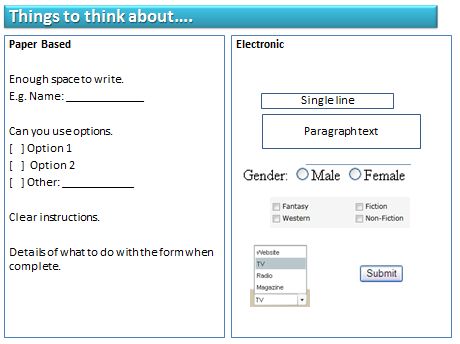
Storage and Connectivity Devices
Media / Main Features Who would use it & what for (be specific)
Connectivity
Large capacity Used in mobile phones, tablets and digital
Cheap cameras for storing pictures, applications, videos
Small and portable etc.
Memory Cards
Connects to an internet Used to connect a physical place to the internet.
connection.
Modem Speeds can vary
Allows you to share an internet Anywhere where the internet needs to be shared
connection. (home, business, school)
If you have a slow router, this
Router will affect your transfer speeds.
Large capacity (4-8GB) Movies, Music, Backups.
Good quality
Read only (cannot overwrite)
DVD Portable, light, cheap.
Access anywhere Businesses who work on the move.
Requires an internet connection. iPhone/iPad/iPod devices to synchronise data
Easily share with people. between them.
Cloud Storage Schools to work online.
Families to store data online.
Very fast. New computers. This is very expensive but very
Store a lot of data very fast and reliable – it replaces a harddrive.
No moving parts. In moveable devices: iPhones, Tablet PCs etc to
Solid State Drive Very expensive. store apps etc.
700MB size. Music CDs
Very cheap 10p Small backups.
Portable, light.
CD
Read only
Large capacity Company backups.
Portable It is very slow for anything else.
Magnetic Tape Can be overwritten
Large sizes (up to terabytes!) All computers: desktops, laptops, netbooks.
Very fast
Inexpensive
Internal Hard Disk Easily damaged
Portable Mobile users, businesses, teachers, students who
Store a lot of files. need to access all their files on the move without
External Hard Disk Inexpensive. having to rely on an internet connection.
Can be easily broken
8
Office Configurations
People with various impairments may need help when accessing IT systems. Lots of technology exists which would
help them.

                   Braille Keyboards        A way for blind people to be able to use touch to
                                            recognise keys on the keyboard and type.

                   Microphone input         Give voice commands to a computer (e.g. Siri)

                       Magnifier            To enlarge parts of a screen to make it easier to see for
                                            visually impaired people.

                  On Screen Keyboard        For people who cannot use a keyboard, an on-screen
                                            keyboard could be used.

                      Foot mouse            For people unable to use a traditional mouse, a foot
                                            mouse allows someone to navigate around a computer
                                            with their feet.

                Sip and Puff Technology     A technology which allows people to give commands to
                                            a computer using short sips and puffs into a straw.

               Shortcuts and large screen   System shortcuts like ctrl+p (print) which makes some
                      resolution            tasks a bit easier for people. Changing the screen size so
                                            everything is much larger will also help visually impaired
                                            people.

                 Text to speech (screen     The computer can read out what is on screen for the
                        readers)            user which is useful for visually impaired people.

                     Touch Screens          For those who cannot access a computer traditionally, a
                                            touch screen could be used to allow a user to interact
                                            naturally.

                 High Contrast Screens      This makes colours and fonts much clearer and sharper
                                            on the screen, making it easier for people with sight
                                            problems to better see what is being displayed

                  Large icons/mouse         Icons or the cursor could be made a lot larger, making
                     pointers etc           them easier to spot.

                                                                                                                 9
Factors Affecting Choice of System
When you are choosing what kind of computer to buy in a business you need to think about a few different things.
Otherwise, the computer you may spend a lot of money on, may not actually be fit for purpose or be unusable by
the person who will be using it.
Remember: CASE
Area Key Questions Example
Cost How much does it cost? If the computer is £2000 and it is only going to be
How much money is available? used by a receptionist to type letters is it worth it?
Are there cheaper alternatives? Will you use all the extra stuff it does?
Is it cost effective – can it be done cheaper in
a different way?
Availability Is the system readily available or is there a If it is only available online, what happens if it breaks?
wait time? Can you replace it quickly?
Can the system easily be repaired/replaced?
Is the system up to date?
Needs What do I need the system to do? If you need to make DVDs, does it have a DVD
Does the system allow me to do it? burner? If you are plugging in a scanner, printer and
Is there anything the system does not allow mouse; does it have enough USB ports?
me to do?
Are there any users with impairments you need to
think about?
Security How secure does my system need to be? If you are storing a lot of personal data on it, will it be
Does the system keep my data secure? secure? Does the computer encrypt the data?
Does the operating system have username and
password access?
Summarise the key points of this section here:
10Connectivity
So when buying a computer system, there are lots of different add-ons that you could connect (e.g. printer, scanner,
camera, keyboard, mouse, monitor etc.) These things are all called peripherals and they can connect in lots of
different ways.
How Peripherals (devices) connect
Bluetooth A wireless technology which allows one device to talk and connect to another. It can be
used in anything (phones, computers, even TVs!). It is secure and has a long battery life.
Uses: Bluetooth headset, Sending/Receiving files on phones, Car-Phone connection,
Wireless games controllers.
USB This is a standard technology on most computers that allows lots of different things to
connect to a computer. Examples include printers, mouse, keyboard, cameras etc
Firewire / Thunderbolt Some devices have a lot of data, for example a video camera might have hours of film
footage from a family day out. Firewire is like a really fast USB connection that allows you
to transfer multimedia really quickly. Thunderbolt is a new version which is really really
fast!
HDMI or VGA These are the two current main ways to connect a screen to a computer. VGA is an older
standard connection for normal quality screens. HDMI allows for much clearer quality
pictures and is high definition. It is used for computers, TVs and things like games
consoles.
Infra-Red A bit like Bluetooth you but the two devices connecting together have to be close next to
each other. It is really slow. It’s an old technology now and is used in things like your
remote control for your TV. You will notice that it does not work around corners or too far
away from your TV.
Summarise the key points of this section here:
11Connecting to Wi Fi
When connecting to wifi, these rough steps are needed; which are similar for most devices.
Diagram Explanation
1. Check your wireless is switched on – on your
computer, laptop etc
2. Find the SSID (Service Set Identifier) of the wireless
connection you would like to connect to.
3. Click connect on the SSID of the connection you want
to connect to.
4. Enter the secret encryption key.
5. The connection will then be made between your
device and the connection.
6. You will then be prompted to select the appropriate
firewall settings for your connection
Home: Select this is you trust the connection and want
to allow your computer to send information out and
receive information from other computers connected
to the network.
Work: Select this is you trust the connection and trust
other people connected, with some caution that other
computers may not be totally secure.
Public: Select this option if you are in a public place or
you do not know who owns the connection to ensure
your computer is fully protected when using the
internet.
Summarise the key points of this section here:
12Monitoring Employees
If people are working from home, it is important that an employer can monitor their performance. Technology now
allows this to happen.
Term Meaning How work/used
GPS signal provided by It can be used to track where you are in the world, whether
GPS phone/device. Using satellites you are moving and approximately what speed.
to track your location. Employees may use it to determine whether you are where
Coordinates used in third you are supposed to be. For example if you are working from
party software (e.g. Google home – checking if you are actually at home!
Earth) to determine employee
location on earth.
Internet Logging Logging websites accessed, Can be used at work or remotely. Every website you visit is
time spent visiting, search logged with your name, date and time. This is then checked
history, actions on a site etc. by your employer to ensure you are working and not just
browsing online.
Communications Messages, dates, times, length Instant messaging / voicemail and call logs can all be
Monitoring of calls, conversations, recorded. Your employer can check that you are using them
voicemails etc. appropriately (not for personal communications) or to see if
are using them appropriately (e.g. not bringing the company
into disrepute).
System How long not working, how If you stop working the computer could notify your employer
Monitoring much work done, software about how long you have stopped for. This is so they can
used etc. ensure you are not taking too many breaks at home. Also, it
could measure things like your words per minute (your
productivity rate) to ensure you are working fast enough.
Cookies These are small files which Cookies can be checked to see what websites you have
websites use to remember visited and what information you typed in. For example if
what personal information you were accessing social network sites, there will be traces
you have entered whilst on of this on your computer in cookie files.
the site.
This is a small program which This can be used to record what you type in a computer, to
Key Logging
logs every key you type, ensure you are only using the computer for what is meant to
including passwords etc. be. For example if your parents could see everything you
type on your phone, the chances are you would use it
differently!
Your mobile phone connects Like GPS this can be used to track your location at any given
Mobile Phone to a phone ‘cell’ to get a time.
Triangulation connection. Using this and two
other cells close by, your
location can be determined by
working out how far away or
close you are to each cell.
Summarise the key points of this section here:
13Working Patterns
Now we live in a globalised world, people can live anywhere and work for anyone. There is no need for a fixed office
any more. People can work together from anywhere at any time.
Teleworking
Summarise the key points of this section here:
14Video Conferencing
Data Capture Methods
Data capture just means to get data from someone and store it electronically. There are lots of ways to do this, both
manually and automatically using technology.
Input Process Output
(Data entered) (used) (displayed)
Online and Paper Based Forms
15Automated Methods
Method How it works Where it could be used AND what for
RFID RFID uses a small chip which placed In supermarkets to stock take all items on shelves or
Radio Frequency underneath packaging or inside clothes. to check which items are going out of date.
Identification It contains information such as item Delivery companies to track a parcel being
name, price, expiry, where bought from delivered.
etc. When an RFID reader passes near it,
the chip is powered and the information
is read from it.
A small chip located in electronic devices
Trains to pay for tickets.
NFC
and also in readers. When the two come Shops to pay for shopping via your mobile – just
Near Field
into near contact (close proximity), thetouch and go.
Communication
information is read. To impulse buy. Imagine you saw a poster of a
concert you want to see. Waive your phone past the
poster and you’ve bought tickets!
In schools as students enter a classroom to register
them.
Barcode A unique number based system on On products in shops to lookup price at the
products. When scanned, the number is checkout.
checked in a database somewhere to find To track items have been delivered.
out details of the product.
Data Validation
Validation aims to make sure that data is sensible, reasonable and allowable.
It does NOT check data is correct. How can it! E.g. 9/7/1984 is a VALID date of birth, but it would not be correct for
someone who is 14 years old.
Validation Checks:
Type Check – checks something of the correct type is entered. E.g. a date in a date field, a number in a number
field etc.
Range Check – checks something is within a specific range. E.g. an order quantity is between 1 and 10, > 18years
old, orVerification ONLINE
This is used to ensure data is as accurate as possible. Remember, it is not possible to check data is 100% correct.
Verification means to check the data that you have entered against the original source data.
You may also be aware of CATCHPA checks which ask you to type in a word, phrase or collection of letters/numbers.
This is to ensure you are a real person and not a scammer of automated computer trying to hack.
How is this done?
Entering the data twice (e.g. PASSWORDS).- Double Keying
Double Checking (Proof reading)
Verifying you are a human to prevent BOTS or AUTOMATED SIGN UPS by using CAPTCHA.
Factors Affecting Choice of Data Capture Method
When you are wanting to get hold of data you need to consider lots of different things.
Remember: CADEN
Cost Is it cost effective If you are surveying 20 people, is it cheaper to use paper,
Do the benefits outweigh cost than to setup and manage an electronic system?
Availability Is it easy to implement. If you create a digital survey for pensioners and send it
Do all people involve use the 1000 people, will they be able to actually use it?
technology.
Data Security Is it secure enough to store data? If you are asking personal information, where is this being
kept? Is paper sensible? If electronic, how will you keep it
safe?
Ease of Use Is it easier/faster than current If you are trying to find out the average shoe size of every
methods pupil at school, is it worth distributing paper surveys and
then typing it in? How else could it be done.
Nature of data Environmental conditions If you are taking volcano measurements after a recent
collected Where is the information. eruption, should you be there or should you be using
sensors to capture it automatically?
Summarise the key points of this section here:
17Encoding Data
Encoding – simply means shortening what is entered into a computer system when inputting data. It is all around us
and happens all over the place.
Registration Plates Flight Names Signs Company Names
Computers do it because:
Takes up less storage space
Faster to enter / type
Easier to check with validation (no spelling etc).
Faster to use and send the data (smaller file sizes).
File Formats
Proprietary File Formats: created and owned by a company and can only be used properly in the software they
create.
File .doc .xls .ppt .fla .wma .aac
Format .docx .xlsx .pptx
Creator Microsoft Microsoft Microsoft Adobe Microsoft Apple
Used for Word Spreadsheets Presentations Animation files Music to be Music to be
processing made in Excel made in made in Flash. played back in played back
documents PowerPoint Windows in Apple
made in Word. Media Player. iTunes.
Open File Formats: general formats which do not need one specific software package and can be adopted and
used by any developer
File .rtf .pdf .csv .exe .txt .mp3 .wav
Format
Used Basic text Read only Transferring Programs on Plain text Compressed Full high
for with files for data from one a Windows files. music. quality
pictures. people to system to computer. sounds.
see but not another.
change.
18Security Measures to Protect Data
What makes a good password? What makes a bad password?
Mixture of CaSe One word simple
Symbols and characters *&(^ All one case.
Longer than 8 characters. Something which relates to you.
Changed regularly. One which is written down.
Not related to you. Never changed.
How Businesses Protect Data
Companies store a lot of data about us when we make purchases or register on their websites. It is important that
they keep data secure and protected both from people outside and so that only required people can use the data
inside the company. Measures which could be taken are discussed below.
Physical Security Access Security
Data Security
Monitoring Systems
Access Levels – give different people different levels of access. For example, someone may be able to see customer
records but not change them. A senior manager may have a higher level of access where they can change them.
Firewalls – prevent unauthorised access from outside.
Audit Transaction Logs – these are files which keep a record of everything is done on a computer system. Should
anything be changed, the log file can be checked.
19Data Transfer Technologies
From time to time, businesses need to transfer data from one place to another; either between computers, or even
to other destinations. To do this, there are various different technologies to consider.
Wired Transfer The most secure way of sending files – down a private line.
Wireless (wi-fi, Bluetooth) Sending through the air, either by Bluetooth or a shared wireless connection. This is
worth doing if the data is not that important and security isn’t a major issue
Mobile (3G, 4G, HSDPA) Using mobile technology – e.g. sending an email with an attachment. Again this is
worth doing when security is not a major concern and speed is not important as the
file size is small.
Internet (E-Mail, Cloud, Files can be sent across the internet:
P2P, Torrents) E-Mail – small files and data where you are not worried about security.
Cloud – Larger files which can be accessed anywhere.
P2P/Torrents – where you need to share data between lots of people. Very insecure
but a fast way of sending and receiving data.
When choosing the best method you need to think of lots of different things. If the data is really important (e.g.
customer credit card details) then the most secure method should be chosen. Also if you have a 100GB file, the
chances are you are not going to use email or Bluetooth where it will take a long time.
As well the transfer method you also need to think about bandwidth. Imagine your connection to be like a large
road. In the early hours of the morning, the road will be really quiet and therefore a car could go the full speed limit
without issue. During rush hour, there will be a lot of traffic and the car would travel much slower.
The same applies to the internet. The more people use the internet, the slower your connection will be. The larger
the file (effectively, the bigger the car), so it will take longer to get it moving down the road.
20Backup and Recovery Systems & Choice of System
When using a computer system, companies need to be able to backup and restore data in case there are any
problems with the system. Apart from the data being really important, it is also a legal requirement.
Things to consider when backing up
Storage Media What will you back up on to (see storage media section). If you have a handful of documents,
would a USB stick do? If you have 100s of gigabytes of data, would cloud or magnetic tape be
better?
Backup This is all about how often the data changes. For example a builder may only update his
Frequency customer file once a month so he doesn’t need to backup every day. A bank might make lots of
changes to peoples bank balances every day, so they need to backup constantly. In a school,
student work changes every day, so we need to do a backup at least once a day.
Archiving How important is it to keep old information? E.g. does a small shop need to keep records of
customers from 20 years ago? Probably not. A bank will need to keep information about all
transactions so customers can see bank statements. A school may keep leavers work for two
years before they delete it. The police will keep archives permanently in case they ever need
information again.
Automated vs This goes back to the size of the data. If you are only backing up the odd file, then it may be
Manual quicker to just do this yourself, but it relies on you being able to remember to do this.
If you have a lot of data which MUST be backed up regularly, it may be worth making the
computer system do It automatically for you. It is important though that the automatic backups
are checked to ensure they were successful.
So the choice of backup system will depend on the normal key questions:
Remember: CASE
How much does the storage cost?
Cost Is it cost effective?
Are there cheaper alternatives?
Is the technology widely available?
Availability
Can it be easily replaced if there is a fault?
Will the data be secure?
Security Who will be able to access the data?
Where will the backups be kept?
How easy is it to backup?
Ease of Use
How easy is it to restore if there is data loss.
Summarise the key points of this section here:
21Business Communications
Voice Text Messaging Instant Messaging
Useful for quickly contacting Used for sending short
Multiple people can chat all
employees to discuss informal messages to an at once in real time from
something directly and employee without them different locations.
ensure the message is having to answer
understood. immediately.
Email Chat Rooms
Instant communications Forums
Like instant messaging but A way where people can
worldwide, where people more public and an open
do not have to be there for post comments or
way of conversing. contribute to discussions.
the email to arrive.
Like an electronic version of
a noticeboard.
VOIP Social Media Blogs
Using the internet to make Using things like social Like an online diary where
voice calls (e.g. Skype). networks to communicate employees can publish their
International and informally. work publicly or privately
significantly cheaper than for others to review.
phones.
Diary management software
Diary software allows us to have a digital calendar. The major benefit is that it can be accessed on a range of devices
by multiple people. The key features are:
– Creating appointments / meetings
– Invite people to the meetings/appointments
– Create a task or to-do lists
– Set reminders.
– You can then:
• Be alerted on your computer or mobile
• Change appointments dynamically
• Share your diary with other people
• Change/move appointments quickly
• Alert your invited people quickly.
• Access it anywhere, any time.
• Let’s have a look at one.
22Working Collaboratively on Documents
Within business, employees often collaborate; that is work together on documents and files. This means people can
work smartly and share workload, as well as sharing ideas and inspiring one another. There are different ways to
achieve this.
Shared Drives Files can be placed on a shared drive on a network allowing multiple people to read the files, or
even write to them, so everyone can work on a central document.
Cloud Cloud allows people to work together in real time on a file. Changes people make instantly appear
on everyone’s screen who are using the file. People can be working from anywhere.
Track Changes This can be switched on in a document. Any changes somebody makes (e.g. deletes, changes,
adds) are added in a different colour. This is handy when sending a file for someone to proof read
or check for you.
Comments When people review a document, they can also insert comments. Comments appear down the
side of the document for the creator to read and respond to.
Reviewing Once comments or changes have been made with track changes on, a user can then review each
change using software. The user can then accept or reject changes and even delete comments
after reading them in a fast and simple way.
ICT Law
The Data Protection Act
The Data Protection Act 1998 sets out to protect the privacy of personal information.
Data subjects are people who have data held about them – just about everybody really.
Data users are the people or organizations who hold the data. There are far more data users
than many people think.
1. fairly and lawfully processed (used)
2. used for limited purposes
3. adequate and relevant. Only what is needed may be used
4. accurate
5. not kept for longer than is necessary
6. accessible to the individual and able to be corrected or removed where necessary
7. secure
8. not transferred to countries without adequate protection.
Your Rights:
see what data is being held about them if they ask the data user. They may
have to pay to see it
change anything that is wrong
refuse to have some data stored at all, if it might cause damage or distress
refuse to allow processing for direct marketing – junk mail
complain to the Data Protection Commission if they think the rules have been broken
claim compensation if they can prove they have been caused damage by a data controller breaking the
rules.
Exemptions:
national security – you cannot demand to see your data if national security is at stake
police investigations – information being used to prevent crime is not covered (though police records are)
examination results are exempt until they are published by the examining bodies.
23The Computer Misuse Act
Hacking - Unauthorised user who attempts to or gains access to an
information system
Virus - A virus is a program written to cause mischief or damage to a computer
system.
The Computer Misuse Act (1990) was developed to cope with the problems of
computer hackers and viruses.
There are three principles to the act
1. It is illegal to access unauthorised data e.g. Hacking.
2. It is illegal to access unauthorised data with the intent to commit a crime.
3. It is illegal to access unauthorised data and change it e.g. Planting viruses and deleting files.
Health and Safety At Work Act
Eye strain and headaches Prevention
-- Sitting too close to the monitor (VDU) Sit at arms length
-- Bad lighting Not too light or dark
-- Spending too much time on the PC Regular breaks (15 minutes per hour)
-- Flickering screen New Monitor
Anti Glare screens
Repetitive Strain Injury (RSI) Prevention
-- Repeated movement of wrists and fingers over a long At least 5 minutes break every hour
period of time Mouse bags
-- Too much force when using keyboard/mouse Keyboard rests
(Aches + pains from muscle damage) Wrist supports
Keep elbows close to your side
Back problems Prevention
-- Caused by sitting in an awkward position at a Keep good posture
computer. Use an adjustable chair to allow a good position Sit with
your back straight and head up
Adjustable monitor so you don’t have to bend your neck
Employer regulations – (THE LAW)
The law states that an employer must:
• Provide tiltable screens
• Provide anti-glare screen filters
• Provide adjustable chairs
• Provide foot supports
• Make sure lighting is suitable
• Make sure workstations are not cramped
• Plan work at a computer so that there are frequent breaks
• Pay for appropriate eye and eyesight tests by an optician
24Copyright
Downloading Music and Copyright Issues
• Increasingly popular way of purchasing music.
• Can buy specific tracks you want!
• Can put on a range of devices.
• Can stream throughout your home.
BUT:
• Easier to make copies.
• More people download illegally.
• No original copy so if file lost – may have to purchase again.
A lot of different people suffer
when music is downloaded
illegally.
Here are some of the many
different people who lose out
from people who download
illegally.
• It is illegal to download
music without permission
or purchase.
• You could face legal
action or removal from
your internet service
under the three strike
legislation.
• Ignorance is not an
excuse
What if someone illegally uses products from a business? (e.g. downloads a movie someone has produced without
paying for it).
1. Loss of sales?
2. Unemployment
3. Company have to pay legal expenses to prosecute.
4. Increased prices for consumers? Why?
5. Fewer products produced due to smaller budgets.
What if a business uses something they have not got permission to use? (e.g. copying a design from one product in
their own).
1. Loss of confidence by consumes
2. Could be prosecuted.
3. Brand name in disrepute.
4. Fine/Sued
5. Forced to withdraw product.
25Computer Misuse Act
The computer misuse act was introduced to try and help businesses deal with criminals who hack into computer
systems to cause harm or damage, for example by planting viruses.
It has three main areas:
1. It is illegal to access unauthorised data e.g. Hacking.
2. It is illegal to access unauthorised data with the intent to commit a crime.
3. It is illegal to access unauthorised data and change it e.g. Planting viruses and deleting files.
Implications of Data misuse on an Organisation
A business can lose data in a few ways:
- Accidental loss
- Corruption (data becomes damaged)
- Data is stolen.
If a business does any of the above, they can be in serious trouble. The three ways below outline just how businesses
can be affected.
26Threats to Data
Threat Description How to protect against it
Computer Virus Something which is designed to replicate and cause Use anti-virus software. Make sure it
damage or harm to a computer system. is updated and scan your computer
regularly.
Worm A virus which is designed to cause an annoyance Use anti-virus software. Make sure it
but not damage any files – e.g. slow down your is updated and scan your computer
computer or cause pop ups. regularly.
Trojan Horse A virus which pretends to be something good like a Use anti-virus software. Make sure it
game but is actually causing harm to your is updated and scan your computer
computer and letting other things in. regularly.
Phishing Something like an email which pretends to be from Do not respond to requests for
a real company, trying to persuade you to do personal information.
something (like visit a website and enter your Never give out personal information
personal information). It appear real but it is in fact online.
a fake copy. Report and delete phishing emails.
Adware Malware which causes adverts to constantly Ensure spyware protection is
appear on your computer. installed and firewall is switched on.
Hacking Someone attempts to gain access to your Ensure you have a firewall and it is
computer system. switched on.
Denial of Service Where a computer system is attacked by a large Ensure the business has a good
Attack number of computers trying to access it any one firewall and is up to date.
time (e.g. 1 million attempts a second); causing the
computer to deny access to any services. A bit like
when someone gets overwhelmed or frustrated.
Physical Threats Things like data stolen, computers removed or Appropriate physical protection
people accessing data they should not be and (locked doors, cameras, cctv, bars on
selling it on. windows etc).
Access levels (do not give access to
data unless they need it)
Transaction logs.
Staying Safe
• Disclosure of personal information
– Cybercrime (phishing, identity theft, cyber-bullying, data mining, abuse, cyber-terrorism)
– Online predators (paedophiles, cyber-terrorism etc)
• Inappropriate Online Use
– Inappropriate language / negative status updates about your job, other people can lead to loss of job
or a criminal investigation for slander.
– Misuse of images
– Images of you can be used to identify you! Especially if used in conjunction with your personal
information.
– Images can be edited and re-posted/distributed to others.
What steps could you take?
1. Alter your privacy settings to only allow friends access.
2. Do not add friends unless you are 100% sure you know them.
3. Do not give out information on public networks in chat etc.
4. THINK before you post.
5. Have a strong password. Just because it is password protected, does not mean it is safe!
6. Be sceptical! People not be who they seem to be.
7. DO NOT reply to junk mail or sign up to a site you do not trust.
8. Most importantly though: Just Don’t Post It Online!
9. Passwords? Keep them secret!
27You can also read


