WILLIAM CAREY CHRISTIAN SCHOOL
          BYOD FOR LEARNING
←
→
Page content transcription
If your browser does not render page correctly, please read the page content below
WILLIAM CAREY CHRISTIAN SCHOOL
BYOD FOR LEARNING
WELCOME TO                                      through redefining lesson activities. It also
                                                provides new opportunities for students

BYOD FOR
                                                to experience whole lesson activities that
                                                would not be possible without ICT.

LEARNING                                        William Carey’s BYOD for Learning program
                                                started in 2018. By 2020 all students from
Information and Communication Technology Years 5-12 will be required to bring a
(ICT) is revolutionising education. The digital device to school for learning in the
Internet has brought access to virtually classroom.
unlimited troves of information. The rise of
                                                Students in year groups waiting for the
video tutorials and multimedia resources
                                                phase-in to be complete are allowed and
means learning can be enriched and
                                                encouraged to start BYOD voluntarily. The
reinforced. Students can take a virtual
                                                School will make devices available to student
tour of the Great Barrier Reef or listen to a
                                                in Years P-4. Students in Years 3 and 4 may
university lecture with only a few keyboard
                                                choose to BYOD. Students in P-2 should not
strokes.
                                                bring a device to school.
Beyond an explosive increase in access to CHOICE IN DEVICES
information, technology has become a key One of the first questions that parents ask
tool in effective education allowing students is, ‘What device should my child bring?’. The
to learn beyond the constraints of the four School has deliberately avoided instructing
walls of the classroom or the limits of the families to bring one type of device. This is to
school bell and timetable. The effective use of avoid a one-size-fits-all approach, but rather
technology also enables teachers to quickly provide choice, flexibility and adaptability
determine the extent of student learning for our students.
using online and interactive resources.
Gaining data quickly will allow teachers to The school has set minimum specifications
modify learning activities to meet the needs to enable students to use devices that will
of a wide range of learners more effectively. meet their educational needs while at school.
Teachers can now expand their lessons to When choosing a device, consideration
incorporate the critical 21st Century skills should be given to weight, price and
of collaboration, communication, critical functionality. The value of purchasing
thinking and creativity.                        extended warranty can also be considered.

REDEFINING LEARNING                             Experience in schools who have run BYOD for
The use of technology at William Carey is       a number of years has shown that laptops
not about the substitution of paper and         prove to be most functional for students
pens with digital technology. Rather, ICT is    in the High School years. On this basis we
used to modify learning for our students        strongly encourage our students in Year 7

           BYOD FOR LEARNING PHASE-IN TIMELINE
                          Year                         BYOD Year Groups
                         2018                                5, 7, 11
                         2019                           5 - 8 and 11 - 12
                         2020                                 5 - 12
                                           1
‘
                                                programs to train students in safe, organised
We strive to equip                              and productive use of technology at school.
our students                                    Parents and students naturally have many
as active and                                   more questions relating to BYOD and the
responsible digital                             Frequently Asked Questions section of this
citizens and lifelong                           booklet aims to address as many of these
                                                questions as possible. If you have further
learners.                                       questions once you have read this booklet,
and higher to bring a laptop as their device.   you can email us at byod@wccs.nsw.edu.au.

PROS AND CONS                                   USING ICT WISELY
Strengths and weaknesses of a range             Promoting safe and healthy technology use
of possible device types are included in        by our students is a critical component of
this booklet to help each family choose         BYOD to William Carey. It is essential that
the device that best serves their child’s       parents, carers and the School work in
educational needs. If a student has a           close partnership to promote this. Training
particular interest in using their device for   our children in wise use of technology is a
creative endeavours, they shouldn’t be          long-term project, for both the School and
forced to purchase equipment that would         families, in building our children’s character
only be used at school. Using the same type     and wisdom. The final section of this booklet
of device at home and at school allows them     contains a number of ideas to consider in
to gain mastery of that device. Parents and     the development of proactive responses to
students should select the equipment that       the increasing influence of technology in
best suits the student’s learning needs, and    people’s lives.
enjoy the advantages of digital technologies.
                                                 Mr Keith McMullen
Support for students, as they adjust to using Principal
a device for their learning, is a focus area for William Carey Christian School
school planning. The School will establish

                                                 2
DEVICE TYPES
STRONGLY RECOMMENDED FOR
STUDENTS IN HIGH SCHOOL
In the High School students will be given free licenced access to software packages (Microsoft
Office and basic Adobe Suite) that will allow them to complete the course requirements.
In order to provide the full level of functionality for this software, we require students in
Year 7-12 to use a laptop when participating in the BYOD for Learning program.

 SUITABLE FOR STUDENTS IN HIGH SCHOOL
 (also suitable for Year 5 - 6 students)

WINDOWS LAPTOP $500 - $2000
• Good compatibility, most software is available for Windows
• Variety of manufacturers give a wide range of choice in specs, design and appearance.

Windows laptops are widely used in most areas of business and education. New devices
should run Windows 10, which is designed to support touch functionality and stylus use.
Windows laptops are available in a variety of designs, including the traditional laptop design
and a number of 2-in-1 designs such as detachable keyboards and tent-fold models. The
2-in-1 designs often include a stylus which is useful for activities such as drawing/painting
and note taking. It is recommended to avoid the bottom of the range units as these laptops
are generally not well suited for a student as they are less portable with shorter battery life.

Note: Windows 10 S is not appropriate for use on the School network, however, Microsoft
has made it free to upgrade from Windows 10 S to Windows 10 Home or Pro.
https://support.microsoft.com/en-au/help/4456067/windows-10-switch-out-of-s-mode

                                            3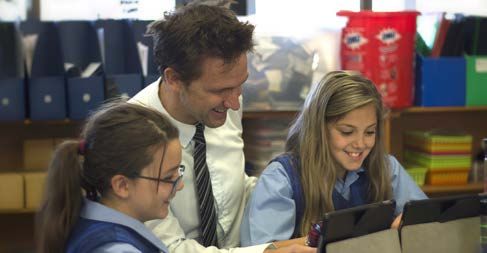
APPLE LAPTOP $1500 - $3000

Apple laptops (Macbooks) are preferred by some students. Mac OS devices generally have
fewer issues with viruses but this does not mean that they are immune. The range of
software is not as broad as Windows devices, most major software is available for Apple
laptops. Apple does not offer any 2-in-1 touch based laptops or stylus options. It is not
recommended to select an Apple laptop for students who have no prior experience with
them, as they may find it difficult adjusting to the different interface. Please be aware that
staff at WCCS are issued with Windows laptops and hence are more equipped to assist
students using a similar type of device.

                                                 4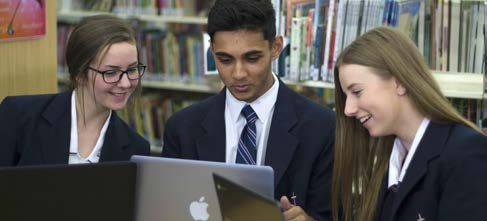
SUITABLE FOR STUDENTS IN
 PRIMARY SCHOOL

The information provided about laptops for High School students also applies to Primary
School students.

Both laptops and tablets are a very suitable choice for your child, and they have contrasting
advantages and disadvantages. Tablets can be smaller, flexible and less expensive. They
are also useful for photography and movie making. However, tablets can sometimes
struggle with platforms that use Flash Player. It is important to note that, if your child is
bringing a tablet to School, they will need a bluetooth keyboard.

Laptops can be more effective for creating documents. They are also better at multitasking,
making research and other tasks easier.

Chromebooks are NOT recommended devices because they are not fully compatible
with the School network.

iPAD $400 - $1200
• Lightweight, "instant-on" device with excellent
    battery life
• Premium brand with good build quality and stability.

iPads are very portable devices that have been designed
specifically with touch interface in mind. This makes them
easy to use, and very familiar to students. Depending on
the model, they can be cost competitive compared to
a laptop, have excellent battery life, and are generally
more compact than a laptop. BYOD requirements mean
a physical keyboard would also need to be purchased,
in the form of a Bluetooth (wireless) or keyboard case.
Higher end units (iPad Pro) also support a stylus. The
Apple Pencil currently provides an excellent digital
drawing experience and may be worth considering for
students doing graphic artwork. The Apple App Store
has a huge range of apps to perform almost any task
needed.

                                            5
ANDROID TABLET $400 - $1200
• A variety of manufacturers give a wide range of
   choice in specs, design and appearance
• Lightweight, "instant-on" device with excellent
   battery life.

Android tablets are similar to iPads in that they are
designed as a touch interface device, therefore will be
easy and familiar to use. Depending on the manufacturer,
some models can be better value than equivalent Apple
iPads. However, as with Windows laptops, the very
cheap models should be avoided as they tend to be of
poor quality with outdated software. The Google Play
Store offers an equally vast range of apps as the Apple
App Store and some Android tablets offer stylus support.

                                             6
STUDENT DEVICE REQUIREMENTS 2019
Minimum and Recommended Specifications for BYOD
Category Minimum Recommended Rationale
Specifications Specifications
Wireless 802.11n 802.11ac Adequate speed to access WCCS Wireless.
Cellular connectivity (i.e. hotspot or active SIM
card in BYO device) is strongly discouraged.
Battery 8+ hours of battery To allow for full workday, battery life will vary
life. depending on usage, this number may not be
accurate for all usage scenarios.
RAM 4GB* 8GB or more *RAM is not relevant to an iPad provided it is
less than 4 years old.
Performance Start-up less than Performance will vary based on device category.
30 seconds. Tablets need to be less than 4 years old.
Storage 32GB or more of Solid State Drive For offline storage of documents and data.
storage. (SSD) Solid State Drives are more reliable and provide
Some form of better performance than traditional hard drives.
external backup of External backup can take the form of a USB hard
data. drive, flash drive or cloud backup.
Screen Size 9.7 inch screen size. 13 inch screen with a A screen size of 13” offers the best compromise
touch screen/stylus between functionality and portability. Larger
interface. units will result in increased weight for transport
purposes.
Additional Physical keyboard. Front and rear facing Physical keyboard provides increased typing
hardware Headphone camera speed and improved ergonomics.
Features connectivity. USB/USB C port. Headphone to listen to videos/podcasts, online
Built in camera. NAPLAN testing.
Headphones. Mic/camera for creation and collaboration using
Microphone. multimedia technologies
Many laptops include a built in microphone
and camera. In the absence of these, there
are headsets available which include both
headphones and microphone in a single unit.
Carry Case Padded bag or Optional: The WCCS uniform bag has a padded laptop
case to transport Ruggedised device pocket that offers the minimum level of
the device to/from (MIL-STD-810), an protection required.
school. additional hard case
or neoprene sleeve.
Security Password to lock Tracking software on Students are responsible for any actions
device. the device in case performed on their device, as such it is in their
of loss. Biometric best interests to ensure no unauthorised activity
security such as can take place by securing the device.
facial recognition,
fingerprint scanner,
iris scanner.
7HEALTHY AND SAFE
USE OF ICT
Technology is very much a key component COMMUNICATION
of learning in the 21st Century. When used Maintain open lines of communication
wisely, it can improve and enrich learning. It within families.
is essential that parents and the School work • Regularly discuss the use of ICT at
in close partnership to promote the health home and at school.
and safety of our children and students as • Develop an ICT use agreement
they use ICT. Training our children in the wise within the household between family
use of technology is not solved with a quick members.
fix. Healthy and safe use of technology is a • Decide on times for school work, times
long term project in building our children’s for entertainment using an electronic
character and wisdom. device and screen free times.
• Discuss how and where ICT can be
Please note that the following comments used (and not) to maintain strong
and links are provided to assist parents relationships.
and carers in this important task. The • Establish common agreed practices
external articles and sites, however, do not for the whole family regarding use
necessarily represent the views of William of technology. These are easiest to
Carey Christian School.
8maintain if established when children • Ensure you plan time away from
are young. Don't wait for problems with screens. Regular breaks from working
technology to arise later as it is harder with digital technology are important
to implement change. As children to remain refreshed. Setting blocks of
grow, agreed practices may need to be time to concentrate on screen-based
modified to be age appropriate while activities broken up by time away
still providing safe and healthy use of from technology has many benefits. It
technology. will improve physical, emotional and
mental health as well as boosting focus.
ESTABLISHING AND MODELLING • Plan to switch off screens well prior
HEALTHY PRACTICES to bedtime. A large body of evidence
• Make the parent/carer an now shows that the blue light from
administrator for the device and set smartphones, tablets and computers
up a profile for your child. Establish that can interfere with the body’s natural
this device is for school work and thus, sleep cycles. Sleep is vital to learning,
as a parent, you can ask to look at work, particularly the consolidation of long
Internet histories and device use at any term memory. It is important that sleep
time. areas are kept separate from work
• Keep screens out of the bedroom. areas.
Establish a common charging area • Model the technology practices that
for smartphones and look for spaces, you want your children to adopt.
where possible, for children to use their Parents/carers have a responsibility to
devices in a common area of the house. understand the long term investment
• Agree on good digital etiquette. It is of building character in our children.
important to relate well with others, Consider how you use technology
both online and face to face. People around your children and practise good
need to feel heard and respected. So digital etiquette.
consider how ICT is used when in a
group, i.e. does ICT build connections RESOURCES
or pull people apart? Filtering software can help in providing
• Minimise distractions. While protective boundaries to children. We utilise
multitasking often gives the individual filtering software at School and recommend
a sense of being effective and active, that families use a suitable form of filtering
the impact is actually detrimental. at home. It is important to understand that
Multitasking or being in a distracting no filtering software will provide complete
environment impairs efficiency in protection. Thus active parental involvement
completing work and impairs short and is vital in keeping children safe.
long term work. Distractions include
mobile phones, social media, games Investigate the parent control services
and television. Even listening to music offered by your Internet Service Provider
uses up some of the brain’s capacity (ISP). This can include filtering of content
to concentrate. Music with lyrics entering your house through the modem
noticeably reduces the brain’s ability to and times when the modem can be
complete work effectively. automatically switched on and off (including
• Physical health. Set up a comfortable remote/online control of your modem).
and healthy workplace to use
technology. Good ergonomics are
important to avoid muscle fatigue or
eye strain. Balance physical activity with
sedentary activity.
9A number of online resources are available to provide parents with help in supporting their
children with healthy and safe technology use:
• http://parenttechguide.com/ Provides parents with help to navigate the challenges
faced by technology and teach our children how to use technology in a way that
honours God. This page is not just for Christians, rather it provides good common
sense advice.
• http://thefrankchat.com/ Designed for educating young people, parents and the
community about the harms of pornography. James Grady, author of 'The Frank Chat'
is a school chaplain and teacher.
•
•
‘
http://parentech.com.au/ Established by the Australian Parents Council to support
parents in the digital age.
https://www.esafety.gov.au/education-resources/iparent Is provided by the
Australian Government Office of the eSafety Commissioner. It provides a wide
range of useful tools and information for parents on identifying online risks and
implementing strategies to maximise online safety. It also reviews multimedia games
and provides tips on adjusting settings to increase privacy.
Students are trained to work with
technology in safe and healthy
ways within a framework of biblical
Christian principles.
10SOFTWARE
In order to facilitate the completion of required tasks, students will need a range of software
installed on their devices.
WCCS email addresses are subscribed to a number of services that allow students to access
a range of included software on their BYOD using those subscriptions.
Subscription Available Software/Service Web Link
G Suite (Google) Google Classroom, Drive, Apps drive.google.com
(Docs, Sheets, Slides)
Office 365 Word, Excel, PowerPoint, Outlook, office.com
(Microsoft) Access, OneNote
Creative Cloud Acrobat, After Effects, Animate, adobe.com
(Adobe) Audition, Captivate, Dreamweaver,
Illustrator, InDesign, Lightroom,
Muse, Photoshop, and Premiere
Tablet devices should have the Google Drive Apps installed including Google Documents,
Google Slides and Google Sheets. Other tools/apps may be requested and/or suggested by
teachers. Students will normally be given several days notice to install apps.
STUDENTS WILL NEED THE FOLLOWING SOFTWARE:
• Web Browser - Much of the content is delivered via web based tools and applications,
students will therefore need an up to date modern browser. Firefox, Chrome, and Edge
are all acceptable options for this.
• Office Suite (Word Processor, Presentation Software) - Microsoft Office (available
for free to students through the School) or Google Docs are the primary office suite
packages used. This includes Word, Excel, PowerPoint and Slides for presentations.
• Multimedia Suite - The full Adobe Suite, which includes Acrobat, After Effects, Animate,
Audition, Captivate, Dreamweaver, Illustrator, InDesign, Lightroom, Muse, Photoshop
and Premiere, is available for students who wish to make use of it. This software is
provided upon request and does not incur an additional cost for the student. Please
be aware that the school does pay a licensing cost for each student, so we encourage
only those who have a specific need for it to request the software. To obtain a
license, students can speak to Mr Hall or Mr Snelson in T12, or any of the IT staff
in J2. Alternatively they can simply email adobe@wccs.nsw.edu.au from their school
account.
• Faculty Specific Software - Where a course requires the use of a specialised application,
the School will provide a recommendation for a suitable application on each platform.
For some specific courses, the School will provide access to specialised and/or expensive
software in a computer lab.
11Can the school help financially?
FREQUENTLY For the phase in period from 2018 to 2020
the School will be providing a one off BYOD
ASKED rebate to the year groups required to bring
a device to school. In 2018 a BYOD rebate
QUESTIONS will be credited to school fees upon the
successful registration of students’ approved
electronic devices onto the WCCS network
(Year 5 - $150, Year 7 - $225, Year 11 - $450).
What about smart phones?
Smart phones do not meet the minimum
specifications for the BYOD program. The
smart phone screen size is below 9.7 inches
and lacks a physical keyboard. Students who
bring smartphones to School will still be
required to meet the acceptable use policy
(in school planners) for mobile phones.
What about protecting the device?
The WCCS school bag has been designed
with a padded protective pocket. This
provides basic physical protection. There
are many protective cases that will provide
Is my child required to bring a portable ICT additional protection. Use of a lightweight
device to school? protective case is recommended.
In 2018, students in Years 5, 7 and 11 will
be required to bring a device that meets As with other equipment, individual students
the minimum specifications. Students in are responsible for their own property at
Prep to Year 2 should not bring a device to School. The School's insurance will not cover
school as we provide these whenever they student devices. Parents are advised to make
are needed. Students in all other years are their own insurance arrangements to cover
allowed and encouraged to bring a device as the possibility of theft, loss or accidental
a voluntary BYOD user. damage to the device. Parents are also
By 2020, all students in Year 5 - 12 will be advised to ensure the device has regularly
updated protection against viruses and
required to bring a device to school.
malware.
Where do I buy a device?
To reduce the risk of loss or theft, devices
To provide families with the opportunity
should be marked or labelled in an indelible
to purchase a device that suits their child’s
manner. Engraving the device is a good
needs and at a competitive price, families
strategy but you will need to ensure this
can select from a wide range of retailers.
does not void warranty. The school strongly
We recommend that a purchase is made
encourages all students to activate some
later in the year when retailers start
form of remote device tracking. All of the
setting competitive prices in the lead up to
mentioned devices offer a built in service
Christmas (note: some schools have used
that does this for free. Instructions on how
purchase portals to streamline purchasing
to enable this for Apple devices can be found
but we have found that they do not always
at:https://support.apple.com/en-au/
provide the best value and can limit the
explore/find-my-iphone-ipad-mac-watch,
choices available). Microsoft offer a similar service for machines
12running Windows 10, with information at by teachers at all times when using ICT at
https://support.microsoft.com/en-au/ School.
help/11579/microsoft-account-find-and-
lock-lost-windows-device, and Android Our School also asks that parents/carers
devices are detailed via https://www. partner with us to provide students with
google.com/android/find. Laptops can ongoing support and training for wise and
also use 3rd party tracking software such healthy use of digital technology. One
as https://lojack.absolute.com/en-au and strategy we will be adopting is the eSMART
https://www.preyproject.com/. Schools Framework. eSMART provides a
prevention and risk management framework
Won’t a device just make my child’s school to schools, helping them better integrate
bag heavier? cyber safety practices and promote the safe
The School is particularly mindful of the use of online technology in their community.
weight of bags, particularly for our younger Our School now has an eSmart Cybersafety
students. We will lighten bags by moving Policy to outline strategies and responses to
to electronic textbooks where possible. issues of cybersafety and cyberbullying.
It is recommended that device weight be
considered when making a purchase as this Will my child be looking at screens all day?
does vary significantly between devices. No. ICT is a tool for learning but it cannot
replace face to face teaching and the
Will the use of the Internet be monitored collaborative interaction between groups
by the School? of students and between students and their
Yes. Currently all devices that access our teachers. Lessons will involve a mixture of
School’s wifi network have their Internet activities that will require students to use
connection filtered and their activity is their devices as well as engage in activities
logged. Parents should be aware that if that don’t involve digital technology.
students access the Internet using their own
3G/4G cellular capable devices, their activity How will my child maintain organised class
is not filtered or logged by the School. notes?
Students will be assisted through training
Will students be able to recharge their to develop good processes for maintaining
devices during the day? notes. Online organisation can be
It is the responsibility of students to ensure administered by the classroom teachers.
their devices are fully charged before the Many digital learning activities will make
start of each school day. A very limited use of Google Classroom, one component
number of charging stations at School will of the Google for Education Suite. Google
be available to students. However, these will Classroom is used by the classroom teachers
not be able to meet the demands of students to help students remain organised.
relying on charging devices at School.
Doesn’t the government supply funding for
Won’t BYOD lead to more distractions and laptops? Can’t the School supply a device?
inappropriate behaviour? The Australian Laptop Funding Scheme
An increase in the use of digital technology ended in June 2013. As a result, this
may cause distractions and lead to funding is no longer available for any school
inappropriate behaviour. Our School wants students. Schools that provide ICT devices to
parents to know that we take both of their students accomplish this by adding the
these matters seriously. Our current policy cost of the devices to the school fees.
requiring students to turn off and put away
devices during lesson breaks will continue.
Students are required to be supervised
13What technical support will the School What expectations are there regarding my
provide? child's online behaviour at school?
The School’s ICT department will provide At the beginning of each year, all students
assistance with connecting devices to the will be required to sign an Acceptable Use
School’s wifi and services. For any issues that Agreement before being permitted to
arise due to faults with the device’s hardware use any information and communication
and software, it is the family’s responsibility technologies (ICT) at School. This can be
to resolve these in a timely manner to viewed in the Student Planners. Safe and
reduce any interruption to student learning. responsible online behaviour is explicitly
Many retailers offer extended support and/ taught in lessons at School and parents/
or warranty. This is an option you may wish carers are requested to reinforce this
to consider when making a purchase. The behaviour at home. Parents/guardians
School is currently developing procedures can view some of the resources used in
to support students waiting on the return of the Cybersafety program at https://www.
a device being repaired. If a device is in for esafety.gov.au/education-resources/
repair, the School will support students over classroom-resources
this time. Procedures are being developed
for this scenario. I have more questions, who do I ask?
If you have further questions, we are keen
What about storage of my child’s work? to hear from you. We cannot guarantee
It is important that students back-up that we have answers to all your questions.
their work on a regular basis. The School’s However, if you would like to contact the
assessment guidelines state that computer School regarding BYOD for Learning send an
failure is not an acceptable excuse for non/ email to byod@wccs.nsw.edu.au. From the
late submission of an assessment task. ICT start of next year the School will be providing
devices do occasionally fail so students need a number of contact points to help students
to ensure they regularly back-up any work and parents as they join BYOD for Learning.
saved on their devices, on an external hard
drive or to the cloud.
14Expect great things from God,
Attempt great things for God.
Bumbera St, Prestons NSW 2170
Phone: (02) 9608 2277 Fax: (02) 9608 2681 Email: admin@wccs.nsw.edu.au
Web: www.wccs.nsw.edu.auYou can also read


