Guía del usuario - Hitachi America, Ltd.
←
→
Page content transcription
If your browser does not render page correctly, please read the page content below
Guía del usuario

               M32N1
Modelo:        Class de 32” (81,28 cm): 80,04 cm Diagonal
               32” Class: 31.51” Diagonal

Numero de serie

FELICIDADES
Gracias por adquirir este producto Hitachi.
Lea detenidamente estas instrucciones.

Para obtener asistencia adicional, comuníquese al 01-800-288-2600 o visite
nuestro sitio Web www.hitachi.us/tv.
Conserve esta guía de usuario para futuras consultas.

Anote el nombre del modelo y el número de serie de la TV LED para
referencia futura. Esta información está ubicada en la parte posterior
del televisor.

                                                                   IB_M32N1_02012018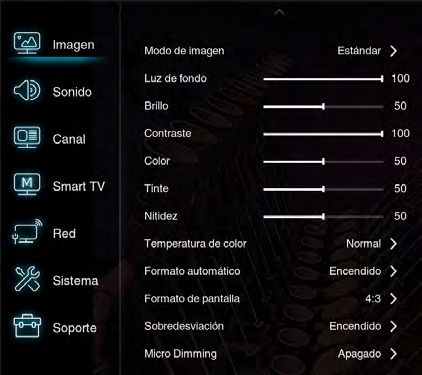
The lightning flash with arrowhead
                                                            symbol, within an equilateral triangle
                                                            is intended to alert the user to the
                                                            presence of uninsulated dangerous
                                                            voltage within the product's enclosure
                                                            that may be of sufficient magnitude to
  CAUTION: TO REDUCE THE RISK OF ELEC-                      constitute a risk of electric shock.
              TRIC SHOCK, DO NOT REMOVE
              COVER (OR BACK). NO USER                      The exclamation point within an
              SERVICEABLE PARTS INSIDE.                     equilateral triangle is intended to
              REFER SERVICING TO QUALIFIED                  alert the user to the presence of
              SERVICE PERSONNEL.                            important operating and maintenance
                                                            (servicing) instructions in the literature
                                                            accompanying the appliance.

  WARNING: TO PREVENT FIRE OR SHOCK HAZARD, do not expose this
           appliance to rain or moisture.
  		 TO PREVENT THE SPREAD OF FIRE, KEEP CANDLES OR OPEN
           FLAMES AWAY FROM THIS PRODUCT AT ALL TIMES.
  CAUTION: TO PREVENT ELECTRIC SHOCK, DO NOT USE THIS TELEVISION’S
           AC PLUG WITH AN EXTENSION CORD, RECEPTACLE OR OTHER
           OUTLET UNLESS THE BLADES CAN BE FULLY INSERTED TO PRE-
           VENT BLADE EXPOSURE.

 Location of the required Marking
 The rating sheet and the safety caution are on the rear of the unit.

EN2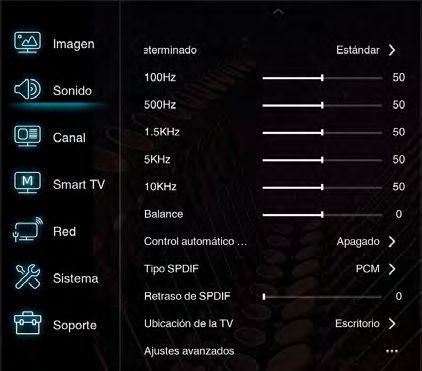
IMPORTANT SAFETY INSTRUCTIONS
1)    Read these instructions.
2)    Keep these instructions.
3)    Heed all warnings.
4)    Follow all instructions.
5)    Do not use this apparatus near water.
6)    Clean only with dry cloth.
7)    Do not block any ventilation openings. Install in accordance with the manufacturer’s
      instructions.
8)    Do not install near any heat sources such as radiators, heat registers, stoves, or other
      apparatus (including amplifiers) that produce heat.
9)    Do not defeat the safety purpose of the polarized or grounding-type plug. A polarized
      plug has two blades with one wider than the other. A grounding type plug has two
      blades and a third grounding prong. The wide blade or the third prong are provided for
      your safety. If the provided plug does not fit into your outlet, consult an electrician for
      replacement of the obsolete outlet.
10)   Protect the power cord from being walked on or pinched particularly at plugs,
      convenience receptacles, and the point where they exit from the apparatus.
11)   Only use attachments/accessories specified by the manufacturer.
12)   Use only with cart, stand, tripod, bracket, or table specified by the
      manufacturer, or sold with the apparatus. When a cart is used, use
      caution when moving the cart/apparatus combination to avoid injury
      from tip-over.
13)   Unplug this apparatus during lightning storms or when unused for long
      periods of time.
14)   Refer all servicing to qualified service personnel. Servicing is required
      when the apparatus has been damaged in any way, such as power-supply cord or
      plug is damaged, liquid has been spilled or objects have fallen into the apparatus, the
      apparatus has been exposed to rain or moisture, does not operate normally, or has
      been dropped.
15)   Apparatus should not be exposed to dripping or splashing, and objects filled with
      liquids, such as vases, should not be placed on the apparatus.
16)   An outside antenna system should not be located in the vicinity of overhead power
      lines or other electric light or power circuits, or where it can fall into such power lines or
      circuits. When installing an outside antenna system, extreme care should be taken to
      keep from touching such power lines or circuits, as contact with them might be fatal.
17)   Do not overload wall outlets and extension cords, as this can result in a risk of fire or
      electric shock.
18)   Do not push objects through any openings in this unit, as they may touch dangerous
      voltage points or short out parts that could result in fire or electric shock. Never spill or
      spray any type of liquid into the unit.
19)   If an outside antenna or cable system is
                                                                   EXAMPLE OF ANTENNA GROUNDING AS PER THE
                                                                           NATIONAL ELECTRICAL CODE

      connected to the unit, be sure the antenna
      or cable system is grounded to provide                                              ANTENNA
                                                                                          LEAD IN WIRE
      some protection against voltage surges                          GROUND
      and built-up static charges, Section 810                          CLAMP            ANTENNA
                                                                                         DISCHARGE UNIT
      of the National Electrical Code, ANSI/                                             (NEC SECTION 810-20)

      NFPA 70, provides information with               ELECTRIC SERVICE
                                                            EQUIPMENT                    GROUNDING CONDUCTORS

      respect to proper grounding of the mast
                                                                                         (NEC SECTION 810-21)
                                                                                       GROUND CLAMPS
      and supporting structure, grounding of the NEC-NATIONAL                          POWER SERVICE GROUNDING
      lead-in wire to an antenna discharge unit, ELECTRICAL CODE                       ELECTRODE SYSTEM
                                                                                       (NEC ART 250, PART H)
      size of grounding conductors, location           S2898A
      of antenna discharge unit, connection to
      grounding electrodes, and requirements for the grounding electrode.

                                                                                                          EN 3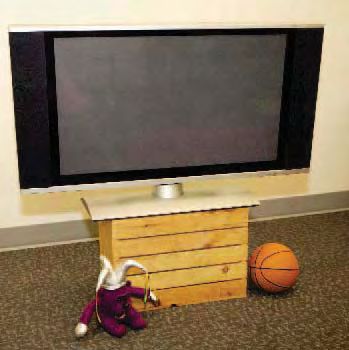
IMPORTANT SAFETY INSTRUCTIONS                                                        (continued)
  20) When replacement parts are required, be sure the service technician uses replacement
      parts specified by the manufacturer or those that have the same characteristics as the
      original part.
      Unauthorized substitutions may result in fire, electric shock or other hazards.
  21) Upon completion of any service or repairs to this unit, ask the service technician to
      perform safety checks to determine that the unit is in proper operating condition.
  22) When you connect the product to other equipment, turn off the power and unplug all of
      the equipment from the wall outlet. Failure to do so may cause an electric shock and
      serious personal injury. Read the owner's manual of the other equipment carefully and
      follow the instructions when making any connections.
  23) Do not allow the product to output distorted sound for an extended period of time. It
      may cause speaker overheating and fire.
  24) This reminder is provided to call the cable TV system installer’s attention to Article 820-
      40 of the NEC that provides guidelines for proper grounding and, in particular, specifies
      that the cable ground shall be connected to the grounding system of the building, as
      close to the point of cable entry as practical.
  25) The mains plug is used as the disconnect and shall remain readily operable.

  CONDENSATION
  Moisture will form in the operating section of the unit if the unit is brought from cool
  surroundings into a warm room or if the temperature of the room rises suddenly. When
  this happens, unit's performance will be impaired. To prevent this, let the unit stand in its
  new surroundings for about an hour before switching it on, or make sure that the room
  temperature rises gradually.
  Condensation may also form during the summer if the unit is exposed to the breeze from an
  air conditioner. In such cases, change the location of the unit.
  HOW TO HANDLE THE LCD PANEL
  • Do not press hard or jolt the LCD panel. It may cause the LCD panel glass to break and
     injury may occur.
  • If the LCD panel is broken, make absolutely sure that you do not touch the liquid in the
     panel. This may cause skin inflammation.
     If the liquid gets in your mouth, immediately gargle and consult with your doctor. Also, if
     the liquid gets in your eyes or touches your skin, consult with your doctor after rinsing for at
     least 15 minutes or longer in clean water.
  Possible Adverse Effects on LCD Panel: If a fixed (non-moving) pattern remains on the
  LCD Panel for long periods of time, the image can become permanently engrained in the
  LCD Panel and cause subtle but permanent ghost images. This type of damage is NOT
  COVERED BY YOUR WARRANTY. Never leave your LCD Panel on for long periods of time
  while it is displaying the following formats or images:
  • Fixed Images, such as stock tickers, video game patterns, TV station logos, and websites.
  • Special Formats that do not use the entire screen. For example, viewing letterbox style
     (16:9) media on a normal (4:3) display (black bars at top and bottom of screen); or viewing
     normal style (4:3) media on a widescreen (16:9) display (black bars on left and right sides
     of screen).
  The following symptoms are not signs of malfunction but technical limitation.
  Therefore we disclaim any responsibility for these symptoms.
  • LCD Panels are manufactured using an extremely high level of precision technology,
    however sometimes parts of the screen may be missing picture elements or have
    luminous spots.
  • Do not install the LCD Panel near electronic equipment that produces electromagnetic
    waves. Some equipment placed too near this unit may cause interference.
  • Effect on infrared devices – There may be interference while using infrared devices such
    as infrared cordless headphones.
EN 4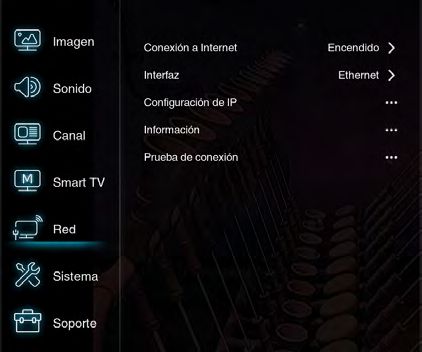
IMPORTANT SAFETY INSTRUCTIONS                                                     (continued)

Power source
This television is designed to operate on 100 - 240 volts 50/60 Hz, AC current. Insert the
power cord into a 100 - 240 volts 50/60 Hz outlet.
To prevent electric shock, do not use the television’s (AC) plug with an extension cord,
receptacle, or other outlet unless the blades can be fully inserted to prevent blade
exposure.
Never connect the television to direct current, or anything other than the specified
voltage.

Warning
To reduce the risk of fire or electric shock, do not expose this apparatus to rain or
moisture.

Caution
Never remove the back cover of the television as this can expose you to very high
voltages and other hazards. If the television does not operate properly, unplug the
television and call your authorized dealer or service center.
Adjust only those controls that are covered in the instructions, as improper changes or
modifications not expressly approved by Hitachi could void the user’s warranty.

                                                                                          EN 5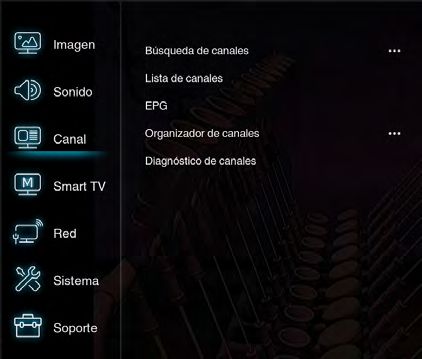
Child Safety Notice

EN 6
SAFETY PRECAUTIONS
The unit emits heat when in operation. Do not place any covers or blankets on the unit, this
may cause overheating. Do not block ventilation holes, or set up near radiators. Do not place
in direct sunlight. When placing on a shelf leave 4 inches (10 cm) free space around the
entire unit.

                                                4 inches
                                                                                   4 inches

                                                                                                   Y(VIDEO)

Securing to a Wall
1 Use metallic
       4 pulgadas
               wire (not provided), clamp (not provided) and screw on the rear of the TV as
   shown below.
2 Keep the TV 4 inches away from the wall, except when mounted using the wall mount
   bracket, and secure to the wall as shown 4 inches
                                            below:

                                Wire
                                                                        Y(VIDEO)

                                                                                      4 inches
                               Clamp
                       Screw

               4 pulgadas                                                              Wire

NOTICE FOR TV CABINET
If the unit is placed on a cabinet smaller than the length of the unit, it could result in instability
and the unit may tumble over, making a risk of personal, possibly fatal injury. Also, this would
seriously damage the product. Accordingly, Hitachi accepts no responsibility or liability for
any injuries or property damage resulting from the improper installation.

                                       YES !!              NO !!

                                                                                                 EN 7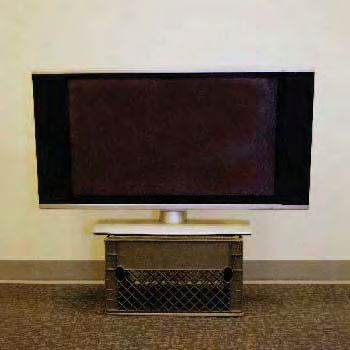
How to attach the stand
  NOTE:
  • Assure the AC cord is not connected to an AC outlet.
  • Before beginning this process, make sure that you have a clean, safe, and cushioned
    space to work at to avoid any damage to the unit.
  • Do not touch or press the LCD screen, the glass might break under pressure.

  1 Carefully place the TV screen face-down on a clean, cushioned surface.

  2 Insert and secure the stands (R and L) with 2 screws (supplied) each side as shown in
  Figure 1.

       Stands

                                                                    Stands

                             Figure 1                                Screws

  • Be sure to follow the above instructions. Insufficient tightening or incorrect installation
    of the stand will not support your TV correctly, and could result in damage or injury from
    tip-over.

  How to remove the stand
  When you transport this product, remove the stand and pack it flat against the back of the
  unit in the carton. To remove the stand, perform the above steps in reverse order.
  When you mount the TV on the wall, remove both stands (R and L). To disconnect the stand
  remove the screws from the bottom of TV.

                                                                  Screws
EN 8
Inputs / Outputs
USB
This input can be used to connect a USB device.
HDMI1 /HDMI2 /HDMI3
The HDMI inputs receives digital audio and video from an HDMI
HDMI 1/2/3 device.
AV IN
This input is used to connect a range of equipment such as DVD
players, or satellite receivers to the AV input. To use the AV input
connect the device’s video output to the TV’s Video input.
AV The AUDIO IN (L & R) input use RCA audio cables to connect the
AUDIO IN audio output for the AV input to the TV.
AUDIO OUT (Fixed)
AUDIO OUT Use a 3.5mm stereo to RCA audio cable to connect your TV to a
compatible audio receiver.
DIGITAL AUDIO OUT: OPTICAL
SPDIF This output can be used to connect a compatible digital audio
receiver.
AIR/CABLE IN
AIR/CABLE This input is used to connect to an external antenna (AIR) or to a
cable (CABLE) output
LAN LAN
The LAN input can be used as an ethernet connectiton.
EN 9Remote control
/I Press to turn the TV’s power on/off.
TV Press to call tuner selection OSD.
SOURCE Calls the input source selection menu.
(Numeric buttons) Use to enter channel numbers.
Use to enter a digital channel with a sub-channel.
Enter the main channel, then press dash ( ), enter the
sub-channel, and then press OK to confirm your entry.
MTS Press to change the audio language.
(Volume UP/DOWN) Increase or decrease the TV’s
volume.
MTS
MUTE (MUTE) Reduces the TV’s volumes to its minimum
level. Press again to restore the volume.
Press to call the SmartTV homepage.
Press to change the channel of the TV.
Press to go to the NETFLIX homepage.
Press to go to the YouTube homepage.
Press to call the main menu OSD or press to return to
the previous menu.
Press to call the ASPECT selection OSD.
OK Press to confirm or select functions for the OSD.
(Cursor Up/Down/Left/Right buttons) Use to navigate
and select menu functions.
Return to the previous channel in TV mode.
Press to exit the OSD.
Press to display information about the TV status.
Press to access the Favorite Channel list.
Press to display the electric program guide.
SLEEP Press to call Sleep timer OSD.
USB Press to go to the Multimedia page.
CH LIST Press to display the Channel List.
Q.MENU Press to call the quick menu OSD.
Color (Red / Green / Yellow / Blue) Special function buttons.
buttons
P.MODE Press to call the Picture preset OSD.
S. MODE Press to call the Sound preset OSD.
EN 10Remote control (continued)
C.C. Press to set Closed Caption to “CC Off”, “On When
Mute” or “CC On”.
(Previous) Press to select the previous chapter
(Stop) Press to stop viewing.
(Play) Press to start viewing.
(Next) Press to select the next chapter.
Press to rewind.
(Pause) Press to pause or resume viewing.
Press to fast forward.
Network Connection
To access the Internet from this TV, you must separately subscribe to high speed broadband Internet
service with your Internet Service Provider.
Your TV is internet-ready and can be connected to your home network in two ways:
• Wired, using the LAN (RJ45) input located on the back of the TV.
• Wireless, using a router capable of broadcasting a high-speed wireless signal.
Caution:
This wireless appliance complies with FCC radiation limits set forth for an uncontrolled environment.
Install and operate with a minimum of 8 inches between it and your body.
Connecting to a wireless network
To connect to a wireless network:
1. Ensure you have: INTERNET
• A router broadcasting a high-speed wireless
signal.
• A high-speed internet connection.
2. Use the Network menu to configure the TV.
Connecting to a wired network
To connect to a wired network:
1. Ensure you have:
• An Ethernet cable long enough to reach your TV.
• A router or modem with an available Ethernet
port.
• A high speed internet connection.
2. Connect your Ethernet cable to the router or
modem and to the LAN port on the back of the
TV.
3. Use the Network menu to configure the TV.
EN 11BATTERY PRECAUTIONS
These precautions should be followed when using batteries.
• Use only the size and type of batteries specified.
• Be sure to follow the correct polarity when installing the batteries as indicated in the
battery compartment. Reversed batteries may cause damage to the device.
• Do not mix different types of batteries together (e.g. Alkaline, Carbon-zinc or
Rechargeable) or old batteries with fresh ones.
• If the device is not to be used for a long period of time, remove the batteries to prevent
damage or injury from possible battery leakage.
• Do not try to recharge batteries not intended to be recharged; they can overheat and
rupture. (Follow battery manufacturer’s directions.)
• Please use caution when inserting batteries to avoid battery damage. If the spring
terminal in the remote control remains in contact with a side of a damaged battery it can
cause a short circuit. Never use damaged batteries as they can become very hot and are
dangerous.
Before using the remote control, batteries must first be installed.
Use two “AAA” size batteries. The batteries may last approximately one year depending
on how much the remote control is used. For best performance, it is recommended that
batteries should be replaced on a yearly basis or when the remote operation becomes
erratic. Do not mix old and new batteries or batteries of different types.
WARNING: The batteries (battery pack or batteries installed) shall not be exposed to
excessive heat such as sunshine, fire or the like.
HOW TO INSTALL BATTERIES
1. Open the battery compartment cover.
2. Install two “AAA” batteries (supplied).
3. IMPORTANT NOTE: Carefully match (+) and (-) indication on
the battery with (+) and (-) inside the battery compartment.
4. Replace the battery compartment cover.
EN 12Antenna connections
If you are using an indoor or outdoor antenna, follow the instructions below that correspond to your
antenna system. If you are using a Cable TV service, see Cable TV connections.
Combination VHF/UHF Antenna (Single 75 ohm cable)
Connect the 75 ohm cable from the combination VHF/UHF antenna to the
Antenna
Jack Antenna Jack.
75 ohm
Coaxial
Cable
Cable TV connections
This TV has an extended tuning range and can tune most cable channels without using a Cable TV
Converter box. Some cable companies offer “premium pay channels” where the signal is scrambled.
Descrambling these signals for normal viewing requires the use of a descrambler device which is
generally provided by the Cable TV company.
For subscribers to basic Cable TV service
For basic Cable TV service not requiring a Converter/Descrambler box,
Antenna connect the 75 ohm Coaxial Cable directly to the Antenna Jack on the back
Jack of the TV.
75 ohm
Coaxial Cable
For subscribers to scrambled Cable TV service
If you subscribe to a Cable TV service which requires the use of a Converter/Descrambler box, connect the
incoming 75 ohm Coaxial Cable to the Converter/Descrambler box. Using another 75 ohm Coaxial Cable, connect
the output jack of the Converter/Descrambler box to the Antenna Jack on the TV. Follow the connections shown
below. Set the TV to the output channel of the Converter/Descrambler box (usually channel 3 or 4) and use the
Converter/Descrambler box to select channels.
Antenna
Antenna Jack
Jack
Incoming 75 ohm cable TV Cable 75 ohm Cable to TV
Converter/
Descrambler
75 ohm
Coaxial Cable
For subscribers to unscrambled Cable TV service with scrambled premium channels
If you subscribe to a Cable TV service in which basic channels are unscrambled and premium channels require
the use of a Converter/Descrambler box, you may wish to use a signal Splitter and an A/B Switch box (available
from the Cable TV company or an electronics supply store). Follow the connections shown below. With the switch
in the “B” position, you can directly tune any non-scrambled channels on your TV. With the switch in the “A” position,
tune your TV to the output of the Converter/Descrambler box (usually channel 3 or 4) and use the Converter/
Descrambler box to tune scrambled channels.
Incoming
Converter/
75 ohm Descrambler Antenna
Antenna Jack
cable tv Jack
Cable 75 ohm Cable to TV
Splitter A/B Switch A
B
75 ohm
Coaxial Cable
EN 13Contents Precautions................................................................................................................................................2 IMPORTANT SAFETY INSTRUCTIONS ���������������������������������������������������������������������������������������������������3 CHILD SAFETY NOTICE ��������������������������������������������������������������������������������������������������������������������������6 SAFETY PRECAUTIONS ������������������������������������������������������������������������������������������������������������������������7 How to attach the stand ���������������������������������������������������������������������������������������������������������������������������8 How to remove the stand �������������������������������������������������������������������������������������������������������������������������8 Inputs / Outputs ����������������������������������������������������������������������������������������������������������������������������������������9 Remote control functions �����������������������������������������������������������������������������������������������������������������������10 Network connection ��������������������������������������������������������������������������������������������������������������������������������11 Battery Precautions ��������������������������������������������������������������������������������������������������������������������������������12 Antenna connections ������������������������������������������������������������������������������������������������������������������������������13 Cable TV connections �����������������������������������������������������������������������������������������������������������������������������13 General operation �����������������������������������������������������������������������������������������������������������������������������������15 Convenience functions ���������������������������������������������������������������������������������������������������������������������������20 Problem & Solutions �������������������������������������������������������������������������������������������������������������������������������25 Reception disturbances ��������������������������������������������������������������������������������������������������������������������������26 Troubleshooting.......................................................................................................................................27 LIMITED WARRANTY ����������������������������������������������������������������������������������������������������������������������������29 Specifications..........................................................................................................................................30 EN 14
General operation

 Using Homepage
 Note: This manual is for common use. Figures and illustrations in this User Manual are provided for reference only
 and may differ from actual product appearance. And for some models, certain options are not available.
 You can select all the features from homepage.
 1. Press       to display homepage.
 2. Press ▲/▼/◄/►to select icons from the screen list.
 3. Press OK to enter each option.
 4. To exit the menu, press EXIT.

 WARNING:
 • Configure the network settings before using Smart TV.
 • Slow responses and/or interruptions may occur, depending on your network conditions.
 • If you experience a problem using an application, please contact the content provider.
 • According to circumstances of the contents provider, an application’s updates or the application itself may be
   discontinued.
 • Depending on your country’s regulations, some applications may have limited service or not be supported.

 Source

 Smart

                                        App Store

 Source
 Displays the source menu OSD.

 Smart
 Display the “Enjoy Music” (Audio only), Sleep timer, World Clock and Sports mode feature menu.

 App Store
 Many useful and entertaining apps. After entering the Apps Store, you will see the recommendations.
 Press ▲/▼/◄/► to select, press OK to enter.

                                                                                                               EN 15
General operation (continued)
Support Video
To watch videos.
Picture
Software update ...
1.Press OK or ► to enter, then press ▲/▼/◄/► to
select the folder, press OK to enter.
Sound
2.Press ▲/▼/◄/► to select your desired file, then
Channel press OK to play.
Smart TV
Music
Network To play music.
1.Press OK or ► to enter, then press ▲/▼ to select the
System
folder, press OK to enter.
Support
2.Press ▲/▼ to select your desired file, then press OK
to play.
1. Press to display the main menu.
2. Press ▲/▼ to select Support, then press OK or ►
to enter the submenu.
Software update
You can update software by USB or by network.
-By USB
Enables you to install the latest version of the software
from your USB ports.
-By network
Enables you to download and install the latest software
version from the Internet. Make sure to set up a wired or
wireless network connection first. Press OK/► to enter.
Follow the on-screen instructions to continue.
USB Function
You can enjoy viewing pictures from your USB storage
device.
Note: Some options may not be unavailable in some models.
How to enter USB mode
1.Connect the USB storage device into the USB Input
terminal.
2.Press USB button to enter USB mode.
3.Select your USB device.
All
To browse picture video or music.
1.Press OK or ► to enter, then press ▲/▼ to select the
folder, press OK to enter.
2.Press ▲/▼ to select your desired file, then press OK
to play.
Picture
To browse pictures.
1.Press OK or ► to enter, then press ▲/▼/◄/► to select
the folder, press OK to enter.
2.Press ▲/▼/◄/► to select your desired file, then press
OK to play.
EN 16General operation (continued)
SPDIF type Network
This option is used to control the type of audio
stream sent to the Digital Audio Output (SPDIF) . Picture
Internet connection On >
Interface Wireless >
Sound
SPDIF delay Wireless settings ...
This option is used to synchronize the sound with the Channel
Information ...
Connection test ...
picture. If the sound is slower/quicker than the action
Smart TV
of the picture, you can press ◄/► to adjust the numerical
value. Network
TV placement System
Selects Desk top or Wall mount mode. Support
Advanced settings
Selects Sound advanced settings.
1. Press to display the main menu.
2. Press ▲/▼ to select Network, then press SELECT or
► to enter the submenu.
Channel
Internet connection
Picture
Channel scan ... Press OK or ► to select On, then you can adjust the
Channel list options below.
Sound EPG
Channel organizer ...
Channel
Channel diagnostics
Smart TV
Network
System
Support
1. Press to display the main menu.
2. Press ▲/▼ to select Channel, then press OK or
► to enter the submenu.
Note: This function is only available in TV mode.
Channel scan
Allows you to scan for all available analog and digital
channels.
Channel List
Shows the Channel list.
EPG
Press OK/► to enter the Program Guide menu.
Channel organizer
This option allows you to skip unwanted channels.
Channel diagnostics (for digital TV channels)
Press OK /► to display some signal information
on the current digital channel, such as Signal strength,
Frequency, etc.
EN 17General operation (continued)
Interface Lock
Press OK or ► to select Ethernet or Wireless. This menu can control the special function for TV
channels. The factory default code is 1234. And
Ethernet the super password is 0423. If you forget your code,
Connects your ethernet cable to the router and to the enter it to override any existing codes.
Ethernet port on the back of the TV.
You can set the rating using age level and genre.
Wireless
Set up a new wireless connection.
Age:
IP settings TV-Y : All children
Sets Address type to Auto, it will acquire and enter the TV-Y7 : 7 years old and above
needed IP address automatically. TV-G : General audience
TV-PG : Parental guidance
Information TV-14 : 14 years old and above
Press OK/► to display the information on current TV-MA : 17 years old and above
connection.
Genre:
Connection test FV : Fantasy Violence
Press OK/► to test the internect connection.
D : Dialogue
L : Language
S : Sex
V : Violence
System
Movie
Picture
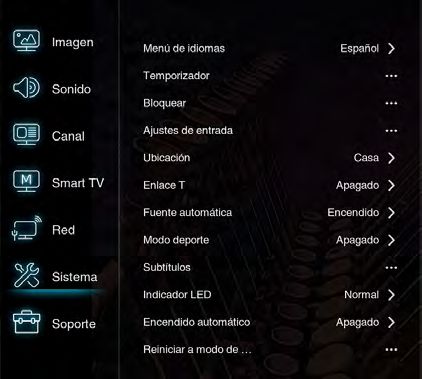
Menu language English >
Off : None
Sound
Timer ...
G : All ages
Lock ...
Input settings ...
PG : parental guidance
Channel
Location Home >
PG-13 : parental guidance less than 13 years old
Smart TV T-Link Off > R : under 17 years old parental guidance
Auto source On > NC-17 : 17 years old and above
Network
Sports mode Off > X : adult only
System Closed caption ...
LED Indicator Normal >
Support Instant power on On >
Input Settings
Reset shop ...
User can select the device name of the input source
here, easy to identify the source.
1. Press to display the main menu. Location
2. Press ▲/▼ to select System, then press OK or ► Selects Home or Shop or Shop with demo depending
to enter the submenu. on your viewing environment.
Menu language T-Link
Chooses the on-screen display language. Use this function to turn on the ARC function and
search for CEC devices connected to the HDMI sockets
Timer
Press OK or ► to enter the submenu. in your TV.
-Time zone
Selects the local time zone. Auto source
-Clock Press OK or ► to select On or Off.
Select on to turn on the Auto synchronization, the TV
will get the time automatically from DTV signals, and Sports mode
the Time item cannot be adjusted. If you select off, Press OK or ► to select On or Off.
you should set the options manually.
Closed caption
-Sleep timer
Many programs are encoded with closed captioning
Sets a period of time after which the TV set goes into
information, which allows you to display the audio portion
standby mode.
of a program as text on the TV screen.
-Auto standby
When Auto Standby is set to your desired time, TV Note: Closed captioning is not available on all channels
and device will be in standby mode at the same time. at all times. Only specific programs are encoded with
closed captioning information.
EN 18General operation (continued)
-CC mode
This option allows you to choose the way closed captioning LED Indicator
information appears on the screen. Press OK or ► to select Flashing, Normal or Off.
· Off -No captioning information displayed.
· On –Chooses this option if you want captioning Instant power on
information to be shown whenever available. Press OK or ► to select On or Off.
· On When Mute – This option allows the closed
Reset shop
captioning to display (when available) whenever the
Restores all system settings to default.
TV’s sound is muted. The captioning information is
not displayed when the sound is not muted.
NOTE:
If text is not available in your viewing area, a black
rectangle may appear on-screen. If this happens,
set the CC mode to “Off”.
When selecting Closed Captions, the captioning will
appear after approx. 10 seconds.
Misspellings or unusual characters may occasionally
appear during Closed Captioning.
This is normal with Closed Captioning, especially with
live programs. This is because during live programs,
captions are also entered live. These transmissions do not
allow time for editing.
When Captions are being displayed, on-screen displays,
such as volume may be seen but may interfere with
Closed Captions.
Some cable systems and copy protection systems may
interfere with the Closed Captioned signal.
If using an indoor antenna or if TV reception is very poor,
the closed caption may not appear or may appear with
strange characters or misspelled words. In this case,
adjust the antenna for better reception or use an outdoor
antenna.
When you have selected “Custom” as the display
method, you can adjust the various setting listed
below.
This feature is designed to customize Digital Caption
only.
You can select from among the following items and
parameters.
Font: Style
Select display font style.
Font Size:
Select display font size.
Font Edge Style.
Select display font edge style.
Font Edge Color:
Select display font edge color.
FG Color:
Select foreground color.
BG Color:
Select background color.
FG Opacity:
Select foreground opacity level.
BG Opacity:
Select background opacity level.
EN 19Convenience functions
You can change the default settings by pressing the MENU button on your remote, then select the one of the icons
at the top of the menu - follow the OSD prompts to set your preferences.
Icon Selected Items Setup hint
Picture
Picture preset
Standard Standard picture quality.
Dynamic Bright and dynamic picture.
Movie Soft edge picture setting.
Natural Soft edge and natual picture setting.
Stadium Soft edge and realistic feeling picture.
Personal Your personal preferences.
Backlight Adjust backlight levels. The closer to 100, the brighter the screen.
Brightness Adjust brightness levels. The closer to 100, the brighter.
Contrast Adjust contrast levels. The closer to 100, the bigger the picture dark-
bright differences.
Saturation Adjust saturation levels. The closer to 100, the stronger the color.
Tint Adjust tint levels. This setting modifies the color tones.
Sharpness Adjust sharpness levels. The closer to 100, the clearer the details.
Color temperature Cool (Bluish) / Normal (Neutral) / Warm (Reddish) / Custom
Auto formate Select auto formate setting.
Off / On
Screen mode Select screen mode setting.
16:9 format / 4:3 format /
Stretch Zoom / Wide Zoom
/ Zoom2
Overscan Select overscan setting.
Off / On
ECO settings Configure energy saving options.
Off / Low/ High
Micro Dimming Change the picture color. Enhances the picture quality of color. by
Off / On analyzing each frame of video to optimize the LED backlight and
video signal in real time.
Advanced settings
Dynamic contrast Use this feature to change the black level automatically according
Off / On to the brightness of an image. The black level will become dark in a
dark scene.
Black stretch Enhance black level and stronger contrast picture.
Off / On
Flesh tone Allows you to adjust skin color without affecting the rest of the
picture.
Off / On
Color extender Selct color management setting.
Off / On
Gamma Select gamma curve setting.
EN 20Convenience functions (continued)
Icon Selected Items Setup hint
Advanced settings
10P White balance Select 0P White balance setting.
Off / On
RGB mode It is able to receive the SMPTE color bar by R/G/B single color
mode for fine-tune of Tint and Saturation.
Off / Red Only /
Green Only / Blue
Only
Game mode Select Game mode.
Off / On
MPEG NR Automatically reduces mosquito noise in the picture without degrad-
ing picture quality.
Off / Low / Middle
/ High
Noise reduction Set the level of decreasing noise included in the video signal.
Off / Low / Middle /
High / Auto
Film mode Select film mode signal (24Hz => 60Hz) process.
Off / On
HDMI mode Select Video mode for general use (i.e. with a STB, BD Player, DVD
Player, or Game Console). Select Graphic mode for use with a PC.
Auto/Video/Graphi
Piture freeze Select picture freeze setting.
Off / On
Picture reset Restore all picture settings to default.
Sound
Sound preset
Standard / Music / Movie / You can choose a basic sound mode to your preference.
Voice / Stadium Personal
100Hz The setting of this item adjusts the audio level of the selected
500Hz frequency.
1.5KHz
5KHz
10KHz
Balance Adjust the left and right sound channel volume.
Auto volume control Volume level is adjusted automatically to lower volume of loud
Off / On scenes and to raise volume of quieter scenes.
SPDIF type Select the format for your digital audio output If you have connected
Off / Auto / PCM an amplifier / Raw / PCM receiver to the digital audio jack on your
TV.
SPDIF delay Set SPDIF delay time.
TV placement Select TV placment.
Desk top / Wall mount
Advanced settings
Audio language When two or more audio languages are included in a digital signal,
you can select one of the audio languages. (This function is availa-
ble only for digital broadcasts.)
Volume Select speaker out.
Off / On
Speaker volume Set volume level.
EN 21Convenience functions (continued)
Icon Selected Items Setup hint
Channel See page 17
Smart TV
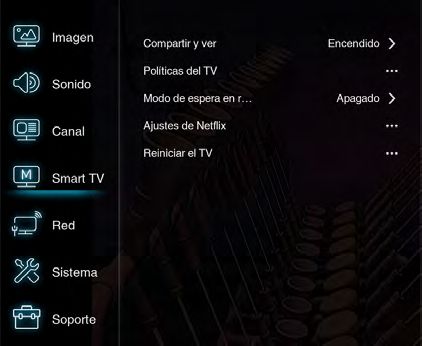
Share&See Share your resource in your PC.
Off / On
Smart TV policy Display smart TV policy.
Networked standby Select Network standby mode.
Off / On
Netflix settings Use this menu for Netflix setup.
Deactivate
ESN
Netflix Version
Reset smart TV Use this menu to reset to factory defalut setting for smart TV.
Network
Internet connection Select Internet connection.
Off / On
Interface Select Internet connection type.
Wireless/Ethernet
Wireless settings
Scan Use this option to scan available wireless network.
Manual Use this option to select a specific wireless channel.
Auto Automatically select an appropriate band for the wireless direct
function.
IP settings Set information manually.
Address type
IP Address
Subnet Mask
Default Gateway
Primary DNS
Secondary DNS
Information Displays your internet connection informaion.
Interface
Address type
IP address
Subnet mask
Default gateway
Primary DNS
Secondary DNS
BSSID
User ID
Connection test
EN 22Convenience functions (continued)
Icon Selected Items Setup hint
System
Menu Language You can choose from two different languages English and Es-
pañol (Spanish) for the OSD (on-screen displays).
English / Español
Select the language you prefer first, then proceed with the other
menu options.
Timer
Time zone Select your local time zone for auto clock feature.
You can select Newfoundland, Atlantic, Eastern, Central, Moun-
tain, Pacific, Alaska, Hawaii and Samoa.
Clock Use the ▲/▼/◀/▶ buttons to set the clock.
• Available only when you selected “Auto synchronization” to
“On”.
Auto synchronization The Auto Clock function will automatically set the built-in clock
Off / On (Year, Month, Day and Time) when the TV is connected to an an-
tenna or cable TV system and it is turned off. As the TV searches
for a receivable station in your area and it receives a broadcast
signal for Auto Clock, the Auto Clock needs several minutes to
set itself.
Date Set date.
Time Set time.
Daylight saving time If you want to activate Daylight Saving Time, select “On”.
Off / On
Power on timer Set power on timer.
Off / Once /
Daily
Timer
Sleep timer Sleep Timer switches the TV to standby after a defined period
Off / 10 / 20 / 30 / 40 / of time.
50 / 60 / 90 / 120 Min To cancel the Sleep Timer, set to “Off”.
Auto standby Select auto standby setting.
Off / 4 / 6 / 8 Hours
Lock
Channel lock See page 18.
Parental rating
Input lock
Front panel lock
Installation lock
Change password
Max volume
Clean all
Input settings The Input settings feature allows you to label each input source
for your TV.
AV / HDMI1 / HDMI2 / HDMI3
EN 23Convenience functions (continued)
Icon Selected Items Setup hint
Location See page 18.
Home / Shop / Shop with
demo
T-Link Set T-link option.
Off / On
Auto source Set auto souce option.
Off / On
Sports mode Set Sports mode option.
Off / On
Closed Caption See page 18.
LED Indicator Set LED indicator option.
Off / Flashing / Normal
Instant power on Set instant power on option.
Reset Use this function to reset TV setting to factory default settings.
Support
Software update See page 16.
EN 24Problem & Solutions
1. Failed to connect to network
- Check if your TV is connected to the network.
- Power Off and On your TV.
- Consult your internet service provider to confirm
if access of your router is supported. Refer to the
operation manual of your router, and activate its DHCP
function after linking the network to your TV.
- Make sure your TV is connected to the router. Check
the router function using your PC. Check to confirm the
name of the router is correct in the TV menu.
2. Videos do not play smoothly.
- Online videos:
a. Examine your network bandwidth, which needs
to be over 1Mbps for online videos, and 2Mbps
for high definition movies and video programs.
We recommend a 2Mbps (or higher) network
bandwidth and network service provided by a major
network operator.
b. Local peak hour of internet may affect the
bandwidth.
c. Check if several computers work together on
the same network at your house, with certain
computers downloading, or playing online video.
d. Make sure your TV is connected to the router. If the
router is connected and powered on, try to change
to a different router and network line, and use your
PC to test the connection.
3. USB hard drives are not recognized when multiple
hard drives are connected.
- We recommend inserting only one hard disk at a time.
Use a low power consumption mobile hard disk.
4. There are no distinct changes to TV interface after
SW updating.
- Most software updates do not change the on-screen
display.
5. What should I do if the TV lost power during the SW
update process?
- SW Update using a USB: Do not remove the USB from
the TV. Leave it inserted and restart your TV to continue
the SW update.
- SW update using the network: Restart your TV and
check if it is functioning correctly.
6. No USB device detected after accessing
Multimedia with a USB device connected
- Your USB device may be damaged or not compatible.
EN 25Reception disturbances
IGNITION NOISE:
Black spots or horizontal streaks may appear, picture may flutter or drift. Usually
caused by interference from automobile ignition systems, neon lamps, electrical
drills, and other electrical appliances.
GHOSTS:
Ghosts are caused by the television signal following two paths. One is the direct
path and the other is reflected from tall buildings, hills or some other objects.
Changing the direction or position of the antenna may improve reception.
Ghosting may also be caused by defects in the antenna system such as
unshielded leads or connecting several sets to the same antenna without using
multiple antenna couplers.
SNOW:
If your receiver is located in the fringe area of a television station where the signal
is weak, your picture may be marred by the appearance of small dots. When
the signal is extremely weak, it may be necessary to install a special antenna to
improve the picture.
RADIO FREQUENCY INTERFERENCE:
The interference produces moving ripples or diagonal streaks, and in some
cases, causes loss of contrast in the picture.
• Keep the television away from Radio.
• Adjust Radio antennas in order for the television not to receive interference.
• The antenna cable of Radio should be kept away from the television.
• Use a coaxial cable for antenna.
• You can check if this television influences Radio receivers by turning off all
other equipment other than the television. If you find a problem receiving Radio
when using the television, check the instructions mentioned above.
BLOCK NOISE or FREEZE (DIGITAL INPUT):
Fuzzy blocks may appear in some area or the whole area of the screen. This is
usually caused by interference from automobile ignition systems, neon lamps,
electrical drills, ghosting of the image and lost or weak receiving signals.
Note:
• The TV set can generate sound distortion in external devices such as a radio. Please separate radio equipment
from the TV set to a considerable distance.
EN 26Troubleshooting
Use the following checklist for troubleshooting if you have problems with your TV. Consult your local dealer or
service outlet if problems persist. Be sure all connections are properly made when using with other units.
SYMPTOMS POSSIBLE SOLUTIONS SYMPTOMS POSSIBLE SOLUTIONS
Digital
• Make sure the power cord is plugged in. broadcasting
TV does not • Try another AC outlet. • Check digital signal strength.
screen
operate. • Power is off, check fuse or circuit breaker. problem.
• Unplug unit for an hour, then plug it back in.
• Check all Cable TV connections.
• Station or Cable TV experiencing problems, No CATV • Set Source menu option to the Cable mode.
tune to another station. reception. • Station or Cable TV system problems, try
Poor sound
• Check sound adjustments (Volume or Mute). another station.
or no sound.
• Check for sources of possible interference.
• Check for audio language setting. Horizontal
• Check antenna connections, adjust or re-
or diagonal
• Station or Cable TV experiencing problems, direct antenna.
bars on
tune to another station. • Check for sources of possible interference.
screen.
• Make sure channels are set into memory.
Poor picture
• Check antenna or Cable TV connections, • Make sure the appropriate Source (Air or
or no picture. No reception
adjust antenna. Cable) has been selected.
• Check for sources of possible interference. above
• If using antenna, check UHF antenna
• Check picture control adjustments. channel 13.
connections.
• Station or Cable TV experiencing problems, • Batteries are weak, dead or inserted incorrectly.
Poor tune to another station. • Remote is out of range, move closer to TV
reception on • Make sure channels are set into memory. (within 15 feet).
some • Station is weak, adjust antenna to receive No Remote
• Make sure Remote is aimed at sensor.
channels. desired station. operation.
• Confirm there are no obstructions between the
• Check for sources of possible interference. Remote and the TV.
• Make sure the power cord is plugged in.
• Station or Cable TV experiencing problems,
tune to another station. • Sleep Timer is set.
• Make sure channels are set into memory. TV shuts off.
Poor color or • Power interrupted.
• Check picture control adjustments.
no color.
• Check antenna or Cable TV connections, • TV station experiencing problems or program
adjust antenna. tuned is not closed captioned. Try another
Closed
• Check for sources of possible interference. channel.
Caption is
• Check Cable TV connection or VHF/UHF
• Station or Cable TV experiencing problems, not activated.
antenna, reposition or rotate antenna.
Picture tune to another station. • Set Closed Caption Decoder in the menu.
wobbles or • Make sure channels are set into memory.
drifts. • Cable TV company is scrambling signal. TV is not
• Adjust antenna. shown in
• Select proper language in the menu options.
your
language.
If the problem cannot be solved with the suggested procedures, contact
01-800-288-2600.
For your safety, never try to repair the product yourself.
EN 27The terms HDMI and HDMI High-Definition Multimedia Interface, and the HDMI Logo are
trademarks or registered trademarks of HDMI Licensing LLC in the United States and other
countries.
Manufactured under license from Dolby Laboratories. Dolby, Dolby Audio and the double-D
symbol are trademarks of Dolby Laboratories.
Internet features require an active internet connection and may require a content
subscription or Pay-Per-View fee.
Netflix is a registered trademark of Netflix, Inc.. Netflix is available in certain countries and
requires a paid subscription. More information at www.Netflix.com
YouTube™ is a trademark of Google Inc.
“Dailymotion” and the “Dailymotion Service” are the property of Dailymotion. Designed with
in Paris, France. See http://www.dailymotion.com/mx for more information.
Crackle® is a registered trademark of Sony Pictures Entertainment Inc.
DEEZER S.A. a French corporation registered under number 511 716 573, with principal
offices located 12 rue d’Athènes 75009 Paris (hereinafter “DEEZER”) offers you access to
the DEEZER website located at www.deezer.com
TuneIn trademarks, service marks and logos (the “TuneIn Trademarks”) used and displayed
on the Service are TuneIn’s registered and unregistered trademarks or service marks.
Connected TV Apps Powered by TCL.
All other trademarks are the property of their respective owners.
Hitachi America, Ltd.
Hitachi America, Ltd.
2420 Fenton Street, Suite 200
Chula Vista, CA 91914-3556
Tel: 800.HITACHI (800.448.2244)
EN28LIMITED WARRANTY
This Limited Warranty offered by Hitachi America, Ltd. (“Hitachi”) and implemented through Warranty
Support LATAM, SA de CV, warrants this Product against failure due to manufacturing defects and covers
parts, components, and labor for a period of 12 months from the original date of purchase under the
following conditions:
HOUSEHOLD
This Limited Warranty is the only guarantee for this Product, and covers residential use only.
COVERAGE
At the discretion of Hitachi, Hitachi will repair, replace, or refund the purchase price of the Product should the
Product fail due to a manufacturing defect during the 12 month period following the date of original purchase.
Any repairs performed under this Limited Warranty may be completed using either new or refurbished parts.
After the warranty period expires, Hitachi assumes no responsibility for any costs incurred for repairs.
For customer service and to validate this warranty call the toll-free phone number:
01-800-288-2600
TO OBTAIN WARRANTY SERVICE
To obtain warranty service, you must first call our customer service center at 01-800-288-2600 for information
on how to obtain warranty service. If the Product qualifies for in-warranty repairs, the product shall be
repaired within a period not exceeding thirty (30 days). Hitachi reserves the right to choose the means to
provide Service. Hitachi requires that you provide this Limited Warranty sealed by the establishment that sold
you the Product along with the original invoice, or a copy of the original invoice.
THIS LIMITED WARRANTY NOT VALID IF:
1. The Product has been used under conditions other than normal or when used for commercial
purposes.
2. The Product has not been operated in accordance with the instruction manual that accompanies it.
3. The Product has been altered or repaired by persons not authorized by Hitachi.
. damage caused by the consumer or by natural disasters.
4. The Product has physical
5. The Product has been damaged by an electrical surge.
6. The Product has been improperly installed.
Unless otherwise provided for by law, this Limited Warranty sets forth the complete expression of the Limited
Warranty provided on this Product by Hitachi.
Model:_ Product:_
Brand: HITACHI _ Serial No.:_
Purchase Date:
Seal
Warranty Support LATAM, S.A. de C.V., Calle Nubes #412, Colonia Jardines del Moral, Leon, GTO C.P. 37160.
TEL. (55) 4774-1310.
EN 29Specifications
Model M32N1
Panel size 32” class 31.51” diagonal (80.04 cm)
Display method Transmission TFT color LED panel
Number of Pixels 1366(H) × 768(V)
Broadcasting US system M
system ATSC standard (8VSB), QAM
Receiving VHF 2-13 • Digital Terrestrial Broadcast(8VSB): 2-69
channels UHF 14-69 • Digital Cable (QAM): 1-135
CATV 14-36 (A)-(W)
37-59 (AA)-(WW)
60-85 (AAA)-(ZZZ)
86-94 (86)-(94)
95-99 (A-5)-(A-1)
100-135 (100)-(135)
01 (4A)
Tuner type Frequency synthesized
Inputs Video: 1.0 V (p-p),75 ohms
Audio: 2Vrms Max.
Composite: 1.0 +/-0.2Vp-p, Input Impedance: 75 ohm
HDMI: HDMI 1.4b compliant, CEC
HDCP compliant
E-EDID compliant
Input Formats: 1080p, 1080i, 720p, 480p, 480i
Antenna: VHF/UHF In 75 ohms coaxial
Wireless Built-in: 802.11 b/g/n 2x2
LAN: RJ45
Outputs SPDIF: Optical
Audio out: 3.5mm Stereo
Audio output power 5.0 W × 5.0 W
Power supply AC 100 ~ 240V, 50/60Hz
Power Operation: 60W
consumption Standby:Memo
EN 31Memo EN32
Memo

       EN 33
El símbolo del rayo dentro de un
PRECAUCIÓN triángulo equilátero tiene por final-
RIESGO DE DESCARGA idad alertar al usuario acerca de
ELECTRICA NO ABRIR
la presencia de tensión peligrosa
(sin aislación) en el interior del pro-
AVISO: PARA REDUCIR EL RIESGO DE ducto, que puede tener la intensidad
DESCARGA ELECTRICA, NO RETIRE suficiente como para constituir un
LA CUBIERTA (O POSTERIOR). EN riesgo de descarga eléctrica.
EL INTERIOR DEL APARATO NO HAY El signo de exclamación dentro
COMPONENTE ALGUNO QUE PRE- de un triángulo equilátero tiene
CISE SERVICIO DE MANTENIMIENTO por finalidad alertar al usuario de
A CARGO DEL USUARIO. SOLICITE
importantes instrucciones de op-
CUALQUIER OPERACION DE MAN-
TENIMIENTO A PERSONAL DE SER- eración y mantenimiento (servicio)
VICIO CALIFICADO. en la literatura que acompaña a
este aparato.
ADVERTENCIA:PARA EVITAR EL RIESGO DE INCENDIO O DESCARGA ELÉCTRICA, NO EX-
PONER ESTE APARATO A LA LLUVIA O HUMEDAD. PARA EVITAR LA PROPA-
GACIÓN DEL FUEGO, MANTENGA LAS VELAS O LLAMAS ABIERTAS LEJOS
DE ESTE PRODUCTO EN TODO MOMENTO.
PRECAUCIÓN: PARA EVITAR DESCARGAS ELÉCTRICAS, NO UTILICE EL ENCHUFE DE
AC DE ESTE TELEVISOR CON UN CABLE DE EXTENSIÓN, RECEPTÁCULO
U OTRA TOMA DE CORRIENTE A MENOS QUE LOS CONDUCTORES SE
PUEDAN INSERTAR COMPLETAMENTE PARA EVITAR LA EXPOSICIÓN DE
LOS CONTACTOS.
Lugar de la marca requerida
La hoja de especificaciones y las precauciones para su seguridad están en la parte trasera
del aparato..
INFORMACION PARA MÉXICO:
La operación de este equipo está sujeta a las siguientes dos condiciones:
1.- Es posible que este equipo o dispositivo no cause interferencia perjudicial y,
2.- Este equipo o dispositivo debe aceptar cualquier interferencia, incluyendo la que pueda
causar su operación no deseada.
ES 2INSTRUCCIONES DE SEGURIDAD IMPORTANTES
1) Lea estas instrucciones.
2) Conserve las instrucciones.
3) Tenga en cuenta todos los avisos.
4) Siga todas las instrucciones.
5) No utilice este aparato cerca del agua.
6) Limpie el equipo con un paño seco.
7) No bloquee las rendijas de ventilación. Instale el equipo según las instrucciones del
fabricante.
8) No lo instale cerca de fuentes de calor, como radiadores, registros de calor, hornos o
demás aparatos (incluidos amplificadores) que produzcan calor.
9) No altere la función de seguridad de la clavija de tipo conexión a tierra. La clavija de tipo
conexión a tierra tiene dos patillas y una tercera patilla de conexión a tierra. La tercera
patilla se incluye para su seguridad. Si la clavija suministrada no encaja en la toma,
póngase en contacto con un electricista para que actualice la toma obsoleta.
10) Proteja el cable de alimentación para que no se pise ni esté retorcido, especialmente en
las clavijas, los receptáculos y el punto por el que sale del aparato.
11) Utilice únicamente los accesorios especificados por el fabricante.
12) Utilice únicamente el carro, mueble, trípode, soporte o mesa
especificado por el fabricante o de venta con el aparato. Si utiliza un
carro, tenga cuidado al mover el aparato para evitar que se caiga y
provoque daños personales.
13) Desenchufe el equipo durante tormentas eléctricas o cuando no lo vaya
a utilizar durante periodos prolongados.
14) Para tareas de mantenimiento, diríjase a personal cualificado. Será necesario recurrir
a tareas de mantenimiento si el aparato sufre daños de cualquier tipo, si el cable de
alimentación o la clavija están dañados, si ha caído líquido u otros objetos en el aparato
o si éste ha sido expuesto a la lluvia o humedad, si no funciona con normalidad o se ha
caído.
15) El aparato no deberá exponerse a objetos que goteen o salpiquen ni a objetos con
líquido, como jarrones.
16) Una antena exterior no deberá ser instalada en la cercanía de líneas de alimentación
aéreas ni de otros circuitos de iluminación eléctrica o potencia, o donde pueda caerse
y hacer contacto con tales líneas o circuitos. Al instalar un sistema de antena exterior,
tenga mucho cuidado de no tocar tales líneas o circuitos de alimentación, ya que el
contacto con ellos podría ser fatal.
17) No sobrecargue los toma corrientes murales ni los cables de extensión, ya que esto
podría causar incendios o descargas eléctricas.
18) Nunca introduzca objetos de ningún tipo por las aberturas de la unidad, ya que podría
tocar peligrosos puntos de alta tensión o piezas de cortocircuito, provocando incendios
o descargas eléctricas. Nunca derrame ni rocíe ningún tipo de líquido sobre la unidad.
ES 3INSTRUCCIONES DE SEGURIDAD IMPORTANTES
(continuación)
19) Si se conecta una antena externa o EXAMPLE OF ANTENNA GROUNDING AS PER THE
sistema de cable a la unidad, cerciórese NATIONAL ELECTRICAL CODE
de que el sistema de antena o cable está
conectado a tierra para darle protección ANTENNA
LEAD IN WIRE
contra sobre tensión y acumulación de GROUND
carga estática. La Sección 810 del Código CLAMP ANTENNA
DISCHARGE UNIT
Nacional de Electricidad, ANSI/NFPA 70, (NEC SECTION 810-20)
entrega información acerca de la manera ELECTRIC SERVICE
EQUIPMENT GROUNDING CONDUCTORS
correcta de conectar a tierra el mástil y (NEC SECTION 810-21)
la estructura soportante, puesta a tierra GROUND CLAMPS
del alambre de entrada a una unidad
POWER SERVICE GROUNDING
NEC-NATIONAL ELECTRODE SYSTEM
ELECTRICAL CODE
de descarga de antena, tamaño de los S2898A
(NEC ART 250, PART H)
conductores de puesta a tierra, ubicación
de la unidad de descarga de la antena, conexión a los electrodos de tierra, y requisitos
para el electrodo de tierra.
20) Cuando sea necesario reemplazar piezas, asegúrese de que el técnico de servicio
emplee las piezas de repuesto especificadas por el fabricante, o piezas que tengan las
mismas características que las piezas originales. Los cambios no autorizados podrán
causar incendios, descargas eléctricas y otros problemas.
21) Al finalizar cualquier servicio de mantenimiento o reparación de esta unidad, solicítele
al técnico que efectúe comprobaciones de seguridad para determinar si la unidad se
encuentra condiciones óptimas de operación.
22) Cuando conecte el producto a otro equipo, desconecte la alimentación y desenchufe
todos los equipos del tomacorriente. Si no lo hace, puede provocar una descarga
eléctrica y heridas graves. Lea cuidadosamente el manual de instrucciones del otro
equipo y respete las instrucciones al hacer las conexiones.
23) No permita que el producto emita un sonido distorsionado durante un periodo de
tiempo prolongado. Puede provocar un calentamiento excesivo del altavoz que resulte
en un incendio.
24) Se ha incluido este recordatorio para llamar la atención de quien instale el sistema TV
cable, con respecto al Artículo 820-40 de la NEC, que entrega directivas de guía para
realizar una conexión adecuada a tierra y, en particular, especifica que el cable de
puesta a tierra debe ser conectado al sistema de conexión a tierra del edificio, lo más
cerca del punto de entrada del cable como sea posible.
25) El cable se utiliza como dispositivo de desconexión y debe permanecer siempre dis-
ponible.
CONDENSACIÓN
Se condensará humedad en el interior del aparato si se lo trae de un lugar fresco a una
habitación caliente o si la temperatura en la habitación sube repentinamente. En este
caso, se verán afectadas las prestaciones del aparato. Para evitarlo, deje el aparato a la
nueva temperatura durante aproximadamente una hora antes de conectarlo, o haga que la
temperatura en la habitación suba gradualmente.
También puede condensarse humedad durante el verano si el aparato está expuesto a una
corriente de aire del acondicionador de aire. En estos casos, cambie el lugar donde está
instalada la unidad.
CÓMO MANEJAR EL LA PANTALLA DE LED
• No presione ni sacuda con fuerza el la pantalla de LED. El cristal del la pantalla de LED
puede romperse y provocar lesiones.
ES 4You can also read


