Building a virtual tour about Uluru and the land with Google VR Tour Creator - University of ...
←
→
Page content transcription
If your browser does not render page correctly, please read the page content below
Building a virtual tour about Uluru and the
land with Google VR Tour Creator
Year level: 7-8
image: screen capture of Google AR/VR Tour Creator, CSER
Summary
In this lesson, students create a 360 educational Google Tour about Uluru
and the Aboriginal peoples who are the traditional owners of the land.
To develop content for their tour, students research Uluru using reputable
information sources to investigate information about its distinctive
landform features and the spiritual, aesthetic and cultural value of the
landform for Aboriginal Peoples. Students explain human causes and
effects of landscape degradation as a result of tourism and explain ways
the landscape has been protected, as well as propose ways that tourism
impact can be further reduced.
Required Resources
Students can create and view 360 tour content on a computer, so
tablet/phone devices are not necessary but add an additional experience.
1. (If using handheld devices) Tablet devices or phones with Google
Expeditions installed (see
https://support.google.com/edu/expeditions/answer/7271183).
Note this is available on iOS or Android. If you do not have enough devices,
students can work in pairs or take turns in small groups. If you have neither Tablet
or Phones available, students can go straight into viewing and creating a Virtual
Tour on a Desktop.
1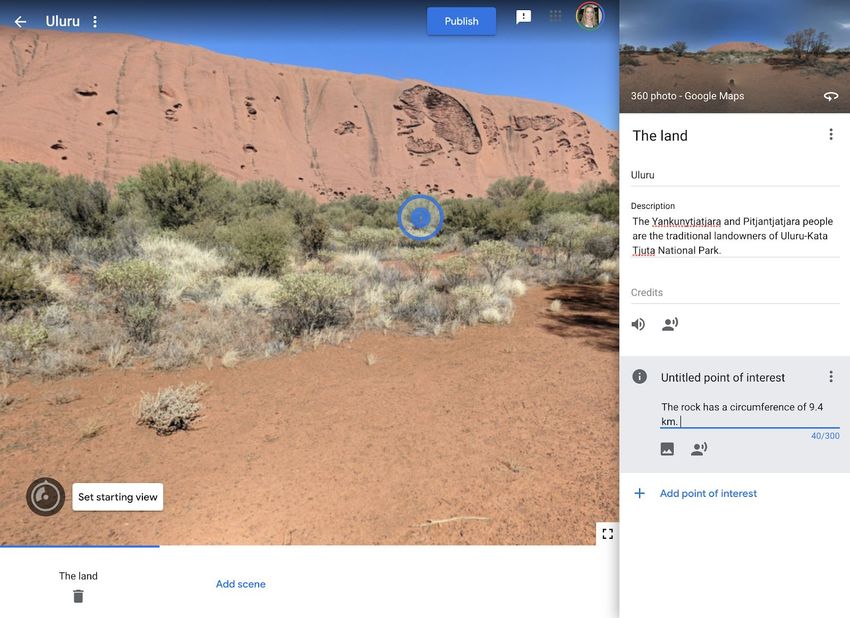
2. Access to the Internet and the AR VR Google Tour Creator platform:
https://arvr.google.com/tourcreator (Please note, this activity platform is
different to Google Earth Tour Builder at https://tourbuilder.withgoogle.com)
Additional Resources
1. This Tour Creator resource is helpful to review before implementing
the lesson:
https://support.google.com/tourcreator/faq/9009839?hl=en
Suggested steps
The following are some suggested steps for implementing the lesson.
1. Explore and Learn: Start by allowing students to experience an
existing Google Tour to understand what it feels like and the type of
experience someone might have. You might like to take your
students on a class tour (e.g.
https://edu.google.com/products/vr-ar/expeditions/?modal_active
=none) or allow them to navigate through one of the “Templates”
available on the Google AR VR Tours website (click on “Get Started”
and go to “Templates”.
2. Research: In groups or individually, students undertake research
about Uluru. Resources should be from credible sources that are
accurate, reliable and current. Students decide on the way they will
curate and collect information (that will be used in their 360
project).
In their research they propose inquiry questions about Uluru, the
landscape and Aboriginal Peoples who own the land to guide their
investigation, such as:
1. What are the dimensions of Uluru? What is it made up of?
How was it formed?
2. Who are the traditional owners of the land? What
significance does Uluru and the surrounding lands have for
2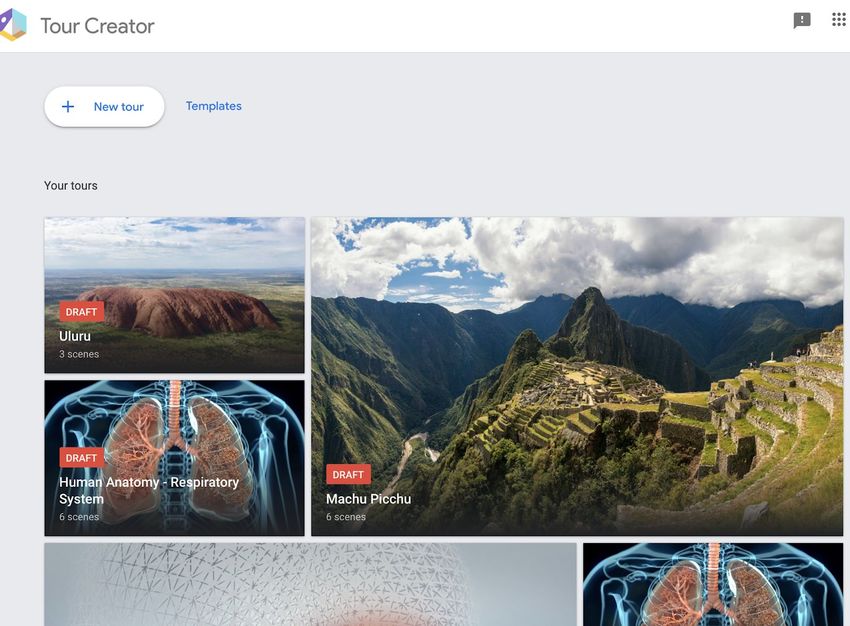
Aboriginal Peoples? What does their extensive knowledge of
the land tell us about Uluru?
3. What are environmental impacts on the land from tourism?
What solutions are in place to reduce impact?
4. What sounds, stories, images represent Uluru?
3. Design: Before creating their project, students decide their key
information points that would be important to include in the
project (e.g. Uluru dimensions, Traditional Landowners,
Sustainability, etc.). The teacher can review student research and
keypoints to provide early feedback.
4. Implement: Students remix and build their 360 project using
Google AR VR Tour Creator at https://arvr.google.com/tourcreator
a. Students start by logging into Google Tours. To start a new
project they click on “ + New Tour”.
Students begin by creating the Opening page of their Tour by selecting a
suitable image, creating a title and description (see below).
Students then add their first scene by going to the location of where their
tour will take place. In the Street View Search, students find Uluru,
Northern Territory, Australia (see below).
3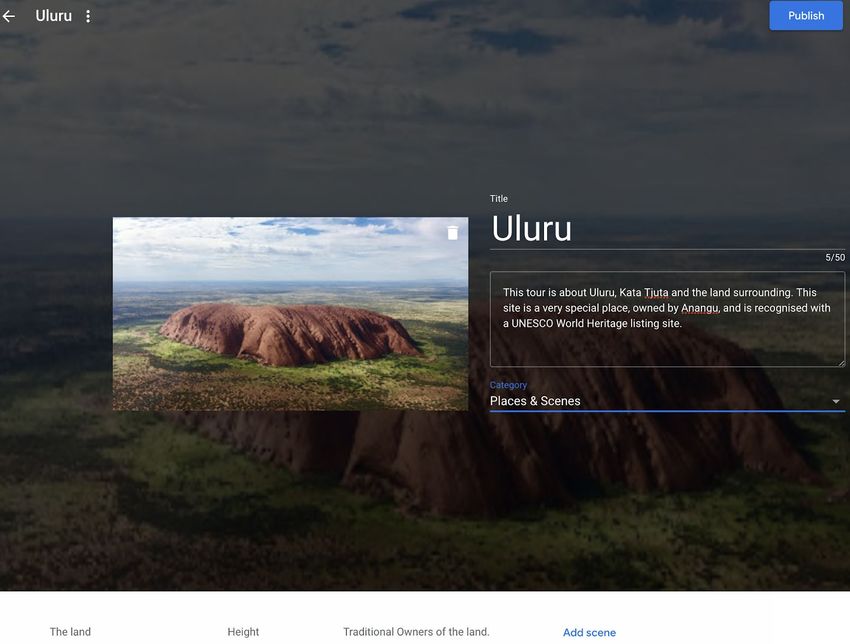
Students are dropped to a particular location, but they can click and hold
down on the Google Pegman (in yellow) and drop them into another
location on the map around Uluru to get a new perspective.
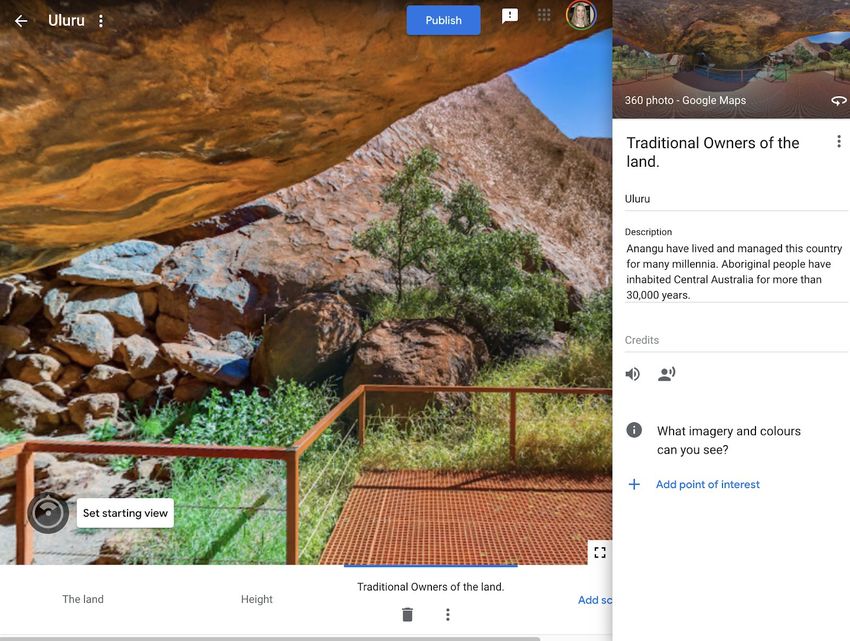
Once students have selected the first location of their scene using the
Pegman, they can add content and points of interest by completing the
online sections (see two examples below). Students can add and delete
points of interest as needed.

                                                                             4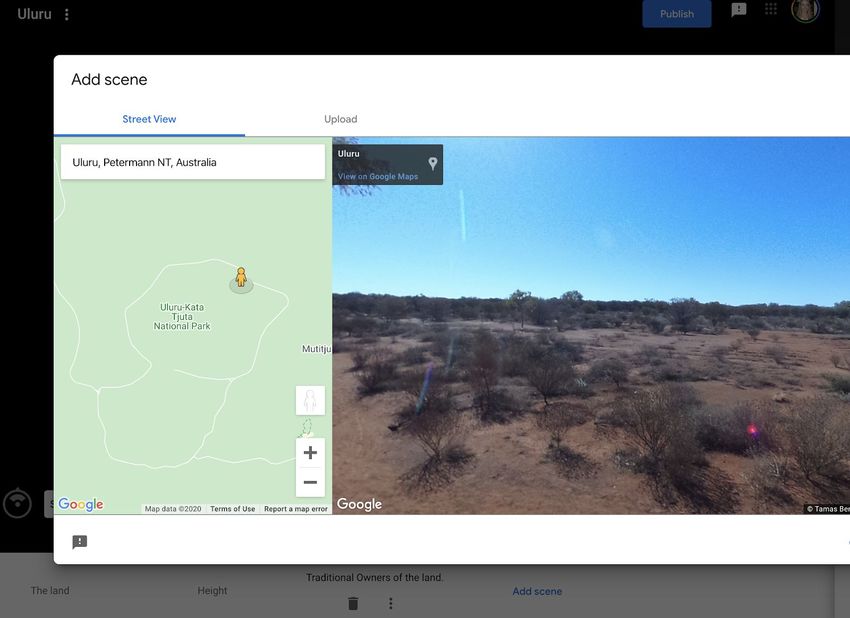
In the image above, you will notice a “sound icon”. Students can add sound
or background sound (e.g. of the environment, or a song) to complement
their tour and engage the user. Students can also add images or sound to
specific points of interest to emphasise key points (see below).
Students can add multiple scenes by clicking on “Add Scene” at the bottom
of the project screen. They can navigate between them until they are
happy with their project.
5. Review: Students swap and review their projects with a critical peer
(or another group if working in teams). Students provide each other
feedback using a rubric or project criteria sheet.
6. Publish and view: Once students have completed their project they
are able to “Publish” their project by clicking in the top right-hand
corner. Students can select to share publicly (appearing on the
Google Poly list) or as an unlisted project. You can publish your tour
to Poly to be viewed by anyone on the web, whether on desktop or
on a mobile device, or in VR using Cardboard (available for Android
and iOS). Look for the VR icon on mobile to view your tour in VR. Or,
you can keep your tour unlisted and share the URL with anyone.
5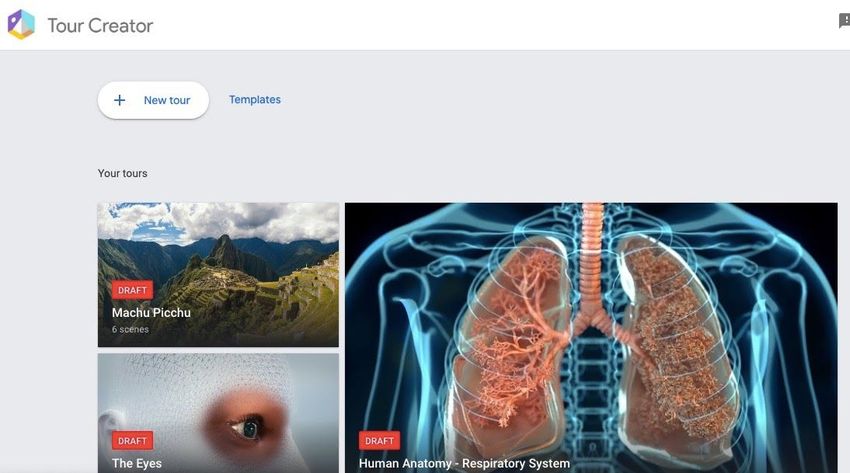
Unlisted tours can only be seen by those with the direct link and
won’t appear in the search results. Public tours are visible to all
users and they'll be easily shareable and viewable. We recommend
publishing as ‘unlisted’ and for students to share with a link.
Discussion
The following are some suggested discussion points throughout:
● How does the 360 experience present the information to the user?
What are the strengths and weaknesses? How does the user
interact with the 360 experience?
● What types of data/information can we present about Uluru and its
place, people and history?
Why is this relevant?
Digital Technologies content: Students experience Augmented Reality (AR)
and Virtual Reality (VR) designed for a particular educational purpose - to
learn about human anatomy. In this project, students design and
implement a virtual reality experience using tools available. In doing so,
students are considering how they can design for the user and
user-interaction and different ways of presenting information using tools
for a particular purpose. Students will evaluate another project, engaging
them in thinking critically about the user’s experience and presentation of
information.
Geography content:
In this lesson students explain interconnections within environments and between people
and places and explain how they change places and environments. They compare
alternative strategies to a geographical challenge, taking into account environmental,
economic and social factors.
Students identify geographically significant questions from observations to frame an inquiry.
They evaluate a range of primary and secondary sources to locate useful and reliable
information and data. They select, record and represent data and the location and
distribution of geographical phenomena in a range of appropriate digital solutions. This
lesson specifically asks students to research and explore Uluru in relation to the ownership,
history, significance and meaning to Aboriginal Peoples.
Assessment
Students research and describe the spiritual, aesthetic and cultural value of
landscapes and landforms of Uluru for Aboriginal Peoples. They also
consider tourism impacts on Uluru, including human causes and effects of
landscape degradation around the national park area and ways it is being
protected and proposed solutions for protecting the landscape long-term.
Indicators Yes/No/Partially Comments
6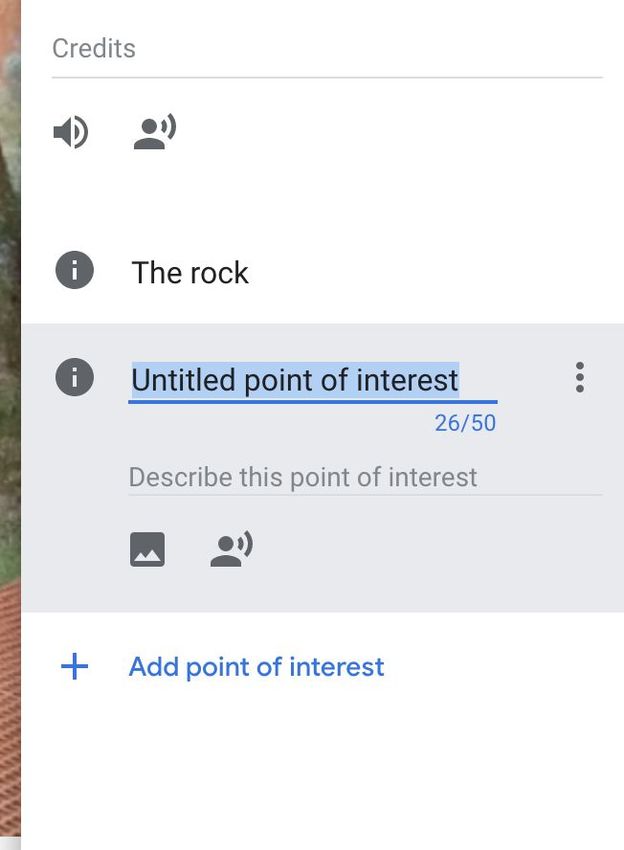
Students explain the spiritual,
 aesthetic and cultural value of
 landscapes and landforms of Uluru
 for Aboriginal Peoples.

 Explain Human causes and effects
 of landscape degradation around
 Uluru and ways of protecting the
 landscape.

 Students present a proposed design
 plan for their project, highlighting
 the user experience with ‘points of
 interest’ and use of media types.

 Students effectively plan and
 manage projects that create and
 communicate ideas and
 information.

 Students use reliable, accurate
 resources to support their virtual
 reality project.

 Students critically evaluate another
 project, describing how the solution
 meet needs the needs and goals of
 communicating information to a
 user.

Curriculum links
Links with the Digital Technologies curriculum area

                                  Strand              Content
Year band                                             description
Years 7-8                         Processes and       Design the user experience of
                                  Production Skills   a digital system, generating,
                                                      evaluating and
                                                      communicating alternative
                                                      designs (ACTDIP028)
Years 7-8                         Processes and       Plan and manage projects
                                  Production Skills   that create and communicate
                                                      ideas and information
                                                      collaboratively online, taking
                                                      safety and social contexts
                                                      into account (ACTDIP032)
Years 7-8                         Processes and       Evaluate how student
                                  Production Skills   solutions and existing
                                                      information systems meet
                                                      needs, are innovative, and
                                                      take account of future risks

                                                                                       7
and sustainability
(ACTDIP031)
ADD Links with other curriculum areas
Learning Content
Year band area description
Year 8 Geographical Different types of landscapes
Knowledge and and their distinctive
Understanding landform features
(ACHGK048)
Spiritual, aesthetic and
cultural value of landscapes
and landforms for people,
including Aboriginal and
Torres Strait Islander Peoples
(ACHGK049)
Human causes and effects of
landscape degradation
(ACHGK051)
Ways of protecting
significant landscapes
(ACHGK052)
Author: Rebecca Vivian
This work is licensed under a Creative Commons Attribution-NonCommercial 4.0
International License. Computer Science Education Research (CSER) Group, The University
of Adelaide.
8You can also read


