Disclaimer: Only Part I & II of the document have been translated in Hindi for easy - understanding of old aged veterans / widows - EX-SERVICEMEN ...
←
→
Page content transcription
If your browser does not render page correctly, please read the page content below
Version 4.0

Disclaimer: Only Part I & II of the document have been translated in Hindi for easy
            understanding of old aged veterans / widows.
2

                                                   - I:       4-10

                                       -2:                     11

-1:                                                           12-15

-2:                                                           16-19

-3:                                                           20-23

-4: 01              1996           31         2003            24-27

-5:         01              1996                              28-31

-6:                                                           32-35

-7: 32 KB औ 64                                                36-37

-8:              2003                                         38-41

- 9: 16 KB              /                                      42

-10:                                    औ                     43-44

                                       - 3:                    45

-1:                                                           46-47

-2:                                                           48-49

-3:                                                           50-52

-4:                                                           53-55

- 5:                                                          56-57

                                               - IV:           58

  - :                              (           )              59-60

  -    :                                                       61

  -     :               /                                      62

  -    :                           (           )              63-65

  - : 16 Kb / 32 Kb                                            66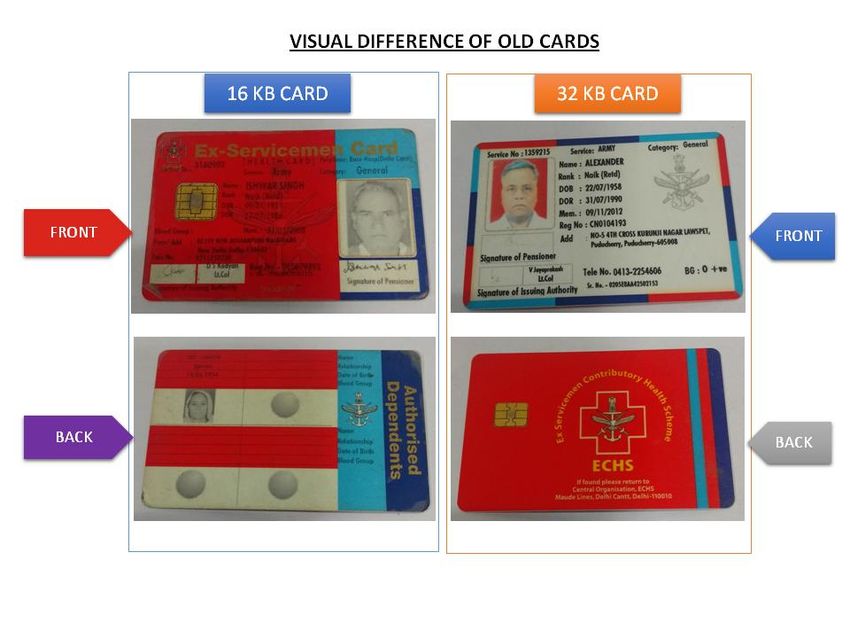
3

    -I
4
1. 2003 (SITL)
27 2004 , 2009
2010 , SITL 2010 2015
अनब
ु ध
ं की समाप्ति के बाद, सक्षम प्राधधकारी ने खल
ु े ननविदा जारी ककए।
2. , 2016
17 2017 औ , ,
19 2017 भ औ भ
भ भ भ भ
3.
( औ )
औ भ
4. :-
(a)
(b) भ
(c) , / ,
भ भ
(d)
भ
(e) 64 भ , ,
,
(f) , , भ /
/ , , /
औ भ
(g) , ( ) भ
/ / भ
5.
:-5
(a) भ
(b)
(c) 16
(d) 32
(e)
6. , औ ( )
भ -
भ भ
7. भ / औ
:-
(a) /
(i)
(ii)
(iii)
(iv)
(b)
(i) https://www.echs.gov.in
(ii) भ
(iii) भ
(iv) , :
(v) Get OTP , OTP भ
(vi) OTP औ
(vii) भ /
8.
(a) 1 1996 01 2003
(i) , / ( )( - )
(ii)6
(b) / 01 2003 ( )
औ , भ
औ
(c) 29 2017 (7 ) :-
Recruit to Havs & equivalent Rs. 30,000/- General
in Navy & AF
Nb Sub/Sub/Sub Maj or Rs. 67,000/- Semi Private
equivalent in Navy & AF
Hony Nb Sub/MACP Nb Sub
and Hony Lt/Capt)
All Officers Rs. 1,20,000/- Private
: ऊ
9.
-
औ -
औ -
: (i) / / NOK भ
(ii) भ
(iii) 01 , 1996 भ भ
(iv) / औ ,
(v) 6 / औ
भ ,
10. -
(a) भ औ / /
भ
(b) ( )/ NoK.
(c)
(d) भ7
: (i) भ
(ii) भ भ भ
(iii) भ
(iv) पूि-व 1 986 सेिाननित्ृ ि होने पर पीपीओ की प्रनिललवप नहीं है िो, जहां पीपीओ संख्या का उल्लेख
ककया गया है उस पें शन बुक के विशेष पष्ृ ठ की प्रनि अपलोड करें ।
(v)
11. -
(a)
(b) ( ) 25 ( )
(c) भ ( ) (18 )
(d) / / / / (
)
(e) 1995 / /भ /
( )
(f) भ , 9000/-
औ
(g) - , भ
(h) औ , , भ
,
(j) भ
: (i)
, औ
(ii)
(iii) भ / (18 )
(iv) भ - / - -
/
(v)
:-
(aa) / / /
(aaa) औ औ8
(aab) ( भ )
(aac) , औ
(aad) औ
(aae) भ औ (
)
(ab)
'
( ) ' 1995
:
(aaa) ; (aab) ; (aac) ; (aad) ; (aae)
; (aaf) ; (aag) ;
,
:
( ) 40%
( )
( )
(k) 18 भ ( )
(l) 18 ऊ ( )
( )
12. भ
भ , भ
, भ
औ9
13. / भ
,
, ,
(i)
(ii) 6
(iii) भ :
(vi) (18 )
औ
14. / / भ भ
,
, / भ
(a) /
(i) / /
(ii) / भ / औ भ
15. औ
/ औ औ ( )
भ औ ,
16. औ / :
(a) / /
(b) / /
(c) भ
(d) भ /
17. औ /
(a) औ -
(b) " / "
(c) /
(d)
(e) ' '10
:
(i) ,
(ii) , औ भ
(iii) / , ,
,
18.
भ
औ
भ भ- भ
भ भ
भ
भ औ
भ भ
19. / / भ
भ :
(a)
(b)
(c) 5
20. 5 -
भ
भ i. . ,
,
( )
,11
-212
-1
- औ -
( )
1. , /
भ
भ
(a)
(i) , , ( ),
, , औ
(ii) औ
(iii)
(iv)
(v) ,
भ औ
भ
(vi) 15 , भ
औ भ ,
औ
(b)
(i) ‘Online Application form for Future retiree’
(ii) औ
(iii) औ
(iv) , - ( )
(v) ( )
(vi) / औ13
(vii) , / , / , ,
, , , ,
(viii) ,
(ix)
(x) ,
औ : भ
(xi) , , औ
(xii)
(xiii) , ‘Add Dependent’
(xiv) / औ
(xv) , भ भ ( ), , ,
, , भ , , ,
, , भ ( ) ), ( )
,
,
(xvi) , 1995
(xvii) भ ,
,
(xviii) भ भ
‘Temporary Save’
(xix) ‘Download Application Form’
भ14
(xx) भ , -
‘I Agree’
(xxi) ‘Proceed for payment’ भ
(xxii) भ भ भ
भ
औ औ
(c)
(i) ( )( औ )
(ii) ( )( )
(d)
(i) भ
177/- ( )
( )
(ii) भ औ
(iii) भ भ
,
(e) .
(i) भ
, भ ( )
(ii)
(iii)
भ15
(f)
(i) भ भ ,
(ii) भ
(iii) औ
:16
-2
- औ –
( )
1. /
भ
(a)
(i) , , ( ),
, , औ
(ii) औ
(iii)
(iv)
(v) ,
भ औ
भ
(vi) 15 , भ
औ भ ,
औ
(b)
(i) ‘Online Application form for Temporary Slip Holder’
(ii)
(iii) औ
(iv) औ
(v) , - ( )17
(vi) ( )
(vii) / औ
(viii) , / , / , ,
, , , ,
(ix) ,
(x)
(xi) ,
औ : भ
(xii) , , औ
(xiii)
(xiv) , ‘Add Dependent’
(xv) / औ
(xvi) , भ भ ( ), , ,
, , भ , , ,
, , भ ( ) ), ( )
,
,
(xvii) , 1995
(xviii) भ ,
,
(xix) भ भ
‘Temporary Save’18
(xx) ‘Download Application Form’
भ
(xxi) भ , -
‘I Agree’
(xxii) ‘Proceed for payment’ भ
(xxiii) भ भ भ
भ
औ औ
(c)
(i)
(ii)
(iii) ( )
(iv) ( )( )
(d)
(i) भ
177/- ( )
( )
(ii) भ औ
(iii) भ भ
,
(e) .
(i) भ
, भ ( )19
(ii)
(iii)
भ
(f)
(i) भ भ ,
(ii) भ
(iii) औ
:20
-3
- औ – 16 / 32
( )
1. 16 / 32 . भ /
भ औ 16 32
16 01 2018 32 KB 64
2020 ,
16 / 32
(a)
(i) , , ( ),
, , औ
(ii) औ
(iii)
(iv)
(v) ,
भ औ
भ
(vi) 15 , भ
औ भ ,
औ
(b)
(i) ‘Online Application form for Old 16 Kb Card
Holder’ ‘Online Application form for Old 32 Kb Card Holder’ ,
(ii)21
(iii) औ
(iv) औ
(v) , - ( )
(vi) ( )
(vii) / औ
(viii) , / , / , ,
, , , ,
(ix) ,
(x)
(xi) ,
औ : भ
(xii) , , औ
(xiii)
(xiv) , ‘Add Dependent’
(xv) / औ
(xvi) , भ भ ( ), , ,
, , भ , , ,
, , भ ( ) ), ( )
,
,
(xvii) , 199522
(xviii) भ ,
,
(xix) भ भ
‘Temporary Save’
(xx) ‘Download Application Form’
भ
(xxi) भ , -
‘I Agree’
(xxii) ‘Proceed for payment’ भ
(xxiii) भ भ भ
भ
औ औ
(c)
(i)
(ii)
(iii) ( )
(iv) ( )( )
(d)
(i) भ
177/- ( )
( )
(ii) भ औ
(iii) भ भ
,23
(e)
(i) भ भ ,
(ii) भ
(iii) औ
:24
-4
- औ -1 1996 31 2003
( )
1. 1 1996 31 2003 ( ). 1 1996 31 2003
भ
, 1 1996 31 2003
भ
(a)
(i) , , ( ),
, , औ
(ii) औ
(iii)
(iv)
(v) ,
भ औ
भ
(vi) 15 , भ
औ भ ,
औ
(b)
(i) ‘Online Application form for 1st Jan 1996 to 31st Mar 2003
Retiree (First Time Applicant)’
(ii) औ
(iii) औ
(iv) , - ( )
(v) ( )25
(vi) / औ
(vii) , / , / , ,
, , , ,
(viii) ,
(ix)
(x) ,
औ : भ
(xi) , , औ
(xii)
(xiii) , ‘Add Dependent’
(xiv) / औ
(xv) , भ भ ( ), , ,
, , भ , , ,
, , भ ( ) ), ( )
,
,
(xvi) , 1995
(xvii) भ ,
,
(xviii) भ भ
‘Temporary Save’26
(xix) ‘Download Application Form’
भ
(xx) भ , -
‘I Agree’
(xxi) ‘Proceed for payment’ भ
(xxii) भ भ भ
भ
औ औ
(xxiii) ( )
भ
:-
Recruit to Havs & equivalent Rs. 30,000/- General
in Navy & AF
Nb Sub/Sub/Sub Maj or Rs. 67,000/- Semi Private
equivalent in Navy & AF
Hony Nb Sub/MACP Nb Sub
and Hony Lt/Capt)
All Officers Rs. 1,20,000/- Private
: (i) / / NOK भ
(ii) भ
(iii) 01 , 1996 भ भ
(c)
(i) ( औ )
(ii) - / ( )
(iii)
(iv) ( )
(v) ( )( )27
(d)
(i) भ
177/- ( )
( )
(ii) भ औ
(iii) भ भ
,
(e)
(i)
औ ,
(ii) भ
, भ ( )
(iii)
(iv)
भ
(f)
(i) भ भ ,
(ii) भ
(iii) औ
:28
-5
- औ -1 1996
( )
1. 1 1996 ( ).
1 1996 भ
, 1 1996
भ
(a)
(i) , , ( ),
, , औ
(ii) औ
(iii)
(iv)
(v) ,
भ औ
भ
(vi) 15 , भ
औ भ ,
औ
(b)
(i) - ‘Online Application form for Pre 1st Jan 1996
(First Time Applicant)’
(ii) औ
(iii) औ
(iv) , - ( )
(v) ( )29
(vi) / औ
(vii) , / , / , ,
, , , ,
(viii) ,
(ix)
(x) ,
औ : भ
(xi) , , औ
(xii)
(xiii) , ‘Add Dependent’
(xiv) / औ
(xv) , भ भ ( ), , ,
, , भ , , ,
, , भ ( ) ), ( )
,
,
(xvi) , 1995
(xvii) भ ,
,
(xviii) भ भ
‘Temporary Save’30
(xix) ‘Download Application Form’
भ
(xx) भ , -
‘I Agree’
(xxi) ‘Proceed for payment’ भ
(xxii) भ भ भ
भ
औ औ
(c)
(i) - / ( )
(ii)
(iii) ( )
(iv) ( )( )
(d)
(i) भ
177/- ( )
( )
(ii) भ औ
(iii) भ भ
,
(e)
(i)
औ ,31
(ii) भ
, भ ( )
(iii)
(iv)
भ
(f)
(i) भ भ ,
(ii) भ
(iii) औ
:32
-6
- औ -
( )
1. . भ ,
भ
(a)
(i) , , , (
), , , औ
(ii) औ
(iii)
(iv)
(v) ,
भ औ
भ
(vi) 15 , भ
औ भ ,
औ
(b)
(i) - ‘Online Application form for Death Cases when in Service’
(ii) औ
(iii) औ भ
(iv) - ( ) ,33
(v) , ( )
(vi) / औ
(vii) , / , ,
, , , , औ (
)
(viii) ,
(ix)
(x) ,
औ : भ
(xi) , , औ
(xii)
(xiii) , ‘Add Dependent’
(xiv) / औ
(xv) , भ भ ( ), , ,
, , भ , , ,
, , भ ( ) ), ( )
,
,
(xvi) , 1995
(xvii) भ ,
,34
(xviii) भ भ
‘Temporary Save’
(xix) ‘Download Application Form’
भ
(xx) भ , -
‘I Agree’
(xxi) ‘Proceed for payment’ भ
(xxii) भ भ भ
भ
औ औ
(c)
(i) ( )( )
(ii) ( )
(d)
(i) भ
177/- ( )
( )
(ii) भ औ
(iii) भ भ
,
(e)
(i) भ
, भ ( )35
(ii)
(iii)
भ
(f)
(i) भ भ ,
(ii) भ
(iii) औ
:36
-7
- औ 32 औ 64
( )
32
1. औ 16 64
, 32 भ ,
2. भ औ -II -3
भ
3. , /
4. औ ,भ
भ
5. औ
6. भ
7. , भ , भ
64 भ , भ
, ,भ औ भ 64
64KB
1. भ भ
2. औ LOSS OF CARD.37
3.
औ
4. ,
,
भ ; , भ
, भ भ
औ ( ),
5.
औ38
-8
- औ - 2003
( )
1. 2003 ( ).
2003 औ
, ,
' 2003 भ '
(a)
(i) , , ( ),
, , औ
(ii) औ
(iii)
(iv)
(v) ,
भ औ
भ
(vi) 15 , भ
औ भ ,
औ
(b)
(i) ‘Online Application form for Post Apr 2003 Not a member yet’
(ii) औ
(iii) औ
(iv) , - ( )39
(v) ( )
(vi) / औ
(vii) , / , / , ,
, , , , औ
भ
(viii) ,
(ix)
(x) ,
औ : भ
(xi) , , औ
(xii)
(xiii) , ‘Add Dependent’
(xiv) / औ
(xv) , भ भ ( ), , ,
, , भ , , ,
, , भ ( ) ), ( )
,
,
(xvi) , 1995
(xvii) भ ,
,40
(xviii) भ भ
‘Temporary Save’
(xix) ‘Download Application Form’
भ
(xx) भ , -
‘I Agree’
(xxi) ‘Proceed for payment’ भ
(xxii) भ भ भ
भ
औ औ
(c)
(i)
(ii) ( )
(ii) ( )( )
(iii) ( औ ) (
)
(d)
(i) भ
177/- ( )
( )
(ii) भ औ
(iii) भ भ
,
(e)41
(i)
औ ,
(ii) भ
, भ ( )
(iii)
(iv)
भ
(f)
(i) भ भ ,
(ii) भ
(iii) औ
:42
-9
16 KB /
- औ
( )
16KB /
1. औ 16 64
, भ , 16 ,
2. भ औ -II
- 2 औ 16 -II -3 ,
भ
3. ,
4. , औ
5. 5. भ
/43
-10
औ
1. भ भ
, भ
भ :-
(a) भ
भ
(b) भ
(c) भ
(d) भ /
2. .
:-
(i) , औ
(ii) औ भ - III -4
(iii) भ
(iv) भ
(v) भ / भ
/ भ
(vi) भ भ ,
(vii) भ भ
(viii) भ , , भ
(ix) भ भ / /44
3. भ ,
4.
(i) ,
(ii) भ
(iii) भ
5. . भ
भ 32 64 , ,
, औ ,
औ45 Part-III
46

                                          CHAPTER - 1

   GUIDELINES & INSTRUCTIONS TO ECHS FUNCTIONARIES – CENTRAL ORGANISATION ECHS

1.   Verification of ECHS application form at Central Org ECHS for White Card and Special
Cases like Marital Discord.

     (a)    Insert Access Key Token/Digital Signature into the system. Instruction for obtaining
     Digital Signature, registration and activation are enumerated at Para 2 below.

     (b)   Run the Client Utility from the desktop.

     (c)   Open the online application on website http://www.echs.gov.in then click on the tab
     Online Smart Card Application – Central Organisation.

     (d)   Enter Pin for your Token.

     (e)   Enter User Password.

     (f)   Click on login to ECHS button.

     (g)   List of pending application will appear on the screen.

     (h)   Select application based on the application number and click on verify button to
     proceed to verify.

     (j)   Check-list will appear on the screen, Cross the details on the checklist not matching the
     records office data.

     (k)   Enter Remarks if any in the remarks Text Box.

     (l)   Once all records are compared and incorrect ones are crossed, click on “Verify
     Records” button to proceed. The system will now send a SMS as well as an email to applicant
     based on what has been done in verification.

     (m) If you have selected “All Data Correct” – the applicant will get a SMS that the
     application has been approved by Central Org.

     (n)    If you have selected “Edit Application Required” – the applicant will get a SMS as well
     as and an email that the application has not been approved and the Applicant needs to edit
     details as mentioned in the email. The user can then login onto application portal and edit
     details as required.

     (o)   If you have selected “Require Records Clarification” – the applicant will get SMS as well
     as an email that the application has not been approved and clarification is awaited from
     Records. Records can Login and view list of clarifications asked by Central Org and write a
     remark as response.

     (p)    Central Org can click on “Follow-up Details” Menu Option on Top of page to display list
     of details of all responses pertaining to follow-up action done by Applicant or Records.

     (q)    Records can click on “Queries from Central Org” Menu Option on Top of page to
     display list of details of all queries raised by Records and provide remarks and clarification on
     the same.
47
2. Instructions for Process of Enrolment of Digital Signature Token.
(a) Director (Medical) and Joint Director (Medical) are authorised persons for Digitally
Signing verification of data for online application for White Cards. In case Central Org already
hold Class 3 Digital Signature Token they need to be registered as per instructions listed
below.
(b) In case Central Org ECHS is not having Digital Signature Token then two tokens one
each for Dir (Medical) and Jt Dir (Medical) has to be obtained from approved Certifying
Authority (CA).
(c) The CA should be approved by CCA India and are listed on NIC web site. For more
information on Digital Signature and how to obtain it visit http://www.cca.gov.in. For List of
approved CCAs you can visit http://www.cca.gov.in/cca/?q=licensed_ca.html.
(d) The Digital Signature has to be Class 3 which can be used for Encryption and Signing.
(e) Once the token is received please write a mail to diritechs-mod@nic.in & copy to
jditechs-mod@nic.in requesting for enrollment from official email ID only, requests received
from personal email will not be entertained.
(f) A form for enrollment of Digital Signature will be forwarded on the official mail ID.
Scanned copy of duly completed form is required to be forwarded to Central Org which
after verification at Central Org will be forwarded to Smart Card making agency for
issue of login credentials.
(g) A link will be sent on office email ID by Smart Card Making agency for enrollment along
with required credentials to login. Click on the link sent on your email Login and follow the
instructions to enroll your token. Install the ECHS Client sent along with the email on your
system.
(h) You should have latest browser installed as old browsers and Internet Explorer are
not supported as they lack basic security protocols. Edge, Chrome, Firefox and Safari are
supported browsers.
(j) Insert your Digital Signature Token into your computer and install the driver which came
along with it. Once the Driver is installed and the ECHS Token Client is installed launch a
supported Browser and paste the link sent on your email in the address bar. A Login Page will
open. Enter your credentials as sent on your email. Once logged in click on Enroll Token
Option.
(k) A screen will appear prompting for Token Pin. Enter the Token pin as provided by your
CA along with the Digital Signature Token. Once a correct pin is entered the system will
display all certificates available on the Token. Select the Certificate provided by your CA
which you want to use for signing, enter login and other credentials and click on Enroll. If the
certificate meets the required condition the Digital Signature Certificate and all details are
entered correctly the Digital Signature and User will be enrolled.
(l) Once enrolled visit the website http://www.echs.gov.in then click on the tab Online
Smart Card Application – Central Organisation. Login with credentials you have entered
during enrollment and proceed. Now follow instructions for Central Organization Application
Usage.
(m) In case of any query / problems write to diritechs-mod@nic.in & copy to
jditechs-mod@nic.in or call on Toll Free number 1800 114 115.48
CHAPTER - 2
GUIDELINES & INSTRUCTIONS TO ECHS FUNCTIONARIES – RECORD OFFICE
1. Verifying ECHS Application Form at Record Offices.
(a) Insert Access Key Token/Digital Signature into the system. Instruction for obtaining
Digital Signature, Registration and Activation are enumerated at Para 2 below.
(b) Run the Client Utility from the desktop.
(c) Open the online application on website http://www.echs.gov.in then click on the tab
Online Smart Card Application – Record Office.
(d) Enter Pin for your Token.
(e) Enter User Password.
(f) Click on login to ECHS button.
(g) List of pending application will appear on the screen.
(h) Select application based on the application number and click on verify button to
proceed to verify.
(j) Check-list will appear on the screen, Cross the details on the checklist not matching the
records office data.
(k) Enter Remarks if any in the remarks Text Box.
(l) Once all records are compared and incorrect ones are crossed, click on “Verify
Records” button to proceed. The system will now send email to applicant based on what has
been done in verification.
(m) If you have selected “All Data Correct” – the applicant will get a SMS that the
application has been approved by Records.
(n) If you have selected “Edit Application Required” – the applicant will get a SMS as well
as and an email that the application has not been approved and the Applicant needs to edit
details as mentioned in the email. The user can then login onto application portal and edit
details as required.
(o) If you have selected “Require Central Org Clarification” – the applicant will get SMS as
well as an email that the application has not been approved and clarification is awaited from
Central Org. Central Org can Login and view list of clarifications asked by Records and write a
remark as response.
(p) Records can click on “Follow-up Details” Menu Option on Top of page to display list of
details of all responses pertaining to follow-up action done by Applicant or Central Org.
(q) Records can click on “Queries from Central Org” Menu Option on Top of page to
display list of details of all queries raised by Central Org and provide remarks and clarification
on the same.49
2. Instructions for Process of Enrolment of Digital Signature Token.
(a) Each Record Officer should nominate at least two authorised persons for Digitally
Signed Verification of data on the online application form. In case the Record Office already
holds Class 3 Digital Signature Token they need to be registered as per instructions listed
below.
(b) In case the Record Office is not having Digital Signature Token then two tokens has to
be obtained from approved Certifying Authority (CA).
(c) The CA should be approved by CCA India and are listed on NIC web site. For more
information on Digital Signature and how to obtain it visit http://www.cca.gov.in. For List of
approved CCAs you can visit http://www.cca.gov.in/cca/?q=licensed_ca.html.
(d) The Digital Signature has to be Class 3 which can be used for Encryption and Signing.
(e) Once the token is received please write a mail to diritechs-mod@nic.in & copy to
jditechs-mod@nic.in requesting for enrollment from official email ID only, requests received
from personal email will not be entertained.
(f) A form for enrollment of Digital Signature will be forwarded on the official mail ID.
Scanned copy of duly completed form is required to be forwarded to Central Org which
after verification at Central Org will be forwarded to Smart Card making agency for
issue of login credentials.
(g) A link will be sent on office email ID by Smart Card Making agency for enrollment along
with required credentials to login. Click on the link sent on your email Login and follow the
instructions to enroll your token. Install the ECHS Client sent along with the email on your
system.
(h) You should have latest browser installed as old browsers and Internet Explorer are
not supported as they lack basic security protocols. Edge, Chrome, Firefox and Safari are
supported browsers.
(j) Insert your Digital Signature Token into your computer and install the driver which came
along with it. Once the Driver is installed and the ECHS Token Client is installed launch a
supported Browser and paste the link sent on your email in the address bar. A Login Page will
open. Enter your credentials as sent on your email. Once logged in click on Enroll Token
Option.
(k) A screen will appear prompting for Token Pin. Enter the Token pin as provided by your
CA along with the Digital Signature Token. Once a correct pin is entered the system will
display all certificates available on the Token. Select the Certificate provided by your CA
which you want to use for signing, enter login and other credentials and click on Enroll. If the
certificate meets the required condition the Digital Signature Certificate and all details are
entered correctly the Digital Signature and User will be enrolled.
(l) Once enrolled visit the website http://www.echs.gov.in then click on the tab Online
Smart Card Application – Central Organisation. Login with credentials you have entered
during enrollment and proceed. Now follow instructions for Central Organization Application
Usage.
(m) In case of any query / problems write to diritechs-mod@nic.in & copy to
jditechs-mod@nic.in or call on Toll Free number 1800 114 115.50
CHAPTER - 3
GUIDELINES & INSTRUCTIONS TO ECHS FUNCTIONARIES – REGIONAL CENTRE
1. Guidelines For Verifying ECHS Application Form, Receipt and Despatch of Smart Cards.
(a) Insert Access Key Token/Digital Signature into the system. Instruction for obtaining
Digital Signature, Registration and Activation are enumerated at Para 2 below.
(b) Run the Client Utility from the desktop. Open the online application on website
http://www.echs.gov.in then click on the tab Online Smart Card Application – Regional Centre.
Enter ECHS Access Key Token Password. Enter User Password. Click on Login to ECHS
button.
(c) List of Option will appear on the screen.
(i) Verify Application – Marital Discord or Any Special Case.
(aa) Click on Verify Application for application verification.
(ab) List of application will appear on the screen.
(ac) Select application based on the application number and click on verify
button to proceed to verify.
(ad) Check-list will appear on the screen, tick the details on the checklist
matching the records office data.
(ae) Application will be verified if all the details matches with the records office
data.
(af) In-case the data is not matched the system will generate automatic
remarks.
(ag) Click on verify button to save the details.
(ii) RC Package Receipt.
(aa) Click on RC Package Receipt Entry for entering the details of the cards
received.
(ab) An Entry form will appear.
(ac) Select tracking id from the dropdown list. List of all packets will be loaded
Station HQs wise based on the tracking id.
(ad) Enter remarks if any.
(ae) Tick the checkbox if the packet is received.
(af) Click on Save Button to save the details.
(ag) Click on cancel button to close the form.51
(iii) Despatch to Stn HQ.
(aa) Click on Despatch Card to Stn HQ icon to open the entry form for
despatch entry.
(ab) Enter internal docket number.
(ac) Select Station Headquarter from the drop down list.
(ad) Attach scanned copy of the docket document.
(ae) All the cards related to the selected station headquarter will be loaded into
the form.
(af) Click on save button to save the details.
(ag) Click on cancel button to close the form.
2. Instructions for Process of Enrolment of Digital Signature Token.
(a) Director (Regional Centre) and Joint Director (Est) are authorised persons for Digitally
Signing verification of data for online application and for receipt and despatch of Smart Cards
respectively. In case Regional Centres already hold Class 3 Digital Signature Token they need
to be registered as per instructions listed below.
(b) In case Regional Centre ECHS is not having Digital Signature Token then two tokens
one each for Dir (RC) and Jt Dir (Est) has to be obtained from approved Certifying Authority
(CA).
(c) The CA should be approved by CCA India and are listed on NIC web site. For more
information on Digital Signature and how to obtain it visit http://www.cca.gov.in. For List of
approved CCAs you can visit http://www.cca.gov.in/cca/?q=licensed_ca.html.
(d) The Digital Signature has to be Class 3 which can be used for Encryption and Signing.
(e) Once the token is received please write a mail to diritechs-mod@nic.in & copy to
jditechs-mod@nic.in requesting for enrollment from official email ID only, requests received
from personal email will not be entertained.
(f) A form for enrollment of Digital Signature will be forwarded on the official mail ID.
Scanned copy of duly completed form is required to be forwarded to Central Org which
after verification at Central Org will be forwarded to Smart Card making agency for
issue of login credentials.
(g) A link will be sent on office email ID by Smart Card Making agency for enrollment along
with required credentials to login. Click on the link sent on your email Login and follow the
instructions to enroll your token. Install the ECHS Client sent along with the email on your
system.
(h) You should have latest browser installed as old browsers and Internet Explorer are
not supported as they lack basic security protocols. Edge, Chrome, Firefox and Safari are
supported browsers.
(j) Insert your Digital Signature Token into your computer and install the driver which came
along with it. Once the Driver is installed and the ECHS Token Client is installed launch a52 supported Browser and paste the link sent on your email in the address bar. A Login Page will open. Enter your credentials as sent on your email. Once logged in click on Enroll Token Option. (k) A screen will appear prompting for Token Pin. Enter the Token pin as provided by your CA along with the Digital Signature Token. Once a correct pin is entered the system will display all certificates available on the Token. Select the Certificate provided by your CA which you want to use for signing, enter login and other credentials and click on Enroll. If the certificate meets the required condition the Digital Signature Certificate and all details are entered correctly the Digital Signature and User will be enrolled. (l) Once enrolled visit the website http://www.echs.gov.in then click on the tab Online Smart Card Application – Central Organisation. Login with credentials you have entered during enrollment and proceed. Now follow instructions for Central Organization Application Usage. (m) In case of any query / problems write to diritechs-mod@nic.in & copy to jditechs-mod@nic.in or call on Toll Free number 1800 114 115.
53

                                            CHAPTER - 4

     GUIDELINES & INSTRUCTIONS TO ECHS FUNCTIONARIES – STATION HEADQUARTERS

1.     Guidelines for Verifying ECHS Application Form

       (a)    Insert Access Key Token/Digital Signature into the system. Instruction for obtaining
       Digital Signature, Registration and Activation are enumerated at Para 2 below.

       (b)     Run the Client Utility from the desktop. Open the online application on website
       http://www.echs.gov.in then click on the tab Online Smart Card Application – Station HQ.
       Enter ECHS Access Key Token Password. Enter User Password. Click on Login to ECHS
       button.

       (c)   List of Option will appear on the screen.

             (i)    Verify Application – For Dependent Brother / Sister, Marital Discord or Any
                    Special Case

                    (aa)   Click on Verify Application for application verification.

                    (ab)   List of application will appear on the screen.

                    (ac) Select application based on the application number and click on verify
                    button to proceed to verify.

                    (ad) Check-list will appear on the screen, tick the details on the checklist
                    matching the records office data.

                    (ae) Application will be verified if all the details matches with the records office
                    data.

                    (af) In-case the data is not matched the system will generate automatic
                    remarks.

                    (ag)   Click on verify button to save the details.

             (ii)   Station HQ Card Receipt

                    (aa) Click on Package Receipt Entry for entering the details of the cards
                    received.

                    (ab)   An Entry form will appear.

                    (ac) Select tracking id from the dropdown list. List of all card will be loaded
                    based on the tracking id.

                    (ad)   Enter remarks if any.

                    (ae)   Tick the checkbox if the card is received.

                    (af)   Click on Save Button to save the details.

                    (ag)   Click on cancel button to close the form.
54
(iii) Station HQ Card Handing Over
(aa) Click on card handing over icon to open the entry form for handing over
the cards to the beneficiary.
(ab) Enter card number of the beneficiary who comes to receive the cards.
(ac) All the cards related to the beneficiary will be loaded into the form.
(ad) Tick the checkbox to select the card.
(ae) Click on save button to save the details.
(af) Obtain signature of each beneficiary in the register while handing over the
Smart card.
(ag) All previous cards / temporary slips will be withdrawn prior to handing
over new cards and records to be maintained. All old cards / slips will be later
on destroyed under BOO.
2. Instructions for Process of Enrolment of Digital Signature Token.
(a) SO ECHS, Station Headquarter is authorised person for Digitally Signing verification of
data for online application and for receipt and despatch of Smart Cards. In case Regional
Centres already hold Class 3 Digital Signature Token they need to be registered as per
instructions listed below.
(b) In case SO ECHS, Station Headquarter is not having Digital Signature Token then one
token for has to be obtained from approved Certifying Authority (CA).
(c) The CA should be approved by CCA India and are listed on NIC web site. For more
information on Digital Signature and how to obtain it visit http://www.cca.gov.in. For List of
approved CCAs you can visit http://www.cca.gov.in/cca/?q=licensed_ca.html.
(d) The Digital Signature has to be Class 3 which can be used for Encryption and Signing.
(e) Once the token is received please write a mail to diritechs-mod@nic.in & copy to
jditechs-mod@nic.in requesting for enrollment from official email ID only, requests received
from personal email will not be entertained.
(f) A form for enrollment of Digital Signature will be forwarded on the official mail ID.
Scanned copy of duly completed form is required to be forwarded to Central Org which
after verification at Central Org will be forwarded to Smart Card making agency for
issue of login credentials.
(g) A link will be sent on office email ID by Smart Card Making agency for enrollment along
with required credentials to login. Click on the link sent on your email Login and follow the
instructions to enroll your token. Install the ECHS Client sent along with the email on your
system.
(h) You should have latest browser installed as old browsers and Internet Explorer are
not supported as they lack basic security protocols. Edge, Chrome, Firefox and Safari are
supported browsers.
(j) Insert your Digital Signature Token into your computer and install the driver which came
along with it. Once the Driver is installed and the ECHS Token Client is installed launch a55 supported Browser and paste the link sent on your email in the address bar. A Login Page will open. Enter your credentials as sent on your email. Once logged in click on Enroll Token Option. (k) A screen will appear prompting for Token Pin. Enter the Token pin as provided by your CA along with the Digital Signature Token. Once a correct pin is entered the system will display all certificates available on the Token. Select the Certificate provided by your CA which you want to use for signing, enter login and other credentials and click on Enroll. If the certificate meets the required condition the Digital Signature Certificate and all details are entered correctly the Digital Signature and User will be enrolled. (l) Once enrolled visit the website http://www.echs.gov.in then click on the tab Online Smart Card Application – Central Organisation. Login with credentials you have entered during enrollment and proceed. Now follow instructions for Central Organization Application Usage. (m) In case of any query / problems write to diritechs-mod@nic.in & copy to jditechs-mod@nic.in or call on Toll Free number 1800 114 115.
56

                                           CHAPTER - 5

           GUIDELINES & INSTRUCTIONS TO ECHS FUNCTIONARIES – POLYCLINIC

1.   Change of mobile number of Primary Beneficiary / ESM

     (a)   Open the online application on website http://www.echs.gov.in then click on the tab
     Online Smart Card Application – Polyclinic.

     (b)     Enter User ID, User Password and Click on login button.

     (c)     Select Change Mobile No Requests from Menu.

     (d)     A list of all requests for change of mobile number will appear in next window.

     (e)     Click on the Action button for ESM approaching for change of mobile number.

     (f)     A new window with all details of the ESM along with photo will appear on the screen.

     (g)     Verify details with Smart Card.

     (h)    Enter new mobile number, re-enter new mobile number, click on Get OTP, enter OTP
     received on ESMs new mobile number, click on Submit button.

     (j)   A confirmation message will appear on screen along with a confirmation SMS on new
     mobile number of ESM.

2.   Requests for Change of Parent Polyclinic

     (a)   Open the online application on website http://www.echs.gov.in then click on the tab
     Online Smart Card Application – Polyclinic.

     (b)     Enter User ID, User Password and Click on login button.

     (c)    Select Requests for Change of Parent Polyclinic from Menu, here two sub menus
     will appear (i) Request for Transfer Out (ii) Request for Transfer In.

     (d)     Select sub menu Request for Transfer Out, all requests made by ECHS beneficiaries
     will be listed here. Click on name to approve the request. On approval the request will move
     to the New Polyclinic for which the beneficiary has applied.

     (e)    Select sub menu Request for Transfer In, all requests approved by Old Polyclinics as
     per the requests made by ECHS beneficiaries will be listed here. Click on name to approve
     the request.

3.   Unblocking of Smart Cards of Children above 18 years of age.

     (a)   Open the online application on website http://www.echs.gov.in then click on the tab
     Online Smart Card Application – Polyclinic.

     (b)     Enter User ID, User Password and Click on login button.

     (c)     Select Unblock Smart Card from Menu.
57 (d) A list of all requests for unblocking of Smart Card for children above 18 years will appear in next window. (e) Click on the Action button for beneficiary approaching for unblocking of card. (f) A new window with all details of the beneficiary along with photo will appear on the screen. (g) Verify details of beneficiary with Smart Card. (h) Click on button Unblock Card after ascertaining the eligibility of the beneficiary. (j) A confirmation message will appear on screen along with a confirmation SMS on beneficiary mobile number.
58

 - IV
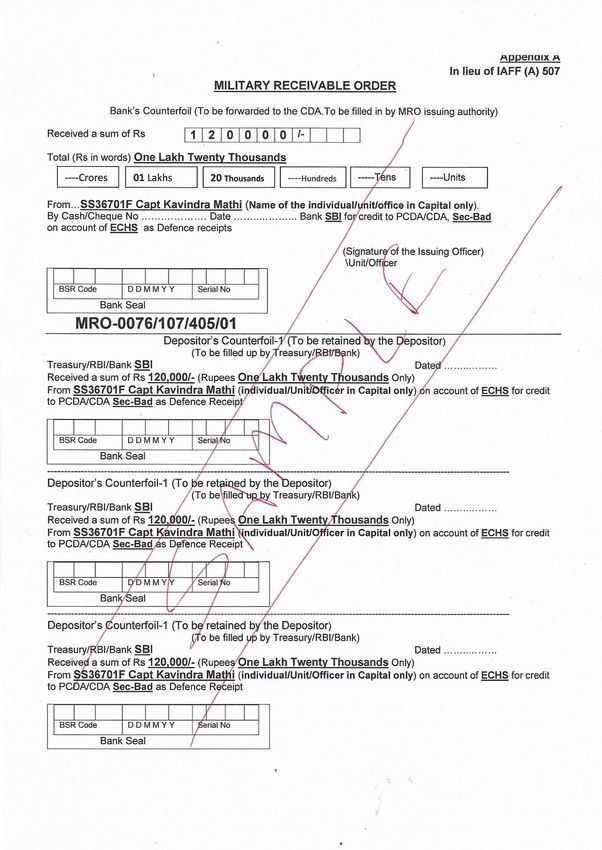
59
                                                                                                                                                               A
                                                                                                                                   in lieu of IAFF (A) 507
                                                     MILITARY RECEIVABLE ORDER
                                                Bank’s Counterfoil (To be forwarded to the CDA)
                                                   (To be filled in by MRO issuing authority)
Received a sum of Rs
Total (Rs in words)

  ----- Crores             ------ lakhs            --- thousands               ---- hundreds              ------ Tens            ------ units
                                                                                                                                 ens
From ………………………………..………………………………. (name of the individual/unit/office)
By Cash/Cheque No ………… Date ……….. Bank ……… for credit to PCDA/CDA ………………..
……………………………………… on account of ………………………………. as Defence receipts
                                                                                           (Signature of the Issuing Officer)
                                                                                                                 Unit/Officer
  BSR Code                        DDMMYY                     Serial No

                                Bank Seal
--------------------------------------------------------------------------------------------------------------------------- ------------------------------------
                                          Depositor’s Counterfoil-1 (To be retained by the Depositor)
                                                       (To be filled up by Treasury/RBI/Bank)

Treasury/RBI/Bank …………………                                                         Dated …..…………
Received a sum of Rs ……………….……………..(Rupees ……………….…………………. Only)from ……………….
(individual/Unit/Officer) on account of …………………….. for credit to PCDA/CDA……………… as Defence Receipt

   BSR Code                        DDMMYY                      Serial No

                                 Bank Seal
----------------------------------------------------------------------------------------------------------------------------- ------------------------------------
                                          Depositor’s Counterfoil-2 (To be forwarded to PCDA/CDA)
                                                       (To be filled up by Treasury/RBI/Bank)
                                                                                                                                   Dated ..………
Treasury/RBI/Bank …………………
Received a sum of Rs ……………….…………….. (Rupees ……………….…………………. Only) from………….….
(individual/Unit/Officer) on account of …………………….. for credit to PCDA/CDA ………………………… as Defence
Receipt

   BSR Code                        DDMMYY                     Serial No

                                 Bank Seal
--------------------------------------------------------------------------------------------------------------------------- -------------------------------------
                                   Depositor’s Counterfoil-3 (To be retained by Stn HQ/Regional Centre)
                                                       (To be filled up by Treasury/RBI/Bank)
                                                                                                                                   Dated ..………
Treasury/RBI/Bank …………………
Received a sum of Rs ……………….…………….. (Rupees ……………….…………………. Only) from………….…..
(individual/Unit/Officer) on account of …………………….. for credit to PCDA/CDA ………………………… as Defence
Receipt

  BSR Code                        DDMMYY                     Serial No

                                Bank Seal
60
61

                         CERTIFICATE FOR PERSON WITH DISABILITY

Name & Address of the Institute/Hospital issuing the Certificate

Certificate No …………………                     Date ……………….                 Recent     photograph
                                                                        showing the Disability
                                                                        Affixed here to be
                                                                        attested by concerned
                                                                        specialist

                                                         Signature/ Thumb Impression of Patient

1.    This is to certify that Shri / Smt / Kum ________________________ Age ____________ yr
Son/Daughter/Wife/         Widow           of       No        _______________________             Rank
___________________________________ Name ______________________ Registration No
_____________________              dated        _________________________              PPO            NO
____________________________________ dated _______________________ is a case of
_______________________________________ with onset of disability at ____________ yrs of age.

2.    He / She is physically / mentally/ visually / speech / hearing disabled and has __________ %
(____________________ percentage), disability of permanent / temporary nature.

3.    This condition is progressive/non-progressive and is likely to improve/not likely to improve.

4.    Re-assessment is not recommended/is recommended after a period of ______ Months/ Years.

5.    He is above to / unable to earn his living.

Signature & Stamp of                                           Signature and Stamp of
Specialist                                                     President Medical Board

                                           COUNTERSIGNED

                          Commandant/CO/Head of Hospital (with Seal)
62
DPDO/BANKER’S CERTIFICATE
Certified the following:
Ser. No ….….……………. Rank …….……….Name………………………………………………………
Pension Account No ………………………………………………………. of this Bank is drawing
Pension as follows:
(a) Uncommuted Basic Pension Rs. ………………………………………..
(b) Dearness Pension Rs. ……………………………………….
(50% of Basic Pension)
(c) DA Rs. ………………………………………
Rs. ……………………………………...
His Pension Payment Order No .is……………………………….……………………………………………
Fixed Medical Allowance has been stopped w.e.f. (date) ………………………………………………….
(Authority for discontinuation of FMA. CGDA New Delhi Circular No. 5601/AT-P/Paytt
dated 17 Jun 05 and GOI, MOD letter No. 2 (a) / 01/ US(WE)/D (Res) dated 30 Dec 2002)
Date ________________________ PDA/Bank manger/i/c DPDO
(With Official Stamp)63
INSTRUCTIONS FOR MILITARY RECEIVABLE ORDER (MRO)
Controller General of Defence Accounts (CGDA) has nominated the following Army Principal
Controllers of Defence Accounts (PCsDA)/ Controllers of Defence Accounts (CsDA) for accounting
the contribution made in their areas of jurisdiction.
Ser Regional Polyclinic under jurisdiction of Regional Centres Name to be
No Centre Entered in
MRO Army
PCDA CDA
Bakloh, Akhnoor, Baramulla, Baribrahmna, Doda,
Jammu, Junglot(Kathua), Leh, Pathankot, Poonch,
Rajouri, Samba, Shahpur, Srnagar, Talwara, Uchi PCDA (NC)
1. Jammu
Bassi, Udhampur, Nagrota (Gujroo),Yol, Mandi, Jammu
Chamba, Palampur, Kullu, Deragopipur,Kanabal
Delhi Cantt (BHDC), New Delhi (Lodhi Road), Gurgaon,
PCDA (WC)
2. Delhi West Shakurbasti, Nuh, Gurgaon(Sohan Road), Khanpur
Chandigarh
Noida, Timarpur, Faridabad,
PCDA (WC)
3. Delhi East Ghaziabad(Hindon),Greater Noida, Palwal
Chandigarh
Chandigarh, Chandimandir, Ropar, Sarkaghat, Mohali,
Ludhiana, Jagraon, Sangrur, Patiala, Fatehgarh Sahib,
PCDA (WC)
4. Chandimandir Samana, Nabha, Barnala, Nawansahar, Shimla,
Chandigarh
Rampur
Alwar, Behror, Hindaun City(Dist Karauli),
Mahendragarh, Narnaul, Rewari, Dharuhera, Bharatpur,
PCDA (SWC)
5. Jaipur Bhuwana, Chirawa, Dausa, Jaipur, jhunjhunu, Nim Ka
Jaipur
Thana, Sikar, Vidhyadhar Nagar(Sanganer), Kota
South Pune(Lohegaon), Sindhudurg, Panaji, Sholapur,
Ahmednagar, Beel, Latur, Osmanabad, Saugor, Karad,
Kolhpur, pune, Orai, Jhansi, Morena, Gwalior, Bhind, PCDA (SC)
6. Pune
Miraj (Sangli), Khadki (Pune), Buldana, jalgaon, Dhule, Pune
Devlali, Bhopal, Amravati, Akola
Akbarpur Matti (Kanpur Dehat), Unnao, Barabanki,
Hardoi, Lakhimpur(UP), Lucknow, Raebareli, Etawah,
Fatehgarh, Kanpur, Agra, Mainpuri, Etah, Barilly,
PCDA (CC)
7. Lucknow Badaun, Sarsawa, Mathura, Meerut, Aligarh,
Lucknow
Muzaffarnagar, Baghpat, Shahjanpur, Moradabad,
Hathras, Bijnore, Bulandshshir, Firozabad, Rampur
Ara, Danapur(Patna), Darbhanga, khagaria,
Madhubani, Motihari, Munger, Muzaffarpur,
8. Patna CDA Patna
Samastipur, Sitamarhi, Siwan, Chhapra, Vaishali,
Bhagalpur, Gaya, Sasaram, Buxar
Bilashpur, Raigarh, Indore, Mhow, Jabalpur, Satna,
9. Jabalpur CDA Jabalpur
Raipur, Rewa, Jagdalpur,Pachmarhi64
Guntur, Secunderbad, Chittor, Giddalur, Golconda,
Ananthapur, Cudapah, Eluru, Golconda, Karimnagar,
CDA
10. Hyderbad khammam, Kurnool, Mehbubnagar, Nellore,
Secunderabad
Secunderabad2(Bownpally), Vijaywada
Avadi, Chennai, Chennai(island Ground), Cuddolore,
Kanchipuram, Thiruvannamalai, vellore, villupuram,
11. Chennai Puducherry, Krishnagiri, Kumbhkonum, Nagapattinam, CDA Chennai
Thanjavur, Tambram
Alleppey, Kottayam, Kunnamkulam, Thrissur, Iritti,
Kalpetta, Kanhaged, Kannur, Perintalmanna, JCDA(Navy)
12. Kochi
Kozhikode, Kochi, Moovattupuzha, Painavu, Palakkad Kochi
Agartala, Aizwal, Along, Lunglei, Bongaigaon, Dhubri,
Churachandpur, Imphal(Leimakhong), Dibrugarh,
Tinsukia, Dimapur, Goalpara, Gawahati, Jorhat,
13. Guwahati CDA Guwahati
Mokokchung, Lakhimpur, Lanka, Masimpur, Misamari,
Shillong
Allahabad, Pratapgarh, Fatepur, Banda, Azmgarh,
Faizabad, Gonda, Sultanpur, Ballia, Ghazipur, Jaunpr, PCDA (CC)
14. Allahabad
Mirzapur, Varanasi, Basi, Deoria, Gorakhpur, Lucknow
Ambala, Gohana, Kaithal, Karanal, Kharkhoda,
Nrayangarh, Khurkshetra, Panipat, Sonepat, PCDA (WC)
15. Ambala
Yamunanagar, Nahan Chandigarh
Coimbatore, Dindigul, Madurai, Srivilliputur, Theni,
JCDA (Air force)
16. Coimbatore Tiruchirapalli, Salem, Sivagangai, Wellington
Nagpur
Almora, Bageswar, Ranidhet, Banbasa, Dehradun,
Dharchula, Vikasnagar, Uttarkasi, Haldwani, Rudrapur,
Hempur, Joshimath, Karanprayag( Gopeshwar), PCDA (CC)
17. Dehradun
Rudraprayag, Kotdwara, Landsdowne, Pauri Garhwal, Lucknow
pithoragarh, Raiwala, Tehri, Roorkee
Abohar, Bahadurgrah, Bhiwani, Charki Dadri, Didwana,
Fatehabad, Hissar, Jhajjar, Jind, Kosli, Lohara, Meham,
Narwana, Rohtak, Sampla, Bathinda, Mansa, Bikaner, PCDA (SWC)
18. Hissar
Churu, Nagaur, Rajgarh, Siirsa,Sriganganagar, Jaipur
Suratgarh
JCDA (Air force)
19. Nagpur Amla, Nagpur, Wardha, Amravati, Akola, Yavatmal
Nagpur
Angul, Balasore, Bhubneswar, Dhenkanal, Puri,
Kakinada, Srikakulam, Vishakapatnam, ACDA (Navy)
20. Visakhapatam
Ramnathapuram, Port Blair Visakhapatanam
Mumbai, Chiplun, Mahad, karwar, Mumbai(Upnagar),
PCDA (Navy)
21. Mumbai Thane (Nerul), Vasco-da-gama, COD Kandivali
Mumbai65
Barrackpore, Salt lake, Midnapur, Kolkata, Baruipur,
Howrah, Benguri, Bankura, Cooch Behar, Gangtok,
22. Kolkata Kalimpong, Katihar, Krishananagr, Katihar, CDA Guwahati
Krishnanagar, Behrampur, lebong(Darjeeling)
Ahmedabad, Ajmer, Barmer(Jalipa), Bhuj, Jaisalmer,
Jamnagar, Jodhpur, Shergarh, Pali, Rajsamand, PCDA (Air
23. Ahmedabad
Dungarpur, Vadodra, Surat, Udaipur force) Dehradun
Bangalore, Hassan, Belgaum, Bijapur, Dharwad,
Gulbarga, Bidar, Tumkur, Yeahanka(Bangalore), Kolar,
JCDA (Air force)
24. Bangalore Madekeri, Manglore, Shimoga, Virarajendrapet, meg
Nagpur
Banglore, Mysore
Agra, Etah, Firozabad, Bagpat, Bijnor, Muzaffarnagar,
Mainpuri, Meeurt,Hathras, Aligarh, Mathura,
25. Bareilly Moradabad, Rampur, Badaun, Barilly, Bulandshahar, PCDA Meerut
Saharanpur(Sarsawa), Shahjanpur
Ajnala, Amritsar, Batala, Gudaspur, Beas, Bilaspur,
Faridkot, Moga, Muktsar, Ferozpur, Garhshankarn
(Mahalpur), Hamirpur, Una, Suranassi, Hoshiarpur,
PCDA (WC)
26. Jalandhar Ghumarvin, Barsar, Jalandhar,Kapurthala,
Chandigarh
Nawansahar, Phagwara, Sultanpuri Lodhi,
Jogindernagar
Behrampur, Bhawanipatna, Koraput, Sambalpur,
Chaibasa, Dalatganj, Gumla, Ranchi, Dhanbad,
27. Ranchi CDA Patna
Deogarh, Jamshedpur
Changanacherry, Kilimanur, Kottarakara, Mavelikara,
Nagarcoil, Pathanamthitta, Ranni, Trivandrum,
28. Trivandrum Trivandrum (Med College), Tuticorin, Quilon (Kollam), PCDA Chennai
Tirunelvli66
DIFFERENCE BETWEEN 16 KB / 32 KB SMART CARD
The difference between 16 Kb / 32 Kb card has been describe below:
16 KB CARD 32 KB CARD
FRONT SIDE OF CARD FRONT SIDE OF CARD
Service No, Service, Category, Name, Rank, Service No, Service, Category, Name, Rank,
Date of Birth, Date of Retirement, Blood Gp, Date of Birth, Date of Retirement, MEM –
Permanent Address, Tele No, Card No, 16 Kb Date of Issue, Blood Gp, Permanent Address,
Chip on left side, Photo of ESM on Right Tele No, Card No, Photo of ESM on Left Side,
Hand Side, Signature of ESM below photo. Signature of ESM below photo.
BACK SIDE OF CARD BACK SIDE OF CARD
Dependent’s Name, Relation, Date of Birth, 32 Kb Chip
Photo of Dependent.
Only one card for a family. Separate Card for every family member.You can also read


