Online Summer School Welcome Packet for Parents/Guardians - EFBA
←
→
Page content transcription
If your browser does not render page correctly, please read the page content below
Online Summer School
Welcome Packet
for Parents/Guardians
If you need assistance, please email us at onlinesupport@efba.us or call (415) 318 6774
Welcome to EFBA’s first ever Online Summer School ! This handout will walk you through the basics of supporting your child through this Summer School adventure! In this guide you will find information on the tools and give you tips to help your child have a great experience in our Online Summer School! Please take a moment to read this document before Online Summer School starts! Table of Content Educational Goals / Learning outcomes EFBA account Google Classroom Kahoot Activities & Supervision Parent/Guardian Pro tips Guide to Online Summer School If you need assistance, please email us at onlinesupport@efba.us or call (415) 318 6774
Educational Goals / Learning outcomes
● Deliver a high quality online summer program that incorporates elements of
play-based pedagogy
● Mitigate learning loses during summer
● Learn new ways of using the minority/target language
● Teach children to build a healthy relationship with technology and use
electronic devices for productive purposes
● Promote French language as a means to unite families and involve parents in
what and how kids learn and practice French
● Develop content to support kids with disabilities and different learning styles
● Retain a sense of normalcy and routine (Classes will stream live always at the
same time)
● Keep students progressing against the level benchmarks
If you need assistance, please email us at onlinesupport@efba.us or call (415) 318 6774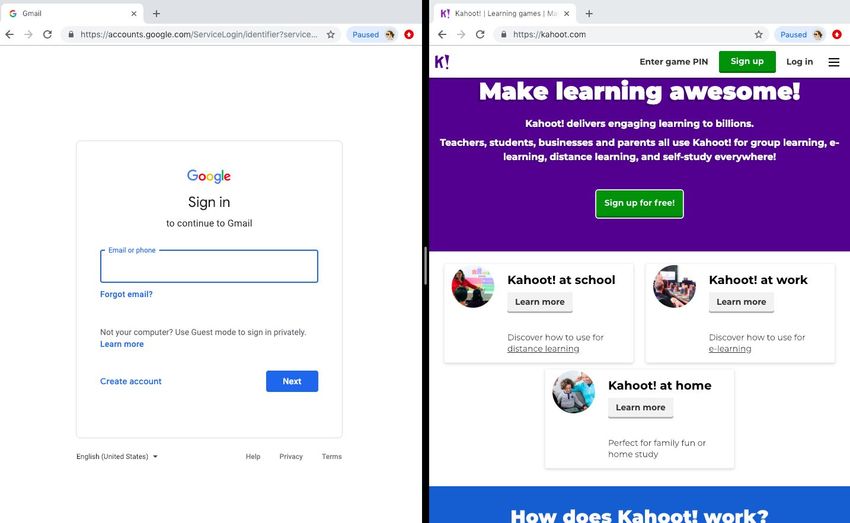
EFBA account
The first thing you need to know is that our Online Summer School program will
be done through Google products - Google Education which allows EFBA to
create accounts for your child(ren) without age restrictions. Each student will
need their own dedicated efba.us account. Think of this as their “virtual school ID”.
EFBA will create for your child an EFBA account (or use their existing EFBA
account if they have previously attended our other programs such as
After-School).
Instructions on creating EFBA account:
1) EFBA will send your child’s EFBA account and temporary password to the
parents or guardian’s personal email account within 48 to 72 hours (during
business hours) after registration. Please note that the process for EFBA to
create the account is not automated and will be delayed over the
weekend. Please check your email (and spam folder). If you still have not
received it during the mentioned business hours, please email it@efba.us.
2) Once you receive your child’s EFBA account information (the email and
temporary password), please do the following:
3) Go to www.gmail.com
4) Log-in using your child’s EFBA email account and temporary password
provided
5) Once you have access, it will prompt you to create your own personal
password. Please *do not* share your personal password. We strongly
recommend that you do not reuse a password from another account. Here
are some guidelines for creating a strong password:
https://support.google.com/accounts/answer/32040?hl=en
If you forget your password please contact it@efba.us to reset your
account
6) The last step would be to confirm that you have created your child(ren)
EFBA account with onlinesupport@efba.us to ensure that your child is
added to his/her/their Online Summer School class..
7) We highly suggest to monitor and check your child(ren) EFBA account for
any communication relating to Online Summer Classroom from their
teacher.. This account also allows your child to access Google meet and
classroom to participate in the Live classes.
If you need assistance, please email us at onlinesupport@efba.us or call (415) 318 6774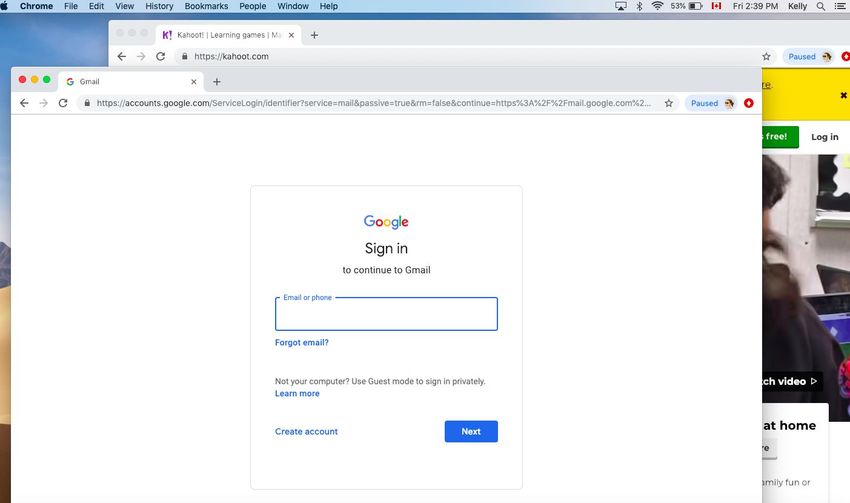
We will be using primarily Google Classroom. We chose this platform to make
sure that your children are safe online and protected from cyber predators and
inappropriate content.
And Student’s work and private information (such as name, activities, and
feedback) is stored within our server, operated by Google, without the need for a
third party provider.
EFBA will be adding your child’s EFBA account to Google classroom and inviting
your child(ren) to join prior to Online Summer School starting.
We also chose Google classroom because it’s integrated with all the other
Google apps, so teachers can add direct links from our internal drive. Also as a
school, we are authorized to share copyrighted materials within the perimeter of
the law.
It allows digital copies in course management systems such as Google
Classroom, under a specific set of conditions:
● Text and images may be transmitted (displayed) in amounts comparable
to online instructions.
● Music and video may be used in portions; entire songs may be used if
“non-dramatic.”
● Access must be restricted to students registered in the course, and notice
that the material is protected must be given.
● Technological measures to prevent the material from being retained after
the course is over or copied to others are required. Streaming of music and
video is a good way to meet this requirement.
EFBA has policies about copyright in place to take advantage of this exception.
and within Google classroom the teachers will invite students to other supporting
tools, such as Google Meet (for live streaming classes!), and occasionally other
tools such as YouTube.
If you need assistance, please email us at onlinesupport@efba.us or call (415) 318 6774
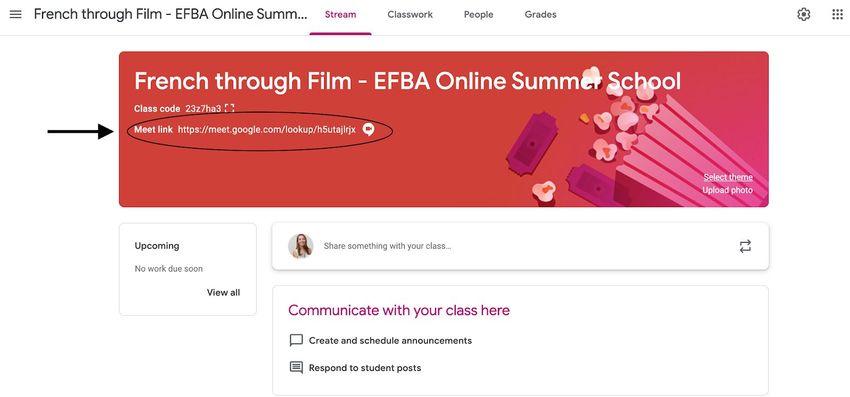
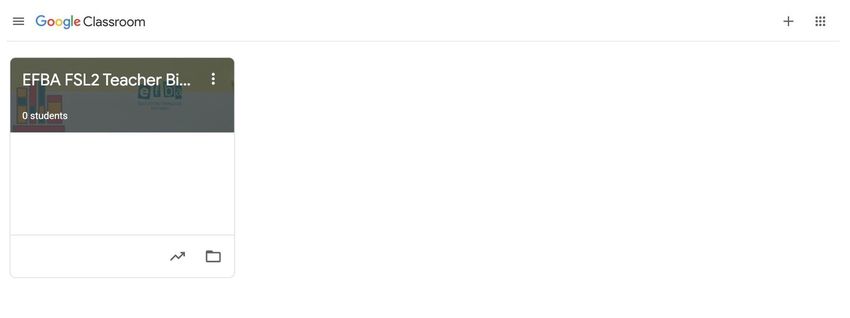
Google Classroom Your child(ren) will need to use his/her/their new EFBA account to access Google Classroom. The teacher will invite all learners to join the class by emailing a link and a class code to the Summer School EFBA account. If the teacher has already added your child’s EFBA email, you should see the option to click on the class. (you’ll see the level and teacher name. In the example in the screenshot below: FSL 2, Teacher Bianca). If you don’t see the class when you go to classroom.google.com, that’s fine! Click on the plus sign (+) at the top right corner, and click on “join class”, then enter the class code, which will be sent to you by your child’s teacher. See screenshot below: If you need assistance, please email us at onlinesupport@efba.us or call (415) 318 6774
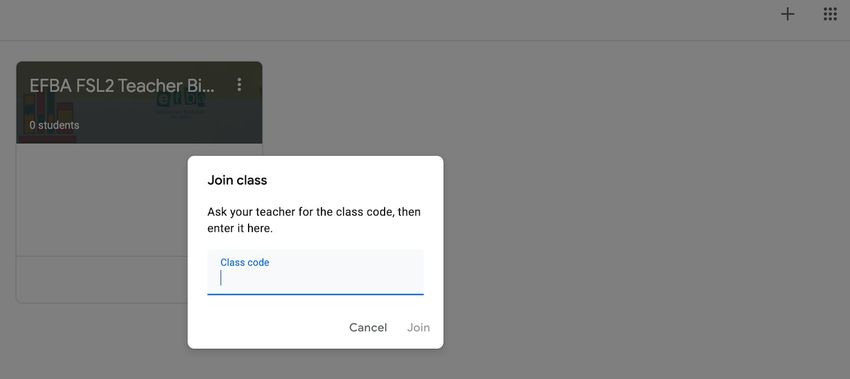
Please give this a try before the class time, so you can troubleshoot and ask us questions if you run into any issues. Once you’ve joined the class, you’ll be able to see all the activities and homework that the teacher has uploaded (we will be adding content as we go, so don’t worry if you don’t see much on the first day!) If you need assistance, please email us at onlinesupport@efba.us or call (415) 318 6774

Your child can access this Online Summer School area at any time. You can review content together, do activities together as suggested by the Camp Counselors! To access the Online Summer School livestream and join the live class of the day, go to your Online Summer School Google Classroom and click on the link in the banner on top left (see screen above). Before the time for each livestream, the teacher will post an announcement on stream reminding the live class of the day, the link to join (which will change every time for safety reasons), and any necessary equipment required. Remember: the Google Meet link only works during set times, so make sure you know what time the live class is starting depending on your time zone. S/he will also share via Google Classroom assignments and activities to be done between classes at your child’s rhythm. The teacher will be reviewing your child’s production and interacting with him between live sessions. *Note for using Google classroom: Please do not ever share your child’s camp “classroom” link to external parties who are not registered with EFBA’s Online Summer School. Our program is specific to our students who have an EFBA email account. THIS IS PARAMOUNT TO AVOID INTRUDERS. If you need assistance, please email us at onlinesupport@efba.us or call (415) 318 6774
Kahoot
During the live class, the teacher may use
Kahoot for playing interactive educational
games, designed by educators.
For this, your child will need two
side-by-site browser windows. Note: Not
two tabs, but 2 separate windows, arranged
side by side (not minimized.
One window will have the live call, and on
the other window, go to kahoot.com, and click in the upper right hand corner
“Enter game PIN”. Your teacher will give a game PIN during the live call, which
will be displayed in the side window.
In one window your child will see the teacher display game questions and
prompts to all students. On the second window your child will choose his/her
answers to submit and play with others
We expect older students to be able to play on Kahoot with minimal supervision.
The younger the students, the more support they will need. Kindergarten age
students will need an adult to play the games with them. Have fun!
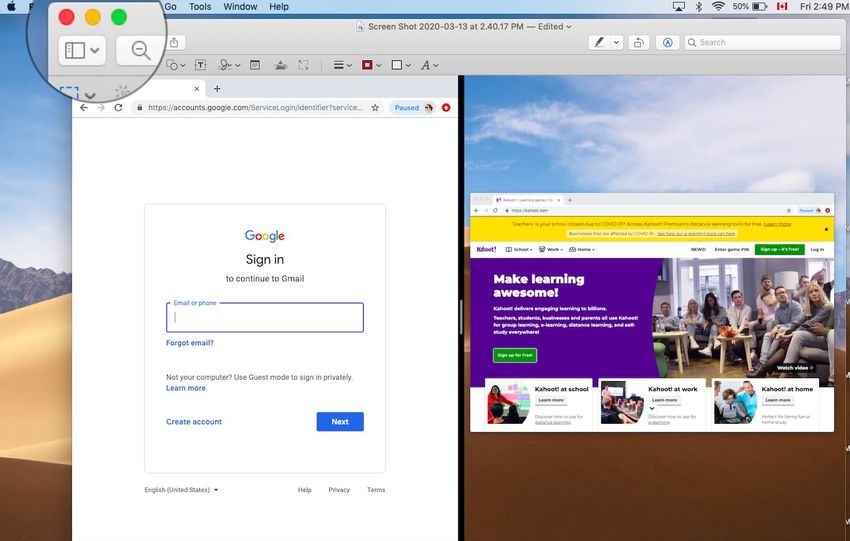
How-to-Split Screens on you MAC:
1) To begin, open two or more Mac windows screen that you want to divide
into two screens. Example: 1 - Google Log-in, 2- Kahoot screen. Pick one
window to start with 1- Google Log-in as the main window while Kahoot
screen is behind it(please see below screenshot).
If you need assistance, please email us at onlinesupport@efba.us or call (415) 318 67742) If you hover over the green dot (found on top left hand corner, please see circled picture below), you’ll see it has two small expand arrows. This is the button you want. Hold down on the green dot and you’ll get some options: Enter Full Screen, Tile Window to Left of Screen and Tile Window to Right of Screen. Select either the second or third option and the window will fill that portion of your display. 3) One half of your Split View is done. You’ll see the first app on one half of the screen, with thumbnails of any other open windows on the other side. Now If you need assistance, please email us at onlinesupport@efba.us or call (415) 318 6774
select the other window that you want to use in Split View mode. This window will resize to cover the other side of your screen, completing the Split View experience. You can tap either window to switch focus back and forth as needed. For more visual guideline, please watch this step by step instructions on YouTube video How to split screen on Windows: The operation depends on the version you have. There are several ways to split a screen in Windows 10, but the easiest is with Snap Assist. This feature has to be enabled in Start > Settings > System > Multitasking, although it should be enabled by default. Snap Assist lets you drag a window to a corner or side of the screen to “snap” it there, which in turn makes room for other apps to be snapped in the resulting empty screen space. To know more about splitting your screen on Windows PC, click here: https://www.lifewire.com/split-screens-in-windows-4160920 If you need assistance, please email us at onlinesupport@efba.us or call (415) 318 6774
Activities & Supervision Our teachers will create fun, exciting and interactive activities that are safe for your child to participate in to learn and develop new skills. The teachers might also play games that involve dance moves, or running around the house to find specific objects, shapes or look for a certain color, etc. Our Online Summer School is play-based, and we will be using creative ways to maintain the core principles of our pedagogy. The teacher will provide instructions on what to prepare and have items ready over your child’s EFBA email account or Google classroom announcements or classwork page before Online Summer School live class. For instructions on how to use Google classroom, please read page 5.. Children between ages 5 to 7, WILL require supervision and we ask of you, the parents, to supervise to ensure that your child stays engaged and safe. Children older than 7 may require less supervision; however, you are welcome to supervise or check in on your child having fun learning French. Our goal and mission is to see that your children practice French and continue loving the French language! If you need assistance, please email us at onlinesupport@efba.us or call (415) 318 6774
Parent/Guardian Pro tips Guide to Online
Summer School
Transitioning from traditional day school learning to online learning can be
challenging. This guide provides some recommendations to help make the
switch to online learning.
We highly suggest for you to follow the below tips and give it a try at least 1
day before Online Summer School starts.
● Dedicate a space in the house as a “learning space”. This can be any
space where the student won’t be interrupted while doing activities for
Summer School.. When choosing a space, consider that you may need to
supervise or help your child.
● Charge the device that you will be using to join the video call
● Make sure the camera and microphone are on and working to enable
your child to interact with the teacher and other students. If you are
experiencing technical difficulties during the “test run” 1 to 2 days before
camp starts, please look at this tutorial on YouTube as a guide. IF your
child(ren) is experiencing technical difficulties during Online Summer
School do not panic. Please let your child know to inform the teacher that
he/she/they will be right back, and quietly log-off without disrupting the
other learners and test the camera/microphone/network before logging
back on.
● Close unnecessary tabs
● Ensure that your child’s screen is not locked automatically or go into
dark screen/save mode.
● Encourage others in the house to respect this Online Summer School
time by controlling the noise levels and discouraging others in the
household from streaming videos (like netflix or youtube) during the live
lesson. It might decrease the quality of the video and sound for your child.
● Have a shelf, bin, or designated place for your child to store their
School supplies - paper, color pencils and/or crayons, paint, costumes,
books, etc. also available for activities.
If you need assistance, please email us at onlinesupport@efba.us or call (415) 318 6774● Participate! Plan to be present, or arrange for another adult t o supervise
and support your child during screen time. We highly recommend
children between ages 5 to 7 to be supervised.
● Make sure your child has eaten and used the bathroom before starting
Summer School live classes.
● Give your child space: being present does not mean you do the work in
their place. In French if you are able, ask questions, help them scaffold their
own reasoning, let them come up with the answer.
● Encourage your child to get dressed like they would to go out. Although
we are in an online environment, this is still camp and should be taken
seriously.
● Stay positive and breathe: take it easy, your child might enjoy this new
setting more than you do and it’s okay! Please also encourage your child
prior to Online Summer School starting to engage, participate and have
fun with the other students.
● If you dislike something, do not criticize the teacher in front of your child.
Give feedback to the teacher
● Over dinner/lunch/breakfast, ask your child how Online Summer School
went. What did they learn? What did they enjoy?
● Communicate with and provide feedback to your teacher about how
online learning is going for your child.
If you need assistance, please email us at onlinesupport@efba.us or call (415) 318 6774You can also read


