AVATAR Behavioral Health Electronic Health Records - AVATAR USER GUIDE - COUNTY OF SONOMA
←
→
Page content transcription
If your browser does not render page correctly, please read the page content below
COUNTY OF SONOMA
Department of Health Services
Behavioral Health Division

                           AVATAR
Behavioral Health Electronic Health Records
AVATAR USER GUIDE

For information and updates,
email the BHEHR Team at
BHEHR@sonoma-county.org

MANUAL V.1.0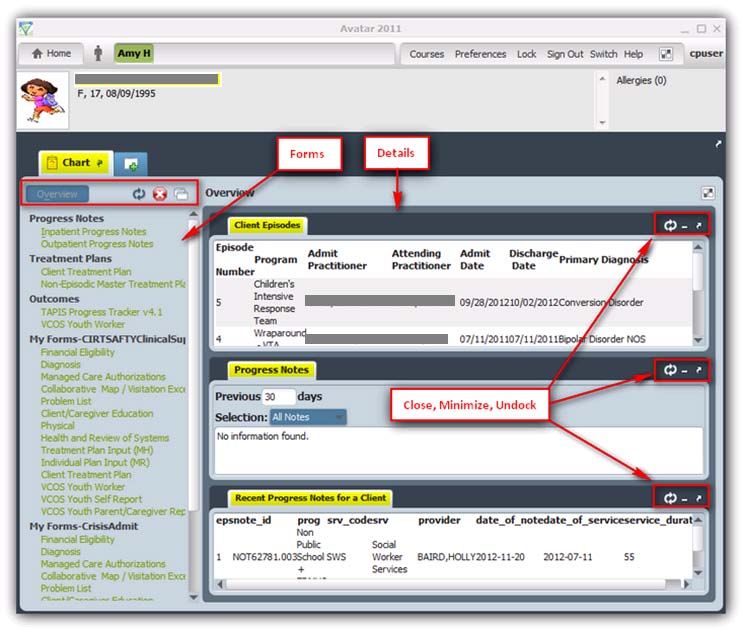
Welcome to Avatar 2011!

Netsmart’s Avatar Suite is an industry leader in enterprise behavioral health software. The comprehensive
electronic medical records (EMR) and practice management (PM) suite is used by all types of mental and
behavioral health organizations, including substance abuse providers, psychiatric hospitals, community
mental health centers, methadone clinics, private practice, managed care organizations, and state mental
health systems. The system is used in both outpatient and inpatient settings. Avatar Suite is 2011/2012 ONC-
ATCB certified.

Netsmart Avatar Suite is a comprehensive, fully-integrated suite that manages all aspects of behavioral health
care. The system is offered with more than 20 modules that cover patient records, treatment plans, progress
notes, billing, scheduling, financial reporting, pharmacy management, e-prescribing, document management,
workflow automation, order entry, and other functions.

Netsmart has more than 18,000 customers and takes a very progressive approach to development of Avatar
Suite, becoming the first behavioral health software system to earn Certification Commission for Healthcare
Information Technology (CCHIT) certification in 2006. Netsmart has also been a recipient of the Davies Award
Commendation for Excellence in Computer-Based Patient Records.

                       Sonoma County DHS Avatar Quick Tips and Reference
                                                                                                    2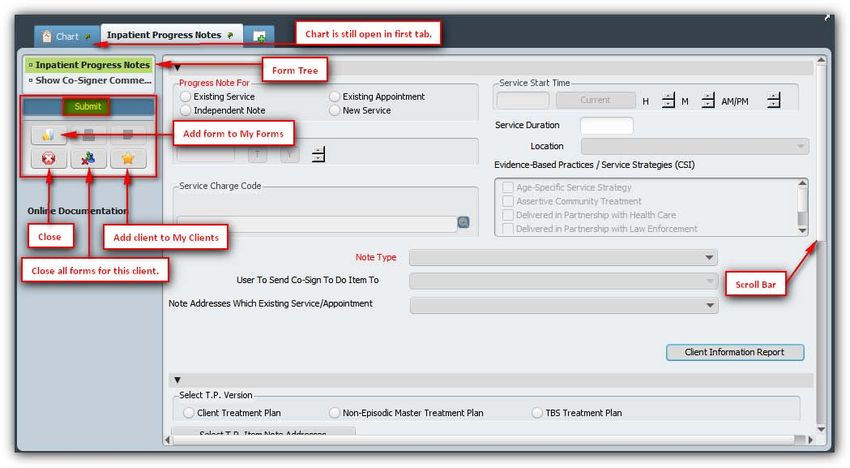
Avatar 2011 User Navigation Training
1. Go to the Avatar URL saved in your favorites or use a shortcut on your desktop to launch
   Avatar. If you have not saved it in your favorites or as a shortcut, go to the Start Menu >
   Avatar 2011.
2. Make sure that the Server box says “Sonoma myAvatar Live”. Enter the System Code LIVE
   (Make sure it is in all caps), your User Name and Password. Then click Sign In.

3. This will launch your Avatar 2011 Home View (your Home View may be slightly different
   depending on your User Role). This is a good time to go over some of the terminology
   associated with Avatar 2011.

       a. Forms are screens used to enter/view data
       b. Sections are different pages withing a form
       c. Sub-sections are different areas withing a form
       d. My Clients populates with clients on your caseload
       e. Recent Clients populates with clients you recently accessed
       f. My Forms can be populated with forms you frequently access
       g. Chart View provides a more detailed look at information specific to a client
       h. Home View customized for staff roles, contains critical information needed for job
       i.   Widgets - a window view of information that make up your Home and Chart Views
            that display information stored in the Avatar system. Widgets can be customized and
            placed on your home screen for items that you use frequently.

               Sonoma County DHS Avatar Quick Tips and Reference
                                                                                         3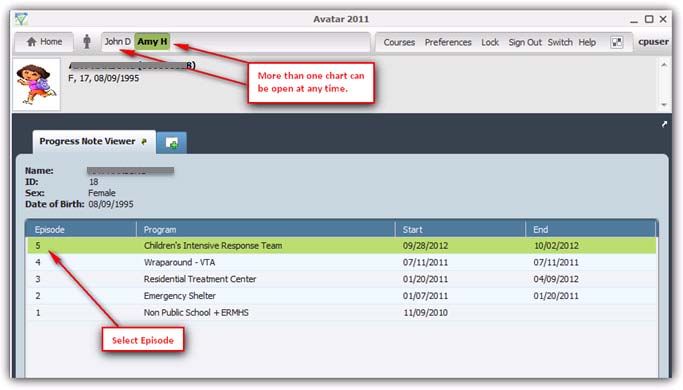
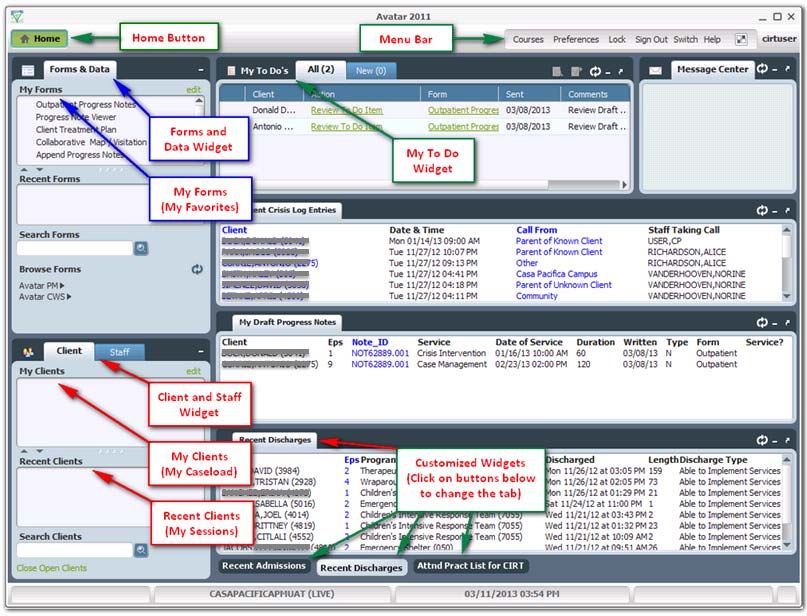
The Home View
The Menu Bar contains the Home Button that will return you to your Home View no matter when you
are within the system and displays any Forms or Charts that you have open. You can have multiple forms
and charts open at once and they will all be listed here so you can toggle back and forth between them
and the home view without using the windows task bar. The Menu Bar also contains your Preferences
and Help menus and displays the User ID that is logged in.
Directly from the Home View you can move the widgets assigned to the view by dragging and dropping.
You can also re-size the widgets using the cursor.
The icons on the top right corner of most widgets include refresh, minimize/ maximize, and
undock/ re-dock.
If Lost in Home View – If you have re-sized or lost some widgets and you just want to return to
the default view, click on the checkerboard icon at top right. You are now in “Customize Widgets”
form. Go to bottom left of form, click on “Reload Home View”. You are prompted to confirm reload.
Click yes and click on “Apply”. Your original View re-appears.
Sonoma County DHS Avatar Quick Tips and Reference
4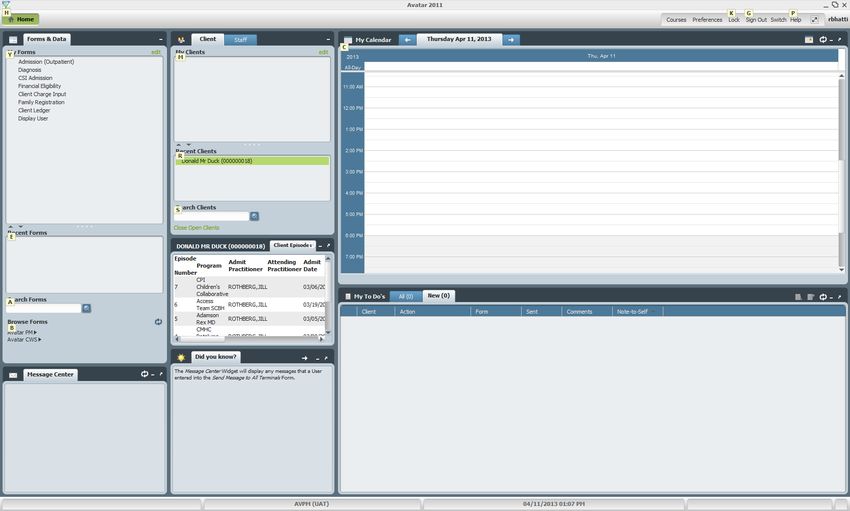
The Forms and Data Widget

Every role has the Forms and Data Widget. You will use this widget to search for and access forms that
you have access to in the system.

   1. The top section of this form is titled My Forms, which
      replaces your favorites in the previous system. All of your
      favorites will carry over and display in this section of the
      widget after the upgrade.
   2. In order to edit your My Forms click Edit at the top right of
      the widget.
   3. Any form that you access within your session (before you
      log out) will remain in the Recent Forms section.
   4. You can drag and drop a form from the Recent Forms
      section into the My Forms section and it will remain there
      after logging out.
   5. Search Forms field, which replaces the “Help> Search for
      option” functionality in the previous system. This is a
      Smart Search field. In this field you can search for a Form
      by typing in the entire name or just part of the name of
      the form.

                                                        6. You can also use the Browse Forms drop down
                                                           menu for each product. The Browse Forms in
                                                           Avatar 2011 is the same menu type as the
                                                           earlier version of Avatar.

                      Sonoma County DHS Avatar Quick Tips and Reference
                                                                                               5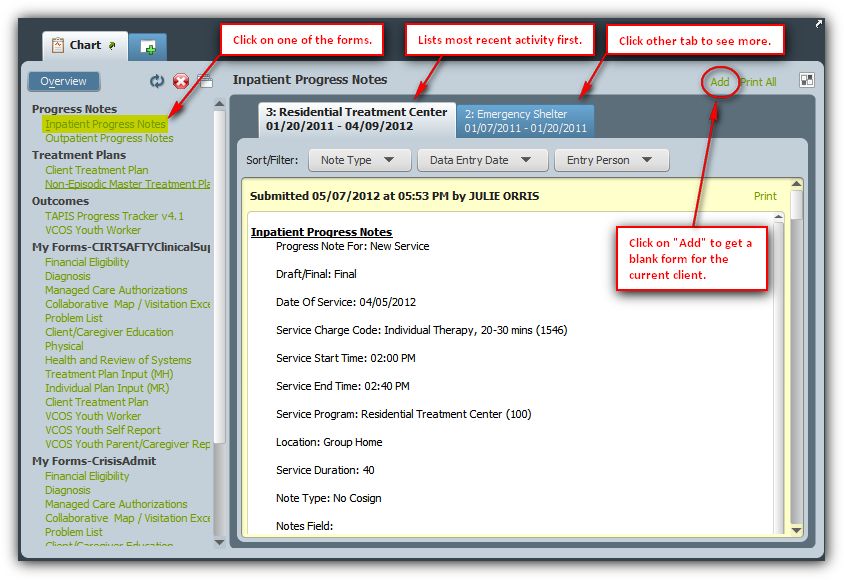
Smart Search
If you search for a client-specific form and do not have a client selected, the Select Client screen will
display. In this field you can search for:
Last Name (or just a portion of it)
Last Name, First Name (or just a portion of the first name)
Patient ID #
Date of Birth
Once you select the client and click Select, the form selected tab will show up. If an episode is
required, the form will list out all the episodes. Select the episode and click Ok.
You can also have more than one chart open at any time. You can click on any tab to open that
cient’s chart.
Sonoma County DHS Avatar Quick Tips and Reference
6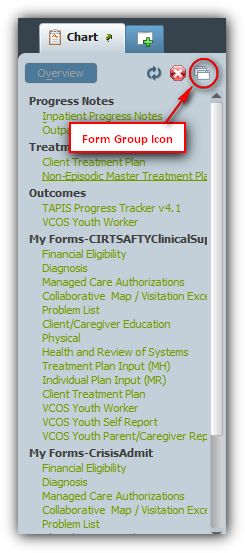
Client and Staff Widget

 In the Smart Search field, enter the client’s Last Name, ID, etc.
to search. To open the client’s chart you can double click on the
client name in the search drop down. Additionally, you can click
once on the clients name or use the down arrows to navigate to
the client’s name and press the enter key.

 The client’s name will populate in the Recent Clients section and
you can double click on the name from there or right click on the
name and select Display Chart. Finally, if the client’s name is
populated in the Recent Clients section, you can make sure it is
highlighted and then search for or click on a client-specific form
in the Forms and Data Widget.

                      Sonoma County DHS Avatar Quick Tips and Reference
                                                                          7
Chart View
The Client Information Bar contains the client’s picture (if uploaded) and client demographic information
as well as any alerts that were assigned when the patient was admitted and any allergies assigned to the
client in the allergies and hypersensitivities form.
Below that is the Chart View Overview which includes all the widgets assigned to your Chart View.
As with the Home View you can move widgets around the view by dragging and dropping,
additionally you can minimize and maximize widgets, re-size widgets, undock and re-dock widgets
and refresh data in widgets.
To the right of the Overview button (which will get you back to the Chart View Overview at any
point in the client’s chart) is the refresh chart icon and close chart icon.
The Chart View Form Groups listed on the left hand side are
User Role specific and should include the client-specific forms
that your role uses most often. If you are able to, click the
form group’s icon to edit the list.
Here is the overall look of the chart………
Sonoma County DHS Avatar Quick Tips and Reference
8 If Lost in Chart View – If you have re-sized or lost some widgets and you just want to return to the default
view, hover over the checkerboard icon at top right of the chart (not the form) to find “Customize Chart
View”. Click on the icon. Go to bottom left of form, click on “Reload Chart”. You are prompted to confirm
reload. Click yes and click on “Submit”. Your original View re-appears.
Sonoma County DHS Avatar Quick Tips and Reference
9Chart View Inquiry
To access the Chart View Inquiry click on one of the forms listed on the left hand side of the Overview
Page (as shown above).
The Chart View Inquiry is a text-display of all the data that has been previously submitted (in both
draft and final status) in that specific form for that client.
If the form has been submitted more than once for that client the most recent instance will
display first and you can scroll down the see older submissions.
Directly from Chart View Inquiry you can Add or Edit data submitted in this form.
If you are in a particular client, when you click Add a blank form will open with client information
defaulted for that client.
Sonoma County DHS Avatar Quick Tips and Reference
10Chart View Inquiry
You can use the Form Tree on the left hand side to navigate to sections and subsections within
the form. Conversely, you can just scroll up and down to access all subsections of a form.
There is no need to look at the top of the screen as there are no pages or tabs. You can also
minimize subsections as you move through them.
Below the Form Tree there are several Form Command Buttons that replace the large icons at
the top of the screen in the previous system. From here you can Submit, Close, add this form
to My Forms, create Sticky Notes, and close the entire client’s chart.
To navigate back to the Chart Inquiry without submitting or closing the form, click Chart.
From Chart View Inquiry you can click Overview to get back to the Chart View Overview.
If you wanted to open a form that wasn’t
listed in your Chart View Form Groups
click the small green plus sign (browse
forms) which will display the Forms and
Data Widget.
Note: Notice the Zoom functionality at the bottom of each form.
Sonoma County DHS Avatar Quick Tips and Reference
11Chart View Inquiry
Here you can search for a form, use the product drop downs, or click on a form in your My Forms.
Select form from My Forms
Use a recently used form
Search for a form
Product drop down
If you close a client-specific form to open, the system will assume you are going to add a submission of
this form.
Notes: If the client has more than one episode a list of all client episodes will display. Choose one and the
information entered for that episode will default into the form. Once the form is open you can enter data
and navigate around the sections/subsections as we saw before.
You’ll notice that additional data shows in the Client Information Bar when in episode-specific forms ex.
episode number, diagnosis, problems, location, and attending/ admitting practitioner.
Sonoma County DHS Avatar Quick Tips and Reference
12Customizing Your View
From your home screen, click on Preferences then click the tab Themes.
Pick a theme and click Apply.
Note: Your change will not take affect until you restart the application.
Sonoma County DHS Avatar Quick Tips and Reference
13MyAvatar Quick Tips and Glossary
Quick Tip Purpose
Control A Select all items in a multiple select dictionary.
Control D De-select all items in a multiple select dictionary.
Tab Moves the user field to field within the Avatar form.
Shift Tab Moves the user back one field
This is a date field. You can click the mini calendar to select a date or click T for today
or Y for yesterday. You can also enter T+10 to get a date 10 days from now, or Y-10 to
get a date 10 days ago.
Right Click on Some dictionary fields within Avatar will allow the user to “right click” then select
drop down Update Dictionary, to add values to be used in the specific field immediately.
dictionary
Name: LAST,FIRST
No spaces LAST,FIRST JR PUNCUATION- Can use ‘ and -
before or LAST,FIRST MI
after the
comma’s
Date MM/DD/YYYY – this format will default based on the date you enter. The date can be
entered as M/D/YY or MM/DD/YYYY. Slashes can be replaced during entry with a “-“.
You can also enter a date by clicking on T or Y or by double clicking in the date field to
get a calendar from which you can select the appropriate date. In addition entering T+
#, where # represents the number of days you want added to today’s date.
Time To get 8:00 AM/PM – you type 8A or 8P
To get 8:30 AM/PM – you type 8:30A or 8:30P
Or you can click on “Current” to enter the current time
Dollar Enter whole dollar amounts without decimal. Enter incremental dollar amounts with
Amounts decimal and cent amount. Dollar sign, spaces & commas are not required.
Examples: Enter 10 for $10.00
Enter 10.03 for $10.03
F1 Displays data element help message
Sonoma County DHS Avatar Quick Tips and Reference
14F5 Clears the selected dictionary value from a dropdown box
Black Information not required
Red Information is required. The system will not allow you to file your forms without this
information.
Grayed Information will be defaulted in from another area in Avatar. Although in some
out…not instances these may not fill in until a selection is made in an associated field.
accessible
Axis of Diagnosis Diagnosis Entry Axis I: Clinical syndromes that are focus of the diagnosis.
Examples: Obsessive Compulsive Disorder, Dysthymic
Disorder, or Panic Disorder, schizophrenia or autism.
Axis II: Any permanent, usually genetic condition of the
patient, personality disorders that affect the way an
Axis I syndrome manifests itself in a patient. For
example, a patient with obsessive compulsive
tendencies ought to be treated differently if they also
suffer from a Schizoid Personality Disorder.
Axis III: Medical conditions relevant to the Axis 1 or II
diagnoses.
Axis IV: Psychosocial and environmental stressors that may
affect the clinical syndromes .
Axis V: GAF Scores. Global Assessment of Functioning Scale is
a relatively subjective score given on a scale between 0
and 100, used to quickly communicate the general
mental health of the patient. Every tenth value on the
scale correspond to specific criteria, with the numbers
in-between representing a more specific assessment
of functioning. The higher the score, the healthier the
patient.
Benefit Plan Patient Insurance An entity in Avatar that identifies the types of services being
covered as well as any coverage limits. This in conjunction
with the Guarantor/Payor selected at the patient level will
identify which services are billed and to whom.
Billing Outputs Billing UB-04: Paper Institutional Claim form
HCFA-1500: Paper Professional Claim form
ADA: Paper Dental Claim form
837 I: 837 Institutional – the HIPAA electronic version of
the UB-04 claim form
Sonoma County DHS Avatar Quick Tips and Reference
15837 P: 837 Professional – the HIPAA electronic version of
the HCFA-1500 claim form
837 D: 837 Dental – the HIPAA electronic version of the
ADA Dental claim form
835: Electronic remittance files used to post payments
and adjustments based on group/reason codes
provided by the payor who is sending the file.
Closed Billing Workflow At month’s end , the facility will run a series of billing reports
Accounting to confirm that Avatar billing is in balance. Once the user
Period confirms the system is in balance the Accounting Period can
be closed ensuring the numbers at the facility level will not
change moving forward
CPT Codes Service File Build CPT (Current Procedural Terminology) codes are numbers
assigned to every task and service a medical practitioner may
provide to a patient including medical, surgical and
diagnostic services. They are then used by Payors to
determine the amount of reimbursement that the facility will
receive. Since everyone uses the same codes to mean the
same thing, they ensure uniformity.
DSM Codes Diagnosis Diagnostic and Statistical Manual of Mental Disorders. These
File Build are diagnosis codes that get assigned to the patients. They
appear in the billing output and are associated with the
services the patient receives. They get cross references in
Avatar to ICD-9 codes for purposes of billing.
Episode General Admission to Discharge. Period of Stay.
Financial Patient Insurance (FE) Setting up of the patient’s insurance.
Eligibility
Group Code Service File Build A way to group services for the purposes of reporting. This
categorization has no functionality.
Guarantor/Payor Patient Insurance An entity in Avatar to identify the organization (insurance) or
person responsible for payment of services. This in
conjunction with the Benefit Plan selected at the patient level
will identify which services are billed and to whom.
Guarantor Patient Insurance A category of billing (identified within the Guarantor/Payor
Nature set-up) that identifies whether liability should be written off
or fall to a different guarantor during liability distribution.
HCPCS Codes Service File Build Healthcare Common Procedure Coding System. Codes used
by Medicare and monitored by CMS, the Centers for Medicare
and Medicaid Services. Based on the CPT Codes developed by
the American Medical Association, they are assigned to every
task and service a medical practitioner may provide to a
Sonoma County DHS Avatar Quick Tips and Reference
16Medicare patient including medical, surgical and diagnostic
services. Since everyone uses the same codes to mean the
same thing, they ensure uniformity
ICD Codes Diagnosis International Classification of Diseases. The ICD codes are
File Build used to classify the diagnoses. It is the ICD associated with
the DSM at the patient level that goes out on the billing
output, and has an impact on the amount of remittance.
Inpatient Admissions A scenario where a patient is living at the facility.
Interim Billing Billing Workflow The process of billing by creating “batches” of patients based
on similar billing criteria and identifying the “schedule” by
which those batches can be billed.
Liability Client Ledger The way the fee of the service distributes to the different
Distribution guarantors on the client ledger
Managed Care Patient Insurance The ability to track service authorizations by $, Visits or Units
Authorizations
Modifiers Service Entry Modifiers are additional two-digit codes that can be
Service File Build associated with a Revenue, CPT, HCPCS code in the billing
output. These identify specific scenarios for the services
rendered to the payor and have a direct impact on the
amount of remittance
Outpatient Admissions A scenario where the patient is not living at the facility and
comes to the facility to receive specific services.
Practitioner Service Entry The doctors, clinicians, nurses, nurse practitioners,
therapists, etc., responsible for providing services to the
patients admitted into Avatar.
Practitioner Patient Insurance Categories used to group practitioners/clinicians based on
Categories for their billability when rendering services within specific
Coverage insurance charge categories
Program Admissions A program is the level of care the patient is admitted into.
Services are rendered to the patient based on the program
he/she is admitted into.
Remittance Posting Payments A transaction made to a patient’s account based on the
payment or adjustment identified by the guarantor who
received the claim.
Revenue Codes Service File Build Revenue codes are four-digit codes that affect reimbursement
and represent the services provided by the facility for a
payor. They are only used on a UB-04 or an 837 I file.
Revenue Program File Build Categories that allow the facility to group programs for
Reporting Group purposes of reporting revenue from “like” programs of
Sonoma County DHS Avatar Quick Tips and Reference
17service
Service Code Service Entry An entity in Avatar used to identify a billable or non-billable
File Build action to be part of the patient’s treatment history.
Service Code Service File Build Since services are a user defined table, the Service Code Cross
Cross Reference Reference is used to identify which Revenue code,
CPT/HCPCS code should be used in the billing file.
Service Compiles Service Entry Processes that allow the user to “compile” information for
multiple patients at one time. Ex: Inpatient or Partial Work
lists; Roll-up Billing.
Service Entry Billing Workflow The act of rendering services to patients admitted into Avatar.
Service Status Client Ledger A service can be in one of three status:
Open: Service is flexible. Any changes made to the service
are made without an audit.
Unbill: Service is closed. Any changes made to the service
will result in an audit.
Claim#:Service is claimed.
Treatment Program File Build Categories that allow the facility to group patients for
Service reporting purposes – Official Census Report.
Treatment Program File Build Non-Editable program categories that identify the rules for
Setting admissions/billing that Avatar should use for that program.
Unit Service Entry From a Billing perspective, a Unit is the # of components of a
service that were rendered to the patient.
Unit Admissions From a Practice Management perspective a Unit is an area
(floor, building, etc.) where rooms and beds are located.
Sonoma County DHS Avatar Quick Tips and Reference
18Home View Shortcuts
Alt - See shortcuts
Alt+S – Client Search
Alt+R – Recent Clients
Alt+M – My Clients
Alt+A – Form Search
Alt+E – Recent Forms
Alt+Y – Recent Forms
Alt+B – Browse Forms
Alt+C – My Calander
Alt+H – Home
Alt+K – Look
Alt+G – Logout
Alt+F – Help
Sonoma County DHS Avatar Quick Tips and Reference
19Keyboard Shortcuts
MY AVATAR KEYBOARD SHORTCUTS FRONT MY AVATAR KEYBOARD SHORTCUTS
DESK HOME VIEW (Fig. 1) CLINICAL HOME VIEW (Fig. 2)
Field or Command Name Shortcut Key Field or Command Name Shortcut Key
Browse Forms B Browse Forms B
Coming in Today F Help P
Help P Lock K
Lock K My Calendar C
My Clients M My Clients M
My Forms Y My Forms Y
My Staff (Staff Tab) M My Staff (Staff Tab) M
Recent Clients R My To Do's T
Recent Forms E Recent Clients R
Recent Staff (Staff Tab) R Recent Forms E
Search Clients S Recent Staff (Staff Tab) R
Search Forms A Search Clients S
Search Staff S Search Forms A
Sign Out G Search Staff S
Sign-out Confirmation "Yes" Y Sign Out G
Sign-out Confirmation "No" N Sign-out Confirmation "Yes" Y
Staff Calendar F Sign-out Confirmation "No" N
MY AVATAR KEYBOARD SHORTCUTS CHART
VIEW (Fig. 3)
Field or Command Name Shortcut Key
Browse Forms Icon Button O
Chart Section I
Close Chart Icon Button C
Customer Chart View Icon Button W
Customize Form F
Help P
Home H
Lock K
Overview V
Refresh Chart Icon Button R
Select the Open Client 1, 2, 3,…
Sign Out G
Sign-out Confirmation "Yes" Y
Sign-out Confirmation "No" N
Sonoma County DHS Avatar Quick Tips and Reference
20Helpful Tips
1. It is easy to make home view and chart views distorted by undocking, re-docking, minimizing,
stretching, and closing widgets. Reload Home and Chart Views by using the checkerboard icon, clicking on
Reload Home View and clicking on Apply. Views will also be restored when you log off.
2. Client and Staff Widget – Open a form by clicking a client and/or staff once, then clicking a form once
(Admission (Outpatient) and MAA are good examples).
3. The Staff section in the Client and Staff Widget will not be populated until Appointment scheduling is
implemented.
4. In Preferences, it’s important to go to the Chart tab and set a limit to the number of open episodes that
are displayed for a client. We recommend a limit of 5. If not, clients who have a lot of episodes will be
difficult to display in Chart View.
5. My Forms – My Favorites from the old Avatar will populate into My Forms. You can move items from
Recent forms into My Forms. Also, choose the edit button in this widget to show how you can organize
“My Forms” the same way you did in the old system
6. Use Shortcuts and Smart Search Features.
7. Use Refresh icon in Widgets in Chart View after new data entry to view the up to date chart.
6. Become familiar with all the icons on Chart View to : Add Client, Home, Overview, Refresh, Close Chart,
Customize Forms
7. You can have multiple clients open at one time, the highlighted client name is active.
8. You can add or edit data from Chart View.
9. Know control panel buttons: Submit, Add to Favorites, Close form, Close all forms (does not give a “are
you sure warning”, Add Client to My Clients (remember, this does not stick).
10. Use the Tab and Arrow Keys to navigate through the Form.
11. You can open multiple forms for a client using the + key.
12. Use Zoom to view data at a closer range.
13. Find client allergies in the Allergies widget in the Chart View. These are accurate as they come from
InfoScriber. Allergies in the top right in Client Data Bar are not accurate.
Sonoma County DHS Avatar Quick Tips and Reference
21Frequently Asked Questions
1. On the Home View, I re-sized some widgets, now I can’t find other widgets that were there. How can I
return to the basic Home View?
Answer: Click on icon (box) on Menu Bar between Help and your Username. This takes you to
Preferences/Widgets. Click on Reload Home View. Press Apply. Click on Home View in upper left.
2. How do I get to the Chart View?
Answer: Double click on the client name in My Clients, Recent Clients or Search Clients box.
3. How do I get from Chart View back to my Home View?
Answer: Click on Home button in upper left.
4. Is F5 the delete/clear function?
Answer: Yes
5. Can you accidently remove clients from My Clients permanently?
Answer: No you can only remove clients you have temporarily added to My Clients.
6. Will clients that are discharged still show in My Clients?
Answer: No, just as with the current Avatar system, only clients with open episodes appear in My Clients.
7. Does spell check wrap to start at top of text field?
Answer: Yes, in Preferences/SpellCheck options make sure you check the box “Check spelling from start
of text” to enable this feature.
8. Are there accommodations for end-users who are color-blind?
Answer: Yes. My Avatar includes a setting for end-users who are color blind. In order to activate that
setting, please contact the Avatar HelpDesk. Once this setting is activated, the red required fields appear
in bold print. In addition, a black border appears on active fields that user is entering data entry in.
9. Can we access other program’s episodes?
Answer: Yes, if you have that access now. Your user privileges will not change with My Avatar.
10. We have problems with other facilities closing episodes incorrectly – how can we prevent that?
Sonoma County DHS Avatar Quick Tips and Reference
22Answer: NO ONE should be closing any episode other than their own.
11. Will clients that need PFI be on a report or a widget?
Answer: This information is found on reports, just as now. For an individual client, you may search for
client, highlight then choose PFI from forms to display the PFI for each episode.
12. Can you import PFI from other episodes?
Answer: Yes, you can link financial information from one episode to another.
13. Chart View – if you delete a form by mistake, does it automatically refresh when you log off.
Answer: No, you have to add it back.
14. How can I recover if lost in re-sizing, minimizing widgets?
Answer:
In Home View – If you have re-sized or lost some widgets and you just want to return to the default view,
click on the checkerboard icon at top right. You are now in “Customize Widgets” form. Go to bottom left
of form, click on “Reload Home View”. You are prompted to confirm reload. Click yes and click on “Apply”.
Your original View re-appears.
In Chart View – If you have re-sized or lost some widgets and you just want to return to the default view,
hover over the checkerboard icon at top right of the chart (not the form) to find “Customize Chart View”.
Click on the icon. Go to bottom left of form, click on “Reload Chart”. You are prompted to confirm reload.
Click yes and click on “Submit”. Your original View re-appears.
15. What does the Overview button do?
Answer: Press to revert back to chart view after chart inquiry
16. What does Customize forms do?
Answer: Don’t try this at home!
Sonoma County DHS Avatar Quick Tips and Reference
23You can also read


