Diners Club Corporate Account Manager
←
→
Page content transcription
If your browser does not render page correctly, please read the page content below
Diners Club® Corporate Account Manager

 Account Administrator's User Guide

The Diners Club® Corporate Account Manager is designed to give Account Administrators 24-hour
access to quickly and easily manage their accounts online.

This document takes Account Administrators through how to use and get the most out of the
Corporate Account Manager for your organization. If you have any questions that this document
does not answer, check the FAQ section of the Corporate Account Manager or contact the
Information Products Help Desk at:

                                                             1-800-643-7772

System Requirements
To access the Corporate Account Manager website, you will need a Web browser that is SSL-
enabled and supports 128-bit encryption, such as Internet Explorer 5.0 or higher.

 No text or screen images in this document may be reproduced, transmitted, transcribed, stored
 in a retrieval system, or translated into any language in any form by any means without the
 written permission of BMO Financial Group.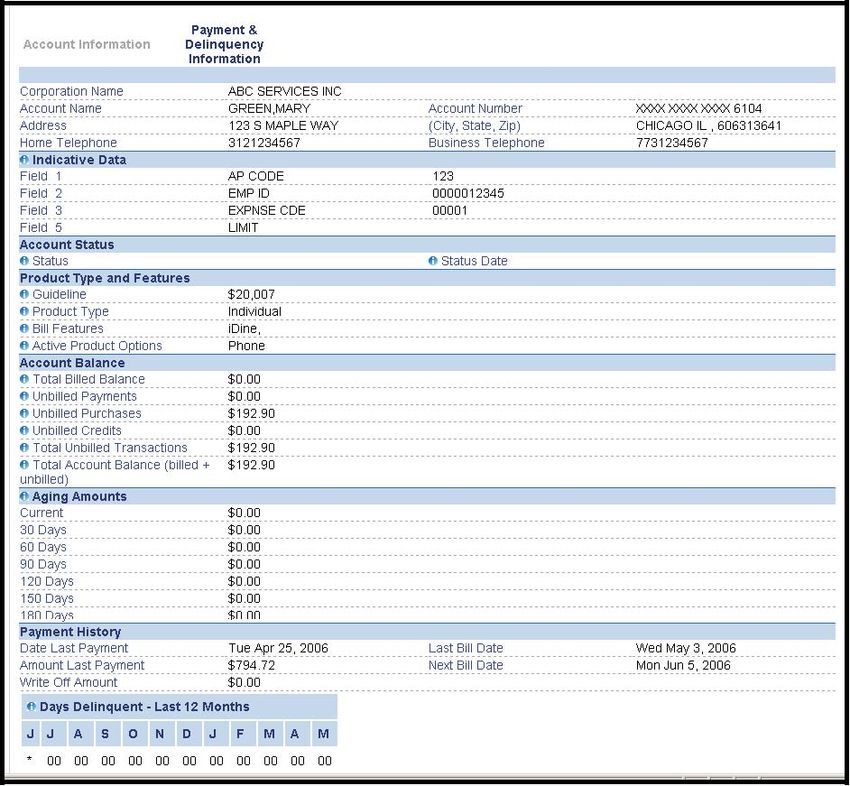
Table of Contents

Getting Started ........................................................................................................................................................................ 3
  Logging In ............................................................................................................................................................................ 3
    Security Information ......................................................................................................................................................... 3
    Passwords........................................................................................................................................................................ 4
    Update Secured Enrollment............................................................................................................................................. 4
    Navigating the Corporate Account Manager.................................................................................................................... 4
Using the Corporate Account Manager................................................................................................................................... 5
  Account Management.......................................................................................................................................................... 5
    Update Information .......................................................................................................................................................... 5
    Secure Messages ............................................................................................................................................................ 5
    Set Preferences ............................................................................................................................................................... 5
    View a Message from your Inbox .................................................................................................................................... 6
    Send a Message .............................................................................................................................................................. 6
    Attach Files ...................................................................................................................................................................... 7
    Card Cancellation ............................................................................................................................................................ 7
    Application Approval ........................................................................................................................................................ 7
    Review Applications......................................................................................................................................................... 8
    Search Applications ......................................................................................................................................................... 9
    Statements Administrator View........................................................................................................................................ 9
    Diners Club On The Go Alerts (Central Bill Accounts only)............................................................................................. 9
    Bill Payment (Central Bill Accounts only)....................................................................................................................... 10
    Online Activity Log ......................................................................................................................................................... 10
    Instant Account View ..................................................................................................................................................... 10
  Reports .............................................................................................................................................................................. 13
    Corporate Reports ......................................................................................................................................................... 13
    Sample Reports ............................................................................................................................................................. 13
Help ....................................................................................................................................................................................... 15

                                                                                                                                                                           Page 2 of 15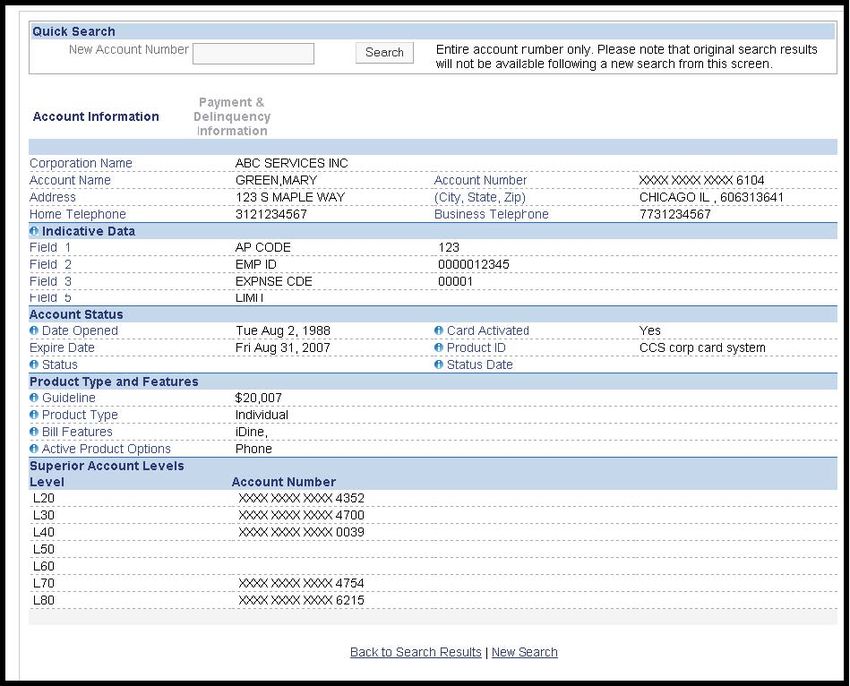
Getting Started

Logging In
Log in at www.dinersclubus.com

      Tip: Bookmark this page to facilitate future visits to the site.

      1      Enter your User ID and your Password in the Secure e-Account Management area.
      2      Click Log in. Upon your first visit, you will be asked to set a new password.

Security Information
      On your first visit, you will als o be asked t o provide information that will help us verify your
      identity should you need offline assistance through our toll-free helpdesk.

                                                                                              Page 3 of 15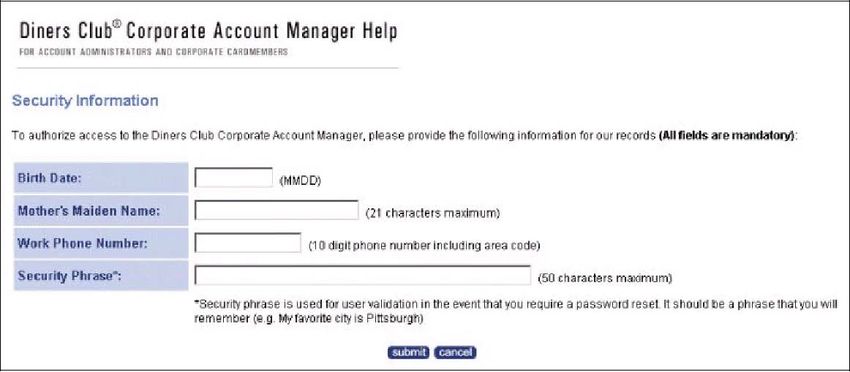
Passwords
        To set a new password or to change your existing password:

        1       Log in to the Diners Club Corporate Account Manager.
        2       Click on Change Password link in the top right corner.
        3       Enter your current password and then enter your new password twice.

        Note: Your password must be between 6 and 20 characters long and contain at least one alpha
        character and one numeric digit. Your password cannot repeat the same letter or number more than 2
        times consecutively. Your password cannot contain spaces.

Update Secured Enrollment
        To update your security information:

        1       Click on the Update Secured Enrollment link in the top right corner.
        2       Enter your updated security information.

Note: If you manage both U.S. and Canadian accounts, simply click on the “Current Franchise” link in the dark blue menu
bar to switch between the United States and Canada.

Navigating the Corporate Account Manager
        The Corporate Account Manager is designed for easy navigation. Only the features for which
        you have been granted access will appear on screen.

        Menu Tab
        Along the top of the page there are Menu Tabs that categorize the features of the site. Each
        Menu Tab has “sub-tabs,” or sub-menus, which lead you directly to the features included in
        each category. Left-hand navigation trail will also assist you in moving within each menu item.

                                                                                                           Page 4 of 15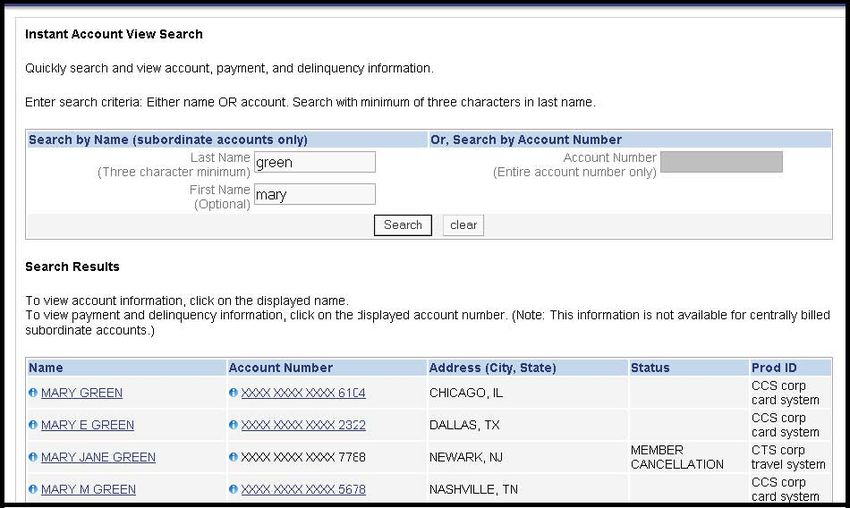
Using the Corporate Account Manager

Account Management
Manage your account quickly and easily through the Corporate Account Manager’s online
maintenance tools

Update Information
      Maintain address, phone, and indicative data information, and request updates to ATM
      and guideline limits for all Individually Billed Cardmembers.

      You will need to enter the Card Number for which you wish to modify information. Once
      the change has been submitted, you will receive a Confirmation Number for your
      reference. You may access a history of your activity, including Confirmation Numbers,
      through the Online Activity Log.

Secure Messages
      Safely send confidential messages and files to Diners Club representatives through encrypted
      Secure Messages Secure Messages can be accessed through the Account Management
      menu or on the left-hand side of the page just below the Main Menu. Frequently Asked
      Questions for Secure Messages can also be found on the left-hand navigation menu.

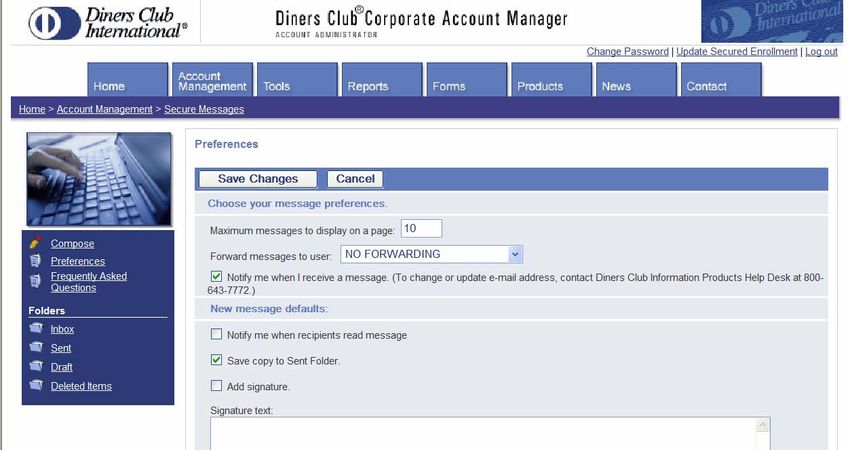
Set Preferences
      You can set your Secure Messages Preferences to:

      1      Notify you via your email address when you receive a Secure Message

      Note: To change your email address, contact the Diners Club Information Products Help Desk at 1-
      800-643-7772.

      2      Notify you when recipients read a message you have sent
      3      Enter the maximum number of messages to display on one page
      4      Save a copy of sent messages to your Sent folder
      5      Add a signature. You can enter text that will automatically appear at the end of all of
             your messages.

                                                                                              Page 5 of 15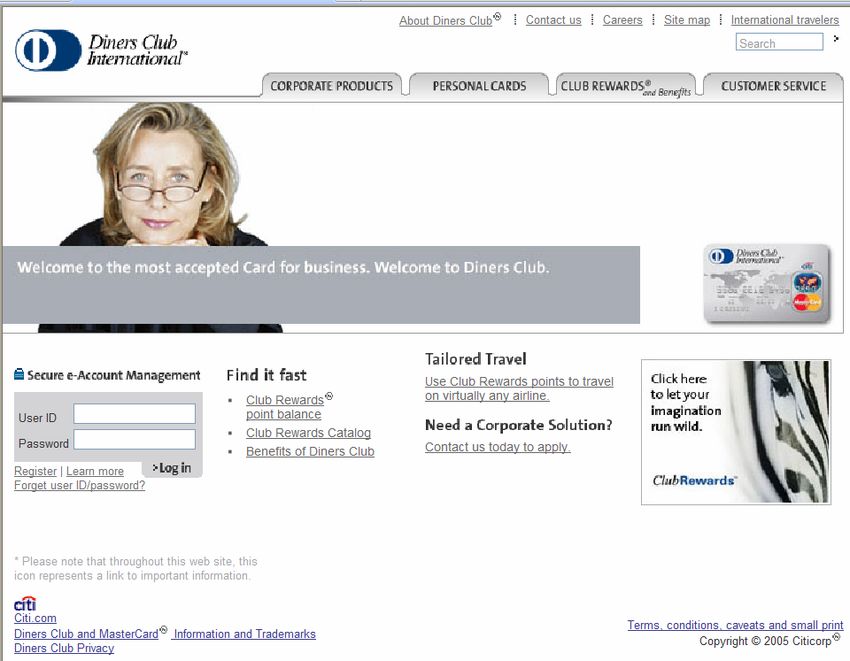
The Preferences page also shows the amount of storage space available for your account, the
     number of days unviewed messages are kept, and the number and size of attachments that
     can be added to an email.

View a Message from your Inbox
     The Inbox stores all incoming messages. Unopened messages are displayed in a bold font.
     Messages are displayed in chronological order, with the most recent message appearing at the
     top. Message with file attachments appear in the Inbox with a paperclip icon.

     Note: Unopened messages will remain in the Inbox for 90 days.

Send a Message
     To create a new message, click Compose. You will select the name(s) displayed in the
     Address Book. You cannot add people to your Address Book. You will only be able to send
     messages to your Diners Club Relationship Manager or Business Service Representative, and
     other Diners Club support personnel. You can also copy (cc:) and blind copy (bcc:) the
     message to other recipients in the Address Book.

                                                                                      Page 6 of 15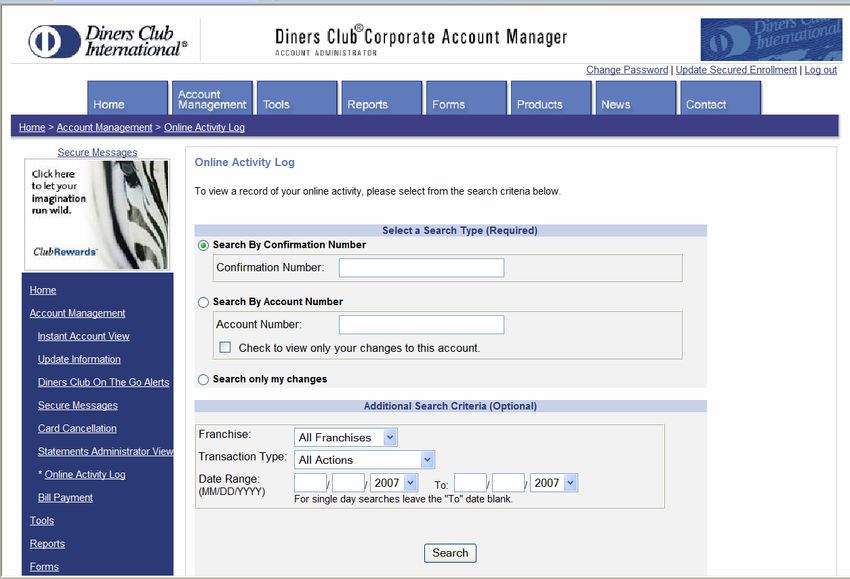
Attach Files
     You can attach up to 10 files per message. The following file formats are accepted:

     Microsoft files (DOC, DOT, XLS, XLW, PPT, C SV and MDB), Adobe (PDF ), Text files (TXT),
     and Zip files (ZIP). For your security, Diners Club Secure Messages does not accept HTM L
     attachments.

     Tip: The maximum file size of an attachment is 20MB.

Card Cancellation
     Quickly submit card cancellation requests for up to 20 accounts at a time

     Prior to card cancellation, please review the Cardmember’s balance by going to Statements
     Administrator View functionality.

Application Approval
     Review and approve Corporate Card applications online

     Diners Club will set up your online application and notify you of the Corporate Card
     application URL and the appropriate Application ID for your organization. You must inform
     your employees of the URL and the Application ID, in order for them to access your
     organization’s online application.

     Employees can apply for the Diners Club Card by going to
     https://www.dinersclubnorthamerica.com/ptl/en/US/apply/entry.jsp and entering your
     organization’s Application ID. The Applicant will then complete the information on the
     screen and select the appropriate Account Administrator.

     Note: If your organization requires that the employee’s manager approve the application prior
     to submission, please communicate to your employees that they must enter the manager’s
     email address in the “Manager’s email address” field. An email will automatically be sent to

                                                                                           Page 7 of 15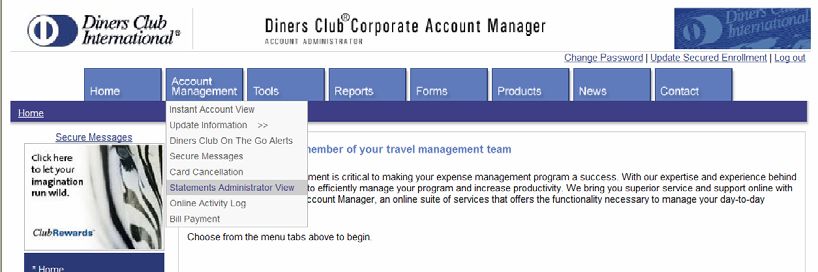
the employee’s manager to let them know that the Application has been submitted, and to
     request that the manager send their approval to the appropriate Account Administrator.

     You may also let your Diners Club Relationship Manager know that you would like for the
     “Manager’s email address” field to be designated “mandatory” on the application, so that
     employees must enter a valid email address in this field in order to apply for a Card.

     Tip: To assist you with employee communication, you can use the sample email below to send an
     announcement to your employees.

            To apply for the Diners Club Card just click here
            [https://www.dinersclubnorthamerica.com/ptl/en/US/apply/entry.jsp] - you must have an
            Application ID [XXXXXX] to apply online.

            Follow the steps below:
            1     Enter the Application ID provided by your Corporate Account Administrator.
            2     Complete the application - be sure to complete all fields designated as required.
            3     Submit your completed application by clicking on the "ACCEPT" button after
                  reading through the Terms and Conditions.

            Submitting your application will automatically route it for review and approval. Once it is
            approved, it will be forwarded to Diners Club for processing, and you will receive an
            email confirming your company’s approval. Your Card will be mailed within 7-10 days of
            Diners Club’s receipt of the application, to the billing address noted in your application.

     Applications can be in one of four statuses: Pending Review, Awaiting Information, Awaiting
     Paper Application, and Awaiting Manager Approval.

Review Applications
     1      Select the application you wish to review by clicking on the Reference Number.
     2      If you have multiple approvers for your organization, you may also review applications
            submitted to other Account Administrators within your organization by clicking on the
            link at the top of the page: “Click here to review Applications submitted to all approvers.”
                                                                                             Page 8 of 15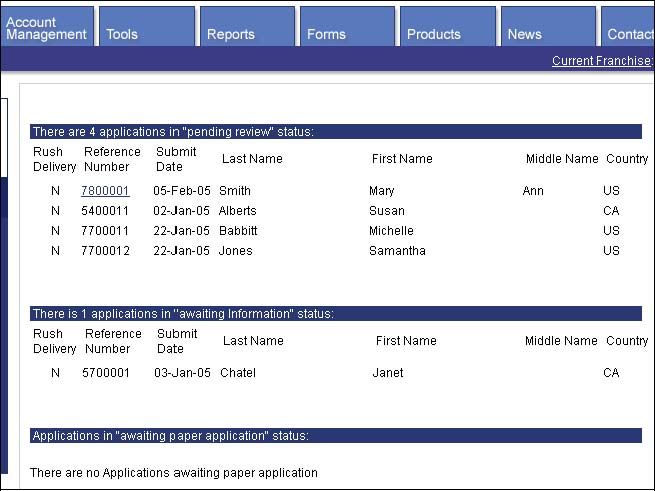
3     Applications will remain in “Review Applications” view under the corresponding status
           (Awaiting Information, Awaiting Paper Application, or Awaiting Manager Approval) until
           Approved or Rejected.
     4     If the application is Approved, the online application will be forwarded to Diners Club for
           processing, and the Applicant will receive a notification of approval via email.
     5     If the application is Rejected, the Applicant will receive a notification via email, listing the
           reason for rejection.

Search Applications
     1     You can search for a specific application by selecting “Search Applications”.
     2     You may search by: Reference number, date range, applicant name (full or partial first
           and last name), or application status.
     3     Select Run Query. You will receive up to 100 results that match your search criteria.

Statements Administrator View
     View a copy of Individually Billed Cardmembers’ statements, and/or Centrally Billed
     corporate statements, to verify compliance with corporate policies and monitor delinquency

     1     You will need to enter the Card Number or summary account number (for Centrally
           Billed accounts) for which you wish to view a statement.
     2     Select the Statement Date from the dropdown box.
     3     Select to view the statement online or to save the statement for use in another
           application. File format options include: Text (TXT), Excel (CSV), Lotus (CSV), Quicken
           (QIF), and Money (QIF). Alternatively, you can select Advanced Download.

Diners Club On The Go Alerts (Central Bill Accounts only)
     This feature is available for centrally billed Diners Club corporate accounts, and enables you to
     receive periodic notices concerning balance information, payment information and other issues
     relating to your Diners Club corporate account(s).

                                                                                               Page 9 of 15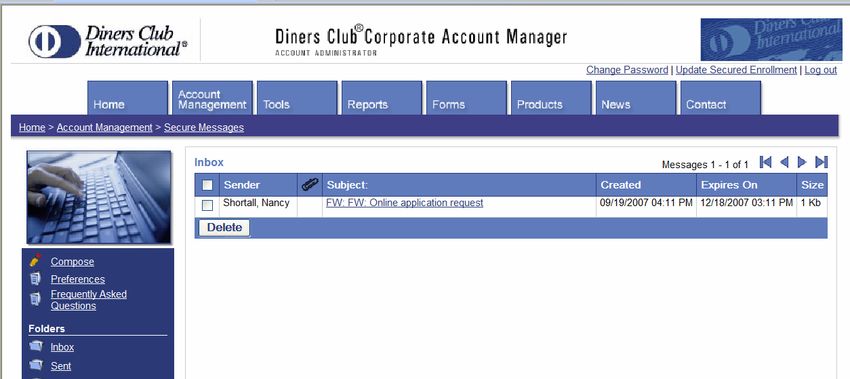
Bill Payment (Central Bill Accounts only)
     Pay your organization’s Diners Club bill directly from your organization’s checking or savings
     account. Save the account information for easy payment in the future.

Online Activity Log
     To view a record of your Corporate Account Manager activity you can search by Confirmation
     Number or Account Number

     1     Select to search by Confirmation Number or Account Number and enter the requested
           information, or select “Search by my changes only”
     2     You may also limit your search to a franchise (if applicable), the type of activity (address
           change, phone number change, indicative data change, or card cancellation request),
           and date range

Instant Account View
     View real-time account balance, payment and delinquency information, to monitor and manage
     delinquency.

                                                                                           Page 10 of 15
Instant Account View Search
To view an account, you can s earch by Account Name (subordinate accounts only) or
Account Number.
Account Information
The Account Information screen provides de mographic, status and product information
for the selected account.
Page 11 of 15Payment & Delinquency Information
The Payment & Delinquency I nformation screen provides account balance, aging,
payment and history information, for delinquency monitoring and management.
Page 12 of 15Reports
The Corporate Account Manager offers comprehensive MIS reporting for your Diners Club program
Corporate Reports
Download standardized reports in PDF format and/or electronic data files of your account
activity for the past six months. (To view the last six months’ worth of reports/data files, click
on the link at the top of the page: “Click here for Corporate Reports in the past 6 months”.)
Note: You will need Adobe Acrobat Reader 5.0 or higher to view Corporate Reports. You can
download this program free at http://www.adobe.com/products/acrobat/readstep2.html.
1 You will receive an email notification when new reports are available to view or
download from the Corporate Account Manager.
2 Reports are listed in date order with the most recent report appearing first.
3 Download a report in PDF format, or a data file, by clicking Download next to a report or
data file.
4 To download multiple data files, check the boxes next to the desired files, then click on
the “Download Selected” button at the bottom of the page. Important: You can only
download multiple files with the same Report ID
5 The default name for each report is the Diners Club report number followed by the
frequency of the report. You can modify the name of the report (to indicate the report
date, for instance).
6 The default name for each data file is the Diners club data file number followed by the
file creation date and Diners Club Account name.
To Change Your List of Corporate Reports and/or Data Files
To add new reports or data files, to stop receiving reports or data files, or to change the
frequency or account number associated with a corporate report or data file, contact
your Diners Club Relationship Manager or Business Service Representative.
Sample Reports
Not sure what reports are available to you? Review from our comprehensive list of
standardized reports that help you analyze any aspect of your Diners Club program. Sample
reports are conveniently categorized according to reporting need:
- Reconciliation
- Travel Policy Management
- Delinquency Management
- Vendor Analysis.
Page 13 of 15Page 14 of 15
Help
Visit the Frequently Asked Questions list under the Contact tab to find quick answers on how to use
features of the Corporate Account Manager.

If you have technical questions that are unanswered in the help documentation online, please call
the Information Products Help Desk at 1-800-643-7772.

For all other questions, please contact your Diners Club Relationship Manager, or Business
Service Representative at 1-800-964-9444 (Monday – Friday 8:30 AM to 8:00 PM Eastern
Time).

                                                                                         Page 15 of 15
You can also read


