Buffalo Public Schools Technology Handbook for Families 2021-2022 - Instructional Software Guide
←
→
Page content transcription
If your browser does not render page correctly, please read the page content below
Buffalo Public Schools
Technology Handbook for Families
             2021-2022

    Instructional Software Guide
          BPS Instructional Technology Department
                    1515 South Park Ave.
                       Buffalo, NY 142
                 Phone 716.816.7100 • Fax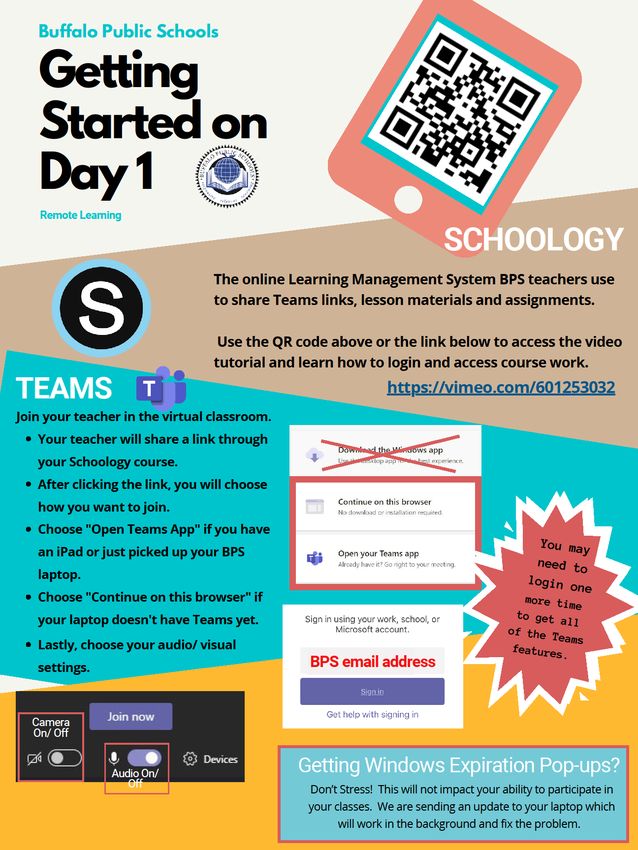
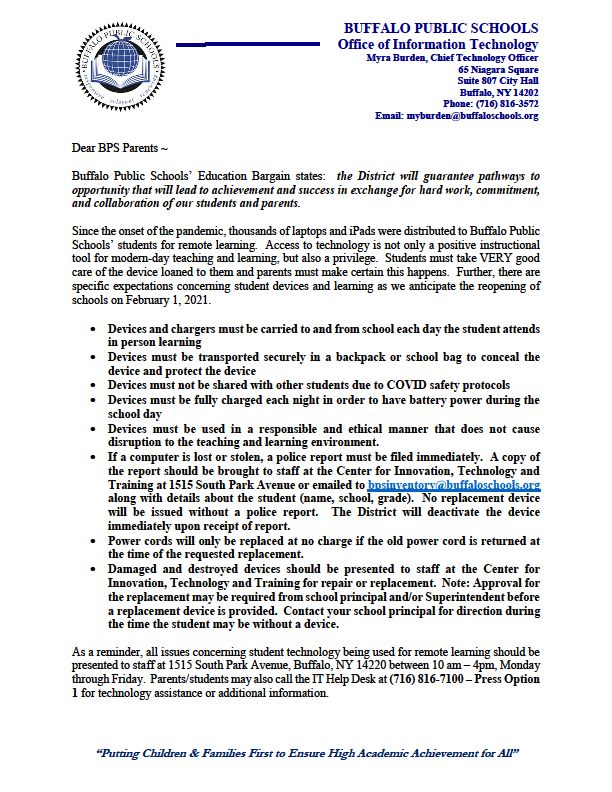
Dear Buffalo Public Schools Community,

We hope that you are safe and well. This letter contains important information regarding student
care of district issued iPad/laptop devices. In preparation for fall reopening of school please make sure
your device is in good working condition. If necessary, you should:

    •   Contact the BPS IT Help Desk at 716-816-7100 (option 1) for assistance troubleshooting any
    technical problems with your iPad/Laptop device.

    •   Bring damaged or inoperable iPads/Laptop devices to the BPS Center for Innovation,
    Technology and Training at 1515 South Park Avenue for repair. Students should never disassemble
    iPad/Laptop device and attempt their own repairs. Families should not take BPS devices to outside
    agencies/businesses for repair.

    •  Return iPad/Laptop devices to the BPS Center for Innovation, Technology and Training at 1515
    South Park Avenue upon request or if leaving the district.

    •   Report any loss, or theft of your computing device immediately to the District. For theft, obtain
    a police report and provide to the District by emailing a copy, including student name and
    information to bpsinventory@buffaloschools.org within five (5) days.

Informational Technology Department
807 City Hall
65 Niagara Square
Buffalo, New York 14202
myburden@buffaloschools.org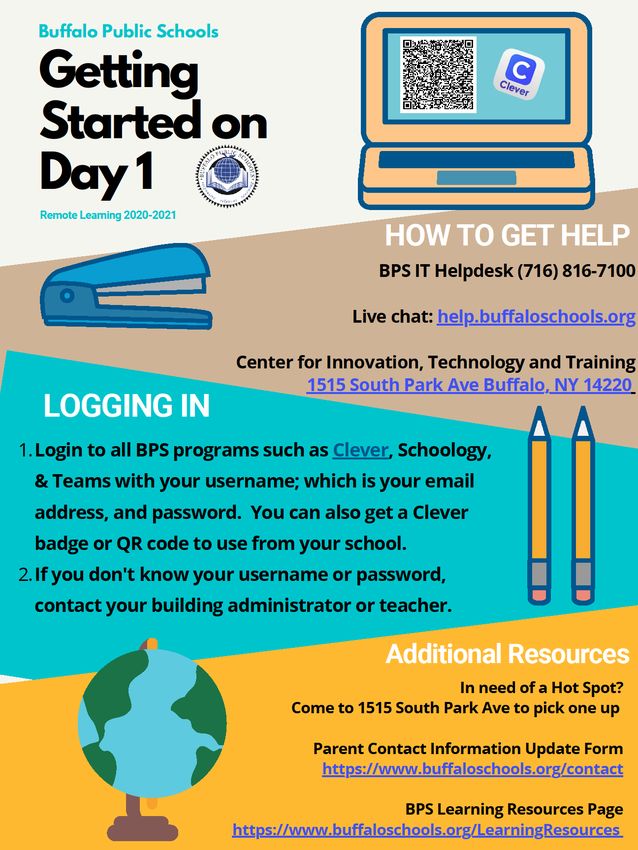
Buffalo Public Schools Handbook
                                            Instructional Software Guide

Table of Contents
Overview ..................................................................................................................................................... 4
Schoology .................................................................................................................................................. 4
Getting Started............................................................................................................................................ 5
Microsoft Teams - Student........................................................................................................................... 5
Getting Started............................................................................................................................................ 5
Clever ............................................................................................................................................................ 5
Getting Started............................................................................................................................................ 5
Nearpod ........................................................................................................................................................ 6
Getting Started............................................................................................................................................ 6
PlayPosit ....................................................................................................................................................... 6
Lexia .............................................................................................................................................................. 7
MyOn ............................................................................................................................................................ 7
Getting Started............................................................................................................................................ 7
MobyMax ..................................................................................................................................................... 8
Getting Started............................................................................................................................................ 8
Zearn ............................................................................................................................................................. 8
Getting Started............................................................................................................................................ 8
Infinite Campus ............................................................................................................................................ 8
Infinite Campus Parent Portal .................................................................................................................. 8
APPENDIX .................................................................................................................................................. 9
GETTING STARTED WITH REMOTE LEARNING ............................................................................ 10
USING SELF-SERVICE (iPads ONLY) ................................................................................................ 12
HOT SPOT INTERNET CONNECTION ............................................................................................... 12
GENERAL TROUBLESHOOTING - Laptops ...................................................................................... 12
GENERAL TROUBLESHOOTING - iPads ........................................................................................... 13
At Home Computer Care......................................................................................................................... 15
Damaged Devices .................................................................................................................................... 17
Student Online Safety.............................................................................................................................. 18
Where to get Further Assistance ........................................................................................................... 18
ADDITIONAL RESOURCES FOR FAMILIES ..................................................................................... 19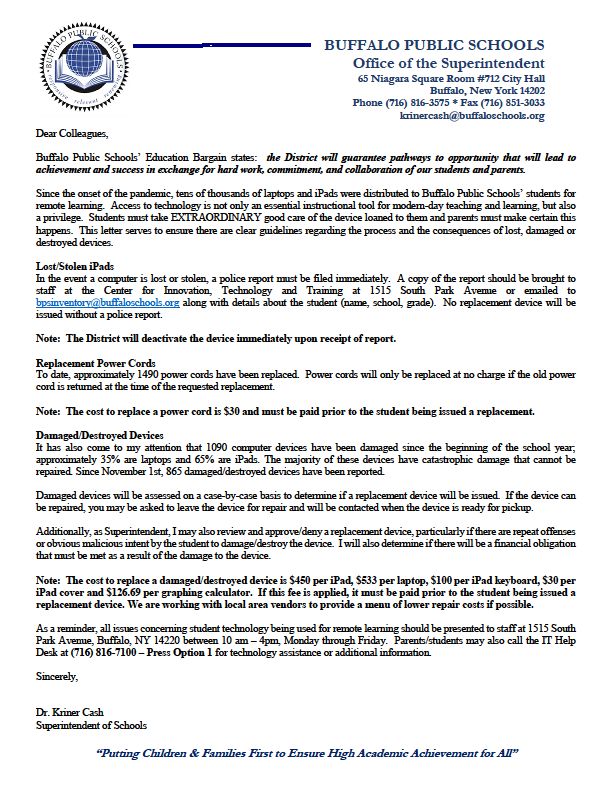
Overview
This manual contains troubleshooting techniques and support for each piece of instructional
software we use in the district. Please know this will be an ever evolving document as we
will continue to add resources and questions as they arise. We plan to update the document
regularly so don’t fret if an answer to your question isn’t included quite yet. They are coming.
Please try all troubleshooting methods related to your issue prior to contacting IT for additional
support. Trying these problem solving techniques will help the IT staff diagnose the specific
issue and be able to more rapidly apply a remedy. This document has live links and QR
codes to take you directly to any supporting resources you may be in need of. Only have a
printed copy and no QR scanner, No problem! Just type the URL’s into any internet browser
to access the same resources.
                                      Important Contact Information:
                                          1. Live chat support
                                                  a. https://help.buffaloschools.org/
                                          2. Call the ITHelpdesk (716) 816-7100, Multilingual Support
                                             call (716) 816-7099
                                          3. Visit the Center for Innovation, Technology, and Training

                                               Center for Innovation, Technology, and Teaching
                                                   1515 South Park Ave. Buffalo, NY 14220

                                          Student Hours: (Enter through parking lot door)
                                          Mon, Wed, Thurs, and Fri 10:00 am – 4:00 pm
                                          Early Hours offered on Tuesdays 8:00 am – 4:00 pm

                                          Staff Hours: (Enter through Main door on South Park Ave.)
                                          Mon, Wed, Thurs, and Fri 10:00 am – 4:00 pm
                                          Early Hours offered on Tuesdays 8:00 am – 4:00 pm

                                          *Holiday Break Schedule: December 27-30

Schoology
Schoology is the Learning Management System utilized in BPS. This is where students will
be able to access their coursework and instructional materials. Schoology is also where
students can gain access to their virtual classroom using links provided by their teacher. This
learning management system is also used for delivering professional development to
teachers.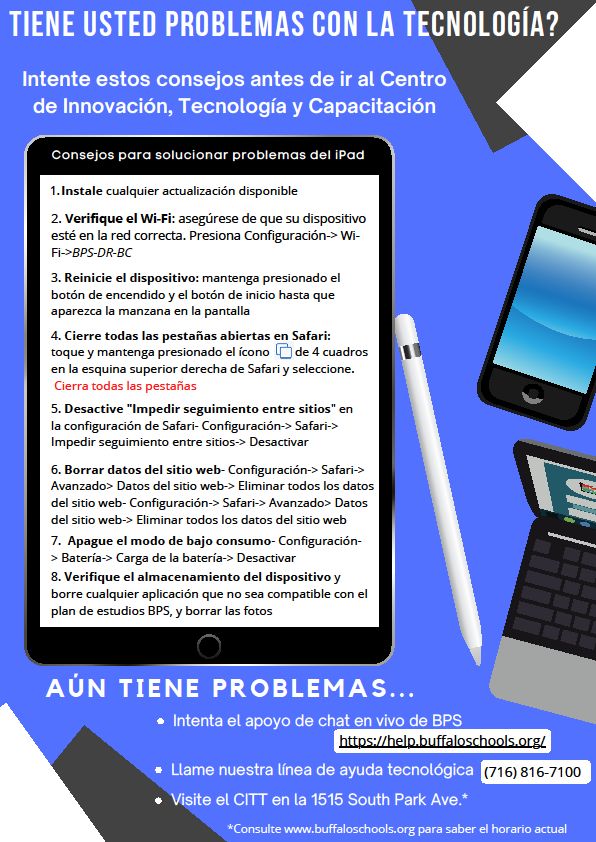
Getting Started
   Use the videos and PowerPoint presentations below to learn about the various ways you can
   access to Schoology as well as how to get started with the learning platform. If you continue
   to experience issues with your remote learning experience, try the troubleshooting tips
   included below. If all else fails, tech support contact information is included for Schoology.

 How to install    Schoology Tutorial         Accessing         Basic Navigation of    Accessing Course
and login on app          PPT                Assignments            Schoology              Material

https://vimeo.co   https://bit.ly/3ml3p   https://vimeo.com/     https://vimeo.com    https://vimeo.com
 m/580849156       ur                     448878348                 /601253032           /601858668

   Microsoft Teams - Student

   Getting Started                                                         Getting Started for Students
   Your teacher will use your Schoology Course to share a Teams               https://bit.ly/37DQVHJ
   meeting link. This link will be your ticket to your virtual class.
   When joining a Teams meeting make sure you are signed in and
   not just entered a guest. You will have a wider array of features
   when signed in. Make sure you are abiding by all acceptable
   use policy guidelines and behavior expectations are the same
   as they would be for an in-person class.

   Clever
   Getting Started
   Clever is the main Instructional Software dashboard for BPS students. While there is some
   software students will access outside of Clever, most programs will be access through this
   program. Students will login either using a Clever badge or their BPS email address and
   password.
How to Login to Clever with
            How to Login with a Clever Badge
                                                           District Email
              https://vimeo.com/397823585         https://youtu.be/vbW-B879oe8

Nearpod
Getting Started
                                                                            What is Nearpod?
Nearpod allows students to join a live lesson and see the            https://youtu.be/anTtMRaQLsM
presentation on their own device or use a join code to participate
in a lesson at their own pace. These are fun and interactive
lessons that students will actively engage and participate with.
For a live paced lessons, the teacher will walk the students
through each slide of their Nearpod. For a student paced lesson,
students will see this in their Schoology course as indicated by
the image below. They are to go through the lesson at their own
pace and complete all the embedded tasks. The teacher will be
able to view all work completed by the student.

                                                                         Student Experience

PlayPosit                                                            PlayPosit Student Experience

Getting Started for Students
Students have to access Playposit Bulbs through their Schoology
account. Teachers will assign them as they would any other
assignment.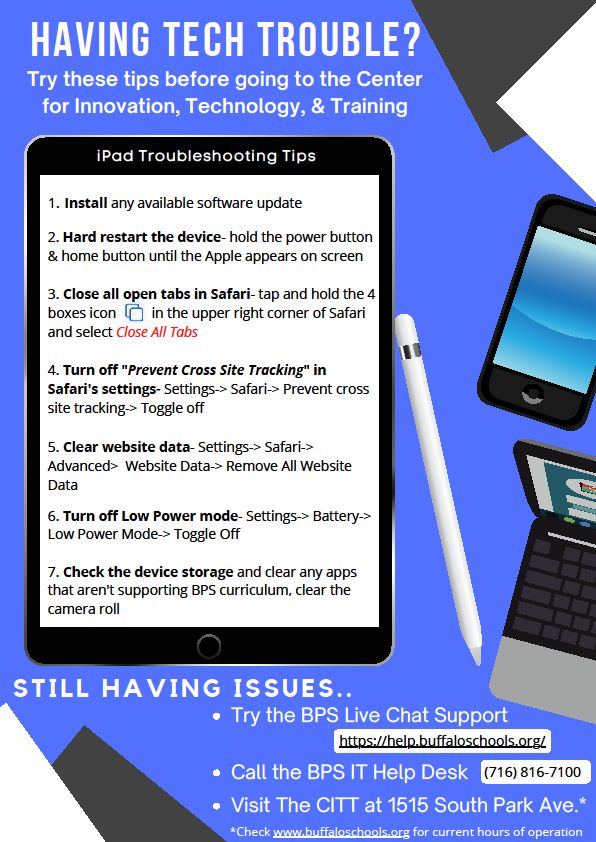
Lexia
Lexia is our district ELA remediation program. Lexia consists of Core5 for students in K-5 and
PowerUp for students in 6-12. All students will access Lexia via Clever.
IPAD STUDENTS: You must download the Core5 or PowerUp app from Self Service. After it fully
loads, login via Clever. DO NOT login through the app itself.

            What is Core5?              Using Core5 on ipads         What is PowerUp?
       https://bit.ly/3piAKbd       https://bit.ly/2GoeQzv       https://bit.ly/3Je9AKo

MyOn
MyOn is a digital library for students to access. The books are based on the students lexile as
determined by a placement test as well as a student interest survey.

Getting Started
Students will access MyOn via Clever.

 Getting Started for Students       Getting Started for Students          Family Knowledge Base
                                             (Spanish)
     https://bit.ly/36tvmsE            https://bit.ly/3iqOZnx         https://help2.renaissance.com/
                                                                       myON/StudentsAndFamilies
MobyMax                                                                Using Moby Max
Instructional Intervention program for students to use at all
                                                                    https://bit.ly/3plBj3Y
times. This can be a stand-alone program for students to
work on or teachers may assign tasks.

Getting Started
MobyMax is accessed through Clever.

                                                                          Zearn Help Center
Zearn                                                            Zearn Help Center - Getting Started
Zearn Math is based on Eureka Math / EngageNY and designed
to partner with teachers to create a personalized learning
experience for every student in grades K –7.

Getting Started
Zearn is accessed through Clever for students in grades K – 7.

Infinite Campus
Infinite Campus is our main portal for student and staff information. This includes
schedules, grades, parent communication and demographic and health data. All of our
software systems pull data from here.

Infinite Campus Parent Portal
Parents have the right to access and monitor assignments, grades and attendance, as well
as contact information, through the online Parent Portal. This resource helps parents stay
informed and connected by providing day-to-day insight into their child’s
academic experience. If you need more information on how to access Parent
Portal or how to request portal letter, click the link below, type the address into
your internet browser or scan the QR code with your mobile device.
https://www.buffaloschools.org/Page/2380
APPENDIX
GETTING STARTED WITH REMOTE LEARNING
USING SELF-SERVICE (iPads ONLY)
Self Service is the Buffalo Public Schools app store. All district vetted and approved apps
are housed in this program. For further instructions refer to this guidance document
HERE

HOT SPOT INTERNET CONNECTION
If your home is still in need of a Hot Spot for Internet Connection, please go to the Center
for Innovation, Technology and Teaching during operating hours to receive one.

For additional assistance with a District-provided hotspot device, contact the BPS
Helpline at 816-7100, option 1 for assistance.

GENERAL TROUBLESHOOTING - Laptops

Support and Trouble Shooting

   •   For Internet connectivity issues on your device, it is recommended that you first restart
       the device. To do so, click the “windows” button in the lower left corner, select “power,”
       then click “restart.”.

   •   If Internet connectivity issues persist, contact your internet service provider (ISP).

   •   For device hardware or software functionality issues, first restart the device. Click the
       “windows” button in the lower left corner, select “power,” then click “restart.”

How to Power On/Shut Down

   •   Press the power button.

   •   After about a minute, you will be presented with the login screen.

   •   Login with student username and password.

   •   At the end of each work session or the end of the instructional day, close all
       applications, click the “windows” button in the lower left corner, select “power,” then
       click “shut down.”
GENERAL TROUBLESHOOTING - iPads
Support and Trouble Shooting

   •   For Internet connectivity issues on your device, go into settings -> wifi and make sure
       the correct network is selected.

   •   If Internet connectivity issues persist, contact your internet service provider (ISP).

   •   For device hardware or software functionality issues, first try a Hard Restart (directions
       below).

   •   If device hardware or software functionality issues persist, contact the BPS Helpline
       at 816-7100, option 1 for further instruction and support

How to Hard Restart
A hard restart is a full reset of the device and isn’t simply just powering off the device.

   •   Hold the home button and power button at the same time.

   •   Keep holding both buttons even when the screen goes black.

   •   When a white apple appears on the screen, let go.

   •   When the screen loads back up, the hard restart is complete.

At Home Computer Care
Traveling with the Devices
   • Devices should stay in their sleeves or backpack when traveling.
   •   If you are traveling out of the country, please call the help desk at (716) 816-7100 to
       enable your device to work out of the country.

Home Use Guidelines
  • All school rules apply for home use of devices.
Damaged Devices
Student Online Safety
The parent/guardian must agree to monitor student use at home. The best way to keep
students safe and on-task is to have a parent/guardian present and involved. The device has
the same functionality at home as it does in the classroom. While every effort is made to filter
undesirable content on the device, the system is not failsafe. For this reason, it is important
for parents/guardians to monitor their students’ online activity.

For schools and parents/guardians alike, student safety is always the highest priority. The
precautions described in this section are intended to help students be safe on the path to and
from school. Student safety always comes first.

   •   Users should never share personal information, including phone number, address,
       social security number, birthday, or financial information, over the Internet without
       adult permission.

   •   Users should recognize that communicating over the Internet brings anonymity and
       associated risks and should carefully safeguard the personal information of
       themselves and others.

   •   Users should never agree to meet someone who they meet online in real life. If you
       see a message, comment, image, or anything else online that makes you concerned
       for your personal safety, bring it to the attention of an adult (teacher or staff if you’re
       at school; parent if you’re using the device at home) immediately.

   •   Students may not post or otherwise disclose personal identifying information about
       themselves or others, including pictures, video-footage, descriptions or name(s).

   •   Students and families must be cautious to protect the safety of themselves and the
       identity of others.

   •   Student dress code should be appropriate when operating the device camera and/or
       webcam.

   •   Parents are to monitor the use of the computer at home to ensure that its primary
       function is academic and that students are completing assigned work.

Where to get Further Assistance
   1. Live chat support
          a. https://help.buffaloschools.org/
   2. Call the ITHelpdesk (716) 816-7100, Multilingual Support call (716) 816-7099
   3. Visit the Center for Innovation, Technology, and Training
Center for Innovation, Technology, and Teaching
1515 South Park Ave. Buffalo, NY 14220
Student Hours: (Enter through parking lot door)
Mon, Wed, Thurs, and Fri 10:00 am – 4:00 pm
Early Hours offered on Tuesdays 8:00 am – 4:00 pm
Staff Hours: (Enter through Main door on South Park Ave.)
Mon, Wed, Thurs, and Fri 10:00 am – 4:00 pm
Early Hours offered on Tuesdays 8:00 am – 4:00 pm
ADDITIONAL RESOURCES FOR FAMILIES
Common Sense Media - www.commonsensemedia.org
Provides information and resources for families on how to best support your leaner(s) in a
digital community. This is also where you can find materials related to the Digital Citizenship
curriculum used in Buffalo Public Schools.
BPS Learning Resources for Home – https://www.buffaloschools.org/Page/88626
Helpful resources that provide support for students and parents on how to use many of the
instructional programs utilized by teachers for instruction. These resources include the
Schoology tutorial videos.
Parent Contact Information Update Form - https://www.buffaloschools.org/contact
Connect Safely - www.connectsafely.org
The site has tips for teens and parents, as well as other resources for safe blogging and social
networking.
Internet Keep Safe Coalition - http://www.iKeepSafe.org
A broad partnership of public health and educational professionals, law enforcement, and
industry leaders working together for the health and safety of youth online.
OnGuard Online - http://www.onguardonline.gov
Practical tips from the federal government and technology industry to help you be on guard
against Internet fraud, secure your computer, and protect your personal information. It
features NetCetera, which includes tips to help parents talk to kids about being online.
Wired Safety - http://www.wiredsafety.org
Provides help, information and education to Internet and mobile device users of all ages. It
also helps parents with issues, such as Facebook and cyberbullying.You can also read


