COMMON APP ONLINE: THE APPLICANT PERSPEC5VE
←
→
Page content transcription
If your browser does not render page correctly, please read the page content below
Common
  App
  Online:

The
  Applicant
  Perspec5ve
Agenda
This
presenta,on
looks
at
the
processing
life
cycle
of
a
student’s
applica,on
–
from
registra,on
to
submission.
Objec5ves
The
CAO
2011-‐12
Common
Applica,on
•
Learn
about
func,onality
and
flow
within
the
CAO
Registra,on
Naviga,on
•
Go
through
the
applica,on
Submission
process
from
an
applicants
perspec,ve
Login
  Screen

                  h=p://www.commonapp.org

Login
  Screen

                  h=p://www.commonapp.org


                                        Students
  register
  by
  clicking

                                                     Go
  here

Crea5ng
  a
  New
  Account


                                     Inline
  help
  menus

                                     address
  commonly

                                     asked
  ques,ons.


                                     Registra,on

                                     instruc,ons
  reinforce

                                     that
  accounts
  are

                                     valid
  for
  the
  current

                                     admission
  cycle
  only.
Crea5ng
  a
  New
  Account


Students
  can
  give
  colleges
  permission
  to
  contact
  them.

  This
  elec,on
  can
  be

changed
  at
  any
  ,me
  by
  going
  to
  Account
  seMngs.

Crea5ng
  a
  New
  Account


Students
  can
  give
  colleges
  permission
  to
  contact
  them.

  This
  elec,on
  can
  be

changed
  at
  any
  ,me
  by
  going
  to
  Account
  seMngs.


Enrollment
  intent
  is
  used
  to
  gather
  sta,s,cs
  on
  CAO
  users.
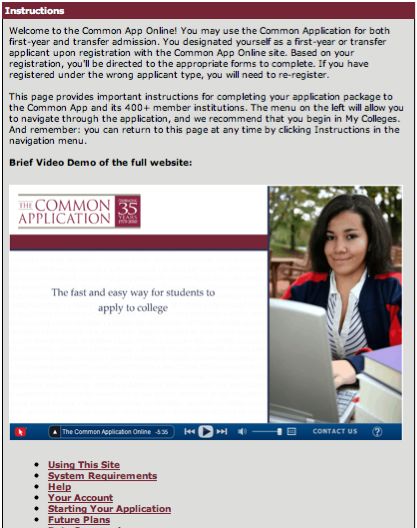
Instruc5ons


                  Students
  are
  taken
  to

                  the
  main
  Instruc,ons

                  page
  upon
  comple,ng

                  the
  registra,on
  process.


                  A
  brief
  video
  offers
  an

                  overview
  of
  the

                  applica,on.
Naviga5on
  Menu


                        The
  naviga,on
  menu
  appears
  on

                        the
  leP
  side
  of
  the
  screen.


                        Students
  can
  move
  through
  the

                        applica,on
  by
  clicking
  through

                        each
  of
  the
  sec,ons.

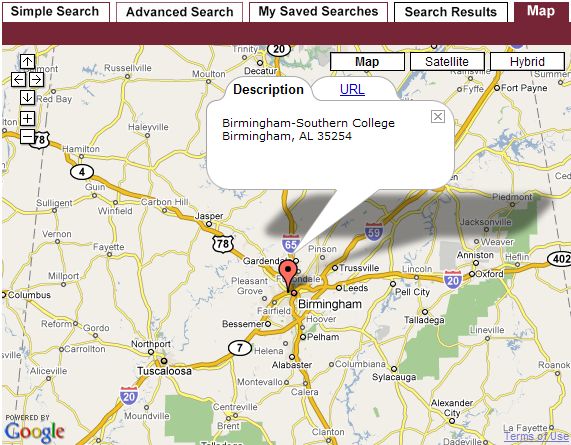
GeFng to the Search Engine By clicking on Search for Colleges on the leP-‐hand naviga,on menu, the student is brought to the Simple Search page.
The
  Search
  Engine


                              On
  either
  the
  Simple

                              Search
  or
  the

                              Advanced
  Search,

                              entering
  in
  search

                              criteria
  and
  clicking

                              on
  the


                              buSon…
The
  Search
  Engine


                              On
  either
  the
  Simple

                              Search
  or
  the

                              Advanced
  Search,

                              entering
  in
  search

                              criteria
  and
  clicking

                              on
  the


                              buSon…
  brings
  the

                              user
  to
  the
  Search

                              Results
  screen.
The
  Search
  Results
  Screen


                                         From
  here,
  schools

                                         can
  be
  mapped…
The
  Search
  Results
  Screen


                                                  From
  here,
  schools

                                                  can
  be
  mapped…


…
  and
  searches
  can
  be
  saved.
Comparing
  Schools


Clicking
  on
  the


  buSon
  from
  the
  search
  results
  screen
  allows
  students

to
  compare
  up
  to
  three
  different
  ins,tu,ons.

Clicking
  on
  the
  categories
  at
  the
  top
  (e.g.
  Admissions)
  will
  display
  different
  sets

of
  relevant
  data.
Adding
  a
  College


To
  add
  a
  school,

check
  the
  box

next
  to
  its
  name

and
  click
  on
  Add

to
  get
  to
  the
  My

Colleges
  screen.
Adding
  a
  College


The
  QuickAdd
  feature
  allows
  you
  to
  bypass
  the
  search
  screen
  if
  you
  know
  the

school
  name.
Adding
  a
  College


The
  QuickAdd
  feature
  allows
  you
  to
  bypass
  the
  search
  screen
  if
  you
  know
  the

school
  name.


                                                                                   Clicking
  on
  a
  school
  op,on

                                                                                   that
  appears
  in
  this
  list
  will

                                                                                   ac,vate
  the
  QuickAdd

                                                                                   buSon.
My
  Colleges


                     To
  view
  school

                     informa,on…
My
  Colleges


                     To
  view
  school

                     informa,on…
  click
  on

                     the
  school’s
  name
  –

                     the
  info
  at
  the
  boSom

                     refreshes.
The Common Applica5on APer searching for and adding colleges, the user moves on to the Common Applica,on itself, beginning with the Future Plans sec,on with college-‐specific ques,ons.
Data
Suppression
Some
colleges
may
elect
not
to
receive
certain
informa,on,
even
if
students
include
that
informa,on
as
part
of
their
applica,on.
“Suppressible”
items
include:
-‐SSN
-‐Self-‐Reported
Tes,ng
-‐Religious
Preference
-‐Discipline
Informa,on
Required
  Ques5ons

Throughout
  the
  Common
  Applica,on,
  applicants
  will
  come
  across
  required

ques,ons
  which
  will
  be
  marked
  in
  bold
  and
  gold.
Error
  Messages


When
  students

decline
  to
  answer

required
  ques,ons,
  a

system
  message
  is

displayed
  at
  the
  top
  of

the
  page
  leMng
  the

user
  know
  which

ques,ons
  have
  not

been
  answered

successfully.


These
  ques,ons
  are

also
  highlighted
  in
  the

form
  itself.
Dynamic Ques5ons While naviga,ng the Common Applica,on, take note of ques,ons with dynamically-‐displayed content. When an applicant selects one answer… Ci,zenship Status (Demographics): Parent Living (Family):
Dynamic Ques5ons While naviga,ng the Common Applica,on, take note of ques,ons with dynamically-‐displayed content. When an applicant selects one answer… new ques,ons pursuant to that answer will appear dynamically. Ci,zenship Status (Demographics): Parent Living (Family):
CEEB Codes The CEEB code look-‐up feature populates school informa,on to the Common Applica,on automa,cally.
CEEB Codes The CEEB code look-‐up feature populates school informa,on to the Common Applica,on automa,cally.
CEEB Codes The CEEB code look-‐up feature populates school informa,on to the Common Applica,on automa,cally.
Prin5ng
  and
  PDFs


 Students
  can
  check

 their
  progress
  at
  any

 ,me
  by
  clicking

 Preview
  at
  the
  top
  of

 the
  page.
  This
  will

 bring
  up
  a
  PDF
  copy

 of
  the
  applica,on.
Signature


                On
  the
  final
  sec,on
  of
  the

                Common
  Applica,on,
  students

                affirm
  that
  they
  have
  previewed

                their
  applica,on
  and
  then
  select

                schools
  for
  submission
  before

                clicking
  on
  Submit.
Signature


 APer
  a
  successful
  submission

 the
  student
  is
  brought
  back
  to

 their
  My
  Colleges
  page
  and
  can

 view
  status
  informa,on
  about

 other
  areas
  of
  their
  Common

 Applica,on.
Errors
  in
  Submission

  If
  there
  are
  s,ll
  some
  unanswered
  required
  ques,ons,
  they
  are
  displayed
  as

  clickable
  links
  that,
  when
  clicked,
  take
  the
  student
  directly
  to
  the

  unanswered
  ques,on.


Unanswered,
  required

ques,ons
  are
  highlighted.
Supplements Working down the leP-‐hand naviga,on menu, students will arrive at the Supplements sec,on.
Supplements Working down the leP-‐hand naviga,on menu, students will arrive at the Supplements sec,on.
Addi5onal
  Supplements


 Key
  points

 •
  Arts
  and
  Athle,c
  Supplements
  are
  only
  required
  condi,onally
  if
  the
  applicant


  opts
  to
  submit
  either
  supplement

               •
  These
  supplements
  will
  be
  appended
  to
  the
  end
  of
  submiSed
  Common


  Applica,ons


 •
  The
  Early
  Decision
  Agreement
  is
  required
  of
  applicants
  who
  select
  an
  ED


  term
  for
  schools
  that
  have
  opted
  to
  receive
  the
  Common
  App
  Online’s
  ED


  Agreement


 •
  Applicants
  may
  submit
  their
  Common
  Applica,ons
  once
  they’ve
  signed
  and


  submiSed
  the
  ED
  Agreement


 •
  The
  completed
  ED
  Agreement
  is
  submiSed
  by
  counselors
Payments


               Unless
  a
  school
  requires

               payment
  before

               submission,
  students
  will

               be
  prevented
  from
  paying

               at
  the
  beginning.
Payment
  Vendor


                        Students
  elec,ng
  to
  pay
  by
  Credit

                        Card
  or
  eCheck
  are
  taken
  to
  the

                        website
  for
  our
  payment
  vendor

                        where
  they
  must:


                        1)
  Agree
  to
  the
  terms
  and
  condi,ons

                        2)
  Fill
  out
  payer
  informa,on

                        3)
  Enter
  Payment
  Method
  &Informa,on

                        4)
  Click
  Submit
Payment
  Confirma5on

APer
  clicking
  on
   Submit
  the
  student
  will
  receive
  a
  processing
  message...


Followed
  by
  a
  confirma,on
  page...
Payment
  Receipt


   Students
  who
  pay
  by
  Credit
  Card

   or
  eCheck
  can
  print
  a
  receipt.
Payments
  –
  Mail
  Check


                                     The
  Mail
  Check
  op,on
  records

                                     a
  student’s
  intent
  to
  mail
  a

                                     check
  to
  the
  college.
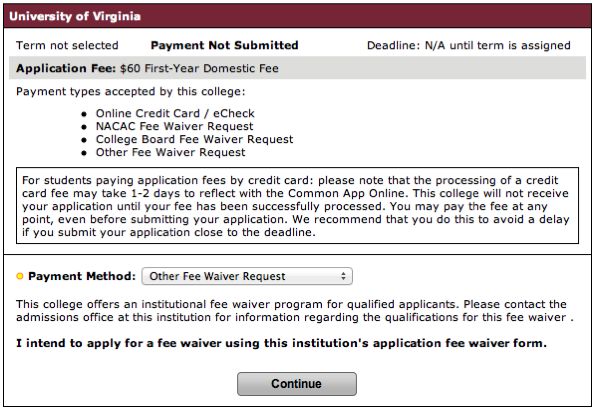
Payments
  –
  Fee
  Waivers


Students
  may
  also
  request
  a
  Fee
  Waiver
  on
  the
  Payment
  Page.


                                                                          All
  members
  agree
  to
  accept

                                                                          both
  the
  NACAC
  and
  College

                                                                          Board
  Fee
  Waivers.

  Online

                                                                          counselors
  can
  submit
  the

                                                                          NACAC
  Fee
  Waiver
  online.

                                                                          Some
  members
  use
  an

                                                                          “Other”
  Fee
  Waiver
  op,on.


                                                                          Students
  must
  contact
  these

                                                                          ins,tu,ons
  for
  eligibility

                                                                          informa,on.
Payments


               Color
  coded
  icons

               make
  it
  easier
  for

               applicants
  to
  see
  the

               status
  of
  their

               payments.


               Payment
  submission

               is
  NOT
  ,ed
  to

               Common
  App

               submission
  and
  is
  a

               dis,nctly
  separate

               submission
  process.
Three
  Dis5nct
  Submissions


   The
  Applica,on,

   Payment,
  and

   Supplement

   submissions
  are

   three
  dis,nct

   processes.

  Students

   should
  refer
  to
  the

   My
  Colleges
  page
  to

   confirm
  that
  all

   required
  items
  have

   been
  submiSed

   properly.
School
  Forms:
  Naviance
  View


     Naviance
  Schools
  using
  eDocs
  are
  flagged
  in
  the
  CAO
  system.

  When

     students
  from
  these
  schools
  arrive
  in
  the
  School
  Forms
  sec,on,
  they
  are

     instructed
  to
  consult
  with
  their
  counselor.
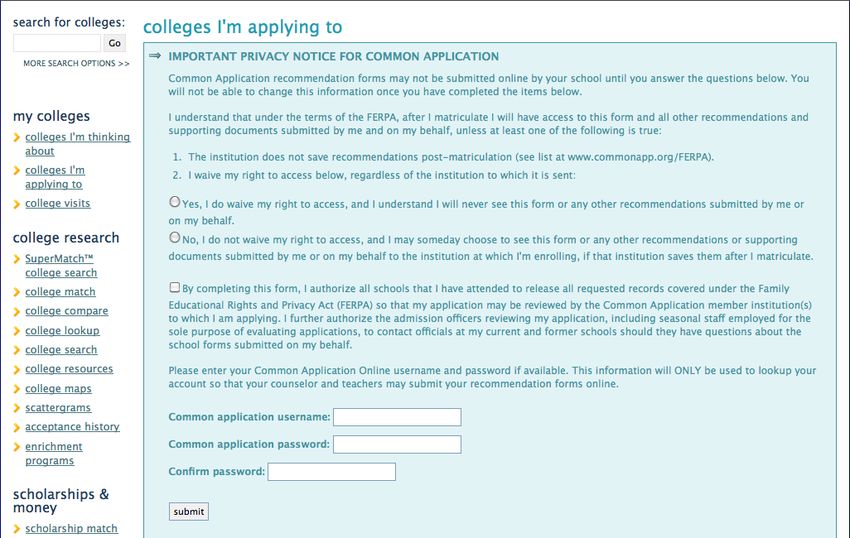
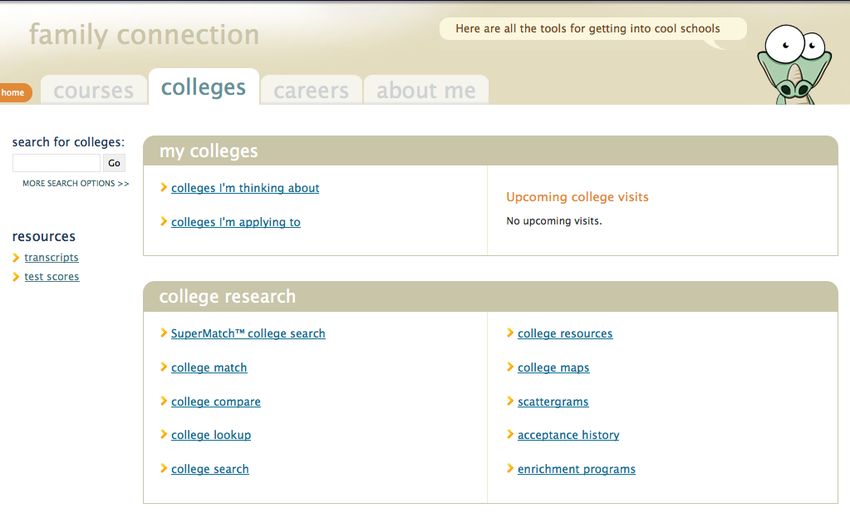
Log into your Naviance Account. Click on the Colleges Tab.
Click on the link labeled “college I’m applying to”.
Complete FERPA waiver.

                         Give the username and
                         password you created for your
                         Common Application Account
                         NOT your Naviance log-in
                         information.
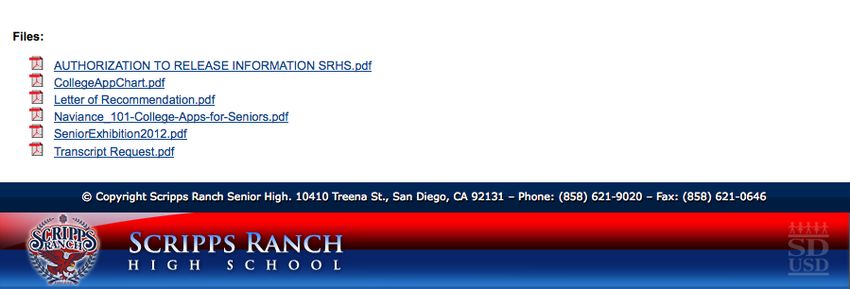
After completing the FERPA waiver you should follow the SRHS procedures for ordering transcripts and recommendation letters for each school. The detailed directions can be found on srhsfalcons.com under the Counseling Center. Go to the Senior link and then scroll down to the bottom to view attached directions.
Ques5ons?


   Contact the Support Center. Open 24/7 to assist you!
                      Applicant
  Support
  Center


                    School
  Forms
  Support
  Center


                 Common
  Ques,ons
  for
  Applicants


                  www.commonapp.org
You can also read


