G Suite and Cloud Identity - HIPAA Implementation Guide - Google
←
→
Page content transcription
If your browser does not render page correctly, please read the page content below
G Suite and Cloud Identity
  HIPAA Implementation Guide

    GOOGLE CONFIDENTIAL AND PROPRIETARY
Google Security and Compliance Summary August 2018
                                                     1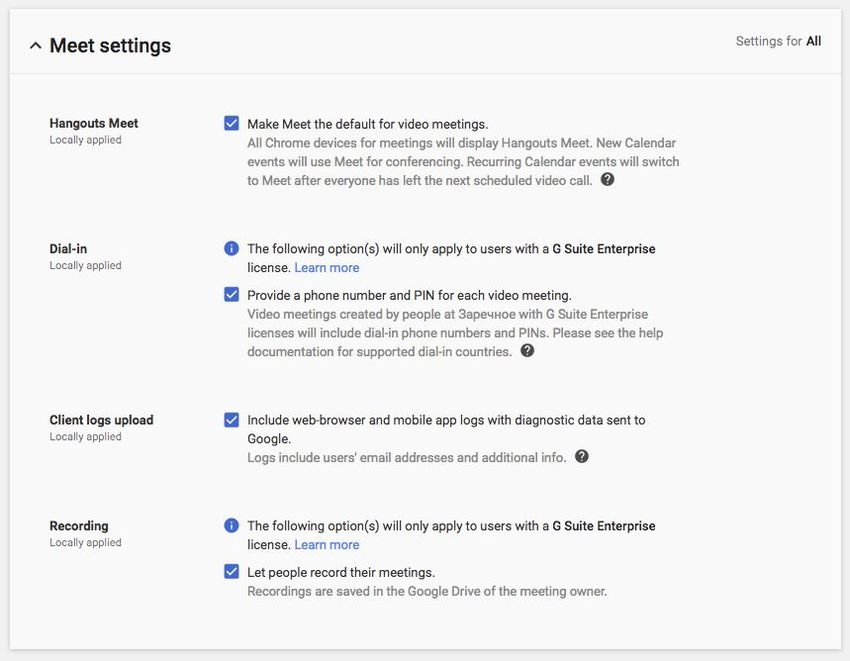
Table of Contents
Customer Responsibilities

Using Google Services with PHI

What to Consider for Specific G Suite Core Services
   Monitoring account activity
   Search history
   Gmail
   Calendar
   Drive (including Docs, Sheets, Slides, and Forms)
       Apps Script
   Keep
   Sites
       Sites (classic version)
       Sites (new version)
   Jamboard
   Hangouts (chat messaging feature only)
   Hangouts Chat
       Sharing Options
       Bots and Integrations
           @Meet by Google
           @Drive by Google
           Third Party Bots and Integrations
       Google Hangouts Compatibility
   Hangouts Meet (Hangouts new video meeting experience)
   Google Cloud Search
   Cloud Identity Management
   Groups
   Tasks

Additional Considerations for HIPAA Compliance
   Separating user access within your domain
   Use of third party applications, systems, or databases
   Security best practices

Security Audits and Certifications

Additional Resources

                                 GOOGLE CONFIDENTIAL AND PROPRIETARY
                             Google Security and Compliance Summary August 2018
                                                                                  2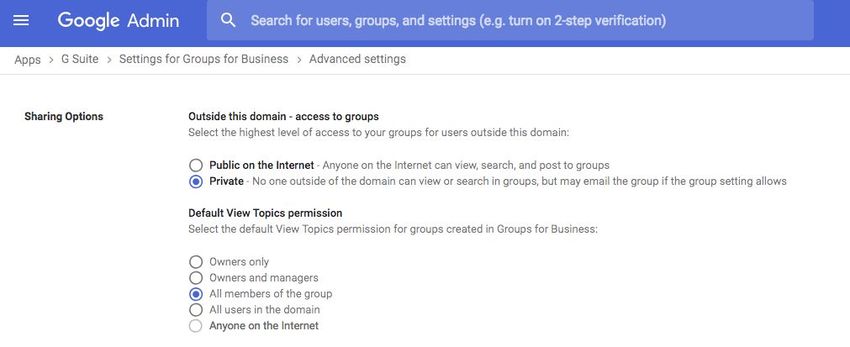
Google works to keep users' data secure in the cloud in a reliable,
compliant way.
The combination of security and privacy lead to a strong ecosystem that keeps your information
safe. For customers who are subject to the requirements of the Health Insurance Portability and
Accountability Act (known as HIPAA, as amended, including by the Health Information
Technology for Economic and Clinical Health — HITECH — Act), G Suite supports HIPAA
compliance.
This guide is intended for security officers, compliance officers, IT administrators, and other
employees in organizations who are responsible for HIPAA implementation and compliance
with G Suite and Google Cloud Identity. Under HIPAA, certain information about a person’s
health or health care services is classified as Protected Health Information (PHI). After reading
this guide, you will understand how to organize your data on Google services when handling PHI
to help meet your compliance needs.
Customer Responsibilities
Customers are responsible for determining if they are a Business Associate (and whether a
HIPAA Business Associate Agreement w ith Google is required) and for ensuring that they use
Google services in compliance with HIPAA. Customers are responsible for fulfilling an
individual's right of access, amendment, and accounting in accordance with the requirements
under HIPAA.
Using Google Services with PHI
G Suite customers who are subject to HIPAA and wish to use G Suite with PHI must sign a
Business Associate Addendum (BAA) to their G Suite Agreement with Google. Google Cloud
Identity customers who are subject to HIPAA and wish to use the services with PHI must sign a
BAA to their Cloud Identity Agreement with Google. Per the G Suite and Cloud Identity BAA, PHI
is allowed only in a subset of Google services. These Google covered services, which are
“Included Functionality” under the HIPAA BAA, must be configured by IT administrators to help
ensure that PHI is properly protected. In order to understand how the Included Functionality can
be used in conjunction with PHI, we’ve divided the G Suite Core Services (“Core Services”) and
Cloud Identity services covered by your respective Agreements into three categories.
Administrators can limit which services are available to different groups of end users,
depending on whether particular end users will use services with PHI.
1. HIPAA I ncluded Functionality: All users can access this subset of Core Services for use
with PHI under the BAA as long as the health care organization configures those
services to be HIPAA compliant: Gmail, Calendar, Drive (including Docs, Sheets, Slides,
GOOGLE CONFIDENTIAL AND PROPRIETARY
Google Security and Compliance Summary August 2018
3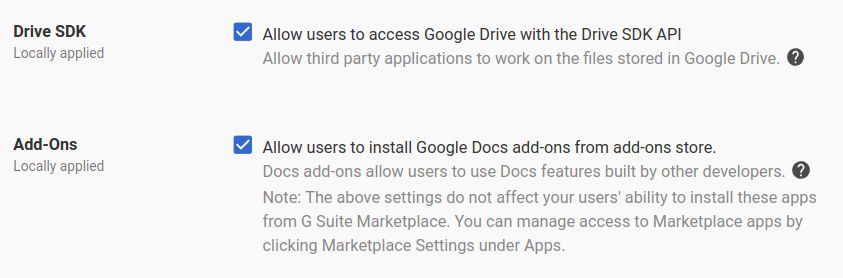
and Forms), Google Hangouts (chat messaging feature only), Hangouts Chat, Hangouts
Meet, Keep, Google Cloud Search, Sites, Google Groups, Jamboard, Cloud Identity
Management, Tasks, and Vault (see full list of G Suite Core Services here).
2. Core Services where PHI is n ot permitted: Any Core Service not listed in section 1 may
not be used connection with PHI. G Suite administrators can choose to turn on these
remaining Core Services1, which may include Contacts, and Google+ , for its users, but it
is their responsibility to not store or manage PHI in those services. It is possible that the
list of Core Services may be updated from time to time. Any updates to such
functionality should be considered by default to be included in this category unless
expressly added to the definition of I ncluded Functionality. Please see “Separating user
access within your domain” for further details on how to utilize organizational units to
manage user access to services that are appropriate for PHI.
Core Services in which PHI is permitted
Gmail
Calendar
Drive (including Docs, Sheets, Slides, and Forms)
Tasks
Keep
Sites
Jamboard
Hangouts classic (chat messaging feature only)
Hangouts Chat
Hangouts Meet
Google Cloud Search
Google Groups
Cloud Identity Management
Vault (if applicable)
1
Core Services are dependent on which version of G Suite a customer has purchased as described in the
applicable services summary
GOOGLE CONFIDENTIAL AND PROPRIETARY
Google Security and Compliance Summary August 2018
4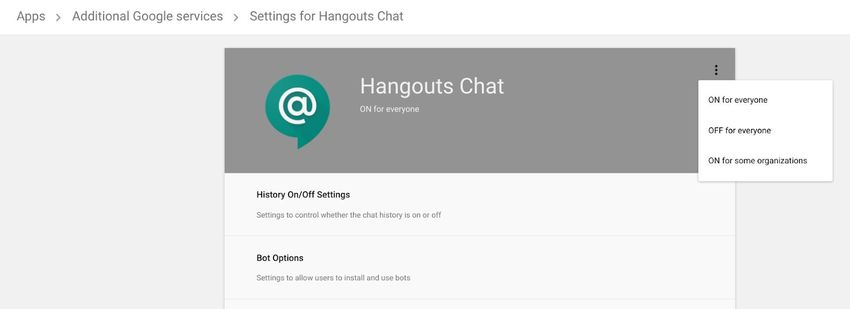
Core Services in which PHI is n
ot permitted
Google Contacts
Google+
3. Other Non-Core Services Offered by Google: PHI is not permitted in other Non-Core
Services offered by Google where Google has not made a separate HIPAA BAA
available for use of such service. All other Non-Core Services not covered by your G
Suite Agreement, including, for example, (without limitation) YouTube, Blogger and
Google Photos (see list of Additional Google Services here), must be disabled for G Suite
users who manage PHI within the Included Functionality - unless covered by a separate
BAA. Only users who do not use Included Functionality to manage PHI may use those
separate Non-Core Services offered by Google (under the separate terms applicable to
these Google services). Please see “Separating user access within your domain” for
further details on how to utilize organizational units to restrict access to services that
are not HIPAA compliant.
4. Technical Support Services: Technical support services provided to Customer by Google
are not part of the HIPAA Included Functionality. Customers should not provide PHI to
Google when accessing technical support services.
To manage end user access to different sets of Google services, G Suite administrators can
create organizational units to put end users who manage PHI and end users who do not into
separate groups. Once these units are set up, an administrator can turn specific services on or
off for groups of users. Those who manage PHI, for instance, should have non-Core Services
turned off. Please see “Separating user access within your domain” in the “Additional
Considerations for HIPAA Compliance” section below for further details on how to utilize
organizational units.
To learn more about how Google secures your data, please review our G
Suite security
whitepaper.
What to Consider for Specific G Suite Core Services
Every G Suite Core Service has specific settings to adjust to help ensure that data is secure,
used, and accessed only in accordance with your requirements. Here are some actionable
GOOGLE CONFIDENTIAL AND PROPRIETARY
Google Security and Compliance Summary August 2018
5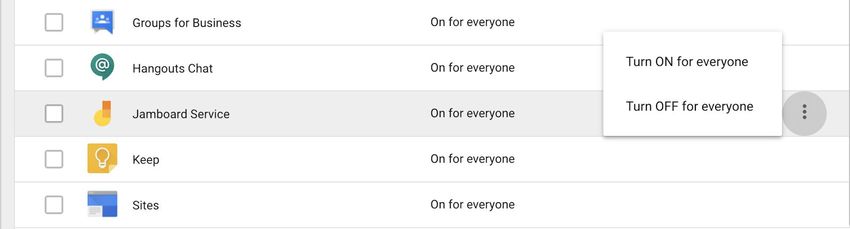
recommendations to help you address specific concerns within services that are HIPAA
Included Functionality:
Monitoring account activity
The Admin console reports and logs make it easy to examine potential security risks, measure
user collaboration, track who signs in and when, analyze administrator activity, and much more.
To monitor logs and alerts, admins can configure notifications to send them alerts when Google
detects these activities: suspicious login attempts, user suspended by an administrator, new
user added, suspended user made active, user deleted, user's password changed by an
administrator, user granted admin privilege, and user's admin privilege revoked. The admin can
also review reports and logs o n a regular basis to examine potential security risks. The main
things to focus on are key trends in the h ighlights section, overall exposure to data breach in
security, files created in a
pps usage activity, account activity, and audits.
Search history
It is recommended to turn off search history for services where the search history may be
accessed beyond the individual account.
Gmail
Gmail provides controls to ensure that messages and attachments are only shared with the
intended recipients. When composing emails and inserting files using Google Drive that
potentially contain PHI, end users can choose to share only with the intended recipients. If the
file is not already shared with all email recipients, the default will be to share the file with
“Anyone with the link” within the G Suite domain. Change the link sharing settings to “Private.”
Please refer to the Use of third party applications for guidance on using third party applications
with Gmail.
GOOGLE CONFIDENTIAL AND PROPRIETARY
Google Security and Compliance Summary August 2018
6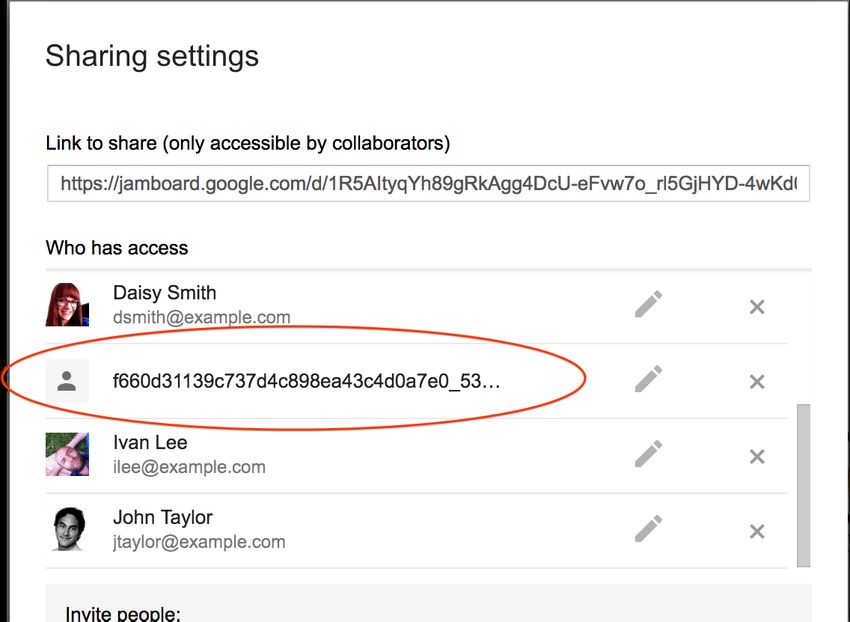
If Gmail is used to email groups of individuals or mailing lists, it's advised to use the “Bcc:” field
instead of the “To:” field so recipients of the email are hidden from each other. Additionally,
recipients in the “Bcc” field are not copied in subsequent “Reply” and “Reply All” threads.
Calendar
Within your domain, employees can change if and how their calendar is shared. Admins can set
sharing options for all calendars created in the domain. By default, all calendars share all
information to anyone within your domain, and only free/busy information with all external
parties. To limit exposure of PHI within the domain, employees should consider setting calendar
entries to “Private” for calendar entries that contain PHI. Calendar provides a feature that can
add a link to a Hangout video meeting to the Calendar entry. Please see details below regarding
use of Hangouts for video meetings.
Admins should consider setting external sharing settings to “Only free/busy information" for the
domain when PHI is handled. Admins should consider setting internal calendar sharing options
to “No sharing” or “Only free/busy information” for employees who handle PHI.
GOOGLE CONFIDENTIAL AND PROPRIETARY
Google Security and Compliance Summary August 2018
7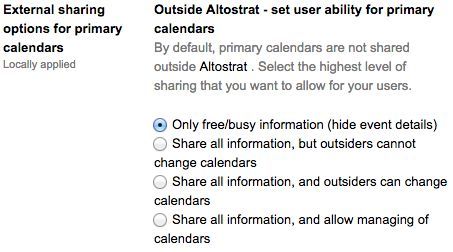
Drive (including Docs, Sheets, Slides, and Forms)
Employees can choose how visible files and folders are, as well as the editing and sharing
capabilities of collaborators, when sharing files in Google Drive (including Docs, Sheets, Slides,
and Forms). When creating and sharing files in Google Drive (including Docs, Sheets, Slides, and
Forms) it is recommended that users avoid putting PHI in titles of such files, folders, or Team
Drives.
Admins can set file s haring permissions to the appropriate visibility level for the G Suite
account. Admins can “Restrict” or “Allow” employees to share documents outside the domain,
and set the default file visibility to “Private.”
GOOGLE CONFIDENTIAL AND PROPRIETARY
Google Security and Compliance Summary August 2018
8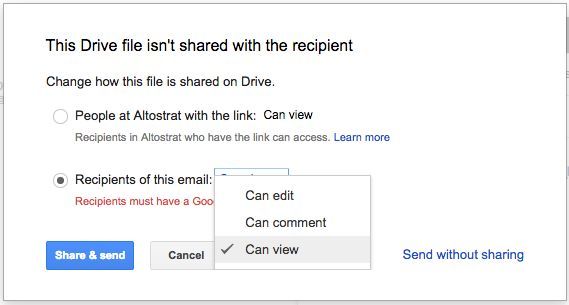
In addition, admins can also restrict sharing for content within individual Team Drives or even
set defaults for all newly created Team Drives in an organization. These restrictions can help
limit whether Team Drives may have external users as members, or whether or not members
can download, copy and print any of the files in the Team Drive. For more on Team Drives, see
this article. To learn more about managing sharing within Team Drives, see this a rticle.
The file exposure reports within security center for G Suite give admins information on how
employees are sharing files. For example, the report can show which files are shared with
external domain users. Admins should consider periodically running these reports for
employees who manage PHI to ensure PHI is not inadvertently shared.
Admins should consider disabling third party applications that can be installed, such as apps
using the Google Drive SDK API and G
oogle Docs add-ons. Admins should review the s
ecurity of
these applications, as well as any corresponding security documentation provided by the third
party developer.
GOOGLE CONFIDENTIAL AND PROPRIETARY
Google Security and Compliance Summary August 2018
9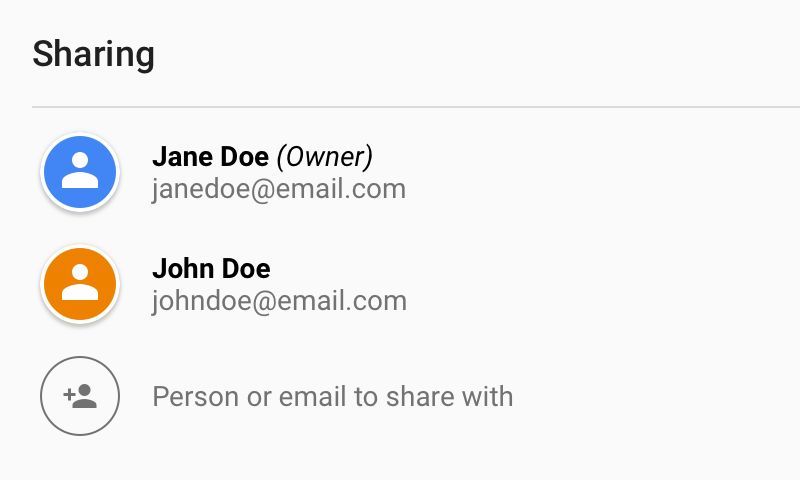
Apps Script
See the Drive section above for guidelines regarding how and with whom to share Apps Script
projects. It is recommended that projects that access PHI should be accessible only by users
who are permitted to access the PHI.
When using Apps Script to generate emails or other messages, to update Docs, Sheets or other
documents, or to send data to another application, ensure that PHI is included only if all
recipients or users with access to the target file or system are authorized to access it.
When using ScriptProperties, DocumentProperties or any other shared data store, do not store
PHI unless your Apps Script project and any deployments are accessible only to users who are
allowed to access the stored PHI.
When using the JDBC or UrlFetchApp service, do not insert PHI into an external database or
upload it to an external web service unless the database or web service is only accessible to
users who are authorized to access PHI. Do not use JDBC or UrlFetchApp to insert or upload
PHI to Google Cloud Platform services and APIs, and do not use the console.*functions to
log PHI to Stackdriver Logging, without signing a BAA with Google Cloud Platform.
When using Apps Script it is recommended that a ccess is limited to the minimum necessary to
ensure that the code prevents unauthorized access to PHI. Below are some recommended
configuration settings for particular use cases.
When deploying an Apps Script project that handles PHI as a web app, under “Execute the app
as,”it is recommended to select “User accessing the web app.”
If the web app needs to execute as you, under “Who has access to the app,” select “Only
myself.” If the web app needs to execute as you and other users need to have access, select
“Anyone within [your domain]” and ensure that your code blocks any user who should not have
access to PHI.
GOOGLE CONFIDENTIAL AND PROPRIETARY
Google Security and Compliance Summary August 2018
10When deploying an Apps Script project as an API executable, under “Who has access to the
script,” select “Only myself.” Or, if other users need to have access, select “Anyone within [your
domain” and ensure that your code blocks any user who should not have access to PHI.
Keep
GOOGLE CONFIDENTIAL AND PROPRIETARY
Google Security and Compliance Summary August 2018
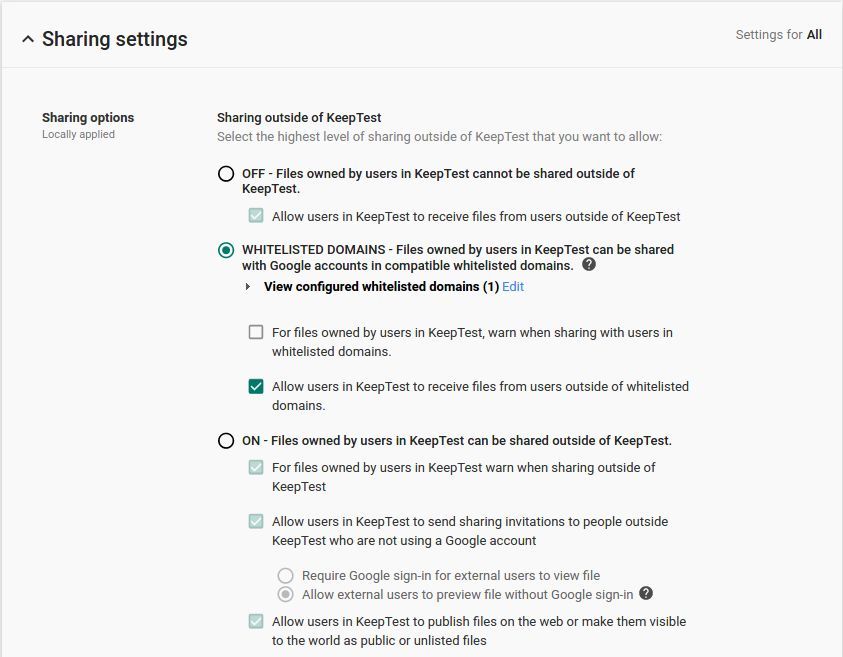
11Within your domain, employees can use Keep to take notes and creatie lists containing PHI. In
Drive sharing settings, Admins can set file sharing permissions to the appropriate visibility level
for the G Suite account. Admins can “Restrict” or “Allow” employees to share documents
outside the domain, and set the default file visibility to “Private.”
The sharing settings for notes created in Google Keep are a sub-set of Drive sharing settings,
however all Keep notes created by employees have a default visibility set to “Private” regardless
of the Drive settings.
GOOGLE CONFIDENTIAL AND PROPRIETARY
Google Security and Compliance Summary August 2018
12Keep does not support a concept of “Public” notes, or notes visible to those with the URL.
Instead, employees can choose to add collaborators to individual Keep notes via individual
email addresses or group aliases. All collaborators added to a note have full access to view and
edit the contents of a note (e.g. content in the title, body and list of the note, in addition to any
attached images, drawings, or audio).
Employees can color, label, add reminders, and archive their notes, however these note
attributes are per user, and are not shared with other note collaborators. The original owner of a
note has the option to Trash the note, which will trash the note for all collaborators as well.
Collaborators on a note are not able to Trash the note, however they can choose to unsubscribe
from the note if they choose.
Sites
The Sites service (both classic and new versions), like all G Suite Core Services, does not serve
advertising or use customer data for advertising purposes. However, some users of AdSense
may use the separate AdSense product t o display advertising on their Sites pages. Users should
ensure that AdSense is not included whenever Sites is used with PHI.
For sites containing PHI, employees should configure the Sites sharing and visibility settings
appropriately. PHI can be included in a site in the form of t ext, images, or other content (such as
a Google Calendar or content stored in Google Drive (including Docs, Sheets, Slides, and Forms).
Instructions to configure these settings are outlined below separately for each version of Sites
(classic and new):
Sites (classic version)
For sites containing PHI, employees can set the sharing settings for sites created in classic
Sites to control who can edit or view their sites. Employees can also turn on page-level
permissions to granularly control who has access to individual web pages within a site.
GOOGLE CONFIDENTIAL AND PROPRIETARY
Google Security and Compliance Summary August 2018
13Admins should consider setting the d
efault visibility for sites to “Private.”
Sites (new version)
The new version of Sites relies on a combination of Sites and Drive settings. Admins can allow
(or disallow) employees to create and edit sites using new Sites, using a control for this purpose
located under the Sites icon in the Admin console. Admins control the level of sharing and
visibility allowed for sites created in new Sites using the sharing settings for Drive in the Admin
console.
For sites containing PHI, employees should consider giving l imited editing access to specific
individuals. Employees should also consider not p
ublishing their site to outside their domain.
GOOGLE CONFIDENTIAL AND PROPRIETARY
Google Security and Compliance Summary August 2018
14Jamboard
Jamboard is the hardware device built for collaborative whiteboarding. The software application
running on the kiosk, tablets and phone is also called Jamboard. Documents hosted on any of
the above devices are called Jams.
Administrators can configure settings for Jamboard within the Admin console. The Jamboard
app has a service on/off switch in the Admin console, shown below. This is where an admin can
turn off the service if they wish to.
For more information, please refer to Turn on the Jamboard service for your users s
upport
article.
Only the active Jam session is also stored locally on a Jamboard device. Once a new Jam has
been started the previous Jam document will be deleted from the device.
Sharing Settings
In Drive sharing settings, Admins can set file sharing permissions to the appropriate visibility
level for the G Suite account. Admins can “Restrict” or “Allow” employees to share documents
outside the domain, and set the default file visibility to “Private.” T
he sharing settings for Jam
files are a sub-set of Drive sharing settings.
For more information on how to use the Jamboard to create, host, and edit Jams, refer to
Working in a live Jam session support article.
GOOGLE CONFIDENTIAL AND PROPRIETARY
Google Security and Compliance Summary August 2018
15Jam files created on a board will initially be owned by the board account. Once a user claims a
file from the board, ownership will be transferred to the user, and the board will appear in the
“Who has access” list as a collaborator (see image above for reference). Only users within the
same domain as the board can claim Jam files from the board.
The original owner of a Jam file has the option to trash the Jam, which will trash the Jam for all
collaborators as well. Collaborators on a Jam file can trash the file, which will only remove the
Jam file from their Jam list. It will not trash the Jam for any other collaborator on the file.
Hangouts classic (chat messaging feature only)
It is recommended that users start a new conversation when adding multiple members to a chat
conversation. Additionally, users should refrain from using PHI in group chat naming. New
members that are added to group chats will be able to see previous chat history.
GOOGLE CONFIDENTIAL AND PROPRIETARY
Google Security and Compliance Summary August 2018
16Admins can control whether their users can chat with others outside of their organization,
display users’ chat status outside of their organization, or warn users when they are chatting
with others outside of their organization.
Additionally users can control whether others inside or outside of their organization can see
when they were last seen online, which device they are on, and when they are in a video or
phone call on their devices.
Admins should configure these settings consistent with the organization’s policies.
Hangouts Chat
Hangouts Chat provides several options for Admins to control sharing PHI. Hangouts Chat can
be enabled or disabled for everyone in the domain or selectively enabled for specific
organizations.
To enable the service for specific organizations, Admins can select the ‘ON for some
organizations’ option which displays the Org Units to search and select.
Note that cross domain and external communication is not supported in Hangouts Chat.
It is recommended that users create a new room when adding multiple members to a chat
conversation. Additionally, users should refrain from using PHI in room naming. New members
that are added to rooms will be able to see previous chat history. Invitees can preview the room
and read messages.
Sharing Options
GOOGLE CONFIDENTIAL AND PROPRIETARY
Google Security and Compliance Summary August 2018
17Users can choose how visible files and folders are, as well as the editing and sharing
capabilities of collaborators, when sharing files in Google Drive (including Docs, Sheets, Slides,
and Forms). When creating and sharing files in Google Drive (including Docs, Sheets, Slides, and
Forms) it is recommended that users avoid putting PHI in titles of such files, folders, or Team
Drives.
Admins can set file s haring permissions to the appropriate visibility level for the G Suite
account. Admins can “Restrict” or “Allow” employees to share documents outside the domain,
and set the default file visibility to “Private.”
When sharing Google Drive files (including Docs, Sheets, Slides, and Forms) to a room, all
members of the room are granted “Comment Access” to the file. This will not overwrite sharing
permissions set up by an Admin. New members of the room will be granted “Comment Access”
to all files that have previously been shared in the room.
If a member has been removed from the room, they will lose “Comment Access” to all files that
have been shared in the room unless they continue to have access through other means such
as membership of other rooms where the document is shared, or shared directly with the
member.
Bots and Integrations
Bots and integrations are controlled using the “Bot options” settings. Google offers two bots
that integrate with other G Suite services: @meet and @drive. Third party developers can also
create bots for use with Hangouts Chat. Admins should carefully consider disabling bots and
integrations, by unchecking the following item under Bots:
● Enable Bots (Allow users to install and use bots)
GOOGLE CONFIDENTIAL AND PROPRIETARY
Google Security and Compliance Summary August 2018
18@Meet by Google
@meet is a meeting scheduling bot that can be used within Hangouts Chat. This bot has been
designed to follow the Calendar sharing settings set by the domain and end user. Please refer
to ‘ Use the @meet bot’ for additional guidelines on the usage of @meet.
@Drive by Google
@drive is a file management bot that can be used within Hangouts Chat. It will notify users
when new files are shared with them, when new comments are made on files, or when someone
else requests access This bot has been designed to interoperate with Drive sharing settings set
by the domain and end user. ‘use the @meet bot’ for additional guidelines on the usage of
@drive.
Third Party Bots and Integrations
Admins should review the security of these applications, as well as any corresponding security
and privacy documentation provided by the third party developer.
Google Hangouts Compatibility
Hangouts Chat defaults to coexist with the current version of Google Hangouts chat if both
products are enabled for an organizational unit. With compatability, direct messages from
Hangouts Chat are posted in Google Hangouts and vice versa. Chats in Google Hangouts with
people outside of the organizational unit will not be forwarded to Hangouts Chat.
Hangouts Meet (Hangouts new video meeting experience)
Meet, the new video meeting experience from Hangouts, allows for HIPAA compliant use. In
order to configure and use Meet, please ensure the checkbox below is selected in the Hangouts
administrator settings. Enabling Meet will cause Google Calendar to offer this type of video
meeting instead of classic Hangouts video calls.
GOOGLE CONFIDENTIAL AND PROPRIETARY
Google Security and Compliance Summary August 2018
19Unlike Meet, classic Hangouts named video calls are not covered by G Suite’s HIPAA Business
Associate agreement. To prevent users from starting video calls from classic Hangouts,
uncheck the box below to disable this functionality.
Meet allows you to control whether external guests may participate in each video meeting.
People in the same G Suite domain can manage external guest access by controlling who gets
invited to the meeting, determining whether to permit anonymous guests to join a running video
call, and removing unwanted participants from the call. Please see the Hangouts support pages
for more information on inviting guests.
Meet uses randomized meeting identifiers and dial-in details. It is not possible to customize
external access identifiers to video meetings so there is no need to randomize any addressing
information.
Meet meetings allow for users to share text-based chat messages with other participants.
Messages are only available during the call, unless the call is recorded.
Meet allows G Suite Enterprise users to record meetings which are then saved to the Drive of
the meeting owner. The recording is saved in MP4 format and is a regular file in Drive with all
Drive controls available, including Vault policies. The recording is automatically shared with
guests invited to the Calendar event. Chat messages sent during a recorded call are preserved
as a .txt file alongside the recording.
Admins are able to control whether users can record their meetings from the Admin console.
GOOGLE CONFIDENTIAL AND PROPRIETARY
Google Security and Compliance Summary August 2018
20Google Cloud Search
Admins can control the use of search history with Google Cloud Search via the Web History
service in the Admin console. A dmins can turn the Web History service on or off for everyone, or
for select organizational units. Users with Web History turned on will have their personal search
history stored, and will benefit from better search results and suggestions. Search history is
stored until deleted by a user at history.google.com.
For more information about Cloud Search, please see https://support.google.com/cloudsearch.
Cloud Identity Management
Cloud Identity Management is an Identity-as-a-Service (IDaaS) solution that provides a
centralized console to manage users, apps and devices. If you need to store PHI information,
custom user attributes is the only place you can store user’s PHI information.
When you create a user account, Cloud Identity Management provides predefined user profile
attributes such as employee ID, location and title.You can create custom attributes, if you would
like to store any other information about the user that is not part of predefined attributes. With
custom attributes, you can:
● Add more user data you want to record; for example, assign different data types to
special value fields, such as number, date, and email.
● Control whether you want the information to be public to all users in your organization, or
private to administrators and the individual user.
For additional information on how to create and manage custom attributes, please review this
help center article
If you decide to store PHI information in the custom attributes, we strongly recommend you to
make the custom attribute as ‘Private”. This will make the custom attribute visible only to the
individual user and the delegated or super administrators who have ‘read’ or ‘edit’ privileges to
the user profiles. If you do not set the ‘Private’ flag, then the custom attribute will be accessible
to all users in the domain. Detailed instructions are available in the “add a new custom attribute”
GOOGLE CONFIDENTIAL AND PROPRIETARY
Google Security and Compliance Summary August 2018
21section in this help center article. In addition to using admin console, you can use the following
ways to create custom attributes.
● Admin SDK: please review this help center article for additional information on creating,
managing, or setting up security for customer attributes. Pay close attention to
readAccessTypewhile c reating a customSchema and please note the ‘Private’ flag is
known as “ADMINS_AND_SELF” in the API.
Google Cloud Directory sync (GCDS): please review this h elp center article for additional
information on creating, managing, or setting up security for custom attributes. Pay close
attention to Read Access Type setting.
Groups
Admins should review the sharing options in the Groups admin console settings in order to
appropriately restrict outside domain access, default discoverability, and default view topics
permission of newly created groups.
For groups containing PHI, admins should consider setting access to groups to “Private”, which
will restrict all Groups created on the domain from visibility outside the domain. Admins or
group owners may also set the default “View topics” permission to at most “All members of the
group” to restrict access to the web posts and email archive of the group.
Individual group owners can access a dditional permissions located under the “Manage >
Permissions” section of the group’s settings. These elections further control access to who can
join and view, post, edit, and delete posts within a specific group.
GOOGLE CONFIDENTIAL AND PROPRIETARY
Google Security and Compliance Summary August 2018
22Groups posts are stored until deleted by a user. The email archive of a group can be deleted via
“Manage > Information > Advanced” section. Note that deleting a group is permanent and
deletes everything related to the group including memberships.
If creating groups to manage mailing lists, careful consideration should be made when naming
and emailing the group so it does not expose the PHI of the members of the group. Using the
“to:” field instead of the “bcc:” field when emailing groups (i.e. mailing lists) will expose any
individual that “Reply all” to the email as other recipients on the email thread will be able to see
the individual's response.
If groups is used as a collaborative inbox, note that all collaborators will be able to see emails
sent to the collaborative inbox and access should be restricted accordingly. Any PHI that is sent
to or from the collaborative inbox will be visible to all collaborators and may expose an
individual's PHI. Careful consideration should be made when naming the collaborative inbox so
PHI would not be exposed when individuals receive emails from such inboxes.
Tasks
Administrators may turn the Tasks service on/off in Admin console. Information stored in Tasks
is always private for the individual and should not be visible to other users or outside the
organization.
Additional Considerations for HIPAA Compliance
Separating user access within your domain
GOOGLE CONFIDENTIAL AND PROPRIETARY
Google Security and Compliance Summary August 2018
23To manage end user access to different sets of Google services, a G Suite administrator can
create organizational units to put end users who manage PHI and end users who do not into
separate groups. Once these units are set up, the administrator can turn specific services on or
off for groups of users.
In a small G Suite account, for instance, there are typically two or three organizational units. The
largest unit includes employees with most services enabled, including YouTube and Google+;
another unit is for employees who may manage PHI, with certain services disabled. In a more
complex G Suite account, there are more organizational units that are often divided by
department. Human resources may manage PHI, but those who do may be only a subset of HR
employees. In that case, administrators could configure an HR organizational unit with most
services enabled for some users, and another HR organizational unit for employees using the
HIPAA Included Functionality with PHI (with certain services disabled and settings configured
appropriately).
To learn more, please refer to our Support resources that discuss how to set up organizational
units and how to turn services on and off.
Use of third party applications, systems, or databases
If an end user wants to use the HIPAA Included Functionality to share PHI with a third party (or a
third party application, add-on, system, or database), including through authorizing API access
to PHI, some of the services may make it technically possible to do so. However, it is the
customer’s responsibility to ensure that appropriate HIPAA-compliant measures are in place
with any third party (or third party application, add-on, system or database) before sharing or
transmitting PHI. Customers are solely responsible for determining if they require a BAA or any
other data protection terms in place with a third party before sharing PHI with the third party
using G Suite services or applications that integrate with them..
To learn more, please refer to our Support resources that discuss how to control user
installation of Marketplace apps.
Security best practices
To keep your data safe and secure, we recommend all organizations with Enterprise or Cloud
Identity licenses review the security health tool, which provides recommendations on how to
improve your security posture. All organizations can see these security recommendations in the
Help Center articles h ere and here.
GOOGLE CONFIDENTIAL AND PROPRIETARY
Google Security and Compliance Summary August 2018
24Security Audits and Certifications
A list of security and privacy controls available with G Suite can be found on our Security and
Privacy website.
In addition to supporting HIPAA compliance, the G Suite Core Services are audited using
industry standards such as ISO 27001, ISO 27017, ISO 27018, and SOC 2 and SOC 3 Type II
audits, which are the most widely recognized, internationally accepted independent security
compliance audits. To make it easier for everyone to verify our security, we’ve published our ISO
27001 certificate and SOC3 audit r eport on our Google Enterprise s
ecurity page.
Additional Resources
These additional resources may help you understand how Google services are designed with
privacy, confidentiality, integrity, and availability of data in mind.
○ G Suite Help Center
○ G Suite security page
○ HIPAA Compliance with G Suite
This HIPAA implementation guide is for informational purposes only. Google does not intend
the information or recommendations in this guide to constitute legal advice. Each customer
should independently evaluate its own particular use of the services as appropriate to support
its legal compliance obligations.
GOOGLE CONFIDENTIAL AND PROPRIETARY
Google Security and Compliance Summary August 2018
25You can also read


