How to Create a Requisition
in Workday for CEMAS Services
←
→
Page content transcription
If your browser does not render page correctly, please read the page content below
How to Create a Requisition in Workday for CEMAS Services

Notes:

           • This process is required ONLY for users with
                      internal (OSU) funding

• A requisition is not tied to a specific reservation, service request,
   or date range. We encourage users to submit a blanket requisition
                  that can cover a larger period of time.
Speak with your PI or business unit to learn the amount budgeted for
 instrument fees, then submit a requisition that has an amount large
            enough that it could cover month(s) of usage.

       • Check out the Chartfield to Worktag Converstion Tool
  for help determining which account numbers (“worktags”) to use

                                                                          2
Overview

           3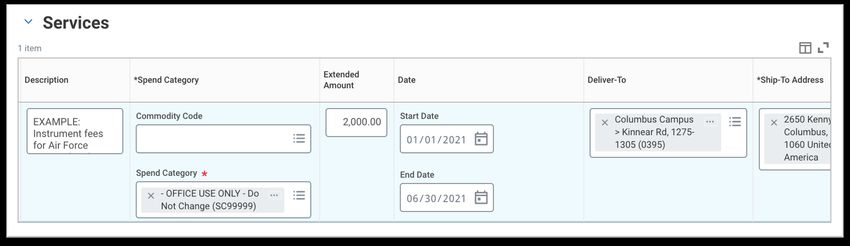
Create a Non-Catalog Requisition in Workday:
1.    Log into Workday and select “Request Travel or Purchase”
2.    Choose “Request to procure goods and/or services”
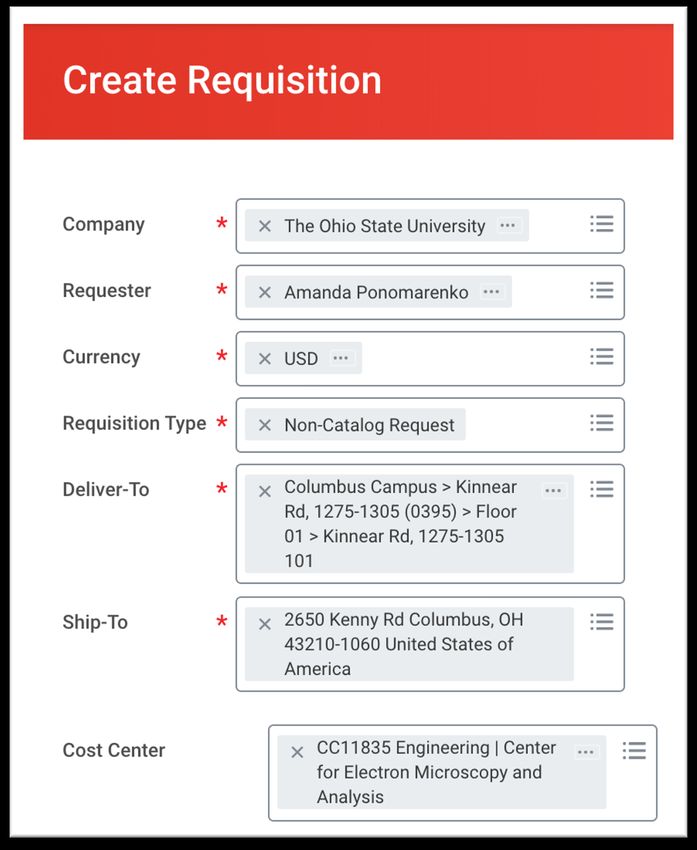
3.    The “Requester” is who will be using CEMAS. If you are submitting on behalf of a CEMAS user, enter their name.
4.    Choose “Non-Catalog Request” for requisition type
5.    Update Deliver-To address to: “Kinnear Rd, 1275-1305 (0395) > Floor 01 > Kinnear Rd, 1275-1305 101”
6.    Consult with your Principal Investigator or business unit to verify worktags are correct and click “okay”
7.    Choose “Request Non-Catalog Items” and select “Request Service”
8.    Complete Service Request details
9.    Choose your Spend Category: USE “SC99999”
10.   Choose “CEMAS – Center for Electron Microscopy and Analysis” as the Supplier
11.   Click “Add to Cart”
12.   Select Shopping Cart icon and review the Checkout page. Update as needed.
13.   State the business purpose of the work in the “Internal memo” field
14.   Click “Submit” to complete

Workday requisition will be submitted for approval. It must be listed as “Completed” before it can be added to FOM

Add Requisition Number in FOM:
1.    Take the requisition number above and to go “My Accounts”
2.    Put in requisition into the “Workday Requisition Number”; the description name doesn’t matter
3.    Click “add this account” and you should receive success message if it was added. If you receive an error message,
      check that the requisition was approved in Workday and try again.
                                                                                                                          4
                                                                              Keep Scrolling for Step-by-Step Guide!
Step-by-Step
   Guide

               5
Create a Non-Catalog Requisition:
Note: Non-catalog requisitions are a way to request goods or services not found in Buckeye Buy (formerly eStores)

    1. Request Travel or Purchase > “Request to procure goods and/or services”

                                                          OR

            Search for and select the “Create Requisition” task from the search bar

                                                                                                                    6
2. Confirm the information on the Create Requisition page:

                                 A) Important: The Requester is who
                                       will be using the CEMAS facility.
                                   If you are submitting on behalf of a
                                        CEMAS user, enter their name
                                                      as the “Requester”

                                      Note: The name.# of the Requester
                                      must match the name.# of the FOM
                                            account, or FOM will reject it.
                                                                       7
2. Confirm the information on the Create Requisition page:

                                    B) Update Deliver-To field. Type:
                                       1275-1305 (0395) > Floor 01 >
                                         Kinnear Rd, 1275-1305 101

                                    Ship-To can be Central Receiving
                                                    2650 Kenny Rd.

                                                                  8
2. Confirm the information on the Create Requisition page:

                           C) Add a Requisition Type to your request

                                         For CEMAS services, select
                                             “Non-Catalog Request”

                                                                 9
2. Confirm the information on the Create Requisition page:

                                     D) Enter your Funding Account:
                                 who will be paying for these services

                                           Review and enter worktags

                                      Consult with your PI or Business
                                      Unit if you are unsure of funding

                                        • Click “OK” when finished

                                                                   10
3. For CEMAS services, select “Request Non-Catalog Items”
4. For Non-Catalog Request Type, select “Request Service”
11A) Fill in a description of the project in your own words
• Spell out acronyms
12B) Fill in the Spend Category:
• For CEMAS Services, use “SC99999”
13C) Fill in the Supplier – Required for FOM Requisitions
• Select “CEMAS – Center for Electron Microscopy and Analysis”
14D) Enter a Start Date and End Date
• Estimation of how long you plan to utilize the CEMAS facility
Note: For sponsored
projects/grants, not longer than
the current project end date
15E) Enter Extended Amount – amount approved for CEMAS services
• Speak with your PI or Business Unit to learn amount budgeted for instrument fees
• Submit a requisition with an amount large enough that it could cover month(s) of usage
Note: Once you reach expense
limit, FOM will prevent you from
reserving any more time until
you enter a new requisition
Click “Add to Cart”
to move forward
165. Select Shopping Cart icon and review the
Checkout page and update as needed
6. Review the Requisition Information section:
• Internal Memo: state
the business purpose
of the work
Note: it may be good to
note estimated usage
and include link to
CEMAS rates
177. Scroll to review the Goods and Services lines and change worktags as needed
8. Add Attachments if needed (approvals, additional information, etc.)
Note: your business unit
may require you to
upload email approval
Click “Submit”
from your PI to complete!
18Next Steps
19Add Funding Information in FOM
1. Once you create a Requisition and it is approved in Workday, take the Requisition
number (example: RQ-100000070) and log into FOM
2. Go to “My Accounts”
3. Add requisition into the “Workday Requisition Number”; add description name that will
help you identify funding when you are selecting the account to make a reservation.
4. Click “Add this account”
5. You should receive a success message if it was added. If you get an error, it is likely
due to the requisition not being fully approved – check in workday for the status
Keep Scrolling for Frequently Asked Questions! 20Frequently
Asked
Questions
(FAQ)
21Q: Does each Internal User need a separate requisition?
A: Yes. Requisitions cannot be shared between users and can only be used by the “Requester”.
Q: I received an error “The Requested_By Employee_ID of this Requisition Number does
not match the user employee ID in FOM system”
A: The “Requestor” name.# must match the FOM account name.# login, or FOM will reject it.
Q: Do I need a separate Requisition for each facility I use in FOM?
A: Yes. Requisitions are locked to the facility/supplier.
Q: What address should I use for Deliver-To and Ship-To fields?
A: Click ”x” to delete the auto-default address. For Deliver-To, type “1275-1305 (0395) > Floor
01 > Kinnear Rd, 1275-1305 101”. For Ship-To, you can leave as Central Receiving.
Q: How much should I include as the “Extended Amount” for the Requisition?
A: Ask your PI how much is budgeted for instrument fees. We recommend submitting the
requisition for an amount large enough to cover month(s) of usage.
Q: I am an external user. Do I need a requisition to utilize CEMAS?
A: No. Workday requisitions for CEMAS services are needed to authorize internal accounts 22More
Questions?
Contact cemasadmin@osu.edu
23You can also read


