ACNC 2021 Annual Information Statement Checklist for Basic Religious Charities
←
→
Page content transcription
If your browser does not render page correctly, please read the page content below
ACNC 2021 Annual Information Statement

Checklist for Basic Religious Charities

                  Title           ACNC 2021 Annual Information
                                  Statement Checklist for Basic
                                  Religious Charities
                  Creation Date   12 October 2021
                  Version         1.0
                  Last Revised    Not Applicable

                  Approved by     Director Finance, Risk and
                                  Systems
                  Approval Date   12 October 2021

                   Page 1 of 11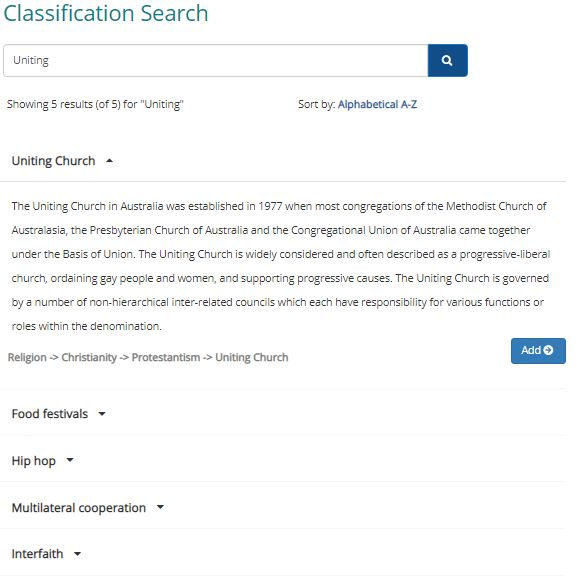
Purpose
The purpose of this Checklist is to provide guidance for your Annual Information Statement
(AIS) submission. This will provide guidance and also links to relevant information and
guides on the ACNC, ATO and other websites.
1. Basic Religious Charity (BRC) Checklist
This checklist applies only to Congregations, Presbyteries and Synod Boards who are
endorsed by the ATO as a Charitable Institutions and recognised by the Australian Charities
Not-for-profit Commission (ACNC) as a Basic Religious Charity.
This does not apply to organisations that:
have PBI taxation endorsements; or
have Deductible Gift Recipient (DGR) status or operate funds, authorities or
institutions that earn over $250,000 in revenue; or
are registered charitable child care centres; or
are educational institutions such as primary and secondary schools.
2. How to complete the ACNC 2021 Annual Information
Statement
The table below sets out suggested responses to be provided by Uniting Church
organisations that meet the definition of a Basic Religious Charity, when completing their
2021 Annual Information Statement.
If you have any suggestions or comments regarding this form, please send these through to
fmsg@nswact.uca.org.au.
3. Lodgement of completed forms
This Statement must be lodged with the ACNC after 1 July and before 31 January
2022(extended deadline). Note that the Note that the AIS form is not available at the
time of the writing of this Checklist. It is suggested that you should seek access to, and
lodge via the ACNC portal.
The completed forms can be lodged with the ACNC in one of three ways.
1. By direct e-mail scanned to advice@acnc.gov.au; or
2. By sending a hard copy of the AIS to the ACNC.
ACNC
GPO Box 5108
MELBOURNE VIC 3001
3. On-line through the ACNC portal.
Please note that the ACNC does not require Basic Religious Charities to submit
financial information. They should answer this section nor should they upload to
ACNC any Financial Reports or Financial Statements.
4. Checklist answers
Note that as the paper form is not available, this Checklist has been prepared based
on lodgement via the ACNC portal. It is suggested that you lodge your AIS via the
ACNC portal.
Page 2 of 11Question Response
Accessing the ACNC portal
Before you commence the lodgement of your annual AIS. You will need to have access to the
ACNC portal. If you have a login and password and your organisation is displayed in the Portal,
you can proceed to the next section, Introduction. You must obtain access if you do not already
have it. Access is only granted to Responsible Persons or Authorised Persons.
Responsible Persons are usually an organisation board or committee members, or trustees. Refer
to the following link for definition of a Responsible Persons. Note that a Responsible Person is
required to add an Authorised Persons.
Please refer to the ACNC site or call ACNC on 132262 for further information on adding
Responsible and Authorised Persons.
Note: Some important links are noted below:
- Signing Up and Getting a New Password for the ACNC Portal
- Information to Help You Use the New Charity Portal
Starting the AIS Submission Process
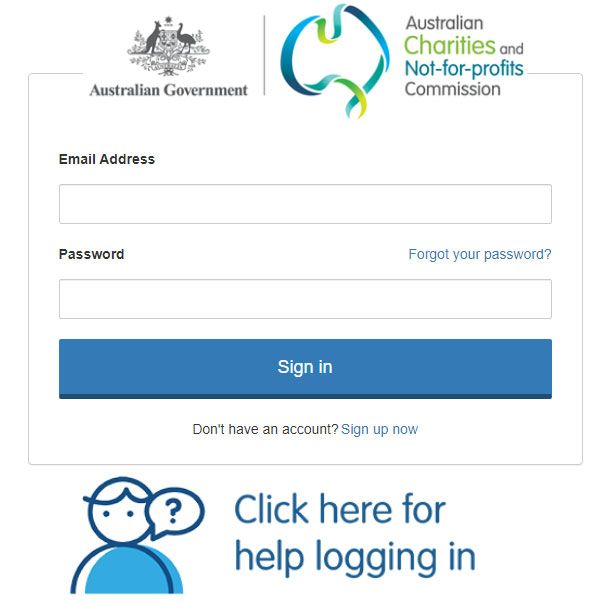
- Login to the ACNC portal. The Login screen should look like below:
- Your organisation should be listed at the bottom of the window under My Charities. Click on
the organisation that you are submitting the AIS for.
- Click on the Manage Reporting button.
- Click on the Start 2021 AIS button.
Page 3 of 11- Under the Confirm Details window, confirm the Charity and the Case Type. These should be
prefilled and are not changeable. If these are not correct, click on the Home button and
start again.
- If these details are correct, click the Start Button .
Introduction
Before you Read this page and be aware of what the symbols used throughout the online
start submission mean.
Click at the bottom of the window.
Information About your Charity
Charity details Under the Charity details section, enter the following details for your organisation:
- Charity Australian Business Number (ABN) – this field should be prefilled for
your organisation.
- Charity name – this field should be prefilled for your organisation.
- Enter your charities website address – enter the website address of your
organisation. Note that this is not mandatory.
Note: This can be sourced through the ABR website www.abr.gov.au by keying in
your ABN but it should be prefilled in your ACNC Portal login.
Address for Under the Address for Service, in the Enter your charity’s Address for Service
Service email, enter the email that you would like to the ACNC to use to communicate
1 with your charity. Click the to check the email address. A should
appear once the email is verified.
Note: This will also be displayed on the ACNC register and will be visible to the
public.
Note: It is recommended that the e-mail address is a generic one
specific to the organisation rather than a personal e-mail address.
Enter the email again in the Re-enter your charity’s Address For Service
email field. This should be the same as the one entered above.
Lastly, enter the charity’s physical street address in the Search for your
charity’s street address field. When you start typing, the address should
appear below. Please select the address from the drop list as shown
below.
Page 4 of 11This will populate the Address details which will appear below once the
address is selected. See below.
Click and then click to move to the next section.
Incorporated
Association Under Incorporate Associations, click as your organisation
2 should be an Unincorporated Association.
Note: you can lookup if your organisation is an Incorporated Association
via the ABN Lookup website.
Fundraising For the Does your Charity intend to fundraise in the next reporting period
3
question, select or .
If your Charity selected , proceed to Basic Religious Charity exemption
question 4.
If your charity selected , proceed to Fundraising license numbers
question 3a.
Fundraising Select and tick New South Wales or Australian Capital Territory. If you have a
license Fund raising license number, please enter it here. This is not a mandatory
numbers question, so you do not need to enter the license number.
3a Note, for organisations in NSW, the Uniting Church in Australian is a recognised
denomination, so there is no need to obtain an authority/license to fundraise in
NSW. Refer to ACNC Charities that fundraise and the Charitable Funds Raising
Guide on the NSW Fair Trading website.
Note, for organisations in ACT, there is no need to obtain a license, so you can
leave this blank. Refer to the following for ACT organisations for more
information:
- Regulation of charities in the Australian Capital Territory | Australian
Charities and Not-for-profits Commission (acnc.gov.au)
- Charitable collections licensing (act.gov.au)
Page 5 of 11Basic
Religious Please select the as your organisation should be Basic Religious
Charity Charity (BRC) for this guide. Your organisation will have to be registered as
exemption ‘advancing religion’ subtype, and meet 5 other criteria, as outlined in the Basic
4a Religious Charity link. Please review this if you are unsure.
Note: If you are not a BRC, you must refer to the “Checklist for Organisations
Other than Basic Religious Charities” and must comply with the ACNC financial
reporting regime.
4b
Please select the as your organisation should not be incorporated. To
check this, go to the ABN Lookup site, enter your ABN in the Search by ABN,
CAN or name field and click the magnifying glass.
Under the ABN details section and you will see that Entity type should be “Other
Unincorporated Entity”. If your organisation is listed as an incorporated entity, it is
not a BRC and must comply with the ACNC financial reporting regime.
4c
Please select the if your organisation is not registered as a Deductable
Gift Recipient (DGR).
Note: If your organisation (as a whole) is endorsed DGR or you operate DGR
fund, authority or institution with revenue over $250,000, you are not a BRC must
use the “Checklist for Organisations other Than Basic Religious Charities” and
comply with the ACNC financial reporting regime.
Refer to the link Deductable Gift Recipients and the ACNC for more information.
4d
Please select the if your organisation has not received more than
$100,000 in government grants in the current, or previous two reporting periods.
Government Grants includes all funding from all Local, State and Federal
government.
Note: If your organisation has received over $100,000 in government grants,
select . You are not considered to be a BRC and must use the
“Checklist for Organisations other Than Basic Religious Charities” and comply
with the ACNC financial reporting regime.
Charity size Select the relevant size of your charity as this is mandatory. This has no impact
on the reporting requirements if your organisation is a BRC. This is used by
5
ACNC for statistical purposes.
Click and then click to move to the next section.
Charity Programs
Operations If your charity undertook any activities or programs during the year, select
6
. If you are unsure, select .
If your entity did not undertake any programs or activities or programs, select
.
Charitable Provide a short summary of how your organisations work helped to achieve its
Purpose overall mission and aims. We suggest using something similar to the following
as a basis:
7
The organisation pursued its charitable purposes by facilitating worshipping,
Page 6 of 11witnessing and serving as a fellowship of the Spirit in Christ. Its members meet
regularly to hear God’s Word, to celebrate the sacraments, to build one another
up in love, to share in the wider responsibilities of the Church, and to serve the
world.
Feel free to add additional detail if your organisation is involved in other
activities.
Note: this will be displayed on the Charity’s Register.
Programs A program is any activity or service that a charity runs to achieve its charitable
purpose for its beneficiaries. All organisations will run a program, unless they are
8
not operating. In this case, question 6 would have been answered as
Any programs that a charity runs must be added here. You must add at least one
program. If the only program that your organisation runs is that of a Church
congregation, please enter as follows:
1. Click on
2. Enter the Program Name field, in this case enter Church Congregation.
3. Under Program Classification, click on .
4. In the Classification Search field, enter Uniting and click on .
5. Click on the drop down for Uniting Church, as shown below.
Page 7 of 116. Click on next to this drop down.
7. Under Beneficiaries, select those that are the main beneficiaries of this
program. Select all that are appropriate. You must select at least one
beneficiary.
8. Under Program Locations, click on . Enter the
address and select it from the menu as it drops down. This needs to be
selected to proceed.
9. Tick This program is run online if this applies. Tick this if the program is
delivered via a website, zoom, teams or other online medium.
10. Tick This program is run outside Australia. If this program is run outside
of Australia. For most, this will remain unticked. If this is ticked, select all
countries from the drop menu in which this program is run. Also please
liaise with the Governance Officer to advise that your organisation has
activities overseas.
11. If the program has a webpage, enter it here. This could be the webpage
for the Congregation if there is one. Otherwise leave it blank.
12. Click on .
13. If you run more than one program, please proceed to add it. This would
be appropriate if you run other activities such as a soup kitchen, assist
the homeless or other activities. Follow the above steps but select the
most appropriate response based on the activity.
14. Once you have completed adding your activities, click and then
click to move to the next section.
People, Finance and Reporting
Employees These questions relate to employees that worked for the charity during the last
pay period of your 2021 reporting period. Your reporting period should end on the
9
30th of June 2021.
Enter the following details:
- Full time employees (those employees that work 35hours or more a week)
- Part time employees (those employees working less than 35 hours a week,
but does not include casual employees).
- Casual employees (employees that work irregular hours and are not entitled
to personal leave or holiday leave).
Your charity’s This question relates to the number of Full-Time Equivalent staff if the charity
Full-Time combined the hours of all its full-time, part-time and casual employees.
Equivalent
This question is mandatory.
(FTE) staff
figure Firstly answer the question10. Do you need help calculating the Full-Time
Equivalent (FTE) staff figure for your charity during the last pay period of the 2021
10
reporting period? You could answer or .
If you choose , you need to fill in below two questions in the
boxes provided, then the system will calculate FTE based on them for
you.
Page 8 of 1110a. Total hours worked by all paid employees in the pay period.
10b. Regular number of hours worked by a full-time employee in the pay
period.
If you choose , you need to fill in box with How many full-time
equivalent staff (FTE) worked for your charity during the last pay period of
the 2021 reporting period.
Volunteers This question relates to the number of volunteers that worked for the organisation
during the 2021 reporting period. The volunteer could have worked for one hour
11
or been a full-time volunteer. This can include unpaid board members, committee
members and also any person who participated in any activity of your charity in a
volunteer capacity.
Note: This does not have to be exact, so please use your best estimate.
Click and then click to move to the next section.
Financial The ACNC website should advise if you have been classified as a Basic Religious
Report Details Charity (BRC) and ask if you want to complete the Finance Section. This section
should be answered as as BRCs are not required to provide this
information.
Note: if your organisation is not identified as a BRC, you must use the “Checklist
for Organisations other than Basic Religious Charities” and comply with the
ACNC financial reporting regime.
Responsible People
Review and A responsible person is someone that has responsibility for governing your
edit the charity. Refer to the Responsible Person Factsheet for more details. This section
current focuses on updating:
Responsible
- The position of the Responsible Person
People
- Remove Responsible Persons
17a
In most Congregations, the relevant Authorised Persons are the Chairperson,
Secretary, Treasurer and the Committee Members. These will be listed here.
Please edit the Responsible people by clicking next to the relevant
Responsible Person. Click the following to update as required:
If you want to Update the Responsible Person’s position, tick this and select the
New Position and enter the Start date for the new position.
If you want to Remove the Responsible Person, tick this and enter the
Responsible Person end date.
Click .
Repeat for every Responsible Person that needs to be updated.
Add a new In this section you add any new Responsible Person that do not appear in the list
Responsible
Person
shown at 17a. Click on . Enter the following
17b details:
Page 9 of 11- Title
- Family Name
- Given name
- Other Given name
- Date of Birth
- Gender
- If this person is known by any other name, click and enter the
Family name and Given name. Otherwise, click .
Select whether the Responsible Person residential address is Australian or
International. In most cases this will be Australian. Enter the following:
- Residential Address (start entering and select from the address that drops
down. This is necessary to proceed)
- Primary phone number
- Leave the Alternative phone number as blank. This is not mandatory.
- Leave the Email address as blank. This is not mandatory.
The Cultural and language diversity items are not mandatory, so please fill these
if you would like to.
- Position in organisation – select from the positions noted in the list. In most
cases these are one of the following: Chairperson, Secretary, Treasurer and
the Committee Members.
- Enter the date that this person became a Responsible person.
- In response to the question Have you searched the ASIC Register of Banned
or Disqualified Persons for the name of this Responsible Person?, select the
appropriate answer.
Click .
Tick the box that I confirm that the details for the Responsible People are correct
after checking the details listed.
Click and then click to move to the next section.
Review and Submit
Review Your Review your Annual Information Statement submission by clicking on
AIS
. This will download a pdf copy. Please review and navigate back through the AIS
to update as required.
Declaration Once you have reviewed your AIS, enter your details in the declaration.
- Title
- Family Name
- Given Name
- Contact Number (click to verify the number)
Page 10 of 11- Email Address (click to verify the email address)
- Position Held
- Select the declaration relevant to you from the drop-down list. In most cases,
this will be someone listed at Q17a or b, and as such will be a Responsible
Person. If you are not listed at Q17a or b, please select the most appropriate
person based on the definitions provided.
- Tick the Responsible persons declaration once you have reviewed and made
any necessary adjustments.
- Date (enter the date of the declaration)
Click on .
Receipt Note down the receipt number and download a copy of your submitted AIS for
your own records.
5. Further Information
If you have any queries please contact the Governance Officer Karyn
Warner on 02 8267 4299 or e-mail karynw@nswact.uca.org.au.
Page 11 of 11You can also read


