ONE CANVAS! GTA Workshop - SP 2023 - Getting Started with
←
→
Page content transcription
If your browser does not render page correctly, please read the page content below
Getting Started with
 ONE CANVAS!
   GTA Workshop - SP 2023

https://umsystem.instructure.com/
THREE KEY AREAS
1. Communication
    ○   Inbox
    ○   Announcements
    ○   Notification
2. Organization
    ○   Modules
    ○   Pages
    ○   Files
3. Assessments
    ○   Assignments
    ○   Quizzes/Exams
    ○   Grades/SpeedGrader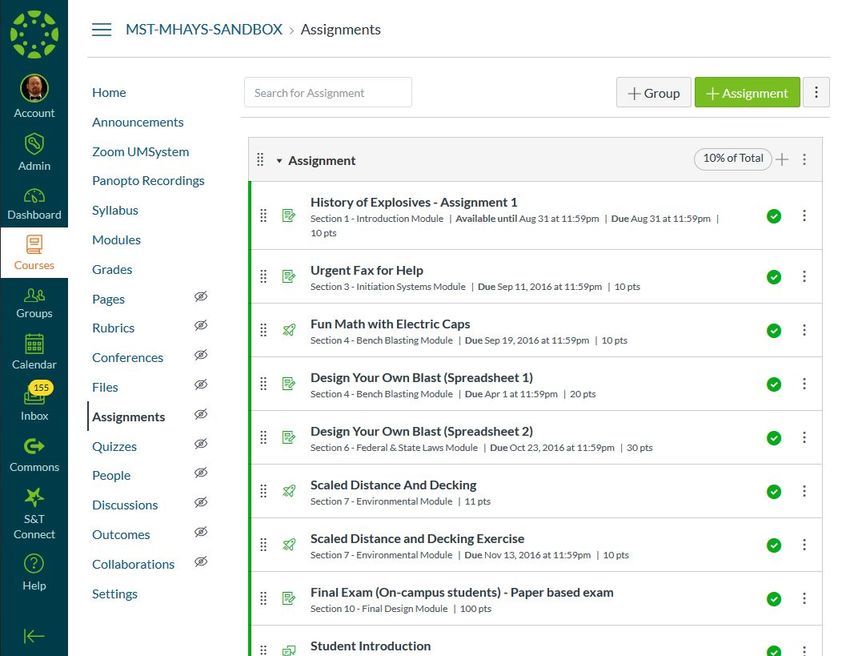
Communication
Why is communication important?
● Instructor presence
    ○   In an online course, how will students know they are being heard and
        listened to?
● Student presence
    ○   In an online course, how will you know if students are listening to you?
● Student-student interactions
    ○   Students can learn from each other
● Instructor-student interactions
    ○   Instructors help students stay on track with their learning process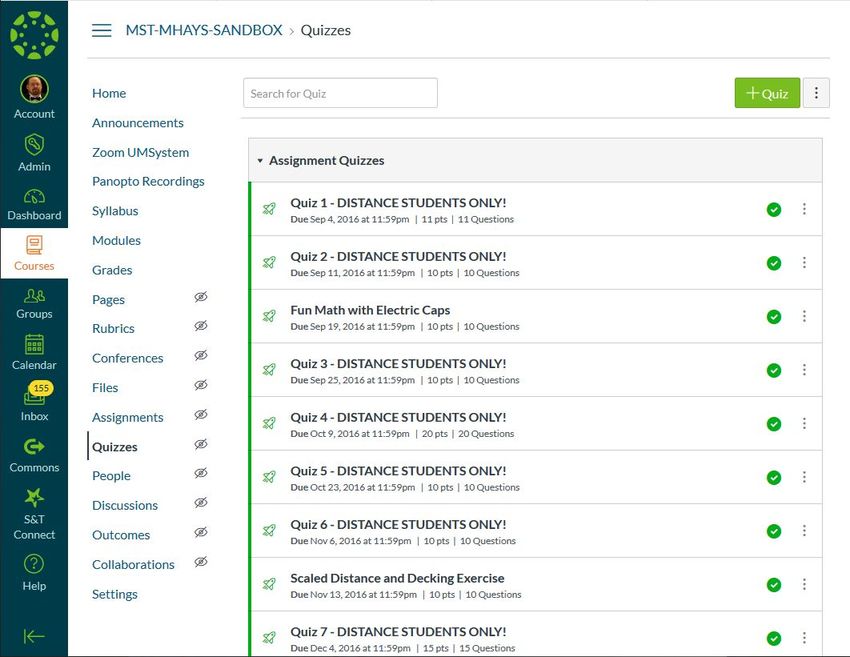
Communication
Inbox
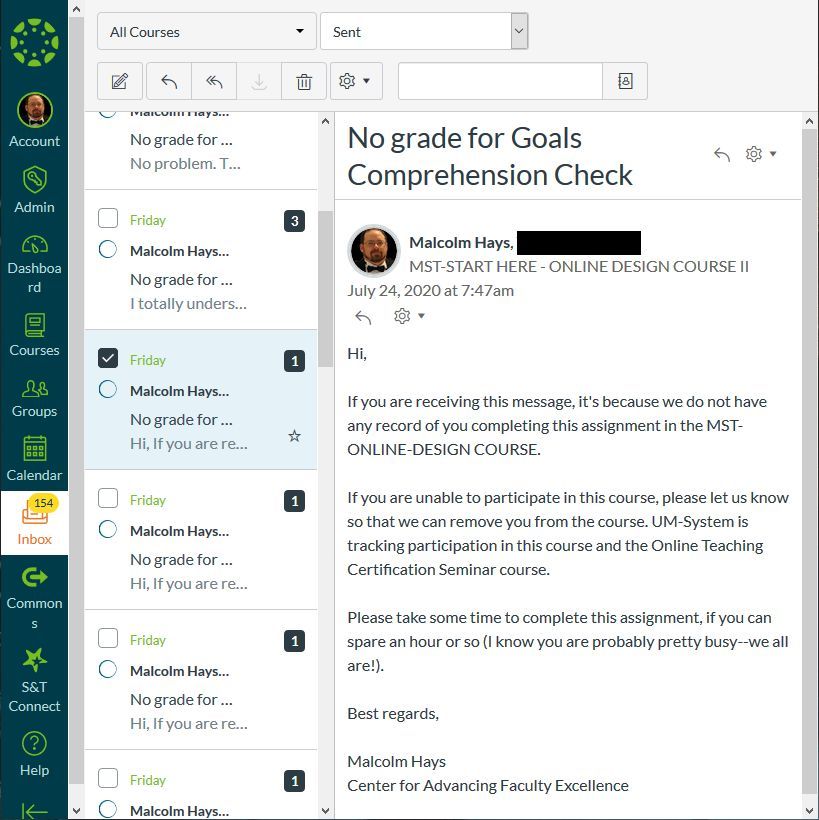
  ○ Internal mail system within
    Canvas
  ○ Sends emails to students’ &
    instructors’ external email
    account (Gmail/Outlook/etc.)
  ○ Great for managing
    conversations within a
    course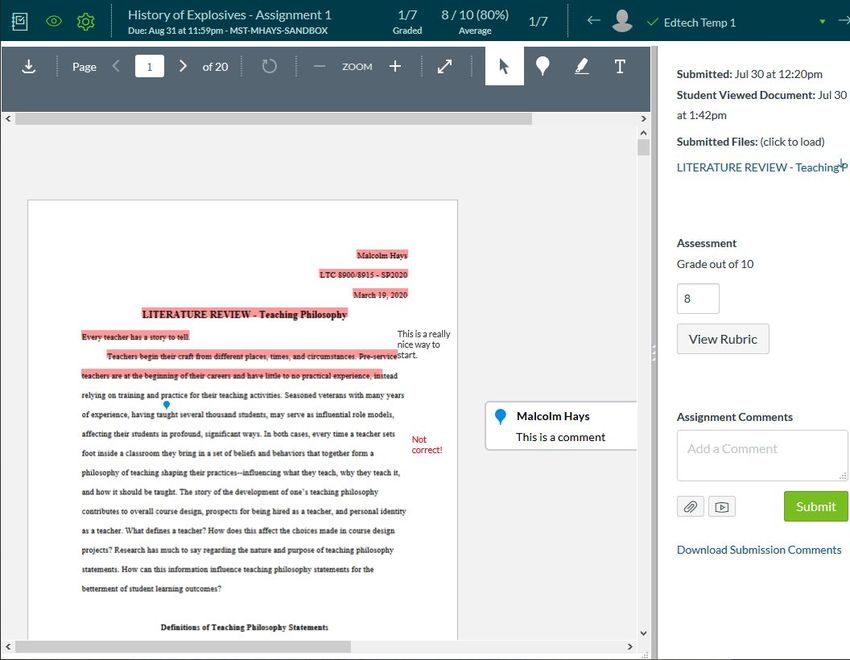
Communication
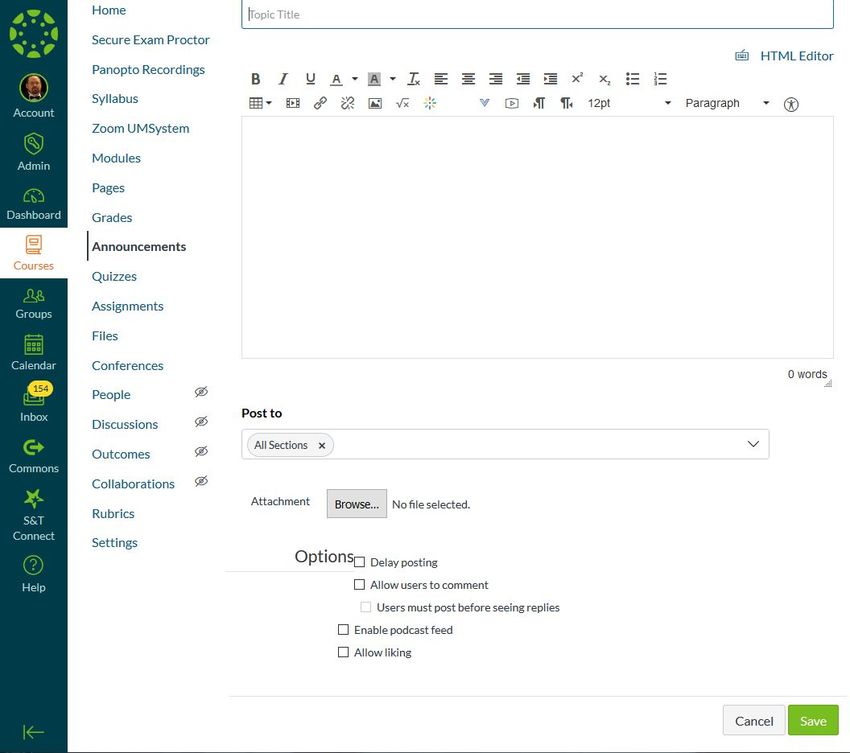
Announcements
 ○ Mostly one-way
   communication channel
 ○ May be differentiated based
   on Sections
 ○ May be delayed for future
   release
Communication
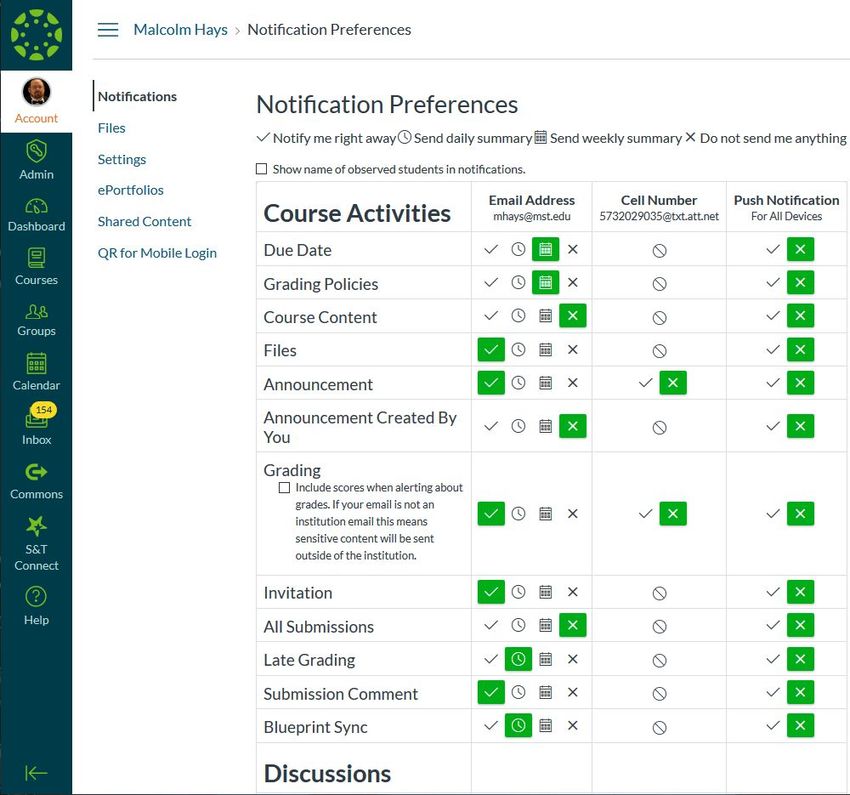
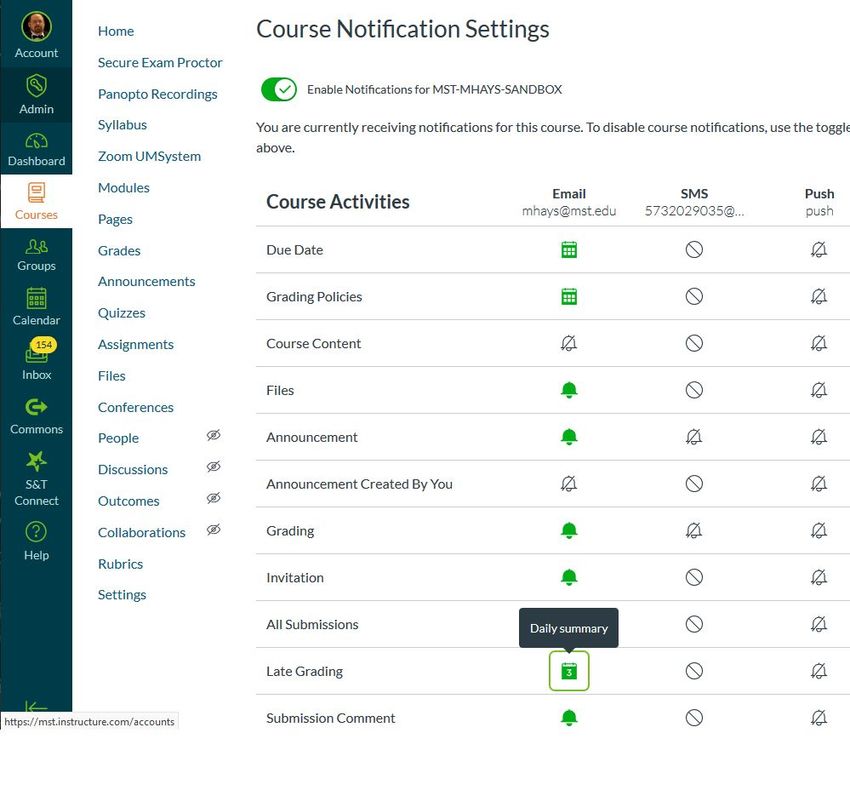
Notifications
  ○ Personalized for each user
  ○ Managed at two-levels
    ■ Account level
    ■ Course level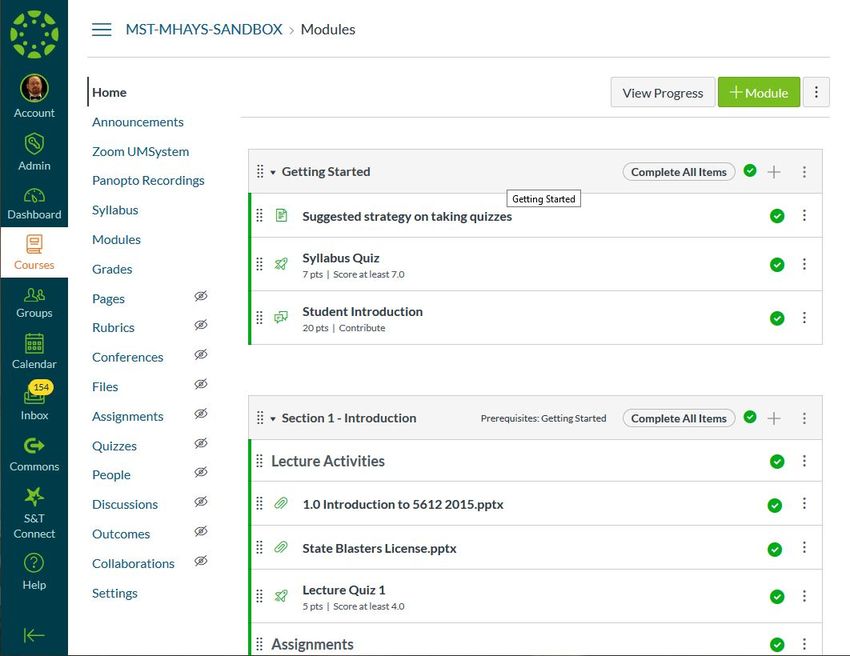
Communication
Notifications
  ○ Personalized for each user
  ○ Managed at two-levels
    ■ Account level
    ■ Course level
Organization
Why is organization important?
● Logical progression of materials for students
  ○ Easy to find resources
● Motivate student engagement
  ○ Keep students focused and moving forward
● Minimize distractions for students
  ○ Reduction of cognitive load

          Teachers are designers. An essential act of our profession is the design of curriculum
          and learning experiences to meet specified purposes.
                                    -- Wiggins and McTighe, Understanding by Design (2005)
Organization Modules ○ Simple, yet efficient ○ Link to other content in Canvas (Pages, Quizzes, Quizzes, Panopto Recordings, etc.) ○ Guided progression through course
Organization
Pages
 ○ Lots of flexibility for content
 ○ Much more engaging
   visually
 ○ More time & effort to create
   than modules
Organization
Files
  ○ RECOMMENDED:
    ■ Hide FILES from students
    ■ Link to FILES from
      MODULES
    ■ Organize files into folders
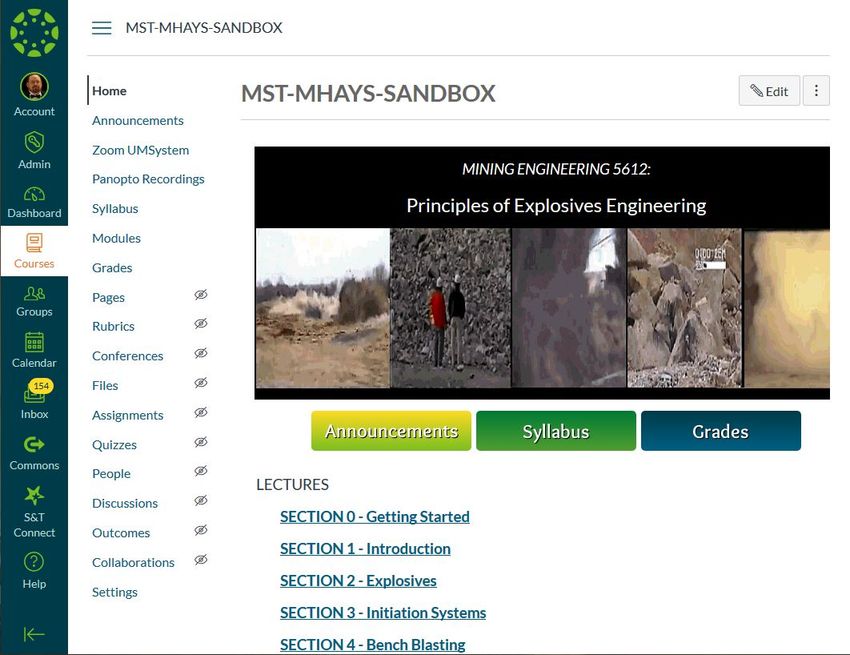
Organization Course Menu Navigation ○ REMOVE/HIDE what isn’t being used ○ ADD/KEEP what is being used
Assessments
Why assess students?
● What are you measuring/evaluating? Why?
● Are your assessments formative? Or summative?
● How many assessments are enough?
● What will students learn about themselves through your
  assessments?
● Do your assessments measure your student learning
  outcomes?
       “Evaluation without development is punitive. Development without evaluation is guesswork.”
       Theall, M. (2007, June 11). Basic issues in good evaluation practice. Invited presentation at the Academic Impressions
       Institute’s Using Faculty Evaluation Data for Decision Making, Boston, MA.
Assignments ● Variety of submission types ● Similarity-checking options ● Allow for peer-review ● Can be assigned to groups ● Allow for weighted grading
Quizzes / Exams / Tests
● LOTS of question types!
● Randomization options
  ○ Shuffle answers
  ○ Question banks
● Feedback options
● Quiz Analytics
● Moderate Quizzes for
  different student needs
   ○ Students with disabilities
Surveys
● Graded or Ungraded
● Anonymous responses
● Same options as
  Quizzes
Grades
● ALL columns must be
  set up as Assignment!
● Late grade policies
● Grade History for each
  student
● Export grades into
  Joe’SS
● Message student(s)
  who...
SpeedGrader
● Quickly grade student
  submissions
● Annotate
  PDF/DOCX/PPT/etc.
● Provide detailed
  feedback
● Grade Assignments,
  Quizzes, Discussions
Canvas Request System
What is the Canvas Request System?
● Managed by UM-System Office of eLearning
● Available at: https://canvasrequest.umsystem.edu/
   ○ Course Combo - combine sections of courses
   ○ Course User Assignment - add users to non-Registrar courses
   ○ New Course - request a “DEV” shell (empty course)
   ○ Course Copy - request a course copy for courses in which you
     are NOT the instructor
   ○ Delayed Grade Sections - Used for “Incompletes”
   ○ Test Student Accounts - Does not apply to S&T
Need Help? Google search for “Canvas Instructor Guides” ● https://community.canvaslms.com/t5/Instructor-Guide/tkb-p/Instructor IT Help Desk ● 573-341-HELP or https://help.mst.edu Missouri Online - Teaching Tools (https://teachingtools.umsystem.edu) ● teachingtools@umsystem.edu / canvas@umsystem.edu / 855-675-0755 Center for Advancing Faculty Excellence ● cafe@mst.edu / https://cafe.mst.edu / 573-341-6713
REMEMBER TO PUBLISH
   YOUR COURSE!
QUESTIONS?
            Online Webinars:
https://elearningevents.umsystem.edu/

       Contact us: cafe@mst.edu
         Phone: 573-341-6713
            https://cafe.mst.edu
You can also read


