Administration Manual English Language Arts Mathematics Science - Updated 01/04/2018 - Utah State Board of Education
←
→
Page content transcription
If your browser does not render page correctly, please read the page content below
i

 SAGE Spring Summative Test
     Administration Manual
         2017-2018

English Language Arts Mathematics
             Science

               Sydnee Dickson, Ed.D.
      State Superintendent of Public Instruction

                   Patty Norman
              Deputy Superintendent of
               Student Achievement

                                                   Updated 01/04/2018
Copyright © 2018 by the Utah State Office of Education. All Rights Reserved. No part of this
work may be reproduced or transmitted in any form or by any means, electronic or
mechanical, including photocopying and recording, or by any information storage or retrieval
systems, except as may be expressly permitted in writing by the Utah State Office of
Education, 250 East 500 South, P.O. Box 144200, Salt Lake City, Utah 84114-4200.
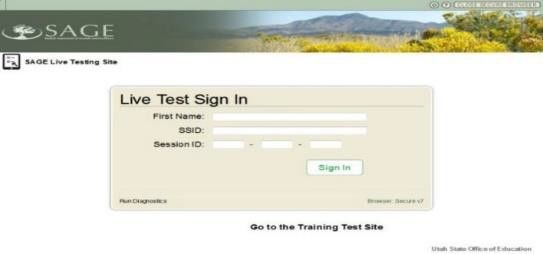
Table of Contents
 SAGE Spring Summative Test Administration Manual ............................................................... 4
    SAGE Summative Assessments .............................................................................................. 4
 Administering SAGE Spring Summative Assessments ..................................................................... 7
    Before Testing ........................................................................................................................ 7
  Step 1: Complete Standard Test Administration and Testing Ethics Training........................................ 7
  Step 2: Read the Test Administration Manual ....................................................................................... 7
  Step 3: LEA and School Staff User Accounts .......................................................................................... 7
  Step 4: Check Local Testing Windows and Schedules............................................................................ 7
  Step 5: Review Eligibility of Students for SAGE Spring Summative Assessments .................................. 8
  Step 6: Use SAGE Training Tests to Prepare for Spring Summative Administration .............................. 8
  Step 7: Check Student Accommodations, Test Settings, and Special Codes.......................................... 8
  Step 8: Prepare Testing Materials ....................................................................................................... 13
  Test Irregularities................................................................................................................................. 15
    During Testing ...................................................................................................................... 16
  Step 1: Distribute Materials................................................................................................................. 16
  Step 2: Test Administrator Logs in to the SAGE Testing System .......................................................... 16
  Step 3: Select Tests to Administer ....................................................................................................... 17
  Step 4: Create a Session ID........................................................................................................................ 17
  Step 5: Help Students Log in to the Test Session................................................................................. 18
  Step 6: Approve Students for Testing .................................................................................................. 18
  Step 7: Read Script for Test Administration ........................................................................................ 20
    After Testing ......................................................................................................................... 24
  Step 1: Report Testing Anomalies ....................................................................................................... 24
  Step 2: Check That All Eligible Students Have Tested .......................................................................... 24
  Step 3: Access Student Results ............................................................................................................ 25
 SAGE Help Desk........................................................................................................................ 26
 SAGE Training Tests.................................................................................................................. 27

                                                                                                                                                            3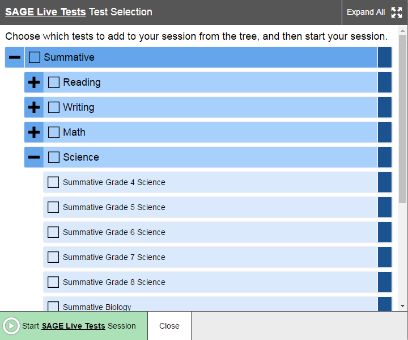
SAGE Spring Summative Test Administration Manual
As required by Board Rule R277-404, all staff members involved in the administration of
SAGE Summative assessments must follow the directions for administering the test as
outlined in this document. For questions concerning information presented in this manual
or about administration of the SAGE Summative assessments, please contact your School
Testing Coordinator or local education agency (LEA—school district or charter school)
Assessment Director.

SAGE Summative Assessments
Purpose. The SAGE Spring Summative assessments are required for course instruction
completed after March 9, 2018. These assessments are designed to assess the knowledge, skills,
and abilities described in the Utah Core Standards for English Language Arts (ELA), Mathematics,
and Science. For information regarding Core Codes which will required SAGE Summative
assessments following instruction, please contact Emily Berry emily.berry@schools.utah.gov.

Testing Windows and Scheduling. For information regarding Testing Windows and
Scheduling, please contact Kim Rathke kim.rathke@schools.utah.gov or Jared Wright
jared.wright@schools.utah.gov

The LEA Assessment Director is responsible for ensuring that each student has an appropriate
opportunity to demonstrate knowledge, skills, and abilities related to SAGE-assessed courses.
This ensures that each student has a standardized (similar and fair) testing experience.

Each LEA is responsible for determining school testing schedules. Under the direction of the
LEA, schools may divide the times specified in the table below into multiple testing sessions,
depending on local needs. The table outlines appropriate testing times for each SAGE
Summative assessment.

                                  Expected Test Times
                                                             Most Students        All Students
Course                    Test Administration                Should Be            Should Be
                                                             Finished             Finished

Science                   All                                90 minutes           135 minutes

Math                      All                                90 minutes           135 minutes

ELA                       Reading, Language, Listening       90 minutes           135 minutes

                          Writing, One Prompt, assigned
                          randomly; Within one               60 minutes           90 minutes
                          Opinion/Argument or Informative
                                                                                                   4
Extra Testing Time. It is inappropriate for the Test Administrator to allow students to take
excessive time to test. In rare circumstances, a student may need longer than the times
specified here; in those cases, only the LEA Assessment Director may approve extra testing
time for a specific student due to individual student needs or circumstances.
Unexpected/Unforeseen Circumstances. Some students may be unable to participate in
regular testing schedules due to absence, technical difficulties, or other unforeseen
circumstances. Opportunities for these students to complete each assessment must be
provided within the school’s testing window. Other circumstances such as fire drills and power
failures may interrupt testing for groups of students. Test completion sessions should be
scheduled when normal conditions are restored. Interruptions should not reduce the total
amount of time students are given to complete tests.
Security. The SAGE Spring Summative assessments are secure assessments that follow the 2018
Spring SAGE Summative blueprints for each assessed course. SAGE Summative assessments
may not be used as formative assessments. Summative reading passages, writing prompts and
test questions may not be reviewed with students, discussed as a class, or reviewed during
instructional conversations. All test security requirements of the SAGE Summative must be met.
Personnel involved in test administration need to have ethics training. For information
regarding the ethics policy, please contact Jared.Wright, jared.wright@schools.utah.gov, or Kim
Rathke, kim.rathke@schools.utah.gov.
Reporting. The SAGE Spring Summative student scores are available to schools and LEAs.
SAGE Summative
Students School and LEA
Assessments
Student results are available in the
No immediate Online Reporting System (ORS)
ELA: Writing according to the user role in TIDE.
results are
ELA: Reading To receive an overall ELA score
reported onscreen
both assessments need to be
completed.
Mathematics Immediate results
are reported Student results are available in the
Science (gr 4,
onscreen upon Online Reporting System (ORS)
5 and High
completion of the according to the user role in TIDE.
School)
assessments.
No immediate Student results will be available in
Science (gr results are the Online Reporting System (ORS)
6-8) reported after Standard Setting is complete.
onscreen
5As a student completes the SAGE Spring Summative Mathematics and/or Science grades 4-5
and High School assessment, an immediate scale score and proficiency level will be displayed.
English Language Arts results are provided to teachers via the SAGE Online Reporting System
(ORS) after a student completes both the writing and reading sections of the assessment.
Scores for the science grade 6-8 operational field test will not available be in the Online
Reporting System until the fall, following standard setting.
6Students’ Results Screen examples
Mathematics and Science Result Screen
English Language Arts Result Screen
7Administering SAGE Spring Summative Assessments
This section is designed to go chronologically, step-by-step, through what needs to be done
before, during and after testing.
Before Testing
Step 1: Complete Standard Test Administration and Testing Ethics Training
It is extremely important that every staff member involved in the administration of the SAGE
Summative assessments receive training in testing ethics and follows the directions for
administration carefully as outlined in the Standard Test Administration and Ethics Policy. Ethics
training is provided under the direction of each LEA Assessment Director. This policy is approved
by the Utah State Board of Education and updated as needed.
• For information regarding the Standard Test Administration and Testing Ethics Training,
please contact Kim Rathke kim.rathke@schools.utah.gov or Jared Wright
jared.wright@schools.utah.gov
Step 2: Read the Test Administration Manual
Make sure to read through the test administration manual and be familiar with the TA User
Guide. Also refer to these manuals as you continue to prepare for administering Summative
assessments.
• SAGE Spring Summative Test Administration Manual
• SAGE Online Testing System Test Administrator User Guide located at
http://sageportal.org/wp-content/uploads/SAGE-TA-User-Guide_2017-
2018_10.09.17.pdf
Step 3: LEA and School Staff User Accounts
• Each school must ensure that current staff members have appropriate user accounts in
SAGE. User accounts will use the common login to access all aspects of SAGE, including
the SAGE test administration.
o User accounts are role based. Please ensure that the account role is appropriate
for the user. Information regarding user roles can be found in the User Roles and
Access Guide located at http://sageportal.org/wp-
content/uploads/User_Roles_and_Access_2017-2018.pdf
o For instructions on managing user accounts, refer to the TIDE User Guide,
Section IV, pages 15-24, located at http://sageportal.org/wp-
content/uploads/SAGE_TIDE_Guide_2017_2018_08.14.17.pdf
Step 4: Check Local Testing Windows and Schedules
• Follow local testing windows established by each LEA and school. Ensure that the
assessments are scheduled to be administered during times when the SAGE system
is available.
• Please contact Kim Rathke, kim.rathke@schools.utah.gov, or Jared Wright,
jared.wright@schools.utah.gov, for all information regarding Testing Windows and
Schedules.
8Step 5: Review Eligibility of Students for SAGE Spring Summative Assessments
• Ensure that all students are appropriately registered in the school’s student
information system (SIS), and that these data are accurately represented in TIDE within
the SAGE system.
o Verify proper test assignments.
o Compile documentation concerning unique student circumstances that
affect testing.
o Check that all students who are expected to test are assigned to the assessment.
Step 6: Use SAGE Training Tests to Prepare for Spring Summative Administration
• Ensure that each device students will use is able to support SAGE Summative testing.
o Check local configuration, including bandwidth.
o Ensure up-to-date secure browser is downloaded. The secure browser can be found
on the SAGE Portal: http://sageportal.org/browsers/
o Information about the secure browser is located at: http://sageportal.org/wp-
content/uploads/SAGE_SecureBrowserManual_2017-2018.pdf
o Ensure keyboards and headphones are in working order.
o Please refer to the SAGE systems Technology Specifications located at
http://sageportal.org/wp-
content/uploads/SAGE_TechSpecs_Manual_2017-2018-1.pdf
• Ensure that each student has participated in the training tests.
o Practice the functionality of the Test Delivery System (TDS):
Answering various item types
Navigating in the interface and through the assessment
Becoming familiar with the accessibility tools
• Ensure that each Test Administrator uses the training tests:
o To practice creating training test sessions and administer training tests.
o To learn the functionality of the Test Administrator (TA Interface).
Please refer to the Training Tests section of this manual for more detailed information on this
step.
Step 7: Check Student Accommodations, Test Settings, and Special Codes
• Use TIDE to mark appropriate accommodations, test settings, and special codes.
• Please refer to the information below for accommodations, test settings, and
special codes.
Accommodations
Most Utah students are eligible to participate in SAGE assessments. To meet students’ special
needs, assessment accommodations are allowed in specific situations to enable students to
better demonstrate their knowledge.
9These decisions apply to:
• English learners (EL).
• Students with an Individualized Educational Plan (IEP).
• Students with Section 504 plans.
Accommodations are determined by an EL, IEP, or Section 504 team. Both federal and
state laws require that all students be administered assessments intended to hold schools
accountable for the academic performance of students. These laws include state statutes
that regulate Utah’s Accountability Systems. Additional laws include the ESEA Act of 2001
and subsequent flexibility waivers, and the Individuals with Disabilities Education
Improvement Act of 2004 (IDEA).
Students are expected to participate in the state accountability system. This principle of
full participation includes EL students, students with an Individualized Education Program
(IEP), and students with a Section 504 plan.
Decisions regarding accommodations and modifications must be made by an EL, IEP, or
Section 504 team and documented in the student’s file. EL team members, IEP team
members, and Section 504 team members must actively engage in a planning process that
addresses the assurance of the provision of accommodations to facilitate student access to
grade-level instruction and state assessments. Individual teachers may not make decisions
regarding assessment accommodations at the time of test administration. These
decisions must be made in advance by the appropriate team.
To obtain detailed information about the official state policy for assessment accommodations,
examine the document entitled Utah Participation and Accommodations Policy. This document
is available at
http://sageportal.org/wp-content/uploads/Utah-Participation-and-Accommodations-Policy-
2016-2017-3-10-17.pdf
Available Accommodations
The SAGE Spring assessments allow for seven accommodations. Each accommodation must be
documented in the student’s IEP, EL or Section 504 plan.
• Braille/Tactile Graphics: Braille/tactile graphics and embossing are available on request
for students with disabilities. Text and graphics may be provided via a Tiger embosser in
the student’s school that can print text and/or graphics depending on student need. For
more detailed information about administering Braille assessments, please see the
Braille Requirements and Testing Manual.
• Calculation Devices (Grade 6 Mathematics Only): Students on an IEP, EL, or 504 plan
can bring in a handheld calculator to use ONLY on the calculator segment of the Grade 6
SAGE mathematics assessment. If a handheld calculator is provided to a student for use
on non-calculator items, as documented in the student’s IEP or 504 plan, the
assessment is “modified.”
10• Standard-Size Paper: The Print on Request tool provides access to schools for printing
test questions. All printouts must be securely destroyed following test sessions.
• Large-Print Paper: The Print on Request tool, when combined with enlarged Print Size,
provides access to schools for printing large-print test questions. All printouts must be
securely destroyed following test sessions.
• Scribe: Allowed for students with disabilities, and for students as necessary due to
temporary injury just prior to assessment, as a non-accommodation. For
information regarding all scribe guidelines and requirements, please contact Tracy
Gooley tracy.gooley@schools.utah.gov.
• Sign Language: American Sign Language will be provided via an embedded video of a
human signing for students with disabilities. The video is available only on the listening
passages for English Language Arts. Human signing on any portion of the ELA, Math, or
Science assessments is allowed ONLY for the directions.
• Visual Representation: Visual Representations are manipulatives such as cubes, tiles,
rods, blocks, models, etc. They may be used on all sections of the mathematics
assessment.
Test Administrators/proctors should not modify a student’s response in any way. For example,
if a student indicates that a point should be plotted at a particular position on a grid, the
proctor must plot that point exactly where indicated. In this example, if the TA/proctor moves
the point to the intersection of two grid lines, the assessment has been modified.
For SAGE assessments, any modification of an assessment must result in the assessment being
marked as “modified.” Modified assessments result in the student being assigned a proficiency
of 1. Modifying SAGE assessments invalidates the student’s score.
Answer documents will not be produced for any student. Each student should enter his or her
responses directly into the SAGE secure browser at the time of testing. Should a student need a
paper version of the test, as documented in his or her IEP, EL, or Section 504 plan, an
appropriate educator may enter the student responses into the SAGE secure browser after the
student finishes testing using the on-demand, printed version of the test. If an educator enters
student responses from a printed version, the Scribe accommodation will need to be marked
in TIDE and should be documented in the student’s IEP, EL, or Section 504 plan. The educator
must enter the student responses in the presence of another educator, under the direction of
the School Testing Coordinator or LEA Assessment Director.
11Test Settings
For detailed information about student test settings, please refer to pages 28-35 in the TIDE User
Guide, available at http://sageportal.org/wp-
content/uploads/SAGE_TIDE_Guide_2017_2018_08.14.17.pdf
Student Test Settings Description
American Sign Language American Sign Language video setting for ELA: Reading
tests
Braille Test in Braille in the indicated subject
Color choices Color of text and background for tests in indicated subject
Descriptive audio Audio descriptions of interactive answer spaces in test
questions
Interim writing prompt selection Allows users to select specific writing prompt type (Used
for Interim Assessments only)
Permissive mode Permissive mode setting for tests in the indicated subject
Print on request Print-on-demand (POD) accommodation for tests in the
indicated subject
Print size Print-size accommodation for tests in the indicated subject
Scribe Student scribe setting for tests in the indicated subject
Streamlined interface Streamlined interface setting for tests in the indicated
subject
12Special Codes
• Special codes are used to explain why a student did not participate in an expected
assessment, or why a student participated in the assessment non-standard way. For
these special instances, special codes control and document how the test record is
handled for reporting aggregates and accountability calculations.
• Special codes are not intended to explain data errors present in UTREx. As per R277-404,
LEAs are responsible for updating local student information systems (SISs) so that UTREx
data is accurate.
Note: Once any special code is marked in TIDE, the special code persists in the system until it is
changed.
When special codes are used, only one code can be selected. Special codes are classified as “non-
participation” or “participation” codes. A description of special code usage is provided on below.
Basic rules:
• Special codes are used for non-standard administrations and to explain
non-participation.
• If a student is eligible for a test, but does not participate in it, a non-participation code
must be used to explain the lack of participation.
• A student has participated once he/she answers six questions or responds by typing
any text into a writing prompt.
• Special codes are audited for appropriate use. ALL student data will be used for
scoring, reporting, and accountability.
Special Code Code Type Description
No special code Student took the test under standard testing
conditions.
The student was not present during any part
Absent—did not take test Non-participation of the test administration period and was not
able to make up the test.
The student chose to give up before
Student refuses to test Non-participation answering six questions or refused to start
the test.
Excused—Medical The student is unable to test during the testing
Non-participation window due to an unanticipated medical
Emergency
circumstance.
Course will Continue The student is enrolled in a course which began
Non-participation instruction this school year, but will be completed
Next School Year
next school year.
Course Instruction Not The student was enrolled in a course using a
Aligned with Course Non-participation course code that didn’t align to the course
Code instruction that was given.
11Special Code Code Type Description
The student has already taken this SAGE
Test has already been taken Non-participation test during a previous test administration
year, and therefore is not required to retake
the test.
USOE Excused—Approval This code may only be applied if the USOE
Non-participation Assessment and Accountability section
Needed
approves it in writing.
Non-standard The student took the test with an allowed
Accommodated
participation accommodation.
The student took the test in a manner which
violated the test’s construct.
Non-standard
Modified
participation Example: Due to language in a student’s IEP
plan, the student was given a calculator for
the non-calculator portion of a math test.
The student was enrolled in a SAGE-
Student Transferred Before assessed course, but transferred out of it
Non-participation
Testing Window before the test was scheduled to be given at
the school.
A parent or legal guardian has requested that
Parental Exclusion Non-participation the student not take the test. If assigned, this
is the only special code that prevents a
student from testing.
12Step 8: Prepare Testing Materials
• Student Test Tickets
o Ensure that students have access to their legal name (as used in the SIS) and
seven-digit SSID, as this information is used to log into any SAGE assessment.
o For more details on printing student test tickets, refer to page 41 of the TIDE
User Guide located at http://sageportal.org/wp-
content/uploads/SAGE_TIDE_Guide_2017_2018_08.14.17.pdf .
• Allowed materials
o Headphones
o Scratch and/or graph paper
o Calculators as appropriate according to SAGE policy
o Reference sheets are available for download in the following two subjects:
Physics
Chemistry
Headphones
All students will need headphones to listen to audio in the assessments.
• Students can use text-to-speech to listen to stimuli or test items being read aloud
• Some assessments contain several items that have recorded audio.
• Students with a Braille accommodation can use the Job Access with Speech (JAWS) screen
reading software.
School testing coordinators should determine the number of headphones needed prior to testing.
Scratch/Graph Paper
The scratch/graph paper becomes part of the secure testing materials. Students may not take
their scratch/graph paper with them. The proctor should always collect scratch/graph paper at
the end of every session. If a student wants to reuse scratch/graph paper on a later session (e.g.,
notes from the ELA writing section) he or she may, as long as the scratch paper is for the same
test and was securely stored between sessions. After the testing window has closed, the school
testing coordinator must ensure that all scratch/graph paper is destroyed.
Calculators—Math
Working with numbers by hand was purposeful in the design of the Elementary Mathematics Utah
Core State Standards. Because of this purpose, calculators aren’t allowed in grades 3-5.
Grades 3-5: Calculator NOT allowed
• Not available on screen
• No handheld calculators
Grade 6: Calculator allowed and provided ONLY on the second segment of the test
• Available ONLY on screen; may be downloaded for student use in the classroom. (To
download, refer to the Online Calculators in the Test Delivery System manual located
http://sageportal.org/wp-content/uploads/Calculator-Manual-2017-18.pdf
• No handheld calculators.
• Students with a calculator accommodation documented in an IEP or 504 plans can bring
13in a handheld calculator to use only on the calculator items. It may ONLY be used in the
calculator segment, on items for which a calculator is available onscreen.
Grade 7, Grade 8, Secondary Math I, II, and III: Calculator allowed on all items
• Available onscreen and may be downloaded for student use in the classroom. (To
download refer to the Online Calculators in the Test Delivery System manual located at
http://sageportal.org/wp-content/uploads/Calculator-Manual-2017-18.pdf
• Students may also provide their own calculator or use a classroom calculator that was
used during classroom instruction (e.g., scientific, graphing, or basic).
• Phones or other Internet-capable devices are NOT allowed during testing.
Calculators—Science
Although mathematical calculation is inherent in science instruction, the Utah core standards
for science are not calculation heavy. Some students may feel more at ease during testing if a
calculator is available. To respond to this student need, two options are available for calculator
use on SAGE science assessments:
• An onscreen calculator is available to ALL students. This may be downloaded for
student use in the classroom.
o Grades 4-6 will have a basic five-function calculator (i.e., add, subtract,
multiply, divide, and square root)
o Grades 7-8 and Earth Science, Biology, Chemistry, Physics will have a scientific
calculator (including logarithms, trigonometric functions, and scientific
notation; no graphing)
o To download, refer to the Online Calculators in the Test Delivery System
manual located at http://sageportal.org/wp-content/uploads/Calculator-
Manual-2017-18.pdf
• Students may also provide their own calculator or use a classroom calculator that was
used during course instruction (e.g., scientific, graphing, or basic).
• Phones or other Internet-capable devices are NOT allowed during testing.
Reference Sheets
Please use the reference sheets throughout the year as appropriate, so that the students are
familiar with them prior to testing. The reference sheets are located at
http://sageportal.org/wp-content/uploads/2013/11/Science-Reference-Physics.pdf (Physics)
14Test Irregularities
On rare occasions, a non-standard situation arises during test administration that requires
action. Five irregularities that require action in TIDE are described below.
Reset a Test:
Resetting a test eliminates all responses for a student. When that student logs into the test
again, the test will start over. This should only be done in situations where the test cannot be
appropriately completed as-is (e.g., two students accidentally log into each other’s tests, a
student requiring Braille was not given the accommodation, etc.). A test should never be
reset to give a student a second opportunity.
Reopen a Test:
Reopening a test changes the test’s status from completed or reported to paused. This is
useful if a student accidentally submits a test prior to reviewing it. After you reopen a test, a
student can resume it. A test should not be reopened once a student sees a score.
Reopen a Test Segment:
Reopening a test segment allows a student to return to the first segment if he/she incorrectly
exited the segment. This is useful if a student accidentally clicked to complete the first segment of
the Grade 6 Math test before he/she had completed and reviewed the items.
Grace Period Extension:
Extending the grace period of a test gives a student access to all previous responses. This
should be granted if a test session is unexpectedly interrupted (e.g., fire drill, lockdown). The
grace period extension should not be applied if the test session ended normally, or if the
student was given time to review their answers before logging out of a test.
Test Invalidation:
Tests should be invalidated when a student’s performance is not an accurate measure of their
ability (e.g., the student cheated, used inappropriate materials, etc.). If a test is invalidated, the
student is not given another opportunity to take the test. Invalidating a test requires the
approval of an LEA-level user.
Please refer to the TIDE User’s Guide for detailed instructions for marking, reviewing, and
approving test irregularities, located at: http://sageportal.org/wp-
content/uploads/SAGE_TIDE_Guide_2017_2018_08.14.17.pdf
15During Testing
While students log in to the assessments through the Secure Browser, the steps below outline
the process for Test Administrators (TAs) to log in to the TA Interface and start a test session
with a unique session ID and the specific tests to be administered.
TAs will then help students log in to their assessments by reading the directions for
administration. All directions are indicated by the word “SAY” and are in bold type enclosed in
a gray box. Read these directions exactly as they are written. Follow the test-specific
instructions for administering each test. Sections that will need to be tailored to the specific
testing situation are noted. Directions and scripting are the same for most tests. Please note
that ELA Writing and Math Grade 6 have unique directions and scripting.
• The ELA assessment is divided into two test sections with different instructions for the
Writing and Reading, Listening, and Language sections.
• Mathematics Grade 6 is the only two-segment SAGE assessment that requires the TA
to approve students from one segment to the next.
Step 1: Distribute Materials
• Ensure that blank scratch/graph paper, headphones, and appropriate test materials are
distributed. If you are using student testing tickets, ensure that those are also distributed.
• Follow local procedures to ensure the secure browser is available and
launched on each device students will use for testing. Ensure that all
students have headphones and a keyboard.
• TAs may provide login information to students using test tickets
generated from TIDE or may follow local procedures to help students
log in. For information on generating test tickets from TIDE, refer to
the TIDE User Guide located at http://sageportal.org/wp-
content/uploads/SAGE_TIDE_Guide_2017_2018_08.14.17.pdf
Note: A student may use scratch paper for multiple sessions of the same test, as long as it
was collected and stored securely between sessions.
Step 2: Test Administrator Logs in to the SAGE Testing System
• Navigate to the SAGE Portal
(http://sageportal.org/).
• Select the Test Administrators user card.
• You will be directed to the selected “Welcome” page,
which includes links to the available SAGE applications.
16• Select “SAGE Live Test Administration.” You will
be directed to the login screen.
• Enter your username (e-mail address) and
password into the respective text fields.
• Click “Log In.” You will be directed to the TA Interface.
If you do not have a username and password, contact your
school’s Test Coordinator.
Step 3: Select Tests to Administer
• Once you have logged in, select the test you will administer using the hierarchy tree. Then
click the “Start SAGE Live Tests Session” button in the bottom left corner of the screen. Be
sure to select the appropriate Summative test to be administered.
Step 4: Create a Session ID
• Each test session will be automatically assigned a unique Test Session ID. The Test Session
ID is provided to students to enter this testing session.
17Step 5: Help Students Log in to the Test Session
SAY: You should now see a login screen on your device. If you do not, please let me know now.
[Pause.] On the login screen, please enter your legal first name (not your nickname), your seven-
digit SSID [if login tickets have been provided, say, “from the login ticket you have been given”],
and the Test Session ID I have given you into the appropriate areas. Then click the Sign In button.
Live Test Sign in for Students
Pause while students log in.
SAY: Please review the information on the screen. Make sure your name and the test you are
taking is shown. If any of the information is incorrect, please raise your hand and I will help you;
otherwise, select YES to continue.
Then, please select the [name course] test and wait. Before you begin testing, I will provide
additional instructions.
Note: Make sure to contact the school test coordinator and/or LEA assessment director if there is
any incorrect information that needs to be resolved.
Step 6: Approve Students for Testing
It is the teacher/TA’s responsibility to verify that each student on the list should be in this testing
session.
• Click the “Approvals” button in the
upper right corner of the page to view
the students waiting for approval.
• Click the eye icon button to verify and adjust the test settings for any students
who require it. Details about student test settings can found at
http://sageportal.org/wp-
content/uploads/SAGE_TIDE_Guide_2017_2018_08.14.17.pdf
• Click the check mark button to approve a single student or the “Approve All Students” button to
approve all students.
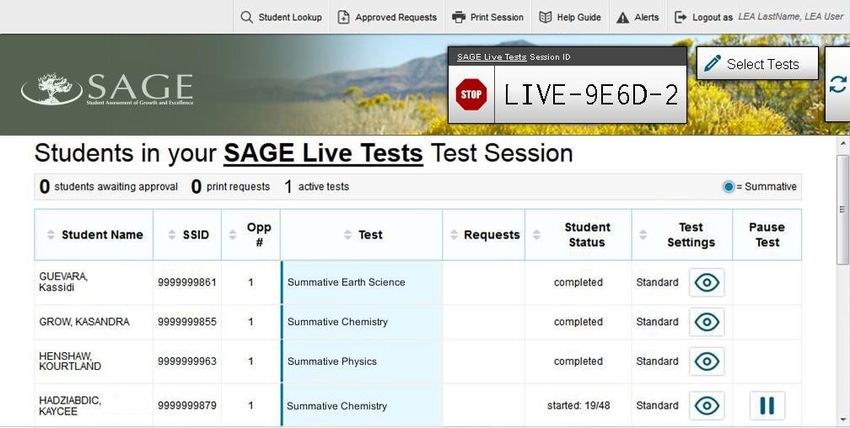
18Approvals and Student Test Settings
Once students have been approved, a list of students currently testing in the session and which
test questions they have answered is displayed, as well as how long their tests have been
paused.
Students in Your Test Session
19Step 7: Read Script for Test Administration
Once all students are approved to enter the testing session, read the appropriate scripting,
found below, based on the assessment being administered.
Follow local procedures to actively proctor the test session and to document any testing
anomalies that occur. Students who finish early should be encouraged to use any remaining
time to check their answers before submitting the test for scoring.
To wrap up and end the testing session, read the end-of-session script for the test being
administered and then follow the steps located below to close the testing session.
20Spring Summative ELA: Writing All Grades
The Writing section may be completed in multiple testing sessions within the testing times
listed in the SAGE Summative Assessments section under Testing Windows and Scheduling of
this TAM. Testing sessions should be reasonable and fit within local testing schedules.
SAY: You are going to respond to one writing prompt. The writing prompt will have
passage sets and guidance to support you in your writing. Please carefully review the
prompt since some of you may receive an informative/explanatory prompt and some of you
may receive an [opinion/argumentative] (use correct grade level genre) prompt. Most of
you will finish responding in one hour. All of you should be finished in 90 minutes.
Today’s testing session will go until [insert time the session will end]. If you do not
finish during this testing session, you will be able to continue later.
On the next screen, you may scroll through a help page that describes how to use the
SAGE system. You may return to that help page by clicking on the “help” icon, which
appears as a question mark in the upper right-hand corner of your screen. If you do not
know how use the system to enter your response, please raise your hand and I will help
you. Please remember that I will show you only how to use the system.
Spring Summative ELA: Reading: All Grades
Spring Summative Math: All Grades, except Grade 6
Spring Summative Science: All Grades
SAY: You are now ready to take the [course name] test. This test is designed to measure your
understanding of the Utah Standards for [course name].
Today’s testing session will go until [insert time the session will end]. If you do not finish
during this testing session, you will be able to continue later, but will not be able to return
to the questions you see during this session. I will let you know when there are about five
minutes left in the session.
On the next screen, you may scroll through a help page that describes how to use the SAGE
system. You may return to that help page from any question by clicking on the “help” icon,
which appears as a question mark in the upper right-hand corner of your screen. If you find
that you do not know how to use the system to enter your responses, please raise your hand
and I will help you, but please remember that I will only show you how to use the system.
You may now put on your headphones, click on “Yes, Start My Test,” and begin.
20Spring Summative Math: Grade 6
There are two segments within the Math Grade 6 assessment.
• Segment One is to be taken without a calculator.
• Segment Two allows the use of an onscreen calculator.
Students will need to be “approved” from the TA Interface before starting the second segment.
Students will not be able to return to the first segment after you approve them to start the
second segment. The approval procedure is found in During Testing – Step 6 of this TAM.
SAY: You are now ready to take the Math Grade 6 test. This test is designed to measure
your understanding of the Utah Standards for sixth grade math.
This test is divided into two segments. For the first segment, you will not be allowed to use
a calculator. For the second segment, you will be able to use a calculator. When you have
reviewed and are finished with the first segment, click “Next,” then raise your hand and I will
give you access to the second segment. Once you go to the second segment, you will be
unable to return to the first segment.
Today’s testing session will go until [insert time the session will end]. I will let you know
when there are about five minutes remaining in the session. If you do not finish during
this testing session, you will be able to continue later.
Five-Minute Alert Before the End of the Test Session
Follow appropriate local procedures to attract the students’ attention, and then read the
applicable script.
Spring Summative ELA Writing Section
SAY: There are five minutes remaining in this test session. Please prepare to pause or end
your writing test. You will be able to return to your response later if you are not finished.
All Spring Summative Tests Except the ELA Writing Section
SAY: There are five minutes remaining in this test session. Now, please review any test
questions you answered, because you will not be able to review them later. If you are not
finished with this test, you will have a chance to answer the remaining questions later.
21Students—End the Test Session and Log Out
SAY: The test session is now over. If you have not finished, click “Pause.” Then click “Log
Out.” If you have completely finished the test, click “Submit Test for Scoring.” Then click
“Log Out.” If you do not know how to submit your test, please let me know now.
[Pause.]
I will now collect your testing materials.
Secure materials should be stored between testing sessions and destroyed at the end of
testing according to local procedures. Secure materials include:
• Scratch paper/graph paper written on by students.
• Embossed questions and passages (for students with Braille accommodation).
• Print-on-demand questions and passages (for students with large-print or paper-
based accommodations).
Test Administrator—End the Test Session and Log Out
Click the red “Stop” button to
the left of the session ID to end
the test session.
Click “Logout as” in the top right corner of the TA Interface
to log out of the test session.
Step 8: Read Script for Make-Up Testing Sessions
Work with your local Testing Coordinator to determine the length of completion sessions
based on how long students have already tested. Students who have finished an assessment
should not be required to sit through additional testing time needed by a few students.
ELA Writing Section
SAY: You are now ready to resume the English Language Arts Writing test. Your test will begin
where you left off the previous test session. Today’s testing session will go until [insert time the
session will end]. I will let you know when there are five minutes left in the session. If you do
not know how to use the system to enter your responses, please raise your hand and I will
help you. Please remember that I will show you only how to use the system.
You may now click “Yes, Resume My Test,” put on your headphones, and begin.
22Math Grade 6
SAY: You are now ready to resume testing for Math Grade 6. Your test will begin where you left
off in the previous test session. Today’s testing session will go until [insert time the session will
end]. I will let you know when there are about five minutes left in the session.
Read italicized text below if students haven’t finished the first segment:
This test is divided into two segments. When you have reviewed and are finished with the first
segment, click “Next,” then raise your hand and I will give you access to the second segment.
Once you go to the second segment, you will be unable to return to the first segment.
Once you have reviewed and finished answering all the questions click the “End Test” button.
If you do not know how to use the system to enter your responses, please raise your hand
and I will help you. Please remember that I will show you only how to use the software.
You may now click “Yes, Resume My Test,” put on your headphones, and begin.
All Tests Except the ELA Writing Section and Math Grade 6
SAY: You are now ready to resume testing for [course name]. Your test will begin where you
left off in the previous test session. Today’s testing session will go until [insert time the
session will end]. I will let you know when there are five minutes left in the session. Once you
have reviewed and finished answering all the questions, click the “End Test” button. If you do
not know how to use the system to enter your responses, please raise your hand and I will
help you. Please remember that I will show you only how to use the system.
You may now click “Yes, Resume My Test,” put on your headphones, and begin.
23After Testing
Step 1: Report Testing Anomalies
• Report any testing anomalies to the School Testing Coordinator and/or LEA Assessment
Director.
Step 2: Check That All Eligible Students Have Tested
• Check that all students who are eligible have completed the assessments.
• Instructions are provided below; for more detailed instructions refer to page 63 of the
TIDE User Guide http://sageportal.org/wp-
content/uploads/SAGE_TIDE_Guide_2017_2018_08.14.17.pdf
Instructions:
• Log in to TIDE.
• Click on “Monitoring Test Progress” and select “Plan and Manage Testing.”
• Select the What, Who, and specifics.
2425
Step 3: Access Student Results
     • Access student results in Online Reporting System (ORS), provide students with ISR
         according to local procedure, and use SAGE Summative data to inform instructional
         activities.
                  o For student results via Plan and Manage Testing, refer to page 57 of the ORS
                     User Guide.
                  o For student results via Score Reports, refer to page 17 of the ORS User Guide.

  ORS User Guide:
  http://sageportal.org/wp-content/uploads/ORS-_User_Guide_2017-2018_FINAL.pdf

                                                                                                 26
SAGE Help Desk
Please contact your LEA Assessment Director prior to contacting the SAGE Help Desk.
If you contact the Help Desk, you will be asked to provide as much detail as possible about the
issue(s) you encountered.
Hours of Operation:
Regular Hours: Monday–Friday, 8:00 a.m. to 5:00 p.m. Mountain Time (except holidays)
Spring Summative Window Hours: Monday–Friday, 7:00 a.m. to 7:00 p.m. Mountain Time
(except holidays)
SAGE Help Desk
Toll-Free Phone Support: 1-855-570-7239
E-Mail Support: SAGEHelpDesk@air.org
Always include the following information:
• Test Administrator name
• SSID(s) of affected student(s)
Do NOT provide any other student information, as doing so may violate FERPA policies.
• Results ID for the affected student test(s)
• Operating system and browser version information
• Any error messages and codes that appeared, if applicable
• Information about your network configuration, if known:
o Secure browser installation (to individual machines or network)
o Wired or wireless Internet network setup
27SAGE Training Tests
Purpose: The SAGE Training tests are provided to help students, teachers, test administrators
and technology coordinators prepare for the SAGE Interim and Summative assessments.
Whenever a SAGE training test is administered in a school, it is strongly recommended that it
is accessed using the SAGE Secure Browser to provide students with access to text-to-speech
and certify that local technology configurations can support testing. The training tests are
located at http://sageportal.org/training-tests/.
Schools are encouraged to have students take the appropriate training test prior to the
administration of the SAGE Interim and Summative assessments. Each LEA and school should
be strategic in deciding how it wants to use the training tests with its students.
Best practices for using the training tests include:
• Working through training test items as a class, discussing how to navigate the
assessment, use tools, and answer each item type.
• Having individual students use the SAGE Secure Browser, with their SSID and legal first
name, to log into a SAGE Training Test, navigate the assessment, use tools, and answer
each item type.
• Having new faculty and staff use the SAGE Secure Browser to log into SAGE Training
Tests as a “Guest” and experience the SAGE system firsthand during a staff meeting or
professional learning community (PLC) meeting.
Format: The training tests are organized in grade level bands. They are aligned to the Utah
Core Standards according to their individual grade band, and represent the variety in both
difficulty and item format that students may see on the SAGE Summative assessments.
Students may have difficulty with content aligned to higher grades within the grade band of
each training test; this should not interfere with students’ ability to interact with an item for
its intended training purpose. If an item appears to be too difficult, encourage your students
to experiment with the tools, choose the best answer, and move on to the next item.
Security: Training test questions are not secure and should be used liberally to help students
understand how to enter responses, access testing tools, and navigate through a test.
Reporting: The training tests do not include an item for each of the aligned Core State
Standards that will be measured by the SAGE Interim or Summative assessments. The training
tests do not provide scores for students and should not be used to measure students’ content
knowledge.
28SAGE Accessibility Tools
All students have access to and may use the following accessibility tools for the 2017-2018
SAGE Summative assessments. Students should be familiar with and able to use these tools
prior to taking a SAGE Spring Summative assessment, and can gain this familiarity by accessing
and using these features with the SAGE Training Tests available through the SAGE Portal
(http://sageportal.org/training-tests/).
Accessibility tools include:
• Zoom buttons: Students can make test questions, text, or graphics larger by clicking the
Zoom icon, which has four levels of magnification.
• Highlight: Students can annotate passages or sections of passages and test questions by
highlighting. The highlighting will persist across sessions on writing as long as the
student uses the same type of device for all testing sessions.
• Masking: Students can select a region of the screen to black-out to reduce distractions.
• Pause: Students can pause the assessment and return to the last unanswered question.
If an assessment is paused for more than 20 minutes, a student will not be allowed to
return to previously answered test questions (except the ELA writing section, for which
students can return to their prior response up to the point of submission).
• Cross out response options: Students can cross out text in multiple-choice answer
options by using the strikethrough function.
• Mark a question for review: Students can mark test questions they have answered
to review them later (however, if an assessment is paused for more than 20 minutes,
students will not be allowed to return to marked test questions that were previously
answered).
• Text-to-speech: Students may listen to test questions through a text-to-speech (TTS)
feature (requires headphones). The text-to-speech feature will be enabled
automatically for all students in TIDE. This will allow students to have test instructions,
writing passages, questions, or answer options read or reread to them. TTS is not
available for reading passages or excerpts from these passages. This procedure will
ensure that all students have the test questions and response options read aloud
electronically using the same tone of voice and inflection for all words and symbols
included in charts, tables, and graphs.
• Descriptive audio: Students may listen to audio descriptions of interactive answer
spaces in test questions. This audio is provided in addition to text-to-speech as a test
setting.
• Student test settings: Color choices, print size, streamlined interface and permissive
mode may be set in either TIDE or when the student requests access to a testing
session. It is recommended that these options be determined by the student using
the training tests, though they can also be changed by the test administrator.
29You can also read


