Darwin Core Archive How-To Guide Version 1.0 - April 2011
←
→
Page content transcription
If your browser does not render page correctly, please read the page content below

Darwin Core Archive
How-To Guide
Version 1.0

 April 2011
Suggested citation:
 GBIF (2010). Darwin Core Archives – How-to Guide, version 1, released on 1 March 2011,
 (contributed by Remsen D, Braak, K, Döring M, Robertson, T), Copenhagen: Global
 Biodiversity Information Facility, 21 pp, accessible online at:
 http://links.gbif.org/gbif_dwc-a_how_to_guide_en_v1

ISBN: 87-92020-19-4
Persistent URI: http://links.gbif.org/gbif_dwc-a_how_to_guide_en_v1
Language: English

Copyright © Global Biodiversity Information Facility, 2010

License:
This document is licensed under a Creative Commons Attribution 3.0 Unported License

Document Control:
Version    Description                          Date of release     Author(s)
1.0        Content review and additions         30 Mar 2011         DR, MR
1.1        Minor edits                          9 Feb 2012          DR, BK

Cover Art Credit: Kim Wismann,
Cicindelinae

                                                                                          ii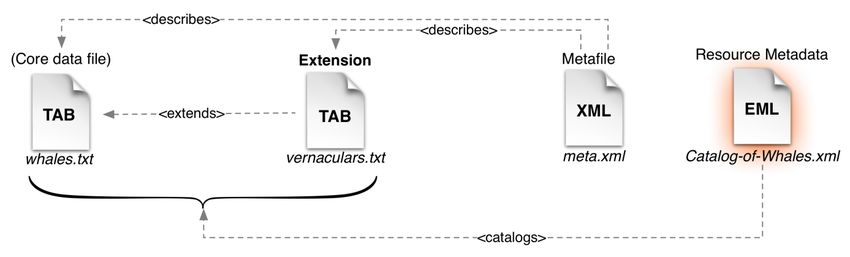
Darwin Core Archive How-to Guide                                                              Version 1.0

    About GBIF

The Global Biodiversity Information Facility (GBIF) was established as a global mega-
science initiative to address one of the great challenges of the 21st century – harnessing
knowledge of the Earth’s biological diversity. GBIF envisions ‘a world in which biodiversity
information is freely and universally available for science, society, and a sustainable
future’. GBIF’s mission is to be the foremost global resource for biodiversity information,
and engender smart solutions for environmental and human well-being1. To achieve this
mission, GBIF encourages a wide variety of data publishers across the globe to discover
and publish data through its network.

1
 GBIF (2011). GBIF Strategic Plan 2012-16: Seizing the future. Copenhagen: Global Biodiversity Information
Facility. 7pp. ISBN: 87-92020-18-6. Accessible at http://links.gbif.org/sp2012_2016.pdf

April 2011                                                                                                   iii
Darwin Core Archive How-to Guide                                                              Version 1.0

Table of Contents

Introduction .................................................................................... 1


Darwin Core Archive ......................................................................... 2

    Darwin Core Archive Components ........................................................ 3


DWC-A Data Publishing Solutions .......................................................... 6

    Publishing DwC-A using the Integrated Publishing Toolkit (IPT) / Data
    HostingCenters............................................................................... 6

      Registering your Dataset using IPT .............................................................. 8

    Publishing DwC-A using GBIF Spreadsheet Templates ................................. 8

    Create your own Darwin Core Archive .................................................. 10


Validation of Darwin Core Archives ...................................................... 13

      Registering data using Spreadsheet Processor, Make-Your-Own DwC-A, or other
      community tools ..................................................................................13


Annex 1: Reference Guides to Terms and Vocabularies ............................. 15

    Metadata..................................................................................... 15

    Data (Occurrence and Taxon) ............................................................ 15

    Taxonomic Data/Annotated Species Checklists ....................................... 15

    Vocabularies ................................................................................ 16


Annex 2: Preparing Your Data............................................................. 17

    Character Encoding Conversion .......................................................... 17

    Outputting Data From a MySQL Database Into a Textfile ............................ 18


Annex 3: Darwin Core Archive Examples .............................................. 19


 List of Figures

Figure No.      Caption of the Figure                                                               Page
1               Figure 1. A core data file is a simple, tabular, text file                          3
2               Figure 2. An extension is linked to the core file via the common                    4
                taxon ID
3               Figure 3. The metafile describes the file names and fields in the                   4
                core and extension files

4               Figure 4. A metadata document describes the complete dataset                        5

5               Figure 5. Text files are zipped into a single archive                               5

April 2011                                                                                                  iv
Darwin Core Archive How-to Guide Version 1.0
Introduction
Darwin Core Archive (DwC-A) is an internationally recognised biodiversity informatics data
standard that simplifies the publication of biodiversity data. It is based on Darwin Core, a
standard developed and maintained by the Biodiversity Information Standards2 group.
The Darwin Core is body of standards. It includes a glossary of terms intended to facilitate
the sharing of information about biological diversity by providing standard reference terms
that include definitions, examples, and commentaries. The Darwin Core is primarily based
on taxa and their occurrence in nature, as documented by observations, specimens,
samples, and related information3. The Darwin Core terms can be organised into schema
or profiles and include guidelines on their use in XML4 or plain text documents.
The Darwin Core standard is used to mobilise the vast majority of specimen occurrence
and observational records within the GBIF network. It was originally conceived to
facilitate the discovery, retrieval, and integration of information about modern biological
specimens, their spatio-temporal occurrence, and their supporting evidence housed in
collections (physical or digital). The Darwin Core achieved this by defining a set of items
in an ordered list, published in an XML document.
The Darwin Core today is broader in scope and application. It aims to provide a stable,
standard reference for sharing information on biological diversity. As a glossary of terms,
the Darwin Core provides stable semantic definitions with the goal of being maximally
reusable in a variety of contexts. This means that Darwin Core may still be used in the
same way it has historically been used, but may also serve as the basis for building
enriched exchange formats, while still ensuring interoperability through a common set of
terms. This guide defines one of these formats that may be used to publish specimen-
occurrence and observational data as well as species-level information such as taxonomic
checklists.
2
Biodiversity Information Standards – http://www.tdwg.org
3
What is Darwin Core? http://rs.tdwg.org/dwc/
4
XML – Extensible Markup Language
April 2011 1Darwin Core Archive How-to Guide Version 1.0
Darwin Core Archive
Darwin Core Archive (DwC-A) is a biodiversity informatics data standard that makes use of
the Darwin Core terms to produce a single, self contained dataset for sharing both
species-level (taxonomic) and species-occurrence data. An archive is a set of text files, in
standard comma- or tab-delimited format, with a simple descriptor file (called meta.xml)
to inform others how your files are organised. The format is defined in the Darwin Core
Text Guidelines5. It is the preferred format for publishing data in the GBIF network.
The central idea of an archive is that its data files are logically arranged in a star-like
manner, with one core data file surrounded by any number of ‘extension’ data files. Core
and extension files contain data records, one per line. Each extension record (or
‘extension file row’) points to a record in the core file; in this way, many extension
records can exist for each single core record. This is sometimes referred to as a “star
schema”.
Sharing entire datasets as Darwin Core Archives instead of using page-able web services
like DiGIR6 and TAPIR7 allows much simpler and more efficient data transfer. For example,
retrieving 260,000 records via TAPIR takes about nine hours, and involves issuing 1,300
http requests to transfer 500 MB of XML-formatted data. The exact same dataset, when
encoded as DwC-A and zipped becomes a 3 MB file. Therefore, GBIF highly recommends
compressing an archive using ZIP or GZIP when generating a DwC-A. In addition, producing
Darwin Core Archives does not require any dedicated software to be installed by a data
publisher, making it a much simpler option.
The production of a Darwin Core Archive requires the use of stable identifiers for core
records, but not for extensions. For any kind of shared data it is therefore necessary to
have some sort of local record identifiers. It is good practice to maintain – with the
original data – identifiers that are stable over time and are not being reused after the
record is deleted. If possible, please provide globally unique identifiers instead of local
ones8. This identifier is referred to as the “core ID” in Darwin Core Archives and the
specific Darwin Core term that it corresponds to is dependent on the data type being
published.
5
Darwin Core text guidelines - http://rs.tdwg.org/dwc/terms/guides/text/index.htm
6
http://digir.net/
7
http://www.tdwg.org/activities/tapir/
8
http://links.gbif.org/persistent_identifiers_guide_en_v1.pdf
April 2011 2Darwin Core Archive How-to Guide Version 1.0
Darwin Core Archive Components
A Darwin Core Archive may consist of a single data file or multiple files, depending on the
scope of the published data. The specific types of files that may be included in an archive
are the following:
1. A required core data file consisting of a standard set of Darwin Core terms9. The
data file is formatted as fielded text, where data records are expressed as rows of
text, and data elements (columns) are separated with a standard delimiter such as
a tab or comma (commonly referred to as CSV or ‘comma-separated value’ files)10.
The first row of the data file may optionally contain data or represent a ‘header
row’. In general, if a header row is included, it contains the names of the Darwin
Core terms represented in the succeeding rows of data.
GBIF currently supports the following two biodiversity data types as the basis for a core
data file:
a) Occurrence or Primary Biodiversity Data - The category of information
pertaining to evidence of an occurrence in nature, in a collection, or in a
dataset (specimen, observation, etc.). Core files of this type are used to share
information about a specific instance of a taxon such as a specimen or
observation. The required core ID is represented by dwc:occurrenceID. The
definitive list of Occurrence terms can be found on the GBIF Schema
Repository11.
b) Taxon - The category of information pertaining to taxa or taxon concepts, such
as species. Core files of this type are used to share annotated species checklists,
taxonomic catalogues, and other information about taxa. The required core ID
is represented by dwc:taxonID. The definitive list of core Taxon terms can be
found on the GBIF Schema Repository12
(Core data file)
taxonID,vernacularName,taxonRank
123,"Physeter catodon Linnaeus","species"
TAB
124,"Eschrictius gibbous Erxleben","species"
125,"Grampus griseus Cuvier", "species"
whales.txt
Figure 3. A core data file is a simple, tabular, text file
9
Darwin Core terms: http://rs.tdwg.org/dwc/terms/
10
CSV files - http://en.wikipedia.org/wiki/Comma-separated_values
11
GBIF Occurrence Schema Repository - http://rs.gbif.org/core/dwc_occurrence.xml
12
GBIF Taxon Schema Repository - http://rs.gbif.org/core/dwc_taxon.xml
April 2011 3Darwin Core Archive How-to Guide Version 1.0
2. Optional “extension” files support the exchange of additional, described classes
of data that relate to the core data type (Occurrence or Taxon). An extension
record points to a record in the core data file. Extensions may only apply to Taxa
or Occurrences or may apply to both. For example, the Vernacular Names
extension (illustrated below) is an extension to the Taxon class, whereas an Images
extension may be used in both. Extensions can be created and added to the GBIF
Schema Repository following a consultation and development process with GBIF.
The definitive list of supported Extensions can be found on the GBIF Schema
Repository13
(Core data file) Extension
taxonID,vernacularName,language
123,"sperm whale","english"
TAB TAB
123,"cachalot","french"
124,"gray whale", "english"
whales.txt vernaculars.txt
Figure 4. An extension is linked to the core file via the common taxon ID
3. A descriptor metafile describes how the files in your archive are organised. It
describes the files in the archive and maps each data column to a corresponding
standard Darwin Core or Extension term. The metafile is a relatively simple XML
file format. GBIF provides an online tool for making this file but the format is
simple enough that many data administrators will be able to generate it manually.
These options are described in the Publishing Options section of this document.
A metafile is required when an archive includes any extension files or if a single
core data file uses non-standard column names in the first (header) row of data. A
complete reference guide to this metafile is available.14
Figure 3. The metafile describes the file names and fields in the core and extension files
4. Datasets require documentation. This is achieved in a Darwin Core Archive by
including a resource metadata document that provides information about the
13
Extensions – http://rs.gbif.org/extension/
14
Reference Guide to XML Descriptor file – http://links.gbif.org/gbif_dwc-a_metafile_en_v1
April 2011 4Darwin Core Archive How-to Guide Version 1.0
dataset itself such as a description (abstract) of the dataset, the agents responsible
for authorship, publication and documentation, bibliographic and citation
information, collection methods and much more. GBIF currently supports a
metadata profile15 based on the Ecological Metadata Language16 but other
metadata standards exist and may be supported. A copy of the full XML Schema
description can be found on the GBIF Schema Repository17
Figure 4. A metadata document describes the complete dataset
The entire collection of files (core data, extensions, metafile, and resource metadata) can
be compressed into a single archive file. Compression formats include ZIP18 and TAR.GZ
/TGZ19.
Figure 5. Text files are zipped into a single archive
This single, compressed file is the Darwin Core Archive file! This file is easily transported
via email, or FTP. It can be served to GBIF simply by putting the file on a web server and
registering the URL with GBIF. Details on registering are provided in the Validation and
Registration section of this document. See: DWC-A Data Publishing Solutions.
15
GBIF EML Example - http://code.google.com/p/gbif-providertoolkit/source/browse/trunk/gbif-
providertool/src/test/resources/eml/sample.xml
16
http://knb.ecoinformatics.org/software/eml/eml-2.0.1/index.html
17
Metadata XML Schema - http://rs.gbif.org/schema/eml-gbif-profile/dev/eml.xsd
18
Zip format - http://en.wikipedia.org/wiki/ZIP_(file_format)
19
TGZ - http://en.wikipedia.org/wiki/Tar_(file_format)
April 2011 5Darwin Core Archive How-to Guide Version 1.0
DWC-A Data Publishing Solutions
There are a number of different options for generating a Darwin Core Archive.
To help select the most appropriate solution for creating your own archive, answering the
following questions can help your decision:
1. Have your data been digitised? (If yes, it is assumed that you can easily convert the
data into CSV or Tab format).
2. Are your data stored in a relational database?
3. How many separate datasets (DwC-Archives) do you plan to publish?
The Integrated Publishing Toolkit is most suitable when:
• Your data have been digitised already.
• Your data either are or are not already in a relational database
• You need to create/manage multiple archives.
• You would like to document datasets using the GBIF Metadata Profile.
The GBIF Darwin Core Spreadsheet Templates are most suitable when:
• Your data have not been digitised already.
• You already maintain basic species lists in a spreadsheet file.
• You need a simple solution for authoring and managing a limited number metadata
documents to describe datasets you manage in another system and would like to
publish through GBIF.
The Make Your Own option is most suitable when:
• Your data have been digitised already.
• Your data may be in a relational database.
• You only need to create/manage a small number of archives, or have the option to
automate / script the archive generation process.
A more detailed discussion of these three options follows.
Publishing DwC-A using the Integrated Publishing Toolkit (IPT) / Data
HostingCenters
Assumption: Your data are already stored as a CSV/Tab text file, or in one of the
supported relational database management systems (MySQL, PostgreSQL, Microsoft
April 2011 6Darwin Core Archive How-to Guide Version 1.0
SQL Server, Oracle, Sybase). Preferably, you are already using Darwin Core terms as
column names, although this is not compulsory.
The Integrated Publishing Toolkit (IPT) is GBIF’s flagship tool for publishing Darwin Core
Archives. There are two configuration options available.
1. You can install and host a local version of the IPT at your home institution.
2. You can access a hosted instance of an IPT at a GBIF-endorsed Data Hosting Centre
and publish your data there:
a. DanBIF Data Hosting Center
b. Endangered Wildlife Trust Data Hosting Center
Please contact helpdesk@gbif.org for more information on using a Data Hosting Centre.
The IPT can be used to publish Occurrence Data, Taxon Data, and/or Metadata-only.
Below is a set of instructions on how to create a DwC-Archive using the IPT. For more
detailed information on installing and operating the IPT, please refer to the IPT User
Manual.20 A separate How-To guide for producing metadata is also available (GBIF
Extended Metadata Profile: How-To Guide21). Additional information on the IPT is available
from the project’s website22.
To generate a DwC-Archive using the IPT:
1. Follow the instructions in section “Preparing Your Data” (See: Annex to this
document, below).
2. Create a new resource in the IPT editor.
3. Set the appropriate configurations23 for the data resource, and upload the source
data:
a. For CSV/Tab files: use the "upload file" option.
b. For a database: create a new SQL source.
4. Create a mapping between the source data and the Darwin Core terms, using the
IPT interface to match your own column headers against the terms.
Depending on the type of data you are publishing, you will need to ensure that the
appropriate core types and extensions are loaded. This is based on initial configurations
when the IPT instance was installed. For example:
20
http://code.google.com/p/gbif-providertoolkit/wiki/IPT2ManualNotes
21
http://links.gbif.org/gbif_metadata_profile_how-to_en_v1
22
IPT Project website: http://code.google.com/p/gbif-providertoolkit/.
23
delimiter separating fields in a text file, dataset encoding (character set), date format
April 2011 7Darwin Core Archive How-to Guide Version 1.0
• To publish Occurrence data (specimen or observation) data, the core type Darwin
Core Occurrence must be loaded.
• To publish common names with a species checklist the core type Darwin Core
Taxon and the Vernacular Names Extension must be loaded.
The IPT automatically maps all columns that use Darwin Core terms in the first (header)
row in the source data file. Using Darwin Core terms in your source data helps to save
time when generating the mapping. Otherwise, the IPT assists the mapping process
through a help dialog. For each term, a definition, an example, and link to the Darwin
Core documentation on that term is available. In addition, fields that expect values from
controlled vocabularies will present those values in a drop-down list. Whenever a problem
exists with a mapping, it is highlighted and brought to the user’s attention to try to ensure
that all columns get successfully mapped.
1. Publish the new DwC-Archive, using the IPT dialogue. This will create the DwC-
Archive, bundling the data sources together with the metadata in one zipped
archive. On successful processing of the archive, both the archive and the
metadata file (EML) will be assigned their own URLs.
Registering your Dataset using IPT
The IPT supports automatic registration in the GBIF network. In the “Managing Resources”
page of your resource, there is a “Visibility” section. If the status is set to “public”, then
there will be a “Register” button and a drop-down list for institutions. Choose the
institution with which the resource or dataset is associated, and click the “Register”
button. Now your dataset and metadata are registered with the GBIF Registry. See the
online manual of IPT24 at for further details.
Publishing DwC-A using GBIF Spreadsheet Templates
Assumption: The occurrence or simple taxonomic data to be published are not yet
captured in digital format OR a simple solution for creating a metadata document to
describe a dataset is desired.
GBIF provides a set of pre-configured Microsoft Excel spreadsheet files that serve as
templates for capturing metadata, occurrence data, and simple species checklists. The
spreadsheets are linked to an online processing system that validates the uploaded (or
emailed) spreadsheet file and then transforms the data to a Darwin Core Archive and
returns this to the user.
24
http://links.gbif.org/ipt_visibility
April 2011 8Darwin Core Archive How-to Guide Version 1.0
Below is a set of instructions on how to create a DwC-Archive using one of the GBIF Darwin
Core Spreadsheet Templates. Each template provides inline help and instructions in the
worksheets. Filling in the metadata is outside the scope of these instructions; check the
separate GBIF Extended Metadata Profile: How-To Guide25. More information on the
Spreadsheet Templates is available at the project website26.
Generate a DwC-Archive using the Spreadsheet Templates:
1. Choose the appropriate template:
a. Metadata Template: suitable for composing a metadata document.
b. Occurrence Template: suitable for occurrence data (specimen,
observation).
c. Species Template: suitable for basic species checklists. Several options are
provided that cater to different styles for representing classifications.
2. Fill in the template, using the inline help and reference guides included on the
project site. To access the inline information, hover the cursor over cells with red
upper-right corners.
3. Upload the completed template to the Darwin Core Archive Spreadsheet Processor,
available online.27
4. Process the file. When successful, the DwC-Archive will be saved to the same
folder as the template. The file is ready to share with others or publish through
GBIF.
5. See the section Validation of Darwin Core Archives
6. GBIF provides an online DwC-Archive Validator to validate the completed archive.
Archives should be validated to ensure they are properly composed before the final
publishing/registration step.
To use the validator
1. Combine the text file(s), metafile (meta.xml), and metadata (eml.xml) together in
one zipped folder.
2. Upload the zipped folder using the form provided in the Validator web page.
3. Validate the DwC-Archive
4. Review and address any response that refers to a validation error.
25
GBIF Metadata Profile - http://links.gbif.org/ gbif_metadata_profile_guide_en_v1
26
Spreadsheet Processor - http://tools.gbif.org/spreadsheet-processor/
April 2011 9Darwin Core Archive How-to Guide Version 1.0
5. Repeat the process until the file is successfully validated.
6. Contact the GBIF Helpdesk if you get stuck (helpdesk@gbif.org).
7. Registering data using Spreadsheet Processor, Make-Your-Own DwC-A, or other
community tools” below.
Create your own Darwin Core Archive
Assumption: Data is already in, or can easily generate, a CSV/Tab text file, or in one
of the supported relational database management systems (MySQL, PostgreSQL,
Microsoft SQL Server, Oracle, Sybase). The publisher does not wish to host an IPT
instance but does have access to a web server.
Below is a set of instructions on how to manually create and validate a DwC-Archive.
Three components are required:
1. Text data file(s) in CSV or Tab format, containing the data,
2. A metafile (meta.xml) file that describes the content and relationship of the text
file(s), and
3. A metadata file (eml.xml) that describes the data resource. For instructions on 3),
please refer to GBIF Extended Metadata Profile: How-To Guide28. It is assumed
there is a metadata file. If not, the simplest way to produce one is using the
metadata spreadsheet template at http://tools.gbif.org/spreadsheet-processor/.
Generate a DwC-Archive through custom conversion:
1. Unless the data are already stored in a CSV/Tab text file, the publisher needs to
prepare a text file(s) from the source. If the data are stored in a database,
generate an output of delimited text from the source database into an outfile.
Most database management systems support this process; an example is given in
the Annex to this guide, below, in the section “Outputting Data From a MySQL
Database Into a Textfile”. As the metafile maps the columns of the text file to
Darwin Core terms, it is not necessary to use Darwin Core terms as column header
in the resultant text file, though it may help to reduce errors. A general
recommendation is to produce a single core data file and a single file for each
extension if the intention is to output data tied to an extension.
2. Create a Metafile: There are two different ways to generate the file:
a. Use the online application Darwin Core Archive Assistant29
28
GBIF Metadata How-to Guide - http://links.gbif.org/ gbif_metadata_profile_guide_en_v1
29
Darwin Core Archive Assistant – http://tools.gbif.org/dwca-assistant/
April 2011 10Darwin Core Archive How-to Guide Version 1.0
i. GBIF provides an online tool for creating an XML metafile for you. Simply
select the fields of data to be published, provide some details about the
files and save the resultant XML. This only needs to be done once unless
the set of published fields changes at some later time. Below is a
simplified set of instructions on how to use the service to create an
XML metafile:
1. Select the category of information of the data being
published:
a. Occurrence: the category pertaining to evidence of
an occurrence in nature, in a collection, or in a
dataset (specimen, observation, etc.).
b. Taxon: the category pertaining to taxonomic names,
taxon name usages, or taxon concepts.
2. (In the Occurrence tab view) Order the terms to match the
order of the columns in the source text file, taking note of
the two mandatory terms occurrenceID and basisOfRecord
that must be present in the source file.
3. (In the Occurrence tab view) Enter the source file settings:
File type (CSV, Tab, Custom), field delimiter, etc.
4. (In the meta.xml tab view) Enter the URL of the eml.xml
file, if possible.
5. (In the meta.xml tab view) Validate the metafile
6. (In the meta.xml tab view) Save the metafile.
b. Manually draft the metafile, using an XML editor and using a sample
metafile as a guiding example. A complete description of the metafile
format can be found on the Biodiversity Information Standards website30 or
in the GBIF Darwin Core Archive Metafile Guide.31
3. Ensure that the metadata file, the data files, and the XML metafile are in the same
directory or folder. Compress the folder using one of the support compression
formats. The result is a Darwin Core Archive.
Note: In both A and B above, an archive should contain a resource metadata
document to describe the dataset. The simplest option for authoring a basic
metadata document is to use the GBIF Excel Metadata template, and the spreadsheet
30
http://rs.tdwg.org/dwc/terms/guides/text/index.htm
31
Metafile Guide- http://links.gbif.org/gbif_dwc-a_metafile_en_v1
April 2011 11Darwin Core Archive How-to Guide Version 1.0 processor (http://tools.gbif.org/spreadsheet-processor/). We also encourage you to consider using the Integrated Publishing Toolkit (IPT) to author a metadata document. Metadata authored using IPT can be output as an RTF document, which can then be submitted as ‘Data Paper’ manuscript to Zookeys, PhytoKeys and BioRisks. See instructions to authors for ‘Data Paper’ submission to these journals. April 2011 12
Darwin Core Archive How-to Guide                                                    Version 1.0

Validation of Darwin Core Archives

GBIF provides an online DwC-Archive Validator32 to validate the completed archive.
Archives should be validated to ensure they are properly composed before the final
publishing/registration step.

To use the validator:

       1. Combine the text file(s), metafile (meta.xml), and metadata (eml.xml) together in
           one zipped folder.

       2. Upload the zipped folder using the form provided in the Validator web page.

       3. Validate the DwC-Archive

       4. Review and address any response that refers to a validation error.

       5. Repeat the process until the file is successfully validated.

       6. Contact the GBIF Helpdesk if you get stuck (helpdesk@gbif.org).

Registering data using Spreadsheet Processor, Make-Your-Own DwC-A, or other
community tools

Registration is the final step of data publication using Darwin Core Archive. An entry for
the resource is made in the GBIF Registry33 that enables the resource to be discoverable
and accessible. There is no automatic registration for these options. An email should be
sent to helpdesk@gbif.org with the following information:

       1. Dataset title

       2. Dataset description

       3. Technical contact (the person to be contacted in matters regarding technical
           availability or resource configuration issues on the side of the dataset or data
           publisher)

       4. Administrative contact (the person to be contacted in all matters regarding
           scientific data content and usage of a specific dataset or data publisher)

       5. Institution name

       6. Your relation to this Institution

       7. The name of the GBIF Participant Node that can endorse the publishing institution

32
     Darwin Core Archive Validator - http://tools.gbif.org/dwca-validator/
33
     GBIF Registry – http://gbrds.gbif.org

April 2011                                                                                        13
Darwin Core Archive How-to Guide Version 1.0
8. The dataset URL: either the wrapper URL (if you are publishing using one of the
wrappers), or the DwC-Archive URL (if you are publishing via a zipped DwC-Archive)
9. The metadata document URL
Please ensure you have all of the information before you send the email. You will receive
a confirmation email, and a URL representing the resource entry in the Registry.
April 2011 14Darwin Core Archive How-to Guide Version 1.0 Annex 1: Reference Guides to Terms and Vocabularies This section provides links to both online and printable reference guides to terms and vocabularies that support the Darwin Core Archive format. The definitive source for these terms is the GBIF Resources Repository at http://rs.gbif.org. It provides a simple menu of options and clear lists and definitions of terms and supporting vocabularies. Metadata GBIF Extended Metadata Profile Reference Guide – This document introduces and defines all the terms and their use in the GBIF Metadata Profile built around the Ecological Metadata Language (EML). A printable guide can be found at: http://links.gbif.org/gbif_metadata_profile_guide_en_v1 In addition, a How-To Guide for composing metadata can be found at: http://links.gbif.org/gbif_metadata_profile_how-to_en_v1 Data (Occurrence and Taxon) Darwin Core Quick Reference Guide – Provides a complete listing of all the Darwin Core terms, their definitions and examples of their usage. A printable guide can be found at: http://links.gbif.org/gbif_dwc-a_guide_en_v1.1 The definitive online list of core Occurrence and Taxon terms are available via the GBIF Resource Repository at http://rs.gbif.org Taxonomic Data/Annotated Species Checklists GBIF Global Names Architecture (GNA) Profile for Darwin Core Archives – A Reference Guide to the core Taxon terms and a set of Extensions specifically defined for use in publishing annotated species checklists and taxonomic catalogue data. A printable guide to the terms and profile can be found at: http://links.gbif.org/gbif_gna_profile_reference_guide In addition, a Best Practices Guide for publishing annotated species checklists can be found at: http://links.gbif.org/gbif_gna_profile_reference_guide April 2011 15
Darwin Core Archive How-to Guide                                                Version 1.0

Vocabularies

Many terms in the core and extension profiles recommend (but do not require) the use of
controlled vocabularies to enhance consistency and validation. Some of these vocabularies
are listed in the GBIF Schema Repository. The definitive list is available at
http://rs.gbif.org/vocabulary/

April 2011                                                                                    16
Darwin Core Archive How-to Guide                                                     Version 1.0

Annex 2: Preparing Your Data

For All Sources

Mandatory Terms (must be included)

                      Occurrence Data                                        Taxon
occurrenceID: Acts like a Globally Unique Identifier        taxonID
(GUID). If you do not have a GUID field, one option is to
                                                            scientificName
concatenate the values for
institutionCode
collectionCode
catalogNumber
scientificName
basisOfRecord
institutionCode:collectionCode:catalogNumber.

For Text File Source Only

    •   Files must be encoded using UTF-8. For converting character encodings of files, see
        section “Character Encoding Conversion”.

For Database Source Only

    •   Setup a SQL view to use functions (this can also be done in the IPT SQL source
        definition)

             o    Concatenate or split strings as required, e.g. to construct the full scientific
                  name string (watch out for autonyms)

             o    Format dates to conform to ISO datetime format

             o    Create year/month/day by parsing native SQL date types

    •   Use a UNION to merge 2 or more tables, e.g. accepted taxa and synonyms, or
        specimen and observations

    •   Select static values

Character Encoding Conversion

Simple resources for Unix and Windows to convert character encodings of files:

    •   http://en.wikipedia.org/wiki/Iconv

    •   http://www.gnu.org/software/libiconv/

    •   http://gnuwin32.sourceforge.net/packages/libiconv.htm

April 2011                                                                                         17
Darwin Core Archive How-to Guide Version 1.0
Ex.: Convert character encodings from Windows-1252 to UTF-8 using iconv:
#iconv -f CP1252 -t utf-8 example.txt > exampleUTF8.txt
Outputting Data From a MySQL Database Into a Textfile
It is very easy to produce delimited text using the SELECT INTO outfile command from
MySQL. The encoding of the resulting file will depend on the server variables and
collations used, and might need to be modified before the operation is done. Note that
MySQL will export NULL values as \N by default. Use the IFNULL() function as shown in the
following example to avoid this:
SELECT
IFNULL(id, ''), IFNULL(scientific_name, ''), IFNULL(count,'')
INTO outfile '/tmp/dwc.txt'
FIELDS TERMINATED BY ','
OPTIONALLY ENCLOSED BY '"'
LINES TERMINATED BY '\n'
FROM
dwc;
April 2011 18Darwin Core Archive How-to Guide Version 1.0 Annex 3: Darwin Core Archive Examples The following URLS refer to example DarwinCore Archive files that can be accessed as reference files. Checklist: http://gbif-ecat.googlecode.com/files/Whales-DWC-A.zip Occurrence: http://www.siba.ad/andorra/dwcaMolluscsAndorra.zip April 2011 19
You can also read


