HOW TO TAKE THE ATI TEAS EXAM ONLINE AT AN INSTITUTION - ATI Testing
←
→
Page content transcription
If your browser does not render page correctly, please read the page content below
TEAS Online at Institution                                                                                               1

                               HOW TO TAKE THE ATI TEAS EXAM ONLINE AT AN INSTITUTION
The ATI Test of Essential Academic Skills (ATI TEAS) Assessment measures your general knowledge in various content
areas. Your performance indicates your readiness to begin a course of healthcare studies and is a predictive measure of
your future success.
ATI is partnering with Proctorio to virtually proctor assessments. Proctorio is a remote proctoring platform that uses
machine learning to proctor students from wherever they may be. Proctorio offers a variety of secure exam settings
including video, audio, and screen recording designed to maintain the integrity of the assessment and ensure
uncompromised exam results.
Follow the steps below to access and take the TEAS exam online remote proctored by an institution. Please make sure
you have read and understand all of these requirements prior to your TEAS Exam Day.
     Ø STEP 1 – Check Technical Requirements
     Ø STEP 2 – Install the Proctorio Chrome Extension
     Ø STEP 3 – Perform the Pre-test Checklist
     Ø STEP 4 – Log in to your ATI Student Account
     Ø STEP 5 – Perform your System Diagnostic Tests
     Ø STEP 6 – Take the ATI TEAS Assessment

STEP 1 – Check technical requirements prior to registering for the TEAS
You must:
      • Use Google Chrome™ Version 87 or later (Download). Instructions for checking your version of Google
          Chrome.
      • Test on a PC or a Mac (a phone or tablet cannot be used):
          o PC – Windows 10 or later, minimum resolution 1024 x 600
          o Mac – Mac OS® X 10.11 or later, minimum resolution 1024 x 600
      • Enable Javascript and cookies within your Google Chrome browser.
      • Disable your popup blocker in Google Chrome.
      • Have a microphone – either internal or external.
      • Have a webcam (minimum resolution 320x240 VGA) – either internal or external.
      • Ensure that your internet speed is at least 0.5 - 1 Mbps. You can test your internet speed using
          www.speedtest.net.

                                                                                                   Go back to the top

STEP 2 – Install the Proctorio Chrome Extension prior to test day
ATI remote testing requires that the user install the Proctorio Chrome Extension, which can be downloaded either
before attempting to access an assessment (recommended) or at the time of the assessment. Note: You must use the
Google Chrome browser to complete this process.

Rev. 4/28/21
Copyright ©2021 Assessment Technologies Institute, L.L.C. All rights reserved.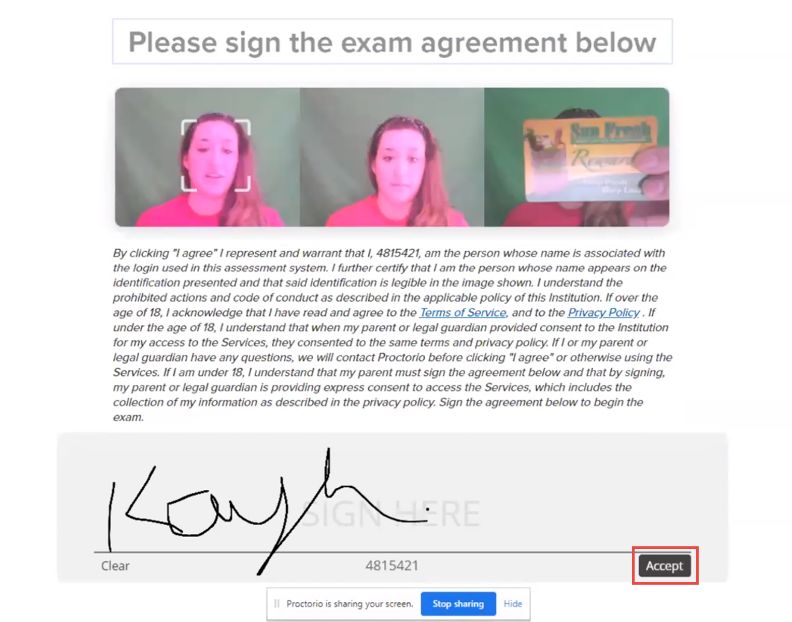
TEAS Online at Institution                                                                                                               2

                                                                                 Navigate to the Proctorio Chrome Extension page either
                                                                                 by:
                                                                                 o Entering the URL (https://getproctorio.com/) into
                                                                                     the Chrome browser’s address bar
                                                                                 o Opening your assessment card on the MY ATI >
                                                                                     TEST tab.
                                                                                 Click the click here link to open the Chrome Web Store.

                                                                                 On the Chrome Web Store, click Add to Chrome.

                                                                                 Review the list.
                                                                                 Click Add extension. When the download is complete,
                                                                                 you will receive notification that Proctorio has been
                                                                                 added to Google Chrome.

                                                                                                                        Go back to the top

STEP 4 – TEAS TEST DAY: Perform the pre-test checklist prior to exam start time
You must start your exam at the stated start time. We recommend you start this process 30 minutes prior to the start of
your TEAS exam. Exams will not be refunded or rescheduled due to late arrival.
     •     Download Google Chrome™ Version 87 or later (Download). If you already have Google Chrome, make sure you
           have the most up-to-date version.
     •     Test on a PC or a Mac (a phone or a tablet cannot be used):
               o PC – Windows 10 or later, minimum resolution 1024 x 600
               o Mac – Mac OS®X 10.11 or later, minimum resolution 1024 x 600
     •     Enable JavaScript and cookies within your Google Chrome browser
     •     Disable your pop-up blocker in Google Chrome
     •     Have a microphone – either internal or external.
     •     Have a webcam (minimum resolution 320x240 VGA) – either internal or external.
     •     Ensure your internet speed is between 0.5 – 1 Mbps. You can test your internet speed using
           www.speedtest.net.

Rev. 4/28/21
Copyright ©2021 Assessment Technologies Institute, L.L.C. All rights reserved.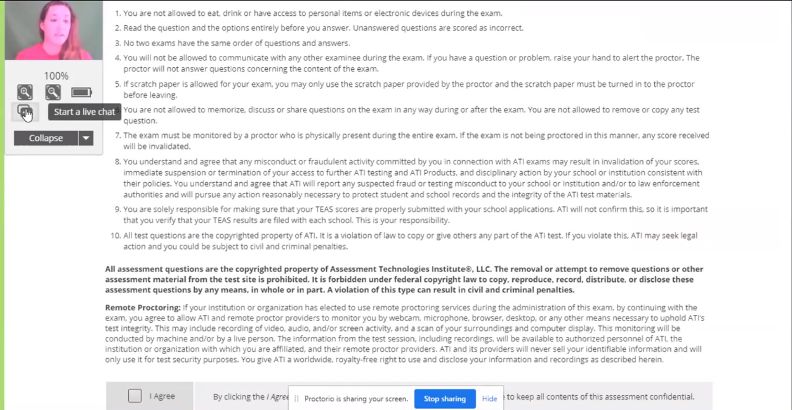
TEAS Online at Institution                                                                                                              3

STEP 5 – TEAS TEST DAY: Log into your ATI student account

                                                                                 Log in to your ATI student account and then click MY
                                                                                 ATI > TEST.
                                                                                 You should have an ATI TEAS Proctored Assessment
                                                                                 Card in this tab.

                                                                                                                         Go back to the top

STEP 5A – If you do not have an ATI TEAS Card on the Test tab, enter the Assessment ID
You will need to manually enter the assessment ID if the card doesn’t automatically display on the Test tab. If you are
taking an ATI TEAS at ATI, you will receive your assessment/product ID via email after registering. Please follow the steps
on the next page to enter the ID.

Note: If you did not receive communication from your institution 24 hours prior to your TEAS exam with the
      Assessment ID, please contact the school/testing center that will be administering your exam.

Manually add the assessment ID

                                                                                   On the Student HOME page, click Add Product in the
                                                                                   upper-right corner to open the Add Product window.

                                                                                  On the Add Product window, enter the Assessment ID
                                                                                  provided by your institution.
                                                                                  Click CONTINUE. A confirmation message displays
                                                                                  when your product has been added:

                                                                                  The Before you Begin page opens.
                                                                                  Go to STEP 6: Perform your System Diagnostic Tests

Rev. 4/28/21
Copyright ©2021 Assessment Technologies Institute, L.L.C. All rights reserved.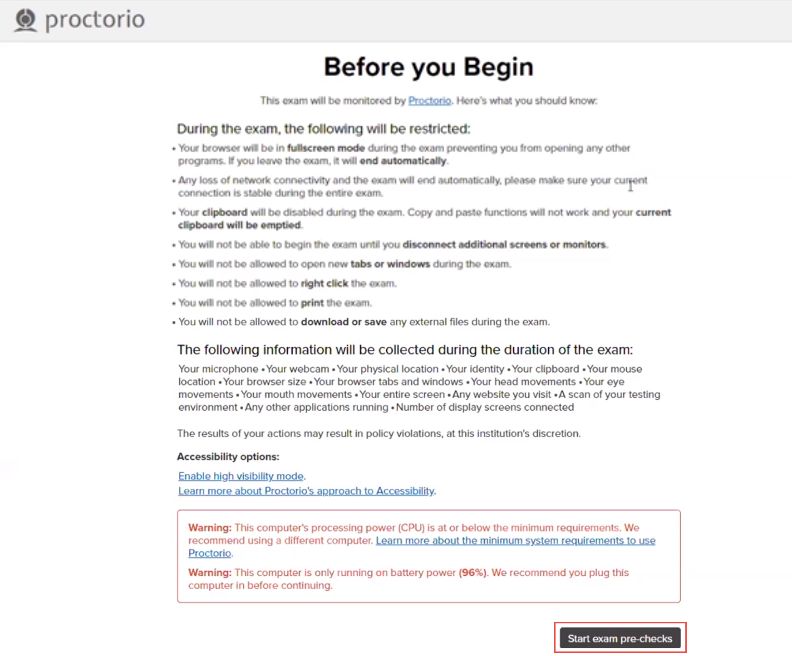
TEAS Online at Institution                                                                                                                  4

                                                                                                                          Go back to the top
STEP 6 – TEAS TEST DAY Perform your system diagnostic tests
It is essential that you perform the following steps completely, and in the order presented.

                                                                                 Log in to your ATI student account and then click MY
                                                                                 ATI > TEST.
                                                                                 Locate your TEAS Assessment card and click Begin.

                                                                                 The Before you Begin page provides information about
                                                                                 your remote proctoring experience, including
                                                                                 instructions, restrictions, and data collected during the
                                                                                 assessment. Be sure to read all the instructions on this
                                                                                 page.
                                                                                 When you are ready to proceed, scroll to the bottom of
                                                                                 the page and click Start exam pre-checks.

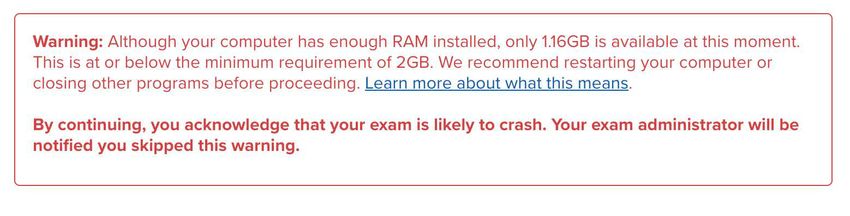
                                                                                      IMPORTANT: At the bottom of the page, you
                                                                                      may see warnings.
                                                                                         • RAM or your CPU. We recommend closing all
                                                                                           other programs and/or windows and plugging
                                                                                           in your computer. You should be able to
                                                                                           proceed to the exam pre-checks regardless of
                                                                                           these warnings. However, if you choose to
                                                                                           proceed after these warnings, test experience
                                                                                           may not be optimal.
                                                                                         • Incognito: You may be prompted to enable
                                                                                           incognito. Follow the instructions provided.
                                                                                           Once it's enabled, you should proceed with the
                                                                                           remaining pre-checks.
                                                                                         • Second monitor: Unplug any additional
                                                                                           monitors you may have.

Rev. 4/28/21
Copyright ©2021 Assessment Technologies Institute, L.L.C. All rights reserved.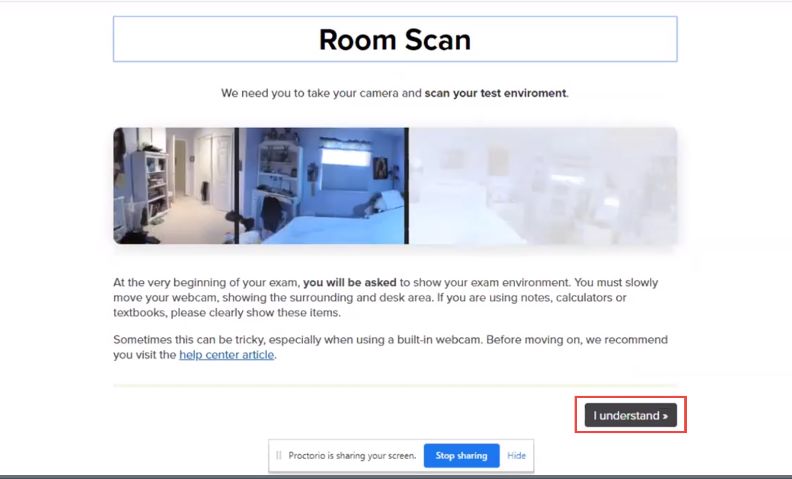
TEAS Online at Institution                                                                                                              5

                                                                                 On the System Diagnostics Test screen, Proctorio
                                                                                 checks your camera, microphone, internet, and
                                                                                 computer. After the system has completed its checks,
                                                                                 click Next at the bottom of the screen.

                                                                                 This screen is prompting you to allow screenshare.
                                                                                 There are two steps to sharing your screen.

                                                                                      IMPORTANT: First, you must click the image of
                                                                                      the screen to select it. This turns the Share
                                                                                      button blue.

                                                                                 Click Share.

                                                                                 This message displays when the system checks are
                                                                                 complete.
                                                                                 Click Next.

                                                                                 You will then be asked to show your photo ID to the
                                                                                 camera. This scan is used to validate your identity.

                                                                                 Note: If the system has trouble capturing the image,
                                                                                       click Having trouble to scan the image manually.

                                                                                 Click Next to proceed.

Rev. 4/28/21
Copyright ©2021 Assessment Technologies Institute, L.L.C. All rights reserved.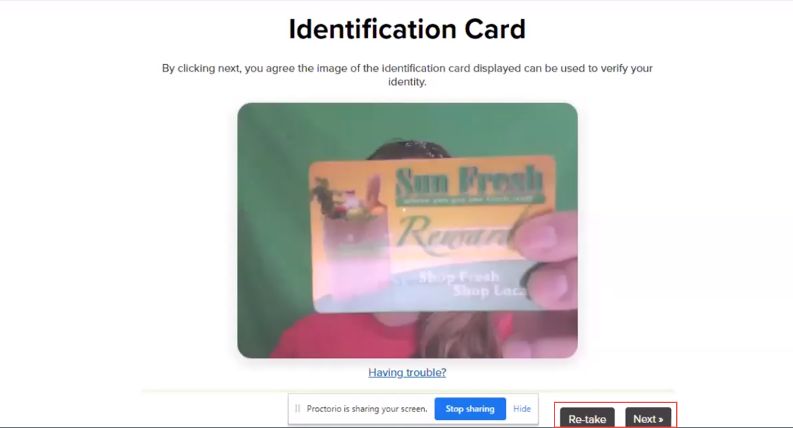
TEAS Online at Institution                                                                                                               6

                                                                                 The site will conduct a webcam image test. The system
                                                                                 will take five photos to verify that your webcam is
                                                                                 working correctly. Click Begin camera test.

                                                                                      Important: Make sure that you are in a well-lit
                                                                                      space with minimal glare on the camera. If you
                                                                                      are not in a well-lit room, your camera might
                                                                                      not be recognized, and you will not be able to
                                                                                      proceed.

                                                                                 Next, you will be asked to show your exam
                                                                                 environment by using your device’s camera to scan the
                                                                                 room in which you will be testing.
                                                                                 Click I understand to begin the room scan.

                                                                                 Finally, you’ll be asked to sign the exam agreement.
                                                                                 Click Accept to proceed to your exam instructions.

                                                                                                                        Go back to the top

Rev. 4/28/21
Copyright ©2021 Assessment Technologies Institute, L.L.C. All rights reserved.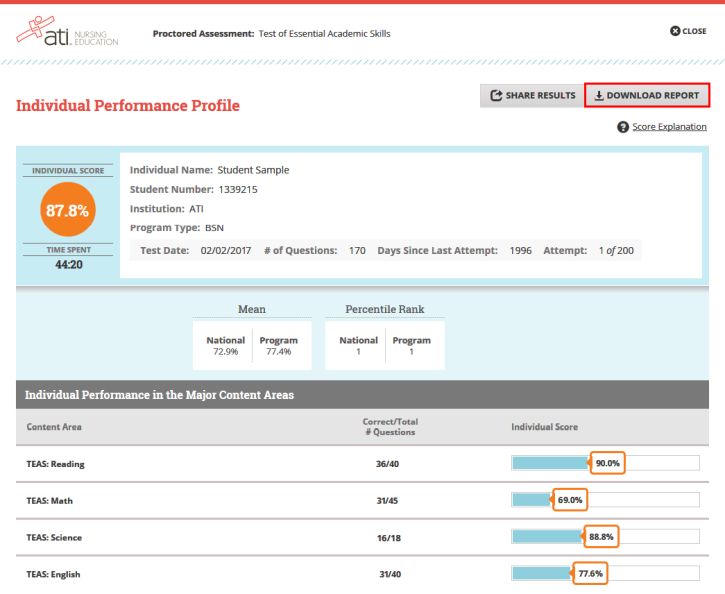
TEAS Online at Institution                                                                                                                      7

STEP 7 – Take the ATI TEAS Assessment                                             Read all the information and instructions for the exam
                                                                                  and then select I agree at the bottom of the page.
                                                                                  After your proctor approves you, the Start/Resume
                                                                                  button appears at the bottom of the page. Click the
                                                                                  Start/Resume button to launch your exam. (The
                                                                                  Start/Resume button will not be available until the
                                                                                  proctor approves you).

                                                                                  Note: You might have to move the screen sharing
                                                                                        banner at the bottom of the screen to see the
                                                                                        Start/Resume button.

                                                                                 The Quiz Tools window on the left is the default display. If
                                                                                 you choose to collapse the window, you will see the tool
                                                                                 icons shown on the right.
                                                                                     Webcam feed
                                                                                     Zoom level
                                                                                     Battery status
                                                                                     Start a live chat (with Proctorio personnel)
                                                                                     Collapse/Expand quiz tools
                                                                                 Note that if you experience any issues with the system, you
                                                                                 can begin a live chat with a Proctorio employee. This will not
                                                                                 connect you with your instructor.

                                                                                 For the ATI TEAS assessment, all questions are multiple
                                                                                 choice. In the upper-right corner, you will see your time
                                                                                 remaining and the online calculator. Click the Calculator
                                                                                 icon to access it.

                                                                                 For the multiple-choice questions:
                                                                                 o Radio buttons are placed to the left of each of your
                                                                                     answer options.
                                                                                 o An answer is only submitted when you click CONTINUE.
                                                                                 o You can change your answer any number of times and
                                                                                     to any option before you click CONTINUE.

       IMPORTANT: If you attempt to exit from full-screen mode or refresh your screen, or if you press the Escape
       button, an alert message will be sent to your proctor, potentially resulting in the termination of your assessment.

Rev. 4/28/21
Copyright ©2021 Assessment Technologies Institute, L.L.C. All rights reserved.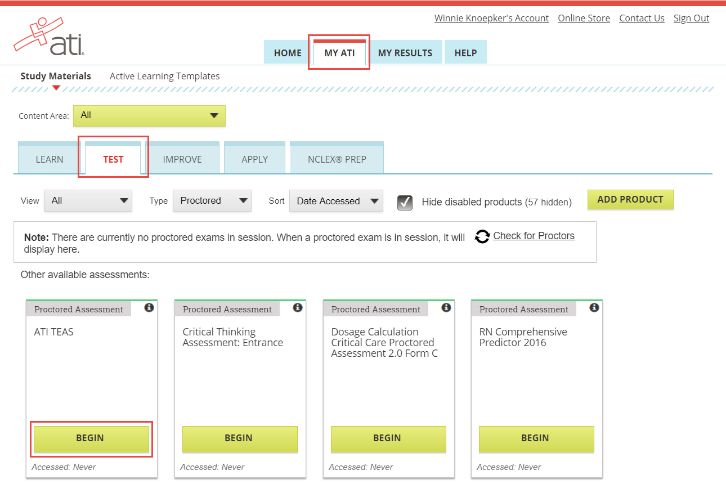
TEAS Online at Institution                                                                                                                 8

                                                                                 When you reach the last question of your assessment,
                                                                                 the Assessment Completed window displays.
                                                                                 Click Finalize and View Results to complete your
                                                                                 assessment.
                                                                                 When you complete the assessment, your Proctorio
                                                                                 session will end, and your results will be available.

                                                                                 When you complete an ATI TEAS Assessment, your
                                                                                 Individual Performance Profile (IPP) launches in a new
                                                                                 window. The IPP summarizes the results from your
                                                                                 assessment.
                                                                                 Click DOWNLOAD REPORT to view your results in a
                                                                                 user-friendly PDF format that can be saved, printed, or
                                                                                 e-mailed.
                                                                                 Click Score Explanation to help you understand the
                                                                                 information in the IPP and how your scores were
                                                                                 calculated.

                                                                                 Your IPP also provides your scores in the individual
                                                                                 content areas, showing the number of questions you
                                                                                 answered correctly and your scores as percentages.

                                                                                 Your Individual Performance Profile can also be
                                                                                 accessed from the MY RESULTS tab.
                                                                                 Click an assessment’s link to view the IPP for that
                                                                                 assessment.

ATI TEAS Remote Proctored Exam Support
General customer service before exam day: Contact ATI Support at 1-800-667-7531. For your assessment ID, please
contact the school/testing center that will be administering your exam.

Issues on exam day: Contact the school/testing center that is administering your exam.

Issues during the exam: If you experience technical issues after you have launched your assessment, contact Proctorio
directly via the chat option in the Quiz Tools window.

Rev. 4/28/21
Copyright ©2021 Assessment Technologies Institute, L.L.C. All rights reserved.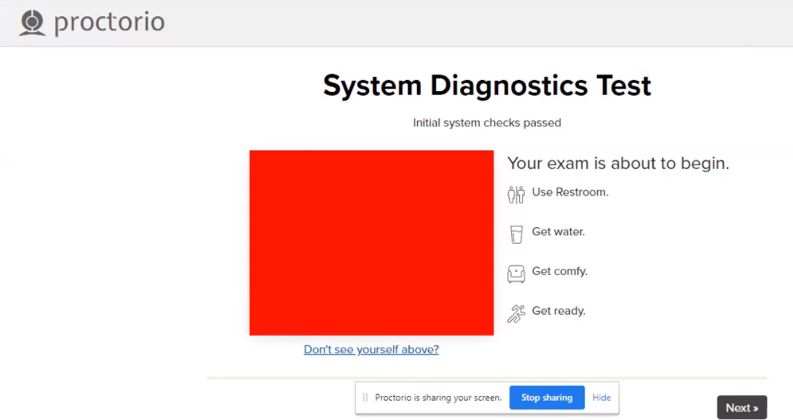
TEAS Online at Institution                                                                                        9

Note: You can print this document and have it available prior to the start of your TEAS Exam. However, you must
      remove this document from your test area before starting the exam process. During the exam, you are only
      allowed one piece of blank scratch paper.

Rev. 4/28/21
Copyright ©2021 Assessment Technologies Institute, L.L.C. All rights reserved.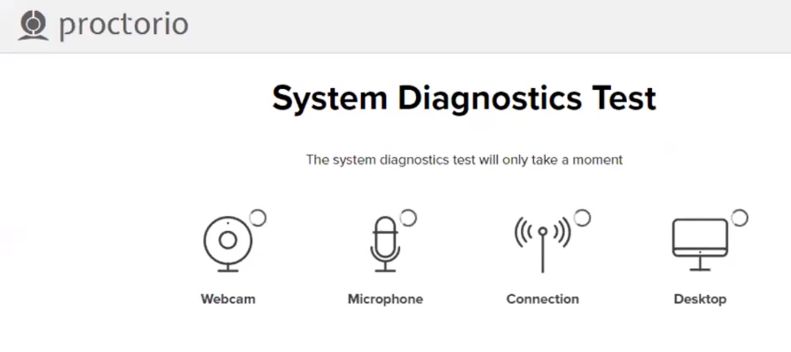
You can also read


