Acronis True Image 2021 - Mac Reviewers Guide
←
→
Page content transcription
If your browser does not render page correctly, please read the page content below

Acronis True Image 2021
Mac Reviewers Guide

July 2020                                                  Dual headquarters
                                                      in Switzerland and Singapore
            Dual headquarters
            in Switzerland and Singapore   © Acronis 2020                            1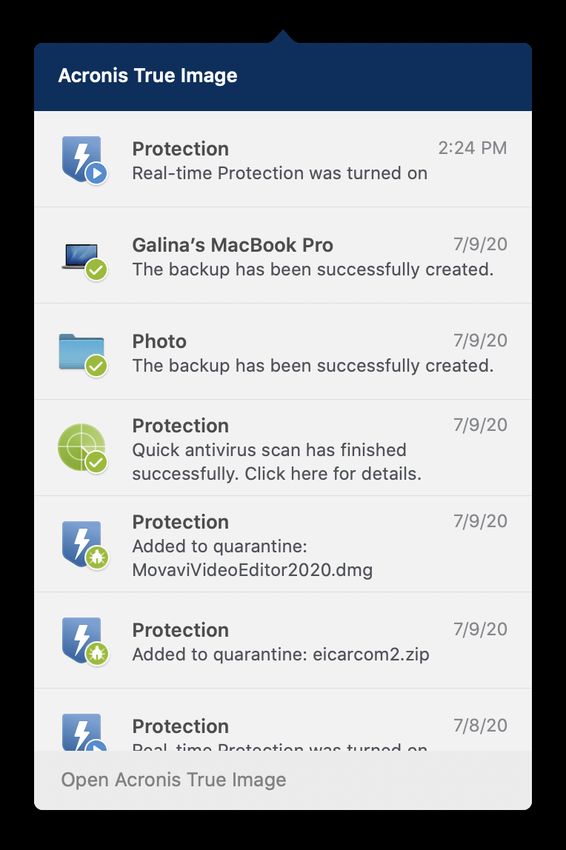
Table of Contents
Installation and Main Capabilities                       What’s new for Acronis True Image 2021
      • How to Install                                   • Overview: Extended Antimalware and backup Capabilities
      • Main Product Overview                                  • Real-time Antimalware Protection
      • Back Up to USB Drive                                   • Antivirus Scan
      • Back Up to the Cloud                                   • Quarantine
      • Dual Protection                                        • CPU Load Balancing
      • Active Disk Cloning                                    • Resumable Replication
      • Create Recovery Media                                  • Dark Mode
Additional Backup Features
      • Active Protection
      • Tray Notification Center
      • Acronis Survival Kit
      • Mobile Backup
      • Blockchain Notarization
      • Parallels Desktop Backup
      • Custom Power Management
      • Back Up on Selected Wi-Fi

                          Dual headquarters
                          in Switzerland and Singapore                                       © Acronis 2020         2
Installation and
Main Capabilities

      Dual headquarters
      in Switzerland and Singapore   © Acronis 2020   3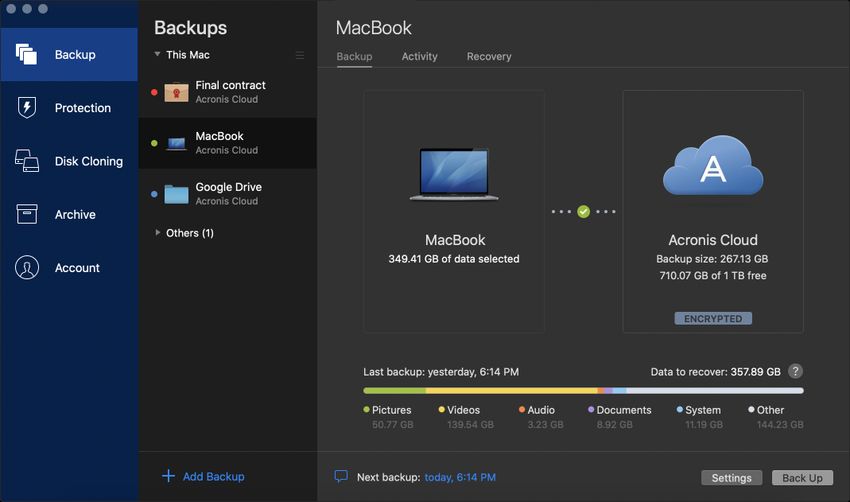
How to Install Acronis True Image 2021

If you have Acronis True Image 2019 or 2020 installed, it will be upgraded by the
new version. Your old backup files will be safe.

1. Download and run the Acronis True Image 2021 .dmg file from the URL that was emailed to you. You can also get it here.
2. After download, Drag and Drop Acronis True Image into the Application folder, start the application and read/agree to the terms
   of the license agreement.
3. Once the application is open, enter the serial number that was emailed to you to activate your copy of Acronis True Image 2021.
4. Create or sign into your Acronis account.
   •    You will receive a confirmation email when your Acronis account is set up
   •    An account lets you access mobile features, cloud backups, and remote backup management
   •    You do not need an Acronis account to back up to and recover from external hard drives

If you have any other Acronis product installed on your computer, please remove it so you are able to test Acronis True Image 2021
successfully. If you need assistance, please contact Acronis PR team.

                            Dual headquarters
                            in Switzerland and Singapore                                                 © Acronis 2020              4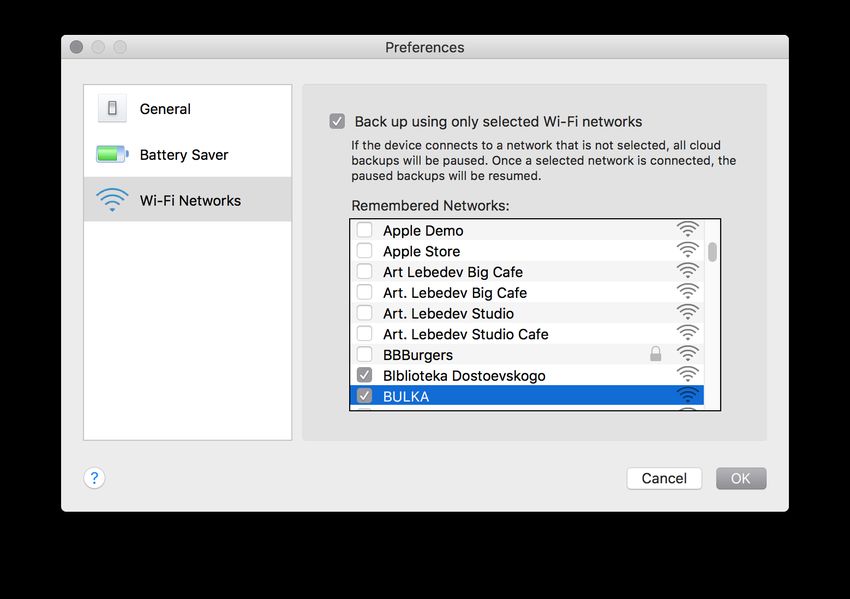
Acronis True Image 2021 Overview

1. Main menu.                                                  1   2          3
2. Backup list displays all of the backup plans you have
   for this account. Sorting is available, and additional               4               5
   menu options are available by right-clicking.
3. Backup menu provides access to the main controls
   of backup, activity feed and recovery options.
4. This area changes based on the selected task. Here it
   shows the backup source,
5. the backup destination,                                                                  6

6. and information about the backup’s status and statistics.
7. Action buttons, options, next scheduled backup and                        7
   progress are at the bottom.

                         Dual headquarters
                         in Switzerland and Singapore                  © Acronis 2020           5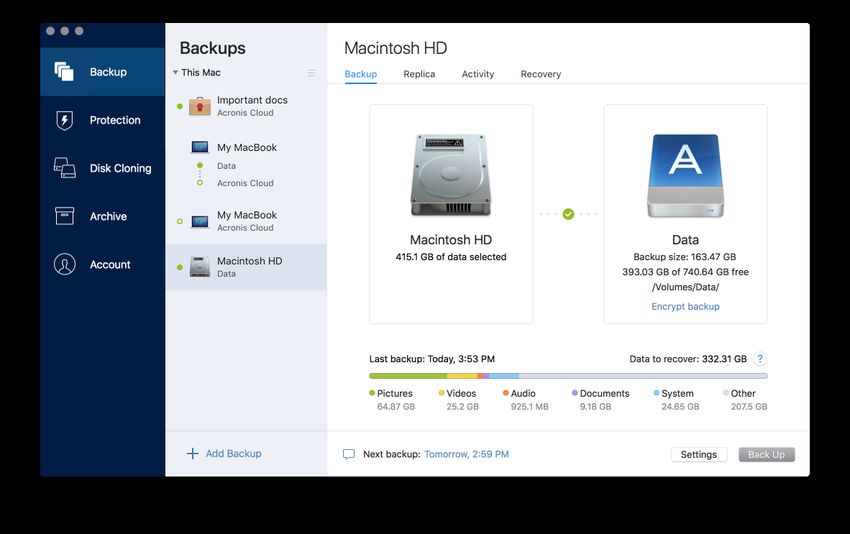
Back Up Your Entire Mac to a USB drive

1. Plug in a USB hard drive.
2. Click Add Backup.
3. Entire Mac is the default and includes every hard drive
   and partition on your computer.
4. Click the destination icon and choose the drive letter
   and folder of your connected external USB drive.
5. Optionally, you can encrypt the data with the Encrypt
   Backup button.
6. Click Back Up button.
7. You’ll see the estimated time remaining in the status bar.

You can keep on working during the backup and even close
the application – the operation will continue running in the
background.

                         Dual headquarters
                         in Switzerland and Singapore           © Acronis 2020   6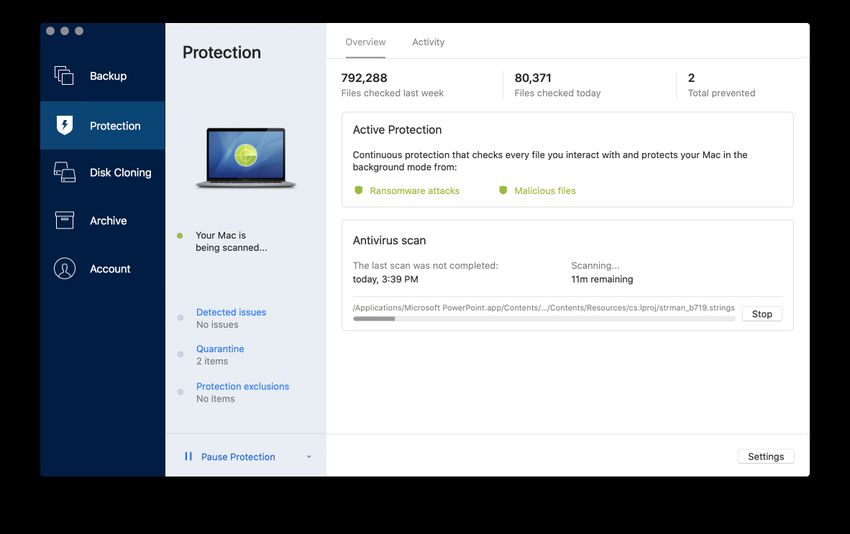
Back Up to the Acronis Cloud

If you start Acronis True Image 2021 for the first time and have no
backups, you will only need to hit Enter. A backup plan will be
created by default.
1. Entire Mac Backup to Cloud is always selected by default.
2. Select Acronis Cloud as the backup destination. (You need to
   be signed into your Acronis account to create a cloud backup.)
3. Click on Back Up button.
4. Depending on your amount of data and internet connection speed,
   the initial backup may take from a few hours (for an average laptop)
   to a few days (for large hard drives or NAS).
5. Future incremental backups will finish much faster, although actual
   times will depend on the amount of data changed between backups.
6. Once the backup is complete, you’ll see statistics for the new
   backup at the bottom of the screen, as well as the schedule for
   the next backup.
7. To recover files, click on the Recovery tab at the top of the screen.

                             Dual headquarters
                             in Switzerland and Singapore                  © Acronis 2020   7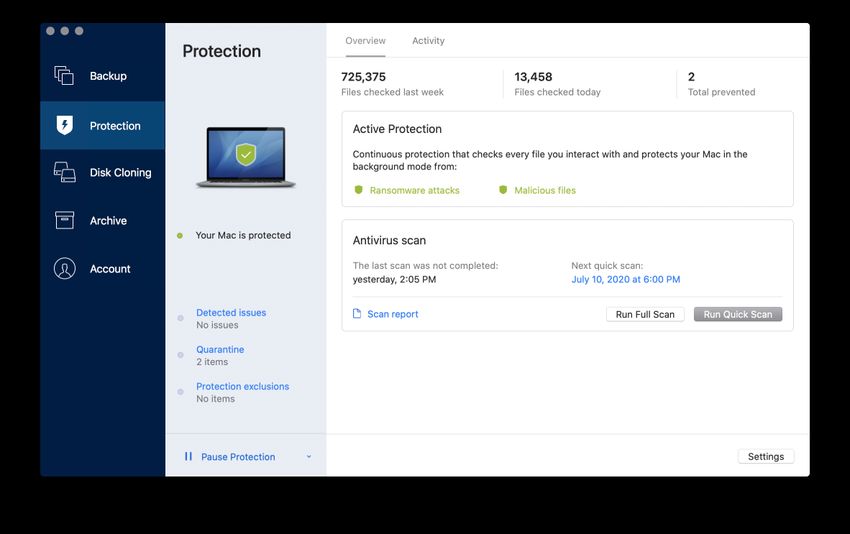
Active Disk Cloning for Mac

With disk cloning, you can migrate your Mac system and data
to another machine by connecting via USB-c cable, supporting
super-speed data transfer. You can also plug in an external
drive and create a bootable copy. Supports Bootcamp as well.

Try it:
1. Connect an external drive or another Mac in a target-
   disk mode.
2. Open Acronis True Image and navigate to the Disk
   Cloning tab.
3. Select the source and destination disks for cloning,
   choose Clone.

                         Dual headquarters
                         in Switzerland and Singapore          © Acronis 2020   8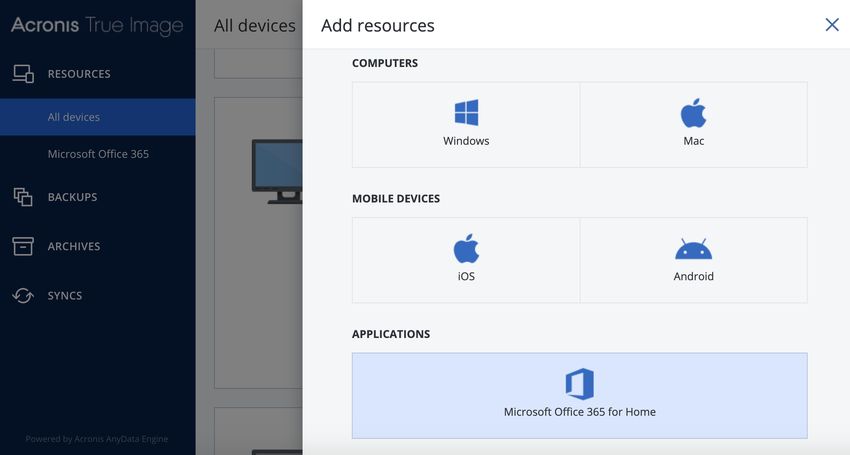
Dual Protection

Replicate the local backup in the cloud automatically allows
you to have an off-site copy available for recovery. Automates
the 3-2-1 backup strategy, completing the backup and
replication simultaneously.

Try it:
1. Open Acronis True Image and select Add backup.
2. Specify source (entire Mac or disk) and local destination
   (internal or external disk).
3. Click on Back Up button. Now you can set up the replica
   for the backup.
4. Click on Replica tab and click on Replicate button.
   Once you’ve successfully completed the first backup, the
   backup and replication are performed simultaneously.

                         Dual headquarters
                         in Switzerland and Singapore            © Acronis 2020   9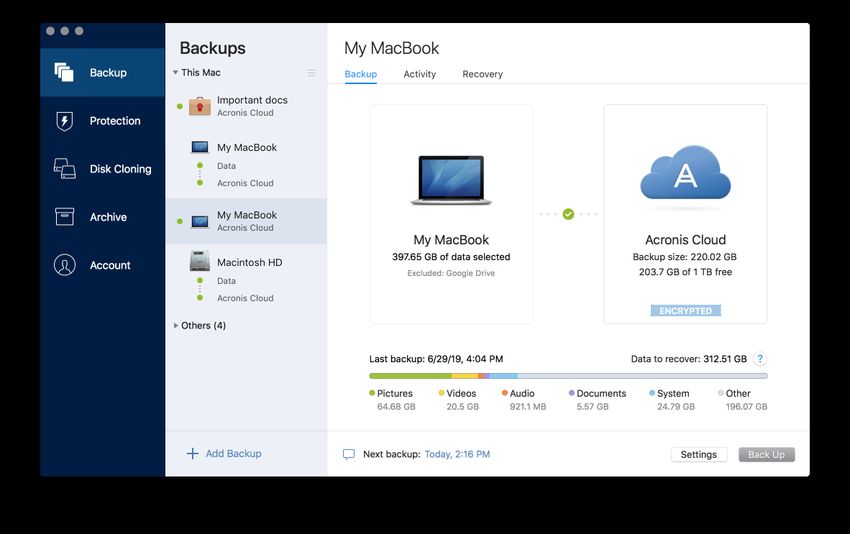
Create Recovery Media

Try it:
1. Connect a removable drive to your Mac.
2. Start Acronis True Image.
3. Select File in the application menu bar and then
   Create Acronis Bootable Media.
4. Select your removable drive.
5. Click Create Media.

Note:
It is recommended that you create a new rescue media
every time you upgrade your Mac OS X to a newer version.
Otherwise your rescue media may not work properly.

                         Dual headquarters
                         in Switzerland and Singapore      © Acronis 2020   10
Recovery from Media
1. Connect the removable drive with Acronis Bootable Media
to your Mac.
2. Start or restart your Mac. You need to hold down the Option
key while Mac is starting in order to launch the boot menu.
3. Choose Acronis Media as the device to boot from.
4. Select Recover from True Image Backup.
5. Select the backup you want to use to recover your Mac in the
Version list. You’ll see the contents of each version displayed.
6. Select the check boxes next to the partitions that you want
to recover.
7. Select a destination for each partition (by default, Acronis True
Image 2021 recovers partitions to the original location).
8. Click Recover. You will need to confirm that you want to erase
all data on the destination partitions.
9. When the recovery is complete, restart your Mac.
Dual headquarters
in Switzerland and Singapore © Acronis 2020 11Additional Backup
Features
Dual headquarters
in Switzerland and Singapore © Acronis 2020 12Acronis Active Protection
As cyberthreats continue to evolve, rely on Acronis Active
Protection to stay ahead of them.
Acronis Active Protection:
§ Safeguards your data from recent ransomware
§ Prevents illicit cryptomining malware
§ Supports new detection heuristics
Dual headquarters
in Switzerland and Singapore © Acronis 2020 13Tray Notification Center
Get messages pushed to your desktop tray so you can
monitor the status of your backups, quickly respond to any
issues, and receive timely tips on how to enhance your
protection.
Try it:
1. Open Acronis True Image and start a backup.
2. Close the Acronis True Image.
3. Once you get the tray notification about the backup status,
click the tray icon of Acronis True Image –
Here you can find the results of backup operations that were
performed in the background when the desktop application
was closed, as well as other important application messages.
Dual headquarters
in Switzerland and Singapore © Acronis 2020 14Acronis Survival Kit
An Acronis Survival Kit is an external drive that contains
everything that you need to recover your computer in
case of a failure – including bootable media files and
a backups of your system partition or entire computer.
Try it:
1. Open Acronis True Image and select Add backup.
2. Specify the source (Entire Mac, System disk) and
destination (external HDD with at least 32GB of space).
3. Select the Create Acronis Survival Kit option that
appears under the destination panel.
4. Follow the wizard instructions – create media, create
a backup.
Dual headquarters
in Switzerland and Singapore © Acronis 2020 15Microsoft 365 Backup and Recovery
Safeguard the emails and attachments from your Office.com
email, as well as your OneDrive content with direct cloud-to-cloud
backups with a subscription to Acronis True Image.
Try it:
1. Open Acronis True Image and select Add backup.
2. Choose Cloud service as your backup source.
3. You will be redirected to the Acronis Online Dashboard to
connect your profile and will need to be logged into your
Acronis account.
4. Click Resources on the side menu and select Add.
5. Select Microsoft Office 365 for Home.
6. Log in to your Microsoft Office 365 account.
7. Choose the content you want to back up (entire account,
Outlook, OneDrive).
8. Schedule your backup or perform one immediately.
Dual headquarters
in Switzerland and Singapore © Acronis 2020 16Mobile Backup and Recovery
A mobile backup protects the data on your mobile device and provides
the opportunity to recover it in case of corruption or loss.
You can also use mobile backup to transfer the data and settings from
your old smartphone to a new one, including photos, videos, calendars,
contacts and, in the case of Android devices, messages.
Try it:
1. Install the Acronis Mobile app from the App Store or Google Play.
2. Choose Mobile device as your backup source in Acronis True Image.
3. Make sure that all of your devices are connected to the same
Wi-Fi network.
4. Follow the instructions on the computer screen.
5. Pair your devices by scanning the QR code in the application.
6. Click Backup now in the mobile app.
7. Now you can browse for backed up photos, videos, contacts,
calendars and messages (Android only). You can recover your
backup to the same mobile device or a new/different one.
Dual headquarters
in Switzerland and Singapore © Acronis 2020 17Acronis Notary Blockchain Certification
The idea behind Acronis Notary is to have a copy of a file that you can
certify was not altered since it was created. Acronis Notary follows the
same process as creating a backup for multiple files: The only difference
is the source of the backup.
Try it:
1. Add New backup in the backup sources list.
2. Choose Files to notarize as your backup source.
3. Select the file or folder you would like notarized using blockchain
technology.
4. Click on Backup now button.
5. Check status of the backup.
6. Now you can validate the backed up files any time. Just click on Open
File Verification tool.
7. Drag and drop the file you want notarized to the middle of the page.
(If that does not work, select the Click here button and choose from
the File Selection dialog box that appears.)
8. The verification tool will show the name under which the file was
notarized and the date of notarization.
Dual headquarters
in Switzerland and Singapore © Acronis 2020 18Parallels Desktop Backup
Acronis True Image 2021 uses native Parallels Desktop API to back up
virtual machines on Macs. By capturing a snapshot of VMs, we can ensure
a consistent machine state, even while they are in use. This method allows
users to restore virtual machines easily as a set of files that are
immediately bootable in the Parallels Desktop environment. Only the
Parallels API makes it possible.
Try it:
1. Back up a Mac with Parallels Desktop installed to Acronis Cloud.
2. Recover .pvm of a virtual machine from Acronis Cloud.
3. Double click the .pvm folder.
Parallels Desktop 13.1 and higher are supported.
To recover virtual machines from older versions of Parallels Desktop,
see https://kb.acronis.com/content/49198.
Dual headquarters
in Switzerland and Singapore © Acronis 2020 19Custom Power Management
Keep your Macbook going by managing your backups so they
don’t drain the battery. You can set a minimum power level
for backups, or completely block backups on battery power.
Try it:
1. Open Acronis True Image and select Preferences in the
application menu bar.
2. Select Battery Saver in the list.
3. Check Do not back up when battery power is less than
checkbox.
4. Specify the value of the power level.
The setting is only available for devices with battery.
Dual headquarters
in Switzerland and Singapore © Acronis 2020 20Back Up on Selected Wi-Fi
Now you can easily avoid the metered connections and
unsecure public networks that put the data at risk. If the
computer connects to a network that is not selected, all
cloud backups will be paused.
Try it:
1. Open Acronis True Image and select Preferences in the
application menu bar.
2. Select Wi-Fi Networks in the list.
3. Check Back up using only selected Wi-Fi networks
checkbox.
4. Select trusted networks in the list.
Dual headquarters
in Switzerland and Singapore © Acronis 2020 21What’s New for
Acronis True Image 2021
Dual headquarters
in Switzerland and Singapore © Acronis 2020 22Extended Antimalware and Backup Capabilities
Real-Time Protection Antivirus Scan Quarantine
Saves the PC from any Provides on-demand Isolates malicious
malware protection files
CPU Load Balancing Resumable Replication Dark Mode
Controls battery use Avoids data duplication Supports MacOS dark
during antivirus scan during backup interruption mode for more native look
Dual headquarters
in Switzerland and Singapore © Acronis 2020 23NEW: Real-time Antimalware Protection
4
Acronis real-time antimalware protection continuously safeguards 5
your data, applications, and systems from all modern threats.
6
Try it:
1. Open Acronis True Image and navigate to Protection tab
2. A message will pop up requesting you to wait until Protection 1
is activated. Wait time depends on your connection strength
3. Go to Settings
4. Select Active Protection tab. Real-time Protection is ON by
default. It secures your devise from all malware
5. Select Antivirus scan. Configure actions related to malware
detection, scan type, schedule, and others. Keep default
settings (recommended)
2
7
6. Select Advanced. Check detected issues, delete or restore
files kept in quarantine or set up protection exclusions
If you need to, you can temporarily stop all Acronis protection Limitation: Due to potential driver conflicts, and performance issues
Acronis real-time protection won’t work properly with another third-
types with Protection Pause. party real-time protection solution running on your computer.
Dual headquarters
in Switzerland and Singapore © Acronis 2020 24NEW: Antivirus Scan
Antivirus scan is an on-demand antimalware protection method
that can be performed with a click of a button whenever you want.
Scan can be executed simultaneously with backup.
Scan types Scan modes
• Full (scans the whole PC) • Manual
• Quick (scans the most likely threat locations) • Scheduled
Try it:
1. Select Protection tab and click on Settings
2. Navigate to Antivirus scan tab
3. Specify the action to be undertaken after a malware is detected.
Choose between ‘Quarantine’ or ‘Notify only’
4. Choose the scan type – Quick or Full
5. Schedule the antivirus scan or run one immediately
Dual headquarters
in Switzerland and Singapore © Acronis 2020 25NEW: Quarantine
Quarantine is an isolated space for malware which not only holds
malicious files but also prevents them from further execution.
From the quarantine list the you can either restore the files or
delete them entirely.
Acronis True Image automatically deletes the files within 30 days.
It can be manually configured to keep the files up to 120 days.
Try it:
1. Select Protection tab and click on Quarantine in the
middle panel
2. View a list of all isolated files
3. Select a file to Restore or Delete from your PC
Dual headquarters
in Switzerland and Singapore © Acronis 2020 26NEW: CPU Load Balancing
To avoid system overload during antivirus scanning, Acronis
True Image helps with load balancing, giving priority to other
applications.
• When the setting is ON, antivirus scan uses no more than
60% of the available CPU
• When the setting is OFF, antivirus scan uses no more than
90% of the available CPU
Try it:
1. Select Protection tab and click on Settings
2. Navigate to Antivirus scan tab
3. Specify the checkbox value and save changes
4. Schedule the antivirus scan or run one immediately
Dual headquarters
in Switzerland and Singapore © Acronis 2020 27NEW: Resumable Replication
If your backup replication was interrupted, you can avoid data
duplication. Your next replication will start from where the
process was interrupted, rather than starting from scratch.
Try it:
1. Open Acronis True Image and select Add backup
2. Specify source (Entire PC or disk)
3. Specify an external drive as a local destination
4. Click Back Up button to run backup operation
5. Navigate to Replica tab and run replication process
6. Cancel the replication before its completion
7. Launch the replication again
8. Check the Activity tab to verify backup sizes
Dual headquarters
in Switzerland and Singapore © Acronis 2020 28NEW: Dark Mode
Acronis True Image 2021 supports the macOS dark mode giving
you a more native look.
Try it:
1. Open System Preferences on macOS
2. Navigate to General and select Dark appearance
3. Open Acronis True Image
Dual headquarters
in Switzerland and Singapore © Acronis 2020 29Licensing and
Pricing
Dual headquarters
in Switzerland and Singapore © Acronis 2020 30Acronis True Image 2021 Editions
Perpetual Essential Advanced Premium
License type One-time purchase Subscription Subscription Subscription
Cloud storage Not available Not available 500 GB 1 TB
Free upgrades 30 days 30 days During subscription period During subscription period
Support Email and chat Email and chat Email, chat, and phone Email, chat, and priority phone
Mobile backup Unlimited devices to local storage Unlimited devices to local storage Unlimited devices to local and Unlimited devices to local and
cloud storage cloud storage
Active Protection Yes Yes Yes, enhanced with cloud Yes, enhanced with cloud
Online dashboard and remote Yes Yes Yes, remote access to cloud Yes, remote access to cloud
management backups backups
Antivirus FREE 3-month trial | Upgrade to FREE 3-month trial | Upgrade to Yes Yes
Advanced for $20 after trial period Advanced for $20 after trial period
Sync P2P only P2P only P2P and via cloud P2P and via cloud
(backup to another computer)
Backup certification No No No Yes
(Acronis Notary)
Electronic signature No No No Yes
(Acronis ASign)
Price Starting from $59.99 Starting from $49.99/year Starting from $89.99/year Starting from $124.99/year
Launch Price (until November) -- -- 1 PC $69.99/year 1 PC $99.99/year
Cloud storage upgrades None available None available Upgrade to Premium 1 TB $39.99/year (up to 5 TB)
Dual headquarters
in Switzerland and Singapore © Acronis 2020 31Building a more knowledgeable future
CREATE, SPREAD
AND PROTECT
KNOWLEDGE WITH US!
www.acronis.org
Building new schools • Providing educational programs • Publishing books
Dual headquarters
in Switzerland and Singapore © Acronis 2020 32You can also read


