CHRYSLER PACIFICA

2018 QUICK REFERENCE GUIDE
←
→
Page content transcription
If your browser does not render page correctly, please read the page content below
CHRYSLER PACIFICA 2018 QUICK REFERENCE GUIDE
SPEED CONTROL

Adaptive Cruise Control
(ACC ) — If Equipped
If your vehicle is equipped with Adaptive Cruise Con-
trol, the controls operate exactly the same as the
standard cruise control, with one difference. You can
set a specified distance you would like to maintain
between you and the vehicle in front of you.
• If the ACC sensor detects a vehicle ahead, ACC
  will apply limited braking or acceleration automati-
  cally to maintain a preset following distance while
  matching the speed of the vehicle ahead.
NOTE:
                                                              Standard Cruise Control Switches                Adaptive Cruise Switches
Your vehicle will not exceed the cruise speed you have
set.                                                     1 — Push Cancel                            1 — Adaptive Cruise Control (ACC) On/Off
• If the sensor does not detect a vehicle directly       2 — Push Set+/Accel                        2 — Distance Setting – Decrease
                                                         3 — Push Resume                            3 — Distance Setting – Increase
  ahead of you, it functions like a standard cruise
                                                         4 — Push On/Off
  control system, maintaining the speed you set.
                                                         5 — Push Set-/Decel
                                                                                                 For further information, and applicable warnings and
                                                                                                 cautions, please refer to the Owner’s Manual at
                                                                                                 www.mopar.com/en-us/care/owners-manual.html
                                                                                                 (U.S. Residents) or www.owners.mopar.ca (Canadian
                                                                                                 Residents).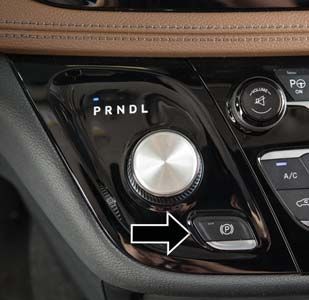
S A F E T Y F E AT U R E S

Forward Collision Warning                                  enabled in the Uconnect Settings). When the system        Turning LaneSense ON Or OFF
                                                           senses the driver applying the brakes to avoid a prob-
With Mitigation —                                          able collision, additional brake force will be provided
                                                                                                                     The LaneSense button is located on the switch panel
                                                                                                                     below the Uconnect display.
If Equipped                                                to the vehicle. When the system determines a collision
                                                           with the vehicle in front of you is no longer probable,
The Forward Collision Warning (FCW) system can             the warning message will be deactivated.
provide the driver with active braking, audible and
visual warnings (within the instrument cluster display)    NOTE:
and may apply a brake jerk to warn the driver when it      The FCW feature can be customized and turned off
detects a potential frontal collision. The warnings and    through the Uconnect System touchscreen.
limited braking are intended to provide the driver with    For further information, and applicable warnings and
enough time to react and avoid or mitigate the poten-      cautions, please refer to the Owner’s Manual at
tial collision.                                            www.mopar.com/en-us/care/owners-manual.html
                                                           (U.S. Residents) or www.owners.mopar.ca (Canadian
The system status can be selected to: “Off”, “Only
                                                           Residents).
Warning”, and “Warning & Braking”. “Warning & Brak-
ing” status with “Medium” sensitivity are the default
settings, but can be changed within the Uconnect
                                                           LaneSense With Lane Keep
settings under “Safety and Driving Assistance”.            Assist — If Equipped                                                       LaneSense Button
FCW monitors the information from the forward-             The LaneSense system uses a forward looking camera
                                                                                                                     The LaneSense system will retain the last system state,
looking sensor, as well as the Electronic Brake Control-   to detect lane markings and measure vehicle position
                                                                                                                     on or off, from the previous ignition cycle.
ler (EBC) and wheel speed sensors, to calculate the        within the lane boundaries. The LaneSense system is
probability of a collision. When the system determines     operational at speeds above 37 mph (60 km/h) and
that a collision is probable, a warning message (both      below 112 mph (180 km/h).
audible and visual) will be displayed within the cluster
display along with a brake jerk warning (previously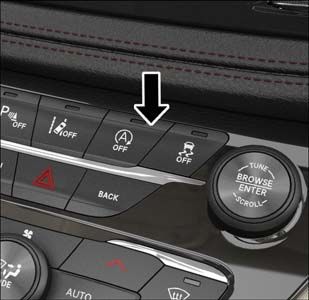
LaneSense Warning Message                                  When the LaneSense system is on but not armed, the         When operating conditions have been met, the
                                                           telltale in the instrument cluster display will be solid   LaneSense system will monitor if the driver’s hands
The LaneSense system will indicate the current lane
                                                           white. This occurs when only the left, right, or neither   are on the steering wheel and provide an audible
drift condition through the instrument cluster display.
                                                           lane has been detected. If a single line is detected and   and visual warning to the driver when the driver’s
The visual warning depicted in the instrument cluster
                                                           the driver unintentionally drifts across the detected      hands are not detected on the steering wheel. The
display will vary depending on the unintentional lane
                                                           lane marking (no turn signal applied), the system is       system will cancel if the driver does not return their
departure conditions, as described next.
                                                           ready to provide only visual warnings to prompt the        hands to the wheel.
The LaneSense indicator in the instrument cluster          driver to remain within the lane. When only a single
                                                                                                                      For further information, telltale icons, and applicable
display will be solid green when both lanes are de-        lane marking is detected, a haptic (torque) warning
                                                                                                                      warnings and cautions, please refer to the Owner’s Manual
tected and the system is “armed” to provide visual and     will not be provided and a visual warning will only be
                                                                                                                      at www.mopar.com/en-us/care/owners-manual.html
torque warnings when the driver unintentionally drifts     provided for the detected lane.
                                                                                                                      (U.S. Residents) or www.owners.mopar.ca (Canadian
out of the lane (no turn signal applied). When the
                                                           NOTE:                                                      Residents).
vehicle approaches a lane marker, the telltale will turn
solid yellow. The yellow telltale will begin flashing      The LaneSense system can be customized through
yellow when the vehicle is crossing the lane marker.       the Uconnect System touchscreen. Under “Safety and
The LaneSense system will also provide a haptic warn-      Driving Assistance” there are two menu items:
ing in the form of a torque applied to the steering        • Warning: Early, Med, Late
wheel to prompt the driver to remain within the lane       • Strength: Low, Med, High
boundaries. The driver may manually override the
haptic warning by applying torque to the steering
wheel at any time.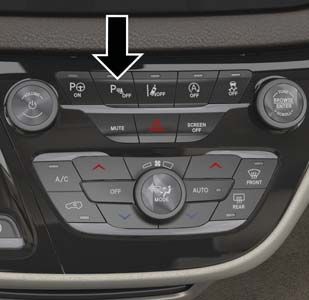
PA R K S E N S E

ParkSense Rear Or                                           • The six ParkSense sensors (if equipped), located in
                                                              the front fascia/bumper, monitor the area in front
ParkSense Front And Rear                                      of the vehicle that is within the sensors’ field of view.
Park Assist — If Equipped                                     These sensors can detect obstacles from approxi-
                                                              mately 12 inches (30 cm) up to 47 inches (120 cm)
The ParkSense Park Assist system provides visual and
                                                              from the front fascia/bumper in the horizontal di-
audible indications of the distance between the rear
                                                              rection, depending on the location, type, and ori-
fascia and a detected obstacle when backing up, e.g.
                                                              entation of the obstacle.
during a parking maneuver. If equipped with front
sensors, visual and audible indications will also be pro-   • When an obstacle is detected, a warning will display
vided for obstacles in front of the vehicle (the front        in the instrument cluster and a chime will sound
sensors can also give indications when moving in re-          (when “Sound and Display” is selected from the Cus-
verse). The vehicle brakes may be automatically ap-           tomer Programmable Features section of the
plied and released when performing a reverse parking          Uconnect System screen). As the vehicle moves
maneuver if the system detects a possible collision           closer to the object, the chime rate will change from
with an obstacle.                                             single 1/2 second tone, to slow, to fast, to continuous.                     ParkSense Switch

• The four ParkSense sensors, located in the rear           • If the system detects a potential impact with an            For further information, and applicable warnings and
  fascia/bumper, monitor the area behind the vehicle          object, the vehicle brakes may be applied.                  cautions, please refer to the Owner’s Manual at
  that is within the sensor’s field of view. These sen-                                                                   www.mopar.com/en-us/care/owners-manual.html
                                                            Enabling And Disabling ParkSense
  sors can detect obstacles from approximately                                                                            (U.S. Residents) or www.owners.mopar.ca (Canadian
  12 inches (30 cm) up to 79 inches (200 cm) from           ParkSense can be enabled and disabled with the                Residents).
  the rear bumper while the vehicle is in REVERSE.          ParkSense switch, located on the switch panel below
                                                            the Uconnect display.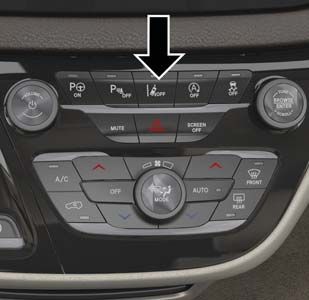
Parksense Active Park                                      • During a semi-automatic maneuver, if the driver          Enabling And Disabling The ParkSense Active Park
                                                             touches the steering wheel after being instructed to     Assist System
Assist System                                                remove their hands from the steering wheel, the
                                                                                                                      The ParkSense Active Park Assist system can be en-
The ParkSense Active Park Assist system is intended          system will cancel, and the driver will be required to
                                                                                                                      abled and disabled with the ParkSense Active Park
                                                             manually complete the parking maneuver.
to assist the driver during parallel and perpendicular                                                                Assist switch, located on the switch panel below the
parking maneuvers by identifying a proper parking          • The system may not work in all conditions (e.g.          Uconnect display.
space, providing audible/visual instructions, and con-       environmental conditions such as heavy rain, snow,
trolling the steering wheel. The ParkSense Active Park       etc., or if searching for a parking space that has
Assist system is defined as “semi-automatic” since the       surfaces that will absorb the ultrasonic sensor
                                                             waves).
driver maintains control of the accelerator, gear selec-
tor and brakes. Depending on the driver's parking          • New vehicles from the dealership must have at least
maneuver selection, the ParkSense Active Park Assist         30 miles (48 km) accumulated before the
system is capable of maneuvering a vehicle into a            ParkSense Active Park Assist system is fully cali-
parallel or a perpendicular parking space on either side     brated and performs accurately. This is due to the
                                                             system’s dynamic vehicle calibration to improve the
(i.e., driver side or passenger side).
                                                             performance of the feature. The system will also
NOTE:                                                        continuously perform the dynamic vehicle calibra-
                                                             tion to account for differences such as over or
• The driver is always responsible for controlling the       under inflated tires and new tires.
  vehicle, responsible for any surrounding objects,
  and must intervene as required.
                                                                                                                         ParkSense Active Park Assist Switch Location
• The system is provided to assist the driver and not
  to substitute the driver.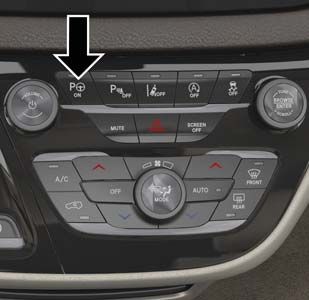
PA R K V I E W

To enable the ParkSense Active Park Assist system,       Rear Back-Up Camera —                                   Surround View Camera
push the ParkSense Active Park Assist switch once
(LED turns on).                                          If Equipped                                             System — If Equipped
To disable the ParkSense Active Park Assist system,      Your vehicle may be equipped with the ParkView Rear     Your vehicle may be equipped with the Surround View
push the ParkSense Active Park Assist switch again       Back-Up Camera that allows you to see an on-screen      Camera System that allows you to see an on-screen
(LED turns off).                                         image of the rear surroundings of your vehicle when-    image of the surroundings and top view of your ve-
                                                         ever the gear selector is put into REVERSE. The         hicle whenever the gear selector is put into REVERSE
When the ParkSense Active Park Assist system is          ParkView Rear Back-Up Camera image will be dis-         or a different view is selected through the "on screen
enabled the “Active ParkSense Searching - Push OK        played on the Uconnect Display, located on the center   soft buttons". The top view of the vehicle will show
to Switch to Perpendicular” message will appear in the   stack of the instrument panel. The ParkView Rear        which doors are open. The image will be displayed on
instrument cluster display. You may switch to perpen-    Back-Up Camera is located on the rear of the vehicle    the touchscreen display along with a caution note
dicular parking if you desire. Push the OK button on     above the rear license plate.                           “Check Entire Surroundings” across the top of the
the left side steering wheel switch to change your                                                               screen. After five seconds, this note will disappear.
parking space setting. You may switch back to parallel   For further information, and applicable warnings and
                                                                                                                 The Surround View Camera System is comprised of
parking if you desire.                                   cautions, please refer to the Owner’s Manual at
                                                                                                                 four cameras located in the front grille, rear liftgate
                                                         www.mopar.com/en-us/care/owners-manual.html
Refer to your Owner's Manual at www.mopar.com/                                                                   and side mirrors.
                                                         (U.S. Residents) or www.owners.mopar.ca (Canadian
en-us/care/owners-manual.html (U.S. Residents) or        Residents).                                             NOTE:
www.owners.mopar.ca (Canada Residents) for further                                                               The Surround View Camera System has program-
details.                                                                                                         mable settings that may be selected through the
                                                                                                                 Uconnect System.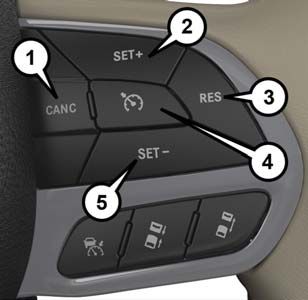
S E AT S

When the vehicle is shifted out of REVERSE (with            Deactivation                                           Memory Seats — If Equipped
camera delay turned ON), the camera image will con-
                                                            The system can be deactivated in the following con-    This feature allows the driver to store up to two differ-
tinue to be displayed for up to 10 seconds after shifting
                                                            ditions:                                               ent memory profiles for easy recall through a memory
out of REVERSE, unless the vehicle speed exceeds
8 mph (13 km/h) or the vehicle is shifted into PARK or      • The speed of the vehicle reaches greater than        switch. Your vehicle is equipped with two key fobs.
the ignition is switched to the OFF position.                 8 mph (13 km/h).                                     One key fob can be linked to memory position 1 and
                                                            • The vehicle is out of REVERSE for greater than       the other can be linked to memory position 2.
When the vehicle is shifted out of REVERSE (with
                                                              10 seconds.                                          The memory positions can also be programmed to
camera delay turned OFF), the surround view camera
mode is exited and the last known screen appears            • The vehicle shifted into PARK.                       recall the same positions when the unlock button is
again. There is a touch screen button (X) to disable        • If the vehicle is in any gear other than REVERSE,    pushed.
the display of the camera image.                              press the “X” button.
Modes of Operation                                          For further information, and applicable warnings and
                                                            cautions, please refer to the Owner’s Manual at
Additional camera modes can be selected when the
                                                            www.mopar.com/en-us/care/owners-manual.html
vehicle is in any gear and the surround view camera
                                                            (U.S. Residents) or www.owners.mopar.ca (Canadian
system is activated by pressing the soft key located in
                                                            Residents).
the “Controls” screen or the “Apps” screen in the
Uconnect system.

                                                                                                                                   Memory Seat Buttons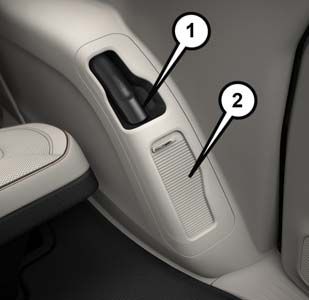
To Create A New Memory Profile                              To program your key fob, perform the following:        Stow ‘n Go Seating —
1. Cycle the vehicle’s ignition to the ON/RUN posi-         1. Cycle the vehicle’s ignition to the OFF position.   If Equipped
   tion (Do not start the engine).                          2. Select a desired memory profile (1 or 2).
                                                                                                                   On vehicles equipped with Stow 'n Go seating, the
2. Adjust all memory profile settings to desired pref-      3. Once the profile has been recalled, push and re-    second and third row seats can be folded into the floor
   erences (i.e., seat, side mirror, power tilt and tele-      lease the set (S) button on the memory switch.      for convenient storage.
   scopic steering column [if equipped], and radio
   station presets).                                        4. Push and release button (1) or (2) accordingly.     Stow ‘n Go Assist — If Equipped
                                                               “Memory Profile Set” (1 or 2) will display in the
3. Push and release the S (Set) button on the memory           instrument cluster.                                 With the Stow ‘n Go Assist feature, the front seat will
   switch.                                                                                                         move forward with the push of a button. This allows
                                                            5. Push and release the lock button on the key fob     the front seat to move to a location that will not
4. Within five seconds, push and release either of the         within ten seconds.
   memory buttons (1) or (2). The instrument cluster                                                               interfere when the second row seat is stowed.
   display will show which memory position has been         NOTE:                                                  NOTE:
   set.                                                     Your key fob can be unlinked to your memory settings   The Stow ‘n Go Assist feature is available to both the
                                                            by pushing the set (S) button, and then, within ten    front driver and passenger power seats, if equipped.
NOTE:                                                       seconds, pushing the unlock button on the key fob.
Memory profiles can be set without the vehicle in                                                                  For further information, and applicable warnings and
PARK, but the vehicle must be in PARK to recall a           For further information, and applicable warnings and   cautions, please refer to the Owner’s Manual at
memory profile.                                             cautions, please refer to the Owner’s Manual at        www.mopar.com/en-us/care/owners-manual.html
                                                            www.mopar.com/en-us/care/owners-manual.html            (U.S. Residents) or www.owners.mopar.ca (Canadian
Linking And Unlinking The Remote Keyless Entry              (U.S. Residents) or www.owners.mopar.ca (Canadian
Key Fob To Memory                                                                                                  Residents).
                                                            Residents).
Your key fob can be programmed to recall one of two
pre-programmed memory profiles by pushing the un-
lock button on the key fob.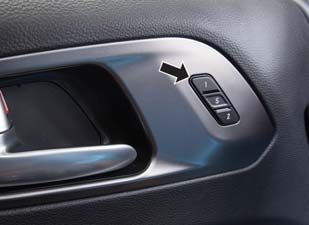
HANDS-FREE SLIDING
                                                                                                                   D O O R S / L I F TG AT E
Power Ad justment (Rear                                                                                            Hands-Free Sliding Doors –
Seats) — If Equipped                                                                                               If Equipped
Third Row Power Recline
The power recline feature, located on the trim panel
next to the seat, adjusts the seatback angle forward/
rearward for occupant comfort.
Push and hold the forward or rearward button, the seat
will move in the direction of the button push. Release
the button when the desired position is reached.                       Rear Panel Power Switch Bank
Third Row Power Stow ‘n Go Seat                                1 — Open To Normal
A one-touch power folding seat switch is located in            2 — Stow
the right rear trim panel accessible from the cargo area       3 — Fold Forward/Rearward
                                                               4 — Right/Left Seats/Both Seats
as part of a switch bank. You can also adjust the 3rd row
recline angle using the switch bank.
                                                            For further information, and applicable warnings and                Hands-Free Sliding Doors
                                                            cautions, please refer to the Owner’s Manual at
                                                            www.mopar.com/en-us/care/owners-manual.html            To open the Hands-Free Sliding Doors, use a straight
                                                            (U.S. Residents) or www.owners.mopar.ca (Canadian      in and out kicking motion under the vehicle in the
                                                            Residents).                                            general location below the door handle(s). Do not
                                                                                                                   move your foot sideways or in a sweeping motion or
                                                                                                                   the sensors may not detect the motion.
When a valid kicking motion is completed, the sliding ings and cautions, please refer to the Owner’s Manual To open the Hands-Free Liftgate, use a straight in and
door will chime, the hazard lights will flash and the at www.mopar.com/en-us/care/owners-manual.html out kicking motion under the vehicle activation zone in
sliding door will open almost instantaneously. This (U.S. Residents) or www.owners.mopar.ca (Canadian the general location below the liftgate door handle.
assumes all options are enabled in the radio. Residents). Do not move your foot sideways or in a sweeping
motion or the sensors may not detect the motion.
NOTE:
Hands-Free Liftgate — Vehicles Equipped With A Trailer Tow Package
• To open the Hands-Free Sliding Doors requires a
valid Passive Entry key fob within 5 ft (1.5 m) of the
If Equipped
If your vehicle is equipped with the Trailer Tow
door handle. If a valid Passive Entry key fob is not Package, the hands-free activation zone(s) for the
within 5 ft (1.5 m), the door will not respond to any Power Liftgate will be located on the left and right
kicks. side of the receiver. Use a straight kicking motion
• The Hands-Free Sliding Door will only operate under either activation zone to open the Hands-
when the transmission is in Park. Free Liftgate.
• The Hands-Free Sliding Doors will reverse while
opening and closing if anything obstructs the door,
provided it meets sufficient resistance.
• If a power sliding door encounters multiple ob-
structions within the same cycle, the system will
automatically stop.
• The Hands-Free Sliding Doors feature may be
turned on or off in Uconnect Settings. The Hands-
Free Sliding Doors feature should be turned off Hands-Free Liftgate Activation Zone
during Jacking, Tire Changing, and Vehicle Ser- Hands-Free Liftgate Trailer Tow
vice.For further information, and applicable warn- Activation ZonesWhen a valid kicking motion is completed, the liftgate • There are pinch sensors attached to the side of the NOTE:
will chime, the hazard lights will flash and the liftgate liftgate opening. Light pressure anywhere along Allow the power system to open the liftgate. Manually
will open after approximately 1 second. This assumes these strips will cause the liftgate to return to the pushing or pulling the liftgate may activate the liftgate
all options are enabled in the radio. open position. obstacle detection feature and stop the power opera-
• If the power liftgate encounters multiple obstruc- tion or reverse its direction.
NOTE: tions within the same cycle, the system will auto- For further information, and applicable warnings and
• To open the Hands-Free Liftgate requires a valid matically stop. If this occurs, the liftgate must be cautions, please refer to the Owner’s Manual at
Passive Entry key fob within 5 ft (1.5 m) of the door operated manually. www.mopar.com/en-us/care/owners-manual.html
handle. If a valid Passive Entry key fob is not within • The power liftgate will release, but not power open, (U.S. Residents) or www.owners.mopar.ca (Canadian
5 ft (1.5 m), the liftgate will not respond to any kicks. in temperatures below −12° F (−24° C). Be sure to Residents).
• The Hands-Free Liftgate feature may be turned on remove any buildup of snow or ice from the liftgate
before opening the liftgate.
or off in Uconnect Settings. The Hands-Free Lift-
gate feature should be turned off during Jacking, • If the liftgate is left open for an extended period of
Tire Changing, and Vehicle Service. time, the liftgate may need to be closed manually
to reset power liftgate functionality.
NOTE:
Gas props support the liftgate in the open position.
• The Hands-Free Liftgate will only operate when However, because the gas pressure drops with tem-
the transmission is in Park. perature, it may be necessary to assist the props when
• If anything obstructs the Hands-Free Liftgate while opening the liftgate in cold weather.
it is opening, the liftgate will automatically reverse
to the closed position, provided it meets sufficient
resistance.U T I L I T Y F E AT U R E S
Stow ‘n Vac Integrated
Vacuum — If Equipped
Your vehicle may be equipped with an integrated
vacuum system. This vacuum is for in-vehicle use only
and should only be used on dry materials and on in-
vehicle surfaces. It is located in the rear trim panel be-
hind the sliding door on the driver’s side of the vehicle.
Front Storage Compartments Vacuum System Access Panels
1 — Vacuum Nozzle Storage Location 1 — Upper Access Panel
2 — Attachment Compartment 2 — Lower Access Panel
NOTE: For further information, and applicable warnings and
Read all vacuum instructions, located in the lower cautions, please refer to the Owner’s Manual at
access panel, before using. When using your vacuum, www.mopar.com/en-us/care/owners-manual.html
basic precautions should be followed. (U.S. Residents) or www.owners.mopar.ca (Canadian
Residents).S TA R T I N G A N D
O P E R AT I N G
Electric Park Brake (EPB) To engage the park brake manually, push the Electric NOTE:
Park Brake Switch. • You may hear a slight whirring sound from the back
Your vehicle is equipped with an Electric Park Brake
To disengage the park brake manually, the ignition of the vehicle while the park brake engages or
(EPB) system that offers simple operation and some
switch must be in the ON/RUN position. Press the disengages.
additional features that make the park brake more
convenient and useful. brake pedal, then push the park brake switch down • Once the park brake is fully engaged, the BRAKE
momentarily. warning lamp in the instrument cluster and the LED
The park brake will disengage automatically when the indicator on the switch will illuminate. Once the
ignition is in the ON/RUN position, the transmission is park brake is fully disengaged, the BRAKE warning
in DRIVE or REVERSE, the driver’s seat belt is buck- lamp in the instrument cluster and the LED indica-
tor on the switch will extinguish.
led, and an attempt is made to drive away by pressing
the accelerator pedal. • If your foot is on the brake pedal while you are
engaging or disengaging the park brake, you may
The new Auto Park Brake feature can be used to apply
notice a small amount of brake pedal movement.
the park brake automatically every time you park the
vehicle. Auto Park Brake can be enabled and disabled • The park brake can be engaged even when the
in the Settings menu in Uconnect. ignition switch is OFF; however, it can only be
disengaged when the ignition switch is in the ON/
SafeHold is a new feature that will automatically apply RUN position.
the park brake under certain conditions. The EPB
• The EPB fault lamp will illuminate if the EPB switch
monitors the status of the driver’s seat belt, driver’s
Electric Park Brake Switch is held for longer than 20 seconds in either the
door, and pedal positions to determine if the driver
released or applied position. The light will extin-
The park brake switch is located in the integrated may have exited while the vehicle is still capable of
guish upon releasing the switch.
center stack. moving and will then automatically apply the park
brake to prevent the vehicle from rolling.• Refer to “Electric Park Brake” in the “Starting And How do I manually turn off/on the engine STOP/
Operating” section in your Owner’s Manual at START system?
www.mopar.com/en-us/care/owners-manual.html • Press the STOP/START OFF switch (located on
(U.S. Residents) or www.owners.mopar.ca (Cana- the instrument panel). The light on the switch will
dian Residents) for further details. illuminate when the system is off. The light on the
For further information, and applicable warnings and switch will turn off when system is on.
cautions, please refer to the Owner’s Manual at What are possible reasons the engine does not
www.mopar.com/en-us/care/owners-manual.html autostop?
(U.S. Residents) or www.owners.mopar.ca (Canadian • The hood is ajar. • The transmission is not
Residents). in a forward gear.
• Driver’s door is open. • Cabin heating or cool-
Engine STOP/START ing is in process and an
System (ESS) — If Equipped acceptable cabin tem-
STOP/START Off Switch perature has not been
The STOP/START system was developed to reduce achieved.
emissions by stopping the engine automatically dur- Releasing the brake pedal, pressing the accelerator • Driver’s seat belt is • The vehicle has not
ing a vehicle stop if the conditions are met and the pedal, or shifting out of DRIVE (D) will start the unbuckled. reached a speed of
brake is depressed. The system defaults back ON at engine. 5 mph (8 km/h) after
every ignition cycle. the previous autostop.LIGHTS
• Many of these reasons are displayed as a How do I know I am in an autostop? Automatic High Beam —
STOP/START message in the instrument cluster • The engine will shut down, the ta-
display on the STOP/START screen. The
If Equipped
chometer will move to the zero posi-
system must be in the “STOP/ START READY” tion and the STOP/START telltale This system automatically controls the operation of
state to autostop. To access the STOP/START will illuminate in the instrument clus- the headlamp high beams as oncoming vehicles ap-
section of the instrument cluster display, use ter. proach.
the display controls. Refer to the “Starting and
How do I start the engine while in an autostop? • The Automatic High Beam Headlamp Control can
Operating” section of your Owner’s Manual at
be turned on or off using the Uconnect System.
www.mopar.com/en-us/care/owners-manual.html • While in a forward gear, the engine will start when
(U.S. Residents) or www.owners.mopar.ca (Cana- the brake pedal is released or the throttle pedal is • Push the turn signal lever away from you.
dian Residents) for a complete list of possible depressed. The transmission will automatically re- • With the headlight switch in the “AUTO” position,
events in which the engine does not autostop. engage upon engine restart. the high beams are controlled automatically.
• Pull the turn signal lever toward you to manually
deactivate the system.
• To improve system recognition of crossing traffic,
and to limit use in a residential area, the vehicle
must be moving at a speed greater than 20 mph
(32 km/h) before the Automatic High Beam Mod-
ule (AHBM) begins requesting high beam activa-
tion.
NOTE:
STOP/START Message If the windshield or Automatic High Beam Headlamp
Control mirror is replaced, the mirror must be re-
aimed to ensure proper performance. See a local au-
thorized dealer.VEHICLE USER GUIDE SIRIUSXM GUARDIAN
— IF EQUIPPED — IF EQUIPPED
Vehicle User Guide • Get operator assistance using the ASSIST button
on your interior rearview mirror.
Access your Owner’s Information right through your
Remote Features
Uconnect 4 or 4C NAV touchscreen system — If
Equipped. The Uconnect Mobile App helps you activate fea-
tures from a distance. The remote features are:
To access the Vehicle User Guide on your Uconnect
Touchscreen: Press the Uconnect Apps button, then • Place a SiriusXM Guardian Care call for customer
press the Vehicle User Guide icon on your touch- assistance.
screen. No Uconnect registration is required. • Use the Vehicle Finder feature to find where you
Vehicle User Guide Home Screen parked.
NOTE:
Vehicle User Guide features are not available while the • Use the Send & Go feature to send a navigation
vehicle is moving. If you try to access while the vehicle
Features route from your mobile device to your vehicle’s
is in motion, the system will display: Feature not avail- SiriusXM Guardian provides you with access to many navigation system.
able while the vehicle is in motion. in-vehicle features, whereas the Uconnect Mobile • Receive text or email notifications if your vehicle's
App provides remote features. security alarm goes off.
Pre-Installed Features
In-Vehicle Features • Receive stolen vehicle assistance, using GPS tech-
Your User Guide — Available when and where
Updated in real-time you need it nology to help authorities locate your vehicle if it is
SiriusXM Guardian enhances your ownership and stolen.
Touchscreen convenience Customizable interface
driving experience by connecting your vehicle to an
Maintenance schedules Multilingual • Remotely lock/unlock your doors, activate your
and information operable network connection. When connected to an horn and lights, and start your vehicle from virtually
Comprehensive icon & symbol glossary
operable network, you can: anywhere, using the Uconnect Mobile App from
• Place a call to a local Emergency Services Agent your device. You can also do so by logging into your
for emergency assistance. owner site, or by calling SiriusXM Guardian Carewhen your vehicle has an operable network con- Once you have activated your services, you’re only a To use the Uconnect Mobile app:
nection. Services can only be used where coverage few steps away from using remote commands. • Once you have activated your SiriusXM Guardian
is available; see coverage map for details. services, download the Uconnect app to your mo-
• Receive monthly Vehicle Health Reports, and bile device. Use your Owner Account login and
Alerts whenever a problem is detected under the password to open the app.
hood. • Once on the “Remote” screen, you can begin using
For further information on SiriusXM Guardian or the Remote Door Lock/Unlock, Remote Vehicle Start,
and activate your horn and lights remotely, if
Uconnect Mobile App, refer to your Uconnect Own-
equipped.
er’s Manual Supplement.
• Press the “Location” button on the bottom menu
bar of the app to bring up a map to locate your
Activation vehicle or send a location to your Uconnect Navi-
To unlock the full potential of Uconnect Mobile App gation, if equipped.
in your vehicle, you must activate your SiriusXM • Press the “Settings” side menu in the upper left
Guardian services. corner of the app to bring up app settings and
Mobile App
access the Assist Call Centers.
1. Press the Apps icon on the bottom of your in-
vehicle touchscreen. For further information:
2. Select the Activate Services icon from your list of • U.S. residents visit: siriusxm.com/guardian
apps. • Canadian residents visit: siriusxm.com/guardian/ca
3. Select “Customer Care” to speak with a SiriusXM
Guardian Customer Care agent who will activate
services in your vehicle, or select “Enter Email” to
activate on the web.CHRYSLER VEHICLE
OWNER’S MOBILE APP
Vehicle Finder And Send & Go Send & Go NOTE:
The Owner’s Mobile App content is applicable to
Two of the most convenient remote features of the Send & Go allows you to search for a destination on
your mobile device and then send the route to your vehicles sold in the U.S. market and are not available
Uconnect Mobile App are Vehicle Finder and Send & Go. from the Canadian App Store or Google Play Store.
vehicle’s native navigation system. To send a naviga-
Vehicle Finder tion route to your vehicle:
Vehicle Finder allows you to find the location of your 1. Press the “Location” tab on the Uconnect Mobile
Key Features
vehicle when you have lost it. You can also sound the App bottom bar. • Owner Information For Your Vehicle
alarm and flash the lights to make finding your vehicle • Accident Assistant
2. Either type in the destination you would like to
even easier. To find your vehicle:
navigate to, or search through one of the catego- • Online Service Scheduling
1. Press the “Location” tab on the Uconnect Mobile ries provided.
• Roadside Assistance
App bottom bar.
3. Select the destination you want to route to from the • Maintenance History
2. Select the “Vehicle” icon to determine the location list that appears.
of your vehicle. • And More
4. Press the “Send To Vehicle” button, and then con-
3. Select the “Find Route” button that appears, once firm the destination by pressing “Yes,” to send the To get this FREE application, go directly to the App
your vehicle is located. navigation route to the Uconnect Navigation in Store or Google Play Store and enter the search key-
your vehicle. word “Chrysler”.
4. Select your preferred Navigation App to route a
path to your vehicle. 5. Finally, confirm the route inside your vehicle by The Chrysler Vehicle Owner’s Information Applica-
pressing the “Go Now” option on the pop-up that tion is the essential app for owners of Chrysler brand
appears on the touchscreen, when the vehicle is vehicles. The app puts driver and lifestyle information
started. right in the palm of your hand, anywhere you go.
Whether it’s providing information about specific
product features, taking a tour through your vehicle’s
equipment, staying up to date on your vehicle’s health,
knowing what steps to take following an accident, orscheduling your next appointment, we know you’ll find • Find a dealer or an FCA-certified repair facility.
the app an important extension of your Chrysler ve- • Easily document and email an accident report.
hicle. Simply download the FREE app, select your
• A parking reminder that allows you to drop a pin on
make and model and enjoy the ride.
your location and navigate back to your vehicle.
Features/Benefits • Contact customer care with one click.
• Access to vehicle heritage, parts, accessories, and
• Available for free on iOS and Android smart- social media networks.
phones and tablets.
• Schedule your next service appointment.
• Select Chrysler brand vehicles from model year
2011 to current model year. • Available in English and Spanish.
• You can also add other Jeep, Dodge, Ram, FIAT, or *App supports selected vehicles from model year
Alfa Romeo vehicles.* 2011 to present.
• Easy access to vehicle information anywhere you To get this FREE application, go directly to the App
go using categories, bookmarks, search and an A-Z Store or Google Play Store and enter the search key-
index. word “Chrysler”.
• Vehicle information such as operating instructions,
maintenance, service history, vehicle controls and
emergency procedures.Whether it’s providing information about specific product features, taking a tour through your vehicle’s heritage, knowing what steps to
take following an accident, or scheduling your next appointment, we know you’ll find the app an important extension of your Chrysler
brand vehicle. Simply download the app, select your make and model and enjoy the ride.
To get this app, go directly to the App Store or Google Play and enter the search keyword “Chrysler” (U.S. residents only).
www.chrysler.com/en/owners (U.S.) or www.owners.mopar.ca (Canada) provides special offers tailored to your needs, customized vehicle
galleries, personalized service records and more. To get this information, just create an account and check back often.
Get warranty and other information online – you can review and print or download a copy of the Owner’s Manual, Navigation/Uconnect manuals and
the limited warranties provided by FCA US LLC for your vehicle by visiting www.mopar.com (U.S.) or www.owners.mopar.ca (Canada). Click on
the applicable link in the “Popular Topics” area of the www.mopar.com (U.S.) or www.owners.mopar.ca (Canada) homepage and follow the
F I R S T E DI TION • QUICK REFERENCE GUIDE
instructions to select the applicable year, make and model of your vehicle.
Download a FREE electronic copy of the most up-to-date Owner’s Manual, media and warranty booklet by visiting:
18RU-QRG-AA • PACIFICA
www.mopar.com/en-us/care/owners-manual.html (U.S. residents);
www.owners.mopar.ca (Canadian residents).
Chrysler.com (U.S.)
Chrysler.ca (Canada)
©2017 FCA US LLC. All Rights Reserved. Chrysler is a registered trademark of FCA US LLC.You can also read


