How to Register your Application Online - NORTH AMERICAN LANGUAGE AND CULTURE ASSISTANTS IN SPAIN
←
→
Page content transcription
If your browser does not render page correctly, please read the page content below
2019-2020 School Year

 How to Register your
  Application Online
NORTH AMERICAN LANGUAGE AND
 CULTURE ASSISTANTS IN SPAIN

             UPDATED
            11/29/2018

                 1           2019-2020 Profex Manual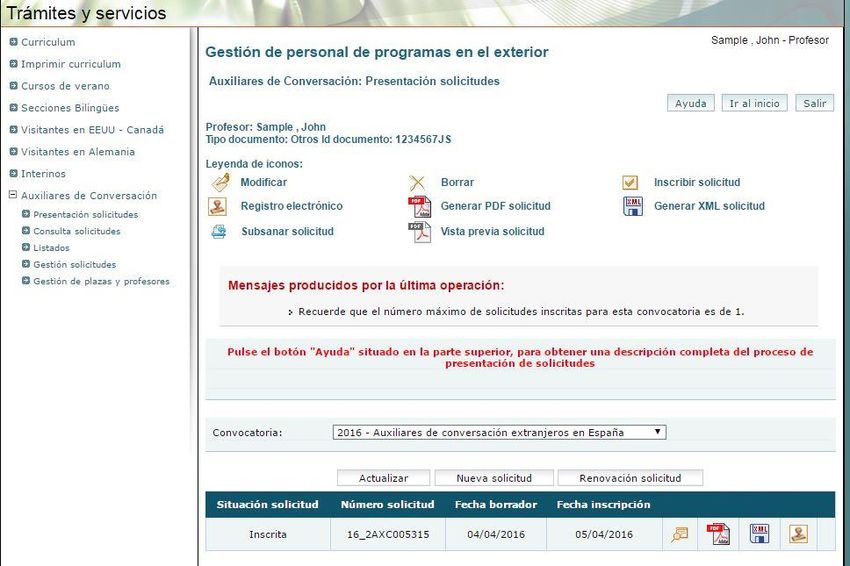
Contents
1. Access PROFEX...................................................................................................................... 3
2. Create a new account in PROFEX ......................................................................................... 4
   How to sign in: Step 1.........................................................................................................................4
   How to sign in: Step 2 .......................................................................................................................4
   How to sign in: Step 3........................................................................................................................6
   How to sign in: Step 4........................................................................................................................6
   How to sign in: Step 5 .......................................................................................................................6
3. Create your CV ...................................................................................................................... 7
   Log in ..................................................................................................................................................7
   Curriculum: Datos personales (personal information) ......................................................................7
   Curriculum: Dirección permanente (permanent address) .................................................................9
   Curriculum: Formación académica (education) .............................................................................. 10
   Curriculum: Experiencia docente (teaching experience) (optional) ............................................... 11
   Curriculum: Experiencia No Docente (non-teaching experience) (optional) ................................. 11
   Curriculum: Datos de Funcionarios (civil servant data) .................................................................. 11
   Curriculum: Formación adicional (other information) ................................................................... 12
   Curriculum: Idiomas (languages) .................................................................................................... 12
   Curriculum: Otros méritos (Other merits) ...................................................................................... 12
   Curriculum: Documentos anexos (Attached documents) ............................................................... 12
4. Review your curriculum ...................................................................................................... 12
5. Program application ........................................................................................................... 13
   Step 1. Access Auxiliares de conversación and Presentación solicitudes ....................................... 13
   Step 2. Select 2019 – Auxiliares de conversación extranjeros en España ..................................... 14
   Step 3. Requisitos/Requirements ................................................................................................... 14
   Step 4. Méritos (Optional) .............................................................................................................. 16
   Step 5. Click check-mark to rank your ideal destination ................................................................. 16
   Step 6. Choose your preferred regions ........................................................................................... 17
   Step 7. Borrador status ................................................................................................................... 17
   Step 8. Language, partner, school type and desired school setting ............................................... 18
   Step 9. Inscribir / Submit your application...................................................................................... 19
   Step 10. How to print out your PDF form ....................................................................................... 20
   Step 11. What your PDF printout form should look like ................................................................. 21
   Step 12. Forgotten documents........................................................................................................ 23
6. Check the status of your application ................................................................................. 23

                                                                                2                                      2019-2020 Profex Manual
1. Access PROFEX
Use a PC and the Internet Explorer browser for a smoother process. However, you should be able to run
PROFEX with either Internet Explorer or Firefox on Microsoft Windows XP and 2000, and with Firefox on Mac
OS X.
PROFEX is an online web service application designed to enable candidates to submit their applications online
for the international programs of the Spanish Ministry of Education and Vocational Training. You can access
PROFEX through www.educacion.gob.es/profex. You can also access PROFEX through our Program website:
Auxiliares de Conversación norteamericanos en España.
Click “Mantenimiento del CV”.

             Click “Mantenimiento
             de CV”

If you already have a PROFEX account you can sign in by clicking “Acceder” and skip section 2.
If you do not have a PROFEX account, then click on “Registrarse” (sign up) and go to section 2.

                                                         3                           2019-2020 Profex Manual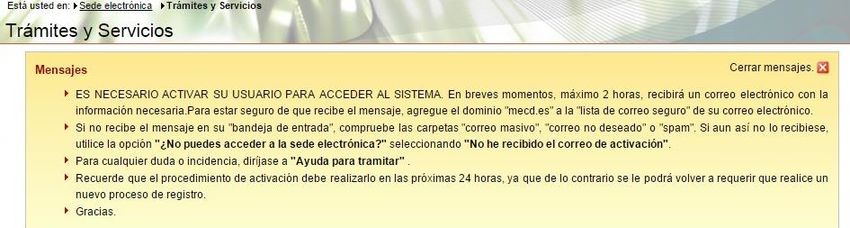
If you don’t have
                                a PROFEX
                                                                                  Else, log into PROFEX and skip
                                account, click
                                                                                  section 2.
                                here and read
                                section 2: “Create
                                a new account in
                                Profex”.

2. Create a new account in PROFEX

How to sign up: Step 1

1.   Click “Registrarse”. Next, click on “Registro de persona física sin Certificado Digital”. You will now create
     your PROFEX account. If you already have one, you can skip this step.

                                                                                   Click “Registro de persona
                                                                                   física sin Certificado Digital”

How to sign up: Step 2

2. Enter the information requested.

(*) Asterisk- marked information is mandatory

                                                          4                            2019-2020 Profex Manual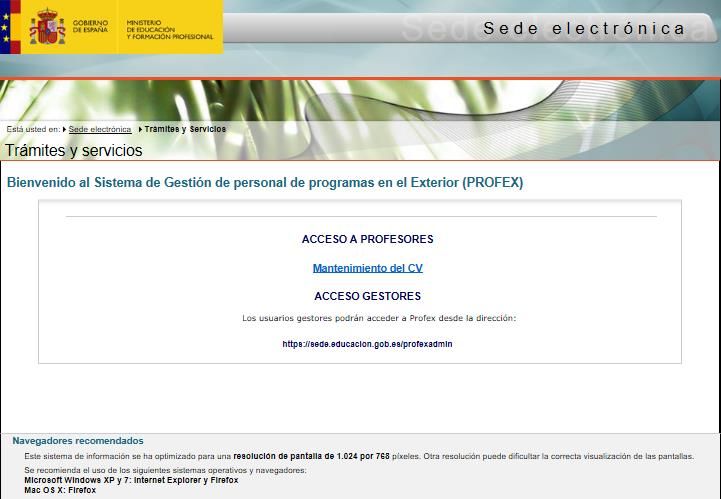
Please read the table below for guidelines

                                                                                 Always use your American or Canadian passport

                                                                             You will need the password to check your
                                                                             status in the future or to update your CV
                                                                        Make sure your email is correct and valid for the
                                                                        whole process or you may run the risk of not being
                                                                        informed about your assignment!! Preferably, use a
                                                                        gmail account or similar, as you will be receiving
                                                                        attached documents

Nombre                          First Name
Primer Apellido                 Last Name
Segundo Apellido                Leave blank
Idioma                          Castellano
Tipo documento                  Otro (all other options are Spanish legal documents that US and Canadian citizens DO
                                NOT possess)

En caso de seleccionar “Otro”   Specify “Pasaporte”
especifica cuál

Nº documento                    Enter your US or Canadian passport. This will become your user “usuario” to access the
                                system.

Contraseña                      Enter a password. Make sure to follow password instructions in the blue box on the page.

Repita contraseña               Re-enter your selected password
                                *Make sure to write down and save your chosen password. You cannot get a new
                                password immediately like other systems and sometimes this time lag can cause you to
                                miss deadlines while you are waiting to access the system with a new password.

Correo electrónico              Enter your e-mail address. Do not enter a University e-mail as many expire after
                                graduation. Preferably, use a gmail account or similar, as you will be receiving attached
                                documents.
                                *Be sure to enter your e-mail CORRECTLY as it will be used to inform you of progress in the
                                program and of other important news.
Repita correo electrónico       Re-enter your e-mail address

                                                       5                           2019-2020 Profex Manual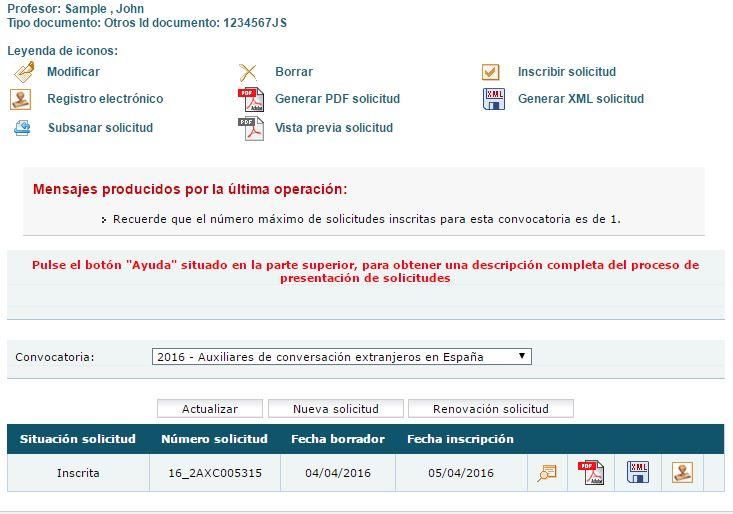
Teléfono móvil                   Cell phone number
                                  **Please enter your cell phone number as it will only be used to contact you in later stages
                                  of the program if you are selected.

How to sign up: Step 3

3. Check off the two small boxes at the bottom of the screen. The first is to accept the Ministry of
Education’s privacy policy and the second is to declare that the information entered into the system is true
and up- to-date. Click Aceptar.

                                             Click Aceptar to move on
                                                   move on

How to sign up: Step 4

4. Print and save the pdf that is generated to remember your account data. Confirm that the displayed
information is correct.

How to sign up: Step 5

5. You should receive a confirmation email shortly. Using this e-mail you should activate your account. If
your account is not activated within 24 hours, you will have to register again.

                                                                        1. Click to Verify that the information is
                                                                           correct and write down your
                                                                           password in a notebook! You will
        2. Click Confirmar                                                 need it later.

                                                           6                              2019-2020 Profex Manual
3. Create your CV

Log in
You can log with your username and password on the 2019 - Auxiliares de conversación extranjeros en
España link or Mantenimiento del CV link (see Section 1, page 3).
Click “Acceder”.

                                                      Enter your username and password
                                                      and click “Acceder”

                                                                          2019-2020)

                                      Click “Acceso al trámite”

Curriculum: Datos personales (personal information)

                                                        7                       2019-2020 Profex Manual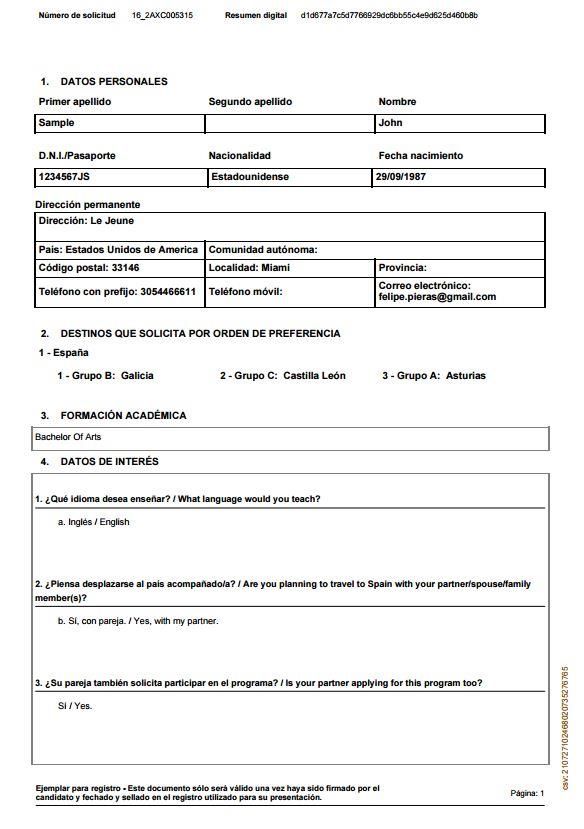
Enter the data requested. (*) Asterisk-marked information is mandatory. Please ignore the box marked
“Contrastado” in each section.

                                                    Fill out your curriculum (CV)

                                    Please read the table below for guidelines

 Nombre                              Name and middle name

 Apellido                            Last name

 Segundo Apellido                    Leave blank, unless you have two last names as in Spanish-speaking
                                     countries. This is not a field for your middle name.
 Fotografía tamaño carnet            Passport size photograph (optional). If you do not have a photo, then
                                     you must upload the “no photo” file accessible here.

                                                      8                             2019-2020 Profex Manual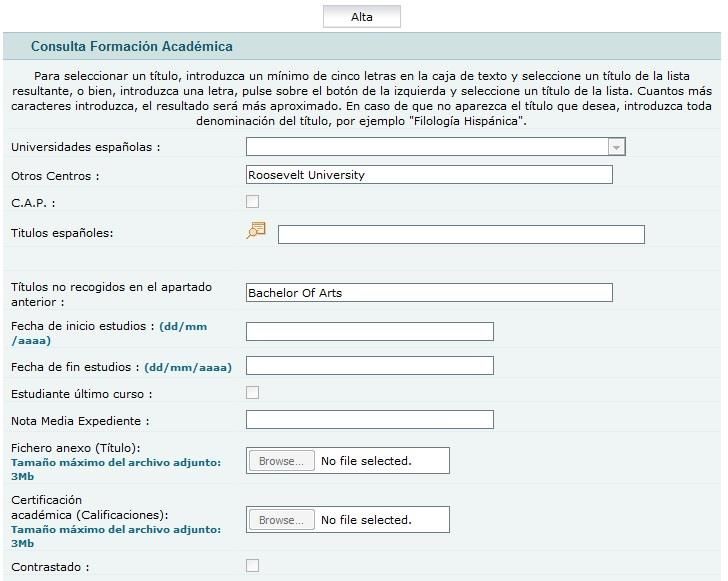
País de residencia                  Country of residence (If you hold a US or Canadian passport, put
                                     "ESTADOS UNIDOS DE AMERICA" or "CANADA", even if you were
                                     born or live in a different country).
 Nacionalidad                        Citizenship.
                                     BE SURE TO SELECT ESTADOS UNIDOS DE AMERICA OR CANADA IN
                                     THE NACIONALIDAD FIELD! (even If you hold dual EU citizenship,
                                     with regard to the program you need to be American or Canadian)
                                     as this is the number one requirement of the program. If you put
                                     another nationality, your application will be invalidated.
 Lugar de nacimiento                 Place of birth

 Fecha de nacimiento                 Date of birth

 Visado (Sólo visitantes EEUU)       DO NOT FILL OUT ANY VISA INFORMATION. This section is only for
                                     Spaniards coming to the USA or Canada through another program.

Curriculum: Dirección permanente (permanent address)

                                    Please read the table below for guidelines

                                                      Your home address

                                                      Your phone number

                                                      Your email address

      País (*)                                    Country
      Estado                                      State
      Localidad (*)                               City
      Código Postal (*)                           Zip code / Postal code
      Dirección (*)                               Permanent address. Please use a permanent residential address that
                                                  will be still valid after you leave college.
      Teléfono 1 (*)                              Your cell phone with prefix
      Dirección actual                            Current address (Optional)
      Persona de contacto de emergencias          Emergency contact (Optional)

                                                         9                       2019-2020 Profex Manual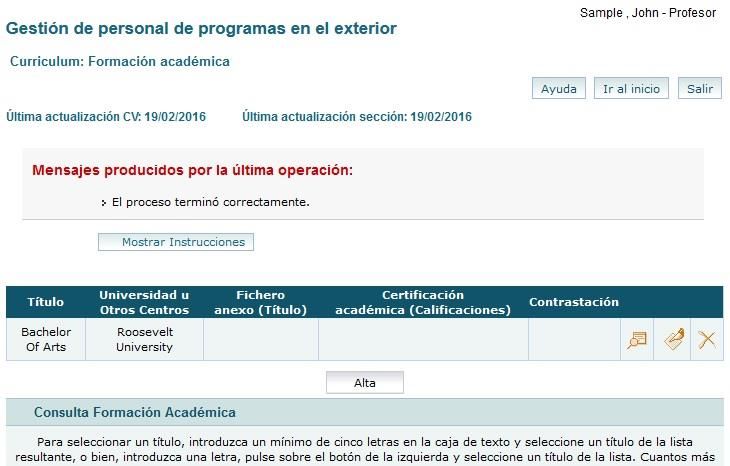
Curriculum: Formación académica (education)

Click “Alta” to enter or modify any data.                                            1.     Click “Alta”

                                                                                           2.   Fill out with your University’s name

                                              Bachelor of Arts - International Relations

                                                                               3.   Fill out with both your (expected or
                                                                                    completed) degree and major

    Universidades Españolas          Unless you have received a higher education DEGREE from a Spanish
                                     University, LEAVE BLANK
    Otros Centros                    Enter the name of your University
    C.A.P.                           LEAVE IT BLANK
    Títulos españoles                Unless you have received a higher education DEGREE from a Spanish
                                     University, LEAVE BLANK. Study abroad information goes in
                                     "Formación Adicional”
    Títulos no recogidos en el       Enter the name of your degree (expected or completed) and your
    apartado anterior                major. e.g. Bachelor of Arts - International Relations
    Fecha de inicio                  Start date
    Fecha de fin de estudios         Date of completion of your Degree
    Estudiante último curso          Check “Estudiante último curso” if you are in your last year.
    Nota Media Expediente            GPA (use a comma in place of a period in your GPA)
    Contrastado                      Leave the check box for “Contrastado” blank.

                                                        10                            2019-2020 Profex Manual
If you want to edit your data
Curriculum: Experiencia docente (teaching experience) (optional)
Denominación del Puesto Position, e.g. “teacher of English”
Centro School
Número de alumnos Number of students
Categoría del docente *Func. De Carrera” (tenured teacher) “Interino” (“non-tenured teacher”)
*Otros (others: private, after school, community services, etc)
Tipo Enseñanza *Reglada (K-12; elementary or secondary education); No reglada (not
regulated by law, e.g. summer courses); “Otros” (e.g private tutoring)
Curriculum: Experiencia No Docente (non-teaching experience) (optional)
Enter any relevant work or internship experience.
Curriculum: Datos de Funcionarios (civil servant data)
Leave blank.
11 2019-2020 Profex ManualCurriculum: Formación adicional (other information)
Other courses. You may enter study abroad experience here. Other examples of information applicable here is
an ESL/ EFL certification (if you have any) or other certification courses you may have.
Curriculum: Idiomas (languages)
Any language other than your mother tongue.
Hablado (speaking)
Click "Alta" to enter or modify any data. Lectura (reading)
Choose your level in each of the following categories of Comprensión oral (listening)
languages. Escritura (writing)
Click “Listado de títulos” to add information about your language certificates / diplomas.
Curriculum: Otros méritos (Other merits)
Enter any other relevant merits you consider.
Curriculum: Documentos anexos (Attached documents)
You can upload here any document in .pdf format. The maximum size for any single document you upload is 3
MB.
4. Review your curriculum
Before proceeding, please verify that you meet the necessary requirements to participate in this program
(see the Application Guidelines on the program’s website) and double check that your CV is complete and
updated. Please note that the program will not allow applications to be submitted that do not meet the
required criteria.
12 2019-2020 Profex Manual5. Program application
Step 1. Access Auxiliares de conversación and Presentación solicitudes
You may access the application by choosing Auxiliares de Conversación and then Presentación solicitudes.
Click on “Presentación solicitudes”
from the dropdown menu.
13 2019-2020 Profex ManualStep 2. Select 2019 – Auxiliares de conversación extranjeros en España
From there, please select “2019 – Auxiliares de Conversación extranjeros en España” from the drop down
menu.
Then click “Nueva solicitud”(new application). This action will take you to the general application page.
Make sure you select this option:
“2019 – Auxiliares de conversación
extranjeros en España”.
2019 - Auxiliares de conversación extranjeros en España
Click “Nueva solicitud”
Step 3. Requisitos/Requirements
Requisitos / Requirements : It is necessary to fill out each section before proceeding.
ONLY PDF FORMAT WILL BE ACCEPTED
(*) It is mandatory to upload your documents here to continue your application process:
➢ 1: Passport
➢ 3: Official Transcript or Degree
➢ 4: Intent letter
➢ 5: Letter of recommendation following the guidelines of the program.
Document 2 (medical certificate) will be required later, in order to get your visa issued. However, EU citizens
or TIE holders must upload a medical certificate in Curriculum: Documentos Anexos.
14 2019-2020 Profex ManualMark:
1, 2, 3, 4
&5
Upload:
➢ 1 (Passport)
➢ 3 (Official Transcript or Degree)
➢ 4 (Letter of intent)
➢ 5 (Letter of recommendation)
ONLY PDF FORMAT WILL BE
ACCEPTED
IF YOU COULDN’T PROPERLY UPLOAD YOUR DOCUMENTS HERE, YOU WILL HAVE TO UPLOAD THEM IN
« CURRICULUM : DOCUMENTOS ANEXOS » (Page 12)
ONLY PDF FORMAT WILL BE ACCEPTED
15 2019-2020 Profex ManualStep 4. Méritos (Optional)
The Méritos part allows you to add any other pertinent information. This part is not mandatory.
Step 5. Click check-mark to rank your ideal destination
The second part of the application also allows you to rank your ideal destination in preferential order
(Comunidad Autónoma). It will be the screen after the general application page.
There should be a blue bar in the middle of the page with a check mark at the far right of it. Click this check
mark and the regions should appear.
Please do not check Andorra.
16 2019-2020 Profex Manual2019
Click in order to choose your
preferences. Please do not
check Andorra
Step 6. Choose your preferred regions
Finally, click
GUARDAR DATOS
You may only choose one region per column.
Click one region per column and then number the columns 1-3 according to preference.
Step 7. Borrador status
Then please click "siguiente" to continue with the application. At this stage your application is in its “rough
draft” (borrador) stage and you will still be allowed to edit and modify data, but your application has not yet
been submitted.
17 2019-2020 Profex Manual2019
Click
SIGUIENTE
Step 8. Language, partner, school type and desired school setting
Then you will be asked about languages you wish to teach, familiar status, request for partner placement in the
same region, school type and desired school setting. You are now allowed to cancel your application, to save
the data to SUBMIT (inscribir) it or to preview it. Notice the INSCRIBIR (submit) button is on top.
Cancel application Save application data Submit application Application preview
Language you wish to teach.
18 2019-2020 Profex ManualStep 9. Inscribir / Submit your application
Upon clicking INSCRIBIR SOLICITUD, (Submit) your application will be officially in the system. But you still
need to do step 10. The application includes a resumé (CV) and your attached documentation, they will be
officially in the system and you will be considered a formal candidate.
YOU MUST INSCRIBIR (SUBMIT) YOUR APPLICATION IN ORDER TO BE VALID.
Do not forget to click on "inscribir solicitud" to complete your
application AFTER HAVING ANSWERED all these questions!! At
this point, your application can no longer be modified or edited.
You must proceed to register your
application. See next step, Step 10.
19 2019-2020 Profex ManualStep 10. Print out your PDF form and email it with the checklist
Print out your PDF form and sign it.
To officially register your application, you still need to: 1) print out the PDF form that is automatically
generated by PROFEX, 2.) sign and date the form, 3) scan the form in PDF format, 4) scan the checklist in PDF
format, 5) email both documents to your Spanish Education contact in the US or Canada assigned to you. For
all email communications please include in the “Subject” field of the email 19_2AX plus the last four digits of
your application number, plus your name and first name as in the example: 19_2AX, 0897, Sample, John
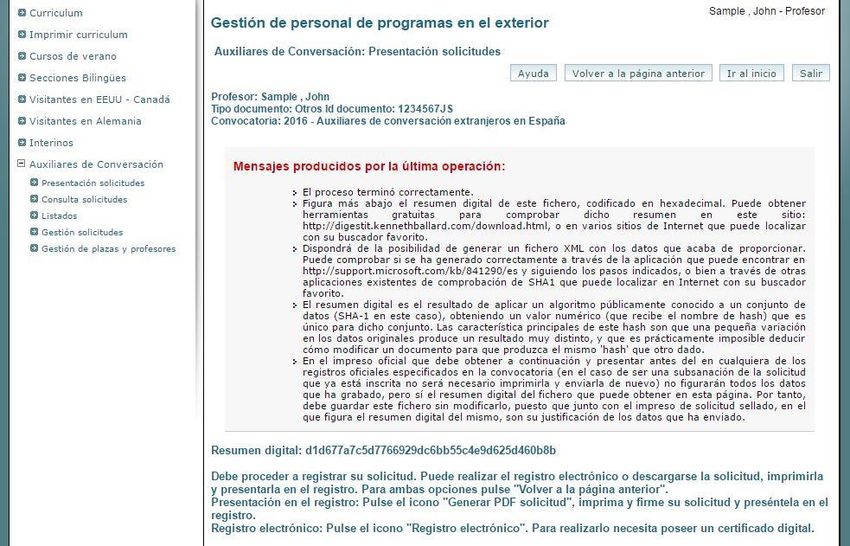
After your application is “inscrita” you may access this PDF on the “Presentación Solicitudes” screen or by
signing into the system again. You can access a blank checklist document by clicking here.
DO NOT FORGET TO SIGN AND DATE THE APPLICATION AND EMAIL IT WITH THE CHECKLIST!
Please note.- The application document is not the printed curriculum (full or abbreviated version). The
application document has a rather long application number across the top. The number starts with 19_2AX
plus a series of digits. For practical purposes, the last four digits will suffice as your application number when
communicating with your Spanish Education Contact in the US or Canada. IMPORTANT: For all email
communications please include in the “Subject” field of the email 19_2AX plus the last four digits of your
application number, plus your name and first name as in the example: 19_2AX, 0897, Sample, John
Click on PDF icon to print out your PDF Form.
Don’t forget to sign and date it!
2019 - Auxiliares de conversación extranjeros en España
20 2019-2020 Profex ManualStep 11. What your PDF printout form should look like
DON´T USE THIS ONE, YOU SHOULD OBTAIN YOUR OWN DOCUMENT AUTOMATICALLY GENERATED BY PROFEX.
19_2AXC000897
Your complete application number. For all email communications
please include in the “Subject” field of the email 19_2AX plus the
last four digits of your application number, plus your name and
first name as in the example: 19_2AX, 0897, Sample, John
Please email this document (“Ejemplar para el registro”).as
a pdf atachment, plus the checklist:
The other “interesado” copy is for you.
21 2019-2020 Profex Manual19_2AXC000897
de 2019
SIGN HERE, PLEASE
For all email communications please include in the “Subject” field of the email
19_2AX plus the last four digits of your application number, plus your name
and first name as in the example: 19_2AX, 0897, Sample, John
22 2019-2020 Profex ManualStep 12. Forgotten documents
Do you need to upload any document you forgot? Don’t worry, go to “Curriculum: Documentos anexos”
and start your uploading a.s.a.p.
BUT REMEMBER, YOUR APPLICATION WILL ONLY BE CONSIDERED IF ALL YOUR DOCUMENTS ARE PROPERLY
SUBMITTED
YOU CAN ACCESS THE SYSTEM ANY TIME TO FOLLOW THE PROCESS UP OR TO GET A NEW
PRINTOUT. DO NOT FORGET TO PRINT OUT YOUR PDF FORM AND CHECKLIST, FILL IT OUT CORRECTLY
AND EMAIL THEM TOGETHER TO YOUR SPANISH EDUCATION OFFICE CONTACT IN THE US OR CANADA.
6. Check the status of your application
1. Access the system with your data; remember https://www.educacion.gob.es/profex/, “Mantenimiento del CV”
Enter your username and
password and click “Acceder”
Click “Acceso al trámite”
23 2019-2020 Profex Manual2. Auxiliares de conversación.
Click on the PDF icon to print your PDF
form, don’t forget to sign it! Please
remember that your application has to be
in the INSCRITA status in order to do
that.
Make sure you click the right links
2019 - Auxiliares de conversación extranjeros en España
19_2AXC005315
You may see your application status here: borrador, inscrita, registrada, admitida, excluida…
Check our webpage on a regular basis for updates regarding your application.
24 2019-2020 Profex ManualYou can also read


