Results Day Survival Kit - Mini Guide Applicable to 2018 onwards - One IT SS
←
→
Page content transcription
If your browser does not render page correctly, please read the page content below

Results Day Survival
Kit

Applicable to 2018 onwards

Mini Guide
Revision History
        Version                   Change Description                                     Date

        2018 - 1.0                Initial release.                                       18/06/2018

                                  Amended the KS4 Discounting in England
        2018 - 1.1                topic.                                                 21/06/2018
                                  Other minor changes.

                                  Additional amendments to the KS4
        2018 - 1.2                Discounting in England topic.                          27/06/2018
                                  Other minor changes.

                                      © Capita Business Services Ltd 2018. All rights reserved.
                        No part of this publication may be reproduced, photocopied, stored on a retrieval
                     system, translated or transmitted without the express written consent of the publisher.
                      Microsoft® and Windows® are either registered trademarks or trademarks of Microsoft
                                     Corporation in the United States and/or other countries.

                                   Capita Doc Ref: RDSK2018/HBK/270618/FT

                                    Providing Feedback on Documentation
                       We always welcome comments and feedback on the quality of our documentation
                       including online help files and handbooks. If you have any comments, feedback or
                     suggestions regarding the module help file, this handbook (PDF file) or any other aspect
                                               of our documentation, please email:
                                                   publications@capita.co.uk
                     Please ensure that you include the module name, version and aspect of documentation
                                                 on which you are commenting.

                          Capita SIMS, Franklin Court, Priory Business Park, Cardington, Bedfordshire MK44 3JZ
                          Tel: 01234 838080 Fax: 01234 832036 Email: info@capita-sims.co.uk Web: www.capita-sims.co.uk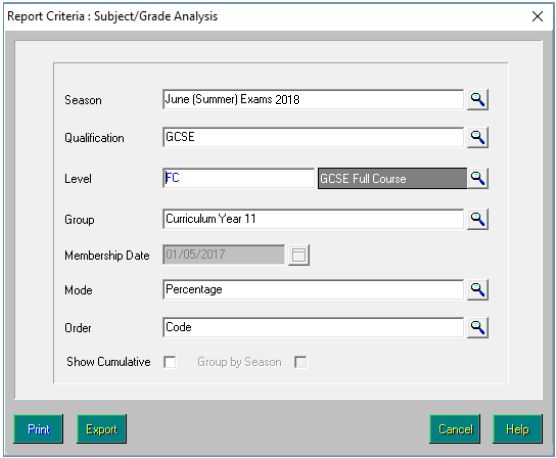
C|Contents
  01| The Results Day Survival Kit .......................................... 1
      Overview ........................................................................................ 1
             Summary of Changes for 2018 ................................................ 2
             Amendments to the Performance Indicator Reports for 2018 . 4
      Procedures to Complete Before Results Day ................................... 5
             How to Check for Missing QN Codes ........................................ 7
             Check List for 2018 ................................................................. 8
             Additional Information Relating to the Step Numbers ............ 9
      Access to Results on Download Day .............................................. 11
      The Performance Indicators Process in SIMS ............................... 11
             QWS Files .............................................................................. 13
      Updating the Performance Indicator Cohort(s)............................. 13
      Differences between External Candidates and External Results.... 14
      General Discounting...................................................................... 14
      KS4 Discounting in England .......................................................... 14
      Estimated Attainment 8, Attainment 8 and Progress 8 ................. 19
      The English Baccalaureate ............................................................ 20
      Early Entry Rules for BTECs and Cambridge National Qualifications20
      Pass/Fail Gradesets (Gradeset M) ................................................ 21
      Results Broadsheet ....................................................................... 21
      Group Performance Analysis ......................................................... 21
             Group Performance Analysis Class/Course Links .................. 23
             Group Performance Analysis Additional Option ..................... 23
             Group Performance Analysis Summary Columns ................... 24
             Group Performance Analysis Printing by Course ................... 24
      The Top Examinations Organiser Solutions ................................... 25
01| The Results Day Survival Kit
01|The Results Day Survival Kit
Overview ......................................................................................... 1
Procedures to Complete Before Results Day .................................... 5
Access to Results on Download Day ............................................... 11
The Performance Indicators Process in SIMS ................................ 11
Updating the Performance Indicator Cohort(s).............................. 13
Differences between External Candidates and External Results..... 14
General Discounting....................................................................... 14
KS4 Discounting in England ........................................................... 14
Estimated Attainment 8, Attainment 8 and Progress 8 .................. 19
The English Baccalaureate ............................................................. 20
Early Entry Rules for BTECs and Cambridge National Qualifications20
Pass/Fail Gradesets (Gradeset M) ................................................. 21
Results Broadsheet ........................................................................ 21
Group Performance Analysis .......................................................... 21
The Top Examinations Organiser Solutions .................................... 24
Overview
This document is intended to provide Examinations Officers at schools in
England and Northern Ireland with the most up-to-date information to assist
you in achieving successful results download days and the subsequent
analysis of results using the SIMS 2018 Summer Release. Guidance for
Examinations Officers at schools in Wales is available in the Results Day
Survival Kit for Wales handbook, which is available from the SIMS
Documentation Centre.
The Edit PI data entry and supporting menu routes are accessible in SIMS:
Tools | Examinations | Import Qualification Data
Tools | Examinations | Manage Performance Indicator
Tools | Examinations | Edit PI Data
Tools | Examinations | PI Reports
Tools | Examinations | PI Setup.
IMPORTANT NOTE: The Performance Measures file is no longer provided
for English schools. Instead, schools in England can manage and maintain
their own Performance Indicators data via the Manage Performance
Indicator menu route. Schools in Northern Ireland are still required to
import the NIEFQAN.xml file provided by C2K.
Results Day Survival Kit 101| The Results Day Survival Kit
Before proceeding, Examinations Officers must ensure they have carried out
the new processes for managing and maintaining the Performance
Indicators data in SIMS. For detailed information, please refer to the
Preparing the Data for the Performance Indicator Reports chapter in the
Processing Results and Calculating PI Data in Exams and SIMS handbook.
Summary of Changes for 2018
Please ensure that you have read and understood all the changes before
proceeding. Further details can be found in the Processing Results and
Calculating PI Data in Exams and SIMS handbook.
Applicable to schools in Northern Ireland only
New Fields in the XML Export of the Performance Table Summary
Report
Tools | Examinations | PI Reports
When exporting the Summary report output to Excel, the following fields are
now included in the .XML file for KS4 and 16-18 cohorts:
2 A*-C
All
Male
Female.
Addition of Free School Meal Ever 1 and 6 to PI Group Filters
Tools | Examinations | PI Reports
It is now possible to select FSM Ever 1 and FSM Ever 6 as group filters
when refining the data included in the PI reports.
Applicable to schools in England
Additional 9-1 Subjects for KS4 Qualification Discounting
Tools | Examinations | Edit PI Data
Additional subjects for GCSE 9-1 qualification have now been incorporated
into the Edit PI Data discounting calculations.
Changes to Level 2 Qualifications
Tools | Examinations | Manage Performance Indicator
When selecting the Qualification Type for a Key Stage 4 qualification
in the Performance Indicator panel, the option to select L2TechCert
has been replaced by Level 2. Any L2TechCert records entered in
previous years are corrected automatically to Level 2.
After selecting Level 2 as the Qualification Type, the check box for
the Level 2 Vocational category is selected automatically on the
16-18 side of the Performance Indicator panel. The sub-category of
Level 2 Technical Certificate can then be selected, if required.
If a category other than Level 2 Vocational and Level 2 Technical
Certificate is selected as the Qualification Type, the qualification
details cannot be saved.
The Level 2 Technical Certificate category can only be assigned to a
Qualification Type of Level 2.
2 Results Day Survival Kit01| The Results Day Survival Kit
Changes to the Ebacc Qualification
Tools | Examinations | Manage Performance Indicator
From 2018, the EBacc subjects that are counted in the EBacc qualification
have been augmented. Additionally, Double Science has been renamed
Combined Science, and Modern Foreign Languages has been renamed
Languages. The inactive subjects (i.e. Additional Science and Core
Science) are displayed in red text to indicate that they are no longer valid.
The display order in the EBacc Subject panel has also been amended.
Changes to the Progress 8 Double Science Calculation
Tools | Examinations | Manager Performance Indicator
Changes have been incorporated into the Progress 8 calculation to
accommodate Combined Science (Double award) for 2018. A new version
of the grade set (JC 41 Result) has been provided, enabling the correct
calculations to be applied.
New Rules for 16-18 Qualification Discounting Families
Tools | Examinations | Manage Performance Indicator
The Discounting Family drop-down list has been added to the 16-18 side
of the Performance Indicator panel and enables you to describe the
nature of the qualification, e.g. an A Level, a vocational qualification, an
International Baccalaureate Diploma, etc.
Exams Officers must associate all 16-18 qualifications with the applicable
discounting family manually, including qualifications cloned from the
previous year.
Selecting Discount Codes for AS, FSMQ and Level 2 Qualifications
Tools | Examinations | Manage Performance Indicator
A pair of discount codes can now be assigned to one qualification for both
cohorts. This ensures that the point values and equivalences entered in the
Grade Details panel of the Manage Performance Indicator Details page
are applied correctly across the two age groups studying the same
qualification.
To ensure that the discounting is calculated correctly for an AS, FSMQ or
Level 2 qualification that can be studied by both the Key Stage 4 and 16-18
cohorts, a discount code must be selected for both cohorts.
Updates to the Estimated Attainment Table
Focus | Assessment | Marksheet Entry
The Estimated Attainment 8 Table has been updated to reflect changes to
the Key Stage 2 Fine Level for 2018.
Provision of the PI16+L2 Tech Cert APS Grade Set
Focus | Assessment | Grade Set
To accommodate the Tech Certificate Average Point Score Expressed as a
Grade for 16-18, a new grade set (PI16+ L2 Tech Cert APS) has been
provided.
Results Day Survival Kit 301| The Results Day Survival Kit
Updated Message Text in Edit PI Data and Running the CRD/CKD
Processes
Tools | Examinations | Edit PI Data
The message displayed when opening the Edit PI Data page, and when
running the CRD and CKD routines to calculate discounting, has been
amended.
Amendments to the Performance Indicator Reports for 2018
A number of enhancements have been provided, enabling up-to-date
reporting on all current DfE requirements.
Tools | Examinations | PI Reports
Key Stage 4 Summary Report Output
Enhancements for Ebacc Average Point Score for School
An additional row (APS per English Baccalaureate) has been added to
the Summary report output. This is a new measure for 2018. The new row is
included in the English Baccalaureate section of the report output.
The APS score for all students at the end of the Key Stage 4 cohort is added
together and divided by the number of students in the cohort to calculate
the EBacc Average Point Score for the school.
Enhancements for Ebacc Average Point Score for Subject
An additional section (English Baccalaureate APS by Subject) has been
added to the Summary report output. This is a new measure for 2018.
In the new section, a separate row is included for the following subjects:
APS for English
APS for Maths
APS for Science
APS for Humanities
APS for Languages.
Key Stage 4 Detailed Report Output
Enhancements for Ebacc Average Point Score for Student
An additional column (APS for Student) has been added to the Detailed
report output. This is a new measure for 2018. The new column is included
in the English Baccalaureate section of the report output.
The DfE has changed the headline EBacc attainment measure from the
proportion of students achieving a grade 5 and above in the EBacc subjects
to an EBacc average point score. This calculates the students’ point scores
across all the pillars of the EBacc qualification.
16-18 Summary Report Output
Inclusion of Level 2 Technical Certificate Results
An additional section (Level 2 Technical Certificate) has been added to
the Summary report output. This is a new measure defined by the DfE for
2018. Technical Certificates for 16-18 year olds are Level 2 qualifications
that provide post-16 students with the knowledge and skills they need for
skilled employment or for further technical study.
4 Results Day Survival Kit01| The Results Day Survival Kit
To be included in the Technical Certificate performance cohort, the student
must have been entered for at least one of these qualifications in the
academic years during which they have been allocated to the qualification
provider.
Within the new section, a separate row is included for the following entries:
Average point score per Level 2 Technical Certificate Entry
Average point per Level 2 Technical Certificate Entry Expressed as a
Grade
Number of Level 2 Technical Certificate students at the End of 16-18
study
No. of Level 2 Technical Certificate Entries
Number of students whose highest attainment is a Level 2 Qualification
and who achieve an Approved Level 2 Technical Certificate.
Revised KS5 Cohort Information
The cohort calculation in the KS5 Cohort Information section of the 16-18
Summary report output is now based on the revised DfE guidance for 2018.
16-18 Detailed Report Output
Inclusion of Level 2 Technical Certificate Results
To be included in the Technical Certificate performance cohort, the student
must have been entered for at least one of these qualifications in the
academic years during which they have been allocated to the qualification
provider.
Within the new section, a separate column is included for the following
entries:
Exam Entries
Passes
APS
APS as a Grade.
Procedures to Complete Before Results Day
Upgrade to the SIMS 2018 Summer Release to install the latest version
of SIMS and Examinations Organiser.
Download and import the QWS files to ensure that the most recent
information is available for the PI calculations.
Ensure that the CRD or CKD process has been run for the previous year
before cloning QNs.
Clone the QNs used in the previous year so that they are copied into the
new Summer season. Search for and delete any QNs that will not be in
use this year. Add any additional QNs that will be required for the new
season.
Import the latest version of the NIEFQAN file (Northern Ireland schools
only) if you have not already done so. If you inadvertently import the
latest version of the file more than once, a warning narrative, visible in
the status bar, notifies you that the 'Qualification information from this
file has already been imported', and you should abandon the process.
Results Day Survival Kit 501| The Results Day Survival Kit
Ensure that the KS2 Average Point Score and Level template has
been imported and as a minimum, populate the KS2 Average Fine
Level column with data to ensure that Progress 8 calculates correctly.
The CAS KS2 Calculator template can be used in relation to the KS2
APS scores that are needed to calculate the Estimated Attainment 8
values.
Check for missing QNs and correct the QNs in the basedata (via Tools |
Examinations | Manage Performance Indicator). It is essential that
each certification element for which results can be collated is associated
with the correct QN code. Work through the Performance Indicator
Details for each QN type and check that the details, point values and
entry equivalences are recorded accurately for both Key Stage 4 and
16-18 for the forthcoming exams season.
If you have updated some of the GCSE qualifications to reflect the new
point values and equivalences but now want to update the remaining
GCSE qualifications, it is possible to identify a GCSE with the new points
values and equivalences and collectively update the grade details for a
number of similar qualifications. This ensures consistency and accuracy
across a qualification type and means that the grade details for multiple
qualifications can be quickly and easily updated. Click the Update
Grade Details for Similar QNs button (via Tools | Examinations |
Manage Performance Indicator).
Check for missing discount codes to ensure that any required
discounting is applied correctly. Exams basedata for BTEC and CIE
warrant special checking.
A patch is available from the Service Desk (Patch 17395), which
inserts missing discount codes into BTEC certification elements. The
discount codes are taken from the QWS files, which use the ‘old’
discount codes. Users in England are advised to amend these to the new
discount codes to avoid confusion.
For CIE Basedata, QNs are present for all accredited qualifications. For
each QN, there should also be a discount code. However, CIE do not
consistently populate this so all CIE Basedata must be checked and
discount codes added as necessary.
Ensure that you have access to the correct region-specific Processing
Results and Calculating PI Data in Exams and SIMS handbook.
This handbook can be accessed from the Documentation Centre,
which is launched by clicking the Documentation button on the Home
Page in SIMS. Once open, click the Handbooks button, select the
relevant category, then click the required handbook from the
Handbooks page.
IMPORTANT NOTE: As an equivalence of zero can be a valid value for
some qualifications, you must check and modify all equivalence values
correctly on the Manage Performance Indicator page to ensure that the
default value of zero has been changed, where applicable.
6 Results Day Survival Kit01| The Results Day Survival Kit
How to Check for Missing QN Codes
Qualification Numbers (QNs) are numbers that are applied to each individual
exam award. These are used to universally identify the exam board
provider, the level being studied and the subject of an exam. To ensure that
you are using the most current QNs available for each course of study, it is
recommended that you download and then import the QWS catalogues
provided by the DfE before starting each School Census return
(https://collectdata.education.gov.uk/qwsweb/default.aspx). The QWS
catalogues are also required before Performance Indicator (PI) calculations
can be performed. Schools in Northern Ireland must import the
NIEFQAN.xml file provided by C2K.
Once you have imported the latest year-specific QWS or NIEFQAN file, two
reports can be run in SIMS (via Tools | Examinations | Import
Qualification Data) that enable you to check the integrity of the QNs in the
basedata:
Certification Elements without QANs - this report lists the Series Board
Entry Code and the Title of all basedata elements without a QN. You
must enter the missing QNs (via Focus | Basedata) to ensure the
accuracy of the PI data in SIMS and Examinations Organiser.
Certification Elements with unmatched QANs - this report lists the
Series Board Entry Code, Title and QAN of all basedata elements
that have a different QN from the QN details provided in the QWS file.
You must correct the QNs in the basedata to ensure the accuracy of the
PI data in SIMS and Examinations Organiser.
NOTE: Both of these reports check the QN information held for the past
four years.
It is also possible to run a report from Examinations Organiser (via Reports
| Basedata | Structure), select Elements from the Report Type
drop-down and identify any certification items that do not have a QN. You
can also run another report in SIMS (via Tools | Academic Management |
Course Manager | Duplicate QAN Report).
Results Day Survival Kit 701| The Results Day Survival Kit
Check List for 2018
To ensure a smooth transition between the former process of importing the
Performance Measures file and the new process of managing performance
indicator details in school, the following check list provides an outline of the
necessary actions in the order in which they must be undertaken.
Step No. Action Location or Menu Route Complete
Step 1 Define the new Summer season in In Examinations Organiser,
Examinations Organiser. via Tools | School Setup |
Seasons
Step 2 Download and import the most In SIMS, via Tools |
up-to-date QWS files. Examinations | Import
Qualification Data
Step 3 On the PI Setup page, set the new In SIMS, via Tools |
Summer season as the default PI Examinations | PI Setup
Summer season and ensure it is
unlocked.
Step 4 Ensure that the CRD or CKD process In SIMS, via Tools |
has been run for the previous year Examinations | Edit PI
before cloning QNs.
Step 5 Clone the QNs used in the previous In SIMS, via Tools |
year so that they are copied into the Examinations | PI Setup
new Summer season.
Step 6 Search for and delete any QNs that In SIMS, via Tools |
will not be in use this year. Examinations | Manage
Performance Indicator
Step 7 Manually add any additional QNs that In SIMS, via Tools |
will be required for the new season. Examinations | Manage
Performance Indicator
Step 8 Work through the Performance In SIMS, via Tools |
Indicator Details for each QN type Examinations | Manage
and check that the details, point Performance Indicator
values and entry equivalences are
recorded accurately for both Key
Stage 4 and 16-18 for the
forthcoming exams season.
Step 9 Ensure that all qualifications for the In SIMS, via Tools |
16-18 cohort have been assigned to Examinations | Manage
the relevant Discount Family. Performance Indicator
8 Results Day Survival Kit01| The Results Day Survival Kit
Additional Information Relating to the Step Numbers
Step 1
To ensure that a season is considered as a PI Summer season in SIMS, the
Start and Finish dates that you define must encompass the month of June.
The month of June must also be included in the Season Pattern defined in
Examinations Organiser via (Tools | School Setup | Season Pattern) .
Step 2
To ensure that you are using the most current QNs available for each course
of study, you are strongly advised to download and then import the QWS
catalogues provided by the DfE before undertaking the Manage Performance
Indicators process.
Step 3
When an Exams season is first created, it remains open throughout a
specified date range. You specify the start and finish dates for the season
and when the finish date is reached, the season ends automatically but it is
not locked. Seasons are locked automatically on 31 January of the year
following the issue of the exam results.
Step 4
Ensure that the CRD or CKD process has been run before cloning.
Step 5
This procedure clones all the QNs imported from last year's Performance
Measures file that have results recorded against them in the previous exams
season, and copies them into the current Performance Measure Year.
Step 6
This does not delete the QN or any results recorded against them; it
removes these QNs for use in the current season. A QN can be added to the
current season manually if it is required.
Step 7
These QNs are likely to be qualifications that were valid in the previous year
but were not included in last year's Performance Measures file, or new QNs
for this year. Qualifications that have never been awarded in your school
before but were present in the up-to-date QWS files can be added by
clicking the Add Existing QN button because the details are stored in the
SIMS database. The Add New QN button should be used to create new
qualifications that will be awarded for the first time in the current exams
season.
If a school needs to add a qualification result for a student that counts
towards the Performance Measures and is not in the QWS file, then results
can still be added in SIMS (via Tools | Examinations | Edit PI Data).
A pair of discount codes can now be assigned to one qualification for both
cohorts. This ensures that the point values and equivalences entered in the
Grade Details panel of the Manage Performance Indicator Details page
are applied correctly across the two age groups studying the same
qualification.
To ensure that the discounting is calculated correctly for an AS, FSMQ or
Level 2 qualification that can be studied by both the Key Stage 4 and 16-18
cohorts, a discount code must be selected for both cohorts.
Results Day Survival Kit 901| The Results Day Survival Kit
Step 8
You are advised to work through the Performance Indicator Details by
searching for a specific qualification type in the Find Qualification for
201n browser, e.g. GCSE, followed by GCE AS, GCE A2, etc. and work
through each qualification type systematically before moving on to the next
qualification type.
Step 9
The Discounting Family drop-down list has been added to the 16-18 side
of the Performance Indicator panel and enables you to describe the
nature of the qualification, e.g. an A Level, a vocational qualification, an
International Baccalaureate Diploma, etc. The following options are
available:
General
General Vocational
AEA
Vocationally Related
Free Standing Maths
Other General.
Exams Officers must associate all 16-18 qualifications with the applicable
discounting family manually, including qualifications cloned from the
previous year.
Known Inconsistencies
The following inconsistencies have been identified during the testing
process.
When adding a Level 2 Tech AS Level qualification from the Add
Existing QN dialog (via Tools | Examinations | Manage
Performance Indicator), only details of the Key Stage 4 values are
displayed. It is not possible to amend the details for the 16-18 values
because this area of the page is disabled. Where this occurs, the point
values are displayed in the Candidate Statement of Results reports for
both cohorts but the point values are not included in the PI report
outputs.
The values in the 16-18 Size Equivalences column in the Grade
Details panel are displaying incorrect point values. Two known
examples are QN 10055800 FSMQ (which lists values of 0.16 instead of
0.17) and QN 6004083X BTEC (which lists values of 0.74 instead of
0.75). These point values should be amended on the Manage
Performance Indicator page (via Tools | Examinations | Manage
Performance Indicator).
When adding a Level 3 Qualification from the Add Existing QN dialog
(via Tools | Examinations | Manage Performance Indicator), if the
Gradeset drop-down list does not contain all of the required grades,
delete the QN from the qualification details and add it again using the
Add Existing QN dialog. If the issue persists, please contact your Local
Support Unit for advice.
10 Results Day Survival Kit01| The Results Day Survival Kit
Access to Results on Download Day
There is a DfE stipulation that although the download of results can
commence from midnight on the day before results day, access to results
must be limited to Examinations Officers and the Senior Management Team
until the official publication days.
Please ensure that you have used the provision to specify the required
period of embargo, and the personnel authorised to access the results
during this period (via Tools | School Setup | Results Embargo in
Examinations Organiser).
When the exam results embargo is in place, all staff members who have
been granted permissions to access the examinations menu routes in SIMS
can access the Edit PI and PI Reports menu routes (via Tools |
Examinations).
The only situation where it is impossible to protect results that are subject
to embargo is where a Candidate Statement of Results report has been
exported from Examinations Organiser to the Document Management Server
(via Reports | Results | Candidate Statement of Results).
The Performance Indicators Process in SIMS
There are a number of stages that must be carried out before you can
process PI data in SIMS. For more detailed information, please refer to the
Preparing the Data for the Performance Indicators Reports chapter in the
Processing Results and Calculating PI Data in Exams and SIMS handbook. A
summary of the key points has been included here for your convenience.
In SIMS, select:
Tools | Examinations | PI Setup
Ensure that the exams season in which you are working is set to June
(Summer Exams 2018). You must specify a storage location for the
Performance reports that will be created.
Tools | Examinations | Import Qualification Data
Ensure that you have imported the latest versions of the QWS or NIEFQAN
files, as appropriate for your region.
Tools | Examinations | PI Setup
On the PI Setup page, set the new Summer season as the default PI
Summer season and ensure it is unlocked.
Tools | Examinations | Edit PI
Ensure that the CRD or CKD process has been run for the previous year
before cloning QNs.
Tools | Examinations | PI Setup
Clone QNs from the previous year and copy them into the current PI exams
season.
Tools | Examinations | Manage Performance Indicator
Search for and delete any QNs that will not be in use this year. Add any
additional QNs that will be required for the new season. Work through the
Performance Indicator Details for each qualification type and check that
the details, point values and entry equivalences are recorded accurately for
both Key Stage 4 and 16-18 for the current exams season.
Results Day Survival Kit 1101| The Results Day Survival Kit
The Discounting Family drop-down list has been added to the 16-18 side
of the Performance Indicator panel and enables you to describe the
nature of the qualification, e.g. an A Level, a vocational qualification, an
International Baccalaureate Diploma, etc.
The following options are available:
General
General Vocational
AEA
Vocationally Related
Free Standing Maths
Other General.
Exams Officers must associate all 16-18 qualifications with the applicable
discounting family manually, including qualifications cloned from the
previous year.
Tools | Examinations | Edit PI Data
There will always be the occasional circumstance where you are required to
make manual discounting adjustments via the Edit PI Data menu route.
IMPORTANT NOTE: When a student's results are displayed on the Edit
PI Data page, the discount code displayed for EDI results is the one
present in the basedata. This may not be the same as the discount code
that is used for discounting.
If you access this menu route before the selected exams season has ended,
only the Key Stage 4 and 16+ cohorts are updated. You can enter non-EDI
entries manually at this point.
Once the exams season has ended, all results are collated and calculated
and automatic discounting is applied. You can also apply manual
discounting, if required.
NOTES: AS Levels at Key Stage 4 will display Level 3 points on the Edit PI
Data page. However, the calculations in the PI reports will display
correctly.
If a student has taken an AS Level qualification in year 12, the result is
discounted against A2 results in year 13. The points values for 16-18 must
be amended on the Manage Performance Indicator page otherwise the
AS Level result from last year will be awarded the old points value and the
new points values will be awarded for A2. After collating the discounting,
an incorrect result would be awarded based on the disparity of old and new
point values.
Where students began an AS Level qualification in last year but do not
continue with A2 in the current year, a similar error will occur. The points
values must be amended to reflect the new point values for the initial AS
year studied.
12 Results Day Survival Kit01| The Results Day Survival Kit
PI Collation and Calculation
If additional results have subsequently been imported, added via an exams
marksheet or added via the Edit PI Data menu route, recollation can be
carried out manually using the CKD button (to retain manual discounting) or
the CRD button (to discard manual discounting).
CRD - Collate Resetting Discounting - if this option is selected, all
manual discounting ticks in the Performance Results grid are
discarded on collation. Only the automatic discounting rules are applied.
CKD - Collate Keeping Discounting - if this option is selected, the
manual discounting made to results is re-applied automatically after
collation, including any results that have had the discounting removed
manually.
Tools | Examinations | PI Reports
You can further refine the output from the Performance Table report by
incorporating Assessment group filters into the report criteria.
IMPORTANT NOTES: Ensure that you have selected the appropriate
Exam Performance Cohort from the Select the Group Filter dialog,
otherwise all candidates in both exams cohorts will be returned.
If the PI report outputs display results different from those expected, you
must revisit the Manage Performance Indicator page and ensure that
the equivalences and point values have been modified and saved correctly.
Run the recollate process again on the Edit PI Data page before
outputting the PI reports again.
QWS Files
Ensure that the latest files are obtained from the QWS website
(https://collectdata.education.gov.uk/qwsweb/default.aspx), guaranteeing
that all files are overwritten with the most up-to-date data.
Updating the Performance Indicator Cohort(s)
Candidates can be added to, or removed from the PI cohort in Examinations
Organiser (via Tools | Group Manager).
When accessing the Edit PI Data menu route in SIMS, a message prompts
for confirmation that you want to update the PI cohort memberships. If you
have made changes to the PI cohort(s) in Examinations Organiser and do
not want to overwrite them, click the No button. Clicking the Yes button
overwrites any manual changes you have made.
Results Day Survival Kit 1301| The Results Day Survival Kit
Differences between External Candidates and External
Results
External candidates are students who are not members of the cohort at your
school. Candidates who previously achieved results at another school and
have subsequently been enrolled at your school are no longer considered
external candidates because they have become an integral member of the
cohort at your school.
However, for the purposes of accountability, the exam results these
students achieved at various Key Stages are attributed to the school they
were enrolled at when the exams were taken and are considered to be
external results in your school.
The entering of external results manually is achieved (via Tools |
Examinations | External Results Manual Entry in SIMS). It is no longer
possible to record external results in Examinations Organiser. Prior
attainments can be entered for students, particularly students joining the
Sixth Form who have already achieved GCSE results elsewhere.
External exam results added in SIMS are not included in the PI calculations
and are not displayed in the Performance Indicator reports. However, it is
possible to view external results by clicking the Examinations link in the
Links panel on the Student Details page. Any results achieved at another
centre that are required for inclusion in the PI calculations (including graded
Music exams) must be entered in SIMS (via Tools | Examinations | Edit
PI Data).
General Discounting
Results entered manually via the Edit PI Data menu route in the current
Exams season will have discounting rules applied automatically if you click
the CRD or CKD buttons.
KS4 Discounting in England
Qualifying QNs for the Performance Indicators
The details of all QNs must be checked carefully (via Tools | Examinations
| Manage Performance Indicator). It is essential that each certification
element for which results can be collated is associated with the correct QN
code. The details will be printed on the Candidate Statement of Results
report (in Examinations Organiser via Reports | Results | Candidate
Statement of Results). Alternatively, run the Basedata Structure report
(via Reports | Basedata | Structure).
Early Entries
If multiple results for a subject have been received throughout a single
exams season, the Edit PI Data calculation cannot determine which of the
results was timetabled first. Therefore, all results are left without
discounting and manual discounting must be applied in this circumstance.
From 2018, the only qualifications that will count in the Performance Tables
are the new reformed GCSEs (9-1) and AS levels for Science, History,
Geography, French, Spanish, German, Latin and Classical Greek.
14 Results Day Survival Kit01| The Results Day Survival Kit
The legacy Ancient History GCSE continues to be counted in 2018 because
the reformed version is not counted until 2019. The same applies to legacy
GCSEs/certificates in languages (except French, German, Spanish, Latin and
Classical Greek) because the reformed version are not counted until 2019 or
2020.
For 2018, in addition to English and Maths, the following GCSE 9-1
qualification subjects have been incorporated into the Edit PI Data
discounting calculations:
Biology
Chemistry
Classical Greek
Combined Science (Double Award)
Computer Science
French
Geography
German
History
Latin
Physics
Spanish
Art and Design
Citizenship Studies
Dance
Drama
Food Preparation and Nutrition
Music
Physical Education
Religious Studies.
Non-GCSE Qualifications
A maximum of three non-GCSE qualifications can be included in the
Performance Tables calculations. All vocational qualifications are counted
with a maximum equivalence of one GCSE.
Results Day Survival Kit 1501| The Results Day Survival Kit
English
The details of all QNs must be checked carefully (via Tools | Examinations
| Manage Performance Indicator). It is essential that each certification
element for which results can be collated is associated with the correct QN
code.
Reformed English QNs 9-1 Description
60142923 AQA Level 1/Level 2 GCSE (9-1) in English Language
60145055 WJEC Eduqas Level1/Level 2 GCSE (9-1) in English Language
60145754 OCR Level 1/Level 2 GCSE (9-1) in English Language
60148366 Pearson Level 1/Level 2 GCSE (9-1) in English Language
60144476 AQA Level1/Level 2 GCSE (9-1) in English Literature
60147891 Pearson Edexcel Level 1/Level 2 GCSE (9-1) in English
Literature
6014872X OCR Level 1/Level 2 GCSE (9-1) in English Literature
60152461 WJEC Eduqas Level 1/Level 2 GCSE (9-1) in English Literature
Maths
The details of all QNs must be checked carefully (via Tools | Examinations
| Manage Performance Indicator). It is essential that each certification
element for which results can be collated is associated with the correct QN
code.
Reformed Maths QNs 9-1 Description
60146060 OCR Level 1/Level 2 GCSE (9-1) in Mathematics
60146084 AQA Level 1/Level 2 GCSE (9-1) in Mathematics
60147003 Pearson Edexcel Level 1/Level 2 GCSE (9-1) in Mathematics
60155036 WJEC Eduqas level 1/Level 2 GCSE (9-1) in Mathematics
16 Results Day Survival Kit01| The Results Day Survival Kit
All grade sets can be found in the latest JCQ Formats file
(http://www.jcq.org.uk/exams-office/entries/jcq-formats) by selecting the
Gradeset Listing tab. The following table provides the details of some
commonly used grade sets.
Qualification Title Exam JCQ SIMS Exams
Qualification Gradeset Gradeset
GCSEs (9-1) from 2016-17
GCSE GCSE 40 JC 40 Result
GCSE Double Award GCSE 41 JC 41 Result
GCSE Endorsed Grade GCSE 42 JC 42 Result
GCSE with Endorsed Grade GCSE 42 JC 42 Result
GCSEs (Legacy)
GCSE (Linear) GCSE F JC F Result
GCSE Short Course (Linear) GCSE F JC F Result
GCE
GCE Advanced Certification GCE 4 JC 4 Result
GCE Advanced Double Award GCE 10 JC 10 Result
Certification
GCE Advanced plus Advanced GCE 11 JC 11 Result
Subsidiary Certification
GCE Advanced Subsidiary GCE A JC A/2 Result
Certification
GCE Advanced Subsidiary GCE C JC C/2 Result
Double Award Certification
GCE Advanced Subsidiary GCE A JC A/2 Result
(Linear)
GCE Advanced Level (linear) GCE 4 JC 43 Result
Results Day Survival Kit 1701| The Results Day Survival Kit
Qualification Title Exam JCQ SIMS Exams
Qualification Gradeset Gradeset
GCE Advanced Level (linear) GCE 4 JC 4 Result
with endorsed grade
The following table provides details of some commonly used grade values.
For 2018 at Key Stage 4, the qualifications listed have the following values.
GCSEs (Legacy) GCSEs (9-1) AS Levels
A* 8.50 9 9 A 10.75
A 7.00 8 8 B 8.88
B 5.50 7 7 C 7.00
C 4.00 6 6 D 5.13
D 3.00 5 5 E 3.50
E 2.00 4 4
F 1.50 3 3
/G 1.00 2 2
1 1
Science
Early entry rules have been applied to Science pathways as follows.
Pathway 1 - Individual Sciences
Physics (RC1)
Biology (RH3)
Chemistry (RD1).
Computer Science and Computing GCSEs are classed as individual
sciences and are counted towards the EBacc.
* Since 2014, Computer Science and Computing have been included in
the Science element of the EBacc, and count in addition to the other
separate Sciences.
Pathway 2 Combined Science
Qualifications with an RA1E discount code, including Edexcel L1/2
Certificate and AQA Level 1/2 Certificate (from 2016).
18 Results Day Survival Kit01| The Results Day Survival Kit
The first qualification that a student studies determines the Science
pathway they are following. Any subsequent entries to qualifications
from a different Science pathway will not count in the school or college
Performance Tables. For example, if a student studies Biology, the only
other Science qualifications that can count in the Performance Tables
are Chemistry and Physics. Consequently, where a student studies
Biology followed by Combined Science, the Combined Science grade
does not count in the Performance Tables.
Estimated Attainment 8, Attainment 8 and Progress 8
Once the KS2:Average Fine Level aspect is populated and students have
received KS4 results, the usual collation process can take place on the Edit
PI Data page and PI reports can then be produced.
The Estimated Attainment 8, Attainment 8 and Progress 8 values are
generated and displayed in the reports in the following circumstances:
The Estimated Attainment 8 value requires that only the KS2 Average
Fine Level results have been entered.
The Attainment 8 value requires that only KS4 results have been
entered.
The Progress 8 value requires that both KS2 Average Fine Levels and
KS4 results have been entered.
Please run the PI Collation and Calculation process to ensure that the
reports are generated accurately.
The Performance Summary report in SIMS includes additional rows of data:
Estimated Attainment 8 Average – This is an average of the total
Estimated Attainment 8 points of the Progress 8 cohort divided by the
number of students in the Progress 8 cohort.
Attainment 8 Average – This is an average of the total of Attainment 8
points of the Progress 8 cohort divided by the number of students in the
Progress 8 cohort.
Progress 8 – This is the total of the Progress 8 average points (VA) of
the Progress 8 cohort divided by the number of students in the Progress
8 cohort.
The Progress 8 cohort of students are students who have all of the
following:
an Estimated Attainment 8
an Attainment 8
a Progress 8 value.
If a student does not have all three values, they are not included in the
Progress 8 cohort. This figure may be different from the KS4 PI Cohort.
The additional rows in the Performance Summary report will be empty if the
KS2 Average Fine Level values have not been populated, even where a
number of students have gained KS4 results and have an Attainment 8
value in the Performance Table Report - Detailed output.
Results Day Survival Kit 1901| The Results Day Survival Kit
The English Baccalaureate
English Baccalaureate and subject area calculations are based on the QN list
supplied by the DfE
(https://www.gov.uk/government/publications/english-baccalaureate-eligibl
e-qualifications).
All the details of qualifications that count in the English Baccalaureate
should be defined in the Manage Performance Indicator menu route.
From 2018, the EBacc subjects that are counted in the EBacc qualification
have been augmented. Additionally, Double Science has been renamed
Combined Science, and Modern Foreign Languages has been renamed
Languages. The inactive subjects (i.e. Additional Science and Core
Science) are displayed in red text to indicate that they are no longer valid.
The display order in the EBacc Subject panel has been amended to:
English Language
English Literature
Mathematics
Biology
Chemistry
Computer Science
Combined Science
Physics
Additional Science (shown in red as legacy qualifications)
Core Science (shown in red as legacy qualifications)
Humanities
Languages.
Early Entry Rules for BTECs and Cambridge National
Qualifications
BTECs
The DfE changed the definition of what counts as a ‘first entry’ for BTEC
First qualifications.
From September 2015, the ‘entry’ date for BTEC Firsts became the actual
certification date. This means that if you claim certification for a BTEC First
before the date of the first exam in a GCSE of the same subject, then the
BTEC result will go forward for performance tables, and not the GCSE result.
This rule applies for performance tables from 2016.
If you have results for BTEC and GCSE in the same season, you must
ascertain which qualification counts as ‘first entry’ in line with DfE guidelines
and manually discount the qualification that does not.
20 Results Day Survival Kit01| The Results Day Survival Kit
OCR Cambridge Nationals
For Cambridge Nationals, the early entry date is the date that OCR award
the full qualification. The full Cambridge National qualifications can be
claimed in a November, January or June series. Awarding takes place shortly
after the series.
November series - awarding date is in December
January series - awarding date is in February
June series - awarding date is in July.
For Cambridge Nationals, it is the best grade of all units taken (including
any resits or resubmissions) that counts towards the final grade. However, it
is the date of the award of the first overall certification result that is
reported to the DfE and used for the performance tables.
NOTE: Cambridge Nationals in Child Development restricts resits of the
externally assessed unit to one resit before certification. This does not
apply to the internally assessed units or other Cambridge National
subjects.
Pass/Fail Gradesets (Gradeset M)
Some vocational qualifications are assigned to gradeset M, which is unusual
in that it has no U grade, only P and F. Consequently, we have added a U
grade for all qualifications. The definition of gradeset M has also been
updated to enable you to replace a grade F with a grade U in an exam
results marksheet. This brings the collation of these results into line.
Results Broadsheet
There is a known issue with the Results Broadsheet report where the header
and footer rows are sometimes not displayed, or they are displayed within
the body of the data. Unfortunately, this is a Quick Report issue that we are
unable to resolve.
Group Performance Analysis
IMPORTANT NOTE: Examinations Officers must be aware that the
following reports need to be run twice; once for the reformed 9-1
qualifications and again for the legacy A*- C qualifications.
Group Performance Analysis and Subject/Grade Analysis Reports
These reports must be run twice; once for the reformed 9-1 qualifications
and again for the A*- C qualifications.
Results Day Survival Kit 2101| The Results Day Survival Kit
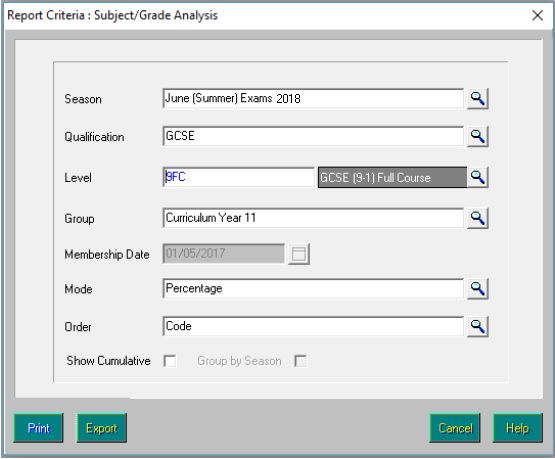
Ensure that the correct level is selected from the Level drop-down list. The
GCSE (9-1) Full Course level relates to the reformed 9-1 GCSEs.
The GCSE Full Course level relates to the legacy GCSEs.
22 Results Day Survival Kit01| The Results Day Survival Kit
Group Performance Analysis Classes with Two Courses
It is possible to associate a class with more than one course using the
Course Manager functionality. The most common example of this is where
year 11 English classes prepare some or all candidates for English Literature
as well as English Language. The most likely structure for this in
Examinations Organiser comprises an English Language and an English
Literature award, each with a higher and foundation option, both linked to a
course called English (GCSEF). When the Group Performance Analysis (GPA)
report is run, there is no differentiation in either class or course mode
between the two ‘subjects’.
If you have a subject called English Literature (perhaps for GCE purposes),
create a course called English Literature (GCSEF) and save it. Link this
course to any classes that deliver Literature alongside Language, save it and
run the Update Course Membership routine in SIMS (via Tools | Academic
Management | Course Manager | Update Course Memberships).
When you next run the Group Performance Analysis report in Examinations
Organiser, the results still belong to the correct classes but the course
option can now differentiate correctly between the subjects.
If you want to differentiate at class level, run the Group Performance
Analysis report twice. For example, in the case of the pattern described
previously, where year 11 English sets deliver both Language and
Literature, run the Group Performance Analysis report once with only the
Language award linked to the course, then run it again with only the
Literature award linked to the course.
Group Performance Analysis Class/Course Links
The Report Criteria parameters dialog enables you to specify a qualifying
Membership Date for a class. However, the date used to identify the
class/course links in operation at the required point of time reflects the
season start date. Therefore, successful operation requires that the courses
associated with the awards were in operation on (usually) 1 May.
NOTE: The level specified in the course name is not significant for the
purposes of this report.
This may cause an issue for schools that have recently revised their class
levels using the Curriculum Matching wizard.
If the changes were implemented after this date and awards re-linked, two
options are available:
Restore the award links to their previous values.
While producing the report, adjust the season start date to a date after
the transfer, ensuring that you change it back after running the report.
Group Performance Analysis Additional Option
An additional option is available in the GPA. There is a way to calculate
residuals against the matching qualification so, if GCSE is selected as the
qualification, only GCSEs are taken into account.
Results Day Survival Kit 2301| The Results Day Survival Kit
Group Performance Analysis Summary Columns
0Avge is the average score per equivalent entry for the group under
analysis. The exact definition of ‘equivalent entry’ depends on the stage and
qualification under analysis, but the general sense relates to whatever has
been determined by the DfE as the basic ‘unit of currency’ at the particular
stage. At Key Stage 4, it is a GCSE Full Course; at Post-16 level, it is a GCE
A2 certification.
Other qualifications and levels have been assigned equivalences in this way.
A GCSE/SC and a GCE/ASB count as 0.5; GCE/DA counts as 2; GCE/AAS
counts as 1.5. GCSE/DA would count as 2, except that two grades are
issued, each counting as 1.
For example, in a class of 20 where 12 had achieved a GCSE/FC and eight a
GCSE/SC, the denominator is 16.
If the group is expanded, the same principle applies, except that each row
represents a group of one person. However, this does not mean that the
denominator is always 1. For example, if the subject is RE and the candidate
has achieved a B grade at SC, the actual point score is 23, but the average
per entry is 46.
This approach ensures consistency when the Avge column is taken in the
context of the other two columns. If a GCE candidate has achieved three
A-Levels and one AS, all at grade B, the average points per entry (All Av) is
240. If the AS is displayed as 120, and the All Average as 240, a residual of
0 would seem incorrect, but a residual of 120 is inaccurate.
There is some dispute over the use of the term 'residual', either the
difference between this result and the overall average, or the difference
between this result and the average for everything else. In the interests of
consistency, and because where the residual is displayed, it uses as its
comparator the value pre-calculated by the PI routine, the first of these
alternatives has been adopted.
Group Performance Analysis Printing by Course
An issue has been identified where the Course option is selected as the
Group Type without selecting the Expand Groups or Page per Subject
check boxes, and there is only one page of the report; it sometimes fails to
print despite a successful preview. This behaviour is caused by an
unidentified problem in the Quick Reports utility. If this occurs, the option to
export is suggested instead.
24 Results Day Survival Kit01| The Results Day Survival Kit
The Top Examinations Organiser Solutions
These solutions and many others can be found on the Capita Children’s
Services Exams Web Support site
(https://myaccount.capita-cs.co.uk/hot-topics/).
KB Description
Number
10100 Import files are not present for the selected board and season.
27824 Results files/Basedata not appearing in EDI EXAMIN directory.
2456 How to search for a Results file.
13749 How to import Exam Results into Examinations Organiser.
20229 Errors on Importing Results: Aspect Type Equivalent for Element nnnn not
found.
25218 Attaching QCA codes.
26021 Error Importing Result File: UCI No. in the Result File does not match that
recorded for the candidate.
15587 Error Importing Result File: Invalid Series Code in File
KB Results
Number
25718 Cannot see Results entered via External Results | Manual Entry.
36722 Exam Results Missing.
420724 Progress 8 Measures not populated in KS4 Summary Report (England).
Ensure that the template KS2 Average Fine Point Score and Level has been
imported from AMPARK and that the KS2 Average Fine Level column has
been populated with the data.
KB General
Number
33425 How to link Awards to Courses.
62140 Automation Error when accessing Examinations Organiser.
Results Day Survival Kit 25You can also read


