New Mexico Public Education Department Assessments Kiosk User Guide
←
→
Page content transcription
If your browser does not render page correctly, please read the page content below
New Mexico Public Education
                                                           Department Assessments Kiosk User
                                                                        Guide
               This technology guide illustrates how to launch and log in to the New Mexico Public Education Department Assessments Kiosk on supported
               testing devices. It explains the Tools, Accessibility features and Accommodations available within the application and how to use them. It
               provides guidance for offline scenarios, error messages, and contains troubleshooting tips.

               This guide is designed to help Test Administrators, School Test Coordinators and Technology Coordinators during online testing.

                          Launching the Kiosk                                                                                                                            Student Tool Bar & Student Tools
                          Login Screen                                                                                                                                   Student Accessibility Features
                          Practice Tests                                                                                                                                 Student Accommodations
                          Session Selection Screens                                                                                                                      Guidance on Error Messages
                          Test and Item Navigation                                                                                                                       Troubleshooting Tips & Support Call-In Information

 Cognia is a registered trademark of Cognia, Inc. The Cognia logo is a trademark of Cognia, Inc. All rights reserved.
 © 2021 eMetric, LLC This document, including all attachments, contains the proprietary and confidential information of eMetric. It is not to be distributed to any party without the explicit written consent of eMetric .

                                                                                                                                 Cognia Service Desk 877-676-6722                                                             nmtechsupport@cognia.org
Copyright - eMetric LLC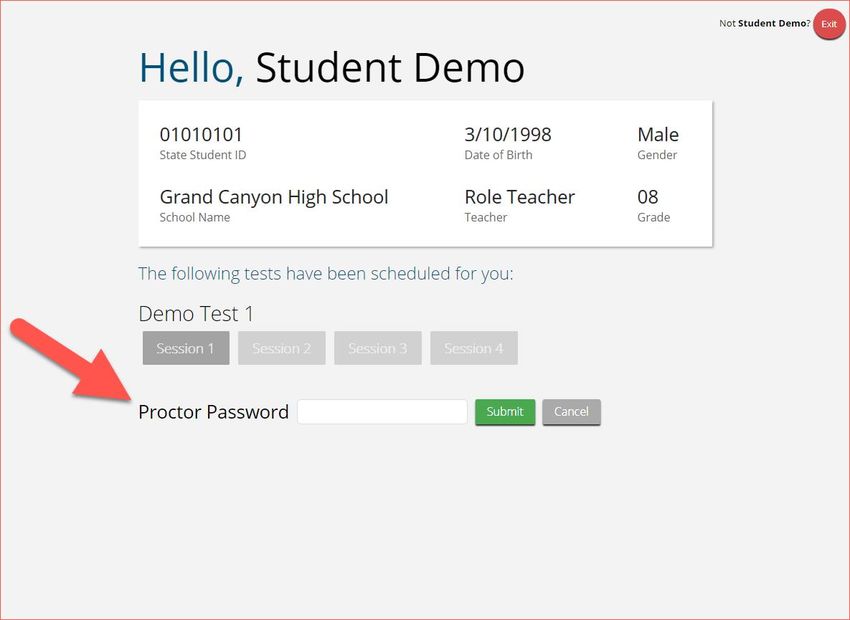
Launching the Kiosk
                                                                   Chromebook
         Windows and Mac                                            To launch the New Mexico Public Education Department
         Devices     To launch the New Mexico Public
                                                                    Assessments application on a Chromebook, click the Apps tray on the
                                                                    Chromebook login page and select the New Mexico icon.
                          Education Department
                          Assessments Kiosk on Windows              Note: Students should not log into the Chromebook; kiosk applications can only be
                          and Mac double click on the               accessed from the application tray on the login screen of a Chromebook.
                          desktop icon on the device.
                                                                                                 New Mexico Public Education
                                                                                                 Department Assessments

                          If any programs are open when
                          launching the kiosk there will be a
                          message to close them and             To launch the iTester New Mexico Public Education Department
                          relaunch the kiosk.                   Assessments application on an iPad, tap the iTester icon on the home
                                                                screen of the iPad. The iPad will attempt to establish a secure kiosk
                                                                environment for testing. To continue into the application, Yes must be
                                                                selected.

    2
Copyright - eMetric LLC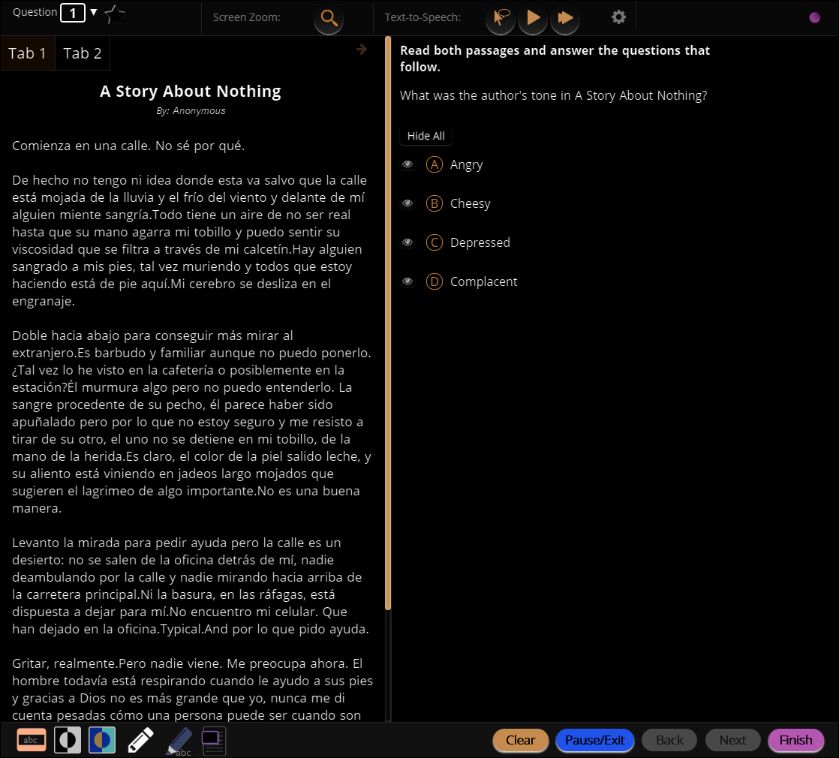
Login Screen

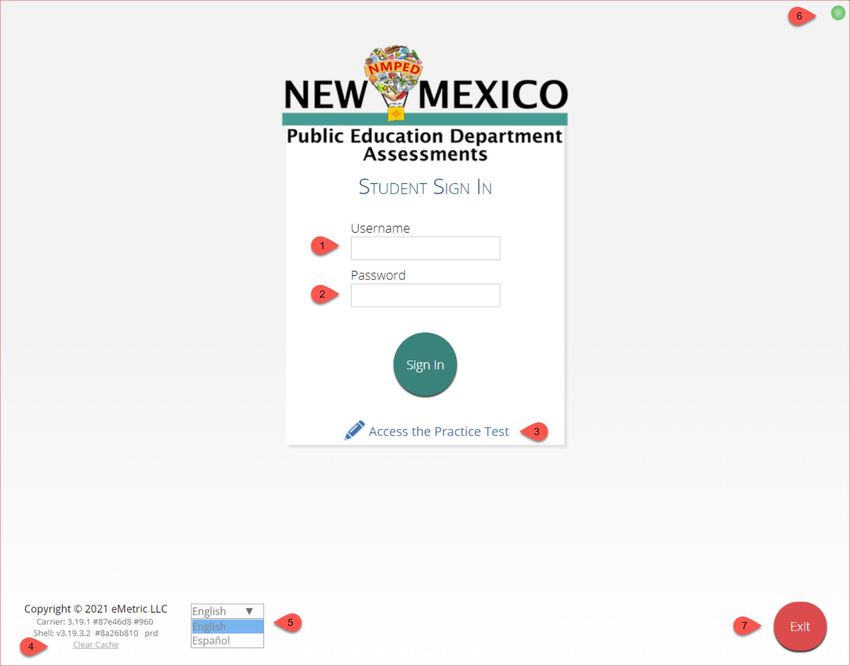
                                                                                                        6. Connectivity Indicator: The dot in the top
                                   1. Username: Type the
                                                                                                        right corner indicates whether the device has
                                   username into the
                                                                                                        an internet connection. A green dot indicates
                                   Username field. Student
                                                                                                        that the device is connected to the internet,
                                   usernames can be
                                                                                                        while a grey dot indicates that there is no
                                   found on their
                                                                                                        connection.
                                   corresponding test
                                   tickets.
                                   2. Password: Type the
                                   password into the                                  3. Access the Practice Test: Clicking
                                   Password field. Student                            on the practice test link will change
                                   passwords can be found                             the log in screen to allow students to
                                   on their corresponding                             log in to the student tutorials.
       4. Carrier & Shell          test tickets.
       Number: The carrier and
       shell number are                                                                                                 7. Exit Button: The exit button
       directly related to the                                                                                          will close the application and
       version of iTester being                              5. Spanish Localization selector: This
                                                             drop-down box will allow students                          bring the student to the main
       used. This information is                                                                                        desktop or Chromebook log-in
       important when                                        scheduled for the Spanish version of
                                                             the test to change the language used in                    screen. To exit on an iPad, press
       reporting any technical                                                                                          the home button.
       issues.                                               the web browser. This must be selected

    3                                                        before the student logs into the Spanish
                                                             version of the test.

Copyright - eMetric LLC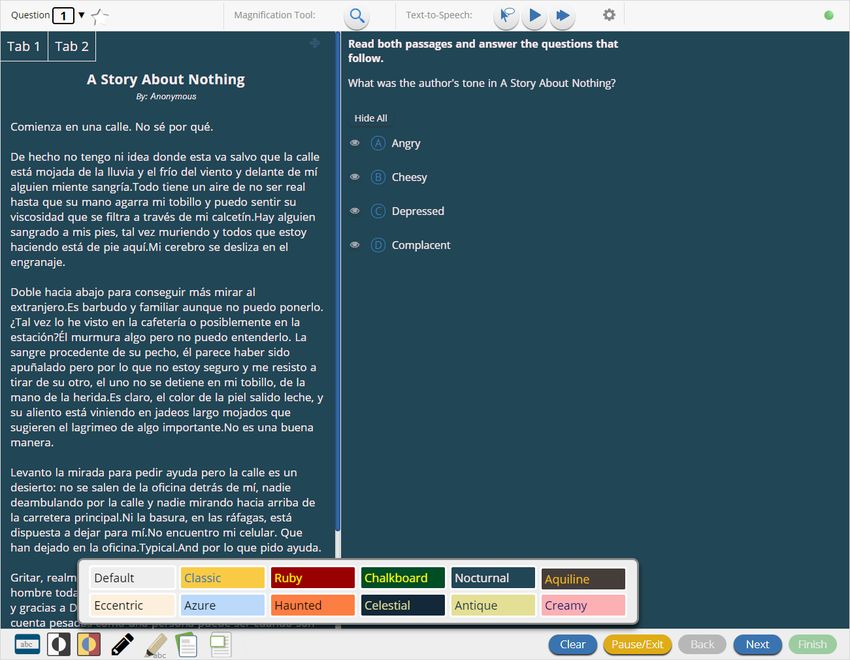
Practice Tests
                          NM-ASR Practice Test

                                      To access the practice test in
                                      the kiosk, students will click   Practice Test Names
                                      the Access the Practice Test
                                      link located at the bottom of       Gr. 5 NM-ASR (English)
                                      the student sign in box. The
                                      sign in screen will change to       Gr. 8 NM-ASR (English)
                                      the practice test sign in
                                      screen. Students will select
                                                                         Gr. 11 NM-ASR (English)
                                      the practice test from the
                                      drop-down and click Go.
                                                                         Gr. 5 NM-ASR (Spanish)

                                                                         Gr. 8 NM-ASR (Spanish)
                                      To exit the practice test sign     Gr. 11 NM-ASR (Spanish)
                                      in screen, click the Exit the
                                      Practice Test link at the
                                      bottom of the practice test
                                      student sign in box.

    4
Copyright - eMetric LLC
Practice Tests
                                                                      Practice Test Names
                          NM-MSSA Practice
                                                                         Gr. 3 NM-MSSA (Math) (English)
                          Test                                           Gr. 3 NM-MSSA (Math) (Spanish)
                                                                               Gr. 3 NM-MSSA (ELA)
                                                                         Gr. 3 NM-MSSA (SLA) (Spanish)
                                     To access the practice test in
                                                                         Gr. 4 NM-MSSA (Math) (English)
                                     the kiosk, students will click
                                                                         Gr. 4 NM-MSSA (Math) (Spanish)
                                     the Access the Practice Test              Gr. 4 NM-MSSA (ELA)
                                     link located at the bottom of       Gr. 4 NM-MSSA (SLA) (Spanish)
                                     the student sign in box. The
                                     sign in screen will change to       Gr. 5 NM-MSSA (Math) (English)
                                                                         Gr. 5 NM-MSSA (Math) (Spanish)
                                     the practice test sign in
                                                                               Gr. 5 NM-MSSA (ELA)
                                     screen. Students will select        Gr. 5 NM-MSSA (SLA) (Spanish)
                                     the practice test from the
                                     drop-down and click Go.             Gr. 6 NM-MSSA (Math) (English)
                                                                         Gr. 6 NM-MSSA (Math) (Spanish)
                                                                               Gr. 6 NM-MSSA (ELA)
                                                                         Gr. 6 NM-MSSA (SLA) (Spanish)

                                                                         Gr. 7 NM-MSSA (Math) (English)
                                     To exit the practice test sign      Gr. 7 NM-MSSA (Math) (Spanish)
                                     in screen, click the Exit the             Gr. 7 NM-MSSA (ELA)
                                                                         Gr. 7 NM-MSSA (SLA) (Spanish)
                                     Practice Test link at the
                                     bottom of the practice test         Gr. 8 NM-MSSA (Math) (English)
                                     student sign in box.                Gr. 8 NM-MSSA (Math) (Spanish)

    5
                                                                               Gr. 8 NM-MSSA (ELA)
                                                                         Gr. 8 NM-MSSA (SLA) (Spanish)

Copyright - eMetric LLC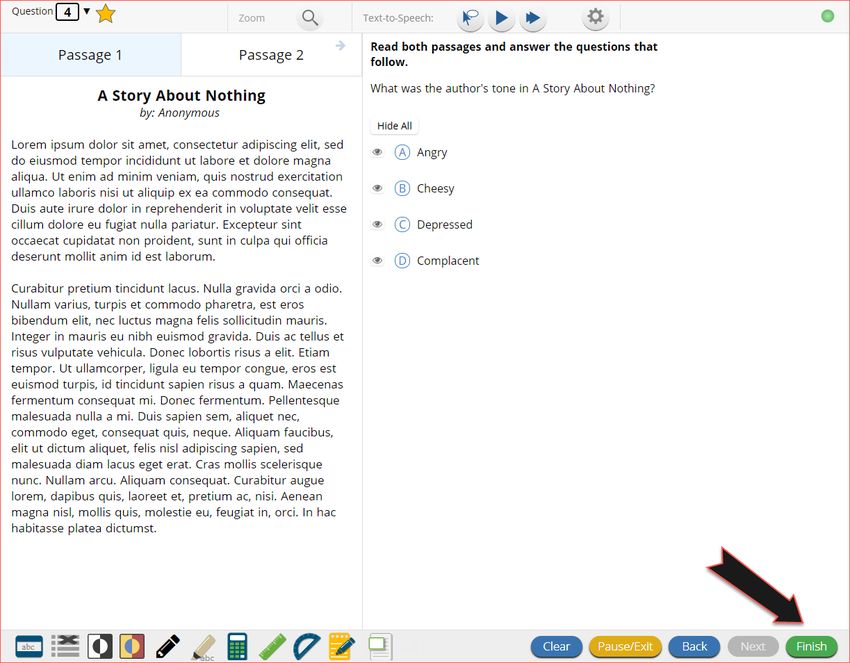
Session Selection Screens
               After entering their username and password,
               students will then move to the student information
               screen. This screen will display the students’
               identifying information, the test they have logged
               into, and each of the test sessions. Any previously
               completed test session will be grayed-out and not
               accessible. Student clicks on a session to continue
               into the test.

                          1.   Student Information
                          2.   Test Session Selection: All available test
                               sessions are listed here.

    6
Copyright - eMetric LLC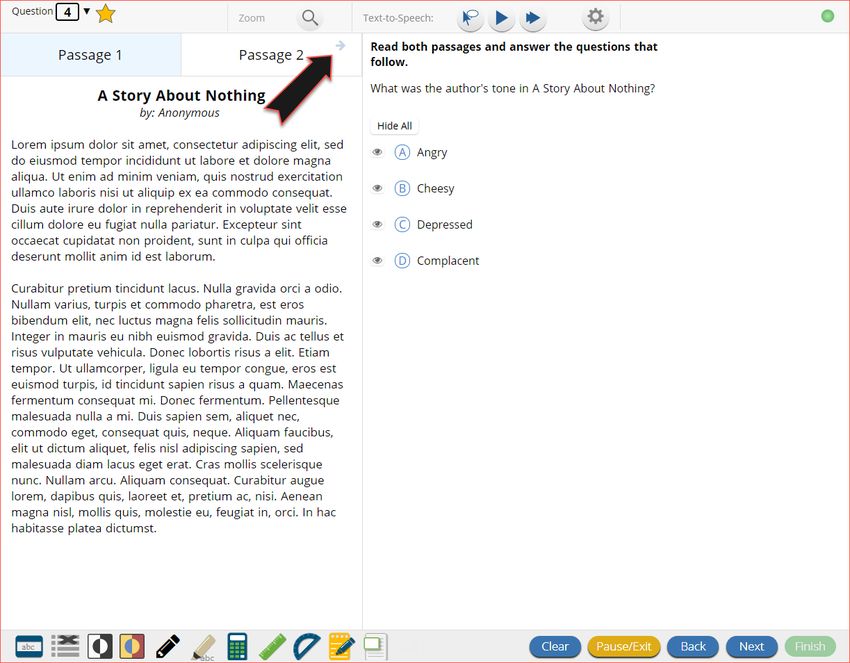
Session Selection Screens
            Once the student has clicked on a test session, a
            textbox for the session access code will display.
            To enter the test session and begin the test,
            enter the session access code in the text box and      Summative assessments
            click Submit. To go back to the list of sessions,      require students to enter a
            click Cancel.                                          Session Access Code to
                                                                   access a specific test
                                                                   session after logging into
            The session access code may be found on the            the test. Interim and
            test session summary print-out that is printed         Formative assessments
            with the student test logins or within the online      DO NOT require a session
            portal under the Test Sessions tab.                    access code.

                                                                Please Note: Session access
                                                                codes will be different per
                                                                test session.

    7
Copyright - eMetric LLC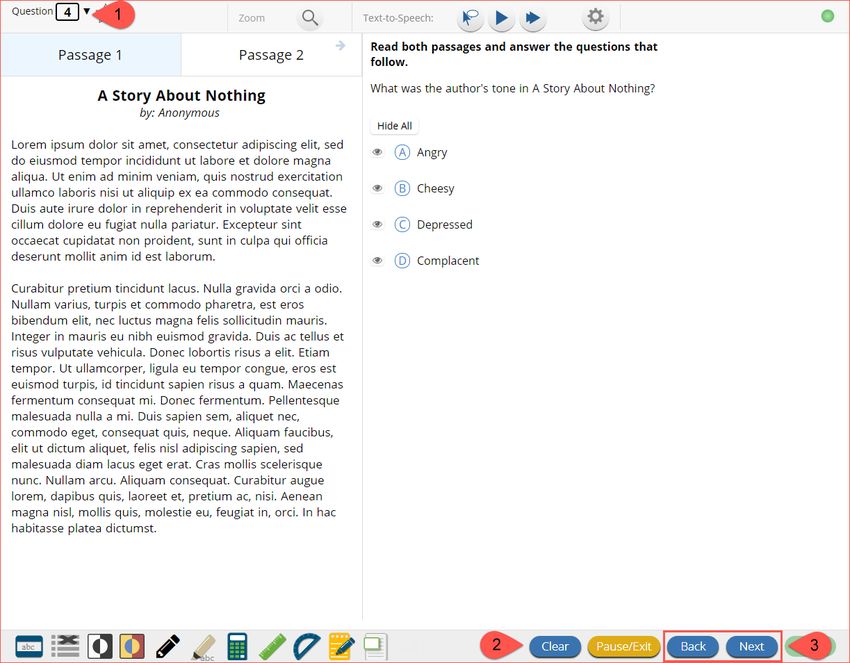
Session Selection Screens
            Using the Proctor Password
            A proctor password is required to enter a test session if one of the
            three following conditions is met:
            1. A student is idle in the test session for more than 60 minutes. A
                student is “idle” if they do not interact in any way with the
                application. This includes the use of any accommodation or tool,
                navigating through the test, or interacting with any of the on-
                screen widgets and answer choices.

            2.     If you pause or exit your test and attempt to log in after more
                   than 60 minutes have passed.

            3.     The New Mexico Public Education Department Assessments
                   Kiosk has experienced an abrupt closure, such as the power going
                   out, the device being turned off while testing, or the device
                   crashing while testing.

            The proctor password will be required on the Options page for
            students with the accommodation “Allow Accessibility Mode Testing.”
                                                                                      Please Note: Proctor passwords are only
            If a proctor password is required, please contact the District Test       applicable to Summative assessments.
            Coordinator (DTC) or School Test Coordinator (STC). The DTC or STC        Interim and Formative assessments DO
            will be able to locate the proctor password in the New Mexico Public      NOT use proctor passwords.
            Education Department Assessments Portal (see the New Mexico Public

    8       Education Department Assessments Portal User Guide on the help and
            support site for more information).

Copyright - eMetric LLC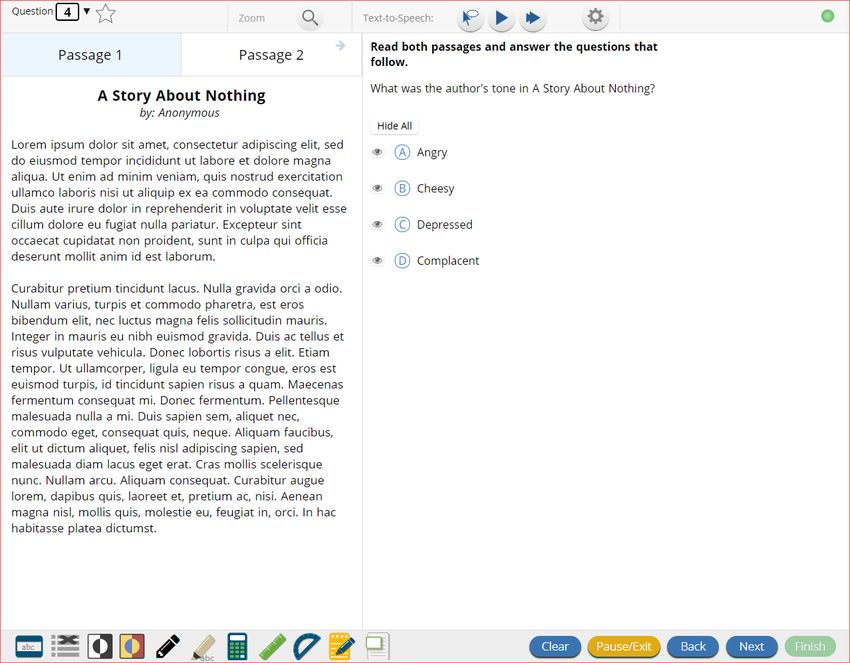
Session Selection Screens
                                                                             The directions page displays the test directions for each
                          The Options page allows the students to view,      student. When students land on this page, the test content
                          test, and set the accommodations for their test.   will begin downloading. While downloading, the blue circle
                          These can also be changed within the test.         near the center of the page will display the download
                                                                             progress starting with 0% up to 100%. Once the test
                          Note: Only those students with accommodations      content has been fully downloaded, the word “Continue”
                          will see the Options page.                         will display inside the circle.

                                                                                                               Accommodations Options
                                                                                                               Overlay button allows a
                                                                                                               student to bring up the
                                                                                                               accommodation options
                                                                                                               page to change
                                                                                                               accommodation settings if
                                                                                                               needed.

    9
Copyright - eMetric LLC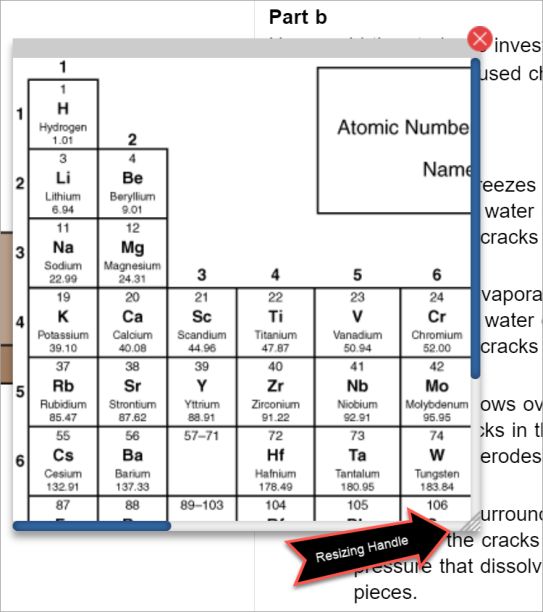
Test & Item Navigation

      1. Review Page: Click on the                              Bookmark: Students can
      down arrow to display a list                              bookmark questions for
      of questions and their                                    review. To bookmark a
      answer status. Also displays                              question, click the star
      the items a student has                                   icon next to the item
      bookmarked for review and                                 number in the top
      allows a student to jump to a                             toolbar. Once selected,
      different question in the test.                           the bookmarked item will
                                                                contain a yellow star on
                                                                the test review page.

                                                                           3. Navigation Buttons: Primary
                                                                           means of navigating through
                                        2. Clear: Removes all
                                                                           the test. The Next & Back
                                        student responses
                                                                           buttons allow a student to
                                        from the current
                                                                           move forward or backward one
                                        question.
                                                                           question at a time.
    1
Copyright - eMetric LLC
Test & Item Navigation
Expandable Passages Pop-Up Glossary
Clicking the arrow expands the
passage to full screen in the
kiosk, click the arrow again to
return to the question. Students can view definitions of
pre-selected words by selecting
the words with book icon to launch
a pop-up screen with the word’s
definition.
1
Copyright - eMetric LLCTest & Item Navigation
Pausing & Exiting
Pause/Exit: When a student clicks on
Pause/Exit, they will be given the option to
either to pause their test, exit their test or
cancel.
When a test is paused, a timer will begin to countdown
from 60 minutes. The student will have 60 minutes to
return to their test before they are completely exited. To
return to their test within the 60 minutes they will enter
their Password and click Resume. Any sketch or
highlighting they did before pause will be retained when
they resume testing.
*If the student does not return within the 60 minutes the
student will be exited from the test, any sketch &
highlighting in the test will NOT be retained.
1
Copyright - eMetric LLCTest & Item Navigation
Turning in a Test
The test review page displays a full list
of questions, their answer status, and
any questions that have been
bookmarked by the student. Click the
Turn In button to submit the test or
the Return to test button to return to
the test.
On the last question of every test Once the student clicks
session, the Finish button will be Turn In, they will be
activated to allow the student to click prompted one final time to
Finish. Clicking the Finish button will take confirm that they wish to
the student to the test review page. turn in the test. After
clicking Turn In, the
student will be returned to
the test sessions page and
the session they have
completed will be grayed
& crossed out.
13
Copyright - eMetric LLCStudent Tool Bar
Student Tool Bar
The student tools and a few of the accessibility
features & accommodations available in the kiosk are
in the tool bar at the bottom left corner of the testing
interface. Hovering over each tool, accessibility feature
or accommodation icon will reveal the tool,
accessibility feature or accommodation name. Clicking
on each icon will activate the tool, accessibility feature
or accommodation.
Please note: The tools available for each question in the
test may vary.
14
Copyright - eMetric LLCStudent Tools
Answer Eliminator Calculator
Answer Eliminator: Provides the ability to
Calculator: Basic or Scientific calculators may
cross-out multiple-choice answers on a test.
be available on selected items in a test. For
Answer choices may not be selected while
they are crossed-out. Summative and iMSSA Assessments Texas
Instruments calculators will be displayed in
the student testing interface.
15
Copyright - eMetric LLCStudent Tools
Line Reader Notepad
Notepad: Provides location for student’s notes. Each item has its own notepad
and notes persist uniquely per item. The notepad is resizable, draggable, and
Line Reader: Helps the student focus on one or more displays a timestamp for when its contents were last modified.
lines of text when reading test content. Use the mouse
or touch screen to raise and lower the tool for each line ➢ The notepad is retained per item. If the student writes notes on Item 1,
of text onscreen. Adjust the number of lines in the navigates to Item 2, returns to Item 1, the item 1 notes will still be there.
guideline tool window with the Resizing Handle. ➢ Notes on passages are viewable for all items pertaining to the passage.
➢ Notes are NOT saved if a test is exited.
16
➢ Notes are NOT saved if a student finishes a test session.
Copyright - eMetric LLCStudent Tools
Sketch Highlighter
Sketch: Provides sketch pad with the following features.
➢ Students may sketch using black, red, or blue brushes.
➢ Students may highlight using a semi-transparent yellow highlighter Highlighter: Students can select text and highlight the
brush. selection. They can erase the highlighted text by
➢ Students may erase sketches and highlighting using the eraser. using the eraser and selecting the text to erase. To
➢ Students may draw anywhere on the item area while still being able clear all highlighting on the screen, click Clear All.
to click on distracters.
Note: The Highlighter is disabled when Text-to-
Sketches and highlighting uniquely persist per item. If a passage that is Speech is actively playing in an item.
shared across multiple items is highlighted, the highlighting will persist.
They can only be viewed by the student while taking the test and will
not be visible to the scorer once the test has been submitted. The
Sketch tool is not available on constructed response items.
17 Note: If the student exits the test, the sketches and highlighting will not
be there when the student returns to the test.
Copyright - eMetric LLCStudent Tools
Ruler Protractor
Ruler: The vector-based, partially translucent ruler is Protractor: The vector-based, partially translucent protractor is
rotatable, draggable and resizable by the student. The ruler rotatable, draggable and resizable by the student. The protractor
tool will be available for specific items and allows a tool will be available for specific items.
student to measure in centimeters or inches.
18
Copyright - eMetric LLCStudent Tools
Zoom View References
(magnifier)
Zoom: Students can magnify the entire
screen in four increments: 100%,
References: If reference material is available on
150%, 200%, and 300%. Click on the
the test, it can be accessed by clicking the
magnifying glass to zoom in, the minus
reference material icon. The reference material
symbol to zoom out and the circular
window may be moved around the screen by
arrow to return directly to the default
clicking and dragging the box or may be resized
100% magnification.
by clicking and dragging the bottom right-hand
19 corner.
Copyright - eMetric LLCStudent Tools
Rich Text Response
Tools 1. The arrows allow a user to Undo or Redo text that was added or removed
from the text box.
2. B will allow a student to type in bold text or allow words to be bolded by
highlight text and selecting B.
3. I will allow a student to type in italicized text or allow words to be italicized
by highlighting and selecting I.
4. Words can be underlined using U with the underline below it, by either
selecting the tool then type or highlighting words then selecting U.
5. Bullet points can be used by selecting the bullet point tool.
6. Text can be numbered by selecting the numbered bullet point tool.
7. The student’s entire response can be spell checked by clicking on the ABC
spell check tool. When clicked, spell check will run on all the text in the
response box.
20
Copyright - eMetric LLCStudent Accessibility Features
Answer Masking Custom Masking
Custom Masking: Provides the ability to mask
certain parts of the test interface or question.
Answer Masking: Provides the ability to “hide” an Custom masking planes can be resized and/or
answer by clicking on the eye icon next to the dragged around the screen.
answer choice. This can be used to eliminate
answer choices. Answer masking will persist if a
student navigates away from the question, but not
if the student exits the test. Answer choices may
not be selected while they are masked.
21
Copyright - eMetric LLCStudent Accessibility Features
Color Contrast Reverse Contrast
Color Contrast: Changes the Reverse Contrast: Inverts all color
background color and text color of the values on the screen.
test content.
22
Copyright - eMetric LLCStudent Accessibility Features
Text-to-Speech
Students who have a Text-to-Speech (TTS) accessibility feature or accommodation will have TTS
controls.
1. On-Demand TTS: Click the On-Demand TTS button to activate. TTS will begin once a specific
word or phrase is selected and will continue reading from that point until paused or stopped.
2. Play/Pause: To play the TTS, click the play button. To pause the TTS, click the pause button.
To resume from the pause, click the play button again.
3. Skip Stimulus: Clicking the arrowhead button next to play/pause will skip the stimulus and
start reading the question and answer choice section of the item.
4. Stop: To stop the TTS, click the stop button. Clicking play after clicking the stop button will
restart the TTS from the beginning of the item’s text.
5. Adjust TTS Volume: Click the gear Icon. Use the slider next to “Volume” to adjust the TTS
volume.
6. Adjust TTS Rate: Click the gear icon. Use the slider next to “Speed” to adjust the TTS rate
between Slow, Normal, and Fast.
7. Highlighted Text: As the TTS reads the text, the text in the item will be highlighted.
*Headphones/earbuds are necessary tested individually in a separate setting. TTS volume can be
adjusted using your device’s volume controls.
23
Copyright - eMetric LLCStudent Accommodations
Accessibility Mode ASL Video
Accessibility Mode: Allows students to use third ASL Video: Students who are assigned the ASL
party assistive technology while testing in the New Video accommodation will see an icon in the top
Mexico Public Education Department Assessments toolbar indicating an ASL video is present.
Kiosk. The proctor will be required to enter the Students can use the bookmarking feature to
proctor password on the Options page to enable. switch between the source videos and question
Accessibility Mode is only supported on Windows videos.
24 devices.
Copyright - eMetric LLCStudent Accommodations
Co:Writer®
Co:Writer: Students can utilize the word prediction tool for
rich-text response items.
1. Click in the response text box and the Co:Writer icon
will appear in the lower-right corner.
2. Click on the icon. An orange dot will appear indicating
the vocabulary library is being downloaded.
3. Once complete, the icon will turn blue, and the
predicative text selection menu will appear in the text
box.
Please note: Co:Writer is available on ChromeOSTM ,
Windows® and MacOS ® for English and Spanish Summative
assessments. Co:Writer is enabled if the student has the Word
Prediction (Embedded) accommodation.
25
Copyright - eMetric LLCGuidance on Error Messages
Error Messages when launching the New Mexico Public Education Department
Assessments kiosk:
Why did my student receive this error?
You are launching an older version of the kiosk.
The kiosk on this testing device will need to be
Why did my student receive this error?
updated
There is no internet connection on the device
and the kiosk cannot launch.
What should I do?
Exit the kiosk then download and install the
What should I do?
latest version from the New Mexico Public
Establish an internet connection and click Try
Education Department Assessments Portal. For
again.
Chrome OS, verify that your New Mexico Public
Education Department Assessments app is up to
date.
26
Copyright - eMetric LLCGuidance on Error Messages
Error Messages when launching the New Mexico Public Education Department
Assessments kiosk:
Why did my student receive this error?
There is no internet connection on the device and the kiosk
cannot launch.
What should I do?
Establish an internet connection and click Try again.
Why did my student receive this error?
eMetric servers cannot reach the stored response folder
location due to a network connectivity failure.
What should I do?
Check your network connectivity and connectivity to the
stored response folder location and relaunch the kiosk. If the
message appears again call the New Mexico Service Desk.
Why did my student receive this error?
Stored responses could not be sent to the eMetric servers.
The kiosk will not be able to launch until this is resolved.
What should I do?
Call the New Mexico Service Desk and provide them with
27 the error message and error code.
Copyright - eMetric LLCGuidance on Error Messages
Error Messages when logging into to the New Mexico Public Education Department
Assessments kiosk: What happened and why did my student receive this message?
Internet connectivity was lost after the student entered
their username and password. The New Mexico Public
Education Department Assessments kiosk detected the loss
of internet connectivity and will not allow the student to log
Why did my student in until internet connectivity is reestablished.
receive this error
message? What do I do next?
The student is using the 1. Close the NM Public Education Department
incorrect password or Assessments kiosk.
username when trying 2. Reestablish a connection to the internet.
to log into the NM 3. Relaunch the NM Public Education Department
Public Education Assessments kiosk.
Department 4. Check the connectivity indicator in the top right corner
Assessments kiosk. of the kiosk login screen.
a. If the connectivity indicator is green, the kiosk is
What should I do? connected to the internet and the student can log
Verify the correct in and begin testing.
username and password b. If the connectivity indicator is gray, check the
in the New Mexico internet connection again.
Public Education c. If the connectivity indicator is still gray and you
Department are sure the internet is connected, move the
Assessments Portal and student to a different testing device, launch the
have the student retry. kiosk on the new testing device and verify the
28 connectivity indicator is green.
Copyright - eMetric LLCGuidance on Error Messages
Error Messages when logging into a test session:
What happened and why did my student receive this message? What happened and why did my student receive this message?
The student is using the incorrect session access code for the The proctor password entered was incorrect.
session selected or typing in the session access code incorrectly.
What do I do next?
What do I do next? If you are a District Test Coordinator verify the correct proctor
Verify the correct session access code in the New Mexico Public password in the New Mexico Public Education Department
Education Department Assessments Portal and have the student Assessments Portal. If you are not the DTC contact your District
retry. Coordinator to verify the proctor password. Once verified it is
correct have the proctor retry. Proctor passwords are case sensitive.
29
Copyright - eMetric LLCGuidance on Error Messages
Error Messages when logging into a test session:
What happened and why did my student receive this message? What happened and why did my student receive this message?
Internet connectivity was lost after the student logged in. The Internet connectivity was lost before the test session completely
New Mexico Public Education Department Assessments Kiosk loaded. The New Mexico Public Education Department
detected the loss of internet connectivity and will not load the Assessments Kiosk detected the loss of internet connectivity and
test sessions until a connection to the internet is reestablished. will not load the test session until a connection to the internet is
reestablished.
What do I do next?
Click Retry, if internet connectivity is established then the student What do I do next?
will be directed to the test session. If internet connection is not Select Click here to load the test. If internet connectivity is
detected, close the New Mexico Public Education Department established, the student will be directed to the test session. If
30 Assessments Kiosk, reestablish a connection to the internet and internet connectivity could not be established, the student will be
relaunch the kiosk. redirected to the Directions page.
Copyright - eMetric LLCGuidance on Error Messages
Error Messages when logging into a test session:
What happened and why did my student receive this message?
Internet connectivity was lost after the student clicked continue, on the directions page. The
kiosk detected the loss of internet connectivity and will not load the test sessions until a
connection to the internet is reestablished.
What do I do next?
Click Retry Now, if internet connectivity is established then the student will be directed to the
test session. If internet connection is not detected, close the kiosk, reestablish a connection
to the internet and launch the kiosk again.
31
Copyright - eMetric LLCGuidance on Error Messages
Error Messages during a test session: Why did my student receive this message?
This error will appear when students have a
Spanish Text-to-Speech Accommodation and
Cepstral language pack is not installed on the
device.
What should I do?
Install Cepstral language pack if you already
have the license, if you do not have a license,
please contact the New Mexico Service Desk to
obtain a license.
Why did my student receive this message?
This error will appear when students have the
Text-to-Speech Accommodation and there is
not a playback device (headphones, speakers, or
internal speakers) set as default or connected to
or the device.
What should I do?
Connect headphones or speakers to the
machine and set them as the default playback
device. Verify that sound is coming from the
playback device.
32
Copyright - eMetric LLCGuidance on Error Messages
Error Messages during a test session:
Why did my student receive this message?
The student has timed out of their test session, meaning they have
been inactive in the test for 60 minutes.
What should I do?
Click exit and you will be brought back to the New Mexico Public
Education Department Assessments Kiosk student sign in page.
When the student is ready to continue testing, they would log back
into the New Mexico Public Education Department Assessments
Kiosk, select the session they wish to continue. For Summative
Assessments, once they have entered the session access code, they
will be then prompted for the proctor password, which the proctor
will need to enter, and resume testing where they left off.
Why did my student receive this message?
The student has logged into their test session on two separate
devices, the second log in would cause the first session to be
logged out, or someone else has logged into the student testing
kiosk with the same credentials.
What should I do?
Click exit and log back into the test session. Verify the student’s
test resumes where they were exited.
33
Copyright - eMetric LLCGuidance on Error Messages
Error Messages during a test session:
Why did my student receive this message?
Access to the storage location was lost after the student began testing due to loss of
network connectivity. The New Mexico Public Education Department Assessments
Kiosk will not allow the student to continue testing until access to the storage location
is restored.
What should I do?
Click Retry Now. If a connection to the storage location is reestablished, the New
Mexico Public Education Department Assessments Kiosk will return to the screen
where the student was prior to loss of connectivity. If, after several attempts, the
connection to the network storage location cannot be reestablished, test
administrators should either force-quit the New Mexico Public Education Department
34
Assessments Kiosk and move the student to a new testing device that has
connectivity to the network and storage location or contact their network
administrator for further assistance.
Copyright - eMetric LLCGuidance on Error Messages
What happened and why did my student receive this message?
Internet connectivity was lost after the student began testing and was not
restored by the time the student completed the test. The student
completed the test session and clicked “Turn in Test”. The student’s
responses will be saved to the local folder configured when the New
Mexico Public Education Department Assessments Kiosk was initially
installed.
What do I do next?
1. Read the instructions in the message and click Send Responses, you will
be notified to wait 10 seconds as the student testing interface tries to
determine if there is internet connection. If internet connectivity was
reestablished before clicking Send Responses, the stored responses on
this device will be sent to the servers, the test will submit, and the
student testing interface will exit the test. If there is no internet
connection, the Send Response button will appear again. From here you
can try to establish internet connection and click Send Responses again
or move on to step 2.
2. Proctor reads and acknowledges that they have read and understand
the instructions by checking the box or enters the Proctor Password (for
Summative Assessments only).
3. Select Accept and Exit Test.
4. Reestablish a connection to the internet.
5. Navigate to the student testing interface login screen, the student’s
stored responses will be synced, and test will be submitted. As an option
the student can re-login and navigate to the student information screen
and confirm the test session submitted is completed, it will be greyed
35 and crossed out.
Copyright - eMetric LLCTroubleshooting Tips
Clearing the Application Cache
If for some reason any of the online testing files
Frozen Screen
become corrupt, deleting the application cache will Your student is taking their test in the New Mexico
force the New Mexico Public Education Department Public Education Department Assessments Kiosk and
Assessments Kiosk to download a new set of cache the kiosk stops responding and becomes frozen.
files.
What should I do?
What do I do next? Try to pause the test and log back in. If you are
1. From the New Mexico Public Education unable to pause, restart the device. Once the device
Department Assessments Kiosk login screen, click has been restarted log back into the test, enter the
Clear Cache in the lower right-hand corner. proctor password, and continue testing.
2. You will be asked “Are you sure?” Click Yes, and
the kiosk will close and then re-launch.
Images or Test
Note: For iPad, exit the application, press the home
button and swipe up on the New Mexico Public Content
Your student’s New Mexico Public Education
Education Department Assessments application to force Department Assessments test content or images are
close it, then re-launch the application. not rendering.
What should I do?
Pause the test and clear the application cache on the
device. It appears that the cached files may have
become corrupt. After the application cache has been
cleared, log back into the test to download new test
files and continue testing.
36
Copyright - eMetric LLCTroubleshooting Tips
OE Response: Specific keys not working on OE Response: Cannot type in the OE
Keyboard (desktop kiosk) Box
Your student is trying to answer an open-ended question but
cannot type in the open-ended answer box.
Your student is trying to answer an open-ended question and specific keys
on the keyboard are not working. What should I do?
1. If they have not typed a response in the open-ended box or
What do I do next? are ok with starting their response over, reset the question
1. Pause the test and log in again. Try to type in the open-ended box with by clicking “Clear” to clear any response in the box in-case
those specific keys. there are multiple spaces or odd characters. Try typing in the
2. If it does not resolve the issue, you will need to clear the application open box.
cache, as the files may have become corrupt. 2. If you are unable to type, pause the test and log in again. Try
3. If clearing the application cache does not resolve the issue, you will to type in the open-ended box.
need to delete the eMetric folder in the TEMP location (ex. %temp% for 3. If it does not resolve the issue, you will need to clear the
Windows devices or ~/tmp for Mac devices). application cache.
4. If clearing the application cache does not resolve the issue,
you will need to delete the eMetric folder in the TEMP
location (ex. %temp% for Windows devices or ~/tmp for
Mac devices) .
Note: If the open-ended box has a word count, and the student
has reached it, they will not be able to type in the open-ended
response box.
37
Copyright - eMetric LLCTroubleshooting Tips
Intentionally Moving a Student to a Different
Device
If students need extended time or must log-off their device and move to another device in a different
location to continue testing, Test Administrators should take the following steps:
What should I do?
1. Ensure the student’s current testing device has an active internet connection.
2. Pause and exit the test.
3. Move the student to the new testing device.
4. Ensure the testing device in the new location has an active internet connection.
5. Launch the New Mexico Public Education Department Assessments kiosk.
6. Allow the student to login to the New Mexico Public Education Department Assessments Kiosk and
resume testing.
7. Confirm student’s test has previously entered responses.
a. If you believe responses are missing, contact the Cognia Service Desk for further assistance.
38
Copyright - eMetric LLCSupport Call-In Information
Contact Information
Caller Name:
Caller Contact Information:
IT Coordinator Name:
IT Coordinator Contact Information:
Issue Description
Description of the issue:
Was there an error message? If yes,
what was the error message?
Is more than one student being
affected? How many?
Has the student tried to log in on a
different device? If so, what device?
39
Copyright - eMetric LLCSupport Call-In Information
Technical Information Student Information (if
Was the Site Readiness Test completed on the machine?
applicable)
Student ID #:
What is the Operating System on these devices (Windows 10, Chrome OS 85, etc.)?
Test Name:
Is this a thin client configuration? (not applicable to iPads or Chromebooks)
For thin client: what hardware/software are they using for their thin client (Make/Model & Software Class Name:
Version)?
What is the screen resolution of the device?
What are the DPI settings set to (Windows only)?
How was the kiosk installed (locally on each machine, network installation, etc.)?
Are stored responses being written to a custom location or the default location?
Is a local cache or a server cache being used?
Is the internet connection wireless or hard-wired?
What is the carrier/shell number of the kiosk?
Please list any troubleshooting steps already taken:
40
Copyright - eMetric LLCVersion Control Table
Version Control
Version Date Author Change Description
1.0 9/10/2021 eMetric Created support documentation per 2021-2022
requirements discussion with Cognia and NM PED.
41
Copyright - eMetric LLCYou can also read


