OCEA Presents: Social Networking - Facebook, Twitter and more!
←
→
Page content transcription
If your browser does not render page correctly, please read the page content below

OCEA Presents: Social Networking
   Facebook, Twitter and more!
What is Social Media?

Social media is any platform that allows you to interact with
 others by creating, sharing, and exchanging information and
                    ideas in a virtual space.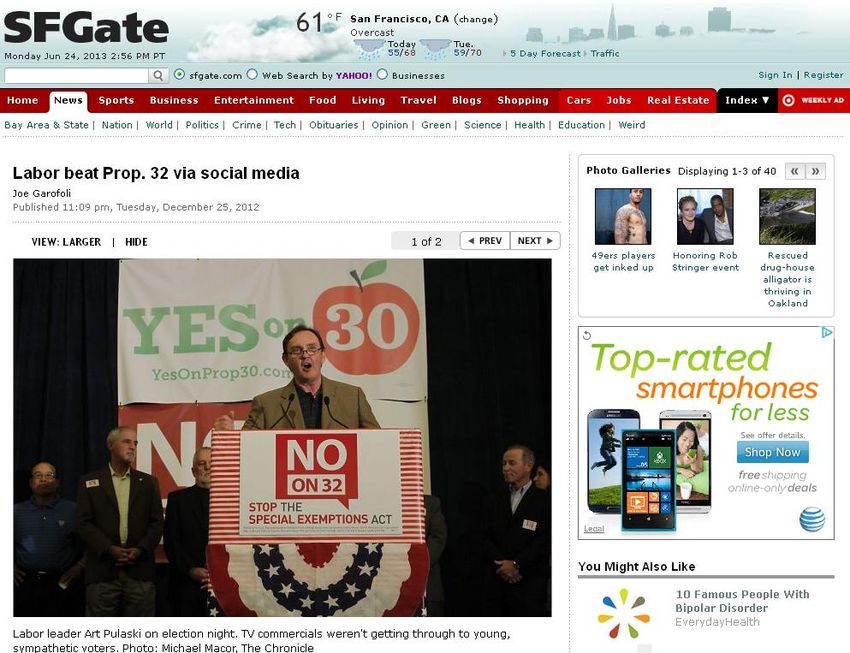
Social Networking

Social networking occurs when you use social media platforms
  to communicate with people and build communities online.
The
 Social
 Media
Universe
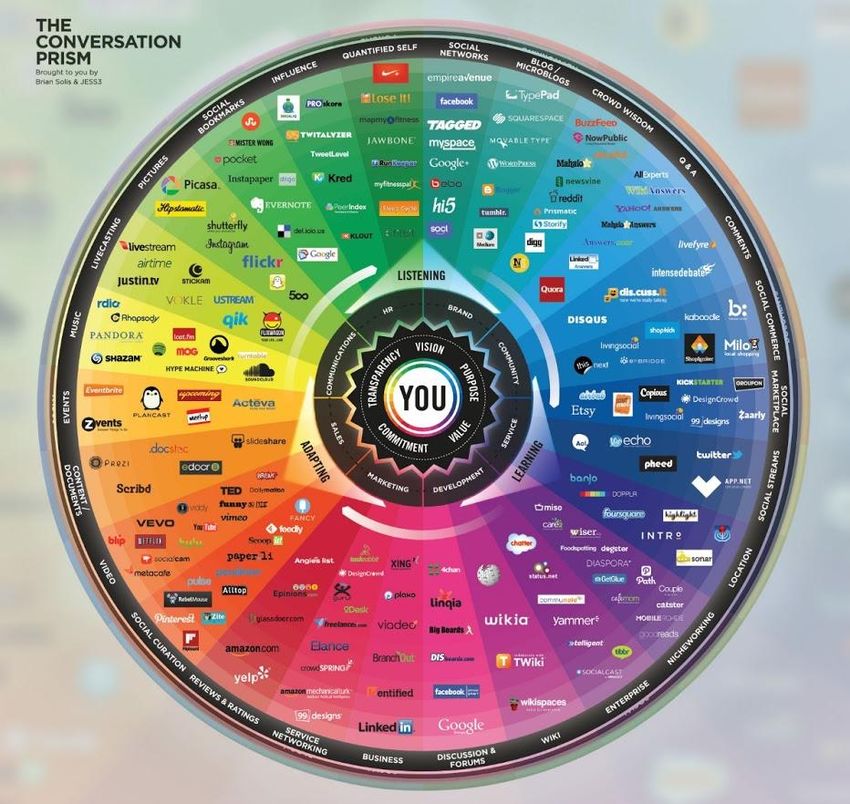
The platforms you know
are just a small part of a
       large world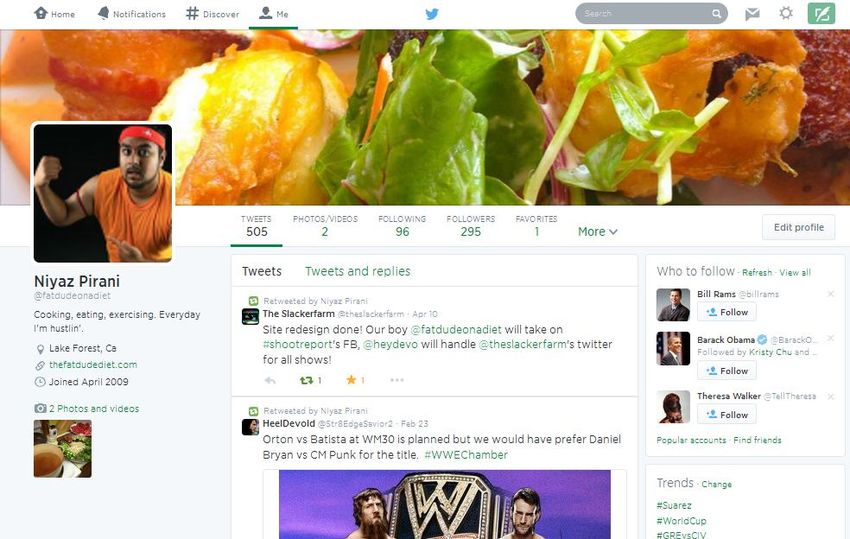
Social trends: Driving factors

For the purpose of understanding social media platforms, this training will cover
 the desktop computer versions of Facebook and Twitter. Once you master the
           desktop versions, you will be a pro on the mobile versions.
Social Media strengthens unions

   Social media provides us with a way to bring people into the labor movement, and it gives
 unions a voice online. For example, when anti-union forces tried in 2012 to bar union members
from the political process with Proposition 32, unions turned to social media to get the word out
  against the dangerous measure. Fusing a sophisticated data-mining operation with messages
sent through social media platforms such as Facebook, unions changed how they were targeting
 voters younger than 40 who didn’t watch TV. Within weeks, they saw support for their position
  among younger voters climb from 40 percent to 60 percent—a winning margin for that group.
Before we get started …

              DO NOT use Facebook, Twitter or other services while on work time.
Violations of the County IT policy are punishable, up to and including discharge from your job.

 Visit the “Hot Topics” menu at www.oceamember.org to download a “Quick Guide to OCEA’s
 Website,” which details the County’s internet usage policy. You’ll also learn how to purchase
  OCEA Special Events tickets online and, most importantly, stay up-to-date on OCEA news!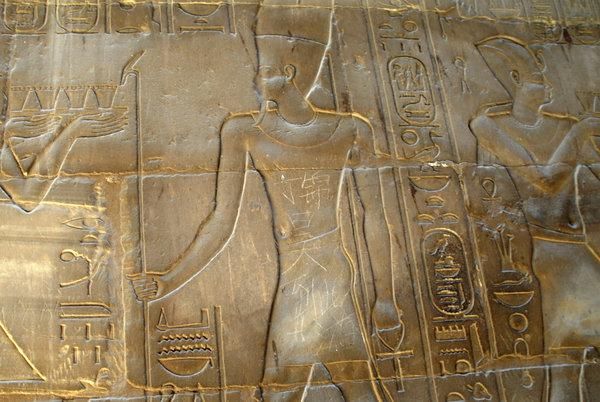
What is Facebook?

Facebook is one of the world’s most popular social networking sites, allowing you to
make connections, share interests and join groups. Facebook changes the way we use
 the web and share our lives because many websites feature connectivity with the
 platform. Facebook continues to grow and make money via ads and mobile users.

                           • Available in more than 70 languages
                          •72% of all online adults use Facebook
                    • 1.28 billion total users; 1.01 million mobile users
                              • 1 million likes every 20 minutes
       • More than 350 million photos uploaded to Facebook per day (Source: statisticbrain.com)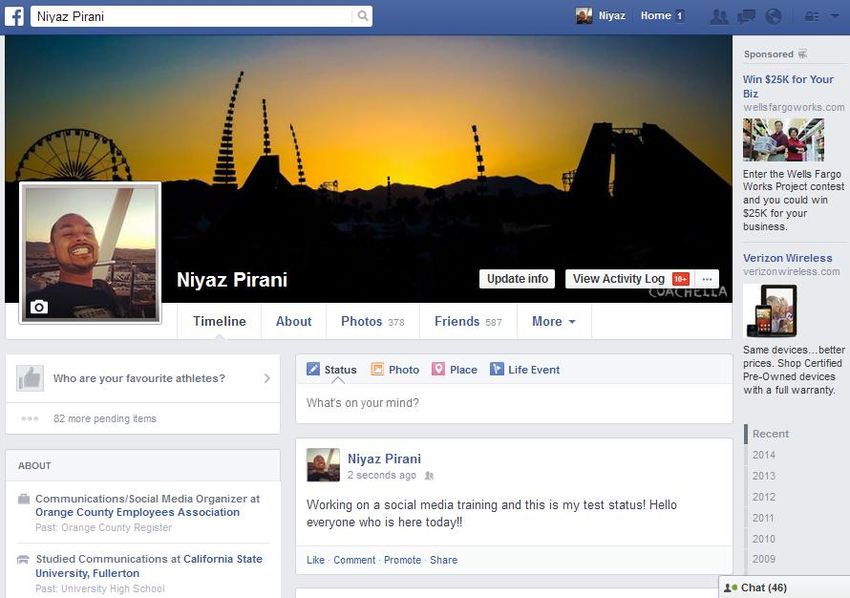
Things you can do on Facebook
                    • Keep up with family, friends
                        (and the Kardashians)

                      • “Like” and comment on
                  statuses, and share text, photos,
                            videos and links

                           • Chat instantly

                     • Play games and use apps

                   • Check-in and locate friends at
                      various places, landmarks,
                        businesses and events

                   • Promote your website, blog or
                              business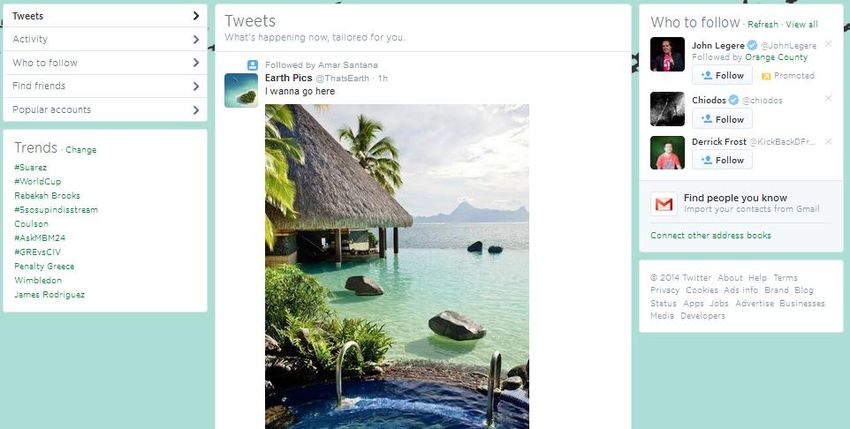
Facebook: How to sign up
• Go to www.facebook.com.

• Enter your name, email address, gender, date of birth, create a password
  and click the Sign Up button; you will then have to enter characters in a
  security check. Note: Once you create a Facebook page, you will be able to
  inactivate it, but you will not be able to delete your information from
  Facebook’s servers.

• You will need to confirm your email address. This is a way to ensure you
  signed up for this account and not someone else. Follow the on-screen
  directions to confirm, or check your e-mail for confirmation notice.

• Once you’ve confirmed your email, your account is valid. Just enter a
  password to get started!

• But wait! It’s a good idea to set up your privacy settings first …
Facebook: Protecting your privacy
                                               Facebook privacy controls will allow you to:

                                             • Select which group of friends you want to post
                                                to: Friends, Friends of Friends, or Everyone

                                            • Set up approvals for when people create posts on
                                              your Facebook page and for who can tag you in
                                                             photos and posts

                                              • Disable information displayed by applications
                                              including e-readers, programs, web games and
All of Facebook’s privacy controls can          more (managed in the settings for each app)
be accessed at:
www.facebook.com/help/privacy.               • Create groups among friends including: Family,
                                              Friends, Work, etc., and set what is shared with
Before using Facebook for the first time,
you should read the privacy settings and
                                                           each specific group
customize them depending on your level of
comfort with what you share online.                •Block contacts, groups, events, etc.
Facebook: Privacy settings examples
Facebook: The Profile Page
  To compile your profile page,
      Facebook will ask for:

 • Gender, birthday, current city,
           hometown

   • Education and work place

  • Likes and interests including
  activities, music, movies, etc.

 • Contact information including
 address, email, phone number
    (some of this is optional)

            Get visual!
    Select any image to be your
   timeline photo—which is the
photo that displays across the top
 of your profile page—and select
another picture to be your profile
  image. This photo acts as your
  avatar on Facebook and across
   Facebook-enabled websites.
Facebook: The Home Page
Sorting the feed:
Facebook’s home page
allows users to view their
friend’s posts sorted by
“most recent” or “top
rated.” “Most recent”
streams friends’ posts in
chronological order while
“top rated" gives higher
priority to posts from friends
you interact with most on
Facebook.
Facebook sidebar & chat:
The column on the right is
the sidebar. On top is the
ticker, which shows posts
made by friends in real time.
The bottom shows which
friends are available online
for private or group chat.Facebook: Making friends
To search for a friend:
Type their name or email address
into the search bar at the top of
any page on Facebook.
If you are not friends with a person
but would like to be, click the “Add
Friend” button.
To change friend settings:
Visit their page and select the
“Friends” dropdown. That will
allow you to subscribe or
unsubscribe the person from
groups you have created; to hide
them from your news feed; or to
“unfriend” them completely.Facebook: Sharing content ↑ 1. UPDATING YOUR STATUS: Use the bar on your profile or home page to type in a message, drag/upload a photo or drag/paste a URL. Each post acts as a thread where you can “like” comments posted on your status and comment back with either text or photos. → 2. ONCE POSTED: Your posts and the posts others have put on your page, will appear in a chronological order called the “Facebook Timeline.”
Facebook: Creating an event

                                                      ↑ STEP TWO—Create an event:
                                                Click “Create Event” at the top of the page
                                                    and enter the required information.

                                                  From this page, you will be allowed to
                                                    invite friends, set an image for the
                                                 invitation, manage guest lists and send
                                                          messages to attendees.

    ↑ STEP ONE—Get to the events page:
 Visit www.facebook.com/events or click the
“Events” header on the left of the home page.
OCEA on Facebook
OCEA is on Facebook at
www.facebook.com/oceamember
Follow OCEA’s page for:
• News and information that
directly affects your families and
co-workers
• Exclusive information about ticket
discounts and Special Events sales
• OCEA-related photo slide shows
and videos
• A place to share your photos,
stories, comments and more!
Visit the page and “LIKE”
OCEA on Facebook today!What is Twitter?
Twitter is a micro-blogging website where updates are comprised of bursts of text, links and
images. The platform allows for quick communication between people or about topics. Twitter
has become an important tool for quick communication, breaking news, and topic indexing.
Create a twitter in two-steps at www.twitter.com.So … what’s a Tweet? A “tweet” is any message posted to Twitter and is comprised of up to 140 characters. Tweets are posted by users, and can be directly sent to another Twitter user by using the “@” symbol and the person’s Twitter username. Tweets can be directly replied to and/or reposted on your own Twitter feed.
Twitter: Historic tweets
Twitter: Getting started
                       Once you've created
                       your account, you'll
                      want to add a profile
                          picture, profile
                        information, and a
                       theme. This helps to
                        make your Twitter
                       feed more personal
                            and unique.
                       Most profile options
                       can be found under
                         “Account” in the
                       dropdown found by
                      clicking your name in
                      the upper right of the
                              screen.
                       Follow OCEA Assistant
                         General Manager
                            Jennifer Muir
                          @jenniferRmuir.
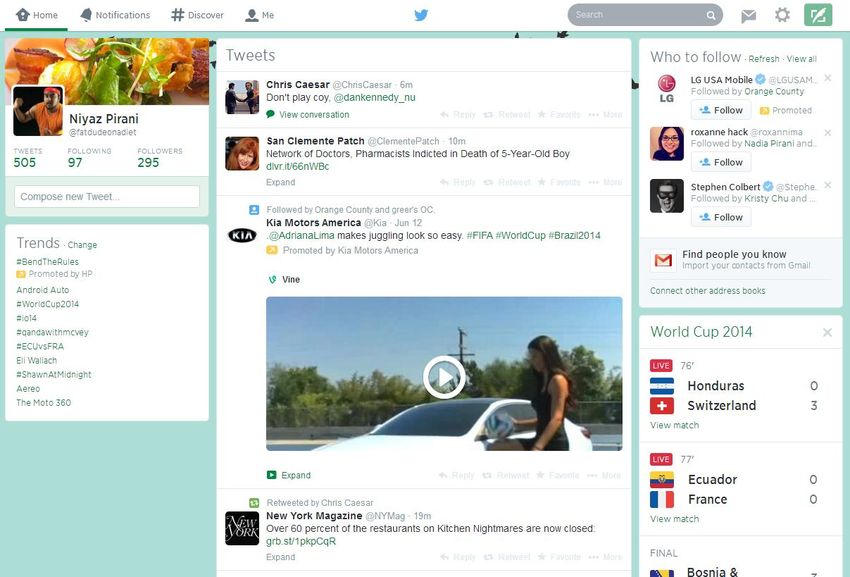
Twitter: The Home Page
The Home Page is where you compose new tweets, receive suggestions on
who to follow and view a real-time stream of the messages being sent by the
people you follow.Twitter: The Notifications Page
The Notifications page is the place to view your interactions with other users, your mentions
and the day’s trending topics.
Mentions: These notifications show you what Twitter users are directly sending you messages
and mentioning your username on Twitter.Twitter: The Discover Page
The Discover Page allows you to search stories, trends and hashtags that are popular on
Twitter. This allows you to stay up on current events, participate in marketing promotions
and be a part of the most popular conversations happening across the microblogging
website.
The hashtag: One way to identify topics and slogans that are trending is by using the “#”
(hashtag) when you write your posts. Using a hashtag in your tweets categorizes your posts
on to topic-specific pages.Twitter: The “Me” Page
The Me Page is where you see a stream of the tweets you have sent and
the ones people have sent to you or mentioned you in.Twitter: The Hashtag
↓ Entering a “#” before a word or phrase
with no spaces places your tweet under a
topic-specific page on Twitter. This also
works on Facebook.
↑ When the Egyptian government blocked
service to Twitter and Facebook, people used
Hootsuite and Tweetdeck, third-party Twitter
account managers, to communicate.
Hashtags, marking the day or location of a
protest, played a big part.
In Libya, rebel soldiers used Twitter to send
coordinates to NATO so the organization could
air strike Gaddafi-held parts of the country.Twitter: How to tweet
→ Tweets can be composed by clicking the
compose icon in the upper right of any page.
A number next to the Tweet button will alert
you to how many characters you have left.
The post also allows you to add a photo or a
location, by clicking the camera and crosshairs
icons in the lower left of the type box.
↓ By hovering over any Tweet, you will be
given the option to reply, retweet or
“favorite” any post. These options are the
primary ways to interact with other Twitter
members.Twitter: Who to follow
Twitter's “Who To Follow” page is the best place to find new people to follow. Following racist, sexist or
inappropriate feeds can reflect poorly on you. Avoid controversial feeds if you are networking professionally.
• View Suggestions: Find suggestions based on accounts you already follow
• Browse Interests: Find accounts based on what interests you. Browsing is a good way to discover some of Twitter's
most popular, prolific users (Oprah Winfrey, Ashton Kutcher, etc.)
• Find Friends: Find people you know by searching your social or professional contacts
• Find users By Name: Find anyone by entering their name or usernameTwitter: Privacy
• You can set tweets to private, making them viewable only by your followers
• Any of your followers can re-tweet one of your tweets, thereby making it public to
their followers, so your protection is limited
• Twitter can automatically add your current location to your tweets. Some people
like to enable this feature to share more information about where they're at, but if
you want extra privacy you can uncheck this option in your account settingsInstagram: Social photography
Instagram is a Facebook-owned social network for avid mobile phone photographers and
videographers. Users can shoot photos and 15-second videos, add colored filters and share the
media with their friends through Instagram accounts. You can also use Instagram content on
your Facebook and Twitter pages. Get started by downloading the app on your Apple or Android
device.LinkedIn: Social for Professionals
LinkedIn is a social networking site for professionals. Users upload job skills, work history,
accomplishments and resumes to the website. Others can endorse your skills and write job
recommendations for you, and you can do the same for them. Aside from the networking,
LinkedIn is used in the same way headhunters search for people on Monster.com or jobs.com.
Create a profile at www.linkedin.com.Social Media: The Do’s
• Diversify: Share text, photos, videos and
links! A varied stream of information creates
an engaging online profile.
• Interact: Reply to messages, comment on
posts, like status updates, reply Tweet, tag
photos and videos, etc. Social media is a two-
way street!
• Think before speaking: Social media enables
you to publish your thoughts instantly. But
just because something pops in your head
doesn’t mean in should be shared with the
world! Try to only publish things you would
feel comfortable saying in person.
• Be mindful: Keep inside jokes and personal
conversations private through direct
messaging instead of public posting.Social Media: The Don’ts
• Content careful: Don’t post anything
questionable or compromising about
yourself or someone else. This
includes status messages, photos or
videos. Content is easily shared, and
once you post something, even for a
second, it is nearly impossible to make
it disappear from the Internet because
of screen shots and cached pages.
• Unfriend or unfollow, just because:
You shouldn’t unfollow someone
because they aren’t following you, or
unfriend people because you have a
disagreement. Be respectful online
and Tweet or post things worthy of
following!Don’t lose your job! Think before you post!!
↑ Ashley Payne, a teacher in Georgia, was
asked to resign because of Facebook posts.
They showed her drinking alcohol and one
post used an expletive. Payne’s page was
private, however she was friends with
other teachers who shared the post with
the principal.Going viral isn’t always a good thing! A boy from China was visiting Egypt in 2013 when he decided to carve the message “Ding Jinhao was here” into a 3,500-year-old Egyptian temple. Another Chinese tourist later posted a photo of the vandalism to his Sina Weibo account (a Chinese microblogging site similar to Twitter) and within days, the boy was identified AND SHAMED(!) in his hometown, an entire continent away. Remember: The things you post in online have real life consequences! Post responsibly!!
The end: Questions, comments & reminders
  REMINDER!!! Please do not use County
 computers to practice your social media!

       Visit the “Hot Topics” menu on
   www.oceamember.org to download a
  “Quick guide to OCEA’s website,” which
 details the County’s internet usage policy.
  You’ll also learn how to purchase OCEA
  Special Events tickets online and, most
importantly, stay up-to-date on OCEA news!

If you have further questions or need more
help, contact OCEA Communications/Social
       Media Organizer Niyaz Pirani at
         npirani@oceamember.org.
You can also read


