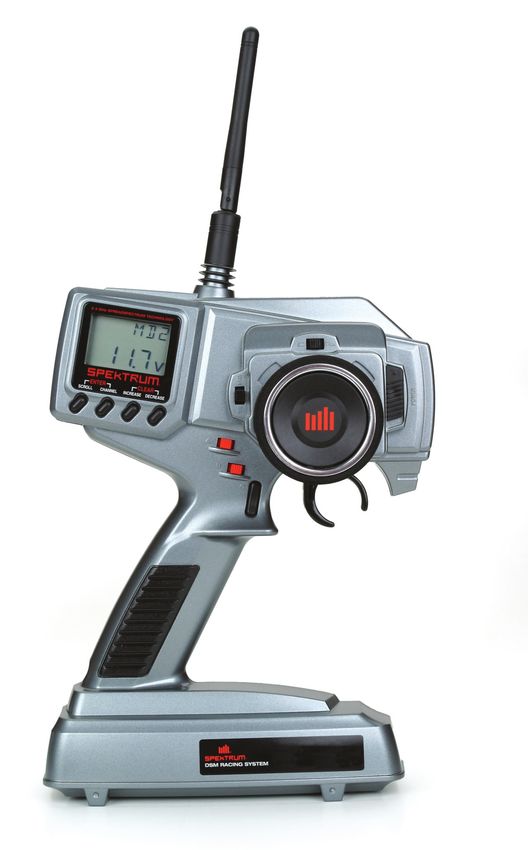
3-Channel, 4-Model Memory DSM Racing System
←
→
Page content transcription
If your browser does not render page correctly, please read the page content below
®

                            ®

3-Channel, 4-Model Memory
DSM Racing System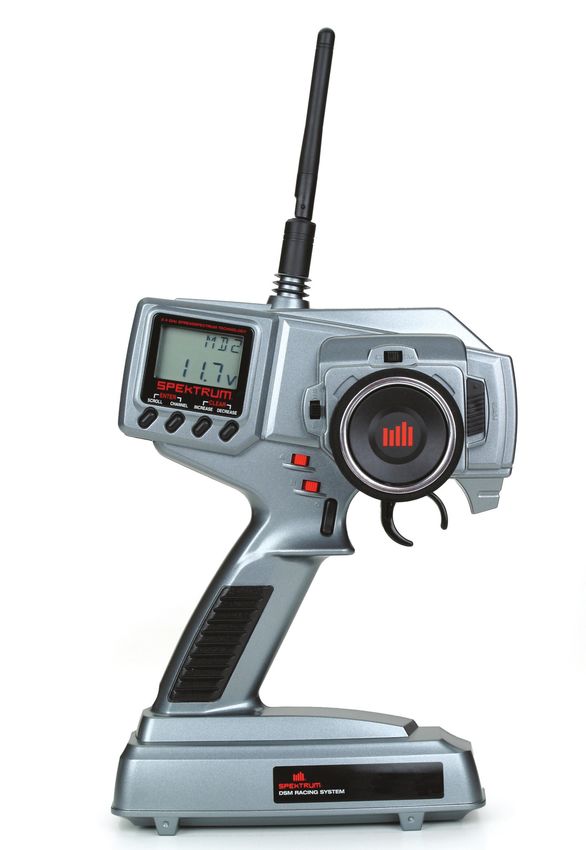
Table of    Alternate Languages........................................................................................................ 2
                Introduction.................................................................................................................... 3
    Contents    DX3.0 Quick Start Setup................................................................................................. 3
                Direct Trim Access.......................................................................................................... 5
                DX3.0 with Digital Spectrum Modulation........................................................................ 6
                Binding........................................................................................................................... 6
                Antenna........................................................................................................................... 7
                System Features.............................................................................................................. 8
                R/C Safety Precautions................................................................................................... 8
                Steering Tension Adjustment........................................................................................... 8
                Control Identification and Location................................................................................. 9
                Charging Jack............................................................................................................... 10
                Receiver Connections and Installation.......................................................................... 11
                Servo Layout................................................................................................................. 12
                Key Input and Display................................................................................................... 12
                Display Screens............................................................................................................ 13
                Accessing the System Mode......................................................................................... 14
                Model Select (System Mode)........................................................................................ 15
                Model Name Entry (System Mode)............................................................................... 15
                Auxiliary Channel 3 (System Mode).............................................................................. 16
                Grip Button C (System Mode)....................................................................................... 17
                Data Reset (System Mode)............................................................................................ 19
                Copy Model Data (System Mode)................................................................................. 19
                Accessing the Function Mode....................................................................................... 20
                Throttle Deadband (Function Mode)............................................................................. 21
                Exponential (Function Mode)........................................................................................ 22
                End-Point Adjust (Function Mode)............................................................................... 23
                Programmable Mixing (Function Mode)....................................................................... 24
                Lap Timer (Function Mode)........................................................................................... 25
                Sub-Trim (Function Mode)............................................................................................ 26
                Servo Reversing (Function Mode)................................................................................. 26
                Accessing the Direct Trim Mode.................................................................................... 27
                Steering Trim (STC)...................................................................................................... 28
                Throttle Trim (THC)....................................................................................................... 29
                Grip Lever B: Steering Dual Rate Trim Adjustment STG................................................. 30
                Grip Lever A: Brake Endpoint Adjustment BRG/
                                Channel 3 Access Brake Endpoint Adjustment......................................... 31
                Channel 3 Access (Fuel Mixture).................................................................................. 32
                Channel 3 Transmission Shift Selector (for vehicles with forward/reverse only)........... 32
                DX3.0 Data Sheet.......................................................................................................... 33
                Warranty and Service Information................................................................................. 36
                FCC Information........................................................................................................... 37

    Alternate   ITALIAN:	Per la versione italiana di questo manuale vi preghiamo di vistare il sito
                          www.spektrumrc.com
    Languages   FRENCH: Pour consulter ce manuel en français, visiter le site www.spektrumrc.com
                GERMAN:	Zur Ansicht der Bedienunsanleitung in den Deutsch besuchen Sie bitte
                          www.spektrumrc.com
                SPANISH: Para ver este manual en Español entra en www.spektrumrc.com
Introduction   Thank you for purchasing Spectrum’s DX3.0 radio system. The DX3.0 is designed to provide
               R/C racers with a bulletproof 2.4GHz spread spectrum radio link. With the DX3.0 DSM
               system you’ll no longer have to wait for a frequency clip, worry about radio interference from
               noisy motors or ESCs or be concerned that someone may turn on a radio on your channel
               causing interference. In addition, the DX3.0’s programming is user-friendly and offers the
               most important features and functions that racers demand. It’s important that you carefully
               read this manual before attempting to operate your DX3.0 system. For your convenience, a
               blank data sheet has been included in the back of this manual. Once you have input all the
               necessary data for a particular model, we recommend that you write that information down on
               the data sheet provided. This insures that, in the rare case of a memory failure, you will not
               lose your models’ setup data.

               For those who would like to get out to the track quickly with just the basic radio setup, please
               refer to the Quick Start section that follows.

DX3.0 Quick    Included in this manual are in-depth instructions detailing all the steps and procedures
               needed to program each of the DX3.0’s functions. For those racers who want to get to the
Start Setup    track fast, we have provided the Quick Start section below. Quick Start covers the basic
               programming information necessary to get you racing right away.

               Later, when you want to learn more about the specific functions of the DX3.0, refer to the
               appropriate page(s) in this manual for more detailed programming information.

                Note: If braking adjustment via Grip Dial A is required, refer to the third channel system
                      setup mode (page 31) for instructions.

               Binding
               It’s necessary to program the receiver to a specific transmitter so that the receiver will only
               recognize that transmitter, ignoring signals from any other sources. If the receiver is not
               bound to a transmitter, the system will not operate. Also, during the binding process, the
               servo fail-safe positions are set.

                 1. Make sure the transmitter and receiver are turned off.
                 2. With the receiver off, press and hold the bind button on the receiver while turning on
                    the receiver.
                 3. Release the bind button when the LED flashes green.
                 4. With the transmitter off, Place the transmitter steering wheel, throttle trigger and
                    auxiliary channels in their desired fail-safe positions (normally brake and straight-
                    ahead steering).
                 5. Press and hold the bind button on the transmitter while turning on
                    the transmitter.
                 6. Release the bind button after the green LED flashes.
               After several seconds the LED on the receiver and the LED on the transmitter will quit
               flashing and remain solid, indicating that the binding process was successful. Once binding
               is complete, the system will automatically connect.

                Note: See page 5 for a detailed description of the binding process.
DX3.0 Quick   Servo Reversing
    Start Setup                                                  Indicates Current Channel

                                    st                           ST = Steering

                                 –
    (continued)                                                  TH = Throttle
                                                                 AUX = Auxiliary Channel 3 (optional)

                                     –
                                 REV • NORM

                                                                  Indicates Current Servo Direction
                                                                                  ENter                 CLEAR
                                                                             SCROLL   Channel     INCREASE DECREASE

                    1. With the transmitter power switch on, press the
                       SCROLL key to enter the Function mode.
                    2. Press the SCROLL key until “REV.NORM” appears on the screen.
                       The “ST” indicates the steering servo reversing screen.
                    3. Press the INCREASE or DECREASE key to move the cursor
                       to the desired servo direction (REV.NORM).
                    4. Press the CHANNEL key once to access the throttle servo reversing screen.
                    5. To select the direction of the throttle servo, repeat Step 3 above.
                    6. Repeat Steps 2 and 3 to adjust Auxiliary Channel 3 if needed.

                  End-Point (Travel) Adjustment
                                                                  Indicates Current Adjustment Position
                                    st                            ST = Steering
                                 –

                         EPA                                      TH = Throttle
                                                                  AUX = Auxiliary Channel 3 (optional)

                   R/B    I00                                     Indicates Current Value

                  L/F = Left/Forward
                  R/B = Right/Brake

                    1. From the Servo Reverse function, press the SCROLL key once to access
                       the End-Point (Travel) Adjustment function (the EPA screen with “ST” will appear).

                  Steering Adjustment
                    2. Rotate the steering wheel in the desired direction (left or right) to be adjusted.
                    3. Press the INCREASE or DECREASE keys to select the desired travel value.

                  Throttle Adjustment
                    4. Press the CHANNEL key once. TH will appear on the screen.
                    5. Pull the trigger for forward or push the trigger for brake adjustment.
                    6. Press the INCREASE or DECREASE keys to select the desired travel value.

                  Auxiliary Channel 3 Adjustment
                    If a third channel is not required, proceed to Step 9.
                    7. Press the CHANNEL key once. “AUX” will appear on the screen.
                    8. Press the INCREASE or DECREASE key to select the desired travel value.
                    9. Press the SCROLL and CHANNEL keys at the same time to exit the function mode.
DX3.0 Quick           Servo Trim Adjustment
Start Setup
                                       STC
                             TRIM
                                                                   Indicates Steering

                                     –
(continued)                                                        Trim Function

Direct Trim
Access                                  0                          Indicates Current Value

                                       THC
                             TRIM
                                                                   Indicates Throttle
                                                                   Trim Function

                                        0                          Indicates Current Value

                             E P A     BRK                         Brake Function

                         R/B         50                            Indicates Current Value

                      Steering:
                       1. With the transmitter power switch on, move the digital steering trim lever in the desired
                          position to be adjusted. The steering trim value screen will appear automatically.

                      Throttle:
                       2. With the transmitter power switch on, move the digital throttle trim lever in the desired
                          position to be adjusted. The throttle trim value screen will appear automatically.

                      Auxiliary Channel 3 Servo (If Activated):
                       3. With the transmitter power switch on, move the digital Grip Lever A in the desired
                          position to be adjusted. The Auxiliary Channel 3 value screen will appear automatically.

                                     Steering Trim

                                                                                         Decrease        Increase
      Throttle Trim

                                                                   Grip Lever A
                                                                    Channel 3
DX3.0 with The DSM® system operates in the 2.4GHz band (that’s 2400MHz). This high frequency offers
a significant advantage. as it’s well out of the range of model-generated radio interference
Digital (like motor and ESC noise). All the complex issues that now exist using 27 and 75MHz
radios with model-generated interfering noise are eliminated with this system. The DSM
Spectrum system uses Direct Sequencing Spread Spectrum modulation to generate a wide signal on a
Modulation single frequency. The FCC requires that these systems be “smart”– incorporating collision
avoidance such that when a system is turned on, it scans the 2.4GHz band and selects a
channel that is not being used, then begins transmitting on that unused channel. 79 channels
are available and the odds of one DSS spread spectrum system interfering with another are
astronomically remote. The 2.4GHz spectrum has a capacity of 79 channels. In the unlikely
event that the spectrum is full, the 80th system will not connect or cause any interference
going into hold scan until a channel is free.
Binding During the first installation, the receiver(s) must be bound to the transmitter. Binding is
necessary to program the receiver(s) to distinguish its corresponding transmitter from
others. Also fail-safe positions are transferred from the transmitter to the receiver during
binding.
It is necessary to bind the receiver to the transmitter during the first installation, and is
recommended when the receiver is moved from one vehicle to another. Receivers can be
re-bound to the same transmitter or to other transmitters an infinite number of times. Also
multiple receivers can be bound to a single transmitter, common when using one transmitter
to operate several models.
Only bound receivers and transmitters can connect. During power-up, the transmitter scans
for a free channel while the receiver scans for its bound transmitter. During the scanning
process, LEDs on both the transmitter and receiver flash rapidly. When control is achieved,
the LED remains on continuously.
In the unlikely event that the link is lost during use, the receiver will drive the servos to
their fail-safe positions that were preset during the binding process. If the receiver is turned
on prior to turning on the transmitter, the receiver will enter the fail-safe mode, driving the
servos to their preset fail-safe position. When the transmitter is turned on, normal control is
resumed.
To bind the receiver to the transmitter
1. Make sure the transmitter and receiver are turned off
Bind Button
%4.(I[
LED
43 3Y "69
463'"$&64&0/-: 5)3
453
ª)PSJ[PO)PCCZ *OD #"55&-
2. With the receiver off, press and hold the bind button on the receiver while turning on
the receiver.
3. Release the bind button when the LED flashes green.
Binding         4. With the transmitter off, place the transmitter steering wheel, throttle trigger and
                   auxiliary channels in their desired fail-safe positions (normally brake and straight-
(continued)        ahead steering).

                                            Bind Button

                5. Press and hold the bind button on the transmitter while turning on
                   the transmitter.
                6. Release the bind button after the green LED flashes.
              After several seconds the LED on the receiver and the LED on the transmitter will quit
              flashing and remain solid, indicating that the binding process was successful. Once binding
              is complete, the system will automatically connect.

Antenna       At 8.5 inches in length, the receiver antenna is significantly shorter than conventional
              antennas. The receiver has provisions that allow the antenna to exit the top of the receiver
              or at the end of the receiver. To switch antenna positions, it is necessary to open the case
              to change the antenna exit position. Like all antennas, it’s important to mount the antenna
              vertically. In most cases the antenna can be mounted inside the body with no loss of range.
              Mount the receiver antenna as recommended by the manufacturer of the vehicle, however, it
              may be necessary to trim the plastic antenna tube (included with your vehicle) to allow the
              antenna to extend at least 1/2” past the tip of the tube.

               Note: If desired, the antenna can be shortened (cut) to exactly 3.6” with negligible loss of
                     range, and in some applications the short 3.6” length will make installation easier.
System          • DSM 2.4GHz Spread Spectrum Modulation
                    • Three channels
    Features        • Easy-to-read LCD graphics display
                    • Four-model memory
                    • Three-character model name entry
                    • Electronic digital trim levers for throttle and steering
                    • Two assignable electronic grip levers
                    • Third channel accessible through Grip Dial A
                    • Direct display trim function
                    • Sub-trim
                    • Steering rate adjustment
                    • Independent steering endpoint adjustments
                    • Brake/throttle endpoint adjustment
                    • Low battery alarm
                    • Charge jack receptacle (rechargeable batteries not included; order JRPB958)

    R/C Safety    For safe and reliable performance of your R/C model, please carefully read and follow these
                  guidelines:
    Precautions
                    1. Radio control models are not toys. They are capable of inflicting serious injury to
                       people and property. Use caution at all times when operating your model.
                    2. You are responsible for the safe operation of your R/C model. You must properly install,
                       test and operate your model with a clear sense of that responsibility. Do not take risks
                       that might endanger yourself or others.
                    3. Running an R/C car in the streets is very dangerous to both drivers and models. Avoid
                       running your model in areas occupied by full-size automobiles. To locate areas where
                       you can safely operate your model, you should contact your local hobby shop for R/C
                       tracks or clubs in your area.
                    4. When running an R/C boat, keep it away from any swimmers, full-size boats, or wildlife.
                       Also, watch carefully for fishing lines that can get tangled in the propeller.
                    5. If at any time while operating your RC model you observe abnormal model functioning,
                       end your operation immediately. Do not operate your model again until you are certain
                       the problem has been corrected.
                   CAUTION: Control of your model is impossible without sufficient voltage for the
                        transmitter and receiver. A weak transmitter battery will decrease your range of
                        operation and a weak receiver battery will slow servo movement and decrease
                        your range of operation. Check your receiver pack voltage often to avoid losing
                        control of your model.

    Steering      Steering tension is adjustable via the recessed screw located beneath the steering wheel
                  (see page 9 for exact location). Turning the screw clockwise increases the steering tension.
    Tension
    Adjustment
Control
Identification
and Location

                                                                               Antenna

                                      Multidata LCD Display

                            Three Character
                              Name Input
                                                                                            Electronic Digital
        Digital Voltage Reading                                                            Steering Trim Lever

   Channel Button
             Enter Function
    Mode Button

                                                                                                            Power Switch

        Increase Button
                   Clear Function
        Decrease Button

                                                                                                         Steering Wheel
      Electronic Digital
                                                                               Throttle Trigger
     Throttle Trim Lever
                                                                    Grip Button C                  Adjustable
         Electronic Digital
           Grip Lever A                                                                             Steering
     (Access to Third Channel)                                                                      Tension

       Electronic Digital
         Grip Lever B

        Charge Jack                                                                                    Battery cover *
                                                                                                  (8 “AA” Batteries Required

                            * To remove the Battery Cover, press down on the ridges and push the cover in the direction
                            of the arrow. Remove the battery cover and install 8 “AA” batteries in the direction as molded
                            into the battery case. If the transmitter voltage fails to register, check for correct battery
                            installation and review voltage again.
Charging Jack   Located on the left-hand side of the transmitter is the charging jack, which accepts only JR®
                     or Spektrum style wall chargers. Please do not attempt to use any other brand of wall charger
                     as it may be reverse polarity and can cause damage to your system. Only use the JR or
                     Spektrum type wall charger when the DX3.0 is equipped with Ni-Cd batteries.

                     Spektrum Transmitter Charge Jack Polarity:                n

                       Charger Pigtail For Transmitter
                                                    Black To Positive

                                                        Red To Negative

10
Receiver Note: When using a separate Ni-Cd receiver battery as a power source, the operating
voltage range is 4.8–6.0V (4–5 cells) underload.
Connections
Attention: Make sure the male and female connectors have the correct polarity (+/–)
and before connecting. Be sure to orient the servo plug correctly for proper insertion.
Installation
Most electronic speed controllers are set up for Battery Eliminator Circuit (B.E.C.) operation
and plug directly into your receiver. See Figure A for a typical setup and check your speed
controller’s manual for correct installation.
5P3FTJTUPST
7#BUUFSZ .FDIBOJDBM
4QFFE$POUSPM
#&$
$POOFDUPS
4XJUDI
3FDFJWFS
#BUUFSZ#PY
%4.(I[
'PSVTFXJUIPQUJPOBM
TFQBSBUFSFDFJWFSCBUUFSZQPXFS
43 3Y "69
463'"$&64&0/-: 5)3
453
ª)PSJ[PO)PCCZ *OD #"55&-
4FSWPT
Figure A – Connections to B.E.C. and receiver with mechanical speed controller. Ni-Cd
battery and speed controller are not included in the radio set.
7#BUUFSZ
5P.PUPS
&MFDUSPOJD
4QFFE$POUSPM
3FDFJWFS
%4.(I[
43 3Y "69
463'"$&64&0/-: 5)3
453
ª)PSJ[PO)PCCZ *OD #"55&-
4FSWP
Figure B – Connections to B.E.C. and receiver with electronic speed controller. Ni-Cd
battery and speed controller are not included in the radio set.
11Servo Layout Note: Rubber
grommets (and
4FSWP.PVOUJOH'MBOHF
4FSWP"SN3FUBJOJOH4DSFX
4FSWP"SN)PSO
4FSWP0VUQVU4IBGU
sometimes eyelets) 3VCCFU(SPNNFUT
are used in fuel-
powered vehicles. 4FSWP$BTF
4FSWP&ZFMFU
4FSWP-FBEX$POOFDUPS
4FSWP.PVOUJOH'MBOHF
3VCCFU(SPNNFUT
4OP 6IEW
Key Input and Key Use
Display SCROLL Used to move up through the available functions
CHANNEL Used to select the desired channel
INCREASE Used to increase the value of the selected function
DECREASE Used to decrease the value of the selected function
To enter the System Mode press the SCROLL andCHANNEL keys
simultaneously and hold while turning on the transmitter.
ENter CLEAR
SCROLL Channel INCREASE DECREASE
To enter the Function Mode, press the Press the INCREASE and DECREASE
SCROLL key while the transmitter is on. keys simultaneously to clear the screen or
return to factory preset.
12Display Normal Display Screen
Screens When the power switch is turned on, the LCD screen will read as shown below. This screen
is referred to as the Normal Display.
Note: If any of the electronic trim buttons are moved while in this screen, the screen
will automatically change to display the trim in use. This is called the Direct Trim
Mode. For more information on the feature, please see page 7 of this manual.
MD1
10.2v --
Low Battery Screen/Lithium Battery Backup
When the voltage of the eight “AA” batteries drops below 9.0 volts, the DX3.0’s display
screen will alternate between the Normal (see above) and Low Battery screen (BAT),
and a continuous beeping will occur, indicating that the batteries need to be replaced
before further use.
bat
8.9v
Lithium Battery
Your DX3.0 radio system is equipped with a five-year lithium battery backup system.
This system is designed to protect and retain all radio programming in the event that
the transmitter batteries drop below the required 9.0 volts, or the transmitter battery case
is removed during battery changes. If after five years it becomes necessary to replace the
lithium battery, return your system to the Horizon Service Center for repair
(see address, page 36).
Memory Backup Screen
If the Memory Backup screen appears, this indicates the possibility of a memory issue or
the lithium battery is dead. If you switch the power off and on again, and transmitter is in the
default mode with all data lost, it is suggested that the DX3.0 transmitter be returned to the
Horizon Service Center for servicing (see Warranty Information, page 36).
bak
–
ER
–
13Accessing the To enter the System Mode, press both the SCROLL and CHANNEL keys at the same time
while turning on the transmitter power switch. By pressing the SCROLL key, you can now
System Mode choose Model Select, Model Name Input, Auxiliary Channel 3, Grip Button C function, Data
Reset ot the Model Copy function as shown here on the System Mode flow chart. Information
for each function is located on the page number listed next to the function name on the flow
chart.
To exit the System Mode, press the SCROLL and CHANNEL keys at the same time, or
simply turn off the transmitter.
Note: If you turn the transmitter off and immediately enter System mode again, you
will be returned to the last System mode function used instead of the Model Select
function. While in System mode, there is no RF output generated by the transmitter.
adjustments can be performed with reduced battery power consumption. If you exit
System mode by pressing the SCROLL and CHANNEL key at the same time, RF
output will not be enabled until you first turn off the transmitter.
MDL GBC
--
Model Select Grip Button C
(Page 15) Function
(Page 17)
I 0
MDI clr
--
Model Name Data Reset
–
Entry (Page 19)
(Page 15)
I I
AUX Auxiliary
Channel 3 CPY Copy Model
Data
Function (Page 19)
0 (Page 16)
2
14Model Select The DX3.0 has memory for four models. This feature allows for four different models to
be operated with the same transmitter (additional receivers and servos must be purchased
(System Mode) separately) or one model with four different race setups.
MDL
--
Model Select Function
I Model Number
Accessing the Model Select Function
1. Press the SCROLL and CHANNEL keys at the same time and hold.
2. Turn the transmitter power switch on to enter System Mode.
3. If “MDL” does not appear on the screen, press the SCROLL key until MDL appears.
4. Press the INCREASE or DECREASE keys to select the desired model number
(1, 2, 3, or 4).
5. Press the SCROLL key to access the Model Name Entry function.
6. To exit the System Mode, either turn the transmitter power switch off or press the
SCROLL and CHANNEL keys at the same time.
Model Name The DX3.0 allows a three-character name to be input for each of the four models available.
The current model, with name, will then be displayed in the Normal display screen. This
Entry feature is useful to help identify different models, setups, etc. For information on selecting
(System Mode) models 1, 2, 3 or 4, please refer to the Model Select function above.
MDI Flashing character indicates
--
the character to be adjusted
I Current Model Number
Accessing the Model Name Entry Function
1. Press the SCROLL and CHANNEL keys at the same time and hold.
2. Turn on the transmitter power switch to enter the System Mode.
3. “MD1” should now be present on the screen.
4. Press the INCREASE or DECREASE keys to select the correct letter/number for the
first character (flashing).
5. To change the remaining two characters, press the CHANNEL key until the desired
character to be changed is flashing.
6. Press the SCROLL key to access the Auxiliary Channel 3 function.
7. To exit the System Mode, either turn the transmitter power switch off or press the
SCROLL and CHANNEL keys at the same time.
15Auxiliary The Auxiliary Channel 3 function of the DX3.0 allows you to select from 2 different types of
Channel 3 servo travel movements, or to inhibit the Auxiliary Channel 3 function. Use the
Channel 3 information below to select the correct Auxiliary Channel 3 function type for your particular
Function installation. It is suggested the O function (factory preset) be selected for most applications.
Select LN = The LN, or linear, servo travel function is designed to be used when an engine fuel
(System Mode) mixture servo is required. This function is most commonly used with gas-powered R/C
racing boats and is accessible through the Grip Dial A. In this function, the maximum travel
of the servo is determined by the End-Point Adjust function, page 23. The servo neutral
position can be altered proportionately via the Grip Dial A for fuel mixture adjustment. When
activated, fuel mixture trim values are visible for the Direct Trim function, page 27.
AUX Auxiliary Channel 3
Function
Linear Movement
(fuel mixture servo)
2P = The 2P, or 2 position, Servo Travel function is designed to be used as a transmission
gear shift channel. This feature is designed for use only with vehicles such as the Traxxas®
T-Maxx. This function is accessible through the Grip Button C or Grip Dial A if Grip Button
C is occupied by another function. In this function, the servo’s travel can be selected to only
three positions: left, center and right. The left and right travel values are determined by the
End-Point Adjustment function, page 23.
AUX Auxiliary Channel 3
Function
2P Non-linear Two-Position Movement
(Traxxas shiftable transmission use)
0 = The 0 or Inhibit function allows the Brake End-Point Adjustment function, page 31, to be
used. This function is designed to be used with most types of electric and gas-powered RC
cars. This feature is extremely popular, as it allows the amount of panic braking accessible
through the throttle trigger’s braking position to be adjusted during operation for maximum
effectiveness. When activated, the braking valves will be visible via the Direct Trim function,
page 27.
AUX Auxiliary Channel 3
Function
0 Channel 3 is inhibited
(Grip Dial A braking function is now activated)
16Auxiliary Accessing the Auxiliary Channel 3 Function
Channel 3
Function LN = Linear servo movement
2P = 2-position servo movement
Select 0 = Inhibited (Grip Dial A Braking is now activated)
(System Mode)
continued 1. Press the SCROLL and CHANNEL keys at the same time and hold.
2. Turn on the transmitter power switch to enter the System Mode.
3. Press the SCROLL key until “AUX” appears on the screen.
4. Press the INCREASE or DECREASE key to select the correct Auxiliary Channel 3
function type to be used.
5. Press the SCROLL key to access the Grip Button C Select function.
6. To exit the System mode, either turn the transmitter power switch off or press the
SCROLL and CHANNEL keys at the same time.
Grip Button C The Grip Button C function of the DX3.0 allows you to select from 3 different functions
available. Use the information below to select the correct Grip Button C assignment for your
Function particular installation.
Select
(System Mode)
GBC Grip Button C
Function
A Lap Timer
“0”: Off. (Default) If “AUX” is “2P”, then “2P” replaces “0” in this screen.
“Eb”: ESB (Emergency Steering Button). To cancel the “STG” regulation
for panic steering.
“LA”: Lap Timer.
Note: If “LA” or “Eb” is selected and “2P” is assigned to the Auxiliary
Channel 3 function, the Auxiliary Channel 3 function is moved to Grip Dial A (factory preset).
2P = The 0 or off function, is the default setting and does not assign a function to Grip
Button C. If the Auxiliary Channel 3 function is set to “2P” or 2-position, “2P” will appear in
this screen in place of “0” and Grip Button C will function as the gear select button.
GBC Grip Button C
Function
0 Grip Button C is inhibited
17Grip Button C E6 = The Eb orEmergency Steering Button function is designed to override the value of Grip
Dial B and provide 100% steering rate. This feaure is useful if you have reduced the steering
Function rate to make your vehicle easier to drive but need full steering in an emergency situation such
Select as a collision.
(System Mode)
continued
GBC Grip Button C
Function
E6 Emergency Steering Button
is activated
LA = The LA or Lap Timer function is designed to be used when you want to enable the
recording of individual lap time. The Lap Timer function is described on page 25..
GBC Grip Button C
Function
LA Lap Timer Button
is activated
1. Press the SCROLL and CHANNEL keys at the same time and hold.
2. Turn on the transmitter power switch to enter the System Mode.
3. Press the SCROLL key until “GBC” appears on the screen.
4. Press the INCREASE or DECREASE key to select the correct Grip Button C function
type to be used.
5. Press the SCROLL key to access the Data Reset function.
6. To exit the System mode, either turn the transmitter power switch off or press the
SCROLL and CHANNEL keys at the same time.
18Data Reset The Data Reset function allows you to reset all the programming in the selected model
(1, 2, 3 or 4) to the factory default settings and to copy model data from one model memory
(System Mode) to another. Before using the Data Reset function, it’s important to enter the Model Select
function and check to make sure the current model number indicated (1, 2, 3 or 4) is the
model to which you want to reset to the factory default settings. The Model Select function is
described on page 15.
CLR
I Model to be Reset
Accessing the Data Reset Function
1. Press the SCROLL and CHANNEL keys at the same time and hold.
2. Turn on the transmitter power switch to enter the System Mode.
3. Press the SCROLL key until “CLR” appears on the screen.
4. Press the INCREASE or DECREASE keys at the same time to reset the data. To
confirm that the selected model’s programming has been reset, a beep will sound and
the model number selected (1, 2, 3 or 4) will stop flashing.
5. Press the SCROLL key to access the Copy Model Data function.
6. To exit the System mode, either turn the transmitter power switch off or press the
SCROLL and CHANNEL keys at the same time.
Copy Model
Data CPY
2
(System Mode)
Model being copied to
Accessing the Copy Model Data Function
1. Press the SCROLL and CHANNEL keys at the same time and hold.
2. Turn on the transmitter power switch to enter the System Mode.
3. Press the SCROLL key until “CPY” appears on the screen.
4. Press the INCREASE or DECREASE key to select the desired model number you want
the current model data copied to. The selected model number should be flashing.
5. Press the INCREASE and DECREASE keys at the same time to copy the current model
data into the selected model number. To confirm that the selected model has been
copied to, a beep will sound and the model number selected (1, 2, 3 or 4) will stop
flashing.
6. To exit the System mode, either turn the transmitter power switch off or press the
SCROLL and CHANNEL keys at the same time.
19Accessing The Travel Adjust feature of the DX3.0 allows the maximum travel of both the steering,
throttle and Channel 3 (optional) servos to be increased or decreased in each direction to
the Function achieve the exact servo movement needed. The adjustment range is from 0 % to 125%.
The travel adjustment is factory set to 100% for both channels. The travel adjustment value
Mode displayed on the screen depends on the current position of the steering wheel, trigger, or trim
lever to be adjusted. This feature is very useful either to maximize servo travel or to reduce
servo over-travel to eliminate servo binding (servo moves further than control mechanism
allows), without the need for mechanical linkage adjustment.
Mode Key Channel Key
TDB Throttle
Deadband
(page 21)
R/B 0
ST Channel
THF Exponential
–
E X P Key E X P (page 22)
ST Channel
TH Channel
AUX End-Point
–
E P A Key E P A Key E P A Adjustment
(page 23)
L/F I00 R/B I00 L/F I00
STL THB
Channel Mixing
–
M I X Key M I X (page 24)
0 0
L A P 40 Lap Timer
(page 25)
20
STS Channel
THS Channel
AUS Sub-Trim
–
–
–
–
TR I M Key TRIM Key TRIM (page 26)
0 0 0
ST Channel
TH Channel
AUX Servo
–
Key SB • TRM Key SB • TRM Reversing
(page 26)
– – –
REV • NORM REV • NORM REV • NORM
20Throttle The throttle deadband feature is used to reduce/eliminate the dead throttle area that exists at
neutral to the starting point of throttle and from neutral to the starting point of braking. This
Deadband area is sometime known as deadband. As more throttle trim (also known as static brake)
(Function Mode) is applied, more of the dead trigger area right off neutral exists. To eliminate the throttle
deadband, adjust a forward value such that your vehicle’s wheels just start to turn when the
trigger is slightly squeezed. This provides the most accurate feel and eliminates the dead
area in the throttle. To eliminate the braking deadband, adjust the brake value such that
your vehicle starts to slow down when the trigger is slightly pushed. This provides the most
accurate brake feel and eliminates the dead area when braking.
Forward Adjustment
TDB (depends on trigger position)
L/F 0 Current Value
Brake Adjustment
TDB (depends on trigger position)
Current Value
R/B 0 Value: 0% to 100%
Clear = 0%
Accessing the Throttle Deadband Function
1. Turn the transmitter power switch on.
2. Press the SCROLL key to access Function mode.
3. Press the SCROLL key until “TDB” appears on the screen.
4. Move the trigger accordingly to adjust the forward or braking deadband.
5. Press the INCREASE or DECREASE key to select the desired value necessary to
eliminate dead area.
6. Press the SCROLL key to access Exponential mode.
7. To exit the Function mode, either turn the transmitter power switch off or press the
SCROLL and CHANNEL keys at the same time.
21Exponential The Exponential feature of the DX3.0 allows you to alter the response rate of the steering or
throttle control around neutral without affecting the maximum amount of steering or throttle
(Function Mode) available. The adjustment range is from -100% to 0% (Linear) to +100%. Exponential is
factory set to linear for both steering and throttle. Exponential is often used to settle down a
car that is twitchy around center without giving up maximum steering response. The DX3.0
provides both positive (increase sensitivity at neutral) and negative (decrease sensitivity at
neutral) exponential values.
Steering Exponential
ST Adjustment
–
E X P
Current Value
Forward Throttle Exponential
E X P THF Adjustment
Current Value
Braking Exponential
E X P THB Adjustment
Current Value
Values: -100% to Linear (LN) to +100%
Accessing the Exponential Function
1. Turn the transmitter power switch on.
2. Press the SCROLL key to access Function mode.
3. Press the SCROLL key until “EXP” appears on the screen.
4. Press the INCREASE or DECREASE key to select the desired value necessary
exponential value.
5. Press the SCROLL key to access the travel End-Point Adjustment function.
6. To exit the Function mode, either turn the transmitter power switch off or press the
SCROLL and CHANNEL keys at the same time.
22End-Point The End-Point Adjustment feature of the DX3.0 allows the maximum travel of both the
steering, throttle and Auxiliary Channel 3 (optional) servos to be increased or decreased
Adjustment in each direction to achieve the exact servo movement needed. The End-Point Adjustment
(Function Mode) range is from 0% to 125% and is factory set to 100% for both channels. The value displayed
on the screen depends on the current position of the steering wheel, trigger, or trim lever to
be adjusted. This feature is very useful either to maximize servo travel or to reduce servo
over-travel to eliminate servo binding (servo moves further than control mechanism allows),
without the need for mechanical linkage adjustment.
The screens below are accessed by turning the wheel to the desired direction to be adjusted
(left or right), by moving the trigger to the forward or backward (brake) position, or by
moving the Grip Lever A to the forward or back positions.
E P A – ST Steering Left
End-Point Adjustment E P A TH Forward Throttle
End-Point Adjustment
L/F I00 Current Value
Values: 0 to 125
Clear = 100
L/F I00 Current Value
Values: 0 to 125
Clear = 100
E P A ST Steering Right
End-Point Adjustment E P A TH Backward Throttle (Brake)
End-Point Adjustment
R/B I00 Current Value
Values: 0 to 125
Clear = 100
R/B I00 Current Value
Values: 0 to 125
Clear = 100
Channel 3 Screens (optional)
Left/Right Travel Rearward Travel
E P A AUX Adjustment (function LN)
or Forward Travel Adj.
(function 2P) accessible
E P A AUX Adjustment
(function 2P)
accessible through
I00 I00
through Grip Button C Grip Button C
Current Value Current Value
L/F Values: 0 to 90 R/B Values: 0 to 90
Clear = 100 Clear = 100
Functions & 2P Functions 2P only
Accessing the End-Point Adjustment Function
1. Turn the transmitter power switch on.
2. Press the SCROLL key to access Function mode.
3. Press the SCROLL key until “EPA” appears on the left side of the screen.
4. Press the CHANNEL key to select the desired channel to be adjusted.
5. Move the steering wheel, trigger or Grip Button C in the desired direction for adjustment
(left/right, forward/reverse or brake). Press the INCREASE or DECREASE key to
achieve the desired amount of travel. Move the wheel, trigger or Grip Button C in the
opposite direction to adjust the travel in the opposite direction.
Note: For Auxiliary Channel 3 function, if LN is selected, only L/F is adjustable. And if
Emergency Steering Button is Eb or LA, Auxiliary Channel 3 defaults to Grip Lever A.
6. Press the SCROLL key to access the Mixing Adjustment function.
7. To exit the Function mode, either turn the transmitter power switch off or press the
SCROLL and CHANNEL keys at the same time.
Note: When setting the End-Point Adjustment values for the Steering function, it is
suggested that, if possible, the maximum travel values be set to an equal value in both
directions to maintain proper steering control.
23Programmable The DX3.0 offers two different mixing adjustments that allow for mixing one channel to another
channel. The mixes available are Steering-to-Auxiliary Channel Mixing and Throttle-to-Auxiliary
Mixing Channel Mixing. Each direction is independently adjustable. Popular use of this function
(Function Mode) includes 4-wheel steering and independent front and rear wheel brakes.
For example, Throttle-to-Auxiliary channel mixing can be used for independent front and rear
wheel brakes. Each time the throttle/brakes is moved, the auxiliary channel will move in the
direction and to the value input being given by the throttle channel. Mixing is proportional, so
small inputs to the throttle will result in small output from the auxiliary
channel. The adjustment range is from -125% to 0% to 125%. If the rate is negative, the
channel is mixed in the opposite direction.
Both mixes share a single mixing “offset.” The purpose of the mixing offset is to redefine the
neutral position of the auxiliary channel, which can be set using Grip Lever A when
“LN” is selected in the Auxiliary Channel 3 function. If the “LN” selection is turned off in the
Auxiliary Channel 3 function with an offset value currently present, the value will
continue to act as a mixing offset until the value is either cleared or changed. If a mix is not
required, it is strongly suggested the mixing rate be set for 0%, which is the default.
STL
–
M I X
I0
M I X THB
– I0
Accessing the Mixing Adjustment Function
1. Turn the transmitter power switch on.
2. Press the SCROLL key to access Function mode.
3. Press the SCROLL key until “MIX” appears in the screen.
4. Press the CHANNEL key to select the desired mix to be used.
5. Move the steering wheel or trigger in the desired direction for adjustment (left/right,
forward/reverse or brake). Press the INCREASE or DECREASE key to achieve the
desired amount of mixing. Move the wheel or trigger in the opposite direction to adjust
the mixing in the opposite direction.
Note: For Auxiliary Channel 3 function, if LN is selected, only L/F is adjustable.
6. Press the SCROLL key to access the Lap Timer (if enabled) or Sub-Trim function.
7. To exit the Function mode, either turn the transmitter power switch off or press the
SCROLL and CHANNEL keys at the same time.
24Lap Timer The Lap Timer function of the DX3.0 allows the recording of individual lap times based on a
999 second up-timer. Up to 50 laps and times from 3.0 to 99.9 seconds can be stored in
(Function Mode) memory for review at a later time. The Lap Timer function will only be enabled and shown in
Function mode if Grip Button C (System Mode) is set to “LA.” With the Lap Timer enabled,
pressing the channel key will alternate between the Normal display screen and Up-Timer
display screen.
The Lap Timer is started by pressing Grip Button C. Once active, as shown by the blinking word
“LAP,” pressing Grip Button C again will begin recording the time of the next lap.
Note: A 3.0 second lap is the quickest lap allowed. This prevents accidental double pushing of
Grip Button C when recording lap times. If more than 50 laps are recorded, each new lap will
overwrite the oldest lap held in memory.)
To stop the Lap Timer, press the Increase and Decrease keys at the same time. To restart the Lap
Timer, press Grip Button C. To reset the Up-Timer, press the Channel key to show the Up-Timer
display screen. With the Up-Timer stopped, press the Increase and Decrease keys at the same
time to reset.
To review or reset lap times you must be in the Lap Timer function mode screen. Upon entering
this function, the screen will always show the last lap time recorded. Use the
Increase or Decrease keys to view the desired lap(s).
Note: If a recorded lap time is greater than 99.9 seconds, “OVR” will be displayed.
To clear all lap times, press the Increase and Decrease keys at the same time.
L A P 40I Recorded Lap Time to 1/10th of a second
(i.e. 40.1 sec.)
– 20 Current Lap Number
Accessing the Lap Timer Function
1. Turn the transmitter power switch on.
2. Press the SCROLL key to access Function mode.
3. Press the SCROLL key until “LAP” appears in the screen.
4. Press the INCREASE or DECREASE keys to view the desired lap time(s).
5. To reset all lap times, press the INCREASE or DECREASE keys at the same time.
6. Press the SCROLL key to access the Sub-Trim function.
7. To exit the Function mode, either turn the transmitter power switch off or press the
SCROLL and CHANNEL keys at the same time.
25Sub-Trim The Sub-Trim function of the DX3.0 is an electronic trimming feature that allows the neutral
position of the servo on either the steering, throttle or auxiliary channel (optional) to be moved,
(Function Mode) while allowing the electronic trim lever for that channel to remain in the center position. This
feature is very useful as it allows the servo arm/wheel position to be moved to help with control
linkage installation, eliminating the need to make mechanical linkage adjustments.
Although the Sub-Trim function is a very useful feature, it is suggested that only small amounts
of sub-trim be used so that no unwanted, non-equal servo travel is created. It is suggested that
less than 30 points of Sub-Trim be used during adjustment. If more than 30 points of Sub-Trim
are required, it is suggested that a mechanical linkage adjustment be performed.
Current Channel
STS
– STS = Steering
–
TRIM
THS = Throttle
0
AUS = Auxiliary Channel 3
Current Value
Values: R/B 125 0 R/F 125
Accessing the Sub-Trim Function
1. Turn the transmitter power switch on.
2. Press the SCROLL key to access Function mode.
3. Press the SCROLL key until “TRIM” appears in the screen.
4. Press the CHANNEL key to select the desired channel to be adjusted (Steering, Throttle
or Auxiliary Channel 3).
5. Press the INCREASE or DECREASE keys until the proper servo position is achieved.
6. Press the SCROLL key to access the Servo Reversing function.
7. To exit the Function mode, either turn the transmitter power switch off or press the
SCROLL and CHANNEL keys at the same time.
Servo The Servo Reversing feature of the DX3.0 is a very convenient feature when setting up a new
model. The purpose of the servo reversing function is to change the direction of the
Reversing servo rotation in relation to the wheel/trigger movement. The Servo Reversing function is
(Function Mode) available for the steering, throttle and Auxiliary Channel 3.
Current Channel
ST STS = Steering
–
THS = Throttle
REV • NORM
AUS = Auxiliary Channel 3
– Current Servo Direction
Accessing the Servo Reversing Function
1. Turn the transmitter power switch on.
2. Press the SCROLL key to access Function mode.
3. Press the SCROLL key until “REV•NORM” appears in the screen.
4. Press the CHANNEL key to select the desired channel to be changed (Steering, Throttle
or Auxiliary Channel 3).
5. Press the INCREASE or DECREASE keys to move the cursor to the desired direction
of travel.
6. To exit the Function mode, either turn the transmitter power switch off or press the
SCROLL and CHANNEL keys at the same time.
26Accessing the The Direct Trim Mode function of the DX3.0 is accessible through the use of the electronic
throttle or steering trim levers, as well as the two electronic grip levers (A&B) located on
Direct Trim the upper portion of the grip handle. This function allows for quick trim adjustment of these
controls.
Mode
STS
Steering Trim
–
–
TRIM (page 28)
0
Throttle Trim
TRIM THC (page 29)
0
STG
Steering Dual-Rate
–
RATE (Grip Lever B)
(page 30)
70
To access the Direct Trim Mode function, turn the transmitter power switch on. Next, move
the desired trim lever to be adjusted. The appropriate screen for the selected trim lever will
be displayed. To adjust, simply move the trim lever in the desired direction until the correct
amount of trim is achieved. Once the desired trim is achieved, the screen will return to the
Normal display screen after approximately two seconds from the last trim input. If the In-
crease or Decrease keys are pressed any time during the two seconds, the system will return
to the previous screen in use.
Only present when Auxiliary function “0” is selected
E P A BRK Brake Travel Adjustment
(Grip Lever A), (page 31)
Only visible when the Auxiliary Channel
R/B 50 3 function “0” has been selected. Refer to
Auxiliary Channel 3 function, page 16,
for clarification.
*
AUX Auxiliary Channel 3 Trim Adjustment (LN
mode only). Refer to Auxiliary Channel 3
function, page 32, for clarification.
0
*
*Note: When Auxiliary Channel 3 function 2P is selected, the two screens above are not
present.
27Steering Trim The DX3.0 electronic Steering Trim lever, located just above the steering wheel, allows the
center position of the servo to be manipulated in either direction to achieve precise centering
(STC) of the steering assembly. Steering Travel End-Point Adjustment values (page 23) remain
completely independent from the steering trim, unless the trim value exceeds the selected
end-point values. (For example: If trim value is set at 30 and end-point values at 15, steering
trim will override/alter the end-point value.)
stC
–
TRIM Steering Trim Screen
0 Indicates current value
Values: L/F 30 0 R/B 30
Each click will provide 0.3° of trim to the center of the steering servo with a maximum of 12° allowed.
Note: Each click will not always result in a change of the value displayed.
To adjust the steering trim servo position, move the electronic Steering Trim lever either to
the left (+) or the right (-). As soon as the trim is moved, the “STC” Steering Trim screen will
appear and will continue to be displayed unless the trim lever is untouched for a period of
two seconds. To reset the trim value to 0, press the INCREASE and DECREASE keys at the
same time while the “STC” screen is displayed.
Steering Trim
Steering Trim Location
28Throttle Trim The DX3.0’s electronic Throttle Trim lever, located to the left of the steering wheel, allows the
center position of the servo to be manipulated in either direction to achieve precise centering
(THC) of the throttle trigger neutral position. Throttle End-Point adjustment values (page 23) remain
completely independent from the throttle trim, unless the trim value exceeds the selected
end-point values. (For example: If the trim value is set at 40 and the end-point values at 30,
Throttle Trim will override/alter the end-point value.)
TRIM THC
0 Current value
Values: L/F 60 0 R/B 60
Each click will provide 0.3° of trim to the throttle servo with a maximum of 24° allowed.
Note: Each click will not always result in a change of the value displayed.
To adjust the Throttle Trim servo position, move the electronic steering trim lever either up
(+) or down (-). As soon as the trim is moved, the “THC” Throttle Trim screen will appear and
will continue to be displayed unless the trim lever is untouched for a period of two seconds.
To reset the trim value to zero, press the INCREASE and DECREASE keys at the same time
while the “THC” screen is displayed.
Increase
Throttle Trim
Decrease
Throttle Trim Location
29Grip Lever B: The Steering Dual Rate Trim Adjustment, located at Grip Lever B, allows the dual rate value
(maximum servo travel) to be increased or decreased within a range from 100% through
Steering Dual 20% of the total end-point value established in the steering EPA function. This function
is very useful in race conditions as it allows you to custom tailor the steering radius and
Rate Trim sensitivity for the current track conditions. Please note that since the Dual Rate value shown
Adjustment in the “STG” screen is the percentage of the end-point value established in the steering EPA
function, the value will not always increase or decrease each time the Grip Lever B is moved.
STG
stG
–
RATE
70 % Current Value
(20% to 100%)
If the Emergency Steering button function (page 17) is active, pressing Grip Button C will
restore the steering dual rate to 100% until the button is released.
To adjust the Steering Dual Rate value, move the electronic Grip Lever B either left (-) or
right (+). As soon as the trim is moved, the “STG” Steering Dual Rate screen will appear
and will continue to be displayed unless the Grip Lever B is untouched for a period of two
seconds. To reset the trim value to the factory preset setting of 70%, press the INCREASE
and DECREASE keys at the same time while the “STG” screen is displayed.
Decrease Increase
Grip Lever B
Steering
Dual-Rate Trim
30Grip Lever A: The Brake End-Point Adjustment, located at Grip Lever A, allows the maximum servo travel
on the braking side of the throttle trigger to be increased or decreased from 100% to 0%
BrakeEnd-Point (off). This function is very useful in race conditions as it allows the racer to custom tailor
the “panic” brake value to maximize the car’s braking power for the current track conditions.
Adjustment Please note that since the brake end-point value shown in the “BRK” screen is a percentage
BRK/Auxiliary of the total braking value established in the End-Point Adjustment function (page 23), the
value will not always increase or decrease each time the Grip Lever A is moved.
Channel 3
Access Note: If Grip Lever A is assigned an Auxiliary Channel 3 function by selecting “LN” or “2P”
with Grip Button C in use, the Brake End-Point Adjustment will not be available.
To adjust the brake end-point value, move the electronic Grip Lever A either left (–) or right (+).
As soon as the grip lever is moved, the BRK End-Point Adjustment screen will appear and will
continue to be displayed unless the Grip Lever A is untouched for a period of two seconds.
E P A BRK
R/B 50 Current Value
(100 to 0%)
Decrease Increase
Grip Lever A
Brake Trim
Move the grip lever A to the left or right to
decrease or increase values.
31Auxiliary When selected, Grip Lever A can be used to access the Auxiliary Channel 3 function of the
DX3.0 for use as a fuel mixture channel.
Channel 3
Access AUX
(Fuel Mixture)
0 Current value
When the LN (linear) Auxiliary Channel 3 function is selected, Grip Lever A can be used to
change the neutral position of the servo to lean or richen the engine’s fuel mixture. Once the
desired fuel mixture has been achieved, the Grip Lever A value indicated on this screen can
be transferred manually to the Sub-Trim function (page 26) and the value of the AUX screen
can be returned to zero. Please refer to the diagram below for proper grip lever operation.
Auxiliary When the 2P Auxiliary Channel function is selected, the Grip Lever A can be used to move
the Auxiliary 3 Channel servo to one of two positions (left/right or forward/reverse) when LA
Channel 3 or Eb is selected for the Grip Button C function. Please refer to diagram A below for proper
shifting procedures.
(Transmission
Note: The End-Point Adjustment function (page 23) is used to set the forward and reverse
Shift Selector) gear servo travel positions.
(Transmission Use) Forward Gear Reverse Gear
(Fuel Mixture Use) Decrease Increase
Grip Lever A
Brake Trim
32DX3.0 Data
Sheet
SYSTEM MODE
MODEL NUMBER 1 2 3 4
MODEL NAME
AUX FUNCTION 0 /2P/ LN
GRIP BUTTON C 0 /Eb/ LA
FUNCTION MODE
STEERING THROTTLE AUXILIARY
THROTTLE DEADBAND F %B %
EXPONENTIAL % F %B %
END-POINT ADJ. L R F B L R
MIXING L %R % F %B %
SUB-TRIM
SERVO REVERSING REV•NORM REV•NORM REV•NORM
DIRECT MODE
STEERING THROTTLE AUX CHANNEL 3
TRIM VALUES -/+ -/+ -/+
GRIP LEVER B %
STEERING D/R
GRIP LEVER A BRAKE EPA AUX FUNCTION “LN”
VALUES
%
33You can also read


