Otter.ai - Quick Start Guide
←
→
Page content transcription
If your browser does not render page correctly, please read the page content below
Otter.ai – Quick Start Guide
Table of Contents
Otter.ai – Quick Start Guide .......................................................................................................................... 1
   Overview ................................................................................................................................................... 1
How to Use Otter.ai ...................................................................................................................................... 2
   Getting Started and Basic Features .......................................................................................................... 2
   Settings for Easier Viewing, Listening, and Organization.......................................................................... 9
   Advanced Features / Other things to know / Paid version features ...................................................... 12
Program Manufacturer Contact Info .......................................................................................................... 14

Overview

Otter.ai is a software that transcribes speech into text, turning voice conversations into notes. Otter
creates captions for live speech, including prior recordings, and makes a written transcription of the
speech. The written transcription can be searched by key terms and shared by email or link. Users can
record a class lecture or meeting (virtual or in-person) including class discussion. Otter can be used on
your computer or mobile device.

The user may take and select photos during the recording to be inserted in line with the transcript. After
the transcript is created, the user can listen to the recording while the transcript highlights each word as
it is played back. There are options to export the text and audio transcriptions. Otter will detect
multiple speakers for you to tag in your transcript, create a space in the transcription when the speaker
pauses, and uses time stamps throughout the transcription.

The Otter Basic plan is free. You can record up to 600 minutes per month, including 3 imports, at 40
minutes per recording. After 40 minutes, you may continue by beginning a new recording. Otter Pro is
the paid version that allows you to import, record, and sync with Zoom Cloud (a paid service) up to 6000
minutes per month with 4 hours per recording.

Assistive Technology Resource Center                                                                                                            Alyssa Willett
Colorado State University                                                                                                                       January 2021
                                                                http://atrc.colostate.edu
                                                            http://accessibility.colostate.edu
                                                                               1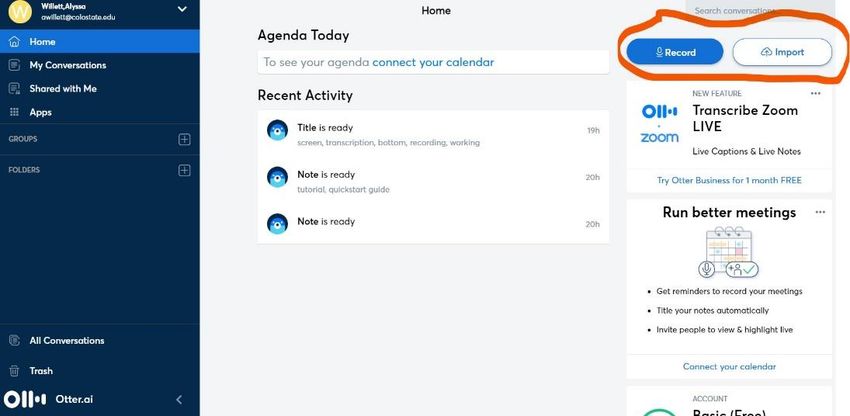
How to Use Otter.ai

Getting Started and Basic Features

    1. To begin, go to https://otter.ai/ and click on “Sign Up” to create a free account. If you have the
       paid version, you will go to https://otter.ai/ and click “Log in.” If you choose “Continue with
       Microsoft” you can link to your CSU email.
    2. Or download “Otter Voice Meeting Notes” for Android or iOS. Accounts will be linked by email.

    3. Click next to reach the home page. You will see a menu bar and options to record or import.

Assistive Technology Resource Center                                                          Alyssa Willett
Colorado State University                                                                     January 2021
                                           http://atrc.colostate.edu
                                       http://accessibility.colostate.edu
                                                       2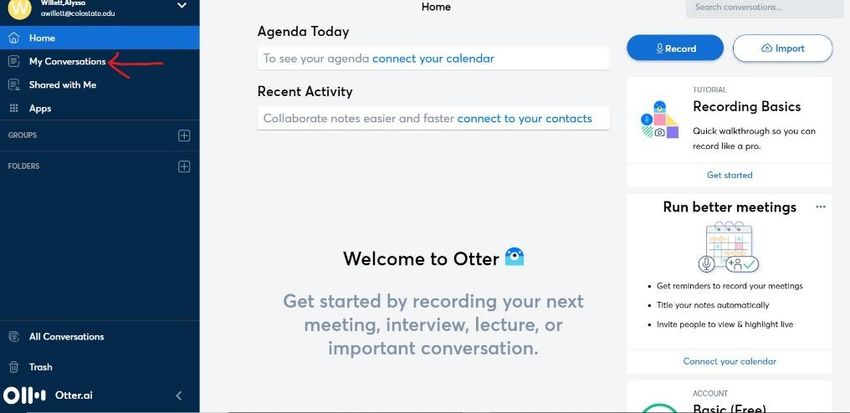
4. To begin recording notes, you can click on “record” from the home page, or you can choose
       “Start recording” on the “My Conversations” page.

    5. You will know that Otter is recording by the timer at the bottom of the screen. You may pause
       the recording with the pause button.

    6. Resume recording by clicking the microphone icon.

Assistive Technology Resource Center                                                       Alyssa Willett
Colorado State University                                                                  January 2021
                                           http://atrc.colostate.edu
                                       http://accessibility.colostate.edu
                                                       3
7. Otter allows the user to insert a photo during transcription by clicking the photo icon and
       choosing an image from your device.

    8. Browse your device for the image, select, open, and the image will appear inline with the
       transcription text.

Assistive Technology Resource Center                                                          Alyssa Willett
Colorado State University                                                                     January 2021
                                           http://atrc.colostate.edu
                                       http://accessibility.colostate.edu
                                                       4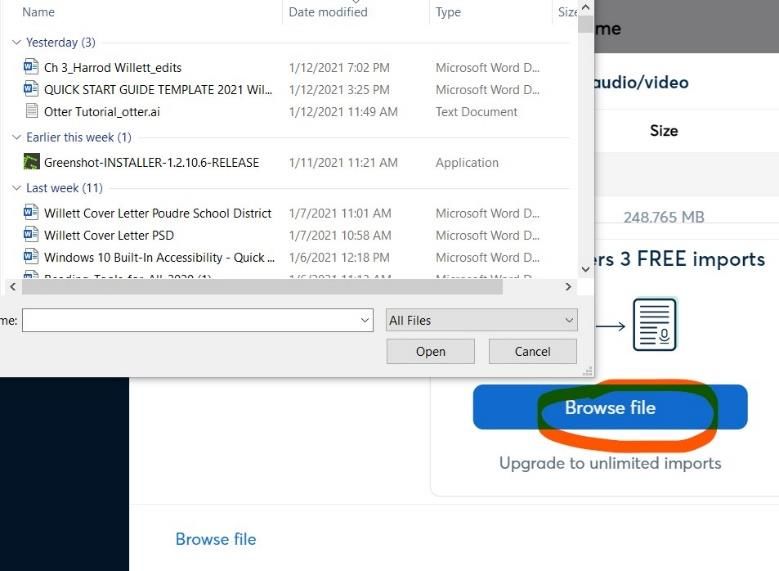
9. Stop the recording by clicking the stop icon. Once you stop the recording the note will be
       transcribed. This may take a few minutes depending on the length of recording. You are
       notified when your “note is ready” on your home page.

    10. If you want to transcribe a file that is already on your device, click “Import.” This will allow you
        to browse your device for the file. The Basic Free version only allows 3 imports.

Assistive Technology Resource Center                                                              Alyssa Willett
Colorado State University                                                                         January 2021
                                             http://atrc.colostate.edu
                                         http://accessibility.colostate.edu
                                                         5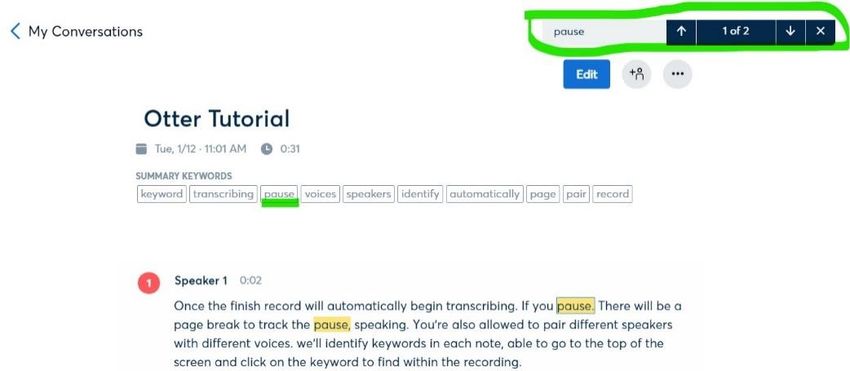
11. Locate the file, select, and click open. Once you have selected the file, Otter will show that the
        transcription is in process under “Progress.”

    12. You will find your transcribed note under “My Conversations” in the menu. Each conversation
        is automatically labeled “Note” and contains the date and time of the recording.

    13. You can listen to your note while reading the transcription by clicking the play button at the
        bottom of the screen. Otter will highlight each word of the transcription as it is played back. You

Assistive Technology Resource Center                                                             Alyssa Willett
Colorado State University                                                                        January 2021
                                            http://atrc.colostate.edu
                                        http://accessibility.colostate.edu
                                                        6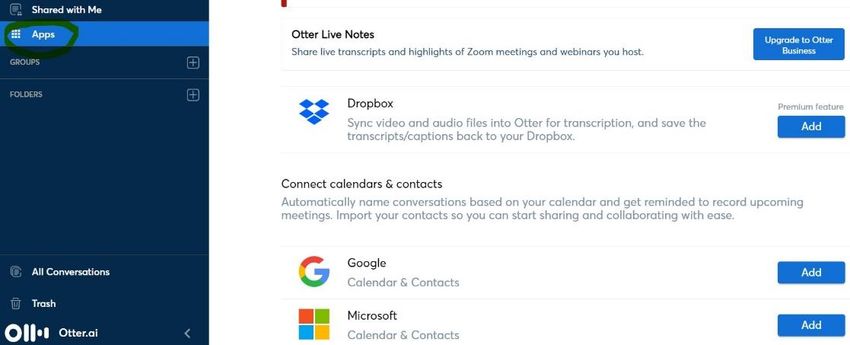
can check for accuracy.

    14. After checking the note for accuracy, you can edit the title and content of your transcription.

    15. Use “Search the Conversation” option to search the transcription for keywords. If a word
        appears multiple times, use the arrows to move through your transcription.

Assistive Technology Resource Center                                                            Alyssa Willett
Colorado State University                                                                       January 2021
                                            http://atrc.colostate.edu
                                        http://accessibility.colostate.edu
                                                        7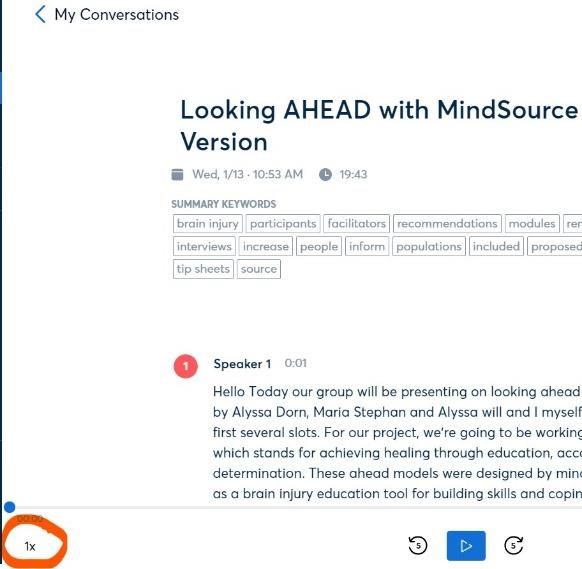
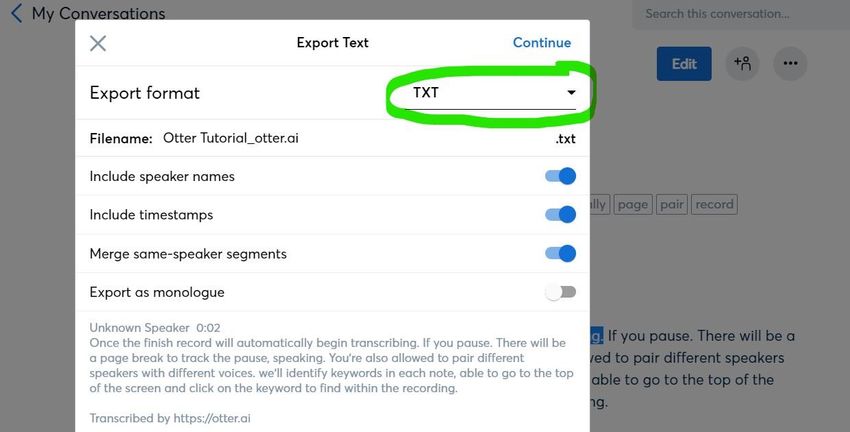
16. After reviewing and editing, you can export the transcription or audio by going to the more
        options icon and choosing “export text” or “export audio.”

    17. Choose “export text.” A window will appear with options for text format. The free version
        allows you to export and save as a text document or to “copy to clipboard.” The paid version
        allows DOCX, PDF, and SRT file types.

    18. To share your notes, click on the share icon, either type the contact in the “share with people
        and groups” box, or choose to “enable link” then copy the link and share it. You can choose
        where the transcription will begin so that you may share all, or just part of the notes by clicking

Assistive Technology Resource Center                                                             Alyssa Willett
Colorado State University                                                                        January 2021
                                            http://atrc.colostate.edu
                                        http://accessibility.colostate.edu
                                                        8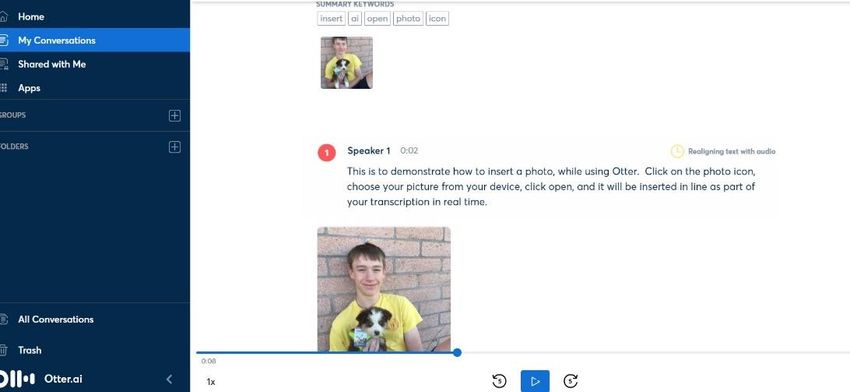
on “Start at” then typing in the time where you want the shared portion to begin.

Settings for Easier Viewing, Listening, and Organization

    •    Collapse the sidebar by clicking the arrow next to the Otter logo at the bottom of the menu.

Assistive Technology Resource Center                                                          Alyssa Willett
Colorado State University                                                                     January 2021
                                            http://atrc.colostate.edu
                                        http://accessibility.colostate.edu
                                                        9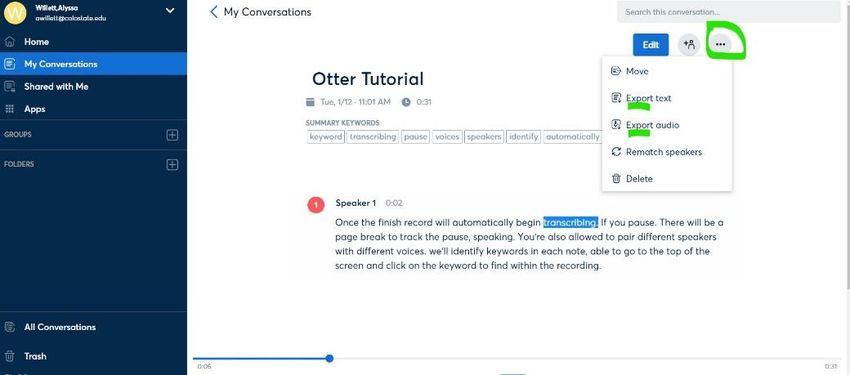
•    Listen at your own pace by adjusting the playback speed. Click “1x” to open the Playback
         Options menu and choose your playback speed.

Assistive Technology Resource Center                                                         Alyssa Willett
Colorado State University                                                                    January 2021
                                            http://atrc.colostate.edu
                                        http://accessibility.colostate.edu
                                                       10
• Pair speakers to identify who is talking by clicking on the number beside “Speaker.” You can
also click on the “more options icon” and choose “rematch speaker.”
Assistive Technology Resource Center Alyssa Willett
Colorado State University January 2021
http://atrc.colostate.edu
http://accessibility.colostate.edu
11• Organize your notes by using folders. Select “Folders” from the menu bar, then “New Folder,”
then “Create a folder” by naming the folder and clicking “Create.”
Advanced Features / Other things to know / Paid version features
• Apps. Otter can sync Zoom Cloud Recordings automatically when enabled. Zoom Cloud is a paid
service. If you have Zoom Cloud and want to sync your recordings with Otter, go to “Apps” in
the menu and select “connect” for Zoom and follow the prompts. Otter will also sync to your
calendar. While in “Apps,” select “Connect calendars and contacts.”
• Keyboard Shortcuts for Audio Playback and Editing Transcription
Action Mac Windows
Play or Pause Esc Ctrl Space
Rewind 5 Seconds Left Arrow Ctrl R
Slow Down F3 Ctrl 3
Speed Up F4 Ctrl 4
Assistive Technology Resource Center Alyssa Willett
Colorado State University January 2021
http://atrc.colostate.edu
http://accessibility.colostate.edu
12Action Mac Windows
Insert a Paragraph Break Return Enter
Delete Paragraph Break Backspace Backspace or Delete
or Delete
Undo an Action Command Ctrl Z
Z
Redo an Action Command Ctrl Y
Y
• Premium versus Paid
o The Premium (paid) version of Otter comes with 6,000 minutes per month of recording,
including imports. The Basic (free) version comes with 600 minutes of recording per
month and 3 imports total.
o The Premium version of Otter can sync with Dropbox.
o The Premium version allows you to export transcriptions as PDF, DOCX, and SRT files.
The Basic version exports as a text file or to your clipboard, which can be copied to a
Word document.
• For more explanation of features, check out this Otter.ai Tutorial
(https://www.youtube.com/watch?v=GYCAqtgyUyY), or find additional tutorials in Account
Settings.
• Help can be found by clicking the arrow by your name, then “Help Center.”
Assistive Technology Resource Center Alyssa Willett
Colorado State University January 2021
http://atrc.colostate.edu
http://accessibility.colostate.edu
13Program Manufacturer Contact Info
• Company Name: Otter.ai
• Email: support@otter.ai
• Website: https://otter.ai/about
• Cost
o Basic Plan: Free
o Premium Plan: $9.99 per month
Assistive Technology Resource Center Alyssa Willett
Colorado State University January 2021
http://atrc.colostate.edu
http://accessibility.colostate.edu
14You can also read


