User Manual Vaccine Recipient - CDC
←
→
Page content transcription
If your browser does not render page correctly, please read the page content below
User Manual
Vaccine Recipient

                    v2 | rev Feb 14 2021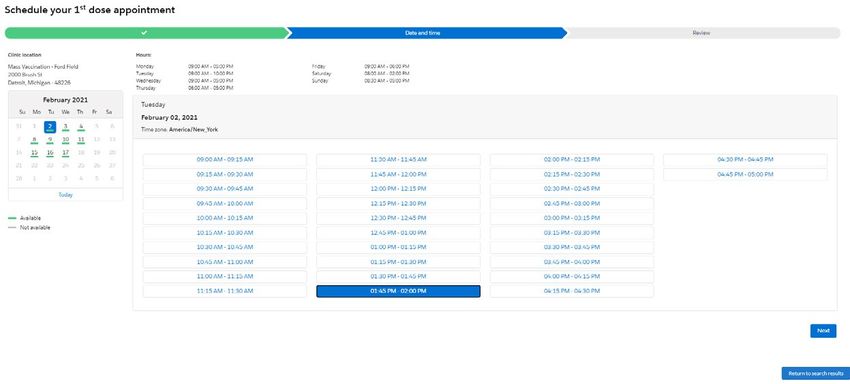
User Manual Vaccine Recipient

                    Table of Contents
Title                                                                                       Page
Introduction _______________________________________________________                            2
• Welcome to VAMS ____________________________________________________________                  2
• How to Use This Manual _______________________________________________________                3
• Navigating VAMS _____________________________________________________________                 4
Section 1 | Getting Started in VAMS ___________________________________                         5
• Step 1: Activate Your VAMS Account ____________________________________________               6
• Step 2: Provide Personal Information ____________________________________________             7
• Step 3: Enter Insurance Information (optional) ____________________________________           8
• Step 4: Review Your Information _______________________________________________               9
Section 2 | Schedule Your Vaccination Appointment _____________________                       10
• Answer Prescreening Questions________________________________________________               11
• Find a Clinic (Find a Clinic Near You) _____________________________________________        12
• Select a Time (Select an Appointment Date and Time) ______________________________          13
• Review (Review Your Vaccination Appointment Information) _________________________          14
• Cancel or Reschedule Your Appointment ________________________________________              15
• Walk-in Appointments _______________________________________________________                16
Section 3 | Get Vaccinated ____________________________________________                       17
• Steps to Take Before Your Appointment __________________________________________            18
• Steps to Take After Your Appointment ___________________________________________            20
Section 4 | Get Help _________________________________________________                        22
• View Frequently Asked Questions ______________________________________________              23
Glossary of Terms ___________________________________________________                         24

                                                1
                                                                                              v2 | rev Feb 14 2021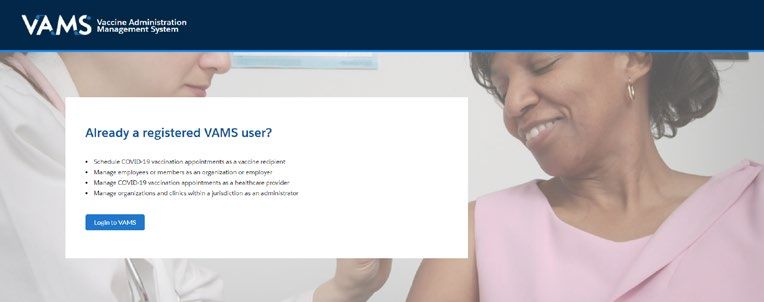
User Manual Vaccine Recipient

             Welcome to VAMS
The Vaccine Administration Management System (VAMS) is an easy-to-use, secure, online tool to manage
vaccine administration from the time the vaccine arrives at a clinic to when it is administered to a recipient.
VAMS is free for public-health-approved clinics, and can be used on computers, tablets, and other mobile
devices. It is not a smartphone app, and no installation or download is required for this web-based platform.
It supports operations as well as vaccine inventory and administration data collection and tracking for
analysis and reporting.

VAMS Portals | Each of the four portals were designed with end users in mind.

                        Jurisdiction Portal users can use VAMS to:
                        • Designate specific organizations that serve priority groups (including volunteers) for
                          initial allocation.
                        • Identify at-risk populations that are a high priority for vaccination.
   Jurisdiction         • Build a database of COVID-19 vaccination clinics in their jurisdiction.
      Portal            • Access COVID-19 vaccine inventory and administration data for analysis and reporting.

                        Clinic Portal users can use VAMS to:
                        • Register their clinic location and add clinic staff as users.
                        • Set up their clinic schedule with ability to cancel, modify, and/or change recipient
                           appointments (standard and mobile clinics only).
                        • Document and track COVID-19 vaccine administration and waste.
  Clinic Portal
                        • Monitor vaccine inventory levels.
                        • View clinic-level reports.

                        Organization* Portal users can use VAMS to:
                        • Add priority group members to VAMS to be considered for COVID-19 vaccination.
                        • Automatically send email notifications to those individuals to register in VAMS and
  Organization            schedule their vaccination appointment(s).
     Portal

                        Recipient Portal users** who receive vaccine at a standard or mobile clinic and can use
                        VAMS to:
                        • Register their account online or using a mobile device.
                        • Locate a clinic and schedule or cancel vaccination appointments.
    Recipient
                        • Receive notifications about upcoming appointments or documents for the day of
     Portal
                          vaccination.
                        • Schedule and track follow-up vaccination appointments (if applicable).
                        • Receive proof of vaccination.
                        NOTE: Vaccine recipients at third-party clinics will not use VAMS at all.
*”Organization” refers toany institution, association, company, or other group that identifies and adds members (individuals eligible for COVID-19
vaccine) in VAMS.
**To use VAMS, vaccine recipients must have an email address, internet access, and the ability to navigate the system or have someone assist them.

Introduction | Return to Table of Contents                             2
                                                                                                                                      v2 | rev Feb 14 2021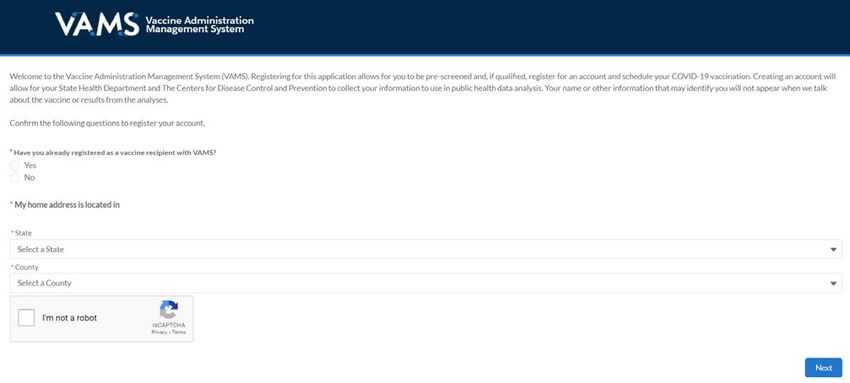
User Manual Vaccine Recipient
Vaccine Recipient User Manual
This user manual is designed for you.
As a vaccine recipient, you will use VAMS to schedule vaccination appointments at a clinic near you and to
add your personal information.
How to Use this User Manual
Throughout this user manual, you will see the following components.
Component Description
NOTE: Notes are need-to-know pieces of information you should be aware of.
Quick Tip: Quick Tips are good-to-know pieces of information and tips for getting the most out of VAMS.
Arrows Arrows indicate action items (e.g., “Click the button”).
Circular bullets indicate information about steps in a process that don’t require action (e.g., “A
• Bullets
pop-up window will appear”).
Bright blue hyperlinks Bright blue hyperlinks link to external pages (e.g., https://vams.cdc.gov/vaccineportal/s).
Gray hyperlinks in the footer link to section dividers and to this manual’s table of contents (e.g.,
Gray hyperlinks
“Return to Table of Contents” links in the page footers).
Dark blue hyperlinks link to other pages in this manual (e.g., Step 1: Activate Your Account in
Dark blue hyperlinks
VAMS).
Buttons like the one pictured also link to other pages in this user manual.
Introduction | Return to Table of Contents 3
v2 | rev Feb 14 2021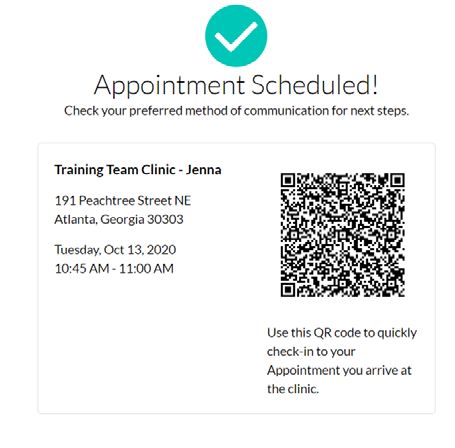
User Manual Vaccine Recipient

           Navigating VAMS
Quick Tip: VAMS works best in the Google Chrome browser but can be accessed via any browser except
Internet Explorer. VAMS also works on mobile browsers.

To access VAMS once registered, visit the landing page
(https://vams.cdc.gov/vaccineportal/s) and log in with
your user name and password (see Section 1, Step 1 for
how to activate your VAMS account).

The components listed below are in VAMS to help you navigate the system.

Header/Banner

The VAMS logo takes you to your portal’s home page. The Help link takes you to a list of frequently asked questions
(FAQs) that will help you navigate the system. Click the drop-down arrow next to your name in the top right corner of
the page to log out of the system.

Buttons
Buttons like those shown on the right allow you to start,
advance, and complete tasks.

Tabs
Click tabs on a page to move between pages or page
sections. The tab you are currently viewing will be
underlined and bolded. Tabs not being viewed will
be grayed out.

Tables
Tables allow users to sort or filter information previously
entered in VAMS. You can view entry details by clicking
the links in each row.

A Note About Privacy
To receive COVID-19 vaccine, you must enter data that are considered personally identifiable information
(PII) and protected health information (PHI). PII is any data that could potentially identify you, like your name
and address. PHI is information about your physical and mental health and other conditions, like whether
you are pregnant. VAMS complies with the Health Insurance Portability and Accountability Act of 1996
(HIPAA) privacy and security rules. For more information about HIPAA, visit
https://www.cdc.gov/phlp/publications/topic/hipaa.html.

Introduction | Return to Table of Contents                    4
                                                                                                              v2 | rev Feb 14 2021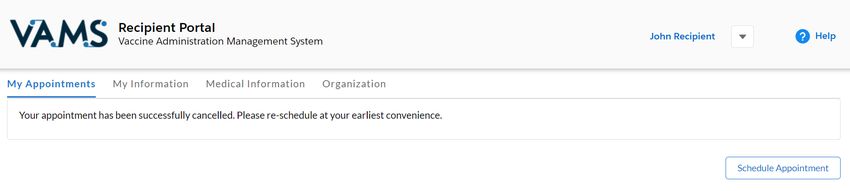
User Manual Vaccine Recipient
Section 1
Getting Started in VAMS
You must activate your VAMS account to schedule a vaccination appointment at a clinic near you. This
checklist summarizes the four steps you will take to activate your account and get set up in VAMS.
The links below are clickable and will take you to the corresponding pages in this user manual.
Step What You Need to Complete this Step
Step 1: Activate Your VAMS Account to • Access to the internet
access VAMS. Follow prompts after clicking • Access to your email account
the registration link in the email from • Registration email from vams@cdc.gov
vams@cdc.gov to complete this step.
Step 2: Provide Personal Information and • Date of birth
contact information, including your preferred • Race and ethnicity
contact method. • Home address
• Cell phone number
• Preferred method of contact
Step 3: Enter Insurance Information, if • Insurance provider
applicable. • Group number
• Policy number
Step 4: Review Your Information and • Nothing
confirm it is correct.
Section 1 | Return to Table of Contents 5
v2 | rev Feb 14 2021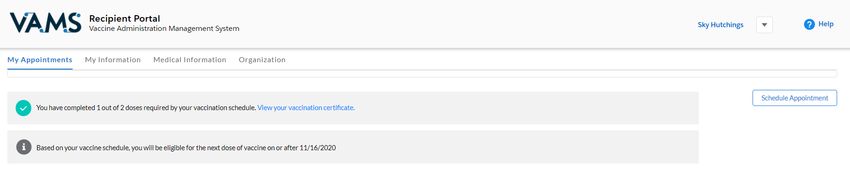
User Manual Vaccine Recipient
Step 1: Activate Your VAMS Account
What you’ll need to complete this step
• Access to the internet
• Access to your email account
• Registration email from vams@cdc.gov
You must activate an account in VAMS to use the system. After the organization coordinator for your
organization enters your name and email address in VAMS, you will receive an email with a VAMS registration
link. VAMS will send you up to five reminder registration emails until you register.
Search your inbox for an email from vams@cdc.gov.
Quick Tip: If this email is not in your inbox, you may need to check your junk or spam mail folders. If you
still cannot find the email, contact your organization coordinator.
Click the registration link in the email. This will take you to the prescreener page in VAMS.
NOTE: The registration link in your email is for your registration
only and cannot be used to register anyone else. Please do not
forward it to anyone because the link will not work for them.
Respond to the prescreening question, enter your
state and county, complete the reCAPTCHA, then
click Next.
• If you are eligible for vaccination after responding
to the prescreening questions, you will progress to
the account registration page.
Check your email account for a verification code that
will be sent to you immediately after clicking Next.
Enter the verification code in the pop-up window in
VAMS and click Submit.
NOTE: Every time you log into VAMS, you must
verify your identity by entering your password,
and a number you receive via email or SMS,
depending on the preferred contact method you
choose (two-factor authentication process). After
five log-in attempt failures, you will be locked out
of the system for one hour.
Create and verify your password.
Read the terms and conditions and check the box saying you
agree, then click Create Account.
Upon activating your account, you will follow Steps 2–6 to register
in VAMS.
Section 1 | Return to Table of Contents 6
v2 | rev Feb 14 2021
User Manual Vaccine Recipient
Step 2: Provide Personal Information
What information you’ll need to provide to complete this step
• Date of birth (DOB)
• Race and ethnicity
• Home address
• Cell phone number
• Preferred method of contact
• After activating your VAMS account, you will be taken through the account registration process. The first
step of this process is to enter personal information.
• Your name and email address will already be entered
since you just activated your account. If needed, you
can edit your first and last name during registration.
You are required to enter the following information as
indicated by red asterisks next to these fields:
• Gender (option to decline to specify)
• Date of birth
• Race and ethnicity
• Home address
• Cell phone number
• Preferred method of contact (email or SMS/text
message)
NOTE: If you elect to receive text messages, you
can respond to an automated message with HELP
at any time to be taken to the FAQs page in VAMS
for assistance or STOP to opt-out of future
messages.
If you unsubscribe or opt out of notifications,
you will no longer receive any notifications from
VAMS, including appointment reminders.
• Entering the following information is optional:
• Middle name
• Home phone
• Emergency contact name and phone
number If you select SMS as your preferred contact
Click Next. method, you will be prompted to enter a
confirmation code sent to your cell phone.
Enter the code, then click Submit.
Section 1 | Return to Table of Contents 7
v2 | rev Feb 14 2021
User Manual Vaccine Recipient
Step 3: Enter Insurance Information (Optional)
What optional information you can provide to complete this step
• Your insurance provider
• Group number
• Policy number
This step is optional.
If you do not want to add insurance information, click Next.
If you want to add insurance information, enter your insurance information, including:
• Insurance provider
• Group number
• Policy number
Click Next.
Section 1 | Return to Table of Contents 8
v2 | rev Feb 14 2021
User Manual Vaccine Recipient
Step 4: Review Your Information
Review your personal and insurance (if applicable)
information for accuracy. If any information is
inaccurate, click Previous to make edits before
moving forward.
Confirm all information is correct and complete,
then check the box that you agree the information
is correct.
Click Finish. This takes you to the Confirmation
page.
Click View Portal to be taken to the Recipient
Portal home page or click Schedule Vaccination
Appointment to begin scheduling an
appointment.
NOTE: After registering, you can log in at any time to
review or edit your information through the Recipient
Portal tabs and to schedule a vaccination
appointment.
Section 1 | Return to Table of Contents 9
v2 | rev Feb 14 2021User Manual Vaccine Recipient
Section 2
Schedule Your Vaccination Appointment
Now that your VAMS account is activated and ready to use, you can schedule your COVID-19 vaccination
appointment. This section will review how to schedule, cancel, or reschedule an appointment and provide
information about walk-in appointments.
The boxes below are clickable links to the corresponding pages in this user manual.
Schedule Your Appointment
Use VAMS to:
Complete the prescreening questions about any past COVID-19 vaccination.
Schedule Appointment Find a clinic near you.
Select a vaccination appointment date and time.
Review your vaccination appointment information.
Cancel or Reschedule
Your Appointment Learn how to cancel or reschedule a vaccination appointment if needed.
Walk-in Appointments Learn more about walk-in appointments available at many clinics.
Section 2 | Return to Table of Contents 10
v2 | rev Feb 14 2021User Manual Vaccine Recipient
Schedule Your Appointment: Answer
Prescreening Questions
What you’ll need to complete this step
• Knowledge of whether you have received your first COVID-19 vaccine dose and, if so, from which
manufacturer. NOTE: There is an option to select “I don’t know” for manufacturer.
Scheduling your appointment ahead of time ensures you can be vaccinated quickly.
Schedule your appointment from the My Appointments page or from the Registration Confirmation
page by clicking the Schedule Appointment button.
NOTE: You can only have one appointment scheduled at a time. If you have an existing appointment
scheduled, you will not be able to schedule another appointment until the existing appointment is
cancelled or completed.
Select an answer to the prescreening
question, “Have you received a COVID-19
vaccine?” from the drop-down menu.
If you selected any “Yes” answer, the system
will prompt you to input the date you
received COVID-19 vaccination.
• The date you’re eligible to receive your
second dose depends on the manufacturer
you selected in the question.
o If you selected Pfizer-BioNTech, you can schedule a second dose 21 days after you received your
first dose.
o If you selected Moderna, you can schedule a second dose 28 days after you received your first dose.
o If you selected “I don’t know,” you can schedule a second dose 28 days after you received your first
dose.
Once finished, click Continue.
NOTE: No matter which vaccine you received for your first dose, you must schedule a second dose no later
than 42 days after receiving your first dose.
Section 2 | Return to Table of Contents 11
v2 | rev Feb 14 2021User Manual Vaccine Recipient
Schedule Your Appointment: Find a Clinic
What you’ll need to complete this step
• ZIP/postal code where you want to be vaccinated
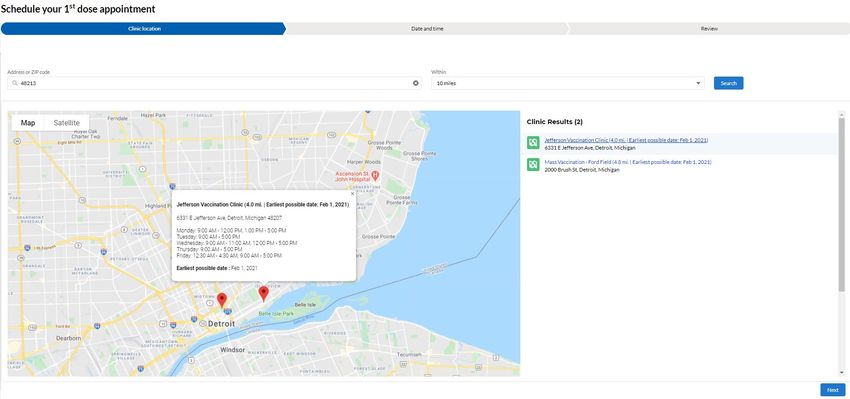
Next, you will be taken to the Clinic Locations page to select the clinic where you’d like to receive
vaccination.
On the Clinic Location page, the ZIP code you entered when registering in VAMS will autopopulate and
bring up a list of clinics within 10 miles of that ZIP code. You can also locate a clinic by entering another
address or ZIP code where you want to receive vaccination. You can filter results to locate a clinic within
a 5-, 10-, 20-, 50-, or 100-mile radius of your address or ZIP code by clicking the drop-down arrow in the
Within field.
Click Search and a list of clinics within your selected mile radius will appear.
• The list of clinics is displayed in a sorted order based on distance and will also show the earliest possible
date an appointment is available at the clinics. VAMS will consider if it is your first or second dose
appointment and show the appropriate earliest available time slots for your dose at each clinic.
• Once you select a clinic name in the list view, information about that clinic will populate on the map,
including the clinic’s location, operating hours, and earliest possible date for your vaccination.
Click the clinic name of your preferred clinic, then click the Next button that appears below the map.
NOTE: The Next button will only appear once you select a clinic name.
Section 2 | Return to Table of Contents 12
v2 | rev Feb 14 2021User Manual Vaccine Recipient
Schedule Your Appointment: Select a Time
What you’ll need to complete this step
• What date and time you’re available for an appointment (keep travel time in mind).
On the Date and Time page, select an
available appointment date on the
calendar located on the left side of the
page. Days with available appointments
are underlined in green. Days with no
available appointments are underlined in
gray. Days completely grayed out are days
the clinic is not operating.
Select your appointment time by clicking
a time slot, then click Next. Only
available time slots will appear. You can
also select Return to Search Results to
return to the list of available clinics.
NOTE: Your selected appointment time slot will be held in the system for 10 minutes. If the
appointment is not confirmed by that time, it will be released in the system.
Quick Tip: When considering an appointment, please allow plenty of time to arrive on time. Showing up
late may result in cancellation and require you to reschedule at a later date.
Review your selected appointment
location, date, and time.
Click Submit to confirm your
appointment or Previous to make any
changes.
• After clicking Submit, you will see a confirmation that your
appointment has been scheduled. The confirmation includes your
appointment details and a QR code.
• You can present this QR code to the front desk staff for a contactless
check-in when you arrive for your appointment, if the clinic has QR
code scanning capabilities.
Click Return to Portal in the lower left corner to return to the portal
home page.
NOTE: You will also receive an appointment confirmation through
your preferred contact method.
Section 2 | Return to Table of Contents 13
v2 | rev Feb 14 2021User Manual Vaccine Recipient
Schedule Your Appointment: Review
Review Appointment Information
After you return to the portal home page, you can view your appointment information on the My
Appointments tab. The My Appointments table on this tab lists all the appointments you scheduled,
completed, or cancelled.
• Twelve hours or less before your appointment, a new alert will appear above the My Appointments tab
with a link to a Prevaccination Questionnaire. You must complete the questionnaire before receiving
vaccine. Information about the vaccine will be in EUA Fact Sheets.
• Section 3: Receive Your Vaccine provides detailed instructions for completing this questionnaire.
To view details about a particular appointment, click View Appointment in the far-right column of the
table.
• A new window will appear with the same details you saw on the appointment confirmation page (e.g.,
clinic address and QR code).
Section 2 | Return to Table of Contents 14
v2 | rev Feb 14 2021User Manual Vaccine Recipient
Cancel or Reschedule Your Appointment
You must use VAMS to cancel or reschedule your appointment. Click Cancel Appointment in your
appointment confirmation email or click the link in your confirmation text message to access VAMS.
NOTE: Appointment cancellation policies may vary among clinics. Contact your clinic for more information.
Follow these steps to cancel an appointment in VAMS:
Click on the My Appointments tab.
Click View Appointment to access the
appointment you want to cancel.
Click the Cancel Appointment button.
• A pop-up window will appear confirming you want to cancel the appointment.
Select a reason for cancellation from
the drop-down menu.
If you want to proceed, click Cancel
Appointment.
If you want to keep the appointment,
click Keep Appointment.
• A pop-up window will appear confirming the
appointment has been cancelled.
Click OK.
To reschedule an appointment:
1. Follow the steps above to cancel your original appointment.
2. Follow the steps listed at the beginning of this section to schedule a new appointment.
Section 2 | Return to Table of Contents 15
v2 | rev Feb 14 2021User Manual Vaccine Recipient
Walk-In Appointments
Some clinics may allow walk-in appointments if you do not have a Quick Tip: Walk-in
scheduled appointment. appointment availability
may vary at each clinic.
You may also request a walk-in appointment even if you already have an Contact your desired clinic
appointment scheduled at a different clinic or if you already have an for more information.
appointment scheduled at that clinic but would like to be seen sooner.
Regardless, you must perform the following steps before requesting a
walk-in appointment at a clinic:
Register in VAMS.
Follow these steps to request a walk-in appointment:
Locate and travel to a clinic. Make sure you check the clinic operating hours to confirm the clinic will be
open when you arrive.
Inform the front desk staff that you would like a walk-in appointment.
• The front desk staff will request your email address to confirm you have registered in VAMS, so make sure
you provide the email you used when you activated your VAMS account.
• The front desk staff will confirm you do not have any vaccination appointments
scheduled in the system and then schedule a walk-in appointment at the current
clinic. This process will create a QR code for check-in. You can immediately log into
VAMS and complete your Prevaccination Questionnaire. This must be completed
before you receive vaccine.
NOTE: The front desk staff will check you in after creating your walk-in
appointment, but you may have to wait to be seen until a healthcare
professional is available.
• If you already have an appointment scheduled at another clinic, the
front desk staff can provide you with information about the
appointment so you can decide if you want to:
o Keep the existing scheduled appointment or
o Cancel the existing appointment and have the front desk staff
schedule a walk-in appointment at that clinic.
• If the front desk staff schedules a walk-in appointment for you, the
process will create a QR code for check-in.
Section 2 | Return to Table of Contents 16
v2 | rev Feb 14 2021User Manual Vaccine Recipient
Section 3
Get Vaccinated
This section tells you what to expect and what needs to be done before and after your vaccination
appointment and how VAMS can help you complete these tasks.
The boxes below are clickable links to the corresponding pages in this user manual.
Get Vaccinated
Receive your appointment confirmation and complete the Prevaccination
Steps to Take Before Your
Questionnaire required for vaccination. Review the vaccine information provided
Appointment(s)
to you before your appointment.
Steps to Take After Your
Schedule your next vaccination appointment and report any side effects.
Appointment(s)
Section 3 | Return to Table of Contents 17
v2 | rev Feb 14 2021User Manual Vaccine Recipient
Steps to Take Before Your Appointment
Here’s what to expect leading up to and on the day of your appointment.
Pre-Appointment Notifications
You will receive the following notifications through your preferred contact method.
NOTE: If you unsubscribe/opt out of notifications, you will no longer receive appointment reminders, the
reminders listed below, or any other electronic communication from VAMS.
Appointment Confirmation: This includes appointment details like date, time, location, what to
bring, and a link to cancel the appointment.
Appointment Reminder with Prevaccination Questionnaire and Emergency Use Authorization
(EUA) Fact Sheet. This includes:
• A link to the EUA Fact Sheet for Recipients and Caregivers. This document will provide
information you need to know about the vaccine.
• A link to the Prevaccination Questionnaire. You must complete the questionnaire before
receiving the vaccine.
The Prevaccination Questionnaire will look similar to the screenshot below and require you to
answer questions about your health and acknowledge receipt of the vaccine information
provided before receiving the vaccine.
It is important you answer these questions truthfully. Your answers are used to determine if you
can receive a vaccine on the day of your appointment.
NOTE: Your current health status may require you to reschedule your appointment.
Answer the questions in the questionnaire.
Click Next.
This is only a sample of the first few questions that
may be on the Prevaccination Questionnaire.
As referenced in Section 2: Schedule Your Vaccination Appointment, you can also access the Prevaccination
Questionnaire through VAMS. An alert appears above the My Appointments tab 12 hours before your
appointment time.
NOTE: You must complete the Prevaccination Questionnaire before you receive vaccination. You can
complete the questionnaire before your appointment by logging into VAMS or during your appointment by
walking through the questions with your healthcare professional.
Section 3 | Return to Table of Contents 18
v2 | rev Feb 14 2021User Manual Vaccine Recipient
Steps to Take Before Your Appointment
(continued)
Timing of Notifications
When you receive the Appointment Reminder with EUA Fact Sheets and Prevaccination Questionnaire
notification depends on how far in advance you schedule your appointment.
If your appointment is… If your appointment is… If your appointment is…
…TODAY …TOMORROW …1+ DAYS AWAY
If you select an appointment If you select an appointment If you select an appointment
time that is the same day, time for the next day, you more than 24 hours away
you receive notifications: receive notifications: that is not scheduled for the
next day, you receive
If appointment is before notifications:
Within 15–20 minutes of 12 PM the next day, 9 PM
appointment confirmation the night before the 12 hours before your
appointment appointment
if appointment is after 12
PM the next day, 12 AM
the day of the
appointment
NOTE: All times shown will align with your local time zone.
Arriving for Your Appointment(s)
When arriving for your appointment, it is recommended you bring the following items:
• One of the options below:
o Printed copy of your appointment confirmation, including your appointment-specific QR code
(click Ctrl + P to print the QR code from VAMS).
OR
o Your phone/mobile device with your appointment confirmation QR code for contactless
check-in.
• Government-issued ID (required at some clinics)
NOTE: If your clinic requires a government-issued ID and you do not provide one, your appointment will be
cancelled. You must then reschedule your appointment.
Section 3 | Return to Table of Contents 19
v2 | rev Feb 14 2021User Manual Vaccine Recipient
Steps to Take After Your Appointment
Here’s what to expect after your appointment.
Schedule Your Next Appointment
If the vaccine you receive requires a second dose, it’s important that you schedule your next appointment so
you can make sure you get both COVID-19 vaccine doses to be protected.
After you receive your first dose, you can immediately schedule an appointment to receive your next
dose. The appointment times available to you will depend on the vaccine protocol, meaning you will not be
able to schedule an appointment for any date before the next dose is actually due.
If you don’t schedule your next appointment right away, you will get a reminder notification to do so. This
notification is sent through your preferred contact method and includes a link to schedule your
appointment in VAMS. You will also see a notification on the Recipient Portal home page when you log into
VAMS telling you when you are eligible for your next dose.
The steps for scheduling your next appointment are the same as those in Section 2: Schedule Your
Vaccination Appointment.
Post-Appointment Notifications
You will receive the following notifications after your appointment. They will be sent through your preferred
contact method.
NOTE: If you unsubscribe or opt out of notifications, you will no longer receive appointment reminders, the
reminders listed below, or any other notifications from VAMS.
Schedule your follow-up appointment: Confirms receipt of first vaccine dose and provides
information on when and how to schedule your next appointment, if required.
Schedule your follow-up appointment reminder: A reminder to schedule your next appointment if
you haven’t done so already.
Possible side effect follow-up: A reminder on how and when to report any serious complications
(adverse events) that may arise after vaccination to ensure your safety.
Section 3 | Return to Table of Contents 20
v2 | rev Feb 14 2021User Manual Vaccine Recipient
Steps to Take After Your Appointment
(continued)
View Your Vaccination Certificate
After receiving each dose of the vaccine, you will receive a vaccination certificate. If the vaccine you received
requires a second dose and you have only received the first dose, you will see the notification below in VAMS
that shows that you have received 1 out of 2 doses required for your vaccination schedule. After you have
completed all required vaccine doses for vaccination, the vaccination certificate will confirm that you have
successfully received COVID-19 vaccination and may be used as your proof of vaccination, if required.
Click View your
vaccination
certificate on the
Recipient Portal
home page.
• Clicking this link will open the Certificate of COVID-19 Vaccination window. Here you may view and
download a PDF of your certificate.
Section 3 | Return to Table of Contents 21
v2 | rev Feb 14 2021User Manual Vaccine Recipient
Section 4
Get Help
If you need help when using VAMS, click the Help link in the top right corner of the navigation bar to search
for answers to frequently asked questions (FAQs).
The box below is a clickable link to the corresponding page in this user manual.
VAMS Support
View FAQs Know how to find answers to FAQs about VAMS.
Section 4 | Return to Table of Contents 22
v2 | rev Feb 14 2021User Manual Vaccine Recipient
View Frequently Asked Questions
Where to Find Additional VAMS Resources and Information
Help Page
If you need help when using VAMS, click the Help link in the top right corner of the navigation bar to search
for answers to FAQs.
You can read through the list of FAQs or you can search for a particular topic in the search bar located below
the Recipient FAQs tab.
Section 4 | Return to Table of Contents 23
v2 | rev Feb 14 2021User Manual Vaccine Recipient
Glossary of Terms
Term Definition
Adverse Event Any health problem that occurs after vaccination.
Emergency Use A document produced by the vaccine manufacturer that informs vaccine
Authorization (EUA) Fact recipients or their parents or legal representatives about the benefits and
Sheet risks of a vaccine they are receiving.
Member An individual being added in VAMS to receive a COVID-19 vaccine.
Organization Any institution, association, company, or other group that identifies and adds
members (individuals eligible for COVID-19 vaccine) in VAMS.
Prevaccination Questionnaire recipients must complete prior to receiving vaccine.
Questionnaire Healthcare professionals will review this information to ensure there are no
contraindications or precautions present before administering vaccine.
Recipient Any individual who registers in VAMS to receive COVID-19 vaccination.
Vaccination Clinic A clinic administering COVID-19 vaccine. Sometimes referred to as a
“vaccine clinic” in VAMS and this user manual.
Return to Table of Contents 24
v2 | rev Feb 14 2021You can also read


