Manage Pipeline Builder Leads in Recruiter - LinkedIn Business ...
←
→
Page content transcription
If your browser does not render page correctly, please read the page content below
Manage Pipeline Builder Leads in Recruiter
Pipeline Builder helps companies quickly build a targeted pipeline of interested talent in just three steps. Here’s
how it works and how you can manage these warm leads in LinkedIn Recruiter.

Step 1: Reach
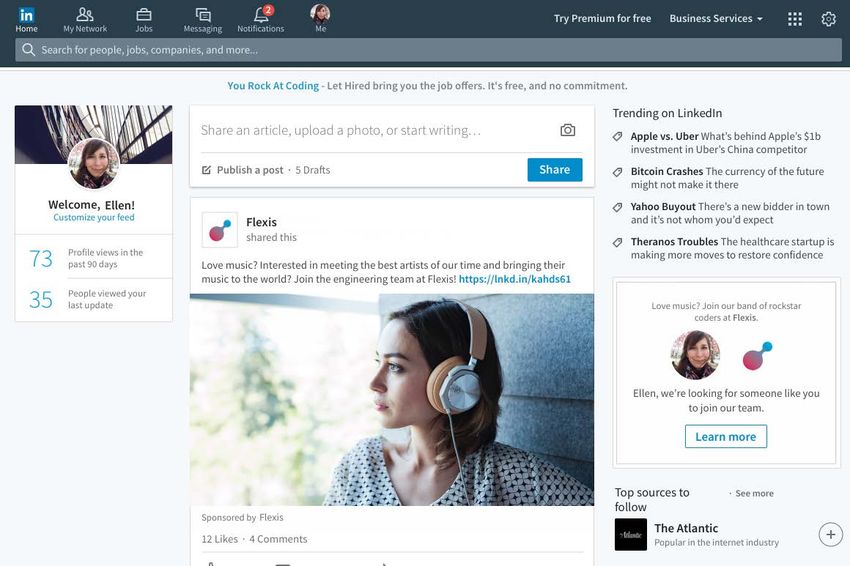
A Pipeline Builder campaign starts with the creation of Sponsored Content or a Recruitment Ad to promote a
specific opportunity at your company. Sponsored Content and Recruitment Ads automatically appear for your
target audience (e.g., job function, region, seniority) on LinkedIn.

                                                                                                         Sponsored
                                                                                                         Content

                                                                                                         Recruitment Ad

                                                                       ©2017-2019 LinkedIn Corporation. All Rights Reserved.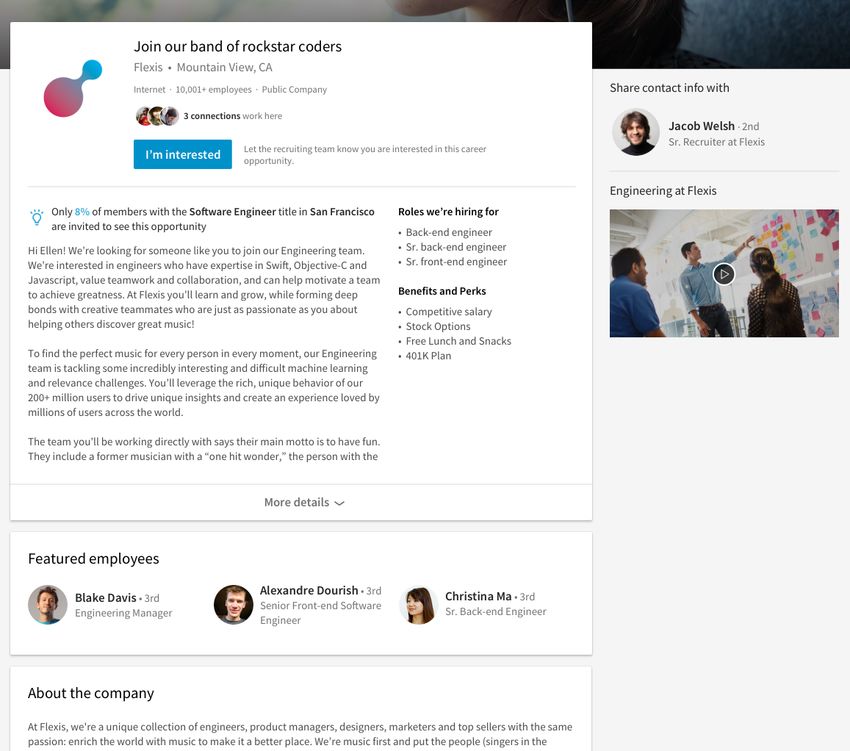
Step 2: Attract
  When the Sponsored Content or Recruitment Ad is clicked, the member is taken to a personalized landing
  page with information about the opportunity at your company. If the member is interested in the opportunity,
  they simply click the I’m interested button at the top of the page, share their contact information, and these
  details, along with their profile information automatically transfer into LinkedIn Recruiter.

Personalized
message with
more information                                                                                             Photos, videos,
about the                                                                                                    and slideshows
opportunty                                                                                                   engage
                                                                                                             prospective
                                                                                                             candidates and
                                                                                                             give a view from
                                                                                                             the inside

 Featured
 employees who
 prospective
 candidates may
 work with

                                                                        ©2017-2019 LinkedIn Corporation. All Rights Reserved.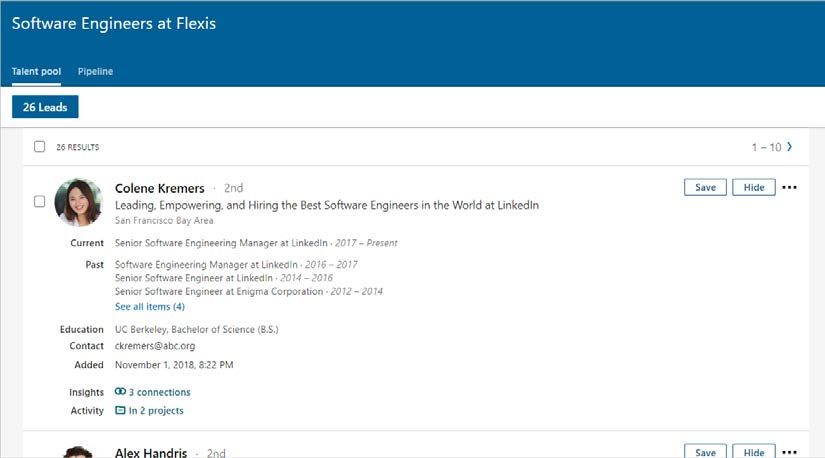
Step 3: Engage
After a member responds with interest to an opportunity at your company, they become a warm lead in your
recruiting pipeline. You can use Recruiter to move them from the Talent pool tab of your campaign folder to
the Pipeline tab of your campaign folder, directly follow up with each lead, and manage them through your
usual recruiting process.

Enable Email Notifications
If you want to be notified when members respond to your campaign, you can enable email notifications.

   1. Place your cursor over More
      and click Campaigns.

   2. Click Email settings.

   3. Select which campaigns you want to receive email notifications about when new leads respond.

                                                                                            Toggle email
                                                                                            notifications
                                                                                            On or Off.

                                                                    ©2017-2019 LinkedIn Corporation. All Rights Reserved.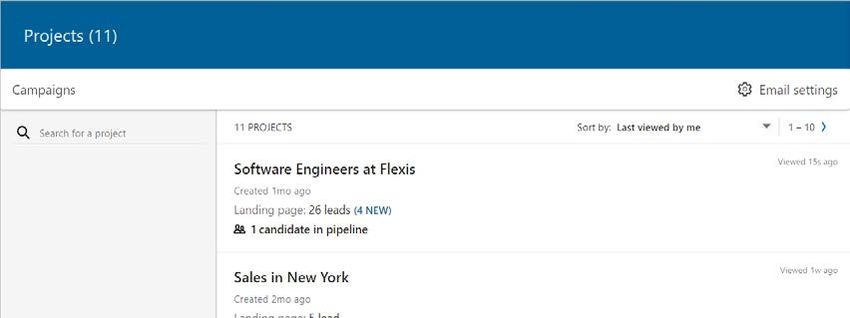
Review Pipeline Builder Leads and Move to the Pipeline tab
Move leads from the Talent pool tab of your campaign folder to the Pipeline tab of your campaign folder, so
that you can easily follow up with each person and manage them through your usual recruiting process.

  1. Place your cursor over More
     and click Campaigns.

  2. Click the title of the campaign you would like to manage.

  3. From the Talent pool tab, click each lead's name to view their full LinkedIn profile and decide if they
     are a good fit for your current or future opportunities.
  4. As you review each profile, follow your team’s best practices for adding tags, notes, or a source to
     help track leads that are generated from a Pipeline Builder campaign.

      View addtional
      contact information

                                                                     ©2017-2019 LinkedIn Corporation. All Rights Reserved.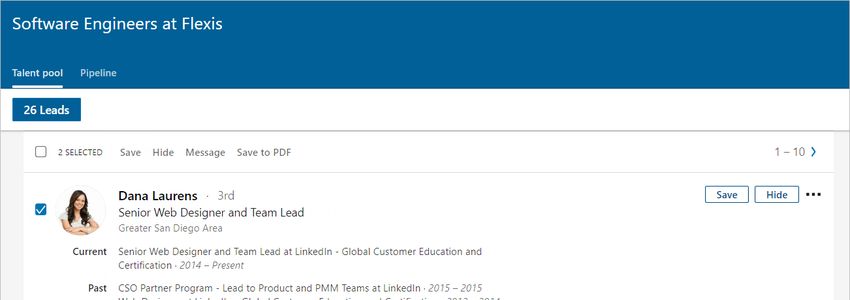
5. Select the leads you are interested in following up with and would like to move to the Pipeline tab.
   6. Click Save.

                                                                                                     Use the one-
                                                                                                     click Save
                                                                                                     button next to
                                                                                                     each profile to
                                                                                                     move leads
                                                                                                     one at a time
                                                                                                     to the Pipeline
                                                                                                     tab.

Archive Campaign Respondents
Once you’ve added the leads you are interested in following up with to the Pipeline tab, stay organized by
archiving all leads that you are not interested in, so you don't duplicate work in the future.

   1. Select the remaining leads in the Talent pool tab.
   2. Click Hide.

                                                                                                      Use the one-
                                                                                                      click Hide
                                                                                                      button next to
                                                                                                      each profile to
                                                                                                      archive leads
                                                                                                      one at a time.

                                                                     ©2017-2019 LinkedIn Corporation. All Rights Reserved.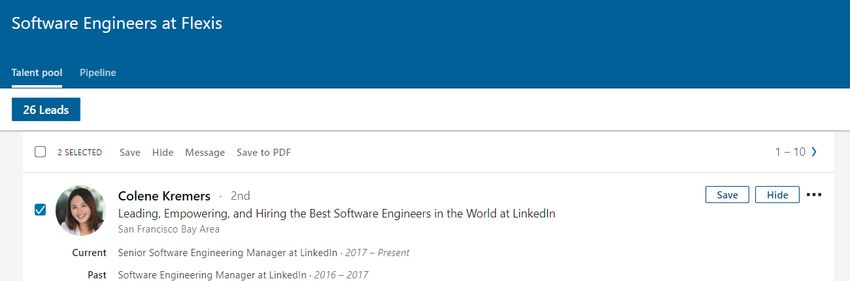
Best Practices for Communicating with Leads Generated from a Pipeline Builder Campaign
Respond within one week to everyone who expresses interest, regardless of whether they are a fit for
an open position, to capitalize on the momentum.
Even if a candidate is not a fit, and you do not anticipate that he or she will be a fit in the future, a polite
decline note will keep the candidate warm and close the loop on the process. Failure to do so risks
creating a negative brand perception / experience with your company.
Drive leads to take action – this is key to every response. If there is an open role, drive them to have a
discussion or complete an application. If there is currently no open role, drive them to follow your
company on LinkedIn or read a thought leadership article published by an employee at your company.
Follow up a few times and use both InMail and the member’s email and phone contact information, if
provided.
Create and use InMail templates to speed up your response process.
Example Templates for Responding to Every Lead
YES, FIT FOR ROLE OPEN TODAY
Example template: Thank you for expressing interesting in [insert company name]. We’d love to set up a time
to connect and see how we can work together to [insert some language from the campaign message]! We are
interested in learning more about your career goals and finding out about the important work you have been
doing in the [insert function] space. Please give us your availability over the next two weeks to connect directly
with one of our recruiters. In the meantime, feel free to follow us on LinkedIn and get the latest [insert
company] news, see company updates, and view employment opportunities.
NO, POTENTIAL FIT IN FUTURE
Example template: Thank you for expressing interest in [insert company name]. While we don’t have an
opportunity right now for which you would be a strong match, we’d love to keep you in mind should the right fit
open. In the meanwhile, please take a look at [insert link to article or white paper] to learn more about [insert
company’s functional focus]. If you are interested in learning more, please follow us on LinkedIn to be part of
our conversation.
NO, NOT A MATCH
Example template: Thank you for expressing interest in [insert company name]. There currently aren’t any
opportunities that are a strong match. We encourage you to stay up-to-date on what our company is doing.
Please follow us on LinkedIn to be part of our conversation.
©2017-2019 LinkedIn Corporation. All Rights Reserved.You can also read


