Google Tag Manager Manual Getting Started - Mirasvit
←
→
Page content transcription
If your browser does not render page correctly, please read the page content below
Google Tag Manager Manual

Getting Started
Welcome to the Google Tag Manager documentation.

Whether you are a new or an advanced user, you can find some useful information here.

Go ahead, dive in!
Firstly, please, find our extension in My Downloadable Products section of our store. Learn how to install
extension.

How to install the extension
How to install the extension using composer
   1. Backup your store's database and web directory.
   2. Login to the SSH console on your server and navigate to the root directory of the Magento 2 store.
   3.
      Copy the installation instructions from the page My Downloadable Products to the SSH console and
      press ENTER.

   4.
        Enable the extension:

              php -f bin/magento module:enable Mirasvit_Core Mirasvit_GoogleTagManage

   5.
        Install the extension:

              php -f bin/magento setup:upgrade

   6.
        Clean the cache

              php -f bin/magento cache:clean

   7. Deploy static view files
rm -rf pub/static/*
rm -rf var/view_preprocessed/*
php -f bin/magento setup:static-content:deploy
How to install the extension manually
1. Backup your store's database and web directory.
2. Download archive from My Downloadable Products.
3. Unzip the extension locally.
4. Copy unzipped folder to the root directory of the Magento store.
5.
Enable the extension:
php -f bin/magento module:enable Mirasvit_Core Mirasvit_GoogleTagManage
6.
Install the extension:
php -f bin/magento setup:upgrade
7.
Clean the cache
php -f bin/magento cache:clean
8. Deploy static view files
rm -rf pub/static/*
rm -rf var/view_preprocessed/*
php -f bin/magento setup:static-content:deploy
Install the extension for Hyva
1.
Run the command
composer require mirasvit/module-gtm-hyva:*
2.
Enable installed Hyva modules:
bin/magento module:enable Hyva_MirasvitGoogleTagManager
3.
Update Magento database schema and data with the command:
bin/magento setup:upgrade
4.
Compile the code of the installed extension:bin/magento setup:di:compile
5. Run the command below to clean the cache:
bin/magento cache:flush
Quick Start
Our Google Tag Manager for Magento 2 is a simple, yet powerful extension that allows you to track the
shopping behavior of your customers. Gathered data is supplied through the Google Tag Manager service to
Google Enhanced Ecommerce analytics to get hints on how to increase marketing ROI and boost sales.
Use this extension to track the shopping behavior of customers. Know when they add/remove/view cart, add
to wishlist, begin checkout, make purchase, choose shipping and payment methods, and many other actions.
Coonfiguration Settings
General
Attribute mapping
Customer mapping
Frontend debug panel
Configuration Settings
The module Google Tag Manager for Magento 2 requires a prior configuration before it is fully ready to use.
Navigate to Store > Settings > Configuration > Mirasvit Extensions > Google Tag Manager to open the
module's settings.
Setup Google Tag Manager
In order to connect your Magento 2 store to the Google Tag Manager service using our extension, it is
required that you create an account on the Google Tag Manager (GTM) service. GTM service is used for data
collection, and to analyze it with Enhanced Ecommerce reports, a Google Analytics account is required.
To connect your store with the GTM service, activate the Google Tag Manager extension and copy-paste
GTM JavaScript snippets into the script and noscript fields.Replace GTM-XXXX with your GTM account ID. Setup Google Universal Analytics or Google Analytics 4 The extension automatically passes all page views and e-commerce events to Google Tag Manager and then GTM passes all events to your Google Analytics. To achieve this, you need to add one Google Universal Analytics configuration tag and one Google Analytics 4 configuration tag to Google Tag Manager:
Attribute mapping
Specify how the GTM extension should map the product attributes.
Option                                                  Description
Product Identifier           Set the attribute that will be used for product tracking. Select from ID, or SKU.
                             Select the corresponding brand attribute or leave it empty to disable brand
Brand
                             tracking.
Track Variants               Set Yes to activate product variants tracking.
Custom dimensions and        Create these to collect and analyze the attributes from your store which are not
metrics                      tracked automatically by Google Analytics.
Identifier resolution        Select a parent or child product to track.

Customer mapping
Activate Customer Mapping option to track Group ID in your store.

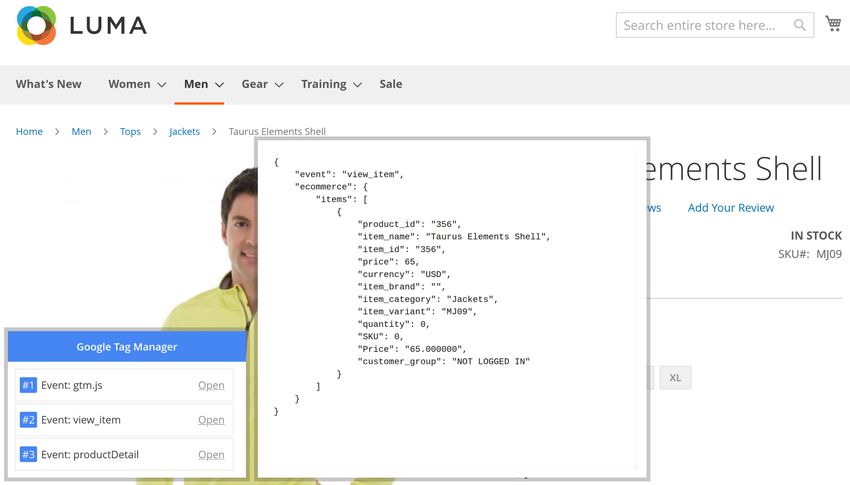
Frontend debug panel
Google Tag Manager provides a debug panel on frontend to monitor the data collection. Activate by adding
debug=gtm at the end of the page URL.
The debug panel allows you to see every tracked action made on the page and view which data was collected.
How to upgrade extension
To upgrade the extension, follow these steps:

   1. Backup your store's database and web directory.
   2. Login to the SSH console of your server and navigate to the root directory of the Magento 2 store.
   3. Update the extension with all dependencies:

               composer require mirasvit/module-gtm:* --update-with-dependencies

        Note

        In some cases, the command above is not applicable, or it's not possible to update just the current
        module, or you need to upgrade all Mirasvit modules in a bundle. In this case, the command above will
        have no effect.

        Run instead composer update mirasvit/* command. It will update all Mirasvit modules
        installed in your store.

   4.
        Install the updates:

               php -f bin/magento setup:upgrade

   5.
        Clean the cache

               php -f bin/magento cache:clean

   6. Deploy static view files

               rm -rf pub/static/*
               rm -rf var/view_preprocessed/*
               php -f bin/magento setup:static-content:deploy

Disabling the Extension
Temporarily Disable
To temporarily disable the extension please follow these steps:
1. Login to the SSH console on your server and navigate to the root directory of the Magento 2 store.
2. Disable the extension:
php -f bin/magento module:disable Mirasvit_GoogleTagManager
3. Log in to the Magento backend and refresh the store cache (if enabled).
Extension Removal
To uninstall the extension, please follow these steps:
1. Login to the SSH console on your server and navigate to the root directory of the Magento 2 store.
2.
Disable the extension:
php -f bin/magento module:disable Mirasvit_GoogleTagManager
3. Remove the extension:
composer remove mirasvit/module-gtm
4. Log in to the Magento backend and refresh the store cache (if enabled).
1.2.36
(2022-10-04)
Fixed
Tracking of a product attributes
Improvements
Tracking of the selected shiping method
1.2.35
(2022-09-30)
Fixed
Payment method does not track for GA4 when FB Pixel enabled
1.2.34(2022-09-20)
Fixed
Double purchase event for pixel
1.2.33
(2022-09-16)
Fixed
Product qty for product view event
1.2.32
(2022-09-15)
Fixed
List name and position for GA3 event "view_item_list"
1.2.31
(2022-09-12)
Fixed
Notice: Undefined variable: contentIds in GoogleTagManager/Converter/PixelConverter.php
1.2.30
(2022-09-06)
Fixed
Added content_type, id & content_ids parameters
Event "set_user_properties" not fire
1.2.29(2022-09-01)
Fixed
Remove Item events for GraphQL
1.2.28
(2022-09-01)
Improvements
Added add_payment_info and add_shipping_info to GA4 container configuration
1.2.27
(2022-08-11)
Fixed
UA tracking category
1.2.26
(2022-08-04)
Improvements
Compatibility with Swissuplabs page speed optimizer
Added option "Track view catalog page event"
1.2.25
(2022-07-21)
Improvements
Added domains to the csp whitelist
Fixed
Call to undefined method Magento\Catalog\Model\Product\Type\Simple\Interceptor::getUsedProducts()1.2.24
(2022-07-21)
Improvements
Tracking product variants for swatches
1.2.23
(2022-07-14)
Fixed
Category data for cart events
Disable GTM output for AMP pages
1.2.22
(2022-07-05)
Fixed
Track base price instead of store price
1.2.21
(2022-06-23)
Improvements
Added dimension "Attribute Set" for product
Added ability to log gtm data
1.2.20
(2022-06-20)
Fixed
Tracking product variants in the cart1.2.19
(2022-06-06)
Fixed
Error "TypeError: Mirasvit\GoogleTagManager\Converter\DataConverter::getProductBrand(): Return
value must be of type string, null returned"
1.2.18
(2022-05-26)
Fixed
Changed base price to cart price
1.2.17
(2022-05-11)
Fixed
Error "Notice: Undefined index: gtm_id"
1.2.16
(2022-05-09)
Improvements
Tracking of the "add to cart" event
1.2.15
(2022-05-03)
Fixed
Compatibility with Klarna Checkout1.2.14
(2022-04-29)
Fixed
CSP rules
1.2.13
(2022-04-25)
Fixed
Settings scope
1.2.12
(2022-04-21)
Fixed
product/variant id resolution
1.2.11
(2022-04-20)
Improvements
Added customer/address attributes (from the map) to the purchase event
1.2.10
(2022-04-20)
Fixed
Change scope for import config1.2.9
(2022-03-25)
Fixed
Checkout Behavior tracking
1.2.8
(2022-03-15)
Fixed
Issue with bundle products
1.2.7
(2022-03-14)
Fixed
issue with remove cart event
1.2.6
(2022-01-19)
Improvement
Added Conversion and Remarketing tags to the import
1.2.5
(2021-12-29)
Fixed
Settings for the Google Ads
ImprovementAdded Customer attribute to the dimensions
1.2.4
(2021-12-06)
Fixed
Error "Return value of ConfigProvider::getConversionId() must be of the type string, null returned"
1.2.3
(2021-12-03)
Fixed
Disable the GTM in the backend
Improvement
Added Google Ads conversion event
1.2.2
(2021-11-30)
Fixed
Event for Universal Analytics(GA3)
1.2.1
(2021-11-23)
Improvement
Added setting files for GTM
1.2.0(2021-11-19)
Fixed
Removed config "Measurement IDs". Added "GTM Regular Code"
1.1.0
(2021-11-15)
Improve
Removed config "GTM Regular Code". Added "Measurement IDs"
Fixed
Error "Notice: Array to string conversion in vendor/mirasvit/module-
gtm/src/GoogleTagManager/Converter/DataConverter.php on line 127"
1.0.2
(2021-11-09)
Improvement
Added Facebook Pixel analytics
1.0.1
(2021-07-12)
Features
Initial releaseYou can also read


