MindSphere SIMATIC Collaboration Board - Introduction Version information Security information Description Working with the software Settings
←
→
Page content transcription
If your browser does not render page correctly, please read the page content below

SIMATIC Collaboration Board
                                           Introduction                1

                                           Version information         2

                                                                       3
MindSphere                                 Security information

                                           Description                 4
SIMATIC Collaboration Board                                            5
                                           Working with the software

                                           Settings                    6
Operating Manual

5/2021
Legal information
Warning notice system
             This manual contains notices you have to observe in order to ensure your personal safety, as well as to prevent
             damage to property. The notices referring to your personal safety are highlighted in the manual by a safety alert
             symbol, notices referring only to property damage have no safety alert symbol. These notices shown below are
             graded according to the degree of danger.

                   DANGER
             indicates that death or severe personal injury will result if proper precautions are not taken.

                   WARNING
             indicates that death or severe personal injury may result if proper precautions are not taken.

                   CAUTION
             indicates that minor personal injury can result if proper precautions are not taken.

             NOTICE
             indicates that property damage can result if proper precautions are not taken.
             If more than one degree of danger is present, the warning notice representing the highest degree of danger will
             be used. A notice warning of injury to persons with a safety alert symbol may also include a warning relating to
             property damage.
Qualified Personnel
             The product/system described in this documentation may be operated only by personnel qualified for the specific
             task in accordance with the relevant documentation, in particular its warning notices and safety instructions.
             Qualified personnel are those who, based on their training and experience, are capable of identifying risks and
             avoiding potential hazards when working with these products/systems.
Proper use of Siemens products
             Note the following:

                  WARNING
             Siemens products may only be used for the applications described in the catalog and in the relevant technical
             documentation. If products and components from other manufacturers are used, these must be recommended
             or approved by Siemens. Proper transport, storage, installation, assembly, commissioning, operation and
             maintenance are required to ensure that the products operate safely and without any problems. The permissible
             ambient conditions must be complied with. The information in the relevant documentation must be observed.

Trademarks
             All names identified by ® are registered trademarks of Siemens AG. The remaining trademarks in this publication
             may be trademarks whose use by third parties for their own purposes could violate the rights of the owner.
Disclaimer of Liability
             We have reviewed the contents of this publication to ensure consistency with the hardware and software
             described. Since variance cannot be precluded entirely, we cannot guarantee full consistency. However, the
             information in this publication is reviewed regularly and any necessary corrections are included in subsequent
             editions.

             Siemens AG                                                                                Copyright © Siemens AG 2021.
             Digital Industries                    Ⓟ 07/2021 Subject to change                         All rights reserved
             Postfach 48 48
             90026 NÜRNBERG
             GERMANY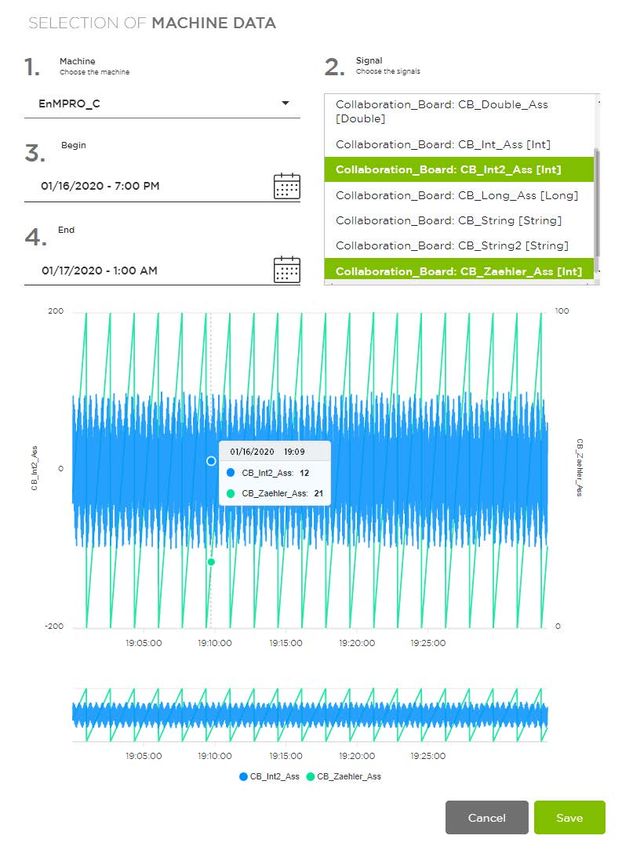
Table of contents

1      Introduction ........................................................................................................................................... 4
       1.1               Important notes ................................................................................................................... 4
       1.2               Introduction to the SIMATIC Collaboration Board .................................................................. 4
2      Version information............................................................................................................................... 6
       2.1               Version history..................................................................................................................... 6
3      Security information.............................................................................................................................. 7
       3.1               Security information ............................................................................................................ 7
       3.2               Note on general data protection regulation .......................................................................... 7
4      Description............................................................................................................................................. 8
       4.1               General information............................................................................................................. 8
       4.2               Description of the method ................................................................................................. 10
       4.3               Login area.......................................................................................................................... 13
       4.4               User management ............................................................................................................. 14
       4.5               User rights ......................................................................................................................... 15
5      Working with the software .................................................................................................................. 18
       5.1               Dashboard ......................................................................................................................... 18
       5.2               Step 1: Problem description................................................................................................ 22
       5.3               Step 2: Problem cause ........................................................................................................ 24
       5.4               Step 3: Problem solution .................................................................................................... 29
       5.5               Step 4: Problem completion ............................................................................................... 33
       5.6               Report ............................................................................................................................... 34
       5.7               Tasks ................................................................................................................................. 36
       5.8               Problem Editor ................................................................................................................... 37
6      Settings ................................................................................................................................................ 38
       6.1               Language setting ............................................................................................................... 38
       6.2               Editing and adding a factory............................................................................................... 38
       6.3               Modifying the question catalog .......................................................................................... 43

SIMATIC Collaboration Board
Operating Manual, 5/2021                                                                                                                                         3
Introduction                                                                                               1
1.1          Important notes

Purpose of this documentation
               This documentation is included in the SIMATIC Collaboration Board scope of delivery.
               This manual describes functionalities and structure of the application.

Scope of this documentation
               This documentation is valid for the SIMATIC Collaboration Board application.

1.2          Introduction to the SIMATIC Collaboration Board
               SIMATIC Collaboration Board is a component of MindSphere, the industrial IoT platform from
               Siemens.
               You can use the application to perform the classic problem-solving process based on the
               Ishikawa diagram or the 5-Why method.
               The causes of the problem are analyzed and documented. Approved results are put online.

Problem solving process

               Problem description
               First describe the problem in detail using pre-defined questions. Then evaluate the causes of
               the problem using either the Ishikawa diagram or the 5-Whys method.

               Evaluate the causes of the problem using the 5M method
               To identify the causes of problems, use the Ishikawa diagram with 5 influencer variables:
               • Person
               • Machine
               • Environment
               • Material
               • Methods

               Evaluation of the causes of the problem with the 5-Whys method
               With this alternative approach, you ask "Why..." until you find the actual cause. The number
               of questions is not limited to 5.

                                                                                         SIMATIC Collaboration Board
4                                                                                        Operating Manual, 5/2021,
Introduction
                                                                1.2 Introduction to the SIMATIC Collaboration Board

                      A disadvantage of this method is that it only aims at one cause at a time.

                      Problem solution
                      Determine the possible tasks to solve the most likely causes.

                      Effectiveness check
                      With effectiveness testing, you test whether the tasks have led to the solution of the problem
                      or not.

SIMATIC Collaboration Board
Operating Manual, 5/2021                                                                                           5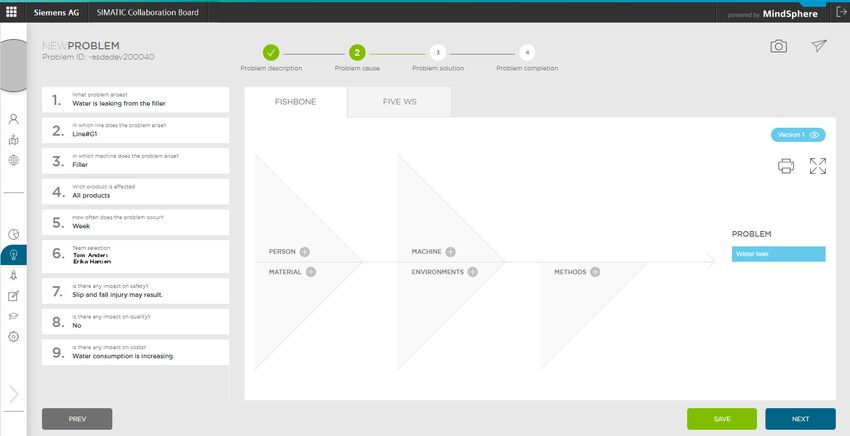
Version information                                                                                                  2
2.1           Version history

Revision number   What is new
1.5.7             New functions:
                  •   Support of multi-tenancy concept
                  •   Change of user management, user synchronization in the "Settings" tab
                  •   Change of filter, search and display functions in the "Dashboard" tab
                  •   Client/server encryption
                  •   Attachments for problem solutions are stored on the IoT Value Plan tenant
                  •   Change in the transmission of billing-related usage data
1.0.3             The SIMATIC Collaboration Board will have its market launch with version 1.0.3.
                  The main functions of this release status are:
                  •   Systematic problem description based on an editable questionnaire
                  •   Assignment of problems to specific production plants
                  •   The ability to attach various files (e.g. images, PDF files) to the problem description
                  •   Real-time connection of machine data via standard interfaces
                  •   Determination of possible causes using the 5M method or 5-Whys method
                  •   Definition of tasks and their assignment to the individual team members
                  •   Evaluation of the effectiveness of the solution
                  •   Graphical representation of the problems described and solved
                  •   Export of XLS files with problem descriptions in selectable intervals

                                                                                                   SIMATIC Collaboration Board
6                                                                                                   Operating Manual, 5/2021,
Security information 3
3.1 Security information
Siemens provides products and solutions with industrial security functions that support the
secure operation of plants, systems, machines and networks.
In order to protect plants, systems, machines and networks against cyber threats, it is
necessary to implement – and continuously maintain – a holistic, state-of-the-art industrial
security concept. Siemens’ products and solutions constitute one element of such a concept.
Customers are responsible for preventing unauthorized access to their plants, systems,
machines and networks. Such systems, machines and components should only be connected
to an enterprise network or the internet if and to the extent such a connection is necessary
and only when appropriate security measures (e.g. firewalls and/or network segmentation)
are in place.
For additional information on industrial security measures that may be implemented, please
visit (https://www.siemens.com/industrialsecurity).
Siemens' products and solutions undergo continuous development to make them more
secure. Siemens strongly recommends that product updates are applied as soon as they are
available and that the latest product versions are used. Use of product versions that are no
longer supported, and failure to apply the latest updates may increase customers' exposure to
cyber threats.
To stay informed about product updates, subscribe to the Siemens Industrial Security RSS
Feed visit (https://www.siemens.com/industrialsecurity).
3.2 Note on general data protection regulation
Siemens observes the principles of data protection, in particular the rules for data
minimization (privacy by design). For this SIMATIC Collaboration Board product, this means:
The product does not process or store any personal data, only technical functional data (e.g.
time stamps, IP addresses of the connected production machines). If the user links this data
with other data (e.g. shift schedules) or stores personal data on the same medium (e.g. hard
disk) and thus establishes a personal reference, the user himself must ensure compliance
with data protection regulations.
SIMATIC Collaboration Board
Operating Manual, 5/2021 7Description 4
4.1 General information
The MindSphere application SIMATIC Collaboration Board helps to document and solve
production problems. The app enables the exchange of knowledge between different
factories and helps to increase the availability of machines and plants. Digitizing the classic
problem-solving process makes it possible to reduce paperwork and make operating data
available for analysis.
Requirements
A valid MindAccess loT Value Plan subscription (Small/Medium/Large) is required.
An HTML5-compatible Internet browser with a screen resolution of 1920 x 1080 or higher is
required (e.g. Google Chrome or Microsoft Edge). Google Chrome is recommended. Smart
devices are supported with HTML5-capable Internet browsers.
Secure communication
Data is transferred from the asset to your MindAccess account using the HTTPS protocol.
Enforce a comprehensive, state-of-the-art industrial security concept to protect
plants/locations, systems, machines and networks from cyber threats.
Application rights
SIMATIC Collaboration Board reads, processes and writes the following data:
• Time series data containing the variables received from an asset within defined
continuous time cycles
• Asset configuration data that describes the asset (e.g. asset name, location)
• User data: User name (first and last name), e-mail address, assigned user rights, user role
and language
The application performs the following activities that change or add content to your
MindAccess account on your behalf:
• Read access to your time series data:
The application reads uploaded data from your data repository to evaluate and process
certain information, which is displayed in different views in this application.
• Read access to your asset configuration data:
The application requires access to the data of the configured asset.
Rights of use
SIMATIC Collaboration Board can be used in the context of OEM services, as described in the
specific conditions for the MindAccess loT Value Plan
(https://siemens.mindsphere.io/en/terms).
SIMATIC Collaboration Board
8 Operating Manual, 5/2021,Description
4.1 General information
As part of your MindAccess loT Value Plan account, you may allow third-party users to access
and use this application for the purpose of receiving a service from you.
Billing
The basic subscription to the SIMATIC Collaboration Board application is free of charge. It only
allows access to the application in order to get an impression of its look and feel. No free
factory is included in the basic subscription.
To use the application, you must configure and activate at least one factory, which you must
book for a monthly usage fee.
Activating a factory
1. Configure a factory in the "Settings" menu item, "Factory" tab.
2. Click "Request activation".
3. Accept the legal notice regarding potential costs.
Deactivating a factory
Click the green "Active" button. The button turns red.
After deactivation, the factory is still visible, but marked as deactivated. You cannot create
new problems related to this factory. Data that was created before deactivation is still
available after deactivation.
License fee for a factory
Within one calendar month, you have to pay a monthly usage fee for each active factory. The
fees are calculated according to the monthly principle.
The total number of active factories within a calendar month is transferred on the first day of
the following month and calculated accordingly.
Deactivation of a factory that has already been activated only takes effect for the calendar
month following the calendar month in which the factory was deactivated.
The usage fee for factories is calculated monthly in arrears.
Example
Factories A and B are activated in January and remain active. Factory C was activated and
deactivated in February.
Monthly fee for February consists of 3 usage fees for factories A, B and C. Monthly fee for
March consists of 2 usage fees for factories A and B.
Transmission of billing-related usage data
For each configured IoT Value Plan tenant: Hard-coded identifier ("alias") can be set via
configuration file.
The name of the IoT Value Plan tenant is transmitted when the billing data is sent.
Transmission is triggered on the last day of the month, at UTC12:00:00 (noon). It is repeated
if the UTS service is unavailable.
SIMATIC Collaboration Board
Operating Manual, 5/2021 9Description
4.2 Description of the method
Subscription period and cancellation
The minimum subscription period for the basic subscription of this application is one month.
After the previous subscription period expires, the subscription is automatically renewed for a
subscription period of one month until you or we cancel it at least 30 days in advance. The
cancellation takes effect at the end of the month.
We will notify you of any termination through your account or by sending a message to the e-
mail address you provided to us.
Your notice of termination must be sent to the following e-mail address
(mailto:contract@mindsphere.io).
4.2 Description of the method
Digitalization of the problem solving process
SIMATIC Collaboration Board is an easy-to-use, wizard-based app that simplifies problem
definition, identification and determination of cause.
You define possible solutions and follow-up tasks in just a few steps. The application works in
the environment of the cloud-based, open IoT operating system, MindSphere.
The advantages of the digitalized problem solving process include:
• Shorter clarification processes
• Efficient problem solving cycles
• Better exchange of knowledge
• Analysis of accumulated problems and their solutions
The following figure shows individual steps in solving the problem:
SIMATIC Collaboration Board
10 Operating Manual, 5/2021Description
4.2 Description of the method
① Describe the problem
You describe the problem from production.
You collect potential causes.
You archive the digital A3 report.
You search the database of events and determine whether the problem is a known problem
with the tested solution.
② Assess a problem in the team
The experts identify and record possible causes. Depending on the assessment of importance
and estimated effectiveness, the team proposes appropriate solutions.
SIMATIC Collaboration Board
Operating Manual, 5/2021 11Description
4.2 Description of the method
③ Determine measures
You determine concrete measures based on the selected causes.
④ Manage follow-up tasks
You manage the follow-up tasks. If the implemented tasks are not successful, you determine
another variant of the tasks.
⑤ Retrieve machine data
You retrieve the machine data from production via MindSphere, if available. This allows you
to shorten the search for the cause considerably.
Tenant
A "Tenant" represents a real organization. The tenant includes properties such as users, data,
assets and entities.
Subtenant
A "Subtenant" is a specific limited resource of a tenant. A "Subtenant" represents a part of the
real organization. The subtenant is also used to assign and access apps. You can only create
one level of subtenants.
Ishikawa diagram
The Ishikawa diagram is the most popular form of presentation for problem solving, as it
clearly shows cause and effect relationships. The form of the diagram looks like the bones of
a fish, hence the often used name, fishbone diagram.
Using the diagram has the following advantages:
• Detailed collection of causes for problems
• Representation of the interdependencies of problems
• Clear graphical representation
• Method for the visual development of causes in the team
• Sensible structuring of processes
Possible causes are located on the main branches of the diagram. Possible categories of
causes are provided for orientation.
The SIMATIC Collaboration Board app uses categorization according to the 5M method:
• Person
• Material
• Machine
• Environment
• Methods
SIMATIC Collaboration Board
12 Operating Manual, 5/2021Description
4.3 Login area
A decision-making process even more efficient is achieved if important data from production
is available from MindSphere via standard interfaces.
You select the most probable causes from the collected points.
5-Whys method
If you expect a single cause, you can use this simple method instead of the Ishikawa diagram.
You determine the root cause of an error or problem by repeating the question "Why?" Each
answer forms the basis for the next question.
The number of questions is not limited to 5.
4.3 Login area
Start the SIMATIC Collaboration Board app
1. To open the SIMATIC Collaboration Board app, enter the correct address of the app in your
browser. The address is provided by your OEM, who manages your application.
The login screen opens:
2. Click the logo of the Simatic Collaboration Board application and enter your login data.
The app opens with the "Dashboard" tab.
SIMATIC Collaboration Board
Operating Manual, 5/2021 13Description
4.4 User management
4.4 User management
Access to the SIMATIC Collaboration Board app requires a user account in your MindSphere
IoT tenant.
In addition, as a MindSphere user, you require certain roles in the tenant.
Users, user groups and roles are managed in MindSphere by the tenant administrator. The
tenant administrator also assigns the required roles to users.
Depending on user type (SubTenant-User or Tenant-User), data of the subtenant only or data
of the entire tenant can be edited.
You can find more information about MindSphere user management in the MindSphere
documentation.
Create user
The administrator creates the new user on the MindSphere page and assigns the required
roles including, for example, the roles for the SIMATIC Collaboration Board app.
You can find more information about MindSphere user management in the MindSphere
documentation.
Activate or deactivate user
The tenant administrator can deactivate users in a tenant, thereby revoking their access to
this tenant.
This is useful, for example, when the user is no longer part of the company.
After deactivation, the tenant administrator must open the app and click on the "Synchronize
users" button in "Settings".
SIMATIC Collaboration Board
14 Operating Manual, 5/2021Description
4.5 User rights
The user is then also deactivated inside the app and no longer appears as a user in the
settings (in any factory). The user still remains visible in all other dialogs of SIMATIC
Collaboration Board. When creating a new problem solution, the deactivated user no longer
appears for selection. The problem solutions created by the deactivated user remain visible in
the system. The tasks in which this user is registered as a member remain available as well.
If a deactivated user is activated again in the future, this is referred to as reactivation.
Reactivated users automatically get back their previously assigned access rights in the
SIMATIC Collaboration Board app. Their old problem solution data and tasks are also visible
again for reactivated users.
If the same user is created as a new user in MindSphere, the user's settings must be re-
entered in the app.
The following must be kept in mind in this case:
• Users can still edit problems that they have not yet completed in the "old" SubTenant if
they "move" to another SubTenant. Such problem solutions continue to be counted in the
statistics for a moved user.
• Assigned tasks for such a user are no longer editable for a completed problem solution. Of
course, other users from the team can change the assignment of the problem solution for
the user.
Note
Following each change of the user population (e.g. when a new user is created on the
MindSphere page), the app must be synchronized with the MindSphere database. This is
done by pressing the "Synchronize users" button in the "Settings" tab.
4.5 User rights
The following categories of user rights are available for the SIMATIC Collaboration Board.
User
As AppUser, you see the problem descriptions, tasks and reports for the factories that are
approved for you.
The visibility of the machine data depends on your MindSphere user role.
Application administrator
As AppAdmin, you have the same rights as a user.
In addition, you can edit and activate or deactivate the machines, lines and plants in the
"Settings" menu item.
Furthermore, you can edit the question catalog in "Settings".
SIMATIC Collaboration Board
Operating Manual, 5/2021 15Description
4.5 User rights
Access right concept
The AppAdmin role is required for full access. If the role AppAdmin is not assigned to the
user, the menu item "Settings" is not displayed to the user concerned.
Your TenantAdmin creates the SubTenants for you and assigns the app-specific roles
AppAdmin (app.admin) and AppUser (app.user) to the authorized persons in your
organization.
The following table shows the access rights according to the user roles.
Access right MindSphere role
App role
StandardUser SubTenantUser
app.user app.admin app.user app.admin
Start application ✓ ✓ ✓ ✓
Synchronize user accounts ✓ ✓
Change the settings of the app
Tenant factory ✓
Own SubTenant factory N/A N/A ✓
Other SubTenant factory ✓
Retrieve machine data
Tenant factory ✓ ✓
Own SubTenant factory N/A N/A ✓ ✓
Other SubTenant factory ✓ ✓
Other functions of the app
Tenant factory ● (R/W) ● (R/W) ● (R) ● (R)
Own SubTenant factory N/A N/A ● (R/W) ● (R/W)
Other SubTenant factory ● (R) ● (R) ● (R) ● (R)
✓ Available
N/A Not applicable
● (R/W) Adjustable, initial setting: Read and write rights
● (R) Adjustable, initial setting: Read rights
Creating users
The administrator creates the user on the MindSphere page and assigns the access rights to
the user.
Following each change of the user population (e.g. when a new user is created on the
MindSphere page), the operator must synchronize the users.
This is done by pressing the "Synchronize users" button in the "Settings" tab.
This synchronizes the app's user information with the MindSphere database.
SIMATIC Collaboration Board
16 Operating Manual, 5/2021Description
4.5 User rights
Recommendation on the authorization concept
1. Create two user groups:
– scb-admin-group
– scb-user-group
2. Assign the appropriate app roles to the two user groups:
– scb-admin (app admin authorization)
scb-user (app user authorization)
3. Add the user accounts to the appropriate user groups.
Note
When the app is updated, the authorizations can be deleted in MindSphere and, in this case,
must be recreated. Managing user authorizations with user groups makes this step easier.
SIMATIC Collaboration Board
Operating Manual, 5/2021 17Working with the software 5
5.1 Dashboard
The "Dashboard" provides you with a list of available problem solutions. You can determine
whether or not a similar problem has already occurred.
The following figure shows the individual areas:
① Side menu
② Information on the app: Version, links to online help and OSS information
③ Filter and search area
④ Information on the MindSphere platform
⑤ Presentation of the successfully completed problem solutions
⑥ Display of the machines in a line
⑦ Dashboard of all problem solutions
⑧ Dashboard for team tasks
⑨ Dashboard of my tasks
① Side menu
Side menu is located in the left area of the application. Use the arrow key to expand or
collapse it. You will find the following items:
SIMATIC Collaboration Board
18 Operating Manual, 5/2021,Working with the software
5.1 Dashboard
User information
• Picture of the user
• User name
• Location
• Language switch
Menu items
Symbol Tab
Dashboard
New Problem
Report
Tasks
Problem Editor
Settings (only possible with administrator access)
② Information on the app
Click on the name of the "SIMATIC Collaboration Board" application in the title bar to display
the version of the application, copyright and links to the online help and OSS information.
SIMATIC Collaboration Board
Operating Manual, 5/2021 19Working with the software
5.1 Dashboard
③ Filter and search area
In this area, you have the following options:
• Filter by factories/locations
• Filter by machines
• Search for a specific title of the problem solution
The search function is not case sensitive and searches through parts of the titles.
④ Information on the platform
Click on "powered by MindSphere" in the title bar to display the platform information.
In addition to the MindSphere version and copyright information, you will find the following
useful links here:
• MindSphere Store
Access to a broad selection of apps and services
• MindSphere Status
MindSphere Status
A maintenance and status portal
• Platform Data Privacy Notice
An overview of how Siemens processes personal data in the context of your interaction
when visiting or using the cloud-based MindSphere platform.
• MindSphere Academy
A training portal where you can develop your MindSphere skills
• MindSphere Community
Useful information for a smooth start with MindSphere and further steps
SIMATIC Collaboration Board
20 Operating Manual, 5/2021Working with the software
5.1 Dashboard
⑤ Representation of successfully completed problem solutions
Graphical representation of the share of successfully completed problem solutions.
The diagram on the left shows the tasks you have solved. The right diagram shows the tasks
that your team has solved.
⑥ Display of the individual elements in a line
The individual machines in a line are graphically displayed here using templates. The display
can also provide information about the machine status if the machine connection is correct.
⑦ Overview of all problem solutions
List display of all existing problem solutions from you.
You will find the following information here:
• Status
- Done (green)
- In progress (yellow)
- Undone (red)
• Title (short description)
• Date (entry date)
• Problem ID
• Assigned to
• Machine
• Location
The list can be sorted by clicking on a column header.
⑧ Overview of team tasks
List view of the tasks assigned to the team of the logged-in user.
SIMATIC Collaboration Board
Operating Manual, 5/2021 21Working with the software
5.2 Step 1: Problem description
5.2 Step 1: Problem description
Start with the description of the problem in the tab "New Problem". The upper part of the
screen has a navigation bar with 4 phases of problem solving:
1. Problem Description
2. Problem Cause
3. Problem Solution
4. Problem completion
The question catalog is below the navigation bar. The following figure shows the screen
before you start filling out the questionnaire.
Question catalog
Pre-defined questions help you to describe and narrow down the problem more precisely.
The list of questions can be adapted at any time by the administrator in the "Settings" tab.
There are the following types of questions:
• Question with free possibility to answer
• Question with possibility to choose
• Question with possibility to choose and/or answer
Selection of the team leader and team members
When describing the problem, you are selected as the team leader by default.
You select the team members by clicking the corresponding button, which then turns dark
gray.
To select another team leader, you need to keep the mouse button pressed on the
corresponding button until the button turns green.
SIMATIC Collaboration Board
22 Operating Manual, 5/2021Working with the software
5.2 Step 1: Problem description
Mandatory questions and optional questions
The mandatory questions are at the top of the catalog and are marked "required".
Questions that have been answered are marked green at the beginning of the line.
Unanswered questions are marked in red.
Answer the questions and upload any attachments.
Uploading attachments
You can upload the following types of files:
• Images in the formats PNG, GIF, JPG
• Documents in PDF, RTF, TXT, DOC, DOCX, XLS, XLSX, PPT, PPTX, ODT, ODS, ODP formats
• ZIP archives
The maximum size for an attachment is limited to 4 MB.
You can upload a maximum of 5 files.
The attachments are stored on the IoT Value Plan tenant.
SIMATIC Collaboration Board
Operating Manual, 5/2021 23Working with the software
5.3 Step 2: Problem cause
Additional tools
With the icon
you can upload an attachment.
With the icon
you can send an email, if this function has been activated.
Searching for the cause of the problem
The "NEXT" button takes you to step 2 of the wizard, the problem cause.
5.3 Step 2: Problem cause
In step 2, you use visual representation of the Ishikawa diagram (fishbone model) with 5
factors involved ("FISHBONE" tab).
Alternatively, you can use the 5-Whys method ("FIVE WS" tab). The choice of method remains
unchanged throughout the process.
The left column displays the answers from the question catalog.
3 elementary tools facilitate the display on the workspace:
Add influence factor
Enlarge workspace
Print workspace
Since it can happen that no problem solution is achieved in one pass, it is possible to work
with different versions at this point.
You can work with 3 versions. You can hide and show the contents using the version switch.
SIMATIC Collaboration Board
24 Operating Manual, 5/2021Working with the software
5.3 Step 2: Problem cause
FISHBONE tab
The main branches of the Ishikawa diagram have 5 possible categories of causes.
Entering potential causes
Collect potential causes in the workspace for each 5M factors:
• Person
• Material
• Machine
• Environment
• Methods
That way you can make sure that no influencing factors are forgotten.
Follow these steps:
1. Click the icon
for the selected factor in the Ishikawa diagram.
SIMATIC Collaboration Board
Operating Manual, 5/2021 25Working with the software
5.3 Step 2: Problem cause
2. A dialog box opens:
3. Fill in the "Title" and "Description" field.
4. Click "0*". The "+" and "-" buttons appear above and below the "0*" button.
5. Set the priority or importance of the cause from 0 to 10.
The priority can then be processed further by the team.
6. Click "✓". The cause is saved and displayed in the diagram.
By default, the check mark is added to the new cause.
7. If you want to clear the check mark (cause not relevant), click "...". .
Clear the "Add to problem" check box under the toolbar and click the "✓" icon in the toolbar.
8. If you want to close the dialog box without saving the cause, click "x".
SIMATIC Collaboration Board
26 Operating Manual, 5/2021Working with the software
5.3 Step 2: Problem cause
Entering the child element of the cause
1. Click the parent element of the cause and select "+" in the toolbar.
2. Fill in the "Title" and "Description" field.
3. Then continue with the next steps as in the parent element.
Deleting potential causes
Follow these steps:
1. Click the cause and select the icon
in the toolbar.
Example
For a problem with a water leak, the team has collected 7 potential causes.
SIMATIC Collaboration Board
Operating Manual, 5/2021 27Working with the software
5.3 Step 2: Problem cause
FIVE WS tab
If you expect a single cause, you can use this simple method instead of the Ishikawa diagram.
You determine the root cause of an error or problem by repeating the "Why" question. Each
answer forms the basis for the next question.
The number of questions is not limited to 5.
Solution action
You set tasks for your team based on all the collected causes.
The "NEXT" button takes you to step 3 of the wizard, the problem solution.
SIMATIC Collaboration Board
28 Operating Manual, 5/2021Working with the software
5.4 Step 3: Problem solution
5.4 Step 3: Problem solution
In the "Problem Solution" tab, you can determine various measures for solving the relevant
causes.
Determine measures
Click the "+" symbol on the right side of the cause. This displays the dialog box.
1. Check the cause.
2. Fill in the problem solution title.
3. Select the person responsible.
4. Set a deadline.
5. Change the status if required.
6. Evaluate the proposed task from the "TIME", "COST" and "BENEFIT" views.
Slide the blue dots to the right or left along the axis according to your evaluation of
efficiency.
7. Describe the task.
8. If the task is relevant, select "Add to solution".
9. Save the task.
SIMATIC Collaboration Board
Operating Manual, 5/2021 29Working with the software
5.4 Step 3: Problem solution
With the "MACHINE" factor, you also have the possibility to obtain and evaluate machine
data.
Connecting machine data
SIMATIC Collaboration Board displays time series of machine data that have been recorded in
MindSphere. Direct and secure connection for encrypted data transfer from MindSphere
sources is possible in two ways:
• With the MindConnect Nano Box
• With the WinCC/Cloud Connector
The amount of data collected in MindSphere is limited to 2000 entries.
Retrieving machine data
1. Click the icon. A dialog box is displayed.
2. Select the "Machine".
3. Select the beginning and end of the time window. When selecting the time interval, note
that the amount of exported data is limited to 2000 entries.
SIMATIC Collaboration Board
30 Operating Manual, 5/2021Working with the software
5.4 Step 3: Problem solution
4. Select the signals.
5. The selected signals are displayed as a graph.
6. Save the data.
SIMATIC Collaboration Board
Operating Manual, 5/2021 31Working with the software
5.4 Step 3: Problem solution
SIMATIC Collaboration Board
32 Operating Manual, 5/2021Working with the software
5.5 Step 4: Problem completion
5.5 Step 4: Problem completion
In the "Problem Completion" tab, you describe the measures used to eliminate the relevant
causes.
Problem was solved
Complete the title of complaints and describe details of the effective solution. This
information will help other users to solve similar problems in the future.
If the problem has been solved, click "Yes". A green symbol with a rocket appears.
Save the problem solution.
Problem was not solved
Complete the title of complaints and describe details of the solution.
If the problem has not been solved, click "No".
Save the problem solution.
If necessary, start with version 2 or version 3.
SIMATIC Collaboration Board
Operating Manual, 5/2021 33Working with the software
5.6 Report
5.6 Report
Creating a report
You will find a clear graphical representation of the problems described and solved in the
"Report" tab.
The displayed graphics show:
• Your problems in a factory
• Your tasks in a factory
• All problems from all factories
• All tasks from all factories
You can adjust the range of the displayed interval depending on the selection in the drop-
down list:
• Last month
• Last year
• Last week
• Last 24 hours
• Today
• Other (calendar selection)
In the diagram area, you can use the sliding ruler to directly read the values of problems and
tasks.
SIMATIC Collaboration Board
34 Operating Manual, 5/2021Working with the software
5.6 Report
Exporting data
You can export all data records for the specified period in XLS format.
The exported Excel workbook contains 4 separate worksheets for:
• Problems
• Tasks
• Descriptions
• Factory information
The data do not include the measures used.
You can obtain valuable analyses from the exported data.
Client/server encryption
The following data records are encrypted:
• URL (parameters pointing to DB ID)
• Transfer values in event handling
Encryption between frontend and backend uses the authorization code provided by
MindSphere.
SIMATIC Collaboration Board
Operating Manual, 5/2021 35Working with the software
5.7 Tasks
5.7 Tasks
You can open an overview of the individual tasks using the "Tasks" menu item.
Editing tasks
The tasks are sorted by status in the left column:
• Undone (red)
• In progress (yellow)
• Done (green)
The categories in the top row allow you to sort and filter the tasks.
You can open, edit or add more attachments to the task at any time:
• Click the corresponding white button in the left column.
• A dialog box with detailed information is displayed.
• Make the changes and save the entry.
In the right column, you will find the progress of the steps of the individual team members.
SIMATIC Collaboration Board
36 Operating Manual, 5/2021Working with the software
5.8 Problem Editor
Storing attachments
Attachments are stored on the customer's IoT Value Plan tenant. To reduce delays in
displaying the PCS mask, no thumbnails are displayed for attachments. The corresponding
attachment is downloaded from the customer's IoT Value Plan tenant and displayed to the
user in full size only when clicked. The user has the option to then download the attachment.
5.8 Problem Editor
You use the "Problem Editor" to edit the records of problems that have not yet been solved.
Editing a problem solution
1. Select the "Dashboard" tab. Problem Editor is started and shows the questions answered
earlier.
2. Edit the answers to the questions and save the changes.
3. Click "NEXT" to proceed to step 2.
4. Add possible causes for the problem and click "NEXT" to proceed to step 3.
5. Add tasks to solve the problem and click "NEXT" to proceed to step 4.
6. Once the tasks are solved, you can close the problem in the editor.
SIMATIC Collaboration Board
Operating Manual, 5/2021 37Settings 6
6.1 Language setting
The user interface of the SIMATIC Collaboration Board app is available in German and English.
Change the language in the side menu.
6.2 Editing and adding a factory
The "Settings" tab is only accessible to the administrator.
Every time the user inventory is changed (e.g. when a new user is created on the MindSphere
site), the app must be synchronized with the MindSphere database. This is done by pressing
the "Synchronize users" button.
The administrator can press the "Factory" button to edit existing factories and add new ones.
SIMATIC Collaboration Board
38 Operating Manual, 5/2021,Settings
6.2 Editing and adding a factory
To edit the factory, click the icon.
To create a new factory, click "Add new factory".
To create a factory, proceed as follows:
1. Fill in the fields "Factory name" and "Description".
2. Select the country.
3. Add longitude and latitude, if available.
4. Click "NEXT".
5. The next step is to set read or write permissions for each user.
SIMATIC Collaboration Board
Operating Manual, 5/2021 39Settings
6.2 Editing and adding a factory
Other entries for editing are:
• Subtenant
• Activity status
The date of the last update is automatically updated.
Activating a factory
To activate the factory, click the "Request activation" button.
Note that activation is subject to additional costs.
A legal notice will be displayed:
Deactivating a factory
Follow these steps:
Click the green "Active" button. The button turns red.
After deactivation, the factory is still visible, but marked as deactivated. You cannot create
new problems in this factory. Data that was created before deactivation is still available after
deactivation.
It is not possible to delete a factory.
SIMATIC Collaboration Board
40 Operating Manual, 5/2021Settings
6.2 Editing and adding a factory
Editing and adding lines
To edit the line, click "Edit machines" in the corresponding factory.
1. Click the icon.
2. Click "Edit line".
3. Add new machines from the list.
4. If necessary, add a new machine to the list.
5. Click "Save".
SIMATIC Collaboration Board
Operating Manual, 5/2021 41Settings
6.2 Editing and adding a factory
Editing and adding machines
To edit the machine, click the icon.
To add a new machine, enter the name of the machine and upload a graphic representation
for the machine. The screen files for created machines are stored in the app database. Screen
files larger than 4 MB are automatically reduced in size when uploaded.
Add machine as free text
Machines can also be added as free text. These machines are then displayed in the list of all
machines in the "Dashboard" tab with the name in italics.
SIMATIC Collaboration Board
42 Operating Manual, 5/2021Settings
6.3 Modifying the question catalog
6.3 Modifying the question catalog
The "Settings" tab is only accessible to the administrator. The administrator can customize the
question catalog via the "Questions" button.
The mandatory questions are relevant for the system and may not be changed. You can only
modify the optional questions in this step.
You can deactivate the question with the option button. The deactivated question is hidden
in the "Problem Description" and in the "Problem Editor".
SIMATIC Collaboration Board
Operating Manual, 5/2021 43Settings
6.3 Modifying the question catalog
Add new question
Follow these steps:
1. Fill in the "Name" and "Description" fields.
2. Select the question type
- Text
- Select
- Multiselect
3. For questions with selection, fill in the possible values.
4. The "Question required" option button is enabled by default.
Note that this selection also affects the problems described above that have not been
solved.
If necessary, switch off the "Question required" option button.
5. Click the "Add question" button.
6. Save the new question.
SIMATIC Collaboration Board
44 Operating Manual, 5/2021You can also read


