Net Price Calculator Quick Start Guide - U. S. DEPARTMENT OF EDUCATION
←
→
Page content transcription
If your browser does not render page correctly, please read the page content below
U. S. DEPARTMENT OF EDUCATION

                 Net Price Calculator
                  Quick Start Guide
                                             January 2015

         For use with Mozilla Firefox 3.0 and above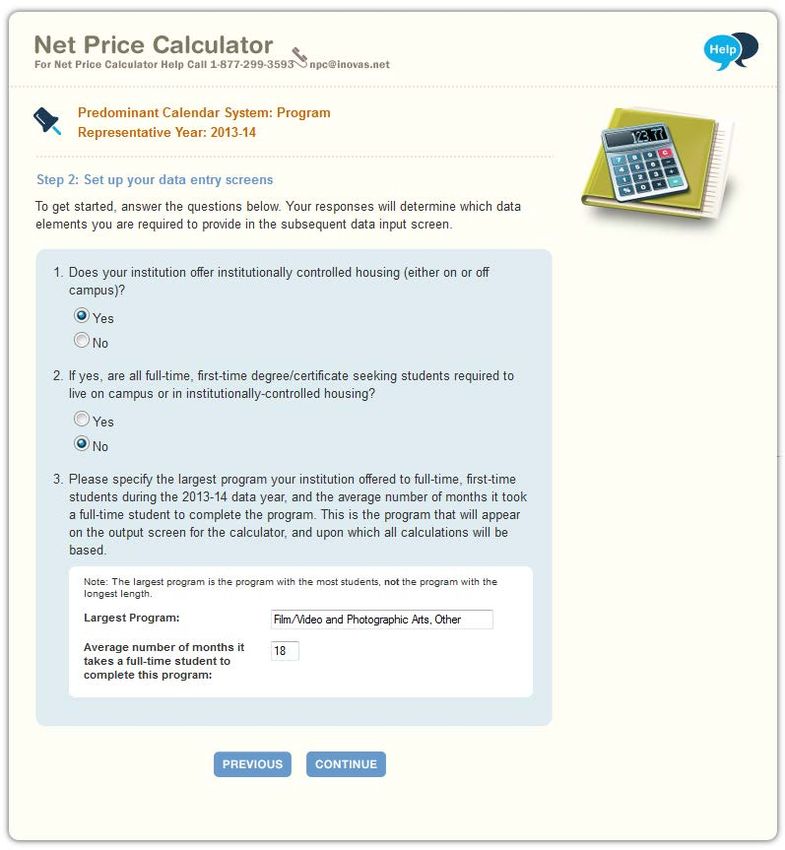
U.S. DEPARTMENT OF EDUCATION

Net Price Calculator
 Quick Start Guide

      Mozilla Firefox 3.0 and above

                   ii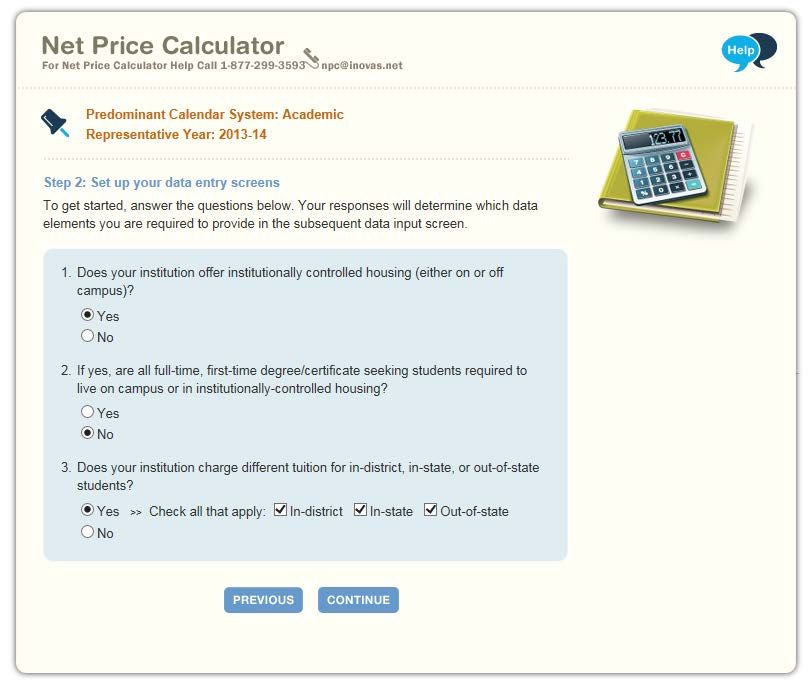
Table of Contents
Chapter 1: Introduction ........................................................................................................ 1
       1.1 Net Price Calculator Process Overview ......................................................... 2
       1.2 Section 508 Compliance.................................................................................... 3
       1.3 JavaScript............................................................................................................. 3
       1.4 Hints & Tips ....................................................................................................... 4
Chapter 2: Using the Net Price Calculator Template ....................................................... 5
       2.1 Getting Started ................................................................................................... 5
       2.2 Enter Institutional Data .................................................................................... 5
       2.3 Save and Extract your file ............................................................................... 14
Chapter 3: Using the Bulk Data File Upload Tool ......................................................... 17
       3.1 Getting Started ................................................................................................. 17
       3.2 Net Price Calculator Import Specifications ................................................. 18
       3.3 Creating a Text Document ............................................................................. 19
       3.4 Uploading Your Bulk Data File ..................................................................... 21
       3.5 Save and Extract your file ............................................................................... 22
Chapter 4: Uploading the Application .............................................................................. 25
Chapter 5: Glossary of Terms ............................................................................................ 27

                                                                            iii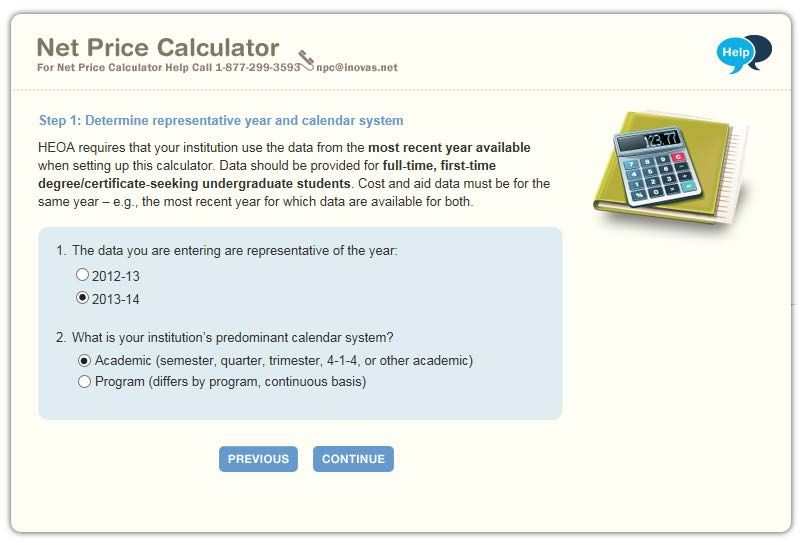
INTRODUCTION

                                                                                               Chapter

Introduction
                                                                                                 1
The following instructions are designed to take you through the steps required to configure and host a customized
version of the U.S. Department of Education’s Net Price Calculator application on your institution’s website. The Net
Price Calculator template is available at http://nces.ed.gov/ipeds/netpricecalculator/.

I
      n accordance with the Higher Education Act of 1965 (HEA), as amended (20 U.S.C. § 1015a),
      beginning on October 29, 2011, each postsecondary institution in the United States that
      participates in Title IV federal student aid programs and enrolls full-time, first-time degree- or
certificate-seeking undergraduate students is required to post a net price calculator on its website.
This calculator uses institutional data to provide estimated net price information to current and
prospective students and their families based on a student’s individual circumstances.

In order to assist institutions in meeting this obligation, the U.S. Department of Education has
designed and developed a fully functional net price calculator template available to all Title IV
postsecondary institutions for use on their websites. The latest version of the Department’s Net
Price Calculator template uses data for the most recently completed academic year and updated
versions of the template are planned to release in January annually.

                                 Using both institution-provided and student-entered data, this
 Since the Net Price Calculator is
 based on data from actual full- calculator will allow prospective students to calculate an estimated
 time, first-time undergraduate  net price at the institution, defined as cost of attendance minus
 students who have attended your grant and scholarship aid, based on what similar students paid in a
 institution, you cannot use data
                                 previous year. The template was developed with input from the
 for an academic year that has not
 yet been completed.             IPEDS Technical Review Panel (TRP), which met on January 27-
                                 28, 2009, and included 58 individuals representing the federal
government, state governments, student financial aid and institutional research offices at
postsecondary institutions from all sectors, association representatives, and others. There was also a
30-day public comment period following the meeting of the TRP from which additional feedback
was received.

Institutions may use either the Net Price Calculator template developed by the U.S. Department of
Education or develop their own calculator, so long as it includes “at a minimum the same data
elements” found in the Department’s template. A list of minimum required elements and frequently
asked questions is available online at http://nces.ed.gov/ipeds/resource/net_price_calculator.asp.

                                                         1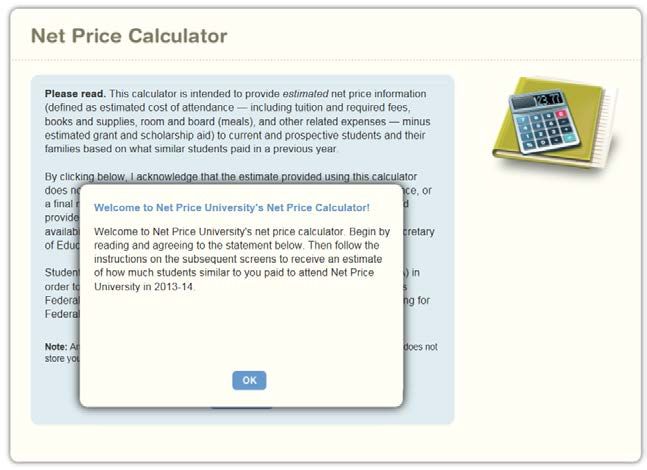
INTRODUCTION

1.1 Net Price Calculator Process Overview
The template has two options for creating a customized Net Price Calculator:

1. Template: This option will guide users through a simple step-by-step process for entering the
information required for the Net Price Calculator. This template only allows users to enter
information for one Net Price Calculator at a time, as described in Using the Net Price Calculator
Template.

2. Bulk Upload Tool: This option requires users to input their data in a text document and upload
it to the website. This tool can be used to produce an output file for one or more Net Price
Calculator at a time, as described in Using the Bulk Data File Upload Tool.

The Net Price Calculator template is comprised of two components for both of the options
referenced above. They include:

1. Institution application: Institutions input the data used to calculate estimated institutional net
price via the web-based application or the bulk upload tool. This includes cost of attendance data
(including values for tuition and required fees, books and supplies, room and board, and other
related expenses) and the median amount of grant and scholarship aid awarded to full-time, first-
time degree/certificate-seeking undergraduate students by living and residency category and
Expected Family Contribution (EFC) range.

2. Student application: Based on the data entered by the institution, a customized net price
calculator is generated for use on the institution’s website. The calculator includes questions
pertaining to dependency status, income level, and living arrangements to get an estimated net price
for attending the institution.

     Determining a student’s          Determining a student’s        Determining the student’s
       dependency status                approximated EFC                cost of attendance

  A student’s dependency status is The calculator uses a look-       The calculator determines
  determined based on the            up table populated with data    the appropriate cost of
  following:                         compiled from FAFSA             attendance to display based
                                     applications to identify a      on the student’s:
    • Age: If the student’s age is   median EFC based on the
    greater than 23, then the        following:                         • Eligibility for in-
    student’s dependency status is                                      state/in-district tuition
    Independent                          • Dependency status            • Planned living
    • Marital status: If the student     • Number in family             arrangements
    is married, then the student’s       • Number in college
    dependency status is                 • Income level
    Independent
    • Children: If the student has The approximated EFC is

                                                 2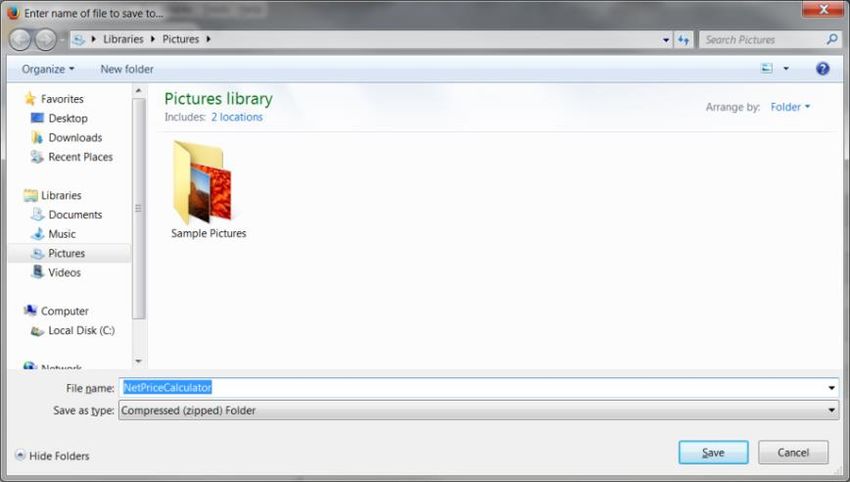
INTRODUCTION

    dependent children, then the     used to identify the median
    student’s dependency status is   amount of grant and
    Independent with                 scholarship aid, as was
    dependent children               entered by the institution.

  If a student does not meet any
  of these criteria, the student’s
  dependency status is considered
  Dependent for the purpose of
  the calculator.

  The student’s dependency is
  then used to help determine the
  approximated EFC.

1.2 Section 508 Compliance
The U.S. Department of Education’s Net Price Calculator template complies with Section 508 of the
Rehabilitation Act of 1973, as amended (29 U.S.C. § 794d). The current amendment went into effect
June 21, 2001 and requires that federal agencies make their electronic and information technology
accessible to people with disabilities. The U.S. Department of Education’s Net Price Calculator
template was designed to fully integrate with any additional adaptive equipment or software that may
be required.

1.3 JavaScript
In order to use both the institution and student Net Price Calculator applications, you must have
JavaScript enabled in your browser. In newer versions of Mozilla Firefox (version 23 and above),
JavaScript will always be enabled. To enable JavaScript in versions of Mozilla Firefox prior to
version 23, please follow the instructions below:

       1. Click the Tools menu.
       2. Select Options.
       3. Click the Content tab.
       4. Check the “Enable JavaScript” box.
       5. Click the OK button.

                                                 3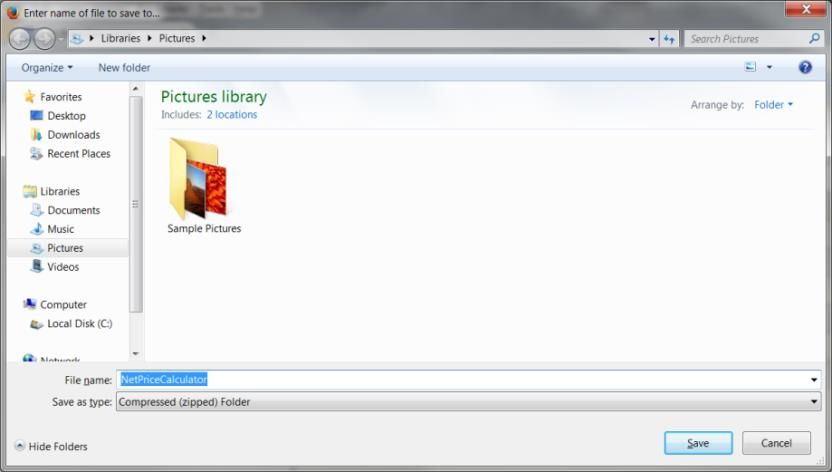
INTRODUCTION

1.4 Hints & Tips
Below are some helpful hints and tips for using the Net Price Calculator template.

   • For assistance with any questions or problems related to system usage, refer to the Net Price
     Calculator Help Desk contact information located at the top of the screen. The Help Desk for
     this template is available Monday-Friday from 8am-4pm EST and may be reached toll-free at
     1-877-299-3593 or at npc@inovas.net.

   • Use the      button at the top right of the screen to access the Quick Start Guide for Internet
     Explorer or Mozilla Firefox.

   • Use the link at the bottom of the home page to view the additional available resources found
     at the Net Price Calculator Information Center, available at
     http://www.nces.ed.gov/ipeds/resource/net_price_calculator.asp.

   Continue to Chapter 2: Using the Net Price Calculator Template to use the Template;
   Or to Chapter 3: Using the Bulk Data File Upload Tool to use the Bulk Upload Tool.

                                                 4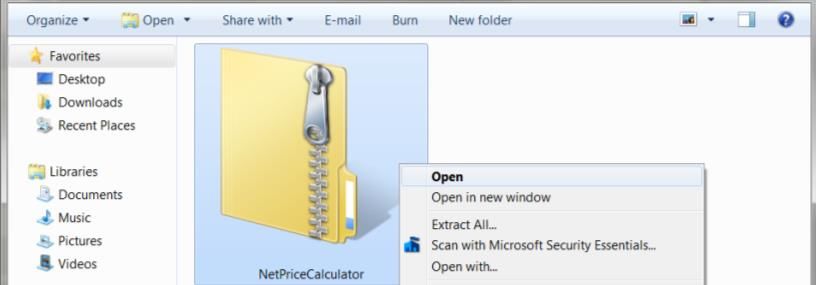
UPLOADING THE APPLICATION

                                                                                      Chapter

Using the Net Price Calculator Template
                                                                                       2
This chapter contains detailed instructions for completing the Net Price Calculator Template, available at
http://nces.ed.gov/ipeds/netpricecalculator.

2.1 Getting Started
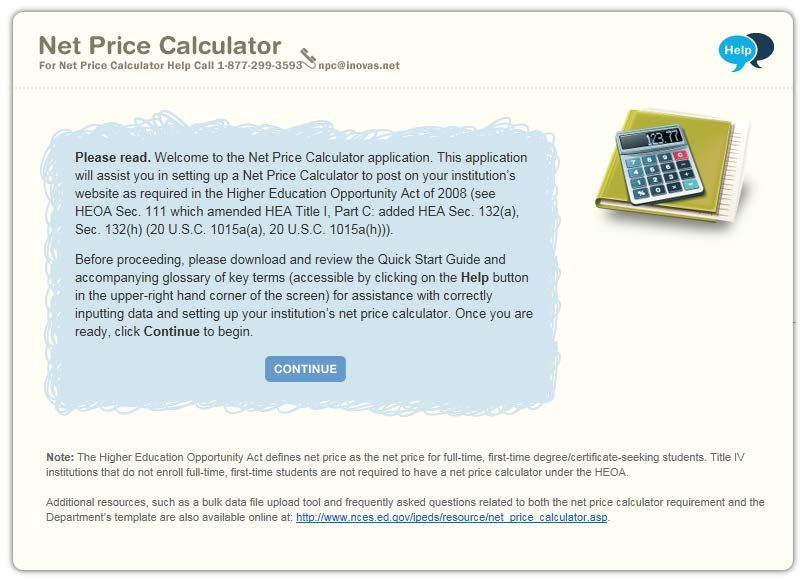
On the Net Price Calculator home page, shown below, carefully read the welcome message then
click Continue to get started.

2.2 Enter Institutional Data
You must complete all screening questions applicable to your institution. The screens displayed will
vary based on the predominant calendar system selected in Step 1, Question 2. Your responses here
will determine which data elements you will be required to provide in the subsequent data input
tables.

Step 1 – Determine representative year and calendar system (applicable to all institutions).
Only two representative years will be available at any time. Since the HEA requires that the Net
Price Calculator be based on data from actual full-time, first-time undergraduate students who have
attended your institution, you must select the most recent completed academic year for which data are
available.
                                                    5
UPLOADING THE APPLICATION

The calendar system selected should be consistent with that reported in the Integrated
Postsecondary Education Data System (IPEDS). You may find it helpful to discuss this with the
office(s) at your institution that complete the IPEDS IC Header survey.

Once you are satisfied with all entries, click Continue.

Step 2 –     Set up your data entry screens (for academic year tuition reporters - based on your
response to Step 1, Question 2).

On this screen, you must indicate whether your intuition offers institutionally controlled housing
(either on or off campus). If your institution does offer this, you must indicate whether all full-time,
first-time degree/certificate-seeking undergraduate students are required to live on campus or in
institutionally-controlled housing. Academic reporters are asked to indicate if the institution charges
different tuition for in-district, in-state, or out-of-state students.

                                                   6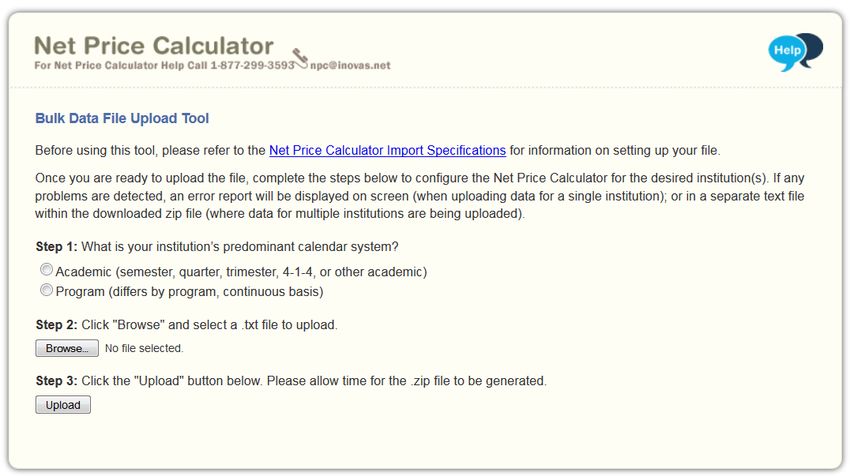
UPLOADING THE APPLICATION

Step 2 – Set up your data entry screens (for program tuition reporters - based on your response
to Step 1, Question 2)

On this screen, you must indicate whether your intuition offers institutionally controlled housing
(either on or off campus). If your institution does offer this, you must indicate whether all full-time,
first-time degree/certificate-seeking undergraduate students are required to live on campus or in
institutionally-controlled housing.

Program reporters are asked to specify the largest program the institution offered to full-time, first-
time undergraduate students and the average number of months it took a full-time student to
complete the program. This should be reported for the data year indicated in Step 1, Question 1.
This is the program that will appear on the output screen for the calculator and is the program upon
which all calculations will be based.

Step 3 – Enter your institution’s data.

When entering data into the tables, you may find it helpful to discuss the data to be input with the
office(s) at your institution that complete the IPEDS Institutional Characteristics and Student
Financial Aid surveys. Fill in each table as completely as possible.
                                                   7
UPLOADING THE APPLICATION
Data in both tables should be for full-time, first-time degree/certificate-seeking undergraduate
students, and should be for the same year (as indicated in Step 1, Question 1).
If your institution’s predominant calendar system is ‘Academic,’ then data in both tables should be
reported using a 9-month calendar. If your institution’s predominant calendar system is ‘Program,’
then data in both tables should be entered for the entire length of your largest program (as indicated
in Step 2, Question 3).
The example tables in this step are for an academic year tuition reporter with institutionally-
controlled housing and variable tuition rates for in-district, in-state, and out-of-state students. This is
simply an example of one version of the data input tables and is not representative of the
information required from all institutions. Certain columns (e.g., on-campus housing, variable tuition
rates, etc.) will not be displayed if you have indicated that your institution does not offer these
options in Steps 1 and 2.
Table 1: Cost of Attendance for Full-time, First-time Undergraduate Students
In this table, you must enter the estimated expenses for tuition and fees, books and supplies, room
and board, and other expenses (personal, transportation, etc.). These estimates are reported by your
institution in the IPEDS Institutional Characteristics survey on the Part D – Student Charges – Price
of Attendance screen. Estimated costs must be provided for each expense type even if those costs
are not charged by the institution (e.g., off-campus not with family room and board, etc.).
8UPLOADING THE APPLICATION
Table 2: Grants and Scholarships for Full-time, First-time Undergraduate Students: 2013-14
In this table, you must enter the median amount of need and non-need grant and scholarship aid
awarded to full-time, first-time degree/certificate-seeking undergraduate students. This table is
organized by residency and living arrangement (as applicable to your institution), and Expected
Family Contribution (EFC) range. If you have fewer than three (3) observations for a cell, leave the
cell blank. The system will calculate and insert the average of the surrounding cells. In the bottom
row of the table, report the median amount of grant or scholarship aid for students with an
unknown EFC (e.g., they did not file a FAFSA or apply for need-based financial aid).
Blank cell averaging is used for the Grants and Scholarships table (Table 2, shown above). This
means that when one or more cells are left blank the system will calculate and insert an appropriate
value based on the surrounding cells. In order for this functionality to work, data must be entered in
at least two cells per column of the Grants and Scholarships table for EFC ranges ‘0’ to ‘30,001 -
40,000’. Do not enter zeros where you do not have data; it is important that these cells are left blank
for this calculation to be accurate.
Once you are satisfied with all entries, click Continue.
9UPLOADING THE APPLICATION
Step 4 - Enter Explanations and Caveats.
On the next screen, you must enter the percentage of all full-time, first-time degree/certificate-
seeking undergraduate students who were awarded any grant or scholarship aid from Federal, State,
or Local Governments, or the Institution during the relevant data year (Question 1, shown below).
In addition, you may use this section to enter any additional information you wish to display in the
form of Explanations and Caveats at the bottom of the student calculator output screen. Review the
on-screen instructions carefully for information on the recommended use and placement of each
optional Explanation field, as shown below.
Once you are satisfied with all entries, click Continue.
10UPLOADING THE APPLICATION
Step 5 - Create Calculator.
A summary screen will be displayed detailing the data you have provided throughout the calculator.
For Table 1, the summary also includes calculated cost of attendance totals for each applicable
category, as shown below.
11UPLOADING THE APPLICATION
In addition, the summary data for Table 2 includes any additional amounts calculated using blank
cell averaging, as shown below. These amounts are indicated with a ‡ symbol.
You can click Modify to return to Step 1 and edit this information as needed, or if you are satisfied
with your responses, click Continue to generate your institution’s Net Price Calculator.
Once you click Continue an additional option will open allowing you to include a welcome message
with your calculator. This message includes your institution’s name, the relevant data year, and any
additional introductory information you wish to provide about the calculator. If utilized, this
message will appear in a pop-up window displayed to users when they access the student calculator
opening screen.
12UPLOADING THE APPLICATION
To include a welcome message with your calculator, select Yes; then, enter the institution name and
modify the default message as desired, as shown below. When you are finished, click Download to
generate your institution’s Net Price Calculator. Otherwise, click No to download the files without
including a welcome message.
!
Critical information: The zip file downloaded in this step constitutes the only copy of
the student application customized with your institution’s data. This data is not retained
anywhere on the ED server, so make sure you have saved these files locally, tested them,
and are satisfied with the application before closing your browser window.
13UPLOADING THE APPLICATION
2.3 Save and Extract your file
Your download is a zip file, also called a compressed folder, containing the images and HTML code
needed to run the customized Net Price Calculator on your institution’s website. You must save this
file to your computer and extract the file before attempting to upload it to your institution’s website.
Step 1 – Save your file.
If you receive the prompt shown below enter the desired file name and destination, then click Save.
If you did not receive the above prompt, you may click on the download arrow on the top right side
of your browser to access your download, as shown below. Click on the icon to the right of the
file name to open the folder containing your saved zip file.
Step 2 – Extract your file.
Once you have opened the folder containing your download, you must extract (or unzip) the zip file
to view the student application. To do this, right-click the downloaded file and choose “Extract all.”
14UPLOADING THE APPLICATION
While extracting the files, be sure to preserve the structure of the directory. In the example shown
below, this is done automatically. When using WinZip, you will need to make sure that the box
marked “Use Folder Names” is checked.
You may preview a local version of your institution’s customized Net Price Calculator at this time by
double-clicking the HTML document that appears as a browser link within the extracted folder, as
shown below.
Your institution’s customized Net Price Calculator will open to the welcome page, as shown below.
15UPLOADING THE APPLICATION
If after previewing the calculator you wish to modify any of the data provided for your institution,
you may return to your browser, modify the data, and download new files. If you wish to modify
your data but closed your browser window, you must repeat the process outlined in this guide to
generate a new version of the Net Price Calculator for your institution.
Continue to Chapter 4: Uploading the Application.
16UPLOADING THE APPLICATION
Chapter
Using the Bulk Data File Upload Tool
3
This chapter contains instructions for how to use the Net Price Calculator bulk data file upload tool, available at
http://nces.ed.gov/ipeds/netpricecalculator/upload.aspx.
The Bulk Data File Upload Tool is available to create one or more Net Price Calculators. To use this tool,
create a text document using the format outlined in the import specifications provided and upload the
document at the Bulk Data File Upload Tool website using the instructions outlined below.
3.1 Getting Started
The import specifications for creating and uploading a text document are available in Excel format from
the link on the main page of the Bulk Data File Upload Tool website.
Click on the link for “Net Price Calculator Import Specifications” to get started:
17UPLOADING THE APPLICATION
You may choose to open or save the file titled “NetPriceUpload”:
3.2 Net Price Calculator Import Specifications
This Excel document is a guide for creating the necessary text file to use the Tool – it is not a
template. An explanation for how to follow the import specifications is provided in this section.
With the Net Price Calculator Import Specifications open, select the tab for your institution’s
predominant calendar system from the bottom of the screen. You may select “Academic” or “Program”.
The calendar system selected should be consistent with that reported in the Integrated
Postsecondary Education Data System (IPEDS). You may find it helpful to discuss this with the
office(s) at your institution that complete the IPEDS IC Header survey.
In column A, the headings for each section of the specifications are listed, as shown below:
18UPLOADING THE APPLICATION
Each section will be represented by one line in the text file. The specifications contain the Field Name
(column B) and Description (column C) of the required data for that section.
The first two fields (eight digits total) must be entered for each section for the file to be accepted. The two
required fields are: the institution’s six-digit IPEDS Unit ID and the two-digit section number. Skipping
any of the required lines will result in errors upon upload.
The start position (column D) and length (column E) are provided for each field. These numbers
represent the location and the length of the required data. For example, the Unit ID should start at
position “1,” and the maximum length for this field is six characters.
3.3 Creating a Text Document
The following examples are provided to assist users with creating the text document needed to use the
Bulk Data File Upload Tool. To begin, use a basic text editor that displays the line number and column
number in the status bar. A new document should begin at “Ln 1, Col 1.”
Use the instructions outlined in the import specifications document for your predominant calendar system
to enter all necessary information in a text document.
19UPLOADING THE APPLICATION
As described in the import specifications, each line should begin with the institution’s six-digit IPEDS
Unit ID. If the information has been entered correctly, the cursor will be at the start position for the next
field at Col 7 of the same line, as shown below:
The two-digit section number should then be entered as indicated in the Description column of the
import specifications document. This is shown in the example below:
The rest of the text document should be completed in the manner demonstrated above using the import
specifications to enter in the necessary institution information, cost of attendance data, grants and
scholarships data, and explanations and caveats. When finished, save your file for use in the next section,
3.4 Uploading Your Bulk Data File. Keep in mind the following information while completing your text
document for upload:
• If the complete length of a specific field has not been utilized, press the space bar to move the cursor to
the next field’s start position.
• You may skip over providing information which has been marked as optional in the import
specifications, but be sure to move your cursor to the next field’s start position.
Tip - Specifications for multiple Net Price Calculators may be entered in one text document by grouping each
into either fourteen complete lines of data for Academic reporters or eight complete lines of data for Program
reporters.
20UPLOADING THE APPLICATION
!
Critical information: It is the user’s responsibility to remain in compliance by
answering all required fields.
3.4 Uploading Your Bulk Data File
After you have followed the Net Price Calculator Import Specifications and created your text file for
upload, follow steps one through three on the Bulk Data File Upload Tool home page to create your
.zip file.
Step 1 – What is your institution’s predominant calendar system?
Select the option button for either the Academic or Program calendar system. This should be the
same selection as the import specifications tab selected in section 3.2 Net Price Calculator Import
Specifications.
Step 2 – Click “Browse” and select a .txt file to upload
Use the “Browse” button to find and select your saved .txt file created in section 3.3 Creating a Text
Document.
Step 3 – Click the “Upload” button
Once you have selected your .txt file, click “Upload” to generate your .zip file. Allow some time for
the system to generate your file.
21UPLOADING THE APPLICATION
3.5 Save and Extract your file
Your download is a zip file, also called a compressed folder, containing the images and HTML code
needed to run the customized Net Price Calculator on your institution’s website. You must save this
file to your computer and extract the file before attempting to upload it to your institution’s website.
Step 1 – Save your file.
If you receive a prompt, as shown below, enter the desired file name and destination, then click
Save.
If you did not receive the above prompt, you may click on the download arrow on the top right side
of your browser to access your download, as shown below. Click on the icon to the right of the
file name to open the folder containing your saved zip file.
Step 2 – Extract your file.
Once you have opened the folder containing your download you must extract (or unzip) the zip file
to view the student application. To do this, right-click the downloaded file and choose “Extract all.”
22UPLOADING THE APPLICATION
While extracting the files, be sure to preserve the structure of the directory. In the example shown
below, this is done automatically. When using WinZip, you will need to make sure that the box
marked “Use Folder Names” is checked.
If an text document is present in the downloaded zip-file, it will contain information on any
issues that occurred while uploading the bulk data file. If you are using this upload tool to create just one
calculator, these errors will instead be displayed at the bottom of the upload tool screen.
You may preview a local version of your institution’s customized Net Price Calculator at this time by
double-clicking the HTML document that appears as a browser link within the extracted folder, as
shown below.
Your institution’s customized Net Price Calculator will open to the welcome page, as shown below.
23UPLOADING THE APPLICATION
If after previewing the calculator you wish to modify any of the data provided for your institution,
you may return to your browser, modify the data, and download new files. If you wish to modify
your data but closed your browser window, you must repeat the process outlined in this guide to
generate a new version of the Net Price Calculator for your institution.
Continue to Chapter 4: Uploading the Application.
24UPLOADING THE APPLICATION
Chapter
Uploading the Application
4
Once you have downloaded and extracted the necessary files, you are ready to upload the application
to your institution’s website.
Step 1 – Create a new web folder.
Start by creating a new folder for the Net Price Calculator within your website’s home directory.
Please note that the name chosen for this folder will be included in the link used to access the
application, so a simple name, such as NetPrice, is recommended.
!
Critical information: Since the HEA states that institutions must “make publicly
available on the institution’s website a net price calculator…” the calculator posted to
your institution’s website must be titled “Net Price Calculator” in order to be in full
compliance.
Step 2 – Upload the files.
Move the files extracted in Step 4 of this Quick Start Guide from their previous destination to this
new folder, this includes the npcalc.htm file and the folder labelled images containing all of the
necessary graphics.
Step 3 – Verify the application.
The Net Price Calculator should now be accessible on your institution’s website! You can verify this
by entering the URL into your web browser as follows:
http://[Homepage URL]/[Folder Name]/[File Name]
For example, in the case illustrated above, the URL would look something like this:
http://institution.edu/NetPrice/npcalc.htm
To change the URL above, you can rename the folder created within your home directory, or you
can rename the HTML file within that folder. Be sure to preserve the structure of the directory
when making these changes.
25UPLOADING THE APPLICATION
Disclaimer: If you choose to modify the HTML code within the files in any way, please be
aware that the Net Price Calculator Help Desk will no longer be able to guarantee
assistance with any questions or issues regarding system usage.
See Chapter 5 for a Glossary of Terms
26GLOSSARY OF TERMS
Chapter
Glossary of Terms
5
This section defines and explains some of the more common terms found in the system. In addition,
you may access the online IPEDS Glossary at http://nces.ed.gov/ipeds/glossary to find definitions
for nearly 500 postsecondary-related terms used in the collection of IPEDS data.
Term Definition
Academic year The period of time generally extending from September to June; usually
equated to two semesters or trimesters, three quarters, or the period
covered by a 4-1-4 calendar system.
Board charges Charges assessed students for an academic year for meals.
Books and supplies The average cost of books and supplies for a typical student for an entire
academic year (or program). Does not include unusual costs for special
groups of students (e.g., engineering or art majors), unless they constitute
the majority of students at an institution.
Calendar system The method by which an institution structures most of its courses for the
academic year.
Continuous basis A calendar system classification that is used by institutions that allow
(calendar system) students to enroll/start classes at any time during the year. For example,
a cosmetology school or word processing school might allow students to
enroll and begin studies at various times, with no requirement that
classes begin on a certain date.
Degree/certificate Students enrolled in courses for credit and recognized by the institution
seeking students as seeking a degree, certificate, or other formal award. High school
students also enrolled in postsecondary courses for credit are not
considered degree/certificate seeking.
Differs by program A calendar system classification that is used by institutions that have
(calendar system) occupational/vocational programs of varying lengths. These schools may
enroll students at specific times depending on the program desired. For
example, a school might offer a 2-month program in January, March,
May, September, and November; and a 3-month program in January,
April, and October.
27GLOSSARY OF TERMS
Term Definition
Expected Family The Expected Family Contribution (EFC) is the amount a family can be
Contribution (EFC) expected to contribute toward a student’s college costs. Financial aid
administrators determine an applicant’s need for federal student aid from
the U.S. Department of Education and other sources of assistance by
subtracting the EFC from the student’s cost of attendance (COA).
Federal grants Grants provided by federal agencies such as the U.S. Department of
Education, including Title IV Pell Grants and Supplemental Educational
Opportunity Grants (SEOG). Also includes need-based and merit-based
educational assistance funds and training vouchers provided from other
federal agencies and/or federally-sponsored educational benefits
programs.
Federal work-study A part-time work program awarding on- or off-campus jobs to students
program (FWS) who demonstrate financial need. FWS positions are primarily funded by
the government, but are also partially funded by the institution. FWS is
awarded to eligible students by the college as part of the student’s
financial aid package. The maximum FWS award is based on the
student’s financial need, the number of hours the student is able to work,
and the amount of FWS funding available at the institution. This is a type
of Title IV Aid, but is not considered grant aid to students.
Financial aid Federal Work Study, grants, loans to students (government and/or
private), assistantships, scholarships, fellowships, tuition waivers, tuition
discounts, employer aid (tuition reimbursement) and other monies (other
than from relatives/friends) provided to students to meet expenses. This
excludes loans to parents.
First-time student A student who has no prior postsecondary experience (except as noted
(Undergraduate) below) attending any institution for the first time at the undergraduate
level. This includes students enrolled in academic or occupational
programs. It also includes students enrolled in the fall term who attended
college for the first time in the prior summer term, and students who
entered with advanced standing (college credits earned before graduation
from high school).
Full-time student A student enrolled for 12 or more semester credit, or 12 or more quarter
(Undergraduate) credits, or 24 or more contact hours a week each term.
In-district student A student who is a legal resident of the locality in which he/she attends
school and thus is entitled to reduced tuition charges if offered by the
institution.
In-district tuition The tuition charged by the institution to those students residing in the
locality in which they attend school. This may be a lower rate than in-
state tuition if offered by the institution.
28GLOSSARY OF TERMS
Term Definition
In-state student A student who is a legal resident of the state in which they attend school
and is entitled to reduced tuition charges if offered by the institution.
In-state tuition The tuition charged by institutions to those students who meet the state’s
or institution’s residency requirements.
Institutional grants Scholarships and fellowships granted and funded by the institution
and/or individual departments within the institution (i.e., instruction,
research, public service) that may contribute indirectly to the
enhancement of these programs. Includes scholarships targeted to
certain individuals (e.g., based on state of residence, major field of study,
athletic team participation) for which the institution designates the
recipient.
Institutionally- Any residence hall or housing facility located on- or off-campus that is
controlled housing owned or controlled by an institution and used by the institution in direct
support of or in a manner related to, the institution’s educational
purposes.
Integrated The Integrated Postsecondary Education Data System (IPEDS),
Postsecondary conducted by the NCES, began in 1986 and involves annual institution-
Education Data level data collections. All postsecondary institutions that have a Program
System (IPEDS) Participating Agreement with the Office of Postsecondary Education
(OPE), U.S. Department of Education (throughout IPEDS referred to as
“Title IV”) are required to report data using a web-based data collection
system. IPEDS currently consists of the following components:
Admissions (ADM); Institutional Characteristics (IC); 12-month
Enrollment (E12); Completions (C); Human Resources (HR); Fall
Enrollment (EF); Graduation Rates (GRS); Graduation Rates 200
(GRS200); Finance (F); Academic Libraries (AL); and Student Financial
Aid (SFA).
Loans to students Any monies that must be repaid to the lending institution for which the
student is the designated borrower. Includes all Title IV subsidized and
unsubsidized loans and all institutionally- and privately-sponsored loans.
Does not include PLUS and other loans made directly to parents.
Median In probability theory and statistics, a median is described as the
numerical value separating the higher half of a sample or population
from the lower half. The median of a finite list of numbers can be found
by arranging all of the observations from lowest value to highest value
and selecting the middle one. If there is an even number of observations,
then there is no single middle value; the median is then typically defined
as the average of the two middle values.
29GLOSSARY OF TERMS
Term Definition
Off-campus housing Any housing facility that is occupied by students but is not owned or
controlled by the educational institution.
On-campus housing Any residence hall or housing facility owned or controlled by an
institution within the same reasonably contiguous geographic area and
used by the institution in direct support of or in a manner related to, the
institution's educational purposes.
Other academic Category used to describe non-traditional calendar systems at 4-year and
calendar 2-year degree-granting institutions. These can include schools that offer
primarily on-line courses or “one course at a time.”
Other expenses The amount of money (estimated by the financial aid office) needed by a
student to cover expenses such as laundry, transportation, and
entertainment. For the purposes of providing pricing data, room and
board and tuition and fees should not be included here.
Out-of-state student A student who is not a legal resident of the state in which he/she attends
school.
Out-of-state tuition The tuition charged by institutions to those students who do not meet
the institution’s or state’s residency requirements.
Quarter (calendar A calendar system in which the academic year consists of three sessions
system) called quarters of about 12 weeks each. The range may be from 10 to 15
weeks as defined by the institution. There may be an additional quarter in
the summer.
Required fees A fixed sum charged to students for items not covered by tuition and
required of such a large proportion of all students that the student who
does not pay the charge is an exception.
Room charges The charges for an academic year for rooming accommodations for a
typical student sharing a room with one other student.
Scholarships Grants-in-aid, trainee stipends, tuition and fee waivers, prizes, or other
monetary awards given to undergraduate students.
Semester (calendar A calendar system that consists of two sessions called semesters during
system) the academic year with about 15 weeks for each semester of instruction.
There may be an additional summer session.
State and local grants Grant monies provided by the state such as Leveraging Educational
Assistance Partnerships (LEAP) (formerly SSIG's); merit scholarships
provided by the state; and tuition and fee waivers for which the
institution was reimbursed by a state agency. Local government grants
include scholarships or gift-aid awarded directly to the student.
30GLOSSARY OF TERMS
Term Definition
Tuition The amount of money charged to students for instructional services.
Tuition may be charged per term, per course, or per credit.
4-1-4 (calendar The 4-1-4 calendar usually consists of four courses taken for four
system) months, one course taken for one month, and four courses taken for
four months. There may be an additional summer session.
End of Quick Start Guide
31You can also read


