OLED User Manual - Models: VIZIO
←
→
Page content transcription
If your browser does not render page correctly, please read the page content below
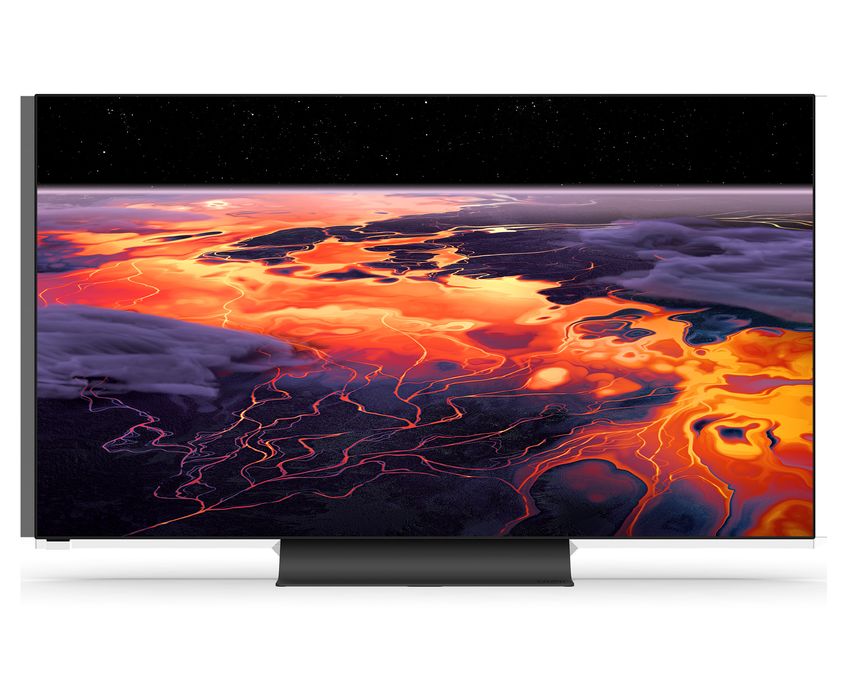
OLED
  User Manual

             Models:
OLED55-H1 & OLED65-H1
Table of Contents
Getting to Know Your TV . . . . . . . . . . . . . . . . . . . . . . . . . . . 1 Adjusting the Power Mode . . . . . . . . . . . . . . . . . . . . . . . . . . . . . . . . 22 Playing USB Media . . . . . . . . . . . . . . . . . . . . . . . . . . . . . . . . 30
Front Panel . . . . . . . . . . . . . . . . . . . . . . . . . . . . . . . . . . . . . . . . . . . . . . . . . . 1 OLED Panel . . . . . . . . . . . . . . . . . . . . . . . . . . . . . . . . . . . . . . . . . . . . . 23 Preparing Your USB Drive to Play USB Media . . . . . . . . . . . . . . . . 30
Rear Panel . . . . . . . . . . . . . . . . . . . . . . . . . . . . . . . . . . . . . . . . . . . . . . . . . . 2 Using the USB Power Feature . . . . . . . . . . . . . . . . . . . . . . . . . . . . . . 23 Displaying USB Media . . . . . . . . . . . . . . . . . . . . . . . . . . . . . . . . . . . . 30
Wall-mounting the TV . . . . . . . . . . . . . . . . . . . . . . . . . . . . . . . . . . . . . . . . 4 Turning the Power Indicator On or Off . . . . . . . . . . . . . . . . . . . . . . . 23 Removing the USB Drive from the TV . . . . . . . . . . . . . . . . . . . . . . . 30
Using the Remote . . . . . . . . . . . . . . . . . . . . . . . . . . . . . . . . . . . . . . . . . . . 5 Setting Timers . . . . . . . . . . . . . . . . . . . . . . . . . . . . . . . . . . . . . . . . . . 23
Product Registration and Technical Support . . . . . . . . . . 34
Setting a System PIN Code . . . . . . . . . . . . . . . . . . . . . . . . . . . . . . . . 24
Completing the First-Time Setup . . . . . . . . . . . . . . . . . . . 6
Adjusting the CEC Settings . . . . . . . . . . . . . . . . . . . . . . . . . . . . . . . . 24 Help Topics . . . . . . . . . . . . . . . . . . . . . . . . . . . . . . . . . . . . . . 35
Using the On-Screen Menu . . . . . . . . . . . . . . . . . . . . . . . . . 7 Managing Mobile Devices . . . . . . . . . . . . . . . . . . . . . . . . . . . . . . . . . 24
Using the Admin & Privacy Menu . . . . . . . . . . . . . . . . . . . . . . . . . . . . . . . 25 Specifications . . . . . . . . . . . . . . . . . . . . . . . . . . . . . . . . . . . . 37
Navigating the On-Screen Menu . . . . . . . . . . . . . . . . . . . . . . . . . . . . . . . 7
Changing the Input Source . . . . . . . . . . . . . . . . . . . . . . . . . . . . . . . . . . . . 7 Viewing System Information . . . . . . . . . . . . . . . . . . . . . . . . . . . . . . . 25
Regulatory Information . . . . . . . . . . . . . . . . . . . . . . . . . . . . 38
Adjusting the Picture Settings . . . . . . . . . . . . . . . . . . . . . . . . . . . . . . . . . 8 Checking for System Updates . . . . . . . . . . . . . . . . . . . . . . . . . . . . . 25
Adjusting the Color Temperature . . . . . . . . . . . . . . . . . . . . . . . . . . . 8 Performing a Soft Power Cycle . . . . . . . . . . . . . . . . . . . . . . . . . . . . . 25 Limited Warranty . . . . . . . . . . . . . . . . . . . . . . . . . . . . . . . . . 39
Changing the Picture Aspect Ratio . . . . . . . . . . . . . . . . . . . . . . . . . 9 Restoring the TV to Factory Default Settings . . . . . . . . . . . . . . . . . 25
Legal Information . . . . . . . . . . . . . . . . . . . . . . . . . . . . . . . . . 41
Adjusting Advanced Picture Settings . . . . . . . . . . . . . . . . . . . . . . . 9 Store Demo . . . . . . . . . . . . . . . . . . . . . . . . . . . . . . . . . . . . . . . . . . . . . 25
Adjusting Picture Input Settings . . . . . . . . . . . . . . . . . . . . . . . . . . . 12 Viewing Data . . . . . . . . . . . . . . . . . . . . . . . . . . . . . . . . . . . . . . . . . . . . 26
Adjusting the Picture Mode Edit Settings . . . . . . . . . . . . . . . . . . . . 12 Managing Advertising Settings . . . . . . . . . . . . . . . . . . . . . . . . . . . . 26
Adjusting the Audio Settings . . . . . . . . . . . . . . . . . . . . . . . . . . . . . . . . . . 14 View VIZIO Privacy Policy . . . . . . . . . . . . . . . . . . . . . . . . . . . . . . . . . 26
Adjusting the Network Settings . . . . . . . . . . . . . . . . . . . . . . . . . . . . . . . . 15 Using the Info Window . . . . . . . . . . . . . . . . . . . . . . . . . . . . . . . . . . . . . . . . 27
Setting Up TV Channels . . . . . . . . . . . . . . . . . . . . . . . . . . . . . . . . . . . . . . . 16
SmartCast Home™ . . . . . . . . . . . . . . . . . . . . . . . . . . . . . . . . 28
Scanning for TV Channels . . . . . . . . . . . . . . . . . . . . . . . . . . . . . . . . . 16
What is SmartCast Home? . . . . . . . . . . . . . . . . . . . . . . . . . . . . . . . . 28
Skipping Channels . . . . . . . . . . . . . . . . . . . . . . . . . . . . . . . . . . . . . . . 16
How to Launch SmartCast Home . . . . . . . . . . . . . . . . . . . . . . . . . . 28
Changing the Analog Audio Language . . . . . . . . . . . . . . . . . . . . . . 17
What you can do with SmartCast Home . . . . . . . . . . . . . . . . . . . . . 28
Using Parental Controls . . . . . . . . . . . . . . . . . . . . . . . . . . . . . . . . . . . 18
Control your TV with the SmartCast Mobile™ App . . . . . . . . . . . . . 28
Accessibility Settings . . . . . . . . . . . . . . . . . . . . . . . . . . . . . . . . . . . . . . . . . 19
Setting Up Closed Captioning . . . . . . . . . . . . . . . . . . . . . . . . . . . . . 19 WatchFree™ . . . . . . . . . . . . . . . . . . . . . . . . . . . . . . . . . . . . . . 29
Changing the Appearance of Digital Closed Captions . . . . . . . . . 19 What is WatchFree? . . . . . . . . . . . . . . . . . . . . . . . . . . . . . . . . . . . . . . 29
Changing the System Settings . . . . . . . . . . . . . . . . . . . . . . . . . . . . . . . . . 21 What you can do with WatchFree . . . . . . . . . . . . . . . . . . . . . . . . . . . 29
Changing the On-Screen Menu Language . . . . . . . . . . . . . . . . . . . 21 How to Launch WatchFree . . . . . . . . . . . . . . . . . . . . . . . . . . . . . . . . 29
Setting the Time . . . . . . . . . . . . . . . . . . . . . . . . . . . . . . . . . . . . . . . . 21
Changing the TV Name . . . . . . . . . . . . . . . . . . . . . . . . . . . . . . . . . . . 22
Renaming Devices on the Input Menu . . . . . . . . . . . . . . . . . . . . . . . 22
ii
Safety & Certification
THANK YOU FOR CHOOSING VIZIO IMPORTANT SAFETY INSTRUCTIONS • Refer all servicing to qualified service personnel. Servicing is required when the
apparatus has been damaged in any way, such as power-supply cord or plug is
And congratulations on your new VIZIO TV! Your TV is designed and manufactured to operate within defined design limits. damaged, liquid has been spilled or objects have fallen into the apparatus, the
Misuse may result in electric shock or fire. To prevent your TV from being damaged, apparatus has been exposed to rain or moisture, does not operate normally, or
To get the most out of your new VIZIO product, read these instructions before using the following instructions should be observed for the installation, use, and has been dropped.
your product and retain them for future reference. Be sure to inspect the package maintenance of your TV. Read the following safety instructions before operating your
contents to ensure there are no missing or damaged parts. TV. Keep these instructions in a safe place for future reference. • Unplug this apparatus during lightning storms or when unused for long periods
of time.
• To reduce the risk of electric shock or component damage, switch off the power
PRODUCT REGISTRATION before connecting other components to your TV. • When moving your TV from an area of low temperature to an area of high
temperature, condensation may form in the housing. Wait before turning on your
To purchase or inquire about accessories and installation services for your VIZIO • Read these instructions. TV to avoid causing fire, electric shock, or component damage.
product, visit our website at vizio.com or call toll free at (877) 698-4946.
• Keep these instructions. • A distance of at least three feet should be maintained between your TV and any
We recommend that you register your VIZIO product at vizio.com. heat source, such as a radiator, heater, oven, amplifier etc. Do not install your TV
• Heed all warnings. close to smoke. Operating your TV close to smoke or moisture may cause fire or
electric shock.
• Follow all instructions.
WHEN READING THIS MANUAL
• Slots and openings in the back and bottom of the cabinet are provided for
• Do not use this apparatus near water.
ventilation. To ensure reliable operation of your TV and to protect it from
• Clean only with dry cloth. overheating, be sure these openings are not blocked or covered. Do not place
TIP: When you see this symbol, please read the accompanying your TV in a bookcase or cabinet unless proper ventilation is provided.
helpful tip. • Do not block any ventilation openings. Install in accordance with the
manufacturer’s instructions. • Never push any object into the slots and openings on your TV cabinet. Do not
place any objects on the top of your TV. Doing so could short circuit parts
• Do not install near any heat sources such as radiators, heat registers, stoves, or causing a fire or electric shock. Never spill liquids on your TV.
other apparatus (including amplifiers) that produce heat.
WARNING: When you see this symbol, please read the • Your TV should be operated only from the type of power source indicated on
accompanying important warning or notice. It is intended to alert • Do not defeat the safety purpose of the polarized or grounding-type plug. A the label. If you are not sure of the type of power supplied to your home, consult
you to the presence of important operating instructions. polarized plug has two blades with one wider than the other. A grounding type your dealer or local power company.
plug has two blades and a third grounding prong. The wide blade or the third
prong are provided for your safety. If the provided plug does not fit into your • Do not apply pressure or throw objects at your TV. This may compromise the
outlet, consult an electrician for replacement of the obsolete outlet. integrity of the TV. The manufacturer’s warranty does not cover user abuse or
improper installations.
• Protect the power cord from being walked on or pinched particularly at plugs,
Color Text — This is the TV menu feature you should be selecting.
convenience receptacles, and the point where they exit from the apparatus. • The power cord must be replaced when using different voltage than the voltage
Grey Text — This is an action for you to complete, such as entering in a name. specified. For more information, contact your dealer.
• Only use attachments/accessories specified by the manufacturer.
> — The arrow sign shows the flow of the steps you should take. • When connected to a power outlet, power is always flowing into your TV. To
• Use only with the cart, stand, tripod, bracket, or table specified by totally disconnect power, unplug the power cord.
1. Lists additional steps you can take for each setting. the manufacturer, or sold with the apparatus. When a cart is used,
use caution when moving the cart/apparatus combination to avoid • The lightning flash with arrowhead symbol within an equilateral
• Bullets give more detailed information about each feature. injury from tip-over. triangle is intended to alert the user to the presence of un-isolated,
dangerous voltage within the inside of your TV that may be of
• Unplug the power cord before cleaning your TV. sufficient magnitude to constitute a risk of electric shock to persons.
iii• Do not overload power strips and extension cords. Overloading can result in fire electric shock. When your TV will not be used for an extended period of time, • The American Academy of Pediatrics discourages television viewing for children
or electric shock. unplug the power cord. younger than two years of age.
• The wall socket should be installed near your TV and easily accessible. • To reduce risk of electric shock, do not touch the connector with wet hands. • WARNING — Stability Hazard: A television set may fall, causing serious
personal injury or death. Many injuries, particularly to children, can be avoided
• Only power of the marked voltage can be used for your TV. Any other voltage • This apparatus shall not be exposed to dripping or splashing and no objects by taking simple precautions such as:
than the specified voltage may cause fire or electric shock. filled with liquids, such as vases, shall be placed on the apparatus.
• ALWAYS use cabinets or stands or mounting methods recommended by the
• Do not touch the power cord during lightning. To avoid electric shock, avoid • The mains plug or appliance coupler is used as the disconnect device, the manufacturer of the television set.
handling the power cord during electrical storms. disconnect device shall remain readily operable.
• ALWAYS use furniture that can safely support the television set.
• Unplug your TV during a lightning storm or when it will not be used for long • If any of the following occurs, contact the dealer:
period of time. This will protect your TV from damage due to power surges. • ALWAYS ensure the television set is not overhanging the edge of the supporting
− The power cord fails or frays.
furniture.
• Do not attempt to repair or service your TV yourself. Opening or removing the
− Liquid sprays or any object drops into your TV.
back cover may expose you to high voltages, electric shock, and other hazards. If • ALWAYS educate children about the dangers of climbing on furniture to reach
repair is required, contact your dealer and refer all servicing to qualified service − Your TV is exposed to rain or other moisture. the television set or its controls.
personnel.
− Your TV is dropped or damaged in any way. • ALWAYS route cords and cables connected to your television so they cannot be
• WARNING: Keep your TV away from moisture. Do not expose your TV to rain or tripped over, pulled or grabbed.
− The performance of your TV changes substantially.
moisture. If water penetrates into your TV, unplug the power cord and contact
your dealer. Continuous use in this case may result in fire or electric shock. • NEVER place a television set in an unstable location.
• CAUTION: These servicing instructions are for use by qualified service
personnel only. To reduce the risk of electric shock, do not perform any servicing • NEVER place the television set on tall furniture (for example, cupboards or
• Do not use your TV if any abnormality occurs. If any smoke or odor becomes
other than that contained in the operating instructions unless you are qualified bookcases) without anchoring both the furniture and the television set to a
apparent, unplug the power cord and contact your dealer immediately. Do not
to do so. suitable support.
try to repair your TV yourself.
• Avoid using dropped or damaged appliances. If your TV is dropped and the
Caution • NEVER place the television set on cloth or other materials that may be located
Risk of Electric Shock
housing is damaged, the internal components may function abnormally. Unplug Do Not Open between the television set and supporting furniture.
the power cord immediately and contact your dealer for repair. Continued use of
• NEVER place items that might tempt children to climb, such as toys and remote
your TV may cause fire or electric shock.
• The lightning flash with arrowhead symbol within an equilateral triangle is controls, on the top of the television or furniture on which the television is
• Do not install your TV in an area with heavy dust or high humidity. Operating intended to alert the user to the presence of uninsulated DANGEROUS VOLTAGE placed.
your TV in environments with heavy dust or high humidity may cause fire or within the product’s enclosure that may be of sufficient magnitude to constitute
a risk of electrical shock to persons. • If the existing television set is going to be retained and relocated, the same
electric shock.
considerations as above should be applied.
• Follow instructions for moving your TV. Ensure that the power cord and any • WARNING: Exposure to loud sounds can damage your hearing causing hearing
loss and tinnitus (ringing or buzzing in the ears). With continued exposure to • Disposal of a battery into fire or a hot oven, or mechanically crushing or cutting
other cables are unplugged before moving your TV.
loud noises, ears may become accustomed to the sound level, which may result of a battery, that can result in an explosion;
• To prevent injury, this apparatus must be securely attached to the floor/wall in in permanent damage to hearing without any noticeable discomfort.
• Leaving a battery in an extremely high temperature surrounding environment
accordance with the installation instructions.
• Install the TV where it cannot be pulled, pushed or knocked over. that can result in an explosion or the leakage of flammable liquid or gas;
• Insert batteries in accordance with instructions. Incorrect polarities may cause
• Do not allow children to hang onto the product. • A battery subjected to extremely low air pressure that my result in an explosion
the batteries to leak which can damage the remote control or injure the operator.
or the leakage of flammable liquid or gas.
Do not expose batteries to excessive heat such as sunshine, fire or the like.
• Store the accessories (remote, batteries, etc.) in a location safely out of the
reach of children. • WARNING: To prevent injury, this apparatus must be securely attached to the
• When unplugging your TV,grab the head of the power plug, not the cord. Pulling
floor/wall in accordance with the installation instructions.
on the power cord may damage the wires inside the cord and cause fire or
ivTELEVISION ANTENNA CONNECTION PROTECTION
The TV shall be installed in accordance with the applicable provisions of Article 810
and Article 820.
If an outside antenna/satellite dish or cable system is to be connected to the TV,
make sure that the antenna or cable system is electrically grounded to provide some
protection against voltage surges and static charges.
Ground Clamp
Article 810 of the National Electrical Code, ANSI/NFPSA 70, provides information Antenna Lead In Wire
with regard to proper grounding of the mast and supporting structure, grounding
of the lead-in wire to an antenna discharge unit, size of the grounding conductors,
location of antenna discharge unit, connection to grounding electrodes, and
requirements of the grounding electrode.
Lightning Protection
For added protection of the TV during a lightning storm or when it is left unattended
or unused for long periods of time, unplug the TV from the wall outlet and disconnect Antenna Discharge Unit
the antenna or cable system. (NEC Section 810-20)
Power Lines
Do not locate the antenna near overhead light or power circuits, or where it could
fall into such power lines or circuits. Remember, the screen of the coaxial cable is
intended to be connected to earth in the building installation.
Grounding Conductors
Installation of CATV (NEC Section 810-21)
The installation instructions states the cable distribution system should be grounded
(earthed) in accordance with ANSI/NFPA 70. the National Electrical Code (NEC), in
particular Section 820.93, Grounding of Outer Conductive Shield of a Coaxial Cable.
Ground Clamps
Installation of Antenna
The installation instructions states the cable distribution system used for connection
to antennas and dishes should be grounded (earthed) in accordance with ANSI/
NFPA 70. the National Electrical Code (NEC), in particular Section 810.21, Bonding
Conductors and Grounding Electrode Conductors — Receiving Stations. Electric Service Equipment Power Service Grounding Electrode System
(NEC ART 250, part H)
vDolby, Dolby Vision, Dolby Audio, and the double-D symbol are The terms HDMI, HDMI High-Definition Multimedia Interface, and the
trademarks of Dolby Laboratories Licensing Corporation. Manufactured HDMI Logo are trademarks or registered trademarks of HDMI Licensing
under license from Dolby Laboratories. Confidential unpublished works. Administrator, Inc.
Copyright © 1992-2020 Dolby Laboratories. All rights reserved.
For DTS patents, see http://patents.dts.com. For DTS patents, see http://patents.dts.com.
Manufactured under license from DTS, Inc. DTS, the Symbol, DTS Manufactured under license from DTS, Inc. DTS, the Symbol, DTS and
and the Symbol together, Virtual:X, and the DTS Virtual:X logo are the Symbol together, DTS-HD, and the DTS-HD logo are registered
registered trademarks or trademarks of DTS, Inc. in the United States trademarks or trademarks of DTS, Inc. in the United States and/or
and/or other countries. © DTS, Inc. All Rights Reserved. other countries. © DTS, Inc. All Rights Reserved.
viGetting to Know Your TV 1 FRONT PANEL Remote Sensor and Power Indicator When using the remote, aim it directly at this sensor. The power indicator flashes on when the TV turns on, then goes out after several seconds. To keep the power indicator on, see Turning the Power Indicator On or Off on page 23. 1
1

REAR PANEL

                                                 Power
                               Press to turn on the TV.
                      Press and hold to turn the TV off.

                                              Volume
                                                           VOL
     Press to increase or decrease the TV volume level.

                                                 Input
                                                           INPUT
                       Press to access the input menu.

                                                                                               Note: The image shown here is for illustrative purposes only and may be subject to change.
                                                                                               The actual number of ports and their locations may vary, depending on the model.

          HDMI                               Composite                   Audio Out                                    Coaxial                                         USB                      Optical Audio Out                 Ethernet
  Connect an HDMI device                 Connect a composite       Connect to an RCA device,                   Connect to a coaxial                       Connect a USB thumb drive to      Connect to an optical/SPDIF   Connect an Ethernet cable
                                                                      such as sound bar                         cable from cable,                          play photo, music, or video      audio device, such as home       to modem/router
                                                                                                               satellite, or antenna                                                              audio receiver

                                                                                                                                                                                                                                                      2
To 3
m
1
Standard
RCA
Optical
Connecting a device — AUDIO & VIDEO CABLE TYPES HDMI CABLE COAXIAL CABLE
Your TV can be used to display output from most devices.
Coaxial
HDMI
1. Verify that your device has a video port that matches an available port on the TV (HDMI, Composite, etc.).
2. Connect the appropriate cable (not included) to the TV and the device.
3. Turn the TV and your device on.
4. Set the TV’s input to match the connection you used (HDMI-1, HDMI-2, etc.). COMPOSITE (AV) CABLE
HDMI
Y
HDMI RCA To 3 RCA
HDMI
L
5mm 5mm RCA
HDMI
To
Standard
R
3
RCA To 3
5mm
Standard
RCA
RCA
Optical
5mm
To 3 Optical
Standard
Standard
RCA
RCA
Optical
Optical
HDMI
Connecting a device — AUDIO CABLE TYPES HDMI CABLE
Your TV can be output sound to an audio device, such as a receiver or sound bar.
RCA To 3
5mm
HDMI
1. Verify that your device has an audio port that matches an available port on the TV (optical, RCA, etc).
Standard
HDMI
RCA
2. Connect the appropriate cable (not included) to the TV and the device.
COMPONENT AND/OR COMPOSITE CABLE
Optical
3. Turn the TV and your device on.
RCA To 3
5mm
HDMI
R
Standard
RCA
RCA
Optical
L
5mm
To 3
Standard
RCA
Optical
OPTICAL/SPDIF CABLE
Optical
Note: The actual ports and their locations may vary, depending on the TV model.
31
WALL-MOUNTING THE TV
First you will need a wall mount. Consult the provided table below to find the
appropriate mount for your TV.
Be sure the mount you choose is capable of supporting the weight of the TV.
To install your TV on a wall:
1. Disconnect any cables connected to your TV.
2. Place the TV face-down on a clean, flat, stable surface. Be sure the surface is
clear of debris that can scratch or damage the TV.
3. If attached, remove the stands by loosening and removing the screws.
4. Attach your TV and wall mount to the wall by carefully following the instructions
that came with your mount. Use only with a UL-listed wall mount bracket rated
for the weight/load of your TV.
TIP: Installing a TV on a wall requires lifting. To prevent injury or
damage to the TV, ask someone to help you.
WARNING: Do not use the screws that are included inside the wall
mount holes to mount TV. Note: The image shown here is for illustrative purposes only and may be subject to change. The actual number
of ports and their locations may vary, depending on the model.
OLED55-H1 OLED65-H1
Screw Size: M6 M6
Hole Depth: 14 mm 14 mm
Hole Pattern: 300 mm x 200 mm 300 mm x 200 mm
Weight w/o Stand: 44.93 lb (20.38 kg) 60.85 lb (27.6 kg)
41
USING THE REMOTE Replacing the Batteries
1. Push the bottom of the battery compartment and lift battery cover to open.
Input Power 2. Insert two batteries into the remote control. Make sure that the (+) and (-)
INPUT
Change the currently displayed input Turn television on or off symbols on the batteries match the (+) and (-) symbols inside the battery
compartment.
App Launcher
Info 3. Replace the battery cover and click to close.
Quickly launch the pictured app
Display the info window
Menu
Display the settings menu MENU INFO Lift
OK/Play/Pause
WatchFreeTM Select the highlighted menu option and
Access WatchFree channels play or pause content
(not available in Canada)
Push
+
AA
Home Button A
Navigation Buttons — Left / Right OK Launch SmartCast Home /Return to
SM
Navigate the on-screen menus SmartCast Home Screen
+
AA
Navigation Buttons — Up / Down Closed Caption A
Navigate the on-screen menus Enable or disable close captions
Long press to open Accessibility menu featuring captions, talk
back, speech rate, and zoom mode*
BACK CC
Back
Go to the previous on-screen menu
Channel Up/Down
Volume Up/Down + PREV + Change the channel In many places batteries cannot be thrown away or discarded with household waste. Please ensure you
properly dispose of your batteries consistent with the laws and/or regulations where you live. For more
Increase or decrease the loudness information please visit: www.vizio.com/environment
VOL CH
of the audio
_ _ Last
Return to the channel last viewed WARNING: Keep the remote control batteries away from children.
Number Pad It may cause choking and/or lead to a fire or chemical burn if
Manually enter a channel mishandled. Do not dispose of batteries in fire. Replace only with
1 2 3
batteries of the correct type.
Mute
Pic 4 5 6 Turn the audio on or off
Cycle through the different picture setting modes
Long press to enabled/disable talk back feature* 7 8 9
TIP: When needed, VIZIO recommends replacing the
Dash batteries that came with this remote with two, new
PIC 0 — Use with number pad to manually enter a digital sub- Duracell ‘AAA’ alkaline batteries.
channel (for example, 18-4 or 18-5)
5number we assign. You may change your Viewing Data settings at any time within during
numberbroadcast,
we assign.cable,
You may
satellite,
changeor internet
your Viewing
basedData
television
settings
programming
at any time
the Settings Menu of your TV. Declining Viewing Data collection will not change the and
the Settings
its authorized
Menu dataof your
partners
TV. Declining
also useViewing
the information
Data collection
to generate
will not
summ
ch
Home Use Store Demo Home Use Store Demo Family Room Living Room Family Room
Master Bedroom
Living Room Game RoomMaster Bedroom
functionality of your device. Game Room analysis
functionality
and of
reports
your device.
of how users engage with content on their TVs and ot
Completing the First-Time Setup 2
devices.
WHO DO WE SHARE VIEWING DATA WITH? WHO DO WE SHARE VIEWING DATA WITH?
When enabled, we share Viewing Data with authorized data partners. We license WHAT
When enabled,
ELSE DOES we share
VIEWING
Viewing
DATAData
SHARING
with authorized
MEAN FOR data
YOU?
partners. We li
Viewing Data to analytics companies, media companies, advertisers, ad agencies, Viewing Data is to also
analytics
used companies,
to help contentmedia
publishers,
companies,broadcasters
advertisers,
orad
contag
and other ad tech companies who measure ad effectiveness or aid personalization distribution
and other adservices
tech companies
create or who
recommend
measuremoread effectiveness
relevant entertainment
or aid personba
of ads. Our authorized cloud service providers may also store this data on and summary
of ads. Ourinsights.
authorizedFor cloud
example,
service
if devices
providers
sharing
mayyour
alsoIP
store
address
this data
suggeson
solely on our behalf, and for no other purposes. interest
solely oninour
music,
behalf,
fitness,
and for
or sports
no other related
purposes.
topics, advertisers might deliver
Viewing Data Policy Decline Accept Viewing Data Po
+ Add Custom Location + Add Custom Location
Before you begin the first-time setup:
• Your TV should be installed and the power cord should be connected to an Where is you VIZIO TV located? Where is you VIZIO TV located? Let’s set up local channels. Let’s set up local channels. Congratulations! Co
electrical outlet. To search for local broadcast channels, make sure the cable from the
antenna, wall or cable box is properly connected to your VIZIO TV.
To search for local broadcast channels, make sure the cable from the
antenna, wall or cable box is properly connected to your VIZIO TV.
Start streaming your favorite Start str
shows now!
• If you have a wireless network, have the network password ready. Next Skip Next Skip
Start Watching
USA Mexico Canada USA Mexico Canada
• If you are connecting to your network with an Ethernet cable, connect it to the
Ethernet port on the TV.
By the way...
You can turn your phone into the ultimate rem
VIZIO SmartCastTM App brings together TV Sho
and more from multiple apps into one simple e
Download now from the App Store or Google P
The first time you turn on the TV, the on-screen instructions will guide you through
each of the steps necessary to get your TV ready for use:
3. Choose your country. 6. Scan for channels.
Choose a language for your TV. Choose a language for your TV. Choose a language for your Choose
TV. a Wi-Fi Network. Choose a Wi-Fi Network. Choose a Wi-Fi Network.Terms & Conditions. Terms & Conditions. Terms & Conditions.
Your use of this device and software functionality are covered by VIZIO and Google ‘s
Your
respective
use of this
Terms
device
of Service
and software
and Privacy
functionality
Policies.are covered by VIZIO and Google ‘s respective
Your Terms
use of of
this
Service
deviceand
andPrivacy
software
Policies.
functionality are covered by VIZIO and Google ‘s respective Terms of Service and Privacy Policies.
By pressing “Accept All”, you agree to be bound by the (i) VIZIO Terms of Service andByPrivacy
pressing
Policy
“Accept
and (ii)
All”,the
you
Google
agree Terms
to be bound
of Service
by the
and
(i) VIZIO Terms of Service and PrivacyByPolicy
pressing
and “Accept
(ii) the Google
All”, you
Terms
agreeoftoService
be bound
andby the (i) VIZIO Terms of Service and Privacy Policy and (ii) the Google Terms of Service and
Privacy Policy. NOTE: Accepting the terms and policiesis a condition of using the CastPrivacy
functionality
Policy. NOTE:
of thisAccepting
device. the terms and policiesis a condition of using the Cast functionality
Privacy Policy.
of this device.
NOTE: Accepting the terms and policiesis a condition of using the Cast functionality of this device.
Choose a language for your TV. Choose a language for your TV. Choose a language for your Choose
TV. a Wi-Fi Network. Choose a Wi-Fi Network. Choose a Wi-Fi Network.Terms & Conditions. Terms & Conditions. Terms & Conditions.
Your use of this device and software functionality are covered by VIZIO and GoogleYour
‘s respective
use of this
Terms
device
of Service
and software
and Privacy
functionality
Policies.
are covered by VIZIO and Google ‘s respective
YourTerms
use ofofthis
Service and
device Privacy
and Policies.
software functionality are covered by VIZIO and Google ‘s respective Terms of Service and Privacy Policies.
By pressing “Accept All”, you agree to be bound by the (i) VIZIO Terms of Service and
ByPrivacy
pressing
Policy
“Accept
andAll”,
(ii) the
youGoogle
agree toTerms
be bound
of Service
by theand
(i) VIZIO Terms of Service and PrivacyBy
Policy and (ii)
pressing the Google
“Accept Terms
All”, you of to
agree Service and by the (i) VIZIO Terms of Service and Privacy Policy and (ii) the Google Terms of Service and
be bound
English Español English
Français Español FrançaisEnglish Español Français Privacy Policy. NOTE: Accepting the terms and policiesis a condition of using the Cast
Privacy
functionality
Policy. NOTE:
of this
Accepting
device. the terms and policiesis a condition of using the Cast functionality
Privacyof this device.
Policy. NOTE: Accepting the terms and policiesis a condition of using the Cast functionality of this device.
VIZIO Terms & VIZIO Privacy Google
VIZIOPrivacy
Terms & Google Terms
VIZIO &
Privacy Google Privacy
VIZIO Terms & Google Terms
VIZIO&Privacy Google Privacy Google Terms &
Home Network Public Wi-Fi HomeNetwork
John’s Network Public
Ana’s Wi-Fi
Network John’sHome
Encrypted Network
Network Ana’s Network Encrypted
Public Wi-FiConditions John’s Network
Policy Ana’s NetworkPolicy
Conditions Encrypted Conditons
Policy PolicyConditions ConditonsPolicy Policy Conditons
English Español English
Français Español FrançaisEnglish Español Français
VIZIO Terms & VIZIO Privacy Google
VIZIOPrivacy
Terms & Google
VIZIOTerms &
Privacy Google Privacy
VIZIO Terms & Google Terms
VIZIO&Privacy Google Privacy Google Terms &
Home Network Public Wi-Fi Home Network
John’s Ana’s
Public
Network
Wi-Fi John’s Home
Encrypted Network
Network Ana’s Network Encrypted
Public Wi-FiConditions John’s Network
Policy Ana’s NetworkConditions
Policy Encrypted Conditons
Policy PolicyConditions Conditons Policy Policy Conditons
Rescan Networks Hidden Netwok Help Rescan Networks
Skip Hidden Netwok Help Rescan
Skip Networks Hidden Netwok Skip
HelpFor Now Skip Accept All Skip For Now Accept All Skip For Now Accept All
Rescan Networks Hidden Netwok Help Rescan Networks
Skip Hidden Netwok Help Skip Networks
Rescan Hidden Netwok Skip
HelpFor Now Skip Accept All Skip For Now Accept All Skip For Now Accept All
1. Choose your language. Pressing the CC button will enable TTS 4. Choose your Wi-Fi network and enter the password. 7. Accept the Terms & Conditions.
(text-to-speech) functionality.
How are you using your TV? How are you using your TV? How are you usingWhich
your TV?
room is your VIZIO TV Located? Which room is your VIZIO TV Located? Viewing Data
Which room is your VIZIO TV Located? Viewing Data Viewing Data
This unit is equipped with Automated Content Recognition (”ARC”) Technology also This
knownunit
asisViewing
equipped
Data.
with Automated Content Recognition (”ARC”) Technology also known as
This
Viewing
unit is Data.
equipped with Automated Content Recognition (”ARC”) Technology also known as Viewing Data.
WHAT DATA DOES ACR TECHNOLOGY COLLECT? WHAT DATAWHAT DOESDOACR TECHNOLOGY
WE DO WITH VIEWING COLLECT?
DATA? WHATDATA
WHAT DO WE DO ACR
DOES WITHTECHNOLOGY
VIEWING DATA? COLLECT? WHAT DO WE DO WITH VIEWING DATA?
When enabled, ACR technology will collect information about the audio and video When enabled, VIZIO ACR
or itstechnology
authorizedwill
datacollect information
partners may combineaboutViewing
the audio andwith
Data video
household WhenVIZIOenabled,
or its authorized data partners
ACR technology may information
will collect combine Viewingabout Data with household
the audio and video VIZIO or its authorized data partners may combine Viewing Data with household
How are you using your TV? How are you using your TV? How are you usingWhich
your TV?
room is your VIZIO TV Located?Which room is your VIZIO TV Located? Viewing Data
Which room is your VIZIO TV Located?
programing content playing on this internet-connected display unit including programing content playing
demographic
broadcast television, advertisements and other commercially available content. We broadcastlocation,
television,
web
data,on
or this
other
advertisements
internet-connected
and other
histories or offline
display
data about your digital
commercially
purchases,
unit including
actions,
in order available
like smartphone
content.
to determine We
Viewing Data
demographic
programing
broadcast
the effectiveness location, web
data,playing
content
television,
or otheron
histories
data
thisabout
advertisements
your digital actions,
internet-connected
or offline purchases,
and otherin commercially
like
display
order to determine
smartphone
unit including
available
the effectiveness
content. We
Viewing Data
demographic data, or other data about your digital actions, like smartphone
location, web histories or offline purchases, in order to determine the effectiveness
associate this Viewing Data with the IPThis unit is
address forequipped
the unit, with
and aAutomated Contentassociate
unique device Recognition a (”ARC”)
this
of ViewingTechnology
particular Data with
ad, or also
the
choose This
IPknown
unit
address
which as
isfor
ads Viewing
equipped
arethe Data.
unit,
likely with
to be Automated
and a unique
useful Content
device
or timely, Recognition
including of a(”ARC”)
associate thisTechnology
particularViewing alsowith
ad, or choose
Data known
which asThis
the ads
IP Viewing
areunit
address is
likely Data.
equipped
for
tothe
beunit, with
useful
and oraAutomated
timely, Content Recognition
uniqueincluding
device of a (”ARC”) Technology
particular alsowhich
ad, or choose knownads
as Viewing
are likelyData.
to be useful or timely, including
number we assign. You may change your Viewing Data settings at any time within number we assign.
during You maycable,
broadcast, change your Viewing
satellite, Databased
or internet settings at any time
television within
programming. VIZIO number
during webroadcast,
assign. You
cable,maysatellite,
changeoryourinternet
Viewing
based Data
television
settingsprogramming.
at any time withinVIZIO during broadcast, cable, satellite, or internet based television programming. VIZIO
the
WHATSettings
DATAMenu
DOESof ACRyour TV. Declining COLLECT?
TECHNOLOGY Viewing Data collection will not change theWHAT the Settings
DATA
WHATMenu
andDOES
its DO ofWE
ACR your
authorizedDOTV. Declining
data
TECHNOLOGY
WITH partners
VIEWING Viewing
also
COLLECT?
DATA? Data
use thecollection
information willto
not changesummary
generate the the
and
Settings
WHAT
WHAT its authorized
DO
DATA Menu
WE ofdata
DO WITH
DOES ACRyour partners
TV. Declining
VIEWING
TECHNOLOGY also
DATA? use
Viewing
the information
COLLECT? Data collection
to generate
will notsummary
change the and
WHATits DO
authorized data partners
WE DO WITH VIEWINGalso DATA?use the information to generate summary
Home Use Store Demo Home Use Store Demo Home
Family Use
Room Living Room
Store Demo Family
MasterRoom Bedroom
Living Room Family Room
GameMaster
Room BedroomLiving
functionality
When Room
enabled,of ACR device. Game
your technology Room
will collect Master
information about the audio and video When Bedroom
functionality
enabled,
VIZIOofACR
analysisyourand
or its device.
reports of
technology
authorized how
will
data Game
users
collect Room
engage
information
partners may with content
about
combine on their
the audio
Viewing and
Data TVs and
video
with other
household functionality
analysis
VIZIO
When and
or its
enabled, ofreports
your technology
authorized
ACR device.
ofdata
howpartners
users engage with content
may combine
will collect information Viewingon their
about the TVs
Data withand
audio other
household
and video analysis
VIZIO andauthorized
or its reports ofdata
how partners
users engage with content
may combine on their
Viewing DataTVs
withand other
household
programing content playing on this internet-connected display unit including programing devices.
content playing
demographic data,onorthis
otherinternet-connected displayactions,
data about your digital unit including
like smartphone devices. content
demographic
programing data, or other on
playing data about
this your digital actions,
internet-connected displaylikeunit
smartphone
including devices.
demographic data, or other data about your digital actions, like smartphone
WHO DO WE
broadcast SHARE VIEWING
television, DATA WITH?
advertisements WHO DO WE
and other commercially available content. Webroadcast SHARE
television,
location, web VIEWING DATA
advertisements
histories WITH?
and
or offline other commercially
purchases, in orderavailable
to determinecontent. We
the effectivenessWHO DO WE
location,
broadcast web SHARE VIEWING
histories
television, DATA
or offline
advertisements WITH?
purchases,
and other in order to determine
commercially the effectiveness
available content. We location, web histories or offline purchases, in order to determine the effectiveness
When enabled,
associate we share
this Viewing Viewing
Data Data
with the IPwith authorized
address for thedata
unit, partners. We license
and a unique When enabled,
device associate WHAT
this
of we
a Viewingshare
ELSE
particular Viewing
DOES
Data
ad, with
or Data
VIEWING
the
choose with
DATA
IPwhich authorized
SHARING
addressadsfor the
are data
MEAN
unit,
likely partners.
toandFOR
be YOU?
auseful
uniqueWe timely, including When
license
ordevice WHAT
of enabled,
ELSE
this DOES
a particular
associate we
ad, share
orVIEWING
Viewing Viewing
choose
Data DATA
which
with Data
the SHARING
IPwith
ads are authorized
MEAN
likely
address beFOR
tothe
for data
unit,YOU?
useful partners.
andor a Weincluding
timely,
unique license
device WHAT ELSE DOES
of a particular VIEWING
ad, or choose DATA
which SHARING MEAN
ads are likely FOR
to be YOU?
useful or timely, including
Viewing
number weData to analytics
assign. You may companies, media
change your companies,
Viewing advertisers,
Data settings at anyadtime
agencies, Viewingwe
within number Data to analytics
Viewing
assign.
during Data
You may
broadcast, companies,
is also used
change
cable, to media
help
your
satellite, companies,
content
Viewing
or Data
internet advertisers,
publishers,
settings
based at anyad
broadcasters
television agencies,
time within
programming. VIZIO Viewing
or content Viewing
during
number Data
Data toisanalytics
broadcast,
we assign. also
Youused
cable, companies,
to helporcontent
satellite,
may change media
internet
your publishers,
companies,
basedData
Viewing broadcasters
advertisers,
television
settings or
adtime
programming.
at any content
agencies,
VIZIO
within Viewing Data is also
during broadcast, used
cable, to help or
satellite, content publishers,
internet broadcasters
based television or content
programming. VIZIO
and other adMenu
the Settings tech companies
of your TV. who measure
Declining ad effectiveness
Viewing Data collectionor aid
willpersonalization
not change thetheandSettings
otherand
adMenu
tech
distributioncompanies
of services
your
its authorized who
create
TV.data measure
Declining
partners ad use
orViewing
recommend
also effectiveness
Data more
collection
the orwill
informationaid entertainment
relevant personalization
not
to change the
generate based on and
summary distribution
and
the other adMenu
tech
services
its authorized
Settings companies
data
of create
your TV.or
who
partners recommend
measure
also
Declining use ad
the
Viewingmore
effectiveness
relevant
information
Data toentertainment
collectionor aid
willpersonalization
generate basedthe
notsummary
change on distribution services
and its authorized create
data or recommend
partners also use themore relevant entertainment
information based on
to generate summary
Home Use Store Demo Home Use Store Demo Home
Family Use
Room Living Room
Store Demo Family
MasterRoom Bedroom
Living Room Game Family Room
Room
Master Bedroom
of Living
ads.
functionality Room
Our authorized
of your device. Game
cloud service Room
providers
Master
may also store this data on and ofBedroom
ads. Our
functionality authorized
summary
of yourand
analysis cloud For
insights.
device.
reports service Game
howproviders
ofexample, users Room
may
if engage
devices also
sharing
with store
contentthison
your IPdata
their and
onTVs
address suggest an
and other ofsummary
ads. Our
analysis and
functionality authorized
insights.
reports
of For
ofcloud
example,
how
your device. service
usersifengage
devices
providers sharing
with may also
youron
content store
IPtheir
address
this data
TVs suggest
and onother
andan summary insights.
analysis and reportsFor
ofexample,
how users if devices sharing
engage with your on
content IP address
their TVssuggest
and otheran
solely on our behalf, and for no other purposes. solely on our behalf,
interest
devices. and forfitness,
in music, no other or purposes.
sports related topics, advertisers might deliver tailoredsolely interest
on our
devices. in music,
behalf,fitness,
and forornosports
otherrelated
purposes.topics, advertisers might deliver tailored interest
devices.in music, fitness, or sports related topics, advertisers might deliver tailored
WHO DO WE SHARE VIEWING DATA WITH? WHO DO WE SHARE VIEWING DATA WITH? WHO DO WE SHARE VIEWING DATA WITH?
When enabled, we share Viewing Data with authorized data partners. We license When enabled, WHAT weELSE
share Viewing
DOES Data with
VIEWING DATA authorized
SHARINGdataMEANpartners.
FOR YOU?We license WHATenabled,
When ELSE DOES VIEWING
we share DATA
Viewing SHARING
Data MEAN FOR
with authorized dataYOU?
partners. We license WHAT ELSE DOES VIEWING DATA SHARING MEAN FOR YOU?
Viewing Data to analytics companies, media companies, advertisers, ad agencies, Viewing Data to analytics
Viewing Data iscompanies,
also used tomedia companies,
help content advertisers,
publishers, ad agencies,
broadcasters or content ViewingData
Viewing Datatois analytics
also usedcompanies,
to help content publishers,
media companies,broadcasters
advertisers,oradcontent
agencies, Viewing Data is also used to help content publishers, broadcasters or content
and other ad tech companies who measure ad effectiveness Viewing
or aidData Policy
personalizationand other ad Decline
tech companies
distribution serviceswho orAccept
measure
create moreViewing
ad effectiveness
recommend or aid Data
relevant Policy based on and
personalization
entertainment Decline
distribution
other ad services Accept
create orwho
tech companies recommend
measure more relevantViewing
or aidData
entertainment
ad effectiveness Policy
based on
personalization Declineservices create orAccept
distribution recommend more relevant entertainment based on
+ Add Custom Location + Add Custom Location + Add Custom Location
of ads. Our authorized cloud service providers may also store this data on and of ads. Oursummary
authorized cloud service
insights. providers
For example, may also
if devices storeyour
sharing this IP
data on andsuggest an
address summary
of ads. Ourinsights.
authorizedForcloud
example, if devices
service sharing
providers your store
may also IP address suggest
this data an
on and summary insights. For example, if devices sharing your IP address suggest an
solely on our behalf, and for no other purposes. solely on our behalf,
interest in and for fitness,
music, no otherorpurposes.
sports related topics, advertisers might deliver tailoredsolely
interest
onin music,
our fitness,
behalf, orno
and for sports
otherrelated topics, advertisers might deliver tailored
purposes. interest in music, fitness, or sports related topics, advertisers might deliver tailored
Viewing Data Policy Decline Accept Viewing Data Policy Decline Accept Viewing Data Policy Decline Accept
+ Add Custom Location + Add Custom Location + Add Custom Location
2. Choose home use.
Where is you VIZIO TV located? Where is you VIZIO TV located? 5. setName
Let’s
Where is you VIZIO TV located? your TV.
up local channels. Let’s set up local channels. Congratulations!
Let’s set up local channels. 8. View and accept VIZIO
Congratulations! Viewing Data Policy.
Congratulations!
To search for local broadcast channels, make sure the cable from theTo search for local broadcast channels, make sure the cable from the
antenna, wall or cable box is properly connected to your VIZIO TV. antenna, wall or cable box is properly connected to your VIZIO TV.
Start streaming your favorite Start streaming your favorite
To search for local broadcast channels, make sure the cable from the
antenna, wall or cable box is properly connected to your VIZIO TV.
Start streaming your favorite 6
shows now! shows now! shows now!
Where is you VIZIO TV located? Where is you VIZIO TV located? Let’s set
Where is you VIZIO TV located? up localSkip
Next
channels. Let’s setNext
up local Skip
channels. Let’s set Congratulations!
up local channels.
Next Skip Congratulations! Congratulations!
To search for local broadcast channels, make sure the cable from the
To search for local broadcast channels, make sure the cable from the To search for local broadcast channels, make sure the cable from theUsing the On-Screen Menu 3
Your TV features an easy-to-use on-screen menu . NAVIGATING THE ON-SCREEN MENU CHANGING THE INPUT SOURCE
To open the on-screen menu, press the MENU button on the remote. To open the on-screen menu: External devices, such as DVD players, Blu-ray players, and video game consoles,
can be connected to your TV. To use one of these devices with your TV, you must first
From this menu, you can: 1. Press the MENU button on the remote. change the input source using the input menu.
• Adjust the picture settings TV Settings 2. Use the Navigation buttons to highlight a menu option, and press the OK button To change the input sources:
to select that option.
• Adjust the audio settings Picture
1. Press the INPUT button on the remote. The input menu is displayed.
Audio
• Adjust the network settings
Network
2. Use the Navigation buttons or the INPUT button on the remote to highlight the
• Adjust the TV channel settings input you wish to view. The corresponding inputs are named on the back of your
TV Channels
TIP: While navigating the on-screen menu, you can press the TV.
• Adjust accessibility settings Accessibility
BACK button at any time to return to the previous menu screen.
System 3. Press OK or release the INPUT button. The selected input is displayed.
• Adjust TV system settings
Admin & Privacy
• Access admin and privacy settings User Manual
• View the user manual
Change Input
SMARTCAST WatchFree HDMI-1 HDMI-2 HDMI-3 HDMI-4 COMP TV
Input Name
The underlined input on the left is the current input selected. Inputs may vary by TV.
TIP: You can change the input names that appear on the Input
menu to make your devices easy to recognize. See Renaming
Devices on the Input Menu on page 22.
73
ADJUSTING THE PICTURE SETTINGS 2. To manually change each of the picture settings, use the Up/Down Navigation Adjusting the Color Temperature
buttons on the remote to highlight that picture setting, then use the Left/Right
Your TV can be adjusted to suit your preferences and viewing conditions. Adjusting the color temperature changes the white balance of the picture.
Navigation buttons to adjust the setting:
• Ambient Light Sensor — Detects your
To adjust the picture mode settings: room's light level and automatically adjusts Picture To adjust the color temperature:
the background. Select Low for the darkest
Menu > Picture > Picture Mode picture or High for the brightest picture. Picture Mode Calibrated Menu > Picture > Color Temperature
Select Off for manual backlight control. Ambient Light Sensor Low
• Luminance — Adjusts the Luminance of Luminance
1. Use the Navigation buttons on the remote to highlight Picture Mode, then use Use the Navigation buttons on the remote to highlight a color temperature preset
the Left/Right Navigation buttons to change the picture mode: standard content without affecting black Brightness
and then press OK.
level. Contrast
• Vivid — Sets the picture settings to values that produce a brighter, more • Warm — Produces an orange-hued picture.
• Brightness — Adjusts the black level of Color
vivid picture.
the picture. When this setting is too low, Tint • Cool — Produces a blue-hued picture.
• Bright — Great for viewing everyday TV, such as news and TV shows, that the picture may be too dark to distinguish Sharpness
requires a brighter image with motion enhancements. details. When this setting is too high, the • Normal — Optimized for television viewing.
Color Temperature Normal
picture may appear faded or washed out.
• Calibrated — Accurate colors intended for cinema content viewing in a Picture Aspect Normal
bright room. • Contrast — Adjusts the white level of the Advanced Picture
picture. When this setting is too low, the
• Calibrated Dark — Accurate colors intended for cinema content viewing in a picture may appear dark. When this setting
dark room or at nighttime. is too high, the picture may appear faded
or washed out. If the setting is too high or too low, detail may be difficult to
• Game — Reduces throughput delays and optimizes the picture settings for
distinguish in dark or bright areas of the picture.
displaying game console output. Also the preferred picture mode for computer
mode. • Color — Adjusts the intensity of the picture colors.
Color Temperature
• Sports — Sets the picture settings to values ideal for watching sport events with • Tint — Adjusts the hue of the picture. This setting is useful in adjusting the flesh
motion control setting. Warm
tones in the picture. If flesh appears too orange, reduce the level of color before
Cool
adjusting tint.
Normal
• Sharpness — Adjusts the edge sharpness of picture elements. It can be used to
TIP: If you save changes to the setting for a picture mode, an
sharpen non-HD (high definition) content; however, it will not produce detail that
asterick will appear after its name. See Saving a Custom Picture
does not otherwise exist.
Mode on page 12.
83
Changing the Picture Aspect Ratio Adjusting Advanced Picture Settings • Reduce Noise:
To change the screen aspect ratio: To adjust advanced picture settings: − Signal Noise: Reduces background picture noise when viewing analog
Menu > Picture > Picture Aspect Menu > Picture > Advanced Picture sources. This function helps to correct "speckle" noise with a slight reduction
in sharpness.
Use the Navigation buttons to highlight the aspect ratio you wish to view.
Use the Navigation buttons to highlight the setting you wish to adjust, then press − Block Noise: Reduces the side effects of digital compression such as
Your TV can display images in different modes: the Left/Right Navigation buttons to change the setting: "blocking" and noise on sharp edges. The High setting will cause a slight
reduction in sharpness.
• Normal (default) — No change to aspect ratio. • Black Detail — Adjusts the average
• Panoramic* — Stretches a 4:3 image to fill 16:9 screen with an algorithm so the brightness of the picture to compensate for − Contour Smoothing: Removes visible contour noise without loss of the
Advanced Picture
center doesn’t look stretched. large areas of brightness. complex detail.
Black Detail Off
• Wide — Stretches a 4:3 aspect ratio to fill 16:9 screen. If a 16:9 image, adds • Super Resolution — Configures the • ProGaming Engine™:
black bars to top and bottom. resolution to enhance dim and blurred Super Resolution Medium
pictures resulting in a sharper image. Edge Enhancement Low − Game Low Latency: Reduces video delay (lag) when gaming. When set to
• Zoom — Expands image both horizontally and vertically by 14%.
Auto and Automatic Low Latecy Mode (ALLM) is detected, ALLM will apply
Local Contrast Low
• Stretch* — When the 16:9 signal is a 4:3 image with black bars left and right, • Edge Enhancement — Smooths out for the duration of the game.
stretches to fill the screen. jagged lines or edges caused by content Peak Luminance Medium
with low resolution. Motion Control − Variable Refresh Rate: Adjusts the refresh rate of the screen based on
Some programs have black bars on the top or sides of the screen so that the the content.
Reduce Noise
picture keeps its original shape. Examples include widescreen movies and older TV • Local Contrast — Adjust the contrast of
programs. the picture locally. ProGaming Engine™ − Game HDR: Optimizes picture quality for HDR game.
Film Mode On
• Peak Luminance — Peak Luminance • Film Mode — Optimizes the picture for watching films. Select On or Off.
Gamma 2.1 - Normal
boosts the bright highlights for the overall
• Gamma — Set the shape of the Gamma curve. Use lower Gamma values for
picture of the OLED TV.
bright room conditions, and higher values when it’s dark.
• Motion Control:
• Color Calibration — Calibrate colors using HSB, gain, offset and 20 point white
− Judder Reduction: Increases frame rate to reduce judder for film and 30 balance and test or reset colors to defaults.
hertz video. As the setting increases, judder is reduced.
Normal Stretch Wide Zoom
− Motion Blue Reduction: Increases frame rate to reduce motion blur of 60
hertz video. As the setting increases, motion blur is reduced.
− Clear Action: Reduces blur in scenes with fast action but limits the range for
the Backlight setting.
TIP: The aspect ratio cannot be changed for Ultra
HD content or HDR content.
Available aspect ratio settings may vary by input source. Panoramic mode is only available for standard
*
definition TV (480i/480p) and Stretch mode is only available for high definition TV (720p/1080i/1080p). 93
Adjusting the Color Tuner Settings To adjust the color management system/20 point white balance To show or hide the SMPTE Test Pattern:
The Color Tuner settings allow you to adjust the color management system, 20 point settings: Menu > Picture > Advanced Picture > Color Calibration > Color
white balance, turn color channels off for testing, and display SMPTE, flat, ramp, and 1. Use the Navigation buttons on the remote to highlight the Hue, Saturation, Tuner > SMPTE Test Pattern
uniformity analyzer test patterns. Brightness, Offset, or Gain of the color you wish to adjust. Press the OK button.
SMPT Test Pattern
To access the color tuner table: 2. Use the Left/Right Navigation buttons to adjust the value. When you are
finished press the OK button to save the setting.
Menu > Picture > Advanced Picture > Color Calibration > Color
Tuner Off
Color Tuner
Red Green Blue Cyan Magenta Yellow
WARNING: The Color Tuner, 20 Point White Balance, and
Hue 0 0 0 0 25 -14
test patterns allow technicians to manually calibrate the TV. 1. Use the Navigation buttons on the remote to highlight Off. Use the Left/Right
Saturation -1 5 -4 0 -2 0
Calibration requires specialized training, an input with precisely Navigation buttons to select On to show the SMPTE Pattern.
Brightness -24 0 -22 0 0 0
set colors, and a specialized light meter.
Offset 0 0 0 —or—
Gain 0 0 0
2. To hide the SMPTE Test Pattern, use the Left/Right Navigation buttons to
To turn color channels off and on: select Off.
1. Use the Navigation buttons on the remote to highlight Red, Green, or Blue. To adjust the 20 Point White Balance settings:
3. From the Color Tuner table, use the Navigation buttons to highlight the top bar
2. Press the OK button to turn the color channel off or on. An X appears over a and then press the Left/Right Navigation buttons until the 20 POINT WHITE
color channel that has been turned off. BALANCE menu is displayed.
3. Only two color channels can be turned off at the same time. 20 Point White Balance
Gain Red Green Blue
5% 0 0 0
TIP: Any changes made affect the color temperature setting.
Select the preferred color temperature setting first. See Adjusting
the Color Temperature on page 8.
4. Use the Navigation buttons on the remote to highlight the Gain and Color values
you wish to adjust. Press the OK button and use the Left/Right Navigation
buttons to adjust the value. When you are finished, press the OK button to save
the setting.
10You can also read


