OPERA Client with Microsoft Edge
Workstation Setup Guide v1.0
←
→
Page content transcription
If your browser does not render page correctly, please read the page content below
OPERA Client with Microsoft Edge Workstation Setup Guide v1.0

July 2021

Table of Contents

Document Version Control .................................................................................................................................... 2
Introduction ........................................................................................................................................................... 2
Intended Audience ................................................................................................................................................ 2
Workstation Operating System Requirement ........................................................................................................ 3
Installing the Java Runtime Client ......................................................................................................................... 3
Setting Microsoft Edge with IE Compatibility ......................................................................................................... 6
Setting Adobe Acrobat Reader Preferences ....................................................................................................... 16

                                                                                                                                                      Page 1 of 18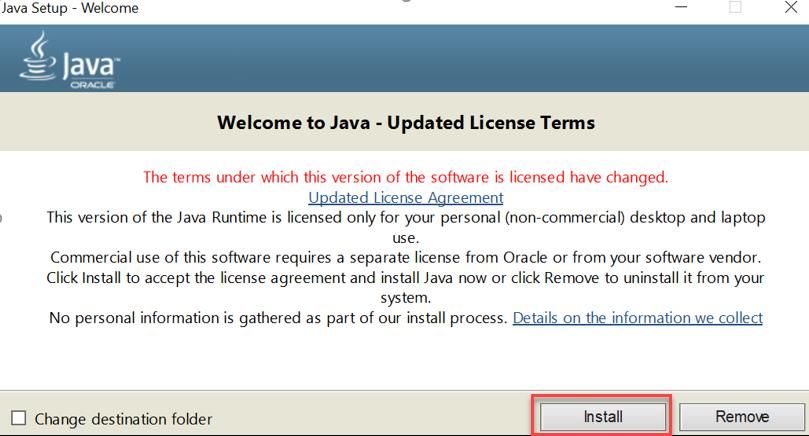
Document Version Control

DATE                VERSION          UPDATED BY               CHANGES
29th June 2021      1.0              Amanda/Indri             Initial Guide

Introduction
This document describes how to setup a workstation for Oracle Hospitality OPERA Property Management
Version 5.5 and higher.

Intended Audience
Intended Audience Opera Implementation Resources and IT professionals.

                                                                                            Page 2 of 18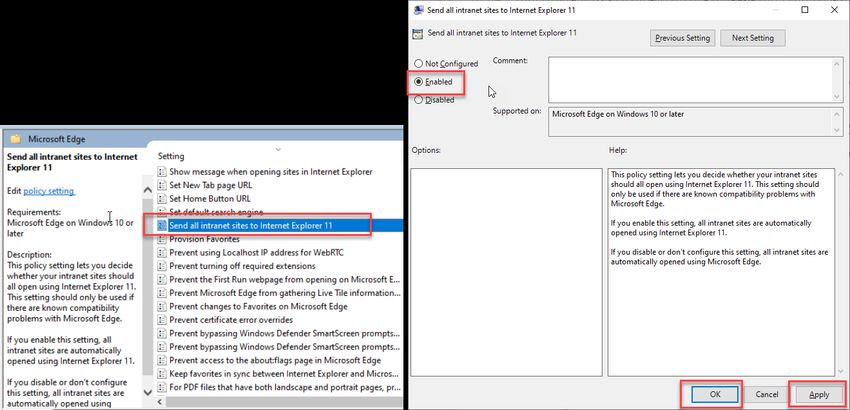
Workstation Operating System Requirement
To run Oracle Hospitality OPERA Property Management Version 5.5 and higher using Microsoft Edge, your
workstation must use one of these operating systems:

    1.   Windows 8 Professional Edition
    2.   Windows 10 Professional Edition.

On this documentation, User is using Windows 10 Pro and Opera Property Management version 5.5.0.21

Installing the Java Runtime Client
After ensuring the above requirements, please follow the steps below :

     To find requied JRE version for example (JRE 7 or JRE 8) you can download the required JRE version
     from one of these pages

     -   http://www.oracle.com/technetwork/java/javase/downloads/jre8-downloads-2133155.html
     -   http://www.oracle.com/technetwork/java/javase/archive-139210.html

     Next to Windows x86 Offline, click the link jre-xxxx-windows-i586.exe to begin the download.
     (Please note that only 32-bit versions of the JRE are supported with Opera.)

     For example : jre-8u291-windows-i586, download and Run.

     Click Install

                                                                                                    Page 3 of 18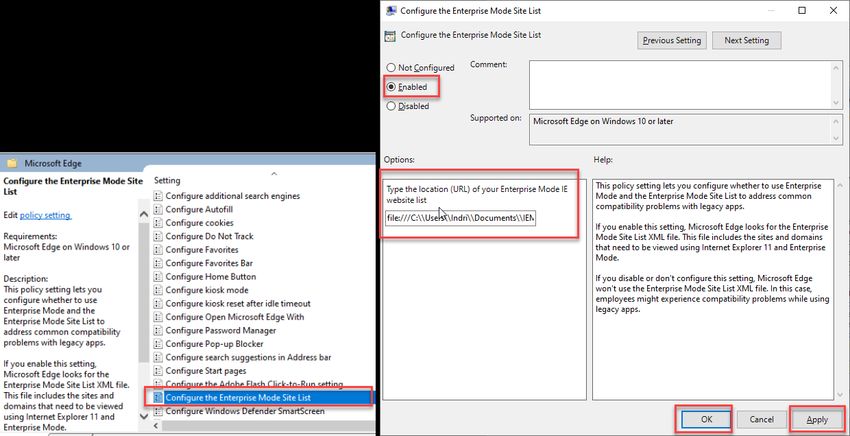
After the installation completed, it will ask you to uninstall Out of Date Java versions. Click Uninstall

Click Microsoft Windows Start Button, in the Search field type Configure Java and then press Enter

                                                                                                  Page 4 of 18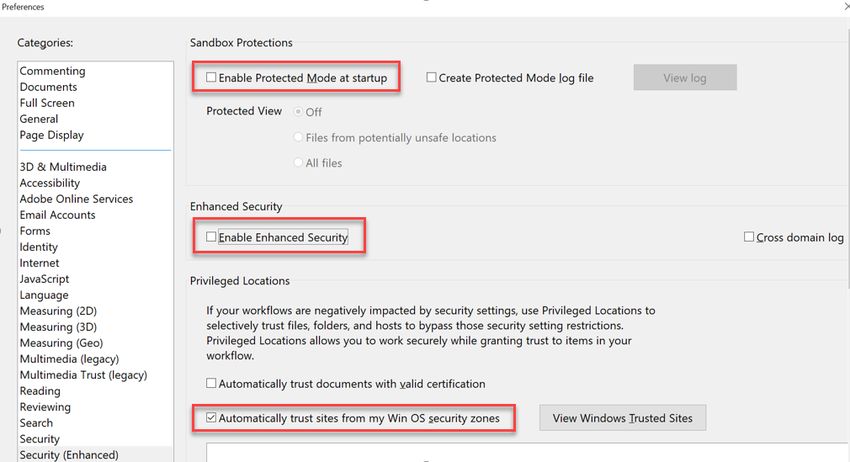
On the Java Control Panel screen, click the Security tab. Click Edit Site List.

On the Exception Site List screen, click Add. Enter your OPERA application URL (IP and HostName)
with https and then click Add - then OK
Example :

                                                                                     Page 5 of 18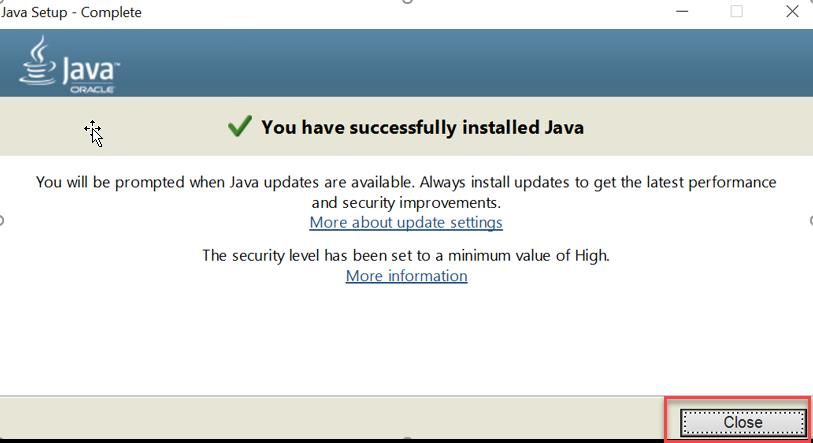
Still on Java Control Panel window – click on Advanced tab, Ensure that the Use TLS 1.2 check box is
     checked. If not, select it.
     Note: Older releases of OPERA 5 may also require SSLv3 or TLS1.0 to function.
     Click Apply and OK

Setting Microsoft Edge with IE 11 Compatibility
Oracle Hospitality OPERA 5 is compatible when Microsoft Edge (based on Chromium) is configured to use
Internet Explorer (IE) 11 compatibility mode.

This following section explains the changes required to enable IE 11 Compatibility Mode in Microsoft Edge
(based on Chromium).

Note: OPERA 5 is not compatible with Google Chrome, Mozilla Firefox, and other browsers.

Prerequisites
     The Windows version should match with one of the versions listed here:
     https://docs.microsoft.com/en-us/deployedge/edge-ie-mode

                                                                                                 Page 6 of 18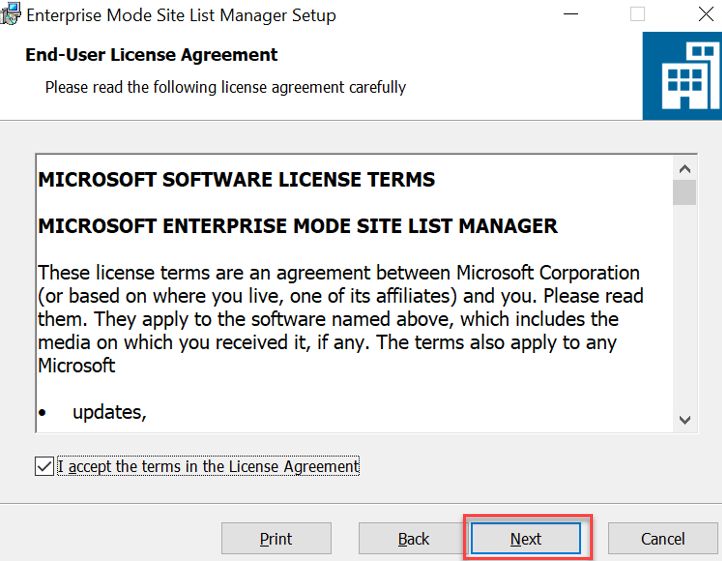
If you don’t have Microsoft Edge (based on Chromium), you can simply download from here, and install.
    https://www.microsoft.com/en-us/edge

    Enable Internet Explorer 11 in Windows Features
       • Go to Windows > Turn Windows features on or off
       • On the Windows Features popup screen, ensure that Internet Explorer 11 checkbox is checked

Microsoft Edge Administrative Template
    Click on the following URL to download Microsoft Edge Administrative Template
    https://www.microsoft.com/en-us/edge/business/download
    Select the below CHANNEL / VERSION: select the Current and Supported
    Select Build: select the Latest
    Platform: select Windows 64-bit
    Select GET POLICY FILES

    Download Microsoft Edge Policy File popup window is display. Click on Accept and Download

                                                                                               Page 7 of 18
Navigate to the download location, right click on the file and Extract File to
MicrosoftEdgePolicyTemplates

Go to Windows and launch “Edit Group Policy”
Navigate to Local Computer Policy – Computer Configuration – Right click on Administrative Templates –
Select Add/Remove Templates.

On the Add/Remove Templates popup window. Click on Add button.
On the Policy Templates file selection popup window browse to the location where
MicrosoftEdgePolicyTemplates zip file has been extracted
Browse to windows > adm > en-US, and then select the file “msedge.adm” file and click on Open button
then Close
Note: select the appropriate folder under “adm” based on the language you want to setup

                                                                                          Page 8 of 18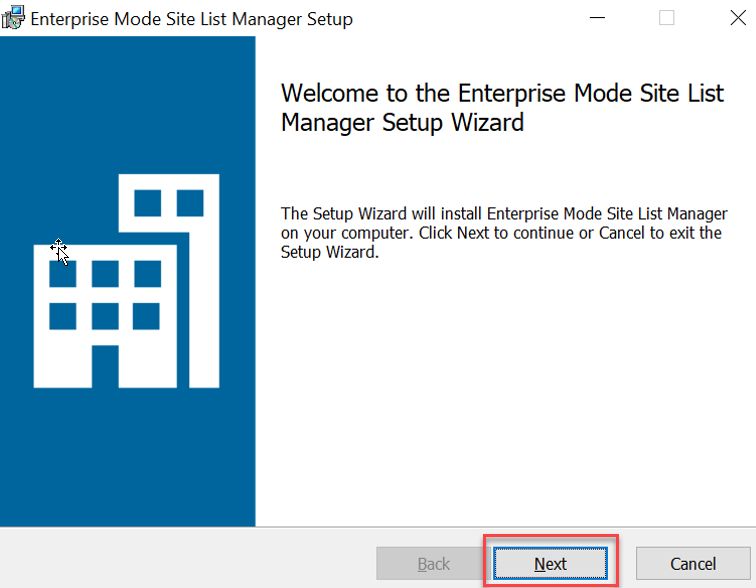
Expand Administrative Templates and verify that Classic Administrative Templates (ADM) is present.

Enterprise Mode Site List Manager

    Please download Download the Enterprise Mode Site List Manager (schema v.2) from this link :
    https://www.microsoft.com/en-us/download/details.aspx?id=49974

                                                                                             Page 9 of 18
After downloaded, Install the EMIESiteListManager.msi – Click Next.
Tick Terms in the License Agreement – Next.
On Destination Folder do not make any changes and click Next.
Click Install and wait until the process has completed then Finish.
Configuration
This section will explain on how to add OPERA 5 Sites in Enterprise Mode Site List Manager and then
configure the following settings in local Group Policy Editor
• Configure the Enterprise Mode Site List
• Use the Enterprise Mode IE website list
• Configure the Enterprise Mode Site List
• Allow Microsoft Compatibility List
• Send all Intranet sites to Internet Explorer 11
Once the sites are added and the above-mentioned settings are configured, the sites can then be launched
from Microsoft Edge Chromium browser.
Page 10 of 18Navigate to Windows > Enterprise Mode Site List Manger
On the Enterprise Mode Site List Manger for v.2 schema popup window, click on the Add button.
Provide below details
• On URL field, type server address.
NOTE: - Make sure that no protocol is specified when adding the URL. (Without http or https)
• Open In: - IE11
• Standalone IE: - Unchecked
• Allow Redirect: - Checked
• Compat Mode: - Default Mode
• Notes about URL: - Provide some description for the URL (This step is optional)
• Click on the Save button.
Page 11 of 18Still on Enterprise Mode Site List Manger for v.2 schema popup window, Click File – Save to XML
Navigate to a location where you want to save the Site List XML, and save the file.
Note: This XML file is used in configure the settings in “Use the Enterprise Mode IE website list”.
So, it is recommended you override the same existing saved XML file whenever you add new sites.
Go to Windows - Edit Group Policy.
• Navigate to Local Computer Policy - Computer Configuration
• Administrative Templates - Classic Administrative Templates (ADM)
• Microsoft Edge. Double click on Configure Internet Explorer integration.
Page 12 of 18Check on Enabled radio button, Under Configure Internet Explorer integration drop down select Internet
Explorer mode. Click Apply then OK.
Still on Edit Group Policy.
• Navigate to Local Computer Policy - Computer Configuration
• Administrative Templates - Windows Components
• Internet Explorer. Double click on Use the Enterprise Mode IE website list.
Check the Enabled radio button. Under Options provide the location of the Site List XML saved at above
step as er below format
file:///C:\\Users\\\\Documents\\.xml
Page 13 of 18Still on Edit Group Policy.
• Navigate to Local Computer Policy - Computer Configuration
• Administrative Templates - Windows Components
• Microsoft Edge. Double click on Configure the Enterprise Mode Site List.
Check the Enabled radio button. Under Options provide the location of the Site List XML saved at above
step as er below format
file:///C:\\Users\\\\Documents\\.xml
Still on Edit Group Policy.
• Navigate to Local Computer Policy - Computer Configuration
• Administrative Templates - Windows Components
• Microsoft Edge. Double click on Allow Microsoft Compatibility List.
Check the Enabled radio button, and click on Apply button
Page 14 of 18Still on Edit Group Policy.
• Navigate to Local Computer Policy - Computer Configuration
• Administrative Templates - Windows Components
• Microsoft Edge. Double click on Send all Intranet sites to Internet Explorer 11.
Check the Enabled radio button, and click on Apply button
Page 15 of 18Setting Adobe Acrobat Reader Preferences
Depending on your Adobe Acrobat Reader version, the steps below may differ.
Open Adobe Acrobat Reader outside of the application.
Select Edit, select Preferences, select Security Enhanced, and unselect the Enable Protected Mode at
startup check box.
Select Edit, select Preferences, select Security (Enhanced), and unselect the Enable Enhanced Security
check box.
Select Edit, select Preferences, select Security (Enhanced), and select the Automatically trust sites from
my Win OS security zones check box and verify that the OPERA URL is listed.
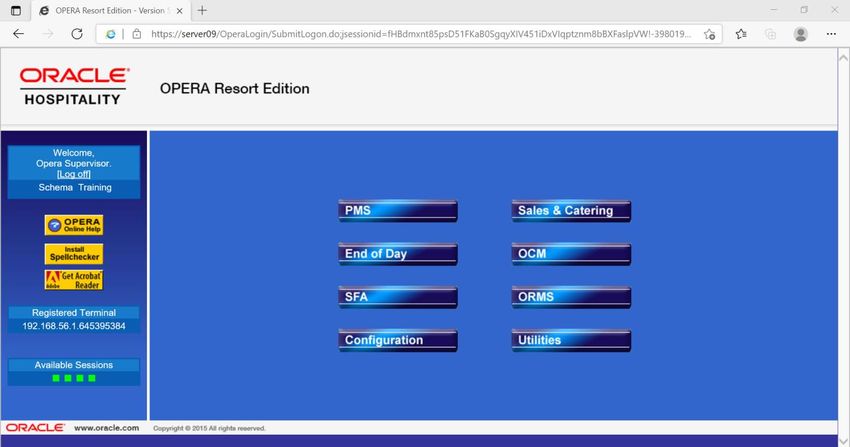
Page 16 of 18Login to Opera
Page 17 of 18Hospitality Technology Maldives
9th Floor G. Finivilu
Dhonadharaadha Hingun
Malé 20109 Republic of Maldives
A member of INFOTEL HOLDING SINGAPORE
Copyright © 2019, Hospitality Technology and/or its affiliates. All rights reserved. This document is provided for information purposes only, and the contents hereof are
subject to change without notice. This document is not warranted to be error-free, nor subject to any other warranties or conditions, whether expressed orally or implied in
law, including implied warranties and conditions of merchantability or fitness for a particular purpose. We specifically disclaim any liability with respect to this document, and
no contractual obligations are formed either directly or indirectly by this document.
This document may not be reproduced or transmitted in any form or by any means, electronic or mechanical, for any purpose, without our prior written permission.
Page 18 of 18You can also read


