User Guide Digital Inverted Microscope - The Microcsope Evolved.
←
→
Page content transcription
If your browser does not render page correctly, please read the page content below
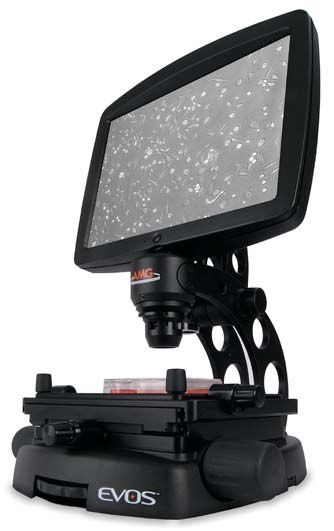
Digital Inverted Microscope

                                                     User Guide

18421 Bothell-Everett Hwy.
Suite 150                                                      The Microcsope Evolved.
Mill Creek, WA 98012
Phone:    (866) 614-4022 or (425) 368-0444
Fax:      (425) 368-0555
E-mail:   info@amgmicro.com
Web:      www.amgmicro.com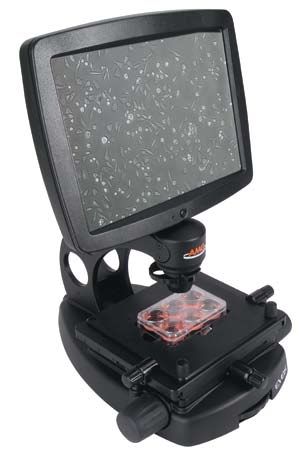
EVOS User Guide

Co n t e n t s

General Information....................................................................................................................................................... 2–3
        Environmental Concerns..............................................................................................................................................................................2
        Special Precautions........................................................................................................................................................................................2
        Electrical Information....................................................................................................................................................................................2
        Plain Stage Components.........................................................................................................................................................................3
        Mechanical Stage Components.........................................................................................................................................................3

Specifications .............................................................................................................................................................................. 4

Assembly ....................................................................................................................................................................................... 5–6
  Stage Plate Assembly....................................................................................................................................................................................5
		 Plain Stage....................................................................................................................................................................................................5
		 Mechanical Stage ......................................................................................................................................................................................5
			          Changing Stage Plates (Mechanical Stage)..........................................................................................................................5
  Power Cord Assembly....................................................................................................................................................................................5
  Objective Lens Assembly.............................................................................................................................................................................6
  Filter Slider Assembly....................................................................................................................................................................................6

Operation ..................................................................................................................................................................................7–10
  Dimmer (Illumination) Control..................................................................................................................................................................7
		 Illumination Pre-configured for Each Objective..............................................................................................................................7
		 Learning Function......................................................................................................................................................................................7
  LCD Settings Control......................................................................................................................................................................................7
  Objective Select Wheel.................................................................................................................................................................................8
  Focus Control....................................................................................................................................................................................................8
  Phase Annuli Select Wheel..........................................................................................................................................................................8
  Mechanical Stage Operation......................................................................................................................................................................9
  Secure Digital (SD™) Card............................................................................................................................................................................9
  Image Capture Button................................................................................................................................................................................10
  Micron(EVOS) via USB Connection........................................................................................................................................................11
		 Installing Micron(EVOS) Software.......................................................................................................................................................11
		 Installing Driver.........................................................................................................................................................................................11
  Working With DNG Files in Micron(EVOS)...........................................................................................................................................12
  LCD Positioning.............................................................................................................................................................................................12

Maintenance ........................................................................................................................................................................ 13–14
        LCD Screen Care.............................................................................................................................................................................................13
        Objective Lens Care.....................................................................................................................................................................................13
        Stage Care........................................................................................................................................................................................................13
        Firmware Update...........................................................................................................................................................................................14

Parts & Accessories . ............................................................................................................................................................. 15

Customer Service .................................................................................................................................................................... 16

© 2008 Advanced Microscopy Group, Inc. All rights reserved.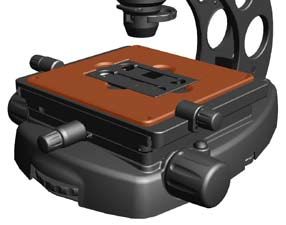
GENERAL INFORMATION
Figure 1
Environmental Concerns (Figure 1)
• Place the microscope on a level surface away from vibrations of other
pieces of equipment. To protect your microscope from environmental
vibrations, we offer a tabletop Anti-Vibration Platform (part # AMEP-
VIP1) custom designed for EVOS.
Note: Use the 4 adjustable rubber feet on the bottom of the base to
adjust the microscope for uneven surfaces.
• Ambient room lighting and sunlight from nearby windows can enter
the imaging path and affect the image.
Figure 2
Special Precautions (Figure 2)
When cleaning optical elements, use only materials that are specifically made
for that purpose. Further, we recommend soft, low-lint, cloth materials. To
avoid scratching the soft lens coatings, do not use paper-based materials.
• Always carry the microscope with one hand supporting the base
and the other hand on the neck , using correct lifting techniques.
• Do not exchange objectives between microscopes unless you know that
the components have all been approved and recommended by AMG.
• If liquid spills on the microscope, turn off the power immediately and
wipe dry.
• Never disassemble or service the microscope yourself. Unauthorized
repairs may damage the microscope or alter its functionality, and they
will void your warranty.
• After using, cover the microscope with a dust cover.
Figure 3
Electrical Information (Figure 3)
• The power switch is located on the back of the microscope.
• The detachable power cord output connection is located next to the
power switch.
2 EVOS™ User Guide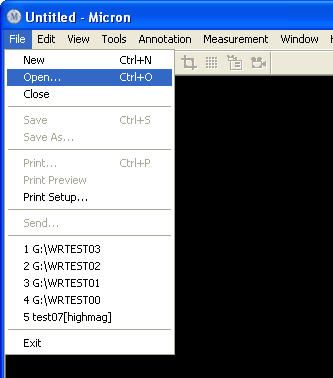
General Information

PLAIN STAGE
                                                                                     Secure Digital (SD™) Card Slot

                         LCD Display
                                                                                                     LCD Tilt Knob
                                                                                                 USB Connect Port
                                                                                               Note: Install software
                      Power ON Indicator
                                                                                             before connecting USB.
                     LCD Settings Button

                         LCD Control
                       LED Lamp House
                     LCD Positioning Knob
                     Condenser Assembly
                   Phase Annuli Select Wheel

                     Image Capture Button

                          Plain Stage

                         Focus Control
                                                                                                       Power Cord
                    Objective Select Wheel                                                           Power Switch
                                                                            Dimmer
                                                   Adjustable Rubber Feet (4)

MECHANICAL STAGE
                                                                                     Secure Digital (SD™) Card Slot

                         LCD Display
                                                                                                     LCD Tilt Knob
                                                                                                 USB Connect Port
                      Power ON Indicator
                                                                                               Note: Install software
                                                                                             before connecting USB.
                     LCD Settings Button

                         LCD Control
                       LED Lamp House
                     LCD Positioning Knob
                     Condenser Assembly
                   Phase Annuli Select Wheel

                     Image Capture Button
                      Coarse Positioning
                    Y-Axis Fine Positioning
                    X-Axis Fine Positioning
                         Focus Control
                                                                                                       Power Cord
                    Objective Select Wheel                                                           Power Switch
                                                                            Dimmer
                                                   Adjustable Rubber Feet (4)

amgmicro.com                                   3                                              EVOS™ User Guide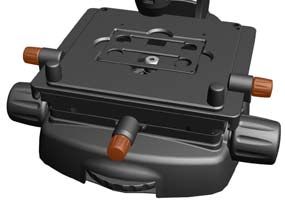
Specifications

                 EVOS Specifications
                                       Optics Infinity corrected optical system

                       Standard Objectives LWD; 4xBF, 10xPh, 20xPh; 40xPh (optional)

                       Olympus Objectives LWD; 4xPh; 10xPh, 20xPh; 40xPh (optional)

                           Objective Turret 4-position, with front-mounted control
                                                15”, color, 1024 x 768 pixels, controls for backlight
                                  LCD Display
                                                contrast and saturation; adjustable positioning
                                      Camera 3MP color CMOS
                 Captured Image Resolution 2048 x 1536 pixels
                      Captured File Format DNG file format; 3MB/image

                                  Illumination LED, 50,000-hour service life with dimmer

                          Contrast Methods Brightfield and Phase Contrast

                       Standard Condenser 3-position turret for BF, 10x/20x Phase and 40x Phase

                                                3-position turret for BF, 4x Phase and 10x/20x/40x
                       Olympus Condenser
                                                Phase
                                                Brightfield: Pinhole and Diffuser filters included
                           Filter Assemblies
                                                Phase: Green filter included
                                     Focusing Dual, low-position controls with rubber grip

                                                XX   196 mm x 196 mm (7.7” x 7.7”) plain stage;
                             PLAIN Stage
                                                XX   low-position, 110 mm (4.3”) from table;
                     Working Distance with      XX   62 mm (2.4”)
                                Condenser
                                  Dimensions Height: 587 mm (23.1”) with LCD raised to maximum;
                                             Width: 363 mm (14.3”); Depth: 449 mm (17.7”)
                                                x-y axis fine-positioning controls;
                                                XX
                    Mechanical Stage            low-position, 110 mm (4.3”) from table
                                                XX
                                             XX interchangeable vessel holders available for most
                                                common shapes & sizes
                                             XX 110 mm x 110 mm (4.3” x 4.3”) viewable area

                 Working Distance w/ Multi- XX 58.0 mm (2.3”)
                            well Stage Plate
                                  Dimensions Height: 587 mm (23.1”) with LCD raised to maximum;
                                             Width: 363 mm (14.3”); Depth: 449 mm (17.7”)

                                                11.8 Kg (26 Lb.) - Plain Stage
                                       Weight
                                                13.6 Kg (30 Lb.) - Mechanical Stage

                     Storage Device/Output Secure Digital (SD™) card or USB2 connection to PC

                                     Software Micron(EVOS) imaging software (included)
                                                AC Adapter; Input 100-240V, 50-60Hz, 0.5A;
                              Power Supply
                                                Output 12 VDC

                              4                                                       EVOS™ User Guide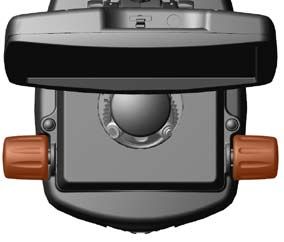
Assembly
Figure 1
Stage Plate Assembly
Plain Stage (Figure 1)
The plain stage assembly is pre-installed and pre-positioned at AMG.
Simply install the circular stage plate into the round opening in the
stage..
Figure 2
Mechanical Stage (Figures 2 & 3)
For AME i2111/2 and AME 3205/6 Series (Mechanical Stage) microscopes,
follow the procedures below before use.
1. Screw in the 2 coarse positioning knobs into the front right and
left-hand corners of the stage assembly.
2. Remove the stage lock pin on the back right-hand corner.
Note: The stage lock pin is used to secure/hold the mechanical stage
in place when transporting or moving the unit.
Changing Stage Plates (Mechanical Stage) (Figure 3)
1. Unscrew the two 3 mm hex screws from the back of the stage with
Figure 3 a hex tool (included).
2. Unscrew the 2 coarse positioning knobs from the front of the
stage.
3. Carefully lift the stage plate off from the stage assembly and
replace.
4. Reattach all screws to secure.
Power Cord Assembly (Figure 4)
Figure 4
1. Turn the power switch to the “” (OFF) position before connecting
the power cord (transformer unit).
2. Insert the plug into the power outlet on the back of the
microscope.
3. Insert the 3-prong plug from the power supply into a power socket.
amgmicro.com 5 EVOS™ User GuideAssembly
Figure 1 Objective Lens Assembly (Figure 1 - PLAIN STAGE)
(Figure 2 - MECHANICAL Stage)
The color-coded objectives match the color-coding label on the objective turret.
When properly installed, EVOS will “know” which objective is in place and adjust
the lighting and image capture parameters to suit.
1. Carefully remove the circular stage plate (PLAIN STAGE) or the
vessel holder (MECHANICAL STAGE) from the stage assembly.
2. To prevent contamination to optical components, turn the objective
select wheel left 1/2 click, to move the objective turret away
from the optical path, before removing and installing the objective.
3. Install the objectives into the corresponding positions in the objective
Figure 2 turret located inside the stage assembly (see labels).
Note: Make sure the color coding on the objectives matches the color
coding label on the turret so the automatic settings will work.
4. Turn the objective select wheel to switch between objectives.
Please note that EVOS models AME-3201 and AME-3204 are configured for use
specifically with the following objectives:
4x Phase Contrast, AMG part #AMEP-4602 (Olympus part #1U2C522P)
10x Phase Contrast, AMG part #AMEP-4603 (Olympus part #1U2C144P)
20x Phase Contrast, AMG part #AMEP-4604 (Olympus part #1U2C146P)
40x Phase Contrast, AMG part #AMEP-4605 (Olympus part #1U2C149P)
Use with any other objectives besides those listed above will void AMG’s warranty
support for your EVOS model AME 3201 or AME 3204 microscope.
Filter Slider Assembly (Figure 3)
Three filter slider assemblies are included with all EVOS microscopes. For
important! brightfield applications you MUST use the Pinhole or Diffuser filter.
Use a filter assembly for brightfield.
Due to variances in sample size, color and thickness, actual filter use may
Figure 3 differ from the standard filter use described below.
• Pinhole filter slider assembly: brightfield, low magnification (4x/10x)
• Diffuser filter slider assembly: brightfield, high magnification
(10x/20x/40x)
• Green filter slider assembly: may be used for phase-contrast at all
magnifications (optional)
Note: AMG strongly recommends NOT replacing or tampering with the lens
element as it may cause damage to the filter assembly.
1. Insert the filter slider assembly into the filter slider slot on the
condenser assembly.
2. Adjust focus, contrast, and/or illumination and view specimen on
screen.
6 EVOS™ User GuideOperation
Figure 1
Dimmer (Illumination) Control (Figure 1)
1. Turn the power switch to the “|” (ON) position.
2. Rotate the dimmer control located on the bottom right-hand side
of the microscope base to adjust brightness/intensity.
Illumination Pre-configured for Each Objective
The illumination/brightness levels on EVOS microscopes are preconfigured
for each individual objective for optimal performance. The microscope is
set to recognize each objective automatically as the objective select wheel
rotates.
Learning Function
EVOS microscopes are equipped with a memory function that remembers
the last automatic or manual illumination setting that was used for each
individual objective, even after being powered off. As the objectives are
switched, illumination values return to the last set levels for each objective.
Figure 2
LCD Settings Control (Figures 2 & 3)
The LCD settings button gives the user direct control for the following
LCD display settings:
XX BACKLIGHT
XX CONTRAST
XX SATURATION
1. Press the LCD settings button to initiate settings control mode.
2. Turn the LCD control to adjust the setting (8 levels available) to
desired view.
Figure 3
3. When finished, wait approximately 4 seconds for the settings panel to
close.
amgmicro.com 7 EVOS™ User GuideOperation
Figure 1
Objective Select Wheel (Figure 1)
1. Rotate the objective select wheel located at the bottom center of
the microscope base until a desired objective is in position (see label).
2. The microscope will automatically recognize each individual
objective and use the pre-configured illumination settings for optimal
performance.
3. Rotate the phase annuli select wheel to the position that
corresponds with the respective objective.
Figure 2
Focus Control (Figure 2)
1. Focus control knobs are located on both sides of the microscope.
Backward rotation will move the objective away from the specimen
and forward rotation will move it toward the specimen.
2. Rotate as necessary to adjust focus of the specimen on screen.
Note: Every EVOS microscope has a safety feature that incorporates a
“slip-clutch” mechanism to protect the objectives. When the objective
turret reaches the end of its travel range, the clutch makes a “clicking”
sound as the focus control continues to turn. The objective does not
move past the acceptable range.
Figure 3
Phase Annuli Select Wheel (Figure 3)
Phase rings are pre-installed and pre-aligned on the phase annuli select
wheel for optimal performance. Realignment or re-centering is not
required. For all service needs, refer to the Customer Service section.
EVOS microscopes have 3 positions for phase contrast:
STANDARD OPTICS OLYMPUS OPTICS
XX brightfield (BF) brightfield (BF)
XX 10/20x phase 4x phase
XX 40x phase 10x/20x/40x phase
Note: View through the small window in the front of the phase condenser
assembly to set the phase annuli to its respective objective. The phase setting
must correspond to the objective for proper operation.
8 EVOS™ User GuideOperation
Figure 1
Mechanical Stage Operation (Figure 1)
The free-motion “glide” stage operates and moves in all directions —
horizontally, vertically and diagonally.
1. Maneuver the stage freely throughout its x-y range of motion using
the 2 coarse-positioning knobs .
2. Turn either of the 2 y-axis fine-positioning controls toward the
front to move the stage forward and toward the back to move the
stage backward.
3. Turn the x-axis fine-positioning control counter-clockwise to
move the stage to the left and clockwise to move the stage to the
right.
Figure 2 Secure Digital (SD™) Card (Figures 2 & 3)
The SD memory card slot is located on the top of the LCD display.
Note: Before using the SD card, format the disk/card by following the
manufacturer’s format disk procedures.
1. Gently pull out the protective rubber cover from the LCD frame.
2. Insert the SD card with the angled corner facing bottom left-hand
side (see Figure 3) into the slot until it clicks and the card locks into
Figure 3 position.
Card
3. Remove the card by pressing it down to release it from the slot.
Note: Do not remove SD card until “STORING: EVOS____.DNG” clears
from the LCD screen
amgmicro.com 9 EVOS™ User GuideOperation
Figure 1
Image Capture Button (Figure 1)
The image capture button is located on the right-hand side of the
microscope, directly behind the right focus control.
To save an image on an SD™ card:
1. To capture/save an image on an SD card, insert the card into the
card slot located on top of the LCD display as described on page 9.
2. Focus the image on screen to desired view.
3. Press the image capture button located behind the right focus
control.
4. A “STORING:EVOS0000.DNG” display will flash on the LCD screen
beneath the SD card slot for about 3 seconds to indicate that EVOS is
saving the image onto the memory card.
To save an image on a PC via Micron(EVOS):
1. To capture/save an image on a PC via Micron(EVOS), remove the
SD™ card from the card slot (SD card is set as default for saving images).
2. Connect the USB cable after the software has been installed as
described on page 11.
3. Launch Micron(EVOS).
4. Focus the image on screen to desired view.
5. Press the image capture button located above the right focus
control.
6. Choose file name and file location when prompted.
Note: Images are saved as Digital Negative (DNG) files that can be opened with
Micron(EVOS) or other Adobe® imaging applications. Files are 2048 x 1536
pixels in dimension and approximately 3MB in size.
10 EVOS™ User GuideOperation
Figure 1
Micron(EVOS) via USB Connection (Figure 1)
The USB connection port allows images to be viewed, captured, saved,
edited, and analyzed directly on a PC via a USB2 cable (included) with AMG’s
Micron(EVOS) imaging software (included)
IMPORTANT! Install the software before attaching the
microscope to PC.
System Requirements (Minimum)
XX PC with Pentium® IV 1.8 Ghz CPU or higher
XX Windows® XP Operating System
XX 30 MB of hard drive space for application software
XX One open USB 2.0 port (Intel® chipset preferred)
XX 256 MB RAM
Installing Micron(EVOS) Software
1. Insert Micron(EVOS) software CD into CD drive
2. At the Welcome dialog, click Next to continue.
3. At the License Agreement dialog, select “I accept the agreement” to
continue.
4. At the Select Destination Location dialog, click Next to accept the
default application location to continue.
5. At the Select Additional Tasks menu, choose desired placement of
available icons and click Next to continue.
6. At the Ready to Install dialog, review and verify install settings and
click Install to continue.
7. At the Information screen, click Next to continue.
8. At the Completion screen, click Finish to finalize software installation.
Installing Driver
1. After installing Micron(EVOS), connect the microscope to a PC using
the USB2 cable (included).
2. When prompted, browse to the Micron CD and select the installation
disk folder: CD Drive:\Westover USB2 EVOS Installation Disk.
amgmicro.com 11 EVOS™ User GuideOperation
Figure 1
Working with DNG Files in Micron(EVOS)
DNG (Digital Negative) files saved on the SD™ card using EVOS can be opened in
Micron(EVOS) or other Adobe imaging applications (for installation procedures, see
Installing Micron(EVOS) Software on page 11).
To open DNG files saved in EVOS: (Figure 1)
1. Insert the SD card with the saved image(s) into the card reader on your
PC.
2. Open/launch Micron(EVOS).
3. Select File > Open from the menu toolbar (see Figure 1).
4. Select Other Image Files from Files of type: drop-down list.
5. Once the image is opened, select File > Save As... and choose a
format option to save the image:
• .png (Portable Network Graphic)
• .jpg (JPEG)
• .bmp (Bitmap)
Note: For detailed operation procedures, go to the Micron(EVOS) User Guide
(PDF) on the Micron(EVOS) Installation CD or select Help > User Guide... in
the Micron(EVOS) Main menu toolbar to access the guide.
Figure 2
LCD Positioning (Figure 2)
There are 2 LCD positioning knobs located on either side of the
microscope that control the vertical placement of the LCD screen and 1 LCD
tilt knob that controls the angle of the LCD screen. Loosen and tighten as
necessary to get the desired position for optimal view.
12 EVOS™ User GuideMaintenance
LCD Display/Screen Care
To clean the LCD screen:
1. Turn the power OFF.
2. Use a soft, dry, lint-free cloth to wipe off any dust from the screen.
3. For blemished areas, use a cleaner that is intended for LCD (liquid
crystal display) screens only. Do not spray directly onto the screen, as it
may drip into the display. Dampen a clean cloth to wipe the screen.
Objective Lens Care
Clean each objective periodically or when necessary with a clean lint-free
cloth and lens cleaning solution. To avoid scratching the soft lens coatings, do
not use paper-based materials.
Note: To protect all optical components of the microscope, use the dust cover
(included) when the microscope is not in use.
Stage Care
XX Clean the stage regularly to keep it dry and clear of debris.
XX When moving Mechanical Stage microscopes, be sure to lock the stage
with the stage lock pin to prevent the stage from sliding around.
Note: To protect all optical components of the microscope, use the dust cover
(included) when the microscope is not in use.
amgmicro.com 13 EVOS™ User GuideMaintenance
Figure 1
Firmware Update
To update firmware:
1. Download the latest EVOS firmware onto an SD™ card from the AMG
web site.
2. Turn power OFF.
3. Insert the SD card into the card slot.
4. Press and hold the Firmware Update Button (LEFT) while
turning the power ON (see Figure 1).
5. When the microscope powers on, release the Firmware Update
Button. You will see the firmware version that is on the SD card in the
Figure 2 4th line of the 2nd paragraph (see Figure 2).
Firmware Rev on SD Card: X.XX
EVOS Firmware Updater Version 1.01
EVOS Model: AME-I Note: If the existing firmware version is the same as the version on the
Hardware Rev: 1.00 SD™ card, it is not necessary to update the firmware.
Firmware Rev: 1.01
Waiting for SD Card Insertion 6. Push the Image Capture Button (RIGHT) (see Figure 1) to start the
Found Card -> Loading firmware
update.
Loaded firmware.bin file
Firmware Rev on SD Card: 1.01
7. The screen will display the update progress (see Figure 3).
Push Right Button to Start Update
Note: DO NOT POWER OFF while the firmware is being updated. The
update will take approximately 3 minutes to complete.
Figure 3
To verify firmware version:
Push Right Button to Start Update
Updating Unit -> DO NOT POWER OFFParts & Accessories
EVOS Microscopes with Olympus Optics Vessel Holders
Item Part Number Item Part Number
PLAIN Stage: no objectives included AME-3201 Vessel Holder for Slides;
holds two 12mm x 75mm standard AMEP-VH001
Plain Stage: 4xPh, 10xPh, 20xPh AME-3202 microscope slides, chamber slides, etc.
Plain Stage: 4x, 10xPh, 20xPh, 40xPh AME-3203
Vessel Holder for Petri Dishes;
AMEP-VH002
Mechanical Stage: no objectives included AME-3204 holds four 35mm dishes
Mechanical Stage: 4xPh, 10xPh, 20xPh AME-3205 Vessel Holder for Petri Dishes;
AMEP-VH003
holds two 60mm dishes
Mechanical Stage: 4x, 10xPh, 20xPh, 40xPh AME-3206
Vessel Holder for Petri Dish;
AMEP-VH004
NOTE: EVOS microscopes with Olympus Optics are configured for holds one 100mm dish
use specifically with the Olympus objectives listed below. Use with
any other objective besides those Olympus objectives listed below Vessel Holder for T-flasks;
will void AMG’s warranty support for your EVOS microscope. with holds two 25cm2 flasks, AMEP-VH005
Olympus Optics. rectangular or triangular
Objectives, Olympus Vessel Holder for Nunc T-75 Flask;
AMEP-VH006
holds one 75cm2 flask
Item AMG Part No. Olympus Part No.
Vessel Holder for Hemacytometer;
4x Phase Objective AMEP-4602 1-U2C522P holds one 76mm x 33mm standard AMEP-VH007
10x Phase Objective AMEP-4603 1-U2C144P hemacytometer
20x Phase Objective AMEP-4604 1-U2C146P Vessel Holder for BD/Greiner T-75 flask;
AMEP-VH008
holds one 75cm2 flask
40x Phase Objective AMEP-4605 1-U2C149P
Vessel holder for all vessel types; plain
AMEP-VH009
stage functionality
EVOS Microscopes with Standard Optics
Vessel Holder for BD/Greiner T-25 flask;
Item Part Number AMEP-VH010
holds one 25cm2 flask
Mechanical Stage: 4x, 10xPh, 20xPh AME-i2111
Accessories
Mechanical Stage: 4x, 10xPh, 20xPh, 40xPh AME-i2112
Item Part Number
Plain Stage: 4x, 10xPh, 20xPh AME-i2101
Power Adapter ZP-EC-00436
Plain Stage: 4x, 10xPh, 20xPh, 40xPh AME-i2102 Dust Cover ZP-PKG-0403
Circular Metal Stage Plate (Plain Stage) AMPI-MSP1
NOTE: Objectives are not interchangeable between EVOS systems USB2 Cable ZP-EC-00365
with differing optics packages.
Anti-Vibration Platform AMEP-VIP1
Objectives, Standard
Item Part Number Filter Slider Assemblies
4x Objective AMPI-OP004 Item Part Number
10xPh Objective AMPI-OP010PC Filter Slider Assembly – Green AMEP-CFG
20xPh Objective AMPI-OP020PC Filter Slider Assembly – Pinhole AMEP-AS15
40xPh Objective AMPI-OP040PC Filter Slider Assembly - Diffuser AMEP-DFS1
amgmicro.com 15 EVOS™ User GuideCustomer Service
Warranty Information
Statement of Limited Product Warranty
EVOS™ microscopes are warranted to be free of all defects in material
and workmanship for a period of 60 months (5 years) from the date
of delivery. The warranty does not apply to any instrument which has
become worn, defective, damaged, or broken due to normal wear,
Contact Information abuse, misuse, tampering, or unauthorized repairs. Under this warranty,
Advanced Microscopy Group will repair or replace, without charge to the
TOLL FREE (US & Canada) purchaser, any part which, upon our examination, appears to be defective
Customer & Technical Service 866-614-4022 in materials or workmanship.
Local & International Returned Goods Policy for Repair or Replacement Parts
Customer & Technical Service 425-368-0444 To return goods for repair or replacement, please contact Advanced
Fax 425-368-0555 Microscopy Group Customer Service by one of the numbers at the
left. Please be prepared to supply the following information:
E-mail info@amgmicro.com
Web site www.amgmicro.com -- Your name, return shipping address and telephone
number
-- Catalog/Model number of the item(s) you are returning
Advanced Microscopy Group customer service business -- Serial Number(s), if applicable
hours are 8:00 a.m. – 4:00 p.m. Pacific Standard Time. After -- Description of the product’s problem or reason for the
hours, you may leave a telephone message. We will return return
your call the following business day.
-- Date the item was purchased
Disclaimer -- Distributor information, if applicable
Information provided by Advanced Microscopy Group, Inc. is believed to be accurate
A Westover Representative will issue you a Return Materials
and reliable. However, no responsibility is assumed by Advanced Microscopy Group
Authorization (RMA) number. Please label the outside of your
for its use. The information contained in this publication is subject to change without
shipping container with this number. For any additional information,
notice. Words that Advanced Microscopy Group considers trademarks have been
please call Customer Support: 1-866-614-4022 or 1-425-368-0444.
identified as such. However, neither the presence nor absence of such identification
affects the legal status of any trademark. Units of measurement in this document
conform to SI standards and practices. All rights reserved. No part of this publication
may be reproduced, stored in a retrieval system, or transmitted in any form, be it ADVANCED MICROSCOPY GROUP, INC.
electronically, mechanically, or by any other means such as photocopying, recording, 18421 Bothell-Everett Hwy
or otherwise, without the prior written permission of Advanced Microscopy Group.
Suite 150
Thanks for being our valued customer! Advanced Microscopy Group, Inc. is a Mill Creek, WA 98012
Seattle-area (Mill Creek, WA) optical equipment design and manufacturing firm
with a domestic and international client base. Advanced Microscopy Group
designs, develops, and manufactures optical systems and software for scientific,
biotechnology, industrial, and educational fields.
amgmicro.com 16 EVOS™ User GuideDoc Control Number ZP-PKG-0397 REV D2 © 2008 Advanced Microscopy Group, Inc. All rights reserved.
You can also read


