NEBULA - Quick Start Guide & Technical Manual - MADRIX 5 User Guides
←
→
Page content transcription
If your browser does not render page correctly, please read the page content below
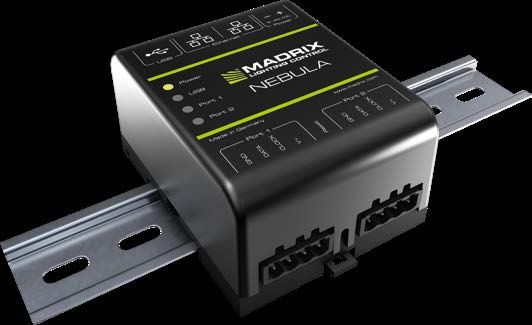
NEBULA

Quick Start Guide & Technical Manual
MADRIX® NEBULA –
Quick Start Guide & Technical Manual
4th Edition — April 2019

Thank you for purchasing MADRIX® NEBULA!

Please read this guide carefully and thoroughly before using MADRIX®
NEBULA. Make sure that you fully understand all information.

This MADRIX® NEBULA Quick Start Guide is written in English and German.
(Diese Kurzanleitung wurde in englischer und deutscher Sprache verfasst.)

Developed and made in Germany.

Imprint
inoage GmbH
Wiener Straße 56
01219 Dresden
Germany

Managing Directors: Christian Hertel, Sebastian Pinzer, Sebastian Wissmann

Web      www.madrix.com
E-mail   info@madrix.com
Phone    +49 351 862 6869 0

1   EN
Copyright Information And Disclaimer

                                                                                    English
© 2019 inoage GmbH. All rights reserved. Information is subject to change at
any time and without prior notice. Errors and omissions excepted. Reproduction,
adaptation, or translation without prior written permission is prohibited.
inoage GmbH does not grant guarantee on validity for a particular reason, the
marketability, or other properties of the product. There is no way to assert a
claim to inoage GmbH, neither in the legal way nor in other ways. inoage GmbH
is not responsible for damages, including all disadvantages that are not just
limited to the loss of sales, but that are caused due to the use of the product,
due to the loss of serviceability of the product, due to misuse, happenings,
circumstances, or actions that inoage GmbH does not have influence on, no
matter if the damages as well as consequential damages are direct or indirect;
whether they are special damages or others, nor if the damage is caused by the
owner of the warranty or a third person.

Trademark Credits
Microsoft® and Windows® are U.S. registered trademarks of Microsoft
Corporation. Art-Net™ – Designed by and Copyright Artistic Licence Holdings
Ltd. All other products mentioned herein may be trademarks of their respective
companies. MADRIX® is a registered trademark of inoage GmbH.

Package Contents
1x MADRIX® NEBULA
1x Set of screw terminals (2x 4-pin and 1x 2-pin)
1x USB 2.0 cable (certified)
2x Wall-mount brackets
1x This quick start guide / technical manual

Please note: Check the package contents and the condition of the interface
after unpacking! Contact your supplier if something is missing or damaged. Do
not use the device if it seems to be damaged!

                                                                           EN   2
Safety Instructions And Limited Warranty
Two years of limited manufacturer’s warranty are granted to the purchaser
of this product. Warranty applies to constructional fault, material defect, or
incorrect assembly the manufacturer has caused or is to be held responsible
for. Warranty will be void if the interface is opened, modified, damaged through
inappropriate handling and wrong usage, damaged through overvoltage, or
damaged through any other cause.
Please follow the instructions below to avoid mishandling, damage to the
device, or personal injury:
▴
OK
THE DEVICE WORKS WITH LOW VOLTAGE (DC 5 V – 24 V).
▴
▴
▴ DO NOT USE ANY OTHER VOLTAGE!
Beware that the interface works with electrical power. Only use the
device in dry environments (indoor use). The IP Rating of the device
! is IP20. Do not use the interface in humid environments and avoid
contact with water or any other liquids. Turn off the power if you are not using
the device for a long time.
Avoid unwanted voltage on the cables at all times. Do not remove any parts
from the unit or connect to an ungrounded circuit. Do not connect the unit to
LEDs that are switched on. Only connect the unit to LEDs and controllers that
are initially powered off.
There are no user-reparable parts inside or outside the interface. Repair service
lies only within the responsibilities of the manufacturer. If the interface appears
to be defective, please contact your dealer. After expiration of the warranty
period, you may contact your supplier or the manufacturer to have the unit
repaired against payment of an individual service fee if possible.
The interface has several ports and slots. Only connect or insert devices,
cables, and connectors to the individual ports and slots using connectors of the
same type as the port. Do not use inapplicable equipment. This device should
be used by professionals. The device is not designed to be operated by non-
professionals or children.
3 ENEnd-Of-Life
English
This electrical device and its accessories need to be disposed of
properly. Do not throw the device into normal trash or household
waste. Please recycle packaging material whenever possible.
Usage
In general, this device is designed to receive control data over Ethernet
(Art-Net / Streaming ACN) or USB and convert the data into supported
SPI protocols. It is a hardware interface to be connected towards various
types of controllable, digital LEDs. Do not use the interface for any other,
deviating purpose. The device can be connected to and disconnected from
USB or Ethernet network during use and without a reboot (Hot Swapping &
Plug and Play). Multiple interfaces can be used at the same time.
Technical Specifications
Power supply: DC 5 V – 24 V, A) via 2-pin screw terminal (12 A max.),
(See pages 6 – 12) B) via 5 V USB, C) via Port 1 or 2 sourced from LEDs;
6 A max. load per port when supplying through to LEDs
Power consumption: < 1.5 W during normal operation (300 mA max.)
Data output: 8x 512 channels SPI TTL (Maximum output per port:
680 RGB LEDs / 512 RGBW LEDs / 2048 1-channel LEDs)
Ports: 2x ports (via 2x 4-pin, pluggable screw terminals)
Ethernet: 2x RJ45, Auto MDI-X, 10/100 MBit/s (compatible with
1 GBit/s)
USB port: USB 2.0, type B plug
Case: Non-conductive, IP20, UL94 V-0 flammability rating,
designed for 35 mm DIN-rails or wall mounting
Dimensions: 92 mm x 70 mm x 45 mm (length x width x height)
Weight: 110 g | 132 g incl. screw terminals and wall mounts
Temperature range: -10 °C to 70 °C (Operating) | -20 °C to 85 °C (Storage)
Relative humidity: 5 % to 80 %, non-condensing (Operating / Storage)
Supported LEDs: APA101, APA102, APA104, APA106, GS8207, GW6201, GW6205, LPD1882S,
(As of March 2019 – LPD6803, LPD8806, MBI6120, P9883, SJ1221, SK6812, SK6822, SM16703,
See www.madrix.com SM16716, TLS3001, TLS3008, TM1804, TM1809, TM1812, TM1814, TM1829,
for the latest information) UCS1903, UCS2903, UCS512B3, UCS8904, UCS9812S, WS2801, WS2803,
WS2811, WS2811S, WS2812, WS2812B, WS2813, WS2815, WS2818,
WS2822S, WS2822S Addressing
EN 4IP Address And Other Device Information You will find the following important information on the side of the device: Serial number (‘Serial’) Hardware revision (‘Model’) Default and preconfigured IP address (‘Default IP’) (See page 14 to reset the device to the default IP address if needed.) Using A 3rd-Party Controller MADRIX® NEBULA is a standard network node for Art-Net or Streaming ACN. You can use the device with any compatible application, console, or controller. Using The MADRIX® Software The MADRIX® Software is a professional and advanced LED lighting control tool. It is recommended to use it in order to access all features of MADRIX® NEBULA, including the USB connection, Art-Net, Streaming ACN, and Sync Mode. Please note: In order to distribute data via MADRIX® NEBULA using the MADRIX® Software, a MADRIX® Software license is required (sold separately)! MADRIX® Minimum System Requirements And MADRIX® Supported Operating Systems For the latest information, please check the website www.madrix.com The minimum system requirements for the MADRIX® Software are as follows. Optimal system specifications will often be higher. 2.0 GHz dual-core CPU, OpenGL 2.1 graphics card (NVIDIA recommended), 2 GB RAM, 1 GB free harddisk space, 1280 x 768 screen resolution, network card, sound card, USB 2.0 The MADRIX® 5 Software supports the following operating systems: Microsoft® Windows® 7 | 8 | 8.1 | 10 64 bit only Please keep the system, drivers, and updates up to date. 5 EN
Connectivity

                                              English
               1) Power
               2) Right Ethernet port,
                  incl. 2 status LEDs
               3) Left Ethernet port,
                  incl. 2 status LEDs
               4) USB port
               5) Status LED for Power
               6) Status LED for USB
               7) Status LED for Port 1
               8) Status LED for Port 2
               9) Port 1
               10) Reset button
               11) DIN-rail unlocking clip
               12) Port 2

               Please note:
               The package contents
               do not include network
               cables, power cables,
               or LEDs.

               2x Mounting brackets:

                                     EN   6
1) Connecting Your LEDs
See chapter ‘Connection Diagram Variations’ on page 8 for all possible variations.
Step 1) Completely switch off your supply of power before connecting your
LEDs to the device!
Step 2) Connect your LEDs to the provided 4-pin screw terminals:
» The max. recommended wire length between NEBULA and LEDs or between
LEDs depends on the protocol, signal frequency, cables, and cable shielding.
» You may connect only to Port 1, only to Port 2, or to Port 1 and Port 2.
» Pay attention where to connect GROUND, DATA, CLOCK, and V+; as
indicated on the LEDs and the device as well as required by the diagram.
» You may connect 4-pin LEDs as well as 3-pin LEDs without CLOCK.
» Insert each individual wire consecutively and tighten the corresponding
screw with a suitable screw driver.
Step 3) Plug the 4-pin screw terminals into the device. The screws must face
upwards.
Step 4) Supply your LEDs with power (per port or jointly) as per their manual.
Step 5) Continue with the chapter ‘2) Connecting To Power And Data’ below.
2) Connecting To Power And Data
See chapter ‘Connection Diagram Variations’ on page 8 for all possible variations.
Step 1) Be careful when handling the device and electrical power! Completely
switch off your supply of power before connecting to the device!
Step 2) Connect your power cables to the provided 2-pin screw terminal:
» Pay attention where to connect + and –; as indicated on the device.
» Insert each individual wire consecutively and tighten the corresponding
screw with a suitable screw driver.
Step 3) Plug the 2-pin screw terminal into the device. The screws must face
upwards.
Step 4) Connect to USB or to Ethernet network for data as required.
Step 5) Do not switch on your supply of power until all required power cables
and LEDs are connected to MADRIX® NEBULA.
Step 6) Continue by selecting the required output protocol as described in
chapter ‘3) Device Configuration’ on page 13.
7 ENConnection Diagram Variations
English
You can connect your LEDs, MADRIX® NEBULA, and data cables in different
ways. The following pages show the different variations as connection diagrams.
These schemes are to be seen independently of the direction, position, and
mounting method. Variation A1 to Variation D refer to the data connection over
network. Variation X1 to Variation Z refer to the data connection over USB.
Please see page 6 and page 7 for further information.
SUPPLY POWER TO NEBULA ONLY ONCE! DO NOT CONNECT V+
MULTIPLE TIMES BY CONNECTING IT VIA PORT 1/2 AND POWER.
Legend
Connection required for GROUND / DATA.
Connection possible for CLOCK if needed.
Connection required for V+.
Represents single LEDs or multiple LED stripes / LED strips
/ LED tape up to the maximum possible amount per port.
Represents as many power supplies as needed for the
amount of your LEDs. May represent a joint power supply
for several LED tapes or may represent several, seperate
power supplies for several LED tapes and ports. Please
mind the correct supply of power for your LEDs and their
correct direction as per their user manual!
How To Connect Multiple LEDs
When your power supply provides power for multiple LED stripes, for example:
Supply
Power
GROUND Connection
To NEBULA
V+
When your power supply only provides power for 1 LED stripe, for example:
GROUND Connection
To NEBULA
V+
Power Power Power
Supply Supply Supply
EN 8Network
Variation A1 – Port 1 or 2
Description: Power is supplied only once. It is supplied to NEBULA with 12 A max. and routed
through to the LEDs, which are connected only to Port 1 or only to Port 2 via GROUND, DATA,
possibly CLOCK, and V+ with 6 A max. load for the port.
Variation B1 – Port 1 or 2
Description: Power is supplied to NEBULA and supplied separately to the LEDs (as required). The
LEDs are connected only to Port 1 or only to Port 2 via GROUND, DATA, and possibly CLOCK, but
not via V+!
Variation C1 – Port 1 or 2
Description: Power is supplied only once. It is supplied to the LEDs (as required). The LEDs are
connected only to Port 1 or only to Port 2 via GROUND, DATA, possibly CLOCK, and V+. This
variation is suitable for LEDs that use > 9 V, due to the expected voltage drop over the length.
Alternative: Position the power supply between LEDs and NEBULA for LEDs with 5 V power supply.
9 ENVariation A2
English
Description: Power is supplied only once. It is supplied to NEBULA with 12 A max. and routed
through to all LEDs, which are connected to Port 1 and to Port 2 via GROUND, DATA, possibly
CLOCK, and V+ with 6 A max. load for each port.
Variation B2
Description: Power is supplied to NEBULA and supplied separately to the LEDs (as
required). LEDs are connected to both ports via GROUND, DATA, and possibly CLOCK,
but not via V+!
Variation C2
Description: Power is supplied to both LEDs (as required). LEDs are connected to both ports via
GROUND, DATA, possibly CLOCK, but only once via V+! This variation is suitable for LEDs that use
> 9 V, due to the expected voltage drop over the length.
Alternative: Position the power supply between LEDs and NEBULA for LEDs with 5 V power supply.
EN 10Variation D
Description: Power is supplied only once and it is only supplied to the first LEDs (as required)!
LEDs are connected to both ports via GROUND, DATA, possibly CLOCK, and V+ (6 A max.). This
variation is recommended for LEDs that use > 9 V, due to the expected voltage drop.
Alternative: Position the power supply between LEDs and NEBULA for LEDs with 5 V power supply.
USB
Variation X1 – Port 1 or 2
Description: Power is supplied only once. It is supplied to NEBULA with 12 A max. and routed
through to the LEDs, which are connected only to Port 1 or only to Port 2 via GROUND, DATA,
possibly CLOCK, and V+ with 6 A max. load for the port.
Variation Y1 – Port 1 or 2
Description: Power is supplied to NEBULA over USB and supplied separately to the LEDs (as
required). The LEDs are connected only to Port 1 or only to Port 2 via GROUND, DATA, and possibly
CLOCK, but not via V+!
11 ENVariation X2
English
Description: Power is supplied only once. It is supplied to NEBULA with 12 A max. and routed
through to all LEDs, which are connected to both ports via GROUND, DATA, possibly CLOCK, and
V+ with 6 A max. load for each port.
Variation Y2
Description: Power is supplied to NEBULA over USB and supplied separately to the LEDs
(as required). LEDs are connected to both ports via GROUND, DATA, and possibly CLOCK,
but not via V+!
Variation Z
Description: Power is supplied only once and it is only supplied to the first LEDs (as required)!
LEDs are connected to both ports via GROUND, DATA, possibly CLOCK, and V+ (6 A max.).
This variation is recommended for LEDs that use > 9 V, due to the expected voltage drop.
Alternative: Position the power supply between LEDs and NEBULA for LEDs with 5 V power supply.
EN 123) Device Configuration
Step 1) Connect MADRIX® NEBULA and your computer to the same network.
Step 2) Assign correct network settings in the Windows operating system.
(Recommended: IP address 10.0.0.1 / Subnet mask 255.0.0.0)
Step 3) Open your web browser and enter the IP address of MADRIX® NEBULA.
(You can find the default IP address on the side of the NEBULA device.)
Step 4) The built-in web configuration tool will be launched. Go to
‘Port Output Settings’ à ‘Output Protocol’ and choose the LEDs
your are using for ‘Port 1’ and ‘Port 2’. You can choose the output
protocol separately for each of the two ports. Apply changes with ‘Set’.
Step 5) Change any other settings as required. Apply changes with ‘Set’.
Please note: In order to put MADRIX® NEBULA fully into operation, please
set the correct output protocol according to the LEDs you have connected.
Daisy-Chain Support
NEBULA features 2 separate Ethernet network ports. Either one is fully
functionally for IN and OUT and can be used for the data connection without
using a separate network switch or router.
We recommend to connect a maximum of 40 units after one another in a row,
when using Art-Net in Unicast Mode or Streaming ACN Multicast at a max.
data rate of 50 FPS / 20 ms without any additional devices in the network. In
the MADRIX® Software, we highly recommend to activate ArtSync for excellent
image quality (see page 17).
How To Update The Firmware
It is highly recommended to update the firmware should a new firmware version
become available. You can update the device in different ways, for example:
Step 1) Connect MADRIX® NEBULA to your computer over USB.
Step 2) Start the MADRIX® Software.
Step 3) In MADRIX®, go to ‘Tools...’ à ‘MADRIX Device Configuration...’.
A new window will open. Click on the search button (loupe icon) and
the software will search for connected devices. Select your device in
the list, click on the ‘Firmware’ button, and follow any instructions.
13 ENDescription Of Status LED Codes
English
STATUS STATUS LED POWER
Powered off Power not connected. The device has no power.
Permanently green Connected to power. The power is on.
Blinking green Bootloader activated. Reset device / upload firmware.
STATUS STATUS LED USB
Powered off USB not connected.
Red + Communicating over USB.
blinking green Sending or receiving data over USB. The USB port works.
Fading between Connected to USB; Drivers installed correctly.
red + green No data is sent over USB.
Connected to USB; No drivers installed.
Orange
Reinstall software and drivers or try a different USB port.
STATUS STATUS LED PORT 1 STATUS LED PORT 2
Powered off No data is sent. No data is sent.
Sending data to Port 1. Sending data to Port 2.
Blinking green
The output port works. The output port works.
STATUS STATUS LEDS ETHERNET PORTS
Green off 10 MBit/s connected.
Green on 100 MBit/s connected.
Orange on Network connected.
Orange blinking Sending or receiving data. The Ethernet port works.
Reset To Factory Default Settings
In rare cases, you might need to do a reset to factory default settings:
Step 1) Disconnect all connections from the device (power, data, LEDs).
Step 2) Use a suitable tool to press the reset button (between Port 1 and 2).
Step 3) Continue to press the reset button and supply power again over
‘Power’ or USB.
Step 4) Continue to press the reset button and wait until all status LEDs
of the device flash repeatedly or wait 10 seconds.
Please note: Simply repeat these steps should the process fail.
EN 14How To Install On DIN-Rails
Mounting (Pictured Left)
Step 1) Hook the device in an angle onto the upper
edge of the rail.
Step 2) Pull the unlocking clip.
Step 3) Press the lower part of the device against
the rail and let the clip snap into position.
Unmounting (Pictured Right)
Step 1) Pull the unlocking clip.
Step 2) Lift the lower part of the device from the
rail in an angle.
Step 3) Lift the device from the rail.
Using The MADRIX® Software
You can mainly use 3 operating modes together with the MADRIX® Software:
Output Via Art-Net
Output Via Streaming ACN
Output Via USB
First, make sure to activate the correct drivers in the MADRIX® Software:
– For USB, go to ‘Preferences’ > ‘Options...’ > ‘Devices USB’,
– For sACN, go to ‘Preferences’ > ‘Options...’ > ‘Devices Network’,
– For Art-Net, go to ‘Preferences’ > ‘Device Manager...’ > ‘Art-Net’.
Second, configure and activate your devices in order to send data:
– Go to ‘Preferences’ > ‘Device Manager...’ > ‘DMX Devices’.
For more information, please read the MADRIX® 5 user manual.
15 ENUpdates And Further Information
English
Digital documentation files are automatically installed with MADRIX®. More
information about the software and how to connect MADRIX® NEBULA is
provided in the MADRIX® Help And Manual. You can access this user manual
by pressing ‘F1’ on your keyboard while using the MADRIX® Software, by
navigating to the menu ‘Help’ à ‘User Manual…’, or online at help.madrix.com
The latest quick start guide and MADRIX® Software, including drivers, firmware
updates, and documentation, are available from www.madrix.com
Support
In case of further questions concerning handling of MADRIX® NEBULA or
technical problems, please read the MADRIX® Help And Manual first, contact
your dealer, or have a look at the website www.madrix.com
You can also directly contact info@madrix.com
CE And RoHS Declaration Of Conformity
RoHS The device complies with the requirements set forth in
compliant the council Directive of the law of the Member States
relating to electromagnetic compatibility (2014/30/EU), the Low Voltage
Directive (2014/35/EU), and the Directive on the restriction of the use of
certain hazardous substances in electrical and electronic equipment (2011/65/
EU) (RoHS). Compliance with these has been evaluated in acc. with the following
standards: DIN EN 55011 (2009) + A1 (2010), DIN EN 55015 (2013), DIN
EN 55024 (2010), DIN EN 61000-4-2 (2009), DIN EN 61000-4-3 (2006) +
A1 (2008), DIN EN 61000-4-4 (2013), DIN EN 61000-4-6 (2014).
FCC Declaration Of Conformity
The device has passed the following tests of compliance:
FCC (2003) - Title 47, Part 15, class A, Radio frequency devices.
This device complies with part 15 of the FCC Rules. Operation is subject
to the following two conditions: (1) This device may not cause harmful
interference, and (2) this device must accept any interference received,
including interference that may cause undesired operation.
EN 16Frequently Asked Questions (FAQs) What do the blinking LEDs on the device mean? Please read the chapter ‘Description Of Status LED Codes’ (see p. 14). How can I change the IP address? You can use the built-in web configuration tool (see p. 13). The current IP address cannot be reached. What can I do? You could perform a reset to factory default settings (see p. 14). Does the device support RDM? No. RDM is not supported by MADRIX® NEBULA at this time. Is it possible to use more than one MADRIX® NEBULA? Yes. Art-Net or Streaming ACN are recommended for large projects by connecting multiple devices to a switch (1 GBit/s) via suitable components to create a network or use the built-in daisy-chain support (see p. 13). Where do I activate the ArtSync sync mode? In the MADRIX® Software, it can be activated under ‘Preferences...’ à ‘Device Manager...’ à tab ‘Art-Net’ à ‘ArtSync’. Where can I find the latest firmware update? The latest MADRIX® Software also includes the latest firmware (see p. 13). Can I use other controllers apart from MADRIX® to control LEDs? Yes. When using MADRIX® NEBULA as a standard network node, you can use it in combination with other software applications, consoles, and controllers. Do I need a MADRIX® NEBULA and a MADRIX® KEY? If you want to use the MADRIX® Software, yes. The MADRIX® Software license is necessary and sold separately. Can I repair MADRIX® NEBULA myself? No. Do not attempt any repairs. Any attempt will void your warranty (see p. 3)! What can I do if my unit does not work anymore? Please contact your dealer or supplier if the device seems to be defective. 17 EN
MADRIX® NEBULA –
Kurzanleitung & Technisches Handbuch
4. Edition — April 2019

                                                                                   Deutsch
Vielen Dank, dass Sie sich für das MADRIX® NEBULA entschieden haben!

Bitte lesen Sie sich diese Kurzanleitung aufmerksam und sorgfältig vor der
Erstbenutzung durch. Vergewissern Sie sich, dass Sie alle Informationen
verstanden haben.

Diese Kurzanleitung wurde in englischer und deutscher Sprache verfasst.
(This MADRIX® NEBULA Quick Start Guide is written in English and German.)

Entwickelt und hergestellt in Deutschland.

Impressum
inoage GmbH
Wiener Straße 56
01219 Dresden
Deutschland

Geschäftsführer: Christian Hertel, Sebastian Pinzer, Sebastian Wissmann
Amtsgericht Dresden, HR B 29795
WEEE-Reg.-Nr. DE 26695213
USt-IdNr. DE276174128

Internet www.madrix.com
E-Mail info@madrix.com
Telefon +49 351 862 6869 0

                                                                          DE   1
Urheberrecht und Haftungsausschluss © 2019 inoage GmbH. Alle Rechte vorbehalten. Änderungen und Irrtümer vorbehalten. Reproduktion, Adaption oder Übersetzungen sind ohne vorherige, schriftliche Erlaubnis nicht gestattet. Dieses Handbuch wurde mit größter Sorgfalt verfasst. inoage GmbH gibt jedoch keine Gewähr hinsichtlich Richtigkeit, Marktfähigkeit oder Eigenschaften des Produkts. Es gibt keinen rechtlichen oder anderen Weg, Anspruch gegenüber inoage GmbH zu erheben. inoage GmbH schließt jede Haftung für Schäden, Nachteile sowie Folgeschäden aus, die durch Umsatzausfall sowie durch die Benutzung des Produktes, durch den Verlust der Betriebsfähigkeit des Produktes, durch unsachgemäße Benutzung, Ereignisse, Umstände oder Handlungen, auf die inoage GmbH keinen Einfluss hat, ganz gleich, ob es sich um direkte oder indirekte Schäden, Folgeschäden oder spezielle Schäden handelt und ob diese vom Besitzer oder einer dritten Person verursacht wurden. Eingetragene Marken Microsoft®, Windows® sind eingetragene Marken der Microsoft Corporation. Art-Net™: Entwicklung und Copyright Artistic Licence Holdings Ltd. Alle anderen genannten Produkte können eingetragene Marken der jeweiligen Firmen sein. MADRIX® ist eine eingetragene Marke der inoage GmbH. Lieferumfang 1x MADRIX® NEBULA 1x Set an Schraubklemmen (2x 4-polig und 1x 2-polig) 1x USB 2.0-Kabel (zertifiziert) 2x Wandhalterungen zur Wandmontage 1x Diese Kurzanleitung / Technisches Handbuch Hinweis: Überprüfen Sie den Verpackungsinhalt und das Gerät nach dem Auspacken. Kontaktieren Sie bitte Ihren Händler, sollte der Inhalt unvollständig oder beschädigt sein. Verwenden Sie das Produkt nicht bei Beschädigung! 2 DE
Sicherheitshinweise und Garantie
         Der Käufer dieses Produktes erhält zwei Jahre Herstellergarantie auf das
         Produkt hinsichtlich Konstruktions- und Designfehler, Materialfehler oder
         fehlerhafte Montage, soweit diese durch den Hersteller verursacht wurden
         oder er diese zu verantworten hat. Die Garantie erlischt, sobald das Gerät
         geöffnet, verändert, modifiziert oder durch unsachgemäße Handhabung, durch

                                                                                              Deutsch
         Überspannung oder durch anderweitige Ursachen beschädigt wurde.

         Bitte beachten Sie die nachstehenden Hinweise, um falsche Handhabung,
         gesundheitliche Schäden und Geräteschäden zu vermeiden:
    ▴

    OK
                    DAS GERÄT ARBEITET MIT KLEINSPANNUNG (5 V – 24 V
▴

         ▴

    ▴               GLEICHSTROM). NUTZEN SIE NUR DIESE SPANNUNG!

                   Betreiben Sie das Gerät nur in trockener Umgebung (Gebrauch in
                   geschlossenen Räumen). Die Schutzklasse des Gerätes ist IP20.
          !        Vermeiden Sie hohe Luftfeuchtigkeit und Kontakt mit Wasser
         und jeglichen anderen Flüssigkeiten. Trennen Sie das Gerät bei längerer
         Nichtbenutzung von der Spannungsversorgung.

         Entfernen Sie keine Teile vom Gerät oder andere Bauteile und verbinden Sie es
         niemals mit einem ungeerdeten Stromkreis. Schließen Sie das Gerät nicht an
         eingeschaltete LEDs an. Verbinden Sie nur LEDs, welche zunächst ausgeschaltet
         sind.

         Es gibt keine vom Benutzer zu wartenden Teile innerhalb des Gerätes. Eventuelle
         Reparaturarbeiten obliegen dem Hersteller. Wenden Sie sich bei Defekt bitte an
         Ihren Händler. Nach Ablauf der Garantie können kostenpflichtige Reparaturen
         beim Händler bzw. Hersteller angefragt werden.

         V erbinden Sie nur Geräte, Kabel, Anschlüsse, o.Ä., die dem Typ des jeweiligen
          Anschlusses am Gerät entsprechen. Verbinden und benutzen Sie keine Geräte
          mit falschen Anschlüssen.
          Das Gerät sollte vom Fachmann installiert werden. Es ist für den professionellen
          Gebrauch vorgesehen und nicht für Kinder bestimmt.

                                                                                     DE   3
Altgeräte und Entsorgung
Das Gerät, sein Zubehör sowie Verpackungsmaterial müssen
ordnungsgemäß entsorgt werden. Geben Sie nichts in den Hausmüll.
inoage GmbH ist beim bundesweiten Rücknahmesystem für Elek-
tronische Geräte (EAR) registriert (WEEE-Reg.-Nr. DE 26695213).
Benutzung
Das Gerät empfängt Steuerdaten über Netzwerk (Art-Net / Streaming ACN)
oder über USB und wandelt diese in unterstützte SPI-Datenprotokolle für LEDs /
Chips um. Es wird an verschiedene, steuerbare Leuchtprodukte angeschlossen.
Verwenden Sie das Gerät nur zu seinem vorgesehenen Zweck. Das Gerät
kann während der Benutzung und ohne Neustarten des PCs von USB oder
Netzwerk getrennt und daran angeschlossen werden (sog. Hot Swapping und
Plug & Play). Mehrere Geräte können zur selben Zeit betrieben werden.
Technische Daten
Stromversorgung: 5 V – 24 V Gleichstrom, über A) 2-polige Schraubklemme
(Siehe Seiten 6 – 12) (max. 12 A), B) 5 V USB oder C) Port 1 oder 2; max. 6 A
Last je Anschluss bei gleichzeitiger Speisung d. LEDs
Stromaufnahme: < 1,5 W im Normalbetrieb (max. 300 mA)
Datenausgabe: 8x 512 Kanäle “SPI” (max. Ausgabe pro Anschluss:
680 RGB-LEDs / 512 RGBW-LEDs / 2048 1-Kanal-LEDs)
Anschlüsse: 2x Anschl. (über 2x 4-polige, steckbare Schraubklemmen)
Netzwerk: 2x RJ45, Auto MDI-X, 10/100 MBit/s (mit 1 GBit/s
kompatibel)
USB-Anschluss: USB 2.0, Stecker vom Typ B
Gehäuse: Nicht leitend, Schutzklasse IP20, Brennbarkeit nach
UL94 V-0, für 35-mm Hutschienen oder Wandmontage
Abmaße: 92 mm x 70 mm x 45 mm (Länge x Breite x Höhe)
Gewicht: 110 g | 132 g inkl. Schraubklemmen und Wandhalterung
Temperaturbereich: -10 °C bis 70 °C (Betrieb) | -20 °C bis 85 °C (Lagerung)
Relative Luftfeuchte: 5 % bis 80 %, nicht kondensierend (Betrieb / Lagerung)
Datenprotokolle: APA101, APA102, APA104, APA106, GS8207, GW6201, GW6205, LPD1882S,
(Stand März 2019 – LPD6803, LPD8806, MBI6120, P9883, SJ1221, SK6812, SK6822, SM16703,
SM16716, TLS3001, TLS3008, TM1804, TM1809, TM1812, TM1814, TM1829,
Neueste Informationen auf UCS1903, UCS2903, UCS512B3, UCS8904, UCS9812S, WS2801, WS2803,
www.madrix.com) WS2811, WS2811S, WS2812, WS2812B, WS2813, WS2815, WS2818,
WS2822S, WS2822S Addressing
4 DEIP-Adresse und andere wichtige Informationen
Sie finden folgende, wichtige Informationen auf der Seite des Gerätes:
Seriennummer (“Serial”)
Hardwareversion (“Model”)
Vorkonfiguration und Standardeinstellung der IP-Adresse (“Default IP”)
Deutsch
(Seite 14 beschreibt das Zurücksetzen des Gerätes, falls benötigt.)
Nutzung von anderen Zuspielern
MADRIX® NEBULA ist ein standardisiertes Gerät für Art-Net und Streaming ACN.
Es kann mit sämtlichen kompatiblen Netzwerkzuspielern betrieben werden.
Nutzung der MADRIX®-Software
Für den Zugang zu allen Gerätefunktionen (inkl. der USB-Verbindung, Art-Net,
Streaming ACN und Synchronisationsmodus) wird MADRIX® empfohlen.
Hinweis: Zur Ausgabe von Daten über das MADRIX® NEBULA wird eine
Softwarelizenz für MADRIX® benötigt (separat erhältlich)!
Min. Systemanforderungen für MADRIX® und
unterstützte Betriebssysteme
Die aktuellsten Informationen stehen zur Verfügung auf www.madrix.com
Die MADRIX®-Software setzt die folgenden Anforderungen mindestens voraus.
Die optimalen Systemspezifikation sind oftmals höher.
Zweikern-Prozessor mit 2,0 GHz, Grafikkarte mit OpenGL 2.1
(NVIDIA wird empfohlen), 2 GB RAM, 1 GB freier Festplattenspeicherplatz,
Monitorauflösung von 1280 x 768, Netzwerkkarte, Soundkarte, USB 2.0
Die MADRIX®-5-Software unterstützt die folgenden Betriebssysteme:
Microsoft® Windows® 7 | 8 | 8.1 | 10
Nur für 64-Bit
System, Treiber und Updates bitte aktuell halten.
DE 5Anschlussmöglichkeiten
1) Spannungsversorgung
2) Netzwerkanschluss rechts,
inkl. 2 Status-LEDs
3) Netzwerkanschluss links,
inkl. 2 Status-LEDs
4) USB-Anschluss
5) Status-LED für Strom
6) Status-LED für USB
7) Status-LED für Anschluss 1
8) Status-LED für Anschluss 2
9) Anschluss 1 (Port 1)
10) “Reset”-Taste
11) Hutschienen-Entriegelung
12) Anschluss 2 (Port 2)
Hinweis: Netzwerkkabel,
Stromkabel oder LEDs sind
nicht im Paket enthalten.
2x Wandhalterungen:
6 DE1. Anschluss der LEDs
Alle möglichen Varianten finden Sie im Kapitel “Anschlussvarianten” ab Seite 8.
Schritt 1) Schalten Sie die Spannungsversorgung zunächst komplett aus!
Schritt 2) Anschluss der LEDs an die mitgelieferten 4-poligen Schraubklemmen:
» Die max. empfohlene Länge zw. Gerät und LEDs sowie zw. LEDs hängt insb.
Deutsch
von Protokoll, Signalfrequenz, verwendetem Kabel und Kabelschirmung ab.
» Es kann Anschluss 1 oder 2 bzw. Anschluss 1 und 2 genutzt werden.
» GROUND (MASSE), DATA (DATEN), CLOCK (TAKT) und V+ müssen, wie
auf LEDs, dem Gerät und laut Diagramm dargestellt, verbunden werden.
» Es können auch 3-polige LEDs ohne CLOCK (TAKT) angeschlossen werden.
» Bitte jeden Draht einzeln und nacheinander verbinden und die entsprech-
ende Schraube mit einem passenden Schraubendreher festziehen.
Schritt 3) Die 4-poligen Schraubklemmen in das Gerät einstecken.
Die Schrauben der Klemme müssen dabei nach oben zeigen.
Schritt 4) Die LEDs pro Anschluss getrennt oder zusammen mit Spannung
versorgen, wie in deren Handbuch beschrieben.
Schritt 5) Weiter m. Kapitel “2. Anschluss Spannungsversorgung und Daten”.
2. Anschluss Spannungsversorgung und Daten
Alle möglichen Varianten finden Sie im Kapitel “Anschlussvarianten” ab Seite 8.
Schritt 1) Vorsicht beim Umgang mit Spannung! Schalten Sie die Spannungs-
versorgung zunächst komplett aus!
Schritt 2) Anschluss des Stromkabels an die 2-polige Schraubklemme:
» + und – müssen, wie auf dem Gerät dargestellt, verbunden werden.
» Bitte jeden Draht einzeln und nacheinander verbinden und die entsprech-
ende Schraube mit einem passenden Schraubendreher festziehen.
Schritt 3) Die 2-polige Schraubklemme in das Gerät einstecken. Die Schrauben
der Klemme müssen dabei nach oben zeigen.
Schritt 4) Datenverbindung wie benötigt über USB oder Netzwerk herstellen.
Schritt 5) Die Spannungsversorgung erst herstellen, wenn alle Stromkabel
und LEDs an das MADRIX® NEBULA angeschlossen wurden.
Schritt 6) Bitte das richtige Ausgabeprotokoll einstellen, wie in Kapitel “3.
Geräte-Konfiguration“ auf Seite 13 beschrieben.
DE 7Anschlussvarianten
Ihre LEDs, NEBULA und die Datenkabel können auf verschiedene Arten verbunden
werden. Auf den folgenden Seiten sind die verschiedenen Varianten als
Verbindungsdiagramme dargestellt. Diese sind unabhängig von der Ausrichtung,
Platzierung oder Art der Montage. Varianten A1 bis D beziehen sich auf die
Datenverbindung über Netzwerk. Varianten X1 bis Z beziehen sich auf die
Verbindung über USB. Weitere Informationen finden Sie auf Seite 6 und 7.
STELLEN SIE DIE SPANNUNGSVERSORGUNG FÜR NEBULA NUR
AUF EINEM WEG HER! SPEISEN SIE V+ NICHT MEHRFACH EIN.
Legende
Verbindung erforderlich für MASSE / DATEN.
Verbindung bei Bedarf möglich für TAKT.
Verbindung erforderlich für V+.
Repräsentiert einzelne oder mehrere LED-Ketten, bis zur
maximalen Anzahl an LEDs je Anschluss.
Repräsentiert die Anzahl an Spannungsversorgungen,
welche die verwendeten LEDs benötigen. Dabei kann eine
einzelne Versorgung für mehrere LED-Ketten, aber auch
mehrere Versorgungen je LEDs und Anschluss gemeint sein.
Bitte achten Sie auf die richtige Spannungsversorgung
sowie Richtung Ihrer LEDs laut deren Handbuch!
Verbinden von mehreren LED-Ketten
Wenn die Spannungsversorgung z.B. mehrere LED-Ketten versorgen kann:
Wenn die Spannungsversorgung z.B. nur eine LED-Kette versorgen kann:
8 DENetzwerk
Variante A1 – Port 1 od. 2
Deutsch
Beschreibung: Die Spannungsversorgung wird einmal bereitgestellt und an NEBULA mit max.
12 A angeschlossen. Sie versorgt auch gleichzeitig die LEDs. Diese sind entweder an Anschluss 1
od. 2 angeschlossen über MASSE, DATEN, TAKT bei Bedarf und V+ mit max. 6 A Last am Anschluss.
Variante B1 – Port 1 od. 2
Beschreibung: Die Spannungsversorgung wird separat für NEBULA und die LEDs (wie benötigt)
bereitgestellt. Die LEDs sind entweder an Anschluss 1 oder 2 angeschlossen über MASSE, DATEN
und TAKT bei Bedarf, aber nicht über V+!
Variante C1 – Port 1 od. 2
Beschreibung: Die Spannungsversorgung wird einmal bereitgestellt und an die LEDs (wie benötigt)
angeschlossen. Die LEDs sind mit NEBULA über MASSE, DATEN, TAKT bei Bedarf und V+ verbunden.
Durch erwartbaren Spannungsabfall über die Länge der LED-Kette hinweg für LEDs mit > 9 V geeignet.
Alternative: Positionieren Sie die Spannungsversorgung zw. LEDs und NEBULA für LEDs mit 5 V.
DE 9Variante A2 Beschreibung: Die Spannungsversorgung wird einmal bereitgestellt und an NEBULA mit max. 12 A angeschlossen. Sie versorgt auch gleichzeitig die LEDs. Diese sind an beiden Anschlüssen verbunden über MASSE, DATEN, TAKT bei Bedarf und V+ mit max. 6 A Last je Anschluss. Variante B2 Beschreibung: Die Spannungsversorgung wird separat für NEBULA und die LEDs (wie benötigt) bereitgestellt. LEDs sind an beiden Anschlüssen verbunden über MASSE, DATEN und TAKT bei Bedarf, aber nicht über V+! Variante C2 Beschreibung: Die Spannungsvers. wird für alle LEDs (wie benötigt) bereitgestellt. LEDs sind an beiden Anschlüssen verbunden über MASSE, DATEN und TAKT bei Bedarf, aber nur einmal über V+! Durch erwartbaren Spannungsabfall über die Länge der LED-Kette hinweg für LEDs mit > 9 V geeignet. Alternative: Positionieren Sie die Spannungsversorgung zw. LEDs und NEBULA für LEDs mit 5 V. 10 DE
Variante D

                                                                                                           Deutsch
      Beschreibung: Die Spannungsvers. wird einmal bereitgestellt und nur an die ersten LEDs (wie
      benötigt) angeschlossen! LEDs sind an beiden Anschlüssen über MASSE, DATEN, TAKT bei Bedarf
      und V+ (max. 6 A) verbunden. Durch d. erw. Spannungsabfall ist d. Var. f. LEDs mit > 9 V geeignet.
      Alternative: Positionieren Sie die Spannungsversorgung zw. LEDs und NEBULA für LEDs mit 5 V.
USB

      Variante X1 – Port 1 od. 2

      Beschreibung: Die Spannungsversorgung wird einmal bereitgestellt und an NEBULA mit max.
      12 A angeschlossen. Sie versorgt auch gleichzeitig die LEDs. Diese sind entweder an Anschluss 1
      od. 2 angeschlossen über MASSE, DATEN, TAKT bei Bedarf und V+ mit max. 6 A Last am Anschluss.

      Variante Y1 – Port 1 od. 2

      Beschreibung: Die Spannungsversorgung wird separat für NEBULA (über USB) und die LEDs (wie
      benötigt) bereitgestellt. Die LEDs sind mit NEBULA verbunden über MASSE, DATEN und TAKT bei
      Bedarf, aber nicht über V+!

                                                                                                 DE   11
Variante X2 Beschreibung: Die Spannungsversorgung wird einmal bereitgestellt und an NEBULA mit max. 12 A angeschlossen. Sie versorgt auch gleichzeitig die LEDs. Diese sind an beiden Anschlüssen verbunden über MASSE, DATEN, TAKT bei Bedarf und V+ mit max. 6 A Last je Anschluss. Variante Y2 Beschreibung: Die Spannungsversorgung wird separat für NEBULA (über USB) und die LEDs (wie benötigt) bereitgestellt. LEDs sind an beiden Anschlüssen verbunden über MASSE, DATEN und TAKT bei Bedarf, aber nicht über V+! Variante Z Beschreibung: Die Spannungsvers. wird einmal bereitgestellt und nur an die ersten LEDs (wie benötigt) angeschlossen! LEDs sind an beiden Anschlüssen über MASSE, DATEN, TAKT bei Bedarf und V+ (max. 6 A) verbunden. Durch d. erw. Spannungsabfall ist d. Var. f. LEDs mit > 9 V geeignet. Alternative: Positionieren Sie die Spannungsversorgung zw. LEDs und NEBULA für LEDs mit 5 V. 12 DE
3. Geräte-Konfiguration
Schritt 1) Verbinden Sie NEBULA und den PC mit demselben Netzwerk.
Schritt 2) Stellen Sie die richtigen Netzwerkeinstellungen im Betriebssystem
           ein. (Empfohlen: IP-Adresse 10.0.0.1 / Subnetzmaske 255.0.0.0)
Schritt 3) Öffnen Sie einen Webbrowser und geben Sie die IP-Adresse des
           NEBULA ein. (Diese finden Sie auf der NEBULA-Geräteseite.)

                                                                                Deutsch
Schritt 4) Wählen Sie in der erscheinenden Web-Konfiguration die
           verwendeten LEDs für “Port 1” und “Port 2“ unter “Output
           Settings” à “Output Protocol”. Das Ausgabeprotokoll kann
           je Port getrennt eingestellt werden. Bestätigen Sie mit “Set”.
Schritt 5) Ändern Sie weitere Einstellungen je nach Bedarf.

Hinweis: Um MADRIX® NEBULA vollständig in Betrieb zu nehmen, muss das
richtige Ausgabeprotokoll je nach verbundenen LEDs eingestellt werden.

Netzwerkreihenschaltung (“Daisy Chain”)
NEBULA bietet 2 gleichgestellte Netzwerkanschlüsse, die beide für das
Empfangen und Senden von Daten geeignet sind. Sie ermöglichen auch die
Reihenschaltung ohne weiteren Netzwerk-Switch.
Wir empfehlen max. bis zu 40 Geräte hintereinander, bei Nutzung von
Art-Net im Unicast-Modus oder Streaming ACN im Multicast-Modus mit einer
max. Datenrate von 50 Hz / 20 ms und ohne weitere Geräte im Netzwerk zu
haben. In der MADRIX®-Software empfehlen wir die Aktivierung des ArtSync-
Synchronisationsmodus für exzellente Bildqualität (siehe S. 17).

Aktualisieren der Firmware
Es wird empfohlen, immer die neueste Firmware zu verwenden. Das Aktualisieren
kann auf mehreren Wegen erfolgen, wie zum Beispiel:

Schritt 1) Verbinden Sie MADRIX® NEBULA mit Ihrem Computer über USB.
Schritt 2) Starten Sie die MADRIX®-Software.
Schritt 3) Öffnen Sie in MADRIX® das Menü “Werkzeuge...” à “MADRIX-
           Gerätekonfiguration...”. Klicken Sie auf das Lupen-Symbol, um nach
           Geräten zu suchen. Wählen Sie das Gerät in der Liste aus, klicken
           Sie auf “Firmware” und folgen Sie den weiteren Anweisungen.
                                                                        DE 13
Anzeige der Status-LEDs
STATUS STATUS-LED POWER (SPANNUNGSVERSORGUNG)
Ausgeschaltet Keine Spannungsversorgung. Das Gerät hat keinen Strom.
Permanent grün Spannungsversorgung liegt an. Das Gerät hat Strom.
Grün blinkend Bootloader aktiviert. Zurücksetzen / Firmware einspielen.
STATUS STATUS-LED USB
Ausgeschaltet USB nicht angeschlossen.
Rot + Kommunikation über USB.
grün blinkend Daten werden gesendet. Der Anschluss arbeitet.
Überblenden zw. Angeschlossen an USB; Treiber korrekt installiert.
rot + grün Kein Datenverkehr über USB.
Angeschlossen an USB; Treiber nicht installiert.
Orange
Software/Treiber neu installieren; USB-Anschl. wechseln.
STATUS STATUS-LED PORT 1 STATUS-LED PORT 2
Ausgeschaltet Kein Datenverkehr. Kein Datenverkehr.
Ausgabe von Daten. Ausgabe von Daten.
Grün blinkend
Der Anschluss arbeitet. Der Anschluss arbeitet.
STATUS STATUS-LEDS ETHERNET (NETZWERKANSCHLÜSSE)
Grün aus 10 MBit/s angeschlossen.
Grün an 100 MBit/s angeschlossen.
Orange an Netzwerk angeschlossen.
Orange blinkend Datenverkehr über Netzwerk. Der Anschluss arbeitet.
Zurücksetzen auf Werkseinstellungen
Führen Sie folgende Schritte für ein Zurücksetzen auf Werkseinstellungen aus:
Schritt 1) Trennen Sie alle Anschlüsse vom Gerät (Spannung, Daten, LEDs).
Schritt 2) Drücken Sie die “Reset”-Taste (zwischen Port 1 und Port 2).
Schritt 3) Halten Sie weiterhin die “Reset”-Taste gedrückt und stellen Sie die
Spannungsversorgung über “Power” oder USB wieder her.
Schritt 4) Halten Sie die “Reset”-Taste gedrückt und warten Sie bis alle Status-
LEDs des Gerätes schnell blinken oder warten Sie 10 Sekunden.
Hinweis: Wiederholen Sie die Schritte, sollte der Vorgang fehlschlagen.
14 DEMontage auf Hutschienen
Montage (Links abgebildet)
Schritt 1) Hängen Sie das Gerät schräg auf die
obere Kante der Hutschiene ein.
Schritt 2) Lösen Sie die Entriegelung.
Schritt 3) Drücken Sie das Gerät auf die Schiene
Deutsch
und lassen Sie die Entriegelung einrasten.
Demontage (Rechts abgebildet)
Schritt 1) Lösen Sie die Entriegelung.
Schritt 2) Ziehen Sie den unteren Teil des Gerätes
schräg von der Schiene.
Schritt 3) Heben Sie das Gerät von der Hutschiene.
Nutzung der MADRIX®-Software
In Verbindung mit der MADRIX®-Software stehen 3 Betriebsmodi zur Verfügung:
Senden über Art-Net
Senden über Streaming ACN
Senden über USB
In der MADRIX®-Software müssen zunächst die richtigen Treiber aktiviert sein:
– “Systemeinstellungen” > “Optionen...” > “USB-Geräte” für USB,
– “Systemeinstellungen” > “Optionen...” > “Netzwerkgeräte” für sACN,
– “Systemeinstellungen” > “Geräteverwaltung...” > “Art-Net” für Art-Net.
Danach können die Geräte konfiguriert und aktiviert werden:
– “Systemeinstellungen“ > “Geräteverwaltung...” > “DMX-Geräte”.
Weitere Informationen finden Sie im Benutzerhandbuch von MADRIX® 5.
DE 15Aktualisierungen und weitere Informationen
Weitere Handbücher werden automatisch mit der MADRIX®-Software installiert
und somit digital bereitgestellt. Mehr Informationen finden sich im MADRIX®
Help And Manual, dem Handbuch zur Software. Es kann während des Arbeitens
mit MADRIX® durch die Taste “F1” auf der Tastatur, über das Menü “Hilfe”
“Benutzerhandbuch…” oder online unter help.madrix.com aufgerufen werden.
Die neueste Version dieser Kurzanleitung sowie Software-Updates für die
MADRIX®-Software, inkl. Treiber, aktueller Firmware und aktueller Versionen
der Handbücher, sind im Internet erhältlich unter www.madrix.com
Hilfe und Support
Sollten weitere Fragen zur Handhabung oder technische Probleme auftauchen,
konsultieren Sie bitte die weiteren Benutzerhandbücher, kontaktieren Sie Ihren
Händler oder besuchen Sie die Internetseite www.madrix.com
Anfragen können auch direkt per Telefon oder per E-Mail erfolgen.
Konformitätserklärung für CE und RoHS
RoHS Das Gerät entspricht den Anforderungen der Richtlinie
compliant der Mitgliedsstaaten über die elektromagnetische
Verträglichkeit (2014/30/EU), der Niederspannungsrichtlinie (LVD) (2014/35/
EU) und der Richtlinie zur Beschränkung der Verwendung bestimmter
gefährlicher Stoffe in Elektro- und Elektronikgeräten (2011/65/EU) (RoHS). Die
Einhaltung mit diesen Richtlinien wurde auf Grundlage der folgenden Standards
evaluiert: DIN EN 55011 (2009) + A1 (2010), DIN EN 55015 (2013), DIN EN
55024 (2010), DIN EN 61000-4-2 (2009), DIN EN 61000-4-3 (2006) + A1
(2008), DIN EN 61000-4-4 (2013), DIN EN 61000-4-6 (2014).
16 DEHäufig gestellte Fragen
Was bedeuten die leuchtenden LEDs auf dem Gerät?
Lesen Sie dazu bitte den Abschnitt “Anzeige der Status-LEDs” (siehe S. 14).
Wie kann ich die IP-Adresse des Gerätes ändern?
Nutzen Sie die eingebaute Konfiguration über einen Webbrowser (siehe S. 13).
Deutsch
Das Gerät kann über die aktuelle IP-Adresse nicht erreicht werden.
Setzen Sie das Gerät auf die Werkseinstellungen zurück (siehe S. 14).
Unterstützt das Gerät RDM?
Nein. RDM wird von MADRIX® NEBULA aktuell nicht unterstützt.
Ist es möglich, mehr als ein MADRIX® NEBULA zu verwenden?
Ja. Art-Net oder Streaming ACN wird für große Projekte mit mehreren Geräten
empfohlen. Diese über geeignete Komponenten mit einem Switch (1 GBit/s)
als Netzwerk verbinden oder die eingebaute Netzwerkreihenschaltung nutzen
(siehe S. 13).
Wo kann ich den Modus zur Synchronisation (“ArtSync”) einstellen?
Dieser kann in der MADRIX®-Software im Menü “Systemeinstellungen...”
“Geräteverwaltung...” Reiter “Art-Net” “ArtSync” aktiviert werden.
Wo finde ich die aktuellste Firmware für mein Gerät?
Die aktuellste MADRIX®-Software enthält die aktuellste Firmware (siehe S. 13).
Kann ich andere Zuspieler an Stelle von MADRIX® benutzen?
Ja. Wenn Sie das Gerät als reines Netzwerkgerät nutzen.
Brauche ich einen MADRIX® KEY zusätzlich zum MADRIX® NEBULA?
Ja, wenn Sie MADRIX® nutzen möchten. Die Softwarelizenz ist separat erhätlich.
Kann ich das MADRIX® NEBULA selber reparieren?
Nein. Versuchen Sie keine Reparaturarbeiten. Jeglicher Versuch führt zum
Erlöschen der Garantie (siehe S. 3).
Was mache ich, wenn mein Gerät ausfällt?
Kontaktieren Sie bitte Ihren Händler bei Gerätedefekt.
DE 17www.madrix.com
You can also read


