STUDENT E LEARNING GUIDE
←
→
Page content transcription
If your browser does not render page correctly, please read the page content below
STUDENT ELEARNING GUIDE

JOULE VERSION 2.X
DOCUMENT VERSION: 1.4
UPDATED: 2/20/2015
Student eLearning Guide

Table of Contents
SYSTEM REQUIREMENTS FOR E LEARNING ...............................................................4
  OPERATING SYSTEMS ........................................................................................................................ 4
  HARDWARE .......................................................................................................................................... 4
  MEMORY ................................................................................................................................................ 4
  BROWSER ............................................................................................................................................... 4
  SOFTWARE ............................................................................................................................................ 4
  INTERNET CONNECTION ................................................................................................................. 4

COURSE DELIVERY DESCRIPTION ............................................................................5
  DESCRIPTION OF STUDENT SCHEDULE ...................................................................................... 5
  DEFINITIONS ........................................................................................................................................ 5

ELEARNING STUDENT POLICIES...............................................................................7
  ATTENDANCE POLICY ...................................................................................................................... 7

WHAT TO EXPECT FROM ELEARNING ......................................................................7
ELEARNING STUDENT GUIDELINES .........................................................................8

ELEARNING COMMUNICATION                                     ETIQUETTE ............................................................8
ELEARNING FACULTY COMMITMENT TO                                               STUDENTS .............................................9
ELEARNING DEPARTMENT                               CONTACT INFORMATION ..........................................10
STUDENT PLAGIARISM AND IDENTITY TRACKING ...............................................10
LIBRARY RESOURCES ..............................................................................................11
LOGGING IN TO JOULE ............................................................................................12
LOGGING OUT OF JOULE ........................................................................................13
NAME BADGE ..........................................................................................................13
NAVIGATING THE MAIN PAGE ..............................................................................14
NAVIGATING THE COURSE PAGE ..........................................................................15
HOW TO CHANGE YOUR PASSWORD ....................................................................16
HOW TO EDIT YOUR PROFILE ................................................................................17
MESSAGES IN JOULE ................................................................................................18
2|Page
Student eLearning Guide

OVERVIEW OF A WEEK ...........................................................................................21
  ASSIGNMENTS ....................................................................................................................................... 22
  QUIZ ....................................................................................................................................................... 26
  FORUMS .................................................................................................................................................. 30

APPENDIX A ............................................................................................................31
  HOW DO I TURN OFF MY POP-UP BLOCKER? ................................................................................... 31

APPENDIX B .............................................................................................................35
  THE GRADEBOOK .................................................................................................................................. 35

APPENDIX C ............................................................................................................37
  HOW DO I DOWNLOAD SKYPE? ......................................................................................................... 37
  HOW TO SET UP A SKYPE ACCOUNT ................................................................................................. 40
  HOW TO ADD A CONTACT .................................................................................................................. 41
  HOW DO I CALL SOMEONE ON SKYPE? ............................................................................................. 45
  USEFUL THINGS YOU CAN DO ON A CALL ....................................................................................... 46

APPENDIX D ............................................................................................................47
  TURNITIN ............................................................................................................................................... 47
     HOW TO CREATE AN ACCOUNT ..................................................................................................... 47
     HOW TO SUBMIT A PAPER ............................................................................................................... 48
     TRAININGS AND TUTORIALS ........................................................................................................... 51

                                                                                                                                                3|Page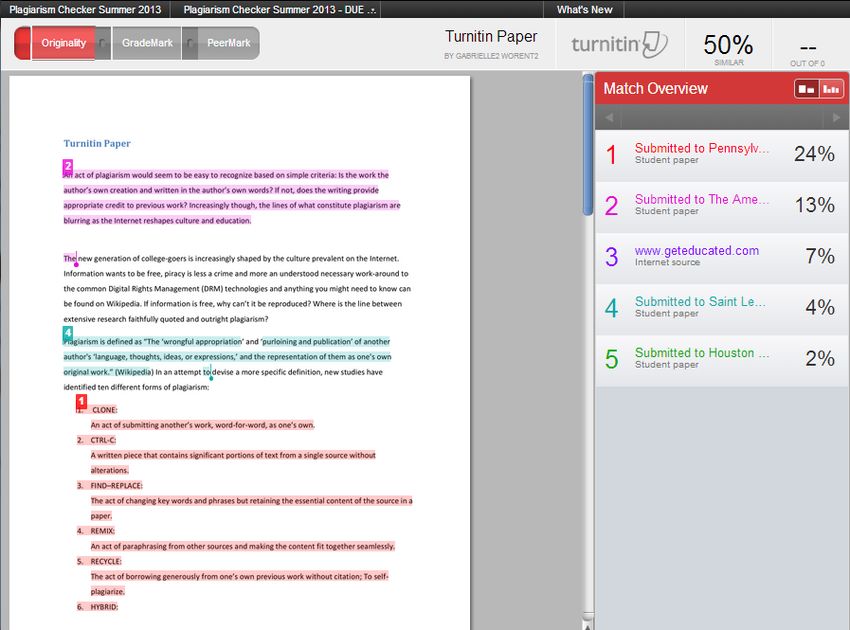
Student eLearning Guide

SYSTEM REQUIREMENTS FOR E LEARNING

OPERATING SYSTEMS
        Windows 7 or above                               iPad iOS 6 or above
        Mac OS 10.9                                      iPhone iOS 6 or above

HARDWARE
      DVD-ROM Drive
      Speakers
      Printer
      HD Webcam: Supported by Midstate Technical Support and available in the Bookstore
      (required in some courses).

MEMORY
           512 megabytes of RAM (2 gigabytes or more is recommended)

BROWSER
            Mozilla Firefox                        iOS
            Apple Safari 5 or higher
            Internet Explorer 10
            Skype 5.10 or higher
            Google Chrome

SOFTWARE
       Up-to-date antivirus protection
       Adobe Flash Player
       Adobe Reader
       Oracle Java Runtime Environment
       Skype (download for free and required in some courses)
       Microsoft Office 2013 (can obtain a copy from Technical Support)

INTERNET CONNECTION
        Cable, DSL, or other high-speed Internet

4|Page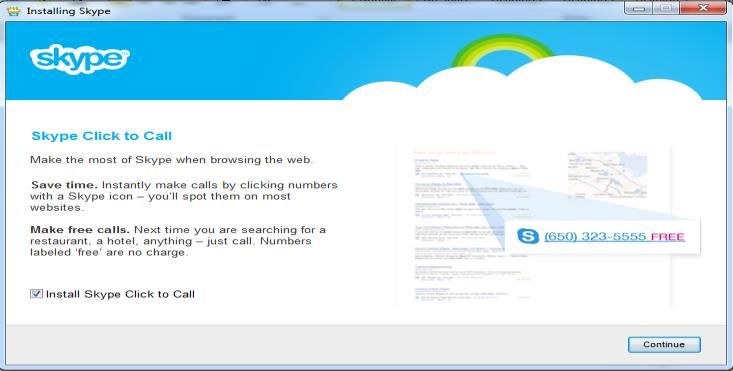
Student eLearning Guide
COURSE DELIVERY DESCRIPTION
DESCRIPTION OF STUDENT SCHEDULE
The student schedule has three areas which need additional definitions. You can see an example of a
student schedule in the figure labeled “Student Schedule” below:
The first highlighted column is labeled “Weekday.” Under the Weekday definitions you will find all the
days of the week. Our Student Information System (SIS) requires that we complete this field for all
courses including eLearning courses. All eLearning courses are labeled with a Weekday definition of (U)
meaning Sunday. This is simply a placeholder.
The definitions and descriptions for the column heading labeled “Section” and “Delivery M.” are defined
under the sub-heading definitions below:
DEFINITIONS
An on-campus class is taught in a physical classroom on a weekly or bi-weekly basis.
On a student schedule the Section heading is labeled (D) and the Delivery Mode description is
On-Campus. This is for an on-campus class taught during the day.
On a student schedule the Section heading is labeled (N) and the Delivery Mode description is
On-Campus. This is for an on-campus class taught at night.
On a student schedule the Section heading is labeled (S) and the Delivery Mode description is
On-Campus. This is for an on-campus class taught on Saturday.
An eLearning class is taught at a distance and delivered asynchronously using the Internet.
On a student schedule the Section heading is labeled (E) and the Delivery Mode description is
eLearning. This is for an eLearning class.
A flex class is taught both on-campus and through eLearning. Flex classes offer personalized learning
where students can choose each week whether they want to attend on-campus, via eLearning, or both.
5|Page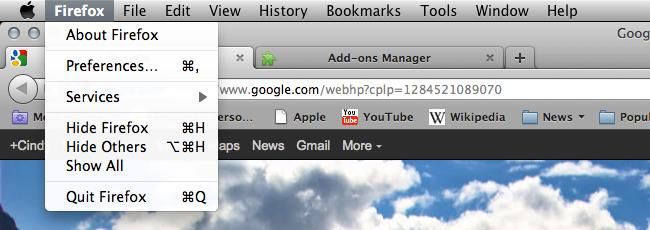
Student eLearning Guide
On a student schedule the Section heading is labeled Day Flex (DF) course. The Delivery Mode
description is a blended class which offers a daytime session on-campus.
On a student schedule the Section heading is labeled Night Flex (NF) course. The Delivery Mode
description is a blended class which offers an evening session on-campus.
On a student schedule the Section heading is labeled Saturday Flex (SF) course. The Delivery
Mode description is a blended class which offers a daytime Saturday session on-campus.
An eLearning Class with an On-campus Component is a course taught at a distance and delivered
asynchronously using the Internet, but contains an on-campus requirement such as a mock interview, a
faculty lecture or session, or a proctored assignment. The student in this course may be asked to meet
face-to-face with the instructor, proctor, or employer to complete assignments, assessments, etc.
On a student schedule the Section heading is labeled (EC) and the Delivery Mode description is
eLearning with an On-campus Component. This is for an eLearning class with an offline
component.
An On-campus class with an eLearning Component is a course taught in a physical classroom on a
weekly or bi-weekly basis. The student may also be required to complete work in an eLearning setting.
This could include testing, homework submission, guided training, etc.
On a student schedule the Section heading is labeled (SE) and the Delivery Mode description is
on-campus with an eLearning component class which offers a daytime Saturday session on-
campus.
On a student schedule the Section heading is labeled (DE) and the Delivery Mode description is
an on-campus with an eLearning component class which offers a daytime session on-campus.
On a student schedule the Section heading is labeled (NE) and the Delivery Mode description is
an on-campus with an eLearning component class which offers an evening session on-campus.
An arranged class with an eLearning component is a class taught at a distance and delivered
asynchronously using the Internet but with the option to meet face-to-face as the student’s
academic progress dictates essentially an independent study with an instructor mentor. Students are
expected to meet with an instructor on a weekly basis via face-to-face sessions, online, email, or phone.
The number of students will be restricted in this delivery mode.
On a student schedule the Section heading is labeled (AE) and the Delivery Mode description is
Arranged with an eLearning Component. This is for an Arranged class with an eLearning
component.
6|Page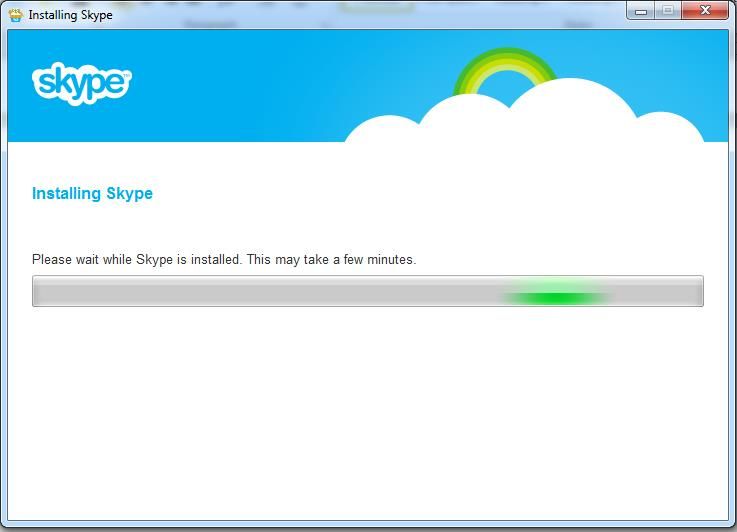
Student eLearning Guide

ELEARNING STUDENT POLICIES
ATTENDANCE POLICY
Attendance and participation have proven to be key factors in academic success. To be considered in
attendance for an eLearning course, the student must participate each week by submitting substantial,
gradable work. Instructors will outline their specific participation and grading policies in the course
syllabi.

WHAT TO EXPECT FROM ELEARNING

The following is a description of what to expect from eLearning:

   •   Courses are asynchronous, meaning students can participate at their own convenience
       throughout the week.
   •   The eLearning term is divided into 12 weeks, each of which extends from noon on Monday
       through 8 AM the following Monday.
   •   Students have access to new weekly course content every Monday afternoon.
   •   Students are required to participate a minimum of two days per week in each course.
   •   eLearning courses can require more time and commitment than traditional courses; students
       can expect to spend up to 8-10 hours per week, per course.
   •   Students can easily view graded materials and cumulative gradebook information.
   •   Technical Support is available to help students who experience technical problems with
       Midstate eLearning. Students can call, email, or complete a technical support request form to
       receive assistance.
   •   eLearning requires students to stay organized, read instructions, and be self-disciplined, working
       on assignments and interacting with classmates throughout each week.
   •   Instructors may ask students to access the online library resources to complete research papers
       and other projects.
   •   Lectures may be presented as text-based or in an audio/visual format.
   •   Additional course content may be presented in PDF format or bookmarked as links.
   •   Students can interact with and ask questions of instructors using the general discussion forum,
       Joule messaging or Midstate email. If additional communication is needed, students can
       schedule a time to meet with the instructor via telephone or interactive chat tools.

                                                                                              7|Page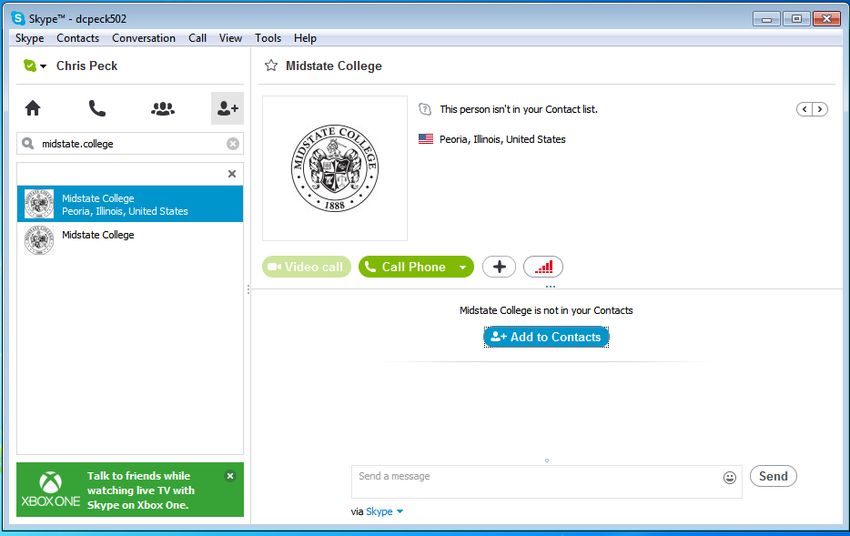
Student eLearning Guide

ELEARNING STUDENT GUIDELINES

Midstate College has provided a list of important eLearning student guidelines. Please review the
guidelines listed below:

   •   Students are required to use Joule messaging or Midstate email for all classroom
       communication in eLearning courses.
   •   Students are required to submit substantial, gradable work to be counted present for the week.
   •   Students are required to review the course lecture each week. Lectures may be available in
       several formats.
   •   Students are required to respond to questions posted in the weekly discussion forums with
       ideas, thoughts, research, and reactions to the discussion topics at least two days per week.
   •   Students may be required to prepare a summary each week. The instructor will specify how the
       summary is to be submitted.
   •   Students are required to post assignments to the appropriate assignment activities. If an
       assignment is submitted late, the instructor may not accept it or may deduct points from the
       grade at his/her discretion.
   •   Students may be required to participate in group assignments. Group members can
       communicate using Midstate email, Joule messaging and/or chat, and designated discussion
       forums.
   •    Students should check the grade book each week for feedback on graded materials.
       Occasionally additional feedback may be delivered via Joule messaging and Midstate email.
   •   Students experiencing technical problems should contact Technical Support. Students who
       cannot complete coursework due to these problems should notify their instructors immediately.
   •   Students are required to ensure that all emails, discussion forum posts, and assignments have
       been spell checked and meet eLearning etiquette standards.

ELEARNING COMMUNICATION                  ETIQUETTE

Midstate College expects students to follow professional etiquette in online interaction.

Please follow the guidelines listed below for eLearning communication etiquette:

   •   Avoid sending Joule messages, Midstate email, and discussion forum posts with incorrect
       spelling and grammar.
   •   Avoid using abbreviations and acronyms that may confuse your instructor and/or classmates.
   •   Avoid using emoticons. Emoticons (a.k.a. “smiles”) are a series of letters, numbers and/or
       punctuation which can be used to convey an emotion. Emoticons can clutter a message and
       make it difficult to read.
   •   Avoid using sarcasm. Written text can easily be misinterpreted.

8|Page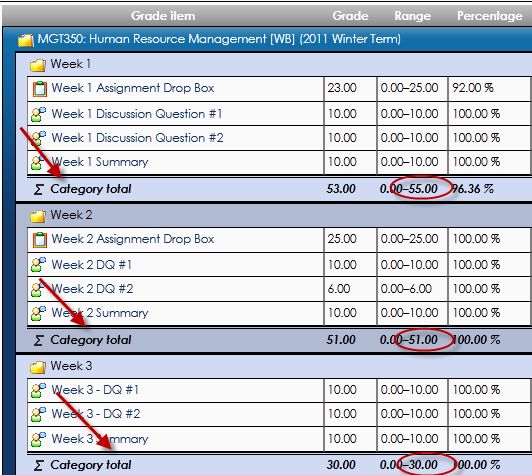
Student eLearning Guide
• Avoid using all capital letters in a message. Using all capital letters can make messages difficult
to read.
• Avoid posting irrelevant information in discussion forums. Discussions should be relevant to the
topic assigned by the instructor.
• Avoid sending Midstate email or assignments without a clearly defined subject. Messages that
are vague or unspecific are easy to overlook.
• Avoid sending attachments that others may not be able to open. Instructors should specify
which applications are to be used. For example, research papers and writing assignments will
generally be composed using Microsoft Word.
• Avoid sending any communication which is less than professional.
Students should follow the same communication standards which apply in the business world.
ELEARNING FACULTY COMMITMENT TO STUDENTS
Midstate College is committed to providing the highest quality of education for our students, both on-
campus and online.
The following is a description of what students can expect from Midstate eLearning faculty:
Faculty will attempt to answer all student queries within 24 hours.
Faculty will login to the Midstate College LMS and Midstate College email at least 5 days a week
with no more than 24 hours between logins.
Faculty will participate in the eLearning course, including Messaging with the students and
engaging in the Discussion Forums.
Faculty will keep the grade book up-to-date with no more than a week lapse for graded work
unless otherwise communicated.
Faculty will publish blocks of time of availability in the syllabus for messaging with the students
in a live setting.
Faculty will use a rubric to grade all major assignments.
Faculty will create clearly defined assignments.
Faculty will proofread and review all coursework such as exam questions, discussion forums,
syllabi, etc. before the term begins.
Faculty will maintain academic rigor by incorporating instructor and student activities
appropriate to the course learning objectives (refer to Bloom’s Taxonomy).
Faculty will use techniques to reduce cheating, limit plagiarism, and ensure student identity.
Faculty will create lectures with added value that do not simply reiterate the text.
Faculty will refer students to the Student Success Department when students are not thriving.
Faculty will upload a personal photo, autobiography, and video greeting (when possible) for
each course.
9|Page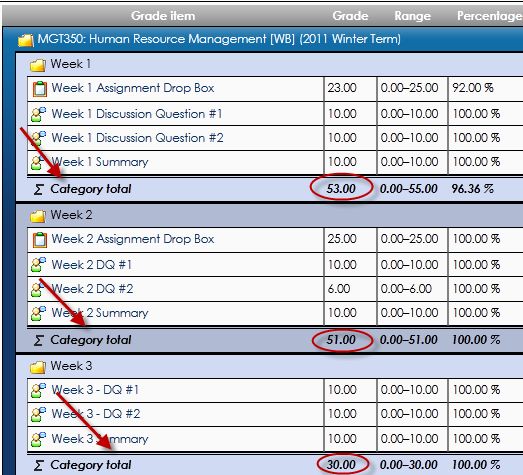
Student eLearning Guide

ELEARNING DEPARTMENT                 CONTACT INFORMATION
If you have any questions or concerns, feel free to contact the eLearning Department.

eLearning Coordinator
Kaitlin Seaman, CFD
kmseaman@midstate.edu
(309) 692-4092, ext.5022

STUDENT PLAGIARISM AND IDENTITY TRACKING
The College uses many different methods to help ensure eLearning student identity. It starts at
enrollment where students who submit an application at a distance are required to submit a notarized
copy of their driver’s license with enrollment. At the login page, the College’s Learning Management
Systems contain a disclaimer statement acknowledging student identity citing the College's Academic
Honesty Policy. See disclaimer statement below:

“The Higher Education Opportunity Act of 2008 (PL 110-315) provides for additional governance of
distance education. Specifically, institutions offering distance education are required to have processes
to establish that the student who registers for a distance education course or program is the same
student who participates, completes a course or program, and obtains the academic credit.

By entering the eLearning course, you acknowledge that you are the student registered for the course.
In addition, you acknowledge that you are the individual who is completing all applicable coursework,
including, but not limited to exams, quizzes, eLearning discussions, etc.

Further, you acknowledge that should Midstate College, or representatives thereof, determine that the
individual who is registered for the course is not the individual completing and submitting coursework or
participating in course requirements, you will be subject to the College’s Academic Honesty Policy.
Failure to comply with the College’s Academic Honesty Policy may result in suspension from the
College.”

At the beginning of every term, instructors request that students post an autobiography. This permits
the instructor to become acquainted with each student and provides a writing sample for future writing
comparison. In several courses requiring the use of webcams, eLearning students are required to show
their state issued identification before giving live oral presentations or completing mock interviews.

In several programs, major exams are physically proctored face-to-face. ELearning instructors are
trained on the use of security features available in the Learning Management System for eLearning
assessments. These features include: disabling right-click; disabling copy or print during a test; test

10 | P a g e
Student eLearning Guide

duration; seeing only one question at a time with no backtracking; randomizing the order of questions;
and only providing feedback after all students have completed the exam.

Students are given the opportunity to utilize anti-plagiarism software, such as Turnitin, to check writing
assignments before turning in major projects or research papers. Instructors utilize this software to
ensure the student’s work is original. The College also uses SimNet for eLearning assessment of multiple
software courses. This software requires each student to purchase an individualized code for
participation.

Students should be aware that their eLearning activity can be observed by instructors and
administration. Activity tracking includes (but is not limited to) coursework, learner profile, chat room,
messaging, and email.

Future eLearning efforts will focus on verifying student identification, limiting cheating, and curbing
student plagiarism.

LIBRARY RESOURCES

The Barbara Fields Memorial Library at Midstate College provides students access to a number of
electronic research resources to aid them in their academic endeavors. Our online libraries and
databases augment our print collection by offering the full texts of over 70,000 books and 15,000
journals, many of which are peer-reviewed titles. These resources are available twenty-four hours a day,
seven days a week from anywhere in the world. Professional library staff members are available via
phone or email to assist students with their research.

                                                                                               11 | P a g e
Student eLearning Guide
LOGGING IN TO JOULE
1. Open a browser and type https://midstate.mrooms3.net/ in the address bar. Enter your username.
Your username will be your first initial, middle initial and last name (e.g. John Michael Smith would
be jmsmith). In some cases, the username may contain a number (e.g. jmsmith2).
2. Enter your password. The default Midstate eLearning password is your first initial, last initial and the
last four digits of your student ID number (e.g. js1234). This can be found on your schedule or
student ID.
3. Click “Login.”
NOTE: If you change your Midstate eLearning password it will not apply to any other Midstate systems such as
email, on-campus network, etc. It is strongly suggested that if you change your password in one system, you
also change your passwords in all other systems. In the event that you should forget your password, Technical
Support cannot retrieve a changed password, but can reset it to the Midstate College default.
12 | P a g eStudent eLearning Guide
LOGGING OUT OF JOULE
1. Click the power symbol in the upper right-hand corner of the screen.
2. Click “Continue.”
NAME BADGE
Click on your name in upper right-hand corner of the screen. This will expand to reveal links to My
Home, My Profile and another way to log out. Click your name again to collapse the information box.
13 | P a g eStudent eLearning Guide
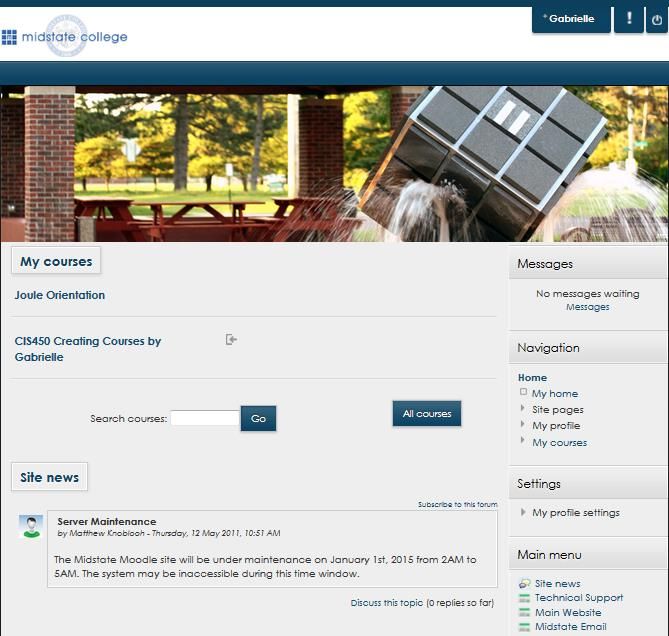
NAVIGATING THE MAIN PAGE
1
2 3
4
8
5
6
9
7
NOTE: The Main Page and the Course Page are broken up into chunks of information. Each chunk is
referred to as a “block” as in “Navigation block,” “Settings block,” “Messages block,” etc.
1. Your Name
a. Shows links to My Home, My Profile and Logout.
2. Alert Badge
a. New messages and alerts about coursework or grades can be viewed here. A small red
number to the right of the Alert Badge will show how many unread alerts you have.
3. Log out
4. Messages
a. Shows any messages you may have received.
5. Navigation Block
a. My Home: Shows assignments that are due and your activity in Joule.
b. Site Pages: Contains links that are duplicated in the Main Menu block.
c. My Profile: Links to your profile, your forum activity, messages and My Private Files.
6. Settings Block
a. My Profile Settings: Links to edit your profile and change your password.
7. Main Menu Block
a. Site News: Links to announcements from the eLearning Department
14 | P a g eStudent eLearning Guide
b. Technical Support: Links to Tech Support page where you can create a ticket.
c. Main Website: Links to Midstate College Homepage.
d. Midstate Email: Link to your Midstate email.
8. My Courses
a. A list of the elearning courses in which you are currently enrolled.
9. Site News
a. Most current announcements from the eLearning Department.
NOTE: The tools available in the Navigation and Settings blocks are linked to the different pages. The
content contained in these blocks will not always be the same. Rather, you will find new tools in the
Navigation and Settings blocks specific to the current page.
NAVIGATING THE COURSE PAGE
1
7 2
3
4
8
5
6
1. Alert Badge
15 | P a g eStudent eLearning Guide
a. New messages and alerts about coursework or grades can be viewed here. A small red
number to the right of the Alert Badge will show how many unread alerts you have.
2. Latest News Block
a. Course specific announcements from your instructor.
3. Messages Block
a. Shows any messages you may have received.
4. Online Users
a. Lists who is currently online in your course. Please note that when a person logs off, it will
show them online for 5 more minutes.
5. Navigation Block
a. My Home: Shows assignments that are due and your activity in Joule.
b. Site Pages: Contains links that are duplicated in the Main Menu block.
c. My Profile: Links to your profile, your forum activity, messages and My Private Files.
d. My Courses: Links to all the elearning courses in which you are currently enrolled.
6. Settings Block
a. Course Administration: Links to grades.
b. My Profile Settings: Links to edit your profile and change your password.
7. Course Outline
a. Will contain your news forum, syllabus, and general discussion.
8. Weeks
a. Shows the resources and assignments due in a particular week.
HOW TO CHANGE YOUR PASSWORD
1. Click “My Profile Settings” in the Settings block.
16 | P a g eStudent eLearning Guide
2. Click “Change Password.”
3
4
5
6
3. Enter your current password.
4. Enter your new password.
5. Enter your new password again.
6. Click “Save Changes.”
HOW TO EDIT YOUR PROFILE
1. Click “My Profile Settings.”
17 | P a g eStudent eLearning Guide 2. Click “Edit Profile.” 3. When your editing is complete, click “Update Profile” at the bottom of the page. NOTE: We suggest that you upload a picture of yourself so that your instructor and classmates can get an idea of who you are. It makes the eLearning experience richer to be able to put a face to a name. MESSAGES IN JOULE How to Create a Message NOTE: It is important to turn off your browser’s pop-up blocker when using Joule. Doing so will allow you to receive live messages when you are logged into your courses. See Appendix A for instructions on how to turn off the Pop-Up Blocker in Internet Explorer and Mozilla Firefox. 1. In the Navigation block, under the course you are logged into, click “Participants.” 18 | P a g e
Student eLearning Guide

2. Click on the name of the person you want to send a message to.

3. Click “Send a Message.”

4. Type your message into the text box. Click “Send Message.”

NOTE: You can send a message to your instructor or classmates when they are not online. The message
will be forwarded to their Midstate email and show up as an Alert Badge. However, there is often a
delay before your classmate or instructor will receive the message as an email. If the message is
important or time sensitive, please use an additional mode of communication. Messages do not allow
attachments so if you need to include an attachment you will need to use your Midstate email.

                                                                                        19 | P a g e
Student eLearning Guide
How to Receive a Message
If you’ve received a message while you were offline, the next time you log in there will be three ways to
access the message.
1. An alert will be in the bottom right-hand corner of the screen informing you that there is a message
waiting for you.
Click “Go to Messages” to read the message.
2. You will see the message in the Messages block. Click on the envelope to read the message.
3. In the upper right-hand corner of the screen you will see an alert on the Alert Badge. Click on it to
open the alert.
Click “Read” to read the message.
20 | P a g eStudent eLearning Guide
OVERVIEW OF A WEEK
Week One Overview
The Overview will cover the topics, objectives, assignments, discussions and summaries for the week. If
there is a deadline for an assignment or discussion that is different than the typical 8 a.m. on Monday
that will be clearly laid out in the Overview. Below is an example:
NOTE: If your instructor changes an assignment, due date or any such thing from what is stated in the
syllabus, the updates will be made clear in the Overview.
Lecture
Lectures may be created as a webpage, a word document that will automatically download to your
computer, a link to a PowerPoint Presentation, a YouTube video, or downloadable PDF. Below is an
example of a lecture as a webpage:
21 | P a g eStudent eLearning Guide
ASSIGNMENTS
The two types of assignments are Online Text and Upload a File.
Online Text
1. Click on the name of the Assignment.
2. To create your submission, click “Add Submission.”
3. You can compose in this HTML box, but we recommend composing first in Microsoft Word and
copying and pasting into the HTML box. That way, if you were to lose your internet connection, you
would not lose any of your work. To submit your work, click “Save Changes.”
Make sure you check
this box to agree to the
originality statement.
When copying and pasting from
MS Word, often unintended
code and characters are
included making the text look
messy. To avoid this, use the
“Copy from Word” tool.
22 | P a g eStudent eLearning Guide
4. After you click “Save Changes,” you will be routed back to the assignment page.
Upload a File
1. Click on the name of the assignment.
2. Click “Add Submission.”
23 | P a g eStudent eLearning Guide
3. To upload your file either drag it from a folder into the file area and drop it (not available in Internet
Explorer).
Make sure you check this
box to agree to the
Originality Statement.
4. Or click “Add.”
Notice the
maximum
number of files
allowed for this
assignment.
24 | P a g eStudent eLearning Guide
5. Click “Browse,” select your file, then click “Upload This File.”
6. If the assignment requires multiple files, repeat steps 3-5 . If not, click “Save Changes” to submit
your files.
25 | P a g eStudent eLearning Guide
7. Some instructors will require you to submit your work as a final draft that can no longer be
edited. If that’s the case, you will see the following screen. Click “Submit Assignment.”
If you need to let
your instructor
know something
about the file you’ve
submitted, you can
enter a comment
here.
8. Click “Continue.”
Make sure
you check
this box to
agree to the
Originality
Statement.
QUIZ
1. Click on the name of the quiz.
2. Click “Attempt Quiz Now.”
26 | P a g eStudent eLearning Guide
3. If the quiz has a time limit a window will pop-up requiring you to confirm the attempt. Click “Start
Attempt” to continue.
NOTE: The timer will not pause once you have started the quiz even if you log out of Joule or close the
browser. You will see it in the upper right-hand corner of the screen.
4. Be sure to click “Finish Attempt” every 5-6 questions. In the case of any technological difficulties,
this will save your questions and allow you to finish the quiz. However, clicking on this will not pause
the timer.
27 | P a g eStudent eLearning Guide 5. To return to the quiz click “Return to Attempt.” 6. When you have completed the quiz, click “Submit All and Finish.” 7. A window will pop up asking you to confirm. Click “Submit all and finish.” 28 | P a g e
Student eLearning Guide

           8. The information available to you once you have finished a quiz is highly customizable and entirely up
              to the instructor. Below is one way it can look.

During the
                                                          A
quiz you can
flag questions
to come back
to. To unflag
the question,
                                                  B
click “Unflag.”

                                                      C

                            D

                   A.   Some basic information.
                   B.   A correct answer.
                   C.   An incorrect answer.
                   D.   The correct answers.

           9. When you are done reviewing the quiz, click “Finish Review.”

                                                                                                      29 | P a g e
Student eLearning Guide
FORUMS
There are a number of different styles of forums that are used to provide space in the course for
interaction and discussion between students and instructor.
The News Forum is a read-only forum containing announcements from the instructor.
To access the News Forum, click on “News Forum” at the top of the course page.
Each Person Posts One Discussion Forum and the Standard Forum for General Use both require
the student to start a new discussion topic. Other students and the instructor can respond to
the thread once it is created.
To post to one of these forums, click “Add a New Discussion Topic.”
The Single Simple Discussion Forum is meant for one topic discussions. This forum produces
only one thread of posts for users to reply to and does not allow starting a new discussion.
To post to this forum click “Reply” on whichever post to which you would like to reply.
30 | P a g eStudent eLearning Guide
The Q&A Forum is designed to permit the student to post a reply to a question posed by the
instructor. The student will not be able to see other students’ posts until he or she posts to the
forum.
To post to the Q&A forum, first click on the title of the instructor’s thread.
Then click “Reply” to whichever post you want to reply to.
You will have a thirty minute window to edit your post before seeing the other students’ responses.
After the thirty minute window closes, your post will become public and you will be able to read the
other posts.
NOTE: The instructor is able to respond to you in private. The private reply will look just like a regular
forum post only there will be no “Reply” button.
APPENDIX A
HOW DO I TURN OFF MY POP-UP BLOCKER?
Note: It is important to turn off your pop-up blocker when using Joule. Joule uses pop-ups to open
resources and to show live messages.
INTERNET EXPLORER (IE 9 & IE 10)
1. Click “Tools” in the upper right-hand corner of the screen.
31 | P a g eStudent eLearning Guide
2. Click “Internet Options.”
3. Click the “Privacy” tab and uncheck “Turn on Pop-up Blocker.” Click “OK.”
32 | P a g eStudent eLearning Guide
MOZILLA FIREFOX (PC)
1. Click “Home.”
2. Click “Settings.”
3. Click the “Content” tab and uncheck “Block Pop-up windows.” Click “OK.”
33 | P a g eStudent eLearning Guide MOZILLA FIREFOX (MAC) Click “Firefox.” Click “Preferences.” Click “Content” and uncheck “Block pop-up windows.” Click the red “X.” 34 | P a g e
Student eLearning Guide

APPENDIX B
THE GRADEBOOK

When setting up the gradebook, your instructor has a choice between “Weighted Mean of Grades” and
“Sum of Grades.” Whichever method was used will be stated in the syllabus.

If your instructor is using “Weighted Mean of Grades” then the various category and course totals will
track your current score. If your instructor is using “Sum of Grades” then the category and course totals
take into account all the work you have not yet completed, showing a failing grade until you have
completed enough work to compensate for the unfinished work. Below is a way to figure out your
current grade if your instructor is using “Sum of Grades”:

    1. You will need to find the category totals as shown below:

    2. Add up the points in the “Category total.”

        53 + 51 +30 = 134

    Numbers in blue are from the above illustration and the total in red (134) is what you get when you
    add the category totals up.

                                                                                             35 | P a g e
Student eLearning Guide
3. Now find the max numbers of points you can get for that category and add it up as shown
below.
55 + 51 +30 = 136
4. Divide the number of points that you have earned (as shown in step two) plus the amount of
points that you could possibly receive (as shown in step three.)
134 / 136 = 0.9852941176470588
5. Move the decimal point over two spots to the right.
98.5 Would be what your current grade is.
NOTE: Because Sum of Grades grading format divides your current grade by the overall category total,
you will begin your course with an “F.” This is not a statement of whether or not you are passing the
course, it is simply an effect of the grading style.
36 | P a g eStudent eLearning Guide
APPENDIX C
HOW DO I DOWNLOAD SKYPE?
1. Open a web browser and type www.skype.com in the address bar. Click “Downloads.”
2. If you are using Windows 7 or older, click “Get Skype for Windows Desktop.”
3. If you are using Windows 8 or a Mac, scroll down and select the version you need.
4. Click “Save File.”
37 | P a g eStudent eLearning Guide
5. Look in your Downloads folder for the Skype Setup icon. Double click on the icon to start set up.
6. Select your default language and whether or not you want Skype to automatically start when
your computer starts up. If you agree to the Terms of Use and Privacy Policy, click “I agree-
next.”
7. Decide whether or not to install Skype Click-to-Call then click “Continue.”
38 | P a g eStudent eLearning Guide
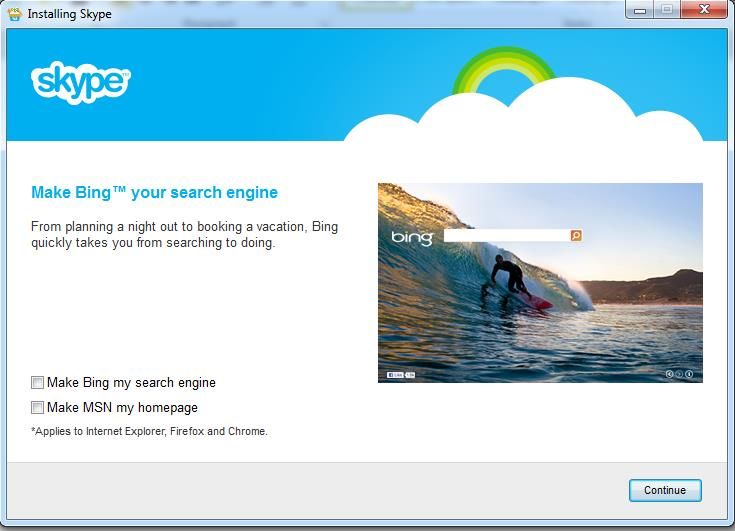
8. Decided whether or not to set your default search engine and homepage (this has nothing to do
with your Skype settings. It is just an advertisement), click “Continue.”
9. Skype will take a few minutes to install. This window will close when it is done.
10. A Skype icon will appear on your desktop.
39 | P a g eStudent eLearning Guide
HOW TO SET UP A SKYPE ACCOUNT
1. Open a browser and type www.skype.com into the address bar. Click “Join Us.”
2. Enter your information in the fields. Note that the fields marked with an ‘*’ are required.
3. Answer the question “How do you intend to use Skype?” and then choose a username and
password. If you want to be emailed with news, products and special offers, select “By email.” If
not, leave it blank.
40 | P a g eStudent eLearning Guide
4. Enter the text you see and click “I agree- continue.”
HOW TO ADD A CONTACT
1. Click the “Add a Contact” button.
41 | P a g eStudent eLearning Guide
2. You can search for people by email address or Skype name. Type your search in the search box.
42 | P a g eStudent eLearning Guide
3. Your search results will appear as you type. Click on the result you want.
43 | P a g eStudent eLearning Guide
4. Click “Add to Contacts
5. Skype will compose a short message that you are free to edit if you would like. Then click
“Send.”
44 | P a g eStudent eLearning Guide
HOW DO I CALL SOMEONE ON SKYPE?
1. Click the name of the person you want to call.
45 | P a g eStudent eLearning Guide
2. Click “Call.” If video is available, you can also click “Video Call.”
USEFUL THINGS YOU CAN DO ON A CALL
a b c d e f g h
a. Hide or reveal your Contacts, Facebook or Recent lists.
b. Show the IM window so you can instant message with the person you are talking to.
c. If you have a webcam plugged in, turn on or off video.
d. Mute or unmute your microphone.
e. Send files, send contacts, share your desktop or add people to the conversation.
f. Adjust your call setting, including your speaker volume.
g. View or exit full-screen mode.
46 | P a g eStudent eLearning Guide
APPENDIX D
TURNITIN
HOW TO CREATE AN A CCOUNT
1. Open a browser and type in www.turnitin.com.
2. Click “Create Account.”
3. Click “Student.”
4. The Class ID and Class Enrollment Password will be changed every term. You will receive that
information in the Welcome Letter the eLearning Department sends out at the beginning of the
quarter. Enter that information here.
5. Fill out the account information, selecting a username and password. When you are finished,
click “I Agree- Create Profile.”
47 | P a g eStudent eLearning Guide
HOW TO SUBMIT A PAPER
1. Log in to Turnitin.
2. Click on the name of the current term’s assignment.
3. Click “Submit.”
4. (Step 1 of 3) Enter the title of your paper, browse for the file and click “Upload.”
48 | P a g eStudent eLearning Guide
5. (Step 2 of 3) Review your upload and make sure it is the file you wanted. When you’re done,
click “Submit.”
6. (Step 3 of 3) This is your digital receipt. To view your paper and the originality report, click “Go
to Portfolio.”
7. To view the Originality Report, click the percentage under “Similarity.”
49 | P a g eStudent eLearning Guide
8. The Originality Report will open in a new window. You will be able to see the parts of your paper
that Turnitin flagged as possibly plagiarized.
Percentage of the
paper that matches
sources from the
Click on the Internet.
numbers to
see the
source.
Breakdown
of sources by
percentage.
NOTE: Turnitin will flag passages even if they have been properly cited. If you have included a quote in
your paper and cited it correctly then pay special attention to the Originality Report as it might show a
higher similarity percentage than is warranted.
50 | P a g eStudent eLearning Guide
TRAININGS AND TUTORIALS
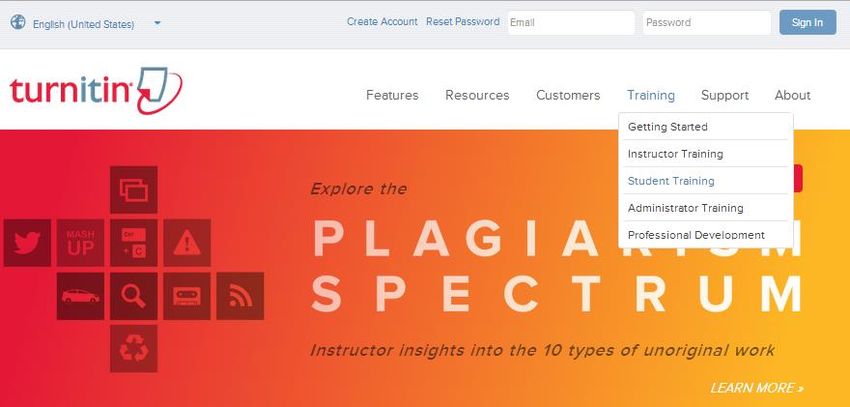
For more information go to www.turnitin.com, mouse over “Training,” and click “Student Training.”
There are several video tutorials available that show how to enroll in a class, how to submit a paper, etc.
51 | P a g eYou can also read


