EXTERNAL GUIDE HOW TO REGISTER FOR EFILING AND MANAGE YOUR USER PROFILE - SARS sars
←
→
Page content transcription
If your browser does not render page correctly, please read the page content below
EXTERNAL GUIDE
HOW TO REGISTER FOR EFILING
AND MANAGE YOUR USER
PROFILE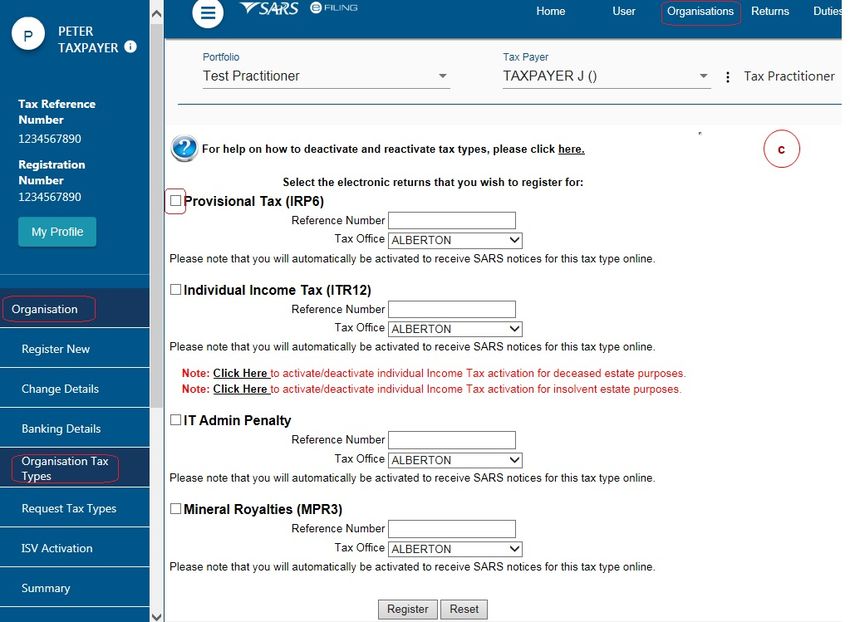
TABLE OF CONTENTS

 1      PURPOSE ......................................................................................................................................... 3
 2      INTRODUCTION ............................................................................................................................... 3
 3      SERVICES OFFERED ON EFILING ................................................................................................ 3
 4      NEW LOOK....................................................................................................................................... 4
      4.1       MIGRATION OF EXISTING USERS ........................................................................................ 4
      4.2       PORTFOLIOS........................................................................................................................... 4
      4.3       PASSWORD RULES ................................................................................................................ 4
      4.4       ONE-TIME PIN (OTP) ............................................................................................................... 5
 5      REGISTRATION ON EFILING ......................................................................................................... 5
      5.1       HOW TO REGISTER AS A NEW USER ON EFILING .............................................................. 5
      5.2       REQUEST FOR ADDITIONAL INFORMATION TO FINALISE REGISTRATION .................... 7
 6      FIRST TIME LOGIN FOR EFILING USERS REGISTERED ON/AFTER 1 JULY 2019 ................ 10
 7      FIRST TIME LOGIN FOR EFILING USER REGISTERED BEFORE 1 JULY 2019 ...................... 12
      7.1       SINGLE LOGIN PROFILE ...................................................................................................... 12
      7.2       MULTIPLE LOGIN PROFILES ............................................................................................... 14
 8      MY PROFILE .................................................................................................................................. 18
      8.1       PROFILE AND PREFERENCE SETUP ................................................................................. 18
      8.2       PORTFOLIO MANAGEMENT ................................................................................................ 20
 9      FORGOT PASSWORD ................................................................................................................... 23
 10     FORGOT USERNAME ................................................................................................................... 24
 11     ACCESS TO MY PROFILE ............................................................................................................ 27
 12     MANAGE USERS AND TAXPAYERS ON MY PORTFOLIO ........................................................ 28
      12.1      MANAGE USERS ................................................................................................................... 28
      12.2      MANAGE TAXPAYERS.......................................................................................................... 29
 13     ACTIVATE/ DEACTIVATE TAX TYPES ........................................................................................ 30
      13.1      INDIVIDUALS ......................................................................................................................... 30
      13.2      ORGANISATIONS AND TAX PRACTITIONERS ................................................................... 31
 14     CONCLUSION ................................................................................................................................ 32

                                                                                REVISION: 5                                             Page 2 of 32
EXTERNAL GUIDE - HOW TO REGISTER FOR
EFILING AND MANAGE YOUR USER PROFILE
GEN-ELEC-18-G01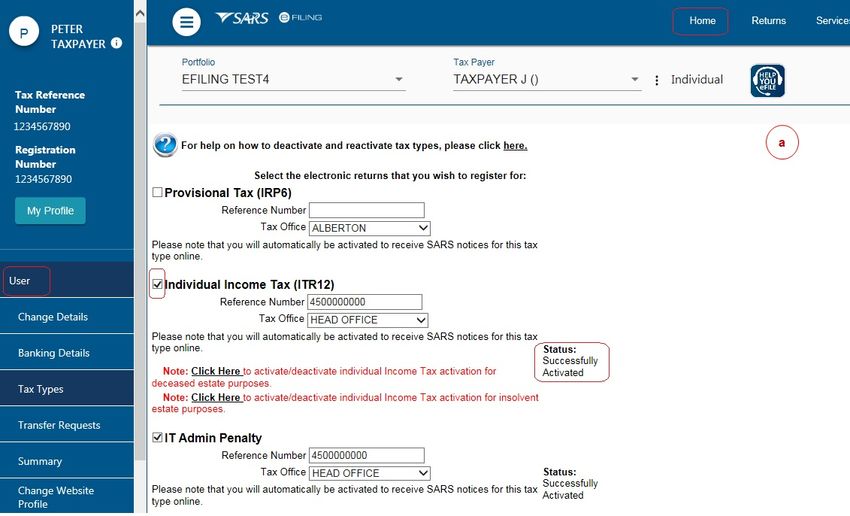
1 PURPOSE
The purpose of this document is to assist clients to register for eFiling and manage their eFiling profiles.
This guide in its design, development, implementation and review phases is guided and underpinned by
the SARS values, code of conduct and the applicable legislation. Should any aspect of this guide be in
conflict with the applicable legislation the legislation will take precedence.
2 INTRODUCTION
The vision of SARS is to be an innovative revenue and customs agency that enhances economic
growth and social development. This is in line with the legislative mandate of SARS which is to collect
revenue and ensure compliance with tax laws. eFiling enables SARS to achieve its mandate by being a
service channel for the collection and administration of all national taxes, duties and levies.
One of the issues that emerged from the SARS customer satisfaction research is that the public often
dreads standing in long queues, filling in paperwork and visiting SARS branches. The electronic filing
system (eFiling) aims to address these issues and ensure that the services SARS provides are efficient
and convenient for the taxpayer
eFiling is a free electronic tool designed by SARS to offer electronic services such as filing tax returns,
making payments and accessing accounts to name a few.
eFiling allows you the benefit of direct, secure and real-time electronic access to your tax profile as well
as the opportunity to manage this at any time and from anywhere.
You must be linked to a tax type (e.g. income tax) in order to have full access to the services on eFiling
and to transact.
SARS values you, the taxpayer. In order to protect your tax account(s), please note that not all services
are offered online. Services such as change of name and surname must be done at a SARS branch.
3 SERVICES OFFERED ON EFILING
The following services are available on eFiling:
Pay-As-You-Earn (EMP201 return)
Skills Development Levy (included on the EMP201 and EMP501 return)
Value Added Tax (VAT201)
Provisional Tax (IRP6)
Secondary Tax on Companies (IT56)
Individual Income Tax (ITR12)
Trusts (IT12R)
Advanced Tax Ruling (ATR)
Change of Personal Details
Payments
Request for Tax Clearance Certificate
Request for Tax Directive
Transfer Duty
Stamp Duty
Security Transfer Tax(STT)
VAT Vendor Search
Notification Tool
Tax Calculators
Complete history of eFiling usage
Customs payments
Air Passenger Tax payments
Mineral and Petroleum Resource Royalty (MPRR)
REVISION: 5 Page 3 of 32
EXTERNAL GUIDE - HOW TO REGISTER FOR
EFILING AND MANAGE YOUR USER PROFILE
GEN-ELEC-18-G01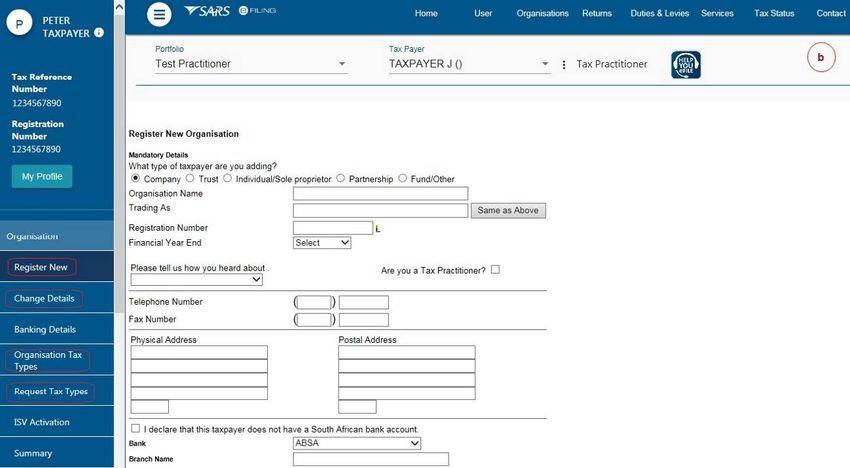
4 NEW LOOK
SARS has redesigned eFiling in an effort to embrace the benefits of emerging technologies and provide
an optimized and secure digital environment. The new look is also intended to help promote voluntary
compliance, reduce the administrative burden and provide you, our valued client, with a more intuitive
and user-friendly experience. The redesigned functionality on eFiling will be implemented using a
phased in approach.
Changes for this phase include:
New look to align to SARS’ corporate identity
Improved security to safeguard against fraud
Implementation of a primary user-id (single login) to access all profiles
Profile management (e.g. Organisations and Tax Practitioners)
A dashboard providing the eFiler with a visual summary of his/her tax affairs at a glance
4.1 MIGRATION OF EXISTING USERS
All existing users (registered prior to 1 July 2019) will be authenticated and migrated to one single user
sign on. If you have multiple login profiles linked to your identity/passport number, a list of your profiles
will display (after you have been authenticated). You will be required to choose a primary login from the
list. All your profiles will still be accessible once you logged in with your primary credentials. You can link
your other logins as “Portfolios” to your profile.
4.2 PORTFOLIOS
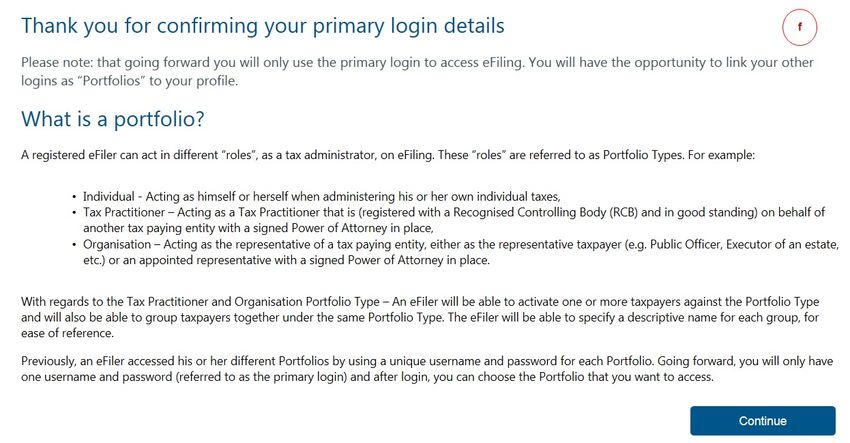
A registered eFiler can act in different “roles” on eFiling (e.g. tax administrator). These “roles” are
referred to as Portfolio Types. For example:
Individual – a person acting as himself/herself to administer his/her own individual taxes
Tax Practitioner – a person registered with SARS and a Recognised Controlling Body (RCB)
and has a signed power of attorney to act on behalf of another taxpayer.
Organisation – a representative of a tax paying entity acting either as the representative
taxpayer (e.g. Public Officer, Executor of an estate, etc.) or an appointed representative with a
signed Power of Attorney in place.
eFilers with a Tax Practitioner and Organisation portfolio type can:
Activate multiple taxpayers against that portfolio type,
Group taxpayers under the same Portfolio Type,
Specify a descriptive name for each group (for ease of reference).
If you registered different portfolio types prior to 1 July 2019, you would have accessed the
abovementioned portfolios by using a unique username and password for each. As from 1 July 2019,
you will only use one username and password (referred to as the primary login) to login to eFiling. You
can then choose the portfolio that you want to access.
4.3 PASSWORD RULES
When creating or changing a password on eFiling please ensure that the password contains a minimum
of 8 characters and has at least one of the following:
uppercase letter
lowercase letter
special character
numeric digit.
REVISION: 5 Page 4 of 32
EXTERNAL GUIDE - HOW TO REGISTER FOR
EFILING AND MANAGE YOUR USER PROFILE
GEN-ELEC-18-G01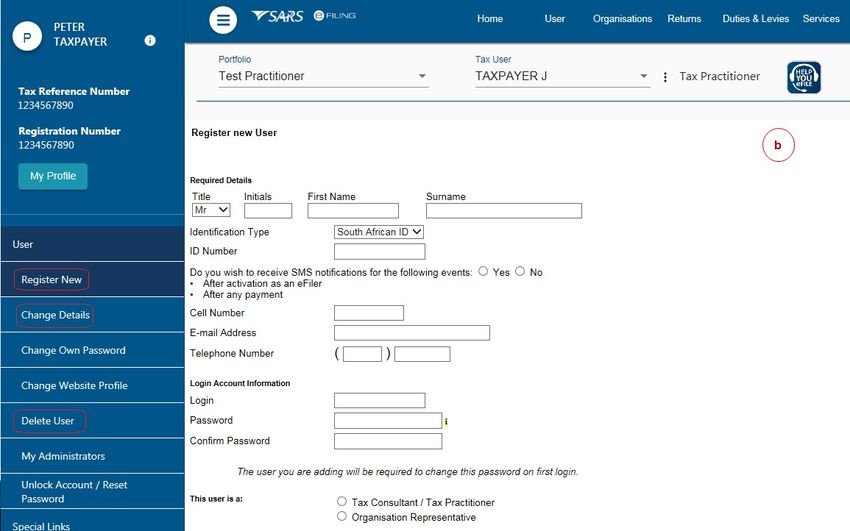
4.4 ONE-TIME PIN (OTP)
The OTP is a unique 4-digit security PIN and you will be required to enter this pin as confirmation
when performing certain functions on eFiling.
You can choose to receive an OTP via SMS or via an email address. Your preferred method of
communication for the OTP can be maintained via your eFiling profile.
For security reasons, the OTP is time-sensitive and you will be required to enter it within the time
period indicated. If you are unable to enter the OTP within the specified time, you may request for
it to be resent to you.
For your security, you can only opt to resend an OTP twice.
5 REGISTRATION ON EFILING
5.1 HOW TO REGISTER AS A NEW USER ON EFILING
Procedure:
a) Log on to the SARS website.
On the top right side of the home page is a list of SARS eFiling options. Select .
The eFiling Register screen will display.
b) Please enter the following personal details and click on .
Name
Surname
South African Citizen (indicate Yes/No)
Identification Number
Date of Birth
Note: If you are not a South African citizen please enter your passport number and your
income tax number (if registered).
c) Please enter the following information on the contact details screen and click on .
Cell number
Email
A unique user name (you may opt to use your email address as your user name)
Password (please refer to the password rules above)
Confirm Password
d) If the details entered are successfully matched with the SARS records, you will be presented with
the One-Time-Pin (OTP) screen.
Please enter the OTP that is sent to either your cellphone number or your email address.
If the time period to enter the OTP has expired you can click on . Note: for
your security you can only select this option twice.
If you do not complete the OTP process successfully, you will have to start the registration
process again.
e) If you have successfully entered the OTP, the eFiling Login Screen will display.
NOTE:
If we cannot match the personal details that you entered, we may ask you a few random
REVISION: 5 Page 5 of 32
EXTERNAL GUIDE - HOW TO REGISTER FOR
EFILING AND MANAGE YOUR USER PROFILE
GEN-ELEC-18-G01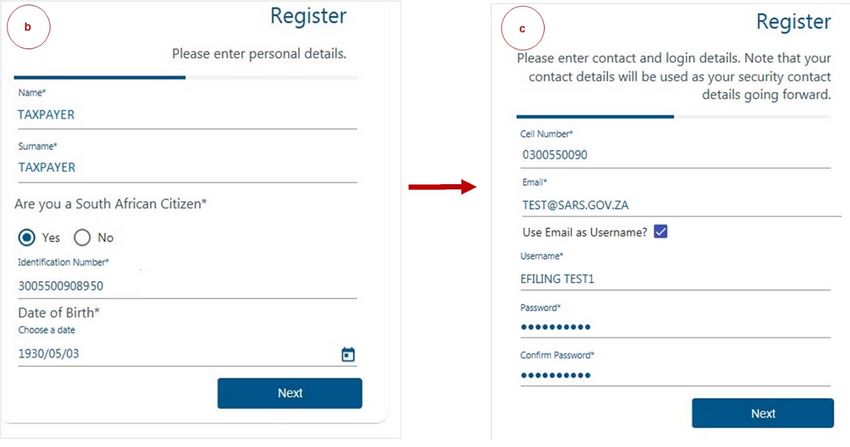
questions to authenticate you.
If you have multiple income tax numbers or your income tax number is inactive/coded as a
deceased estate or you are only registered for VAT/PAYE and not for income tax, you will be
required to first visit your nearest SARS branch office to register for income tax or activate your
income tax number
If our system identifies you as a registered eFiler, you will either have the option to login with
your existing eFiling profile or recover your password (if you cannot remember it).
If your tax number is already registered against another party’s eFiling profile (e.g. a tax
practitioner), you have the option to obtain shared access or revoke the other party’s access.
Illustration
REVISION: 5 Page 6 of 32
EXTERNAL GUIDE - HOW TO REGISTER FOR
EFILING AND MANAGE YOUR USER PROFILE
GEN-ELEC-18-G01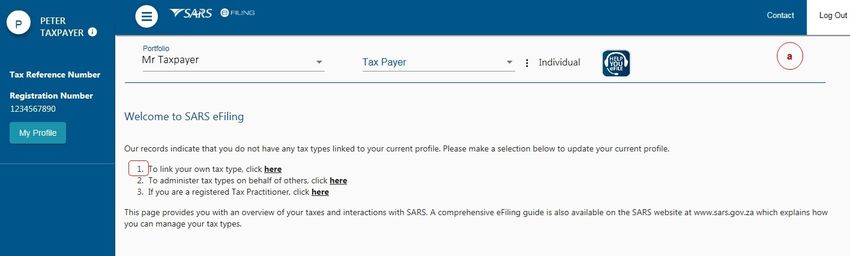
5.2 REQUEST FOR ADDITIONAL INFORMATION TO FINALISE REGISTRATION
If we are unable to finalise your eFiling registration immediately we may request additional information
before we issue an OTP to you. Please follow the steps below in order for us to finalise your eFiling
registration as soon as possible.
Procedure:
a) A message will display confirming your registration request and prompting you to upload
supporting documents in order to finalise your eFiling registration.
A case number will be allocated to you. Please quote this number when contacting SARS
to follow up on the progress of your eFiling registration.
If you are logged out, please use the username and password that you provided during the
registration process.
Please note: You will have 21 business days to upload the required documents.
Click on .
b) The Registration Workpage will display.
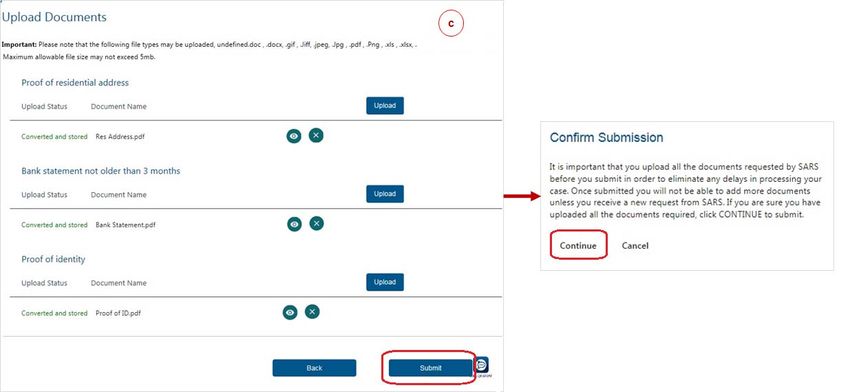
Click on to upload the required supporting documents.
c) The file size may not exceed 5mb and the following file types will be accepted:
.doc .docx .gif .Jiff .jpeg
.jpg .pdf .png .xls .xlsx
Follow the screen prompts to upload the documents.
Please ensure that you upload all the documents requested by SARS before you click on
the . Once submitted you will not be able to add more documents unless you
receive a new request from SARS.
If you are sure you have uploaded all the documents required, click on .
d) You can log in with your username and password to view the status of your registration process
(e.g. awaiting supporting document, documents submitted). Once SARS has verified your details,
the status will change to ‘Request Successful’
Click on the button.
e) Confirm your preferred method of communication and click on .
The method you select will serve as your eFiling security contact details and will be used to
send a One-Time-Pin (OTP) to authenticate you.
REVISION: 5 Page 7 of 32
EXTERNAL GUIDE - HOW TO REGISTER FOR
EFILING AND MANAGE YOUR USER PROFILE
GEN-ELEC-18-G01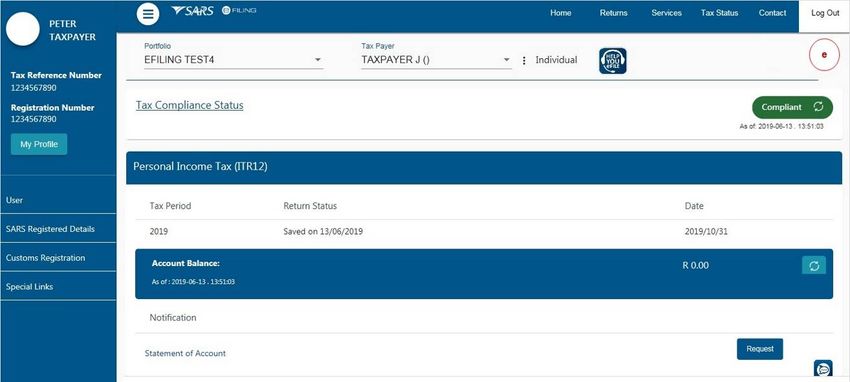
f)      Please enter the OTP sent to either your cellphone number or your email address. Once the
         correct OTP is entered, the eFiling Login screen will display.

      NOTE:

      If we cannot find your tax record, you will be required to complete your address details.

 Illustration:

                                                          REVISION: 5                             Page 8 of 32
EXTERNAL GUIDE - HOW TO REGISTER FOR
EFILING AND MANAGE YOUR USER PROFILE
GEN-ELEC-18-G01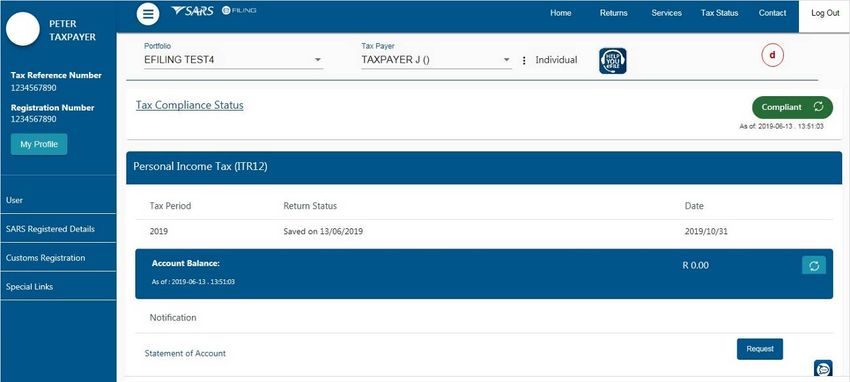
REVISION: 5   Page 9 of 32
EXTERNAL GUIDE - HOW TO REGISTER FOR
EFILING AND MANAGE YOUR USER PROFILE
GEN-ELEC-18-G01
6 FIRST TIME LOGIN FOR EFILING USERS REGISTERED ON/AFTER 1 JULY
2019
Procedure:
a) Log on to the SARS website. On the top right side of the home page select from the list
of eFiling options.
Enter your eFiling Username and click on
Enter your Password and click on .
b) The eFiling welcome screen will display.
Please read the terms and condtions.
At the bottom of the screen click on to continue with the log in process.
c) You will be presented with a list of returns types as per SARS records.
Please click on for each return type that you want to activate on your profile
Click on to remove a return type from your profile.
After you have selected the return type(s), click on .
d) The eFiling home page will display. This screen is also referred to as the eFiling Dashboard and
provides a visual summary of your current tax affairs with SARS with regard to compliance,
outstanding returns and account balance(s). You can also view your statement of account and
any notices sent by SARS.
NOTE:
If you have multiple income tax numbers or your income tax number is inactive/coded as a
deceased estate or you are only registered for VAT/PAYE and not for income tax, you will be
required to first visit your nearest SARS branch office to register for income tax or activate your
income tax number.
If your tax number is already registered against another party’s eFiling profile (e.g. a tax
practitioner), you have the option to obtain shared access or revoke the other party’s access.
Illustration:
REVISION: 5 Page 10 of 32
EXTERNAL GUIDE - HOW TO REGISTER FOR
EFILING AND MANAGE YOUR USER PROFILE
GEN-ELEC-18-G01REVISION: 5 Page 11 of 32 EXTERNAL GUIDE - HOW TO REGISTER FOR EFILING AND MANAGE YOUR USER PROFILE GEN-ELEC-18-G01
7 FIRST TIME LOGIN FOR EFILING USER REGISTERED BEFORE 1 JULY
2019
7.1 SINGLE LOGIN PROFILE
Procedure:
a) Log on to the SARS website. On the top right side of the home page select from the list
of eFiling options.
Enter your eFiling Username and click on
Enter your Password and click on .
b) The eFiling welcome screen will display.
REVISION: 5 Page 12 of 32
EXTERNAL GUIDE - HOW TO REGISTER FOR
EFILING AND MANAGE YOUR USER PROFILE
GEN-ELEC-18-G01 Please read the terms and condtions.
At the bottom of the screen click on to continue with the log in process.
c) Select your preferred method of communication and click on .
This will serve as your eFiling security contact details and we will send a One-Time-Pin
(OTP) to your preferred method of communication in order to authenticate you.
You can edit your contact details on this screen.
d) Please enter the OTP sent to either your cellphone number or your email address.
e) Once the correct OTP is entered, the eFiling home page will display. This screen is also referred
to as the eFiling Dashboard and provides a visual summary of your current tax affairs with SARS
with regard to compliance, outstanding returns and account balance(s). You can also view your
statement of account and any notices sent by SARS.
Illustration:
REVISION: 5 Page 13 of 32
EXTERNAL GUIDE - HOW TO REGISTER FOR
EFILING AND MANAGE YOUR USER PROFILE
GEN-ELEC-18-G017.2 MULTIPLE LOGIN PROFILES
Procedure:
a) Log on to the SARS website. On the top right side of the home page select from the list
of eFiling options. Enter your eFiling User Name and Password details and click on .
Please read and accept the terms and conditions.
REVISION: 5 Page 14 of 32
EXTERNAL GUIDE - HOW TO REGISTER FOR
EFILING AND MANAGE YOUR USER PROFILE
GEN-ELEC-18-G01b) A screen will display with a list of all the login profiles linked to your identity/passport number.
Please select the primary login name that you would like to use going forward. All your profiles
will still be accessible once you logged in with your primary credentials.
c) If you select a primary login (e.g taxpayer111111 as illustrated in the screen below) that is
different from the profile that you are currently logged in with (e.g. taxpayer222222), you will be
prompted to enter the password for that primary login selected (i.e taxpayer111111). If you do not
remember the password, click on to reset it.
d) Once you have selected the primary login click on . Select your preferred method of
communication and click on .
This will serve as your eFiling security contact details and we will send a One-Time-Pin
(OTP) to your preferred method of communication in order to authenticate you.
You can edit your contact details on this screen.
e) Insert the OTP issued to you.
f) A message will display confirming that your primary login has been sucessfully set-up. Click on
.
g) The Portfolio Management screen will display for you to link or unlink or add portfolios.
Please refer to the Portfolio Management section below.
NOTE:
After you have selected and confirmed your primary login, you must only use that login to
access eFiling. If you attempt to login with any other portfolio that is linked to your
identity/passport number, the following error message will display:
“According to our records you have already chosen your Primary Login. Please Login with your
Primary Login details and then activate your other profiles in the Portfolio Management section
on eFiling.”
If you are an individual with multiple logins and you try to login with the username that is not
linked to your personal income tax number, the following message will display:
“Our records indicate that your own personal income tax is associated to one of your other
existing Login details. Due to improved security measures implemented, please authenticate
this profile by providing the applicable password below. Note – should you not be able to
authenticate this profile now, you may be required to do so at a later stage to gain access to
certain online transactions.”
Illustration:
REVISION: 5 Page 15 of 32
EXTERNAL GUIDE - HOW TO REGISTER FOR
EFILING AND MANAGE YOUR USER PROFILE
GEN-ELEC-18-G01REVISION: 5 Page 16 of 32 EXTERNAL GUIDE - HOW TO REGISTER FOR EFILING AND MANAGE YOUR USER PROFILE GEN-ELEC-18-G01
REVISION: 5   Page 17 of 32
EXTERNAL GUIDE - HOW TO REGISTER FOR
EFILING AND MANAGE YOUR USER PROFILE
GEN-ELEC-18-G01
8 MY PROFILE
8.1 PROFILE AND PREFERENCE SETUP
This function is used to update your primary login details, security contact details and method of
authentication. You cannot change your tax reference number and identity/passport number on this
screen.
Procedure:
a) Log on to eFiling, click on from the menu on the left and select .
b) To change your security contact details:
Insert your new email address
Insert your new cell number
Select your preferred method of communication
Click on
Click on to send the One-Time-Pin number to your preferred method of
communication
After you have entered the correct OTP, a pop-up message will display confirming that
your security contact details have been updated successfully.
c) To change your username and password:
Insert your new username (you may user your email address as your username)
Insert your new password
Insert your new password again to confirm it
Click on
An OTP will be sent to your preferred method of communication
After you have entered the correct OTP, a pop-up message will display confirming that
your username and password have been updated successfully.
d) Two-factor authentication is an additional security measure and requires you to provide your
password as well as a second factor of authentication to login to eFiling. To switch on two-factor
authentication:
Select the button to switch on two-factor authentication
Select the option . Note: additional
options will be added to the system at a later stage.
REVISION: 5 Page 18 of 32
EXTERNAL GUIDE - HOW TO REGISTER FOR
EFILING AND MANAGE YOUR USER PROFILE
GEN-ELEC-18-G01 An OTP will be sent to your preferred method of communication
After you have entered the correct OTP, a pop-up message will display confirming that
your two-factor authentication has been successfully activated.
Illustration:
REVISION: 5 Page 19 of 32
EXTERNAL GUIDE - HOW TO REGISTER FOR
EFILING AND MANAGE YOUR USER PROFILE
GEN-ELEC-18-G018.2 PORTFOLIO MANAGEMENT
This function is used to link, unlink and add various portfolios (roles) on your eFiling profile. Example:
Your individual portfolio to manage your own personal taxes;
Multiple company portfolios where you are the registered representative (e.g. public officer) or
employee and you manage the taxes of those companies
Multiple tax practitioner portfolios where you manage the taxes of multiple individuals/entities as a
tax practitioner.
You can also opt to have all your roles merged into one company or tax practitioner profile if you so
wish.
Procedure:
a) Once you have logged on to eFiling, click on from the menu on the left and select
.
b) The Portfolio Management screen will display for you to link or unlink or add portfolios.
c) You will be prompted to enter the password for each portfolio that you want to link.
If you do not remember the password, click on to reset it.
After you enter the correct password, a message will display to confirm that the portfolio
has been linked.
d) You can set a default portfolio so that the sytem automatically displays this portfolio when you
login instead of you having to select it each time. To change the default portfolio, click on the
ellipses ( ) menu icon and then either select or .
You cannot have more than one default portfolio;
Portfolios that are not linked cannot be set as a default profile.
e) To change the portfolio type, click on the ellipses ( ) menu icon and select .
Select the portfolio type (i.e. Individual / Tax Practitioner / Organisation) from the drop
down menu and click on .
You can have multiple Tax Practitioner and Organisation portfolios on your profile.
You can only have one Individual portfolio linked to your profile.
f) You can rename your portfolios for your ease of reference. Click on the ellipses ( ) menu icon
and select . Insert the new description for the portfolio and click on
g) To link a new portfolio to your profile, click on . On the pop-up screen, insert the
portfolio name, select the and click on .
You can choose to set the new portfolio as your default.
You can add taxpayers and users to this portfolio.
Illustration:
REVISION: 5 Page 20 of 32
EXTERNAL GUIDE - HOW TO REGISTER FOR
EFILING AND MANAGE YOUR USER PROFILE
GEN-ELEC-18-G01REVISION: 5 Page 21 of 32 EXTERNAL GUIDE - HOW TO REGISTER FOR EFILING AND MANAGE YOUR USER PROFILE GEN-ELEC-18-G01
REVISION: 5   Page 22 of 32
EXTERNAL GUIDE - HOW TO REGISTER FOR
EFILING AND MANAGE YOUR USER PROFILE
GEN-ELEC-18-G01
9 FORGOT PASSWORD
Procedure
a) On the eFiling login in screen click on and then enter your user name.
b) Indicate if you want your OTP to be sent to your email or your cell number. Click on .
c) Insert your new password and retype it to confirm.
Click on .
A pop-up message will display confirming that your password has been changed
sucessfully.
d) If you registered for eFiling prior to 1 July 2019 and did not provide your contact details, you will
be required to enter your cell number and email address.
If we can match your details with our records, an OTP will be sent to you.
If we cannot match your details, we will ask you a few questions to authenticate you.
If we are still unable to match your details, please call the SARS Contact Centre for further
assistance.
Illustration:
REVISION: 5 Page 23 of 32
EXTERNAL GUIDE - HOW TO REGISTER FOR
EFILING AND MANAGE YOUR USER PROFILE
GEN-ELEC-18-G0110 FORGOT USERNAME
Procedure
REVISION: 5 Page 24 of 32
EXTERNAL GUIDE - HOW TO REGISTER FOR
EFILING AND MANAGE YOUR USER PROFILE
GEN-ELEC-18-G01a) On the eFiling login in screen click on . Insert the following particulars
Cell number
Email
Indicate if you are a South African citizen
ID number (or Passport number if you are not a South African citizen)
Tax number (if you have one)
b) If we can match you personal particulars an OTP will be sent to your email or your cell number.
Insert the OTP and click on .
c) Once you have entered the correct OTP, your username will display. You will be prompted to
insert a password and retype it to confirm.
Click on .
A pop-up message will display confirming that your password has been changed
sucessfully.
d) If you registered for eFiling prior to 1 July 2019 and did not provide your contact details, you will
be prompted to select a preferred channel to receive your OTP.
If we can match your details with our records, an OTP will be sent to you.
If we cannot match your details, we will ask you a few questions to authenticate you.
If we are still unable to match your details, please call the SARS Contact Cetnre for further
assistance.
Illustration:
REVISION: 5 Page 25 of 32
EXTERNAL GUIDE - HOW TO REGISTER FOR
EFILING AND MANAGE YOUR USER PROFILE
GEN-ELEC-18-G01REVISION: 5 Page 26 of 32 EXTERNAL GUIDE - HOW TO REGISTER FOR EFILING AND MANAGE YOUR USER PROFILE GEN-ELEC-18-G01
11 ACCESS TO MY PROFILE
If your tax number(s) is already registered against another party’s eFiling profile (e.g. a tax practitioner),
you have the option to obtain shared access or revoke the other party’s access.
Procedure:
a) When you log on to eFiling a message will display stating that our records indicate that you do not
have any tax types linked to your current profile. Select the option to link your own tax type (e.g.
provisional tax or individual income tax) to your profile.
b) Select the type of access you require and click on :
- this option will only allow you to view transactions
done on your behalf on eFiling
- this option will allow you to have full shared access and the
other party will still retain access rights to the tax type
- This option will display if you currently have shared access with
your tax practitioner
Illustration:
REVISION: 5 Page 27 of 32
EXTERNAL GUIDE - HOW TO REGISTER FOR
EFILING AND MANAGE YOUR USER PROFILE
GEN-ELEC-18-G0112 MANAGE USERS AND TAXPAYERS ON MY PORTFOLIO
12.1 MANAGE USERS
Procedure:
a) To manage users linked to a portfolio:
Select from the menu on the top
Select again from menu on the left
b) From the menu on the left:
Select to add a new user to the portfolio:
After you have completed the relevant fields, click on
Select the user groups and user roles and click on
The user’s login name will display on the screen.
Select to amend a user’s details. After you have amended the relevant
fields, click on
Click on to remove a user from an existing portfolio.
Illustration:
REVISION: 5 Page 28 of 32
EXTERNAL GUIDE - HOW TO REGISTER FOR
EFILING AND MANAGE YOUR USER PROFILE
GEN-ELEC-18-G0112.2 MANAGE TAXPAYERS
Procedure:
a) To manage taxpayer types linked to a portfolio:
Select from the menu on the top
Click < Organisation> from menu on the left.
b) From the menu on the left:
Select to add a new taxpayer type (e.g. individual, company, trust) to your
portfolio.
After you have completed the relevant fields, click on
Select the taxpayer groups and click on
A summary of the new taxpayer’s details will display. Click on
Select the return types that you want to activate for the taxpayer. Insert the reference
number and click on .
To amend a specific taxpayer’s details on your portfolio, search for the taxpayer and then
select from the menu on the left.
After you have completed the relevant fields, click on
Select the taxpayer groups and click on
A summary of the taxpayer’s details will display. Click on
Select the return types that you want to activate/deactivate for the taxpayer and click
on .
Illustration:
REVISION: 5 Page 29 of 32
EXTERNAL GUIDE - HOW TO REGISTER FOR
EFILING AND MANAGE YOUR USER PROFILE
GEN-ELEC-18-G0113 ACTIVATE/ DEACTIVATE TAX TYPES
In order to transact (e.g. submit returns, make payments, request statement of account) on specific tax
types (e.g. provisional tax), you will need to activate that specific tax type.
13.1 INDIVIDUALS
Procedure:
a) To activate/deactivate tax types on your own individual profile.
Select from the menu on the top
Select from the menu on the left
Select from the menu on the left
Select the check box for the tax type you want to activate (or deactivate)
Insert the tax reference number
Click on
Once SARS has verified your details, the status will change to ‘successfully activated’.
Illustration:
REVISION: 5 Page 30 of 32
EXTERNAL GUIDE - HOW TO REGISTER FOR
EFILING AND MANAGE YOUR USER PROFILE
GEN-ELEC-18-G0113.2 ORGANISATIONS AND TAX PRACTITIONERS
Procedure:
a) To activate/deactivate tax types for taxpayers on your portfolio, click on the ellipses ( ) menu
icon and then search for the specific taxpayer.
b) Select from the menu on the top.
Select from the menu on the left
Select from the menu on the left
Select the check box for the tax type you want to activate (or deactivate)
Insert the tax reference number
Click on
Once SARS has verified the details, the status will change to ‘successfully activated’
Illustration:
REVISION: 5 Page 31 of 32
EXTERNAL GUIDE - HOW TO REGISTER FOR
EFILING AND MANAGE YOUR USER PROFILE
GEN-ELEC-18-G01For additional information, please refer to the following guide on the SARS website:
GEN-ELEC-10-G01 - Guide for Tax Practitioners on eFiling
14 CONCLUSION
Please contact SARS should you require any further information which might not be addressed in this
guide.
DISCLAIMER
The information contained in this guide is intended as guidance only and is not considered to be a legal
reference, nor is it a binding ruling. The information does not take the place of legislation and readers who are
in doubt regarding any aspect of the information displayed in the guide should refer to the relevant legislation,
or seek a formal opinion from a suitably qualified individual.
For more information about the contents of this publication you may:
Visit the SARS website at www.sars.gov.za
Visit your nearest SARS branch
Contact your own registered tax practitioner
If calling from within South Africa, contact the SARS Contact Centre on 0800 00 7277
If calling from outside South Africa, contact the SARS Contact Centre on +27 11 602 2093 (only
between 8am and 4pm South African time).
REVISION: 5 Page 32 of 32
EXTERNAL GUIDE - HOW TO REGISTER FOR
EFILING AND MANAGE YOUR USER PROFILE
GEN-ELEC-18-G01You can also read


