Email guidelines Version 7.18 - Creatio Academy
←
→
Page content transcription
If your browser does not render page correctly, please read the page content below
Email guidelines Version 7.18
This documentation is provided under restrictions on use and are protected by intellectual property laws. Except as
expressly permitted in your license agreement or allowed by law, you may not use, copy, reproduce, translate,
broadcast, modify, license, transmit, distribute, exhibit, perform, publish or display any part, in any form, or by any
means. Reverse engineering, disassembly, or decompilation of this documentation, unless required by law for
interoperability, is prohibited.

The information contained herein is subject to change without notice and is not warranted to be error-free. If you
find any errors, please report them to us in writing.

© 2022 Creatio. All rights reserved.

Table of Contents | 3

Table of Contents

Responsive email layout guidelines                                                          4
  General responsive layout principles                                                      4
  Microsoft Outlook layout specifics                                                        4
  Specifics of email layout on mobile                                                       5
Email personalization guidelines                                                            9
  Macros                                                                                    9
  Trigger emails                                                                           10
  Base segmentation                                                                        10
  Entry point                                                                              11
  Delivery time range                                                                      11
Guidelines for increasing deliverability                                                   11
  Internal factors                                                                         11
  External factors                                                                         13
Guidelines for improving the sender's reputation                                           14
  Reputation assessment                                                                    14
  Reputation control                                                                       15
  Increase the reputation                                                                  15
Contact base collection guidelines                                                         15
  Illegal methods                                                                          16
  Gray area methods                                                                        16
  Legal methods                                                                            17
Contact base email examples                                                                17
  Send emails to new subscribers (cold leads)                                              17
  Send a subscription request to a new audience                                            18
  Send emails to recipients who did not receive emails for a long time                     19
  Send emails to recipients who did not open the emails for a long time                    19
  Send emails after the sender’s IP address or domain changed                              20
Email web tools                                                                            22
  Copy content services                                                                    22
  Reputation control services                                                              23
  Services for checking emails before sending.                                             27

© 2022 Creatio. All rights reserved.
Responsive email layout guidelines | 4

Responsive email layout guidelines
PRODUCTS:         MARKETING

When you prepare an email template, you cannot predict which mail client or which device the recipient will use to
open it. That is why we recommend considering general rules for the responsive email layout for your email
templates. Complying with these rules will ensure the correct display of your email at different devices.
The pre-configured Creatio content blocks are responsive by default. This article covers the nuances that
influence the correctness of displaying the emails created using custom content blocks or imported in
Creatio via HTML elements.

General responsive layout principles
Abide by the following recommendations to ensure your email is readable regardless of the device and mail client:

    The email template layout is table-based. Many HTML and CSS properties that work for websites do not work
    for emails. In Creatio, the table layout is managed via the “block” template element.

    We recommend creating templates no wider than 700 pixels since many mail clients limit the email width, and a
    recipient might see a horizontal scroll bar.
    Use standard fonts for email copy. They are easy to read at any screen resolution. Besides, if you use one of
    the fonts that are not supported by the recipient’s mail client, it will be automatically converted to a standard
    font, which might damage the layout.
    If you need to use non-standard fonts in the headers, paste them into your email as images and use
    alternative text for cases when the recipient mail provider does not upload images by default.
    Make your email text no smaller than 12–13 pixels to save your recipient from straining their eyes. Some
    mobile clients can increase the size of the font automatically if it is smaller than 12 pixels in the original, which
    might interfere with your email layout.
    Use the screen effectively: place the most important information, including the call-to-action buttons, above
    the fold of the email so that the information is visible both on the computer and mobile screens without
    scrolling.
    Stick to minimalistic design. The templates that use 2–3 primary colors and few images load faster and adapt
    to mobile devices better.
    We do not recommend using background images in templates. They increase the loading time and might fail to
    display in some mail clients. If you still use such an image, add a color background to it so that your text is well
    visible if the image fails to display.
    Use large buttons to make them convenient to use for the recipient, especially if they use a mobile device. The
    recommended button size is 44x44 pixels.

Microsoft Outlook layout specifics
When sending emails to customers, Microsoft Outlook users should take into account that when viewing emails
in MS Outlook, some elements may be displayed differently than in the template preview. For example, the

© 2022 Creatio. All rights reserved.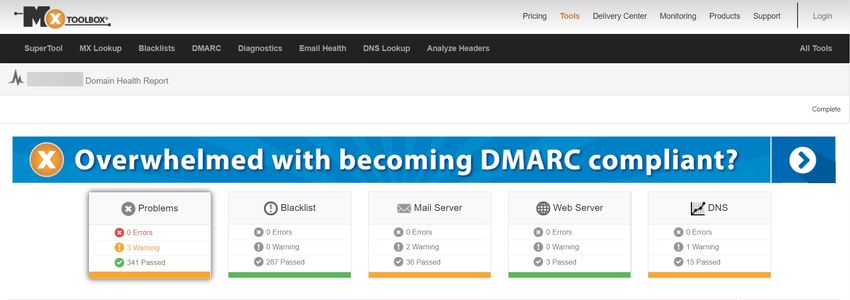
Responsive email layout guidelines | 5

buttons might not display the corner radius. Also, for security reasons, Microsoft Outlook blocks the
downloading of images in emails by default.
For the correct display of email template styles in Microsoft Outlook, add comments that determine styles for MS
Outlook to each table cell in the HTML code. For example, for an employee signature the Microsoft Outlook
comments will look as follows:
Responsive email layout guidelines | 6

    the same for desktop and mobile devices. Note that most out-of-the-box template content blocks use multiple
    columns.
    Multi-column layout also known as module grid layout. In this case, the email layout is divided into several
    columns and is regrouped for the display on a mobile device.

The number of columns in an email template depends on the structure of its content blocks. By default, all new
“Block” elements have a single row and a single column. You can check the column layout of each section in a
content block by clicking this section in the setup area.

Fig. 4 Mobile-friendly email layout example

One-column layout
For a single-column layout, we recommend using templates containing one column, 600-700 pixels wide.
Otherwise, the message may not be displayed correctly. For example, parts of tables or images can exceed the
size of the recipient’s mobile device screen, which might reduce or increase the font size to the point when it
becomes unreadable, as in the figure below.

Fig. 5 Example of non-adaptive layout

© 2022 Creatio. All rights reserved.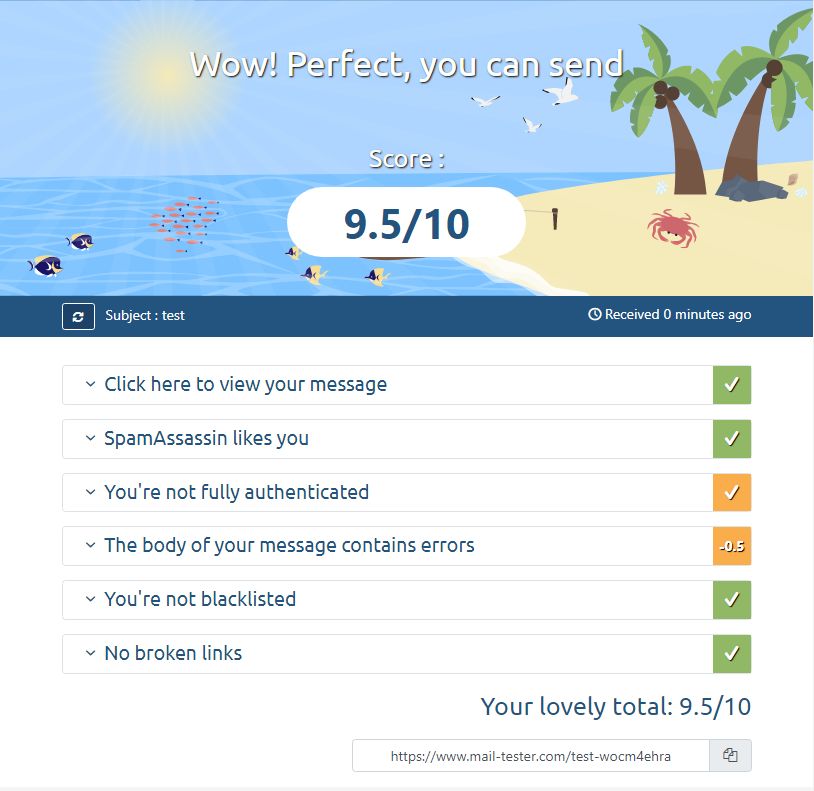
Responsive email layout guidelines | 7

If you design your emails in Creatio Content Designer, you can set the template width in the [ Width ] field of the
template setup area.

Fig. 6 Example of adaptive layout in Creatio

© 2022 Creatio. All rights reserved.
Responsive email layout guidelines | 8

Please note that the preview of the generated message in the Content Designer does not guarantee that the
email recipient will see the same thing. This is due to the settings and features of different email clients.

Before you start sending an email, we recommend testing the message layout by sending it to addresses
registered on different email services. Send a test email using the corresponding action.

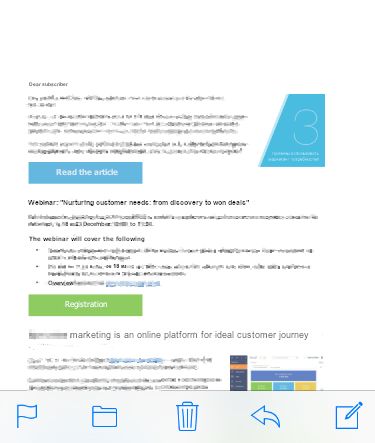
Multi-column layout
We recommend using a multi-column layout for marketing emails. It works well for templates with different types
of content: texts, images, buttons, or HTML elements. Use 2-4 columns in a multi-column layout. This structure is
convenient for adapting to mobile devices – the content elements are restructured to fit one column, for
example, as displayed in the figure below.

Fig. 7 Example of multi-column mobile layout

© 2022 Creatio. All rights reserved.
Email personalization guidelines | 9

In templates, designed with Creatio Content Designer, you can manage the order in which the columns will go in
the mobile layout. You can group columns to force them to display side-by-side on mobile devices.

Email personalization guidelines
PRODUCTS:         MARKETING

Email personalization improves the conversion rates and increases your subscribers’ loyalty long-term.

Creatio offers the following types of personalization:

    macros

    trigger email
    audience segmentation

    audience entry point consideration
    delivery time range setup.

Macros
Using macros in emails lets you:

    Address the recipients by their names, as well as mention their city, position, company and other variables.
    Offer them unique promo codes.

© 2022 Creatio. All rights reserved.
Email personalization guidelines | 10
Change the number of the discount based on the customer’s status.
Recommend specific goods based on the customer’s preferences.
You can add macros to the email headers, email preheaders, the sender’s name and email, the body and subject
of the email. You can also customize email images using macros.
This approach can improve your users’ loyalty and avoid spam filter due to each of the emails being unique.
Learn more: Personalize content using macors.
Trigger emails
Trigger emails let you interact with each subscriber based on their behavior on the website or related to the
previous emails.
A trigger in this case is an event that initiates sending a personalized email.
The following triggers are used most often for follow-up emails.
Trigger Email subject
Purchase Thank you for purchase
Proceeding to order Order details
No reaction to the email Discount offer
Email subscription A welcome message
Learn more: Set up a tigger email.
Base segmentation
Audience segmentation is useful for tailoring the emails settings based on the audience’s interests and
preferences. You can segment your audience based on the following parameters:
activity
preferences
life cycle
demographics
location.
You can change the email content depending on the recipients’ segment using the dynamic content settings.
Audience segmentation in Creatio relies on the information in the contact profile, including location, purchase
history, website activities, gender, age, etc. Personal and relevant content ensures the email efficiency in general
while decreasing marketing email expenses targeted at separate audience segments.
Learn more: Configure dynamic content for email, Filters.
© 2022 Creatio. All rights reserved.Guidelines for increasing deliverability | 11
Entry point
Plan your marketing campaigns to let your customers receive personalized emails based on their current
interaction stage with your company’s business and their interest in the company’s products.
When taking the entry of your contacts point into account, you can them send the price list for the services in
which they were interested or promos for products similar to those that they already purchased.
Delivery time range
Creatio offers tools for selecting the delivery time range. This can be useful for these scenarios:
Sending emails at the convenient time for the user based on their time zone.
Finding out the optimal time for sending emails using A/B testing.
Learn more: Set up the delivery time range.
Guidelines for increasing deliverability
PRODUCTS: MARKETING
This article covers factors that affect the email deliverability rates and steps which can prevent an email from
getting marked as spam.
Deliverability rate is the ratio of delivered emails to the total number of sent emails. An email is considered
delivered whether it ends up in the inbox folder or the spam folder. That means if an email is marked as spam, it
still is considered delivered. However, such an outcome does not convert well since the recipient is unlikely to
read the message.
The reasons an email may be marked as spam are as follows:
The user marked the email as spam manually.
The email was marked as spam due to individual subscription settings.
The email provider (for example, Gmail) declined the email.
The mail server declined the email.
Factors that affect deliverability can be roughly split into internal and external.
Internal factors
Internal factors concern the email content and the template’s compliance with standards.
The internal factors include:
email headers
email copy
email footer.
Email headers
© 2022 Creatio. All rights reserved.Guidelines for increasing deliverability | 12
Email headers include:
the sender's name
the sender’s email address
the email subject
the preheader.
When filling out the email headers, keep to the following recommendations:
The “From” field must contain the real name of the sender. This is important for brand awareness and
loyalty. You can use the following examples for reference: “Company name” (“Alpha Business”), “Sender’s
name and company name” (“Alexander Wilson, Alpha Business”), “Sender’s name” (“Alexander Wilson”),
“Company name and category” (“Alpha Business News”).
The “Sender’s email” field must correspond to the sender's name. If the email is sent on behalf of a
specific employee, the sender’s email must be theirs. For example, put down “Alpha Business” as the sender
and send emails from the info@alphabusiness.com mailbox for a newsletter. For personalized emails (e. g.,
transactional and trigger emails), an employee can be the sender: “Alexander Wilson, Alpha Business,” the
“a.wilson@alphabusiness.com” mailbox.
Fill out the “Subject” field of the email based on its actual content. It is best to avoid spammy words, such
as “Free,” “Giveaway,” “Right now!” etc. For the same reason, we do not advise overusing uppercase letters
and exclamation marks. We recommend adding the recipient’s name to the subject. This adds a personalized
touch to the email and makes it stand out among the other messages. This is also good for increasing your
reputation with email providers. In Creatio, you can use macros to achieve that. Learn more: Personalize
content using macros.
The “Preheader” field covers the email’s subject further. Use it to draw attention to your email, inform the
subscribers about the highlights, and persuade them to open the email.
Email content
The email’s content is the most important factor for the end-user. Low-quality or irrelevant content may cause
the user to mark the email as spam. Email providers also scrutinize the content.
Use the following guidelines to increase the deliverability rates:
Check the spelling in your email manually or by using dedicated web services. Learn more: Services for
working with emails.
Avoid spammy words. You can find a list of spammy words on SimplyCast’s website.
Add alt text to the included images. This helps the recipient to understand the email if the images are disabled.
Do not send emails that only include images and no copy. The recipient will not be able to read them in the
situation mentioned above.
Do not attach files or link suspicious domains. If a domain is blacklisted with an email provider, the provider will
mark an email linking that domain as spam. To share a file, upload it to a trusted filesharing service and
provide a link to the file.
Create a browser version of your email. The users will be able to read it even if the email service has problems
rendering it. Some email services, such as Outlook, support this solution.
Do not shorten your links. That makes predicting the link destination hard for email providers. They can mark
your email as spam because of that.
© 2022 Creatio. All rights reserved.Guidelines for increasing deliverability | 13
Personalize the email content. Creatio offers a set of tools for that: macros, trigger emails, and more. Learn
more: Email personalization.
Footer
Most email services have guidelines for the footer content.
Normally, the following information is required in the footer:
The company’s legal address and contact data.
The reason for sending the email. For example: “You received this email because you are subscribed to
Creatio’s newsletter.”
The ability to unsubscribe. Learn more: Set up an unsubscribe link in emails.
External factors
External factors that can affect the deliverability rates include:
the sender’s reputation
the subscriber base management
the mail regularity.
The sender’s reputation
The sender’s reputation is one of the vital factors affecting the email deliverability rates. To avoid reputation
damage, use the following approach:
For initial emails or emails sent after a prolonged hiatus, use an audience warm-up schedule, which imitates
manual sending. Learn more: Set up the email throttling queue.
We recommend the same course of action if you add a large number of new subscribers to an existing base.
Such an audience is considered cold. Learn more: Set up the email throttling queue.
Verify your domain before sending the email. Learn more: Email domain verification.
The subscriber base management
To increase the deliverability rates, keep the subscriber base updated and relevant. Learn more: Working with the
subscriber base.
We recommend establishing regular contact base cleanup and update procedures.
Verify the email addresses at least twice a year.
Remove inactive subscribers from your contact base.
Set up Double opt-in (a two-factor subscription consent). The user must provide their email address and
consent to receive emails when registering with the website. Then, send them an email that has a confirmation
link. This helps to capture a relevant and existing address, and, consequently, ensure the validity of the entire
base.
Segment the base using various criteria. For example, account for your subscribers’ preferences or their
© 2022 Creatio. All rights reserved.Guidelines for improving the sender's reputation | 14
responses to the previous emails.
Make content for your emails based on the subscribers’ preferences.
Personalize the emails. This helps to build a trusting relationship with your subscribers, establish an emotional
connection between them and your brand, and keep the audience engaged as a result. Learn more: Email
personalization.
The email regularity
Sending emails regularly improves the subscribers’ loyalty and increases the conversion rates. Email providers
track and evaluate this parameter as well. A prolonged hiatus between emails may look suspicious and affect the
deliverability negatively. At the same time, too frequent emails also have a negative effect. The optimal email
frequency varies on a case-by-case basis, but it is 2-4 emails monthly on average. Send emails regularly to
prevent the emails from getting marked as spam.
Guidelines for improving the sender's
reputation
PRODUCTS: MARKETING
The sender’s reputation is the rating of the sender with an email provider, such as Gmail. The reputation
determines the mailbox folder to which the provider places the incoming message.
Other parameters covered in the Email deliverability: not getting marked as spam article also affect if the provider
marks an email as spam, but reputation is the most important factor. Email providers rate senders based on
these:
sender blacklists
frequent spam complaints
invalid contacts or spam traps in the email audience
misconfigured DKIM/SPF
email frequency and intervals
the tools used for the sending
email content
email deletion rate, open rate and click rate
replies and forwarding.
The gravity of each factor depends on the email provider and may vary based on the email type.
Reputation assessment
The sender’s reputation is a fluid parameter. Keeping to the standards of an email provider increases the
reputation with that provider and a failure to do that decreases it.
The sender’s reputation comprises the IP address’s reputation and the domain's reputation.
© 2022 Creatio. All rights reserved.Contact base collection guidelines | 15
A domain is part of the email address used to identify the sender.
The IP address locates the computer or email server that sends the emails.
Changing the domain or IP address is not a valid tactic to restore the reputation since email providers keep the
entire mailing history. As such, we recommend that you keep track of your reputation ratings and act to recover
them if necessary. Learn more: Reputation control services.
Reputation control
To monitor your reputation, configure the authentication of your email: SPF, DKIM, and DMARC. Learn more:
Email domain verification.
Many email providers offer native services for reputation monitoring and analytics, also known as postmaster
tools. Register with such services to increase the reputation.
We also recommend that you run a blacklist check for your domains and addresses regularly to take immediate
action and to unblock them in case of problems. Learn more: Reputation control services.
Increase the reputation
If the check-up revealed a decrease in your reputation, we recommend taking these steps:
Identify the source of the problem. This may include a sudden topic change, a new sender address,
added attachments. Check for complaints on and unsubscribes from the email that caused the reputation to
deteriorate. If you identified the problem, analyze what caused it to prevent similar issues in the future.
Request that the recipient adds the sender’s email to the contact list. For example, you can
emphasize that this prevents the subscribers from missing out on important news. This guarantees that your
email is not marked as spam.
Set up Facebook Loop to receive notifications when your subscribers complain about your emails. Learn
more: Feedback Loop (FBL) principles.
Use postmaster tools to prevent a sudden decrease of the sender reputation and take immediate action to
recover it. Learn more: Reputation control services.
Add an “unsubscribe” button to enable the uninterested users to unsubscribe rather than make a spam
complaint. Learn more: Set up an unsubscribe link in emails.
Analyze and improve the content of your emails. The email must be valuable, well-written, and not
contain suspicious links or files. Learn more: Email deliverability: not getting marked as spam.
After you implement these suggestions, we recommend warming up the audience. Learn more: Set up the email
throttling queue.
Contact base collection guidelines
PRODUCTS: MARKETING
The effectiveness of email marketing is directly tied to the quality of the contact base. Most importantly, the user
must submit the real contact data of their volition. To ensure that, you can use Double opt-in, a two-factor
subscription consent. The user must provide their email address, give consent to receive emails, and confirm
© 2022 Creatio. All rights reserved.Contact base collection guidelines | 16
their choice by clicking the link in the email sent to that address.
The methods of contact base collection can be roughly divided into the illegal, gray area, and legal.
Illegal methods
Illegal methods cover all cases of collecting email addresses without the recipients’ explicit consent. View
common illegal methods below.
Buy a contact base or email parsing services
Buying email addresses for a contact base can decrease the sender’s reputation drastically. It can also provoke a
negative reaction from the recipients upon the very first contact since they have not consented to receive emails.
Free contact bases are known to deliver equivalent results. Such bases are made of contacts who leave their
addresses publicly available, accept formal offers and other agreements. Despite the formal consent, such a base
might contain invalid emails or spam traps.
To avoid problems with third-party bases, we recommend taking the following steps:
1. Validate your subscriber base.
2. Get consent to receive emails.
3. Use an audience warm-up mechanism. Learn more: Set up the email throttling queue.
4. Purge the database of recipients who do not react to the emails or make spam complaints.
5. After reaching the target recipient engagement level, send the new recipients newsletters on the same
schedule as the main recipient base.
Make a contact base from website forms
Filling out a website form (such as registering with the website) does not necessarily imply consent to receive
emails. To work with such a base efficiently, we recommend taking the following steps:
1. Add an “I want to receive emails” field to the registration form and/or website landing form so that the user
can select the checkbox to consent to receive emails.
2. If a contact who did not consent to receive emails is already in your contact base, get their consent or, failing
that, remove their email address from the base.
3. Increase the engagement rates of subscribers by using warm-up strategies. Learn more: Set up the email
throttling queue.
4. Purge the database of recipients who do not react to the emails or make spam complaints.
5. After reaching the target recipient engagement level, send the new recipients newsletters on the same
schedule as the main recipient base.
Gray area methods
Partner bases are the primary gray area method.
Technically, a partnership agreement between two companies lets both include information about their partner in
the emails. However, like with illegal methods of contact base collection, the users can be dissatisfied with
© 2022 Creatio. All rights reserved.Contact base email examples | 17
receiving materials in which they are not interested. That may cause multiple unsubscribes and spam complaints,
which decrease the sender’s reputation.
Manage a partner base similar to managing a third-party base as described above.
Legal methods
Legal methods cover cases where the user explicitly consents to email communication.
Manual base collection
This method is too time-consuming for companies that have a large number of orders but is the most optimal for
long sales and unique goods. To get users’ consent to receive emails, you can send them short welcome emails
that contain an offer to subscribe to a newsletter and receive interesting and valuable content.
Consent to receive emails upon registration
Add an “I want to receive emails.” field to the registration form so that the user can select the checkbox to
consent to receive emails. Set up two-factor consent to receive emails (Double opt-in) as described in this
article’s intro. This approach rules out situations where a user provides someone else’s address.
We recommend that you keep the logs concerning the received consent in case of complaints.
Pop-up windows
Pop-up windows help to generate leads and retain users. You can use them to offer valuable materials, promos,
or discounts in exchange for the email address and consent to receive emails.
To prevent such pop-ups from inciting a negative reaction, make sure that they have an easy to notice close
button.
Contact base email examples
PRODUCTS: MARKETING
Working with the subscriber base sometimes requires the following scenarios that strengthen the sender’s
reputation and increase deliverability.
This article covers the following examples of subscriber base management:
Send emails to new subscribers (cold leads).
Send a subscription request to a new audience.
Send emails to recipients who did not receive emails for a long time.
Send emails to recipients who did not open the emails for a long time.
Send emails after the sender’s domain or IP address changed.
Send emails to new subscribers (cold leads)
© 2022 Creatio. All rights reserved.Contact base email examples | 18
Warm-up is an email audience management method intended to prepare the subscribers for active
communication that leads to product sales.
Before warming up a cold audience, make sure that the following conditions are met:
The email addresses are valid.
The contact base is collected using legal means and the recipients have consented to receive emails.
You configured DKIM, SPF, and DMARC for the sender’s domain.
The monitoring of the sender’s reputation delivers good results.
The sender’s domain and IP address are not blacklisted.
Keeping to these recommendations can prevent your email from being sent to spam.
The general procedure for managing a base of new contacts is as follows:
1. Segment your audience. Filter out the contacts with whom you are yet to communicate. Besides isolating
cold leads, make sure a single contact is a part of a single segment. Each segment uses an individual warm-up
strategy. Therefore Creatio may send a contact several emails per each of their segments. Redundant emails
can impact the sender’s reputation negatively, provoke distrust in the recipient, and cause the email to end up
marked as spam.
2. Create separate queues for each recipient segment. We recommend naming each queue in
agreement with the name of the relevant contact segment. Learn more: Set up a throttling queue.
3. Prepare emails for each cold audience segment. Use the “Warm up cold audience” mode to set up email
throttling. Select queues configured on the previous step in the [ Throttling queue ] field. When working with a
cold audience, we recommend setting up marketing campaigns that contain 3-4 emails for each segment.
Always select the “Warm up cold audience” mode and the queue that matches the corresponding segment
for each email in the campaign.
4. Set up a campaign to automate nurturing. For each segment, merge the emails created on the previous
step into a single campaign. You can create several campaign diagrams or merge all segments into a single
campaign, provided their number is moderate. Learn more: Create a campaign.
5. Analyze campaign results:
a. Active recipients (such as those who click the links) are considered interested. You can keep managing
them based on the strategy for warmed-up leads.
b. Do not send more than three activation emails to inactive recipients as part of the campaign. Delay the next
warm-up for such contacts for at least half a year.
c. Creatio will automatically clear the contact base of recipients that have irrelevant addresses (“Hard Bounce”
responses).
Note. We recommend against sending emails to recipients who unsubscribed. To ensure that Creatio
cancels emails addressed to the unsubscribed users, enable the “Unsubscribe user from all bulk emails”
system setting (“UnsubscribeFromAllMailings” code).
Send a subscription request to a new audience
For a bulk email to be legitimate and not incite a negative reaction, the user must consent to receive emails. In
© 2022 Creatio. All rights reserved.Contact base email examples | 19
that case, send a manual email instead of using bulk email services.
Use Creatio to set up an email template, specify the throttling parameters, and send regular bulk emails disguised
as manual emails.
The general procedure for working with subscription requests is as follows:
1. Verify the sender’s domain. Learn more: Email domain verification.
2. Choose a title for the future email. Learn more: Email deliverability: not getting marked as spam.
3. Prepare an email template that has a suggestion to subscribe. Cover what you will be sending, how often,
on whose behalf, and from what mailbox in the copy. Tell more about your company and provide a link to your
website.
4. Set up email throttling. Learn more: Set up the email throttling queue.
5. Start sending emails. Keep track of the deliverability rates and analyze the recipients’ responses. Do not
send more than three emails per week between the first email and the subscription. If a user clicks a link in the
email but does not subscribe, wait for some time and send them one more email that contains offers in which
they took interest. After they subscribe, send them a thank-you email.
Do not add the contact to your recipient base until they consent to receive newsletters in their response email.
We recommend that you keep their confirmation.
Send emails to recipients who did not receive emails for a
long time
You can resume contact with your subscribers even after a prolonged hiatus.
The general procedure for renewing an old contact base is as follows:
1. Validate the contacts. Delete email addresses that have non-existent domains or clearly invalid addresses.
You can validate small contact bases manually. For larger bases, use Creatio deduplication tools or third-party
validation services. Learn more: Deduplication.
2. Draw up several email templates that offer to resubscribe to the newsletter. Use personalization
opportunities, call the recipient by name, tell more about the newsletter and its value, offer a good bargain,
and add an unsubscribe link. Learn more: Email deliverability: not getting marked as spam.
3. Do A/B-testing for a minor recipient segment of 400-500 email addresses. Send the emails gradually. Learn
more: Split tests.
4. Make a set of emails (campaign) out of 3-4 reactivation emails. Analyze the results and clear the base
of email addresses whose responses are “Hard Bounce,” “Unsubscribed,” etc. If a contact does not open a
single email of the set, delete them as well. Learn more: Create a campaign.
5. Segment your base after sending several emails. You can set up an individual set of emails for each
contact group. If you have a default base and want to join it with an older base, do that in segments as well.
Send emails to recipients who did not open the emails for a
long time
Usually, the less time passes since the subscription, the more active the recipients. The subscriber activity
expectedly decreases as time goes by. To update the subscribers’ contacts, thus saving funds and clearing the
base of irrelevant addresses, we recommend a reactivation.
© 2022 Creatio. All rights reserved.Contact base email examples | 20
The general reactivation procedure is as follows:
1. Remove all irrelevant email addresses. Irrelevant contacts decrease the sender's reputation and email
deliverability. As part of contact base renewal, we recommend the following:
a. Remove contacts who did not open their emails for a long time (more than six months).
b. Remove contacts who unsubscribed, made a spam complaint or specified an invalid address.
c. Segment your subscriber base depending on the length of the inactivity period and response to emails. You
can set up a unique set of emails for each contact group.
2. Work out and set up a reactivation campaign. Its main goal is prompting users to click the links in the
emails and thus confirm they are still interested in the emails. If they do not react after several emails, delete
the contact from the base.
3. Send reactivation emails that have engaging copy.
Send emails after the sender’s IP address or domain changed
Should one of the factors affecting the sender’s reputation change (such as the domain, IP, or contact base),
audience warm-up is required. Such changes raise suspicions with email providers, and they can mark the emails
as spam.
Do not warm up a new IP address, a new domain, or a new contact base simultaneously. If you plan to warm up
the sender’s domain, make sure that the IP address is not blacklisted and the recipients are loyal and active.
If you plan to warm up the sender’s IP address, use postmaster tools to make sure that the domain has a good
reputation and your recipient base is loyal and warmed up.
Note. In Creatio, the sender’s IP address may change if the dedicated IP address is enabled.
Before the warm-up, make sure that the following conditions are met:
The email addresses are valid.
The contact base is collected using legal means and the recipients have consented to receive emails.
You configured DKIM, SPF, and DMARC for the sender’s domain.
You configured postmaster tools for the sender’s domain.
The general warm-up procedure for a new IP address or domain is as follows:
1. Draw up an email that meets the following criteria:
The framing of the message is neutral. The content is interesting and valuable.
The message provides an easy-to-notice unsubscribe link. Learn more: Set up an unsubscribe link in emails.
The email is up to 100Kb in size, and it is not too long. Email providers such as Gmail can truncate overly
long emails, purging the unsubscribe link. Learn more: Email deliverability: not getting marked as spam.
The email is responsive, which makes it render properly on various devices. Learn more: Responsive design
of emails.
The email subject and body do not contain spammy words (“Giveaway,” “Free,” etc.) or, too many capital
© 2022 Creatio. All rights reserved.Contact base email examples | 21
letters. The email body does not comprise images only. Learn more: Email deliverability: not getting marked
as spam.
2. Keep the address base updated to ensure it contains only interested contacts.
Delete invalid and inactive addresses, as well as spam traps. This will improve the email open rate. To do
this, use validation services. Learn more: Services for working with emails.
Segment your audience based on activity. Divide the customer base into groups who did not open your
emails in one, two, three, and more months. This approach will increase both deliverability and CTR.
Note. If you warm up a sender’s domain, segment the part of the base allotted to that domain. If
you change the sender’s domain for the recipient base, you will have to re-do the warm-up.
3. Draw up a warm-up schedule. Send a small number of emails to the most active subscribers at first and
gradually increase the number of recipients by adding relatively inactive subscribers.
For example:
Week Send emails only to subscribers who were active in the last 30 days.
1-2
Week Add recipients who did not open your emails in 30-60 days and remove those who did not
3-4 open them in 60-90 days.
We recommend sending emails in small portions at first. That way, you can slow down and update your strategy
if the contact activity is below the expected results or the recipients make spam complaints.
Example warm-up for a base of loyal contacts
Warm up a base of loyal contacts who were active in the last 30 days. The base contains 250,000 addresses.
Based on the recommendations above, the distribution schedule can look like this:
© 2022 Creatio. All rights reserved.Email web tools | 22
Day Number of emails Delay between emails, s*
1 600 35
2 1200 30
3 2400 20
4 3000 20
5 4500 15
6 6000 0
7 9000 0
8 18000 0
9 30000 0
10 45000 0
11 60000 0
12 90000 0
13 150000 0
14 300000 0
Learn more: Set up the email throttling queue.
Email web tools
PRODUCTS: MARKETING
Before sending emails, you can access their deliverability rates and the probability of getting marked as spam
using services covered in this article. This approach can increase the ratio of delivered emails to sent emails.
Copy content services
After checking an email’s content manually, run the copy through dedicated editor services. They can pinpoint
errors and typos, and help you improve the text generally by identifying overly complex sentences, slang,
generalizations, split infinitives, overuse of passive constructions, and more.
Hemingway App checks for readability and provides tips for imrpoving the text.
© 2022 Creatio. All rights reserved.Email web tools | 23
Grammarly checks for grammar, syntax, and complexity. The service is avavilable as a sepearate application
and as a Google Chrome extension.
Coschedule’s Headline Analyzer evaluates the title from the POV of the user’s interests. Essentially, assesses
the probable open rate.
Reputation control services
The sender’s reputation is one of the vital factors affecting the email deliverability rates. Monitoring the reputation
can reveal a decrease in it early on and take measure to prevent the emails from getting marked as spam.
To check for various health markers of your reputation, you can use the following server types:
audience validation tools
IP address check-up tools
postmaster tools
blacklist check-up tools.
Email check-up tools
The recipients in your base can grow inactive as a result of a change of employment, loss of the password, or
migration to another email provider. Inactive email addresses in the contact base can damage the domain’s
reputation. We recommend to check the base regularly and purge inactive addresses. You can use the following
services:
Email address validation connector for Creatio check email addresses for validity and availability.
MailboxValidator assesses the validity of the email addresses, assigns points and status for each address
based on the check-up.
QuickEmailVerification assesses the validity of the email addresses, calculates the percentage of valid and
invalid addrsses, as well as groups the totals by category. Good for checking bases collected without double-
opt-in or with a significant number of typos.
MillionVerifier assesses the validity of the email addresses and generates a report and chart after the check-
up.
ZeroBounce assesses the validity of the email addresses and generates a detailed and exhaustive report
whose fields can be exported.
IP address check-up tools
The IP address reputation affects the deliverability directly. To check the reputation of an IP address, use the
following services:
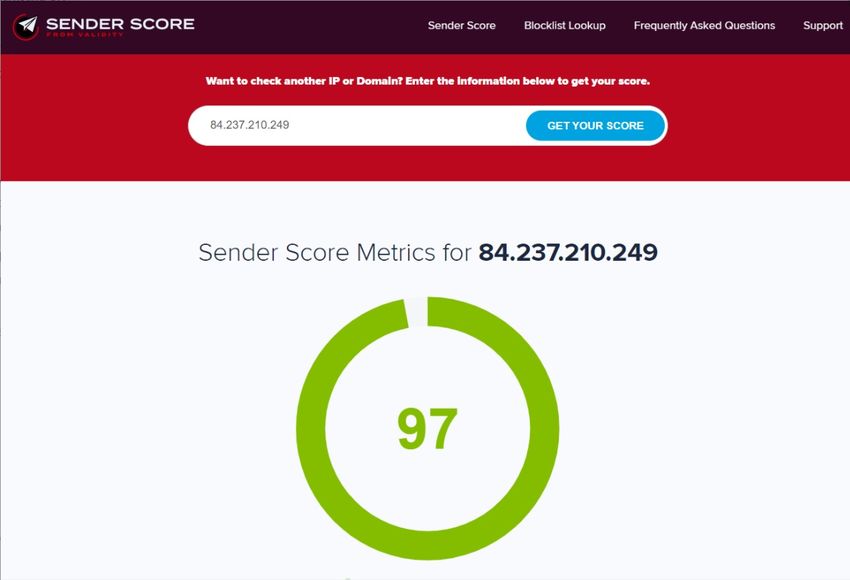
SenderScore evaluates the reputation of IP addresses and domains from 1 to 100 points. The higher the
score, the better the reputation. The indicators are calculated based on the sender’s average activity for the
last 30 days compared to the activity of other senders. A high score means you have a good reputation. A low
score means a poor reputation.
Fig. 1 Example SenderScore
© 2022 Creatio. All rights reserved.Email web tools | 24
Fig. 2 Example SenderScore chart
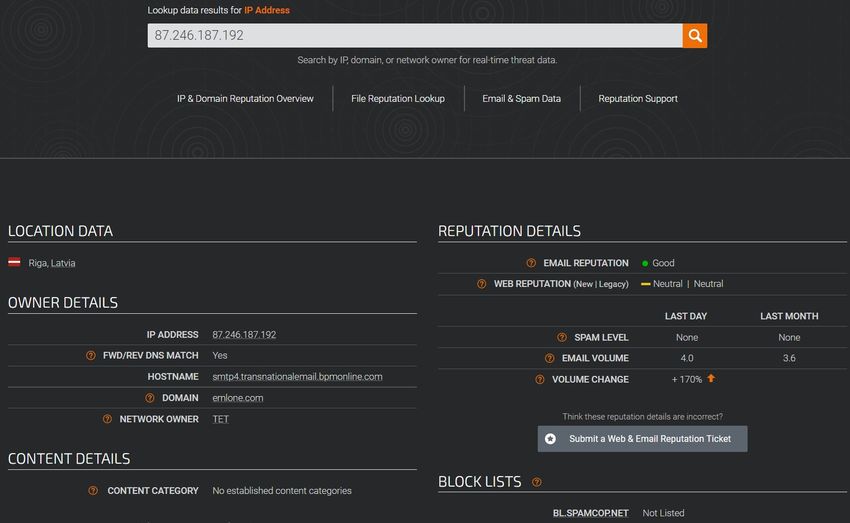
TallosInteligense evaluates the reputation as good, neutral, or poor.
Fig. 3 TallosInteligense check-up example
© 2022 Creatio. All rights reserved.Email web tools | 25
MXToolbox provides aggregated reports with domain or IP details.
Domain check-up tools (postmaster tools)
These services provide stats for sent emails: the number of delivered emails, complaints, unsubscribes, read and
deleted messages. Major email providers offer their own postmaster tools:
Gmail,
Yahoo.
Blacklist check-up tools
A blacklist (spam filter, DNSBL) is a list of Ip-addresses or domains known to send spam. Such lists are available
for email providers on the servers. We recommend to track blacklists for your IP address to prevent your emails
from getting marked as spam for certain.
As a rule, a domain or Ip-address is temp-banned (for 24-72 hours, depending on the spam filter settings). After
that time, the address is unblocked automatically, and you can repeat the sending. In most cases, you can
request for an early removal of your address from the blacklist. The support can do that after considering your
ticket.
Thee most popular blacklists include:
Spamhaus lists problem addresses and is considered by Google, Microsoft (Hotmail, AOL, MSN, Live), Yahoo.
To remove an address from the list, resolve the issue that got the address listed, and make a request for
removal.
Spamcop is a service for making spam complaints. When a complaint is made, the email provider will request
© 2022 Creatio. All rights reserved.Email web tools | 26
to solve the issue.
URIBL lists problem domains. It is considered by manny email providers. It is impossible to get an address
removed from the list if it was listed there multiple times.
Proofpoint lists problem addresses. It is considered by Apple. If an IP-address is listed by ProofPoint, its
outbound emails will no longer be delivered to @icloud.com and @me.com.
Use the following tools to check if an address is blacklisted:
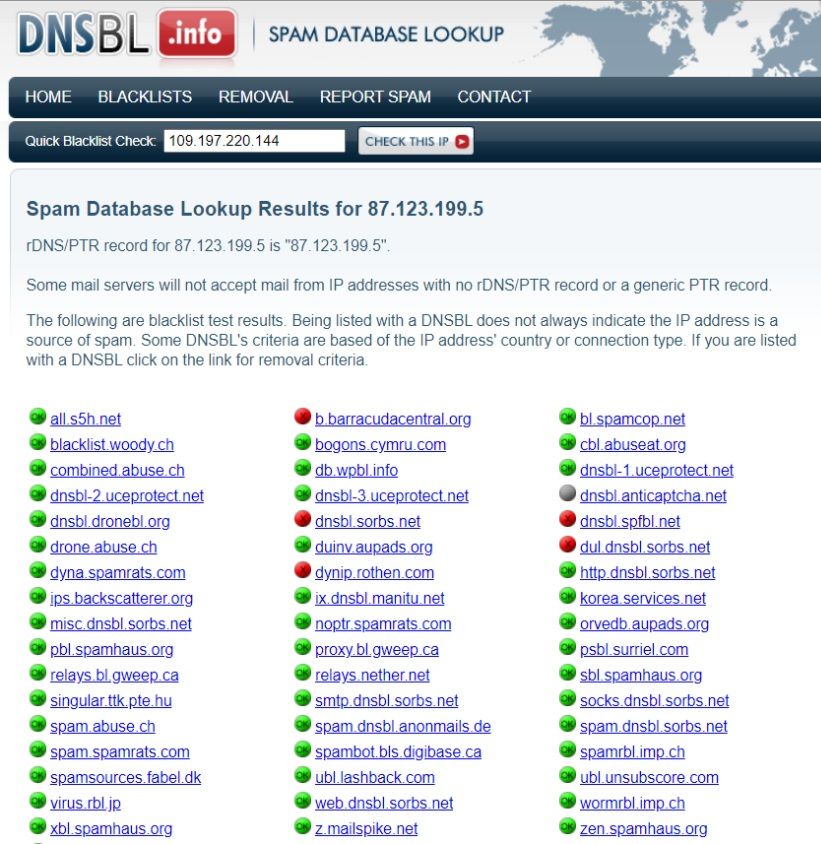
Dnsbl.info checks an IP-address or domain’s blacklist status on multiple blacklists.
Fig. 4 Check using Dnsbl.info
© 2022 Creatio. All rights reserved.Email web tools | 27
MXToolbox checks a domain’s blacklist status on multiple blacklists using the “Email Health” menu. It can also
assess the DNS domain’s health.
Fig. 5 MXToolobox check-up example
Services for checking emails before sending.
You can check where you email may end up with popular email providers using either manual testing or dedicated
services.
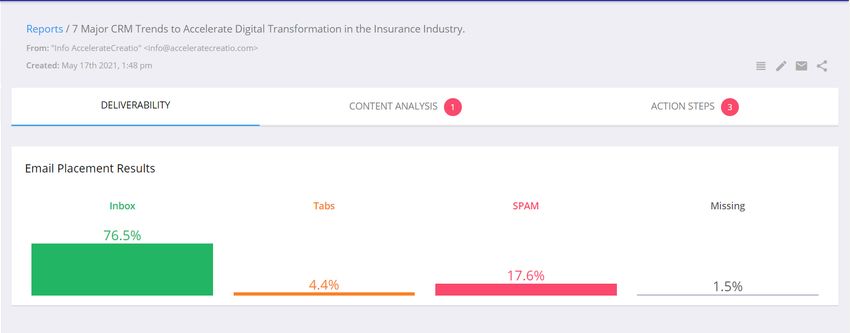
Glockapps predicts where the email will end up. It also provides tips for improving poor deliverability and
covers the factors causing it.
Fig. 6 Clockapps check-up example
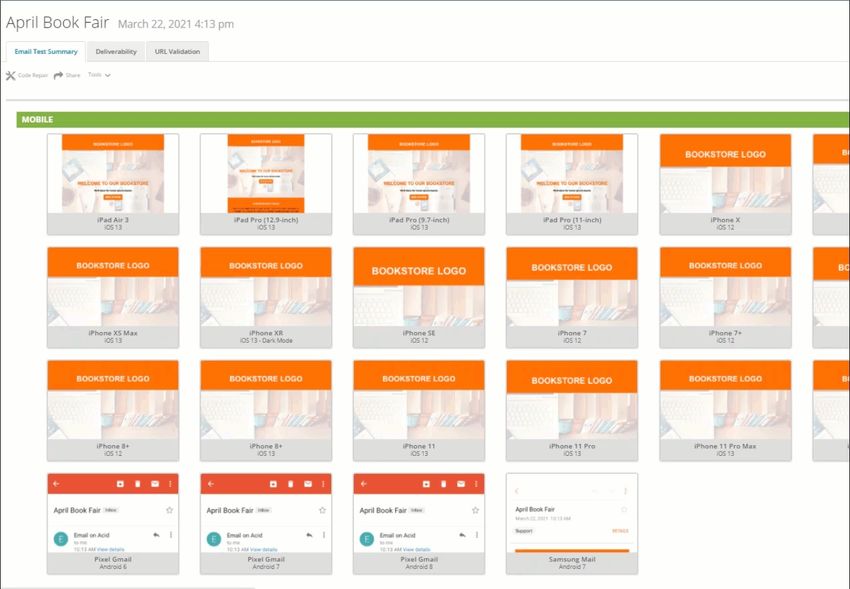
The Litmus and Email on Acid services let you see how the content of your email will look with different email
providers, in different browsers, or on different devices.
Fig. 7 Email on Acid check-up example
© 2022 Creatio. All rights reserved.Email web tools | 28
Mail-tester is a versatile service for checking an email using a number of parameters:
blacklist status
email authentication setup
errors or broken links.
Fig. 8 Mail-tester check--up example
© 2022 Creatio. All rights reserved.Email web tools | 29
You can unfold each check-up parameter to get more details.
© 2022 Creatio. All rights reserved.You can also read


