Getting Started Audio, Connectivity, and Navigation - KONA
←
→
Page content transcription
If your browser does not render page correctly, please read the page content below

2018 Hyundai
KONA

Getting Started
Audio, Connectivity, and Navigation

Tier 1 – VDS Icons

                  Voice       Bluetooth       TPMS        Battery      Window      Window
                Activation                                             Defog 1     Defog 2

 Tier 1 – VDS Icons
              App               Clock        Steering
                                           Adjustments
                                                           Light        Gear         Air

                Automatic      Manual         Seat         Seat         Seat        Seat
  Window         Window
               Transmission Transmission    Adjusting                  Height
   TPMS1
  Defog           Battery
                  Defog 2      Window       Window        Lumbar                   Recliner
                               Defog 1       Defog 2

               Getting Started
               Audio, Connectivity, and Navigation
    Gear         Gauge         Media 1       Media 2      Sunroof        Fuel      Keyfob
                   Air
   Steering       Light         Gear           Air
 Adjustments                                                                                  2018 Hyundai
               Table of Contents                                                              KONA

                  Rear        Smart Car       Turn         Wiper      Navigation   Phone
    Seat          Seat                                                             Pairing
    Seat
   Height        Camera
                   Seat
                 Recliner      Features
                                 Seat        Signals
                                              Seat
DSAdjusting
    Icons        Lumbar         Height       Recliner
                             Tier 1 – VDS Icons

                                   Smartphone Integration                                             3
    Fuel       Smartphone
                 Keyfob        Bluelink      Tailgate     Custom         35          36
   Media 2        Integ
                 Sunroof         Fuel        Keyfob      Favorites
  Battery        Window        Window
   Voice        Bluetooth
                 Defog 1       TPMS 2
                               Defog         Battery      Window       Window
 Activation                                               Defog 1      Defog 2

                                   Phone Pairing                                                      4
 Navigation      Phone
    Turn          Wiper
                 Pairing     Navigation      Phone
  Signals                                    Pairing
   Light          Gear            Air
    App           Clock        Steering       Light        Gear          Air
                             Adjustments

                                   Custom Favorites                                                   6
     35           36
   Tailgate     Custom           35        Tier361 – VDS Icons
               Favorites
                 Seat
    Seat                        Seat
 Automatic
   Lumbar       Manual
                Height          Seat
                               Recliner       Seat         Seat         Seat
 ransmission Transmission     Adjusting      Lumbar       Height       Recliner

                                   Making a Call                                                       7
                  Voice       Bluetooth       TPMS        Battery      Window      Window
   Sunroof         Fuel
                Activation      Keyfob                                 Defog
   Gauge         Media 1       Media 2       Sunroof       Fuel        Keyfob1     Defog 2

                                   Navigation                                                        12
                   App          Clock        Steering      Light        Gear         Air
   Wiper        Navigation      Phone      Adjustments
   Rear         Smart Car        Turn
                               Pairing        Wiper      Navigation    Phone
  Camera         Features      Signals                                 Pairing

                                   Blue Link®                                                        16
                Automatic      Manual         Seat         Seat         Seat        Seat
  Custom             35
               Transmission       36
                            Transmission    Adjusting     Lumbar       Height      Recliner
Smartphone
 Favorites        Bluelink     Tailgate      Custom         35           36
   Integ                                    Favorites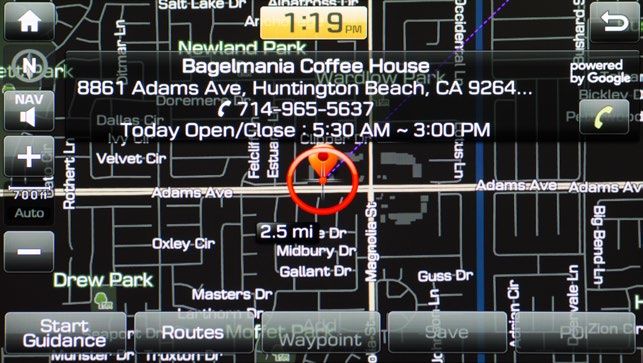
Rear        Sma
                                                                                             Camera        Fea

 Smartphone Integration
                                                                                            Smartphone    Blu
                                                                                     2018 KONA
                                                                                           Integ

                                                              Android Auto & Apple CarPlay

1 Connect a USB cable
  from your phone to the
                                                Android Auto                 Apple CarPlay

   vehicle’s USB slot.

2 Allow permission from
  your phone to connect
                                                Android Auto                 Apple CarPlay

   to your vehicle.

3 Enjoy using the applications displayed on your vehicle’s
  multimedia screen.
   Android Auto                                       Apple CarPlay

  NOTE
  Android Auto users will be prompted to view a tutorial. Select your option and proceed.

                                                                                                      3
Gauge       Media 1    Media 2    Sunroof        Fuel      Keyfob

 Phone Pairing
                                        Rear      Smart Car    Turn       Wiper      Navigation   Phone
                                       Camera      Features   Signals                   2018 KONA
                                                                                              Pairing

                                                              Navigation and Display Audio

1 The vehicle’s shifter
  must be in PARK.
                                     Smartphone
                                       Integ
                                                  Bluelink    Tailgate    Custom
                                                                         Favorites
                                                                                        35         36

  Then press the
  SETUP button.

2 Press the BLUETOOTH® icon on the screen.
  Then press BLUETOOTH CONNECTION.

3 Press ADD NEW.
  Then turn on your phone’s BLUETOOTH and select the
  device (Kona) found by your phone.

 NOTE
 Bluetooth setting can be found in the SETTINGS app on most phones. Refer to your phone’s
 owner’s manual or visit HyundaiBluetooth.com for more information.

                                                                                                           4
Gauge       Media 1    Media 2    Sunroof        Fuel      Keyfob

 Phone Pairing
                                           Rear       Smart Car    Turn       Wiper      Navigation   Phone
                                          Camera       Features   Signals                   2018 KONA
                                                                                                  Pairing

                                                                  Navigation and Display Audio

4 Your phone may
  require a PASSKEY.
                                         Smartphone
                                           Integ
                                                      Bluelink    Tailgate    Custom
                                                                             Favorites
                                                                                            35         36

   If prompted, enter it
   into your phone.

5 The vehicle will
  confirm successful
   phone pairing
   completion.

6 The vehicle will confirm
  that your contacts
   download is complete.

  NOTE
  If your phone is supported, your contact list may be transferred to your vehicle automatically.
  Depending on the phone make and model:

  •S
    ome phones may request approval to download contacts; this process will take a few minutes

  • Contact list may start with First or Last Name, depending on phone models

                                                                                                               5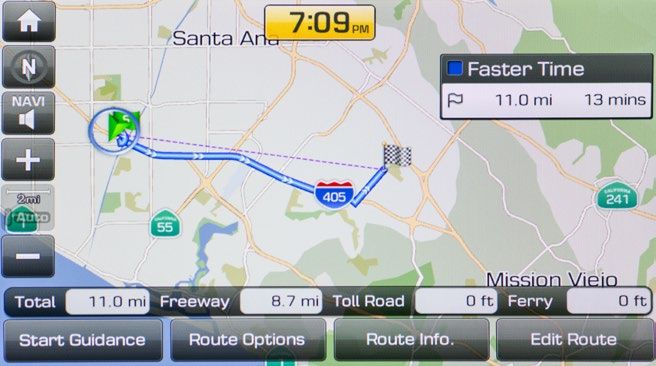
Rear       Smart Car    Turn      Wiper        Nav
                                       Camera       Features   Signals

 Custom Favorites
 Initial Setup
                                      Smartphone   Bluelink    Tailgate   Custom
                                        Integ                   2018 KONA
                                                                      Favorites

                                       Navigation and Display Audio

 CUSTOM BUTTON
 The Custom Button ( ) is easy to set up and use so that you
 can enjoy your favorite features of the multimedia system with
 the touch of a button.
 Learn how to set up your Custom Button by reviewing the
 steps below.

1 button.
  Press the SETUP

   Then press the
   CUSTOM BUTTON
   icon on the screen.

2 Select from the following
  options to set as your
   favorites. For example,
   select PHONE
   PROJECTION.

                                                                                   6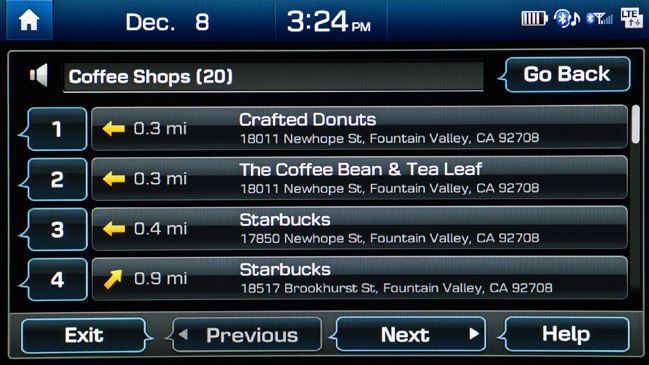
Making a Call
 Voice Command Using Bluetooth*
                                                                                             Voice         Blu
                                                                                    2018 KONA
                                                                                         Activation

                                                                                     Navigation

                                                                                              App            C

  BEFORE YOU START
  Make sure your phone has been paired and your contacts have
  been downloaded. If this has not been done, please followTransmission
                                                             the
                                                            Automatic                                        M
                                                                                                          Trans

  instructions on the previous pages.

                                                                                             Gauge          Me

1 TALK
  Press the PUSH TO
        button on the
      steering wheel.                                                                         Rear
                                                                                             Camera
                                                                                                           Sm
                                                                                                            Fea

      You will hear a beep.
                                                                                           Smartphone       Blu
                                                                                             Integ

2 After the beep, say
  the command “CALL”
      followed by the name
      of the desired contact.
      Example:
      “CALL JOHN SMITH”

3 Select the number you
  would like to call by saying

      “LINE 1,” “LINE 2,”
      “WORK,” or “HOME.”

  For KONA SE trim, this feature is only available when Android Auto or Apple CarPlay is connected.
  *

                                                                                                      7
Making a Call
 Voice Command Using Bluetooth*
                                                                                                Voice       Blu
                                                                                      2018 KONA
                                                                                           Activation

                                                                                       Navigation

4       The selected number                                                                     App           C

        will be dialed and your
        contact’s name and
        phone number will                                                                     Automatic      M
                                                                                             Transmission Trans

        appear on the screen.

                                                                                               Gauge         Me

5 button
  Press the END CALL
         on the steering                                                                        Rear        Sm
                                                                                               Camera        Fea
        wheel to end the call.

                                                                                             Smartphone     Blu
                                                                                               Integ

    For KONA SE trim, this feature is only available when Android Auto or Apple CarPlay is connected.
    *

                                                                                                        8
Making a Call
 Voice Command Using
 Android Auto/Apple CarPlay*                                                                    Voice       Blu
                                                                                      2018 KONA
                                                                                           Activation

                                                                                     Display Audio

1    Connect a USB cable                          Android Auto                 Apple CarPlay    App           C

     from your phone to the
     vehicle’s USB slot.
     Notice the icon displayed                                                                Automatic      M
                                                                                             Transmission Trans

     on your screen.

                                                                                               Gauge         Me

2 Press the PUSH
     TO TALK button on
     the steering wheel                                                                         Rear
                                                                                               Camera
                                                                                                            Sm
                                                                                                             Fea

     and say a command
     after the beep.
                                                                                             Smartphone     Blu
                                                                                               Integ

3 For Apple CarPlay, you will see these screens:

     For Android Auto, you will see these screens:

 *
    For KONA SE trim, this feature is only available when Android Auto or Apple CarPlay is connected.

                                                                                                        9
Making a Call
Voice Command Using
Android Auto/Apple CarPlay*                                                                     Voice        Blu
                                                                                      2018 KONA
                                                                                           Activation

                                                                                    Display Audio

4
                                                                                                App            C
    To end the call, press the
    END CALL button on the
    steering wheel.
                                                                                              Automatic      M
                                                                                             Transmission Trans

                                                                                               Gauge          Me

                                                                                                Rear         Sm
                                                                                               Camera         Fea

                                                                                             Smartphone      Blu
                                                                                               Integ

*
    For KONA SE trim, this feature is only available when Android Auto or Apple CarPlay is connected.

                                                                                                        10
Making a Call
Common Phone Voice Commands*
Voice Blu
2018 KONA
Activation
Navigation
To start voice command, App C
press the PUSH TO
TALK button on the
steering wheel. Automatic M
Transmission Trans
HELP provides guidance
on commands that can
Gauge Me
be used within the
current function.
Rear Sm
Here are a few common voice commands to use after theCamera Fea
phone has been paired:
Say “CALL” to initiate a call followed by saying the name Smartphone
Integ
Blu
of the saved contact with whom you wish to speak.
For example, “CALL JOHN SMITH.”
“DIAL” makes a call by dialing the spoken numbers.
For example: “DIAL 1-800-633-5151.”
“PHONE” provides guidance on phone-related commands.
“CALL HISTORY” displays the phone’s call history screen.
“CONTACTS” displays the phone’s contacts screen.
NOTE
Compatibility and performance may vary based on your phone, the phone’s software, and your
wireless carrier.
For KONA SE trim, this feature is only available when Android Auto or Apple CarPlay is connected.
*
11Gauge Media 1 Media 2 Sunroof Fuel Ke
Navigation
Destination Voice Command
Rear Smart Car Turn Wiper Navigation P
Camera Features Signals
2018 KONA Pa
Navigation
Smartphone Bluelink Tailgate Custom 35
1 Press the PUSH TO Integ Favorites
TALK button on
the steering wheel.
You will hear a beep.
2 After the beep,
say a command:
“FIND POI**.”
Point of Interest
**
3 This step will display
the list of POI categories
that you can say.
Say “RESTAURANTS.”
4 Awilllistbeofdisplayed.
POI categories
If you
would like to find coffee
shops nearby, say
“COFFEE SHOPS.”
12Gauge Media 1 Media 2 Sunroof Fuel Ke
Navigation
Destination Voice Command
Rear Smart Car Turn Wiper Navigation P
Camera Features Signals
2018 KONA Pa
Navigation
5
Smartphone Bluelink Tailgate Custom 35
The results will be listed Integ Favorites
on the screen.
Say the line item number
(for example: “LINE 3”)
to make your selection.
6 Follow the prompt and
say “YES” to set as your
destination.
7 Route guidance will
begin when you select
START GUIDANCE.
8 TALK
Press the PUSH TO
button and
say “CANCEL ROUTE”
after the prompt to stop
navigation guidance.
13Gauge Media 1 Media 2 Sunroof Fuel Ke
Navigation
Go to Address
Rear Smart Car Turn Wiper Navigation Ph
Camera Features Signals
2018 KONA Pa
Navigation
Smartphone Bluelink Tailgate Custom 35
1 The vehicle must Integ Favorites
be in PARK.
Press the NAV button.
2 SEARCH
Touch the UNIFIED
box.
3 Enter the address of your
destination and press
DONE.
4 The location will be
pinned on the map.
If the address is correct,
press SET AS
DESTINATION.
14Gauge Media 1 Media 2 Sunroof Fuel Ke
Navigation
Go to Address
Rear Smart Car Turn Wiper Navigation Ph
Camera Features Signals
2018 KONA Pa
Navigation
5 Press START GUIDANCE
Smartphone Bluelink Tailgate Custom 35
Integ Favorites
to begin your route.
6 Press the PUSH TO TALK
button and say “CANCEL
ROUTE” after the prompt
to stop navigation
guidance.
15Rear Smart Car T
Camera Features Sig
Smartphone Bluelink Tai
Destination Search by Voice 2018 KONA
Integ
Navigation
1 Press the
DESTINATION
SEARCH button.
When prompted, you
can say the name of a
Point of Interest nearby,
an address, or a Point of
Interest in a city.
Example: “FIND COFFEE
SHOPS NEAR ME.”
2 Adestinations
list of nearby
matching
your search criteria
will be displayed.
Select a destination from
the list for a map view.
3 to
Press START GUIDANCE
begin your route.
NOTE
Blue Link® subscription is required. To enroll, please visit your dealer or visit
MyHyundai.com. All product names, trademarks, logos, and brands are property
of their respective owners. All company, product, trademarks, and service
names used herein are for illustrative purposes only.
16You can also read


