Basic Brilliant Scripting for Beginners - Bryce Carlson
←
→
Page content transcription
If your browser does not render page correctly, please read the page content below

Basic Brilliant Scripting for Beginners
                 Bryce Carlson
Basic Bash for Beginners
Basic Brilliant Scripting for Beginners
                 Bryce Carlson
bash script for macOS

Bryce Carlson
•Senior Support Engineer
 at Jamf
•Previously at (pre 1/2016):
 •UW - Green Bay
 •Appleton Area School
  District


Agenda
•Why use a script?
•Basic anatomy of a script
•Logic
•Results (for Inventory)
•End User interaction in scripts
•Good commands to have
•Questions


Why use a script?

Command - Set Time Zone

sudo systemsetup -settimezone America/Chicago
Command - Set Time Zone and…

 sudo systemsetup -settimezone America/Chicago

sudo systemsetup -setnetworktimeserver time.apple.com

         sudo ntpdate -u time.apple.com
Command - Set Time Zone and… Last login: Mon Jun 18 15:27:23 on ttys000 carlson-jamf-mbp:~ bryce$ sudo systemsetup -settimezone America/ Chicago Set TimeZone: America/Chicago carlson-jamf-mbp:~ bryce$ sudo systemsetup -setnetworktimeserver time.apple.com setNetworkTimeServer: time.apple.com carlson-jamf-mbp:~ bryce$ sudo ntpdate -u time.apple.com 19 Jun 15:28:36 ntpdate[6607]: adjust time server 17.253.14.253 offset 0.003109 sec carlson-jamf-mbp:~ bryce$
⁉
~/Desktop/some-script.txt
Text/Script Editors

                                                                            https://www.sublimetext.com
                                                                sudo nano
http://www.barebones.com/products/textwrangler/

  http://www.barebones.com/products/bbedit/

                                                  https://atom.io
Text/Script Editors
#!/bin/sh
#
#This script will set system timezone, NTP
Server, and sync the clock, and remove skew
#
#set to US Central Time
systemsetup -settimezone America/Chicago
#set ntp server to time.apple.com
systemsetup -setnetworktimeserver time.apple.com
#runs an ntp update
ntpdate -u time.apple.com
Basic anatomy of a script
The Script
#!/bin/sh
#
#This script will set system timezone, NTP
Server, and sync the clock, and remove skew
#
#set to US Central Time
systemsetup -settimezone America/Chicago
#set ntp server to time.apple.com
systemsetup -setnetworktimeserver time.apple.com
#runs an ntp update
ntpdate -u time.apple.com
The Script                          m
                                                           e n t

                                                       o m
#!/bin/sh   Interpreter line                 C
                                         # =
#
#This script will set system timezone, NTP
Server, and sync the clock, and remove skew                  n
                                                         r u
#                                                     to
                                                   nd
                                               m a
#set to US Central Time                  C o m
systemsetup -settimezone America/Chicago
#set ntp server to time.apple.com
systemsetup -setnetworktimeserver time.apple.com
#runs an ntp update
ntpdate -u time.apple.com
The Script
~/Desktop/scripts/set-ntp.sh
sudo sh ~/Desktop/scripts/set-ntp.sh
#!/bin/sh
#
#This script will set system timezone, NTP Server, and sync the clock, and remove skew
#
#set to US Central Time
systemsetup -settimezone America/Chicago
#set ntp server to time.apple.com
systemsetup -setnetworktimeserver time.apple.com
#runs an ntp update
ntpdate -u time.apple.comLogic
Logic

•IF, THEN, DO, ELSE, DO, FI

•WHILE, DO, DONE
Logic
• IF, THEN, DO, ELSE, DO, FI
 • “If we have this file, then do this command. If not
   move on.”

• WHILE, DO, DONE
 • “While this file is here do this. When it is gone, or if it
   was never there move on.”
IF THEN Example
                   DO
            THEN

       IF                FI

.app
            ELSE
                   DO
#!/bin/sh
#
if [ -f "/Applications/Minecraft.app" ];
then
rm /Applications/Minecraft.app
else
say “Thanks for not playing games”
fi#!/bin/sh
#
if [ -f "/Applications/Minecraft.app" ];
then
rm /Applications/Minecraft.app
O
pe
else
ra
to
r
say “Thanks for not playing games”
fi#!/bin/sh
#
if [ -f "/Applications/Minecraft.app" ];
then
rm /Applications/Minecraft.app
else
osascript -e 'display notification "Thanks
for not playing games." with title “Thanks!"'
#
fiLogic - Operators
Operator What it does
-f Looks for file
-d Looks for folder
File X -nt File Y If file X is newer than file Y (according to modification date)
File X -ot File Y If file X is older than file Y
x=y Value equals value
x != y Value does not equal value
x -gt y X is greater than Y
x -lt y X is less than YLogic - Operators carlson-jamf-mbp:~ bryce$ help test
WHILE DO Example
                 DO
         WHILE
                          DONE

.app
#!/bin/sh # while [ -f “/Applications/Minecraft.app” ]; do echo “The game is here; removing” rm /Applications/Minecraft.app done echo “All good here we will move on now"
WHILE DO Example
                         DO

               WHILE   sleep 60
                                  DONE

.appdownload
#!/bin/sh # while [ -f /Applications/*.appdownload ]; do echo "Apps Installing" sleep 60 done echo "Apps Done Installing"
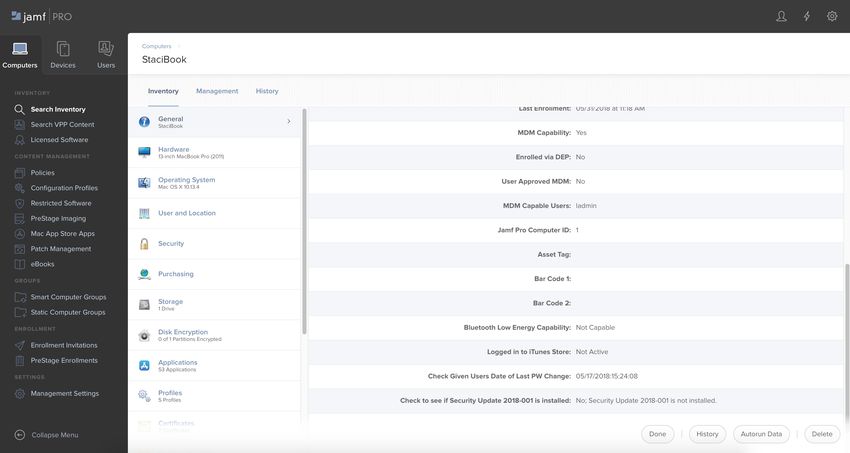
Results (for Inventory)
Scenarios
• You want to know the date and time of
 the last password change for your
 technician account on client Macs.
• Security auditing needs to know if the
 Security Update 2018-001 is installed on
 client Macs.
User’s last password change
dscl . read /Users/ladmin | grep --context=3 passwordLastSetTime

carlson-jamf-mbp:~ bryce$ dscl . read /Users/ladmin | grep
--context=3 passwordLastSetTime
  0
  failedLoginTimestamp
  0
  passwordLastSetTime
  1522616296.202925
User’s last password change
#!/bin/sh
#
#grabs and stores user PW info and strips EPOCH to one number
etime=`dscl . read /Users/ladmin | grep --context=3
passwordLastSetTime`
etime2=`echo $etime | sed -n 's:.*\(.*\).*:\1:p'`
etime3=`echo ${etime2%.*}`
#
#real time
rtime=`date -r $etime3 '+%m/%d/%Y:%H:%M:%S'`
echo "$rtime"
#
exit 0
User’s last password change
#!/bin/sh
#
#grabs and stores user PW info and strips EPOCH to one number
etime=`dscl . read /Users/ladmin | grep --context=3
passwordLastSetTime`
Lis
etime2=`echo $etime | sed -n 's:.*\(.*\).*:\1:p'`
Var
gra
t us
etime3=`echo ${etime2%.*}`
ia
ve
cut
#
ers
ble
acc
s ta
#real time
$va
=
rtime=`date -r $etime3 '+%m/%d/%Y:%H:%M:%S'`
ent
gs
r
echo "$rtime"
#
dat
exit 0
$va
e
rUser’s last password change
User’s last password change
User’s last password change
#!/bin/sh
#
#grabs and stores user PW info and strips EPOCH to one number
etime=`dscl . read /Users/ladmin | grep --context=3
passwordLastSetTime`
etime2=`echo $etime | sed -n 's:.*\(.*\).*:\1:p'`
etime3=`echo ${etime2%.*}`
#
#real time
rtime=`date -r $etime3 '+%m/%d/%Y:%H:%M:%S'`
echo $rtime >> /Library/Globodyne/tech-admin-date-of-last-
change.txt
             Ou

#
               tpu
               t
Security Update 2018-001?
/usr/sbin/system_profiler SPInstallHistoryDataType
carlson-jamf-mbp:~ bryce$ /usr/sbin/system_profiler
SPInstallHistoryDataType
Installations:
SU_TITLE:
Version:
Source: Apple
Install Date: 4/1/18, 4:40 PM
QuickAdd:
Version:
Source: 3rd Party
Install Date: 4/1/18, 5:07 PMSecurity Update 2018-001?
#!/bin/sh
#
#grabs and stores user SU info if Security Update 2018-001 is there
swupdatelist=`/usr/sbin/system_profiler SPInstallHistoryDataType |
grep "Security Update 2018-001" | awk '{ print $3 }'`
swq=${swupdatelist%?};
swa="2018-001"
#
if [[ "$swq" == "$swa" ]]; then
echo "Yes; Security Update 2018-001 is installed."
else
echo "No; Security Update 2018-001 is not installed."
fiSecurity Update 2018-001?
#!/bin/sh
#
#grabs and stores user SU info if Security Update 2018-001 is there
swupdatelist=`/usr/sbin/system_profiler SPInstallHistoryDataType |
grep "Security Update 2018-001" | awk '{ print $3 }'`
swq=${swupdatelist%?};
swa="2018-001"
#
if [[ "$swq" == "$swa" ]]; then
O ne
echo "Yes; Security Update 2018-001 is installed." v ar
is
else lik
et
echo "No; Security Update he 2018-001 is not installed." ot
he
fi rSecurity Update 2018-001?
Security Update 2018-001?
Security Update 2018-001?
#!/bin/sh
#
#grabs and stores user SU info if Security Update 2018-001 is there
swupdatelist=`/usr/sbin/system_profiler SPInstallHistoryDataType |
grep "Security Update 2018-001" | awk '{ print $3 }'`
swq=${swupdatelist%?};
swa="2018-001"
#
if [[ "$swq" == "$swa" ]]; then
   echo “Yes SU-2018-001.” > /Library/Globodyne/swu2018001-stat.txt
else
   echo “No SU-2018-001.” > /Library/Globodyne/swu2018001-stat.txt
fi
#
exit 0
Security Update 2018-001?
#!/bin/sh
#
#grabs and stores user SU info if Security Update 2018-001 is there
swupdatelist=`/usr/sbin/system_profiler SPInstallHistoryDataType |
grep "Security Update 2018-001" | awk '{ print $3 }'`
swq=${swupdatelist%?};
swa="2018-001"
#
if [[ "$swq" == "$swa" ]]; then
echo “Yes SU-2018-001.” > /Library/Globodyne/swu2018001-stat.txt
else
echo “No SU-2018-001.” > /Library/Globodyne/swu2018001-stat.txt
fi
#
Ou
exit 0
tpu
tEnd User interaction in scripts
#!/bin/sh
#
userPrompt=“$(osascript -e 'display dialog “Is this a question for the
user?” buttons {"Yes", "No"} default button "No"')"
#
if [ "$userPrompt" = "button returned:Yes" ]; then
     echo “They said yes”
else
     echo “They said no”
fi
#!/bin/sh
#
userPrompt=“$(osascript -e 'display dialog “Is this a question for the
user?” buttons {"Yes", "No"} default button "No"')"
#
Com
if [ "$userPrompt" = "button returned:Yes" ]; then
echo “They said yes”
If
ma
else
$v
echo “They said no”
nd
ar
=
fi
in v
th
en
arScenario • Mac users in the graphics area of the organization are talking about running low on disk free space. How can we help them clean up?
Disk free
                           df /

carlson-jamf-mbp:~ bryce$ df / | awk     '/dev\/disk/
{print substr($5,1,length($5) - 1)}'
59

carlson-jamf-mbp:~ bryce$ df / |   awk   '/dev\/disk/
{print $5}'
59%

carlson-jamf-mbp:~ bryce$ df /
Filesystem   512-blocks       Used Available Capacity iused
ifree %iused Mounted on
/dev/disk1s1 976695384 566976872 406254408      59% 1364491
9223372036853411316     0%  /
#!/bin/sh
#
diskusednumonly=`df / | awk '/dev\/disk/ {print
substr($5,1,length($5) - 1)}'`
currentuser=`ls -l /dev/console | awk '/ / { print $3 }'`
diskusageallowed="90"
#
if [ "$diskusednumonly" -gt "$diskusageallowed" ]; then
echo "The drive is more that 90 percent full. Will ask user for
clean up."
if [ "$(osascript -e 'display dialog "Looks like your boot drive
is getting full. Can we clean Caches?" buttons {"Yes", "No"} default
button "No"')" = "button returned:Yes" ]; then
echo "Cleaning end user home folder"
rm -rf /Users/$currentuser/Library/Caches/*
else
echo "No need to clean; user says they will"
fi
else
echo "No need to clean. Drive is free."
fi#!/bin/sh
#
diskusednumonly=`df / | awk '/dev\/disk/ {print
substr($5,1,length($5) - 1)}'`
Dis
currentuser=`ls -l /dev/console | awk '/ / { print $3 }'`
diskusageallowed="90"
k fr
#
ee
Cur
if [ "$diskusednumonly" -gt "$diskusageallowed" ]; then
echo "The drive is more that 90 percent full. Will ask user for
ren
clean up."
Gre
t
use
if [ "$(osascript -e 'display dialog "Looks like your boot drive
ate
is getting full. Can we clean Caches?" buttons {"Yes", "No"} default
r
prin
r th
button "No"')" = "button returned:Yes" ]; then
echo "Cleaning end user home folder"
an
Nes
t
rm -rf /Users/$currentuser/Library/Caches/*
ted
else
echo "No need to clean; user says they will"
if
fi
else
echo "No need to clean. Drive is free."
fiRecap •Why use a script? •Basic anatomy of a script •Logic •IF, THEN, DO, ELSE, DO, FI •WHILE, DO, DONE •Operators •Results (for Inventory) •Extension Attribute •To a file •End User interaction in scripts •osascript - Open Scripting Architecture
Good commands to have
                      man ANY COMMAND HERE

        mdfind "kMDItemAppStoreCategoryType == '*game*'"
carlson-jamf-mbp:~ bryce$ mdfind "kMDItemAppStoreCategoryType ==
'*game*'"

/Applications/Chess.app

           installer -pkg /path/to/some.pkg -target /

             sudo chmod +x /path/to/some/script.sh
Questions?
Thank you!

bryce.carlson@jamf.com

                 @bryce.carlson
             Feedback:
  https://bit.ly/psumac2018-292
Topics that came up after session
• Apple’s Shell Scripting Primer
• https://developer.apple.com/library/archive/documentation/
OpenSource/Conceptual/ShellScripting/shell_scripts/shell_scripts.html
• How do I launch a script as a user at their log in, or not have it auto launch
• Launch agent
• More info here: http://www.launchd.info
• bash Cookbook by O'Reilly Media
• http://shop.oreilly.com/product/0636920058304.doTopics that came up after session
Thanks to Joseph K. for these!
• Manuals
• https://www.gnu.org/software/bash/manual/html_node/index.html# - Bash Reference Manual
• BASH Reference
• http://ss64.com/bash/ - SS64 Bash Index A-Z
• http://www.tldp.org/guides.html - The Linux Documentation Project: Guides
• https://learncodethehardway.org/unix/bash_cheat_sheet.pdf - Bash cheat sheet PDF, from Learn Code
the Hard Way
• https://www.shellcheck.net/ - ShellCheck – shell script analysis tool
• http://explainshell.com/ - explainshell.com
• https://ss64.com/bash/syntax-keyboard.html - bash keyboard shortcuts | Bash | SS64.com
• http://www.cs.mcgill.ca/~guide/help/man.html - MAN PAGES - HOW TO READ MAN PAGES
• http://ss64.com/bash/ - SS64 Bash Index A-ZTopics that came up after session
Thanks to Joseph K. for these!
http://tldp.org/LDP/Bash-Beginners-Guide/html/index.html - Bash Guide for Beginners
http://tldp.org/HOWTO/Bash-Prog-Intro-HOWTO.html - BASH Programming - Introduction HOW-TO
http://www.bash.academy/ - The Bash Academy
http://tldp.org/LDP/abs/html/index.html - Advanced Bash-Scripting Guide
http://linuxsurvival.com/linux-tutorial-introduction/ - Linux Tutorial Introduction | Linux Survival
http://ryanstutorials.net/bash-scripting-tutorial/ - Bash Scripting Tutorial - Ryans Tutorials
https://www.youtube.com/watch?v=QGvvJO5UIs4 - Learn Bash Scripts - Tutorial - YouTube
https://learnxinyminutes.com/docs/bash/ - Learn X in Y Minutes: Scenic Programming Language Tours
https://www.howtogeek.com/67469/the-beginners-guide-to-shell-scripting-the-basics/ - The Beginner’s Guide to Shell Scripting:
The Basics
http://www.ee.surrey.ac.uk/Teaching/Unix/index.html - UNIX / Linux Tutorial for Beginners
https://www.davidbaumgold.com/tutorials/command-line/ - Getting to Know the Command Line | David Baumgold
https://www.youtube.com/playlist?list=PLtK75qxsQaMLZSo7KL-PmiRarU7hrpnwK - The Linux Basics Course - YouTube
https://www.lynda.com/Mac-OS-X-10-6-tutorials/Unix-for-Mac-OS-X-Users/78546-2.html - Unix for Mac OS X Users
https://developer.apple.com/library/content/documentation/OpenSource/Conceptual/ShellScripting/Introduction/
Introduction.html - developer.apple.com - Shell Scripting PrimerTopics that came up after session
Thanks to Joseph K. for these!
http://web.mit.edu/mprat/Public/web/Terminus/Web/main.html - Terminus
https://www.lynda.com/Bash-tutorials/What-you-need-know-before-continuing/142989/156629-4.html?
srchtrk=index%3a0%0alinktypeid%3a2%0aq%3abash%0apage%3a1%0as%3arelevance%0asa%3atrue%0aproducttypeid%3a2 - Up
and Running with Bash Scripting
http://linuxcommand.org/index.php - LinuxCommand.org: Learn the Linux command line. Write shell scripts.
https://www.lynda.com/Linux-tutorials/Learn-Linux-Command-Line-Basics/435539-2.html - Learn the Linux Command Line: The
Basics
https://classroom.udacity.com/courses/ud595/lessons/4597278561/concepts/46968695970923 - Udacity - Linux Command Line
Basics
http://learnpythonthehardway.org/book/appendixa.html - Learn Python The Hard Way - Command Line Crash Course
https://www.codecademy.com/en/courses/learn-the-command-line/lessons/manipulation/exercises/cp-i - Learn the Command
Line | Codecademy
https://www.jamfsoftware.com/resources/master-command-line-interface-basics/ - Master Command Line Interface Basics |
JAMF SoftwareYou can also read


