SURELOCK FOR ANDROID USER GUIDE - VER 20.00.08/20.00.09 - 42GEARS TECHNICAL DOCUMENTATIONS ...
←
→
Page content transcription
If your browser does not render page correctly, please read the page content below
SureLock for Android
                                           User Guide
                                  Ver 20.00.08/20.00.09

  The information contained in these documents is confidential, privileged and only for the information of the intended
             recipient and may not be used, published or redistributed without the prior written consent of
                                         42Gears Mobility Systems Pvt. Ltd

SureLock for Android User Guide v10.30 | November2018                                                                 1
Copyright@2018 42Gears. All rights reserved.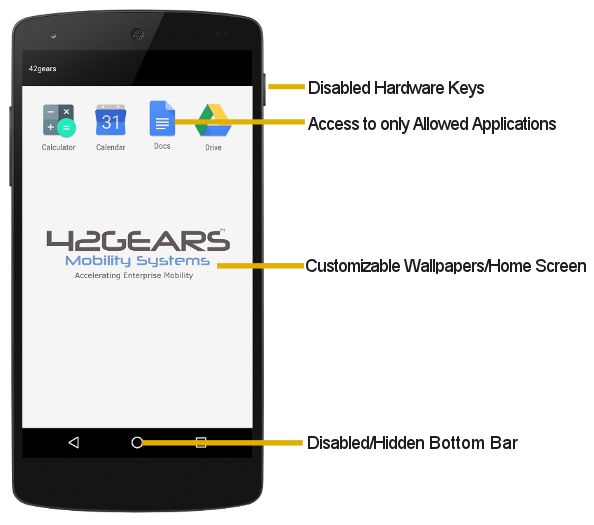
Table of Contents
Introduction ............................................................................................................................................ 7
Getting Started with SureLock ............................................................................................................ 10
Admin Settings...................................................................................................................................... 12
   Quick Settings ................................................................................................................................... 12
   Allowed Applications ........................................................................................................................ 13
      Add Allowed Applications ........................................................................................................................... 13
      Edit Allowed Application ............................................................................................................................. 20
      Remove Allowed Applications ................................................................................................................... 21
      Add a folder .................................................................................................................................................. 22
      Edit or remove a folder ............................................................................................................................... 22
   Allowed Websites .............................................................................................................................. 23
   SureLock Settings.............................................................................................................................. 23
      Wallpaper Settings ...................................................................................................................................... 23
      Display Settings ........................................................................................................................................... 24
         Row and Column Size ............................................................................................................................. 24
         Icon Size .................................................................................................................................................... 25
         Font Size .................................................................................................................................................... 25
         Use Classic Calculation ........................................................................................................................... 25
         Spacing between the Icons..................................................................................................................... 26
         Text Color.................................................................................................................................................. 26
         Apps Order ............................................................................................................................................... 26
         Allow Icon Relocation .............................................................................................................................. 26
         Detect Network Connection ................................................................................................................... 26
         Full Screen Mode ..................................................................................................................................... 27
         Notification Badge ................................................................................................................................... 27
         Hide App Title ........................................................................................................................................... 27
         Floating Buttons Settings ........................................................................................................................ 27
      Single Application Mode ............................................................................................................................. 28
         Application Launch Delay ....................................................................................................................... 30
         Run Only Once ......................................................................................................................................... 30
         Create Single App Mode Exit File ........................................................................................................... 30
      SureLock Settings ........................................................................................................................................ 31
         Change Password .................................................................................................................................... 31
         User Security ............................................................................................................................................ 31
         Admin Users ............................................................................................................................................. 33
         Multi-User Mode ...................................................................................................................................... 34

SureLock for Android User Guide | v20.00.08/09 | April 2021                                                                                                      2
© 2021 42Gears Mobility Systems Pvt Ltd. All Rights Reserved.
Disable Bottom Bar ................................................................................................................................. 36
       Hide Bottom Bar ...................................................................................................................................... 36
       Disable Hardware Keys ........................................................................................................................... 36
       Disable Soft Navigation Keys ................................................................................................................. 37
       Assign SureLock System Permission ..................................................................................................... 37
    Peripheral Settings ...................................................................................................................................... 37
       Camera Settings ....................................................................................................................................... 37
       Wi-Fi Settings ............................................................................................................................................ 37
       Mobile Data Settings ............................................................................................................................... 38
       Prefer Mobile Data Settings ................................................................................................................... 38
       Wifi Hotspot Settings ............................................................................................................................... 38
       NFC Mode Settings .................................................................................................................................. 38
       GPS Settings ............................................................................................................................................. 39
       Bluetooth Settings ................................................................................................................................... 39
       Sound Settings ......................................................................................................................................... 39
       Loudspeaker Settings.............................................................................................................................. 40
       Volume Settings ....................................................................................................................................... 40
       Airplane Mode Settings ........................................................................................................................... 40
       Flashlight Settings .................................................................................................................................... 40
       SureLock Homescreen Orientation ....................................................................................................... 41
       Rotation Settings...................................................................................................................................... 41
       Brightness Settings .................................................................................................................................. 42
       Set Custom Toast Message .................................................................................................................... 42
       Enable Toast Message............................................................................................................................. 42
       Set Custom Access Denied Message..................................................................................................... 42
       Watchdog Service .................................................................................................................................... 43
       Kill Unallowed Application ...................................................................................................................... 43
       Disable Clipboard .................................................................................................................................... 43
       Lock Safe Mode ........................................................................................................................................ 44
       Disable Safe Mode ................................................................................................................................... 45
       On Launch of Unallowed Application ................................................................................................... 45
       On USB state change go to Home ......................................................................................................... 45
       Auto Power On When Charger is Connected ....................................................................................... 45
       Auto Power Off When Charger is Disconnected ................................................................................. 46
       Clear Data on Home Screen Load ......................................................................................................... 46
       Suppress Notification Panel ................................................................................................................... 46
       Hide Quick Settings Tile .......................................................................................................................... 46

SureLock for Android User Guide | v20.00.08/09 | April 2021                                                                                                 3
© 2021 42Gears Mobility Systems Pvt Ltd. All Rights Reserved.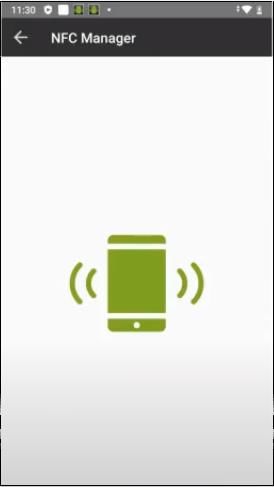
Block Notifications ................................................................................................................................... 46
       Disable Status Bar ................................................................................................................................... 47
       Disable Factory Reset .............................................................................................................................. 47
       Disable USB .............................................................................................................................................. 47
       USB Connectivity Preference ................................................................................................................. 47
       Disable OTG/External SD Card ............................................................................................................... 48
       Suppress Power Button/Keyboard ........................................................................................................ 48
       Enable SureKeyboard .............................................................................................................................. 48
       Driver Safety ............................................................................................................................................. 49
       Bootup Delay ............................................................................................................................................ 51
       Timeout Settings ...................................................................................................................................... 51
    Schedule Reboot.......................................................................................................................................... 54
    Widget Settings ............................................................................................................................................ 54
    Title Bar Settings .......................................................................................................................................... 55
    Status Bar Color ........................................................................................................................................... 55
    SureLock Analytics....................................................................................................................................... 56
    Power Saving Settings ................................................................................................................................. 57
    Battery Popup Notification ........................................................................................................................ 57
    Miscellaneous Settings ............................................................................................................................... 58
       Number of Taps ....................................................................................................................................... 58
       Access Settings Timeout ......................................................................................................................... 58
       Admin Login Security .............................................................................................................................. 59
       Send Notification On Exit ........................................................................................................................ 60
       Set Usage Access Warning ...................................................................................................................... 60
       Enable Log ................................................................................................................................................ 60
       Send Error Report .................................................................................................................................... 61
       Use Advance Hide Bottom Bar .............................................................................................................. 61
       On Press of Home Button ...................................................................................................................... 61
       Disable Touch Input ................................................................................................................................ 61
       Use SDP Calculation ................................................................................................................................ 62
    Memory Settings ......................................................................................................................................... 62
    Screensaver Settings ................................................................................................................................... 62
    Disable Applications .................................................................................................................................... 63
       Disable Wi-Fi /Mobile Data Access ........................................................................................................ 63
       Unrestricted Data Usage ........................................................................................................................ 63
       Default Runtime Permissions for Allowed Apps ................................................................................. 63
    Diagnostic Settings ...................................................................................................................................... 64

SureLock for Android User Guide | v20.00.08/09 | April 2021                                                                                                 4
© 2021 42Gears Mobility Systems Pvt Ltd. All Rights Reserved.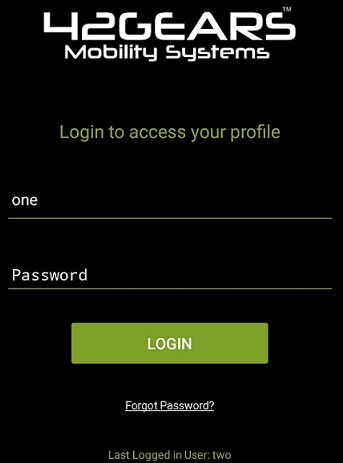
Samsung Knox Settings .................................................................................................................... 64
     Set Custom Boot Animation....................................................................................................................... 65
     Set Custom Shutdown Animation ............................................................................................................. 66
     Disable Other Home Screens .................................................................................................................... 66
     Disable Safe Mode....................................................................................................................................... 66
     Disable Factory Reset .................................................................................................................................. 67
     Disable Multi Window ................................................................................................................................. 67
     Disable USB .................................................................................................................................................. 67
     Wipe Recent Apps........................................................................................................................................ 67
     Disable S Voice ............................................................................................................................................. 67
     NFC Mode ..................................................................................................................................................... 68
     Disable Air View Mode ................................................................................................................................ 68
     Disable Air Command Mode ...................................................................................................................... 68
     Disable Smart Clip Mode ............................................................................................................................ 68
     Allow Multiple Users ................................................................................................................................... 68
     Disable OTA Upgrade.................................................................................................................................. 69
     Disable SD card ............................................................................................................................................ 69
     Disable Hardware Keys ............................................................................................................................... 69
     Disable Custom Hardware Keys ................................................................................................................ 69
     Disable Power Off........................................................................................................................................ 69
     Disable Application Installation ................................................................................................................. 69
     Disable Application Uninstallation ............................................................................................................ 70
     Disable Edge Screen Functionality ............................................................................................................ 70
  Allowed Widgets ................................................................................................................................ 70
     Add Widget ................................................................................................................................................... 70
     Edit/Remove Widget.................................................................................................................................... 71
  Manage Shortcuts ............................................................................................................................. 71
  Phone Settings .................................................................................................................................. 73
  Multi-User Profile Settings ............................................................................................................... 74
     Profile Management ................................................................................................................................... 75
     User Management ....................................................................................................................................... 76
     Server Configuration ................................................................................................................................... 77
     Display Last Logged In User ....................................................................................................................... 78
  System Settings ................................................................................................................................. 78
  Setup SureLock Permissions ............................................................................................................ 78
  Import/Export Settings ..................................................................................................................... 80
     Export Settings ............................................................................................................................................. 80

SureLock for Android User Guide | v20.00.08/09 | April 2021                                                                                                  5
© 2021 42Gears Mobility Systems Pvt Ltd. All Rights Reserved.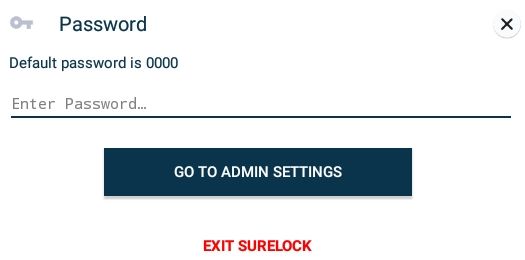
Import Settings ............................................................................................................................................ 81
     Reset Settings............................................................................................................................................... 82
     Automatic Import ........................................................................................................................................ 82
     Schedule Automatic Import ....................................................................................................................... 82
     Advanced Settings ....................................................................................................................................... 82
  Remotely Configure SureLock Settings .......................................................................................... 83
  Exit SureLock ..................................................................................................................................... 83
  Uninstall SureLock ............................................................................................................................ 84
  About SureLock ................................................................................................................................. 84

SureLock for Android User Guide | v20.00.08/09 | April 2021                                                                                                 6
© 2021 42Gears Mobility Systems Pvt Ltd. All Rights Reserved.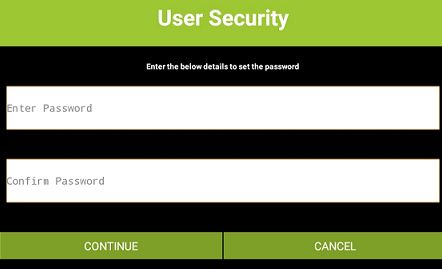
Introduction

What is SureLock?

Businesses with mobile workforce require secured and locked mobile device to ensure

responsible usage, improved productivity and reduced device maintenance cost. One of the

ways to achieve above mentioned objectives is by allowing access to only required

applications for users and preventing them from making any unwanted changes in the

device. With SureLock, only the approved applications are allowed to run on the device and

only the administrator can access the password protected settings to either modify settings

or exit lockdown.

How does it work?

Download and install SureLock on your Android device. Access the password

protected SureLock Admin Settings and specify the applications you wish to approve.

Return to SureLock Home Screen, only the approved applications will be listed on the

screen. This confines the device users to only SureLock Home Screen with approved

applications and is restricted from accessing device home screen, device settings and

SureLock lockdown settings.

SureLock for Android User Guide | v20.00.08/09 | April 2021                             7
© 2021 42Gears Mobility Systems Pvt Ltd. All Rights Reserved.
Key Features

•    Lock down Android smartphones and tablets in Kiosk Mode

•    Restrict users to only Allowed Applications

•    Block user from playing games, browsing or installing unapproved applications

•    Hide or Disable Bottom Bar

•    Show only selected Widgets (e.g. battery, Wi-Fi, weather etc.) on SureLock Home Screen

•    Arrange Allowed Applications in categories on SureLock Home Screen

SureLock for Android User Guide | v20.00.08/09 | April 2021                           8
© 2021 42Gears Mobility Systems Pvt Ltd. All Rights Reserved.
•    Block user from changing Device Settings

•    Selectively allow or block individual child windows of any application

•    Password protect launch of Allowed Applications

•    Brand SureLock with your own corporate logo/wallpaper

•    Auto launch application(s) at Startup

•    Custom title for Allowed Applications on Home Screen

•    Hide icon of an Allowed Application on Home Screen

•    Peripheral Lockdown (Wi-Fi, Bluetooth, Auto-orientation, Flight Mode, Audio, GPS, Mobile

     Data)

•    Modify SureLock Settings using MDM solution like SureMDM

•    Option to allowlist/blocklist phone numbers

•    Relocate icons anywhere on the screen using drag and drop

•    Import/Export SureLock Settings

•    Remotely deploy SureLock configuration (http/cloud/file transfer)

•    Driver Safety features

•    Easily integrates SureFox (Special lockdown browser to restrict browsing to only certain

     websites)

•    Multi Users feature to enable multiple users sharing single device with respective

     lockdown profiles

SureLock for Android User Guide | v20.00.08/09 | April 2021                               9
© 2021 42Gears Mobility Systems Pvt Ltd. All Rights Reserved.
Getting Started with SureLock
SureLock can be downloaded from following sources:
• Google Play
• Direct Download from 42Gears website
Launch SureLock
To launch SureLock, follow these steps:
1. Tap the SureLock icon to launch.
2. On SureLock Kiosk Lockdown welcome screen, go through the details and select
SureLock as the home app.
3. On Setup SureLock Permissions screen, select Set SureLock as Default Launcher and
tap Continue. To know more about SureLock Permissions, see Setup SureLock
Permissions.
SureLock Home Screen will appear on the screen.
Access SureLock Admin Settings
To access SureLock Admin Settings, follow these steps:
1. Launch SureLock.
2. Tap SureLock Home Screen 5 times within 3 seconds to launch the password prompt.
3. On the password prompt, enter SureLock default password as 0000 (four zeros) and
tapGoTo Admin Settings. To change the password, see Change Password.
Note: Exit SureLock option will be available only for trial version of SureLock.
SureLock for Android User Guide | v20.00.08/09 | April 2021 10
© 2021 42Gears Mobility Systems Pvt Ltd. All Rights Reserved.On successful login, SureLock Admin Settings screen will appear.
Note:
i. Alternate option to access SureLock Admin Settings is to tap the Back button 5 times.
ii. If SureLock is continued to be in the trial version, each time when the user enters the password, a
pop-up appears to indicate the user to avail SureLock's free full feature trial version for 7 days.
Tap Sign up for FREE full feature trial option and fill the relevant details and then tap Submit or
Sign up using Google/Facebook/LinkedIn to get a free trial for 7 days.
SureLock for Android User Guide | v20.00.08/09 | April 2021 11
© 2021 42Gears Mobility Systems Pvt Ltd. All Rights Reserved.Admin Settings
Admin Settings provides options to manage and control the lockdown settings.
Quick Settings
Quick Settings option helps the user to quickly lockdown the device with approved
applications and configure basic settings.
1. To lockdown the device using Quick Settings, follow these steps:
1. Launch SureLock
2. On SureLock Admin Settings screen, tap Quick Settings.
2. All installed applications will get listed.
3. Select the desired application for the lockdown.
4. Go to Peripheral Settings using the arrow at top right corner of the screen.
5. Select the desired Peripheral Settings and apply changes.
6. Go to Home Screen Settings using the arrow at top right corner of the screen.
7. Select Application Icon Size.
8. Enter the Title for Home Screen.
9. Select the Wallpaper for Home Screen.
10. Go to Finish screen using the arrow at top right corner of the screen.
11. Tap Launch icon/button.
12. On the successful launch, SureLock Home Screen will appear.
Note: Quick Settings is enabled for single user mode only. It will not support Multi-user mode.
SureLock for Android User Guide | v20.00.08/09 | April 2021 12
© 2021 42Gears Mobility Systems Pvt Ltd. All Rights Reserved.Allowed Applications
Allowed Applications option displays the list of applications that are approved on
the SureLock Home Screen. The admins have the options to approve and allow more
applications, edit, or organize the allowed ones by assigning them to a specific folder.
Add Allowed Applications
Add App option lists all the installed applications on the device. The user can use this list to
select and allow approved applications.
To add an Allowed Application(s), follow these steps:
1. Access SureLock Admin Settings.
2. On Admin Settings screen, tap Allowed Applications.
3. On Allowed Applications screen, tap Add App to launch the list of installed applications.
4. Select the required application(s) to allow from the list and tap Done.
List of all approved applications will be displayed under Allowed Applications screen.
Note: The apps in the device are listed under different categories such as All Apps, Downloaded
Apps, System Apps, Services, Plugin Apps.
5. Tap Done to return to Admin Settings.
Once done, the user can see the icons along with titles of all allowed applications
on SureLock Home Screen.
Plug-in Apps
Few plug-in apps come preinstalled with SureLock such as Wi-Fi Center and Bluetooth
Manager. Admins can allow access to these plug-in apps by adding them to the allowed
applications and use it like any other applications on SureLock Home Screen. These apps are
SureLock for Android User Guide | v20.00.08/09 | April 2021 13
© 2021 42Gears Mobility Systems Pvt Ltd. All Rights Reserved.helpful when the admin wants to give access to only specific device settings. For example, if
the locked device is always on the move and has to connect to different Wi-Fi networks, the
admin can allow plug-in app called Wi-Fi Center which enables the device users to use Wi-Fi
settings without accessing device settings.
Following Plug-in apps are available in SureLock:
Bluetooth Manager – With this plug-in app, the admin can allow the user to have access to
following Bluetooth functionalities on the device:
• Turn ON/OFF Bluetooth option.
• Pair with the devices under Available Devices.
• Change password to access Bluetooth functionalities
To configure Bluetooth settings in Bluetooth Manager plug-in app, follow these steps:
1. On the SureLock Home Screen, launch Bluetooth Manager.
2. On the Bluetooth Manager screen, tap Settings icon.
3. Enter the password and click OK.
4. Configure Bluetooth Settings:
Device Types - Allow or block access to various device types (Phone/Wearable/Toy and
more) those are connected to Bluetooth.
Change Password - Change the default/existing password to the desired password.
Brightness Settings – With this plug-in app, admin can allow the user to have access to set
phone brightness levels of the device screen.
Security Manager – With this plug-in app, the admin can allow the user to set or change the
device pin to access the device.
SureLock for Android User Guide | v20.00.08/09 | April 2021 14
© 2021 42Gears Mobility Systems Pvt Ltd. All Rights Reserved.Settings Manager – With this plug-in app, the admin can allow the user to perform the
following actions:
• Turn Mobile Data ON or OFF
• Turn Data Roaming ON or OFF
• Switch between the SIM’s
Note: This feature will be supported only on platform signed devices.
• Configure Screen Timeout
• Auto-rotate screen - Rotate the screen orientation from portrait to landscape or vice-
versa.
Note: This feature is supported on Marshmallow or above devices.
Phone Manager – With this plug-in app, admin allows configuring only the whitelisted
contacts in the Phone Settings.
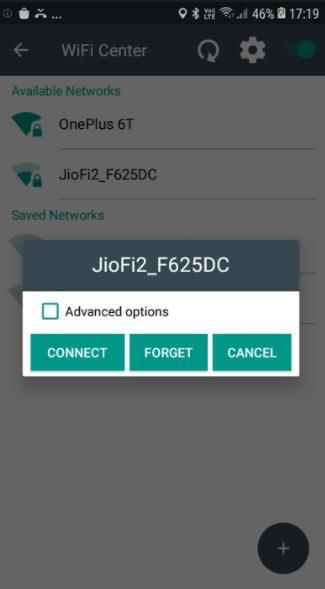
WiFi Center – With this plug-in app, admin allows the user to access certain Wi-Fi related
functionalities on the device. They can use this plug-in app to configure multiple network
connections.
To configure WiFi Center settings, follow these steps:
1. On the SureLock Home Screen, launch WiFi Center plug-in app.
2. Turn on the WiFi Center toggle button.
Note: Once the WiFi Center toggle button is On, a prompt appears to connect to the available WiFi
network. This prompt will appear only on the devices running Android 10 or later devices.
SureLock for Android User Guide | v20.00.08/09 | April 2021 15
© 2021 42Gears Mobility Systems Pvt Ltd. All Rights Reserved.A list of available / saved SSID's will be displayed on the screen.
3. Select the appropriate SSID and tap Connect.
Note: You cannot Forget (disconnect) a network when it is configured in SureLock. This is applicable
only for the devices running Android version Marshmallow or later.
4. On the WiFi Center screen, tap Settings icon.
5. Enter the password.
SureLock for Android User Guide | v20.00.08/09 | April 2021 16
© 2021 42Gears Mobility Systems Pvt Ltd. All Rights Reserved.6. Configure the following WiFi Center Settings.
Settings Description
Load default URL when connected to open Select this option to launch the default URL when
network connected to an open network.
Launch webpage when connected to open Select this option to launch the specified webpage
network URL when connected to an open network.
Webpage URL Enter the Webpage URL that will be launched
when connected to an open network.
Change Password Change the default or existing password to the
desired password to access WiFi Center Settings.
Hide Forget Button Hides Forget Button for the connected network.
Hide IP Settings Hides IP Settings option for the connected
network.
Hide Use Proxy Settings Hides Use Proxy Settings option for the
connected network.
Allow Connection to Open Network Allows connecting to an open network.
Launch WiFi Center on loss of WiFi Allows launching of WiFi Center within the
connectivity specified time when WiFi connection is lost.
Turn ON Mobile Data on loss of WiFi Allows connecting the network through mobile
Connectivity data when WiFi connection is lost.
Note: This feature will be supported only on
platform signed devices.
Configure a Wi-Fi network
Admins can add and configure multiple Wi-Fi networks.
To add a new Wi-Fi network, follow these steps:
1. On the SureLock Home Screen, launch WiFi Center plug-in app.
2. On the WiFi Center screen tap Add icon.
3. On the Wi-Fi network prompt,
SureLock for Android User Guide | v20.00.08/09 | April 2021 17
© 2021 42Gears Mobility Systems Pvt Ltd. All Rights Reserved.• Enter the Network SSID.
• Select a Security from the following options:
None
WEP
WPA/WPA2 PSK
802.1xEAP
• Under Advanced options,
1. Select Use Proxy and enter the proxy details such as Proxy hostname, Proxy
Port, Bypass proxy for.
2. Select IP settings > DHCP / Static.
Flashlight Manager - With this plug-in app, admin allows the user to use the flashlight on
their device.
Note: This feature is supported on the devices that have flashlight option.
Hotspot Manager - With this plug-in app, admin allows the user to create or configure a
Hotspot network on the device. Users can use this plug-in app to configure hotspot settings.
To configure Hotspot settings, follow these steps:
1. On the SureLock Home Screen, launch Hotspot Manager plug-in app.
2. On the Hotspot Manager page, configure the following settings and tap Save.
Settings Description
Portable Wi-Fi Hotspot Turn ON/OFF portable Wi-Fi Hotspot network.
Setup Wi-Fi Hotspot • Enter the Network SSID
• Select the Security: Open / WPA/WPA2 PSK
• Enter the Password.
Note: Users can only Turn ON/OFF the Hotspot network, but modifications on the configuration are not
allowed on the below-mentioned devices:
SureLock for Android User Guide | v20.00.08/09 | April 2021 18
© 2021 42Gears Mobility Systems Pvt Ltd. All Rights Reserved.• Android version Oreo onwards
• Non-Samsung devices
• Non-Signed devices
Hotspot Manager - With this plug-in app, the admin can allow the user to transfer files
between devices without exiting from SureLock.
To enable NFC to transfer files,
1. Go to SureLock Admin Settings > Allowed Application > Plugin Apps and select NFC
Manager.
The NFC Manager app will be added to the SureLock home screen.
2. Tap NFC Manager app and you can see the device is ready to connect with other device
for file transfer.
Note: Both the devices should support the NFC mode setting.
SureLock for Android User Guide | v20.00.08/09 | April 2021 19
© 2021 42Gears Mobility Systems Pvt Ltd. All Rights Reserved.If you again tap on the green icon, NFC will get disconnected, and the file transfer will be
interrupted.
Edit Allowed Application
The user can edit different aspects of allowed applications such as Label, Icon, Password,
Hide Icon in Home Screen.
To edit an Allowed Application, follow these steps:
1. Access SureLock Admin Settings.
2. On Admin Settings screen, tap Allowed Applications.
3. On Allowed Applications screen, tap Edit icon of the application.
4. On Application Settings screen, the user can edit the following options:
Label - Name of the application
Icon - Icon image for the application
Password - Access application by setting a password
Hide Icon in Home Screen - Hide applications’ icon in Home Screen
Launch at Startup - Launch the application when the device is switched ON
Restart app on relaunch - Restart the application on its relaunch
Clear Data on Launch - Clear the data on application launch
Note: To enable Clear Data on Launch requires device rooting/platform permission.
Runtime Permissions – Admin can restrict or allow the following runtime permissions
for the application:
• Camera
• Microphone
• Location
SureLock for Android User Guide | v20.00.08/09 | April 2021 20
© 2021 42Gears Mobility Systems Pvt Ltd. All Rights Reserved.• Contacts
• Storage
Note: This feature is available for the devices running Android Marshmallow and above / Samsung
Knox/ Platform Signed.
Allow Child Windows - Restrict or allow the access to a specific child windows of the
application.
For example, Camera app can be used to capture both photo and video. The admins can
use this feature to restrict the video camera by disabling the video camera child
windows.
Current Path - Path of the folder in which the application is saved. This is helpful if the
allowed applications are arranged in folders.
App Idle Timeout - Configure a specific period of device inactive time after which
SureLock will auto- redirect the device screen to SureLock Home Screen.
Note: To configure App Idle Timeout, enable Idle Timeout option under Admin Settings > SureLock
Settings > TimeOut Settings.
5. Tap Done to complete
Remove Allowed Applications
To remove an allowed application from SureLock Home Screen, follow these steps:
1. Access SureLock Admin Settings.
2. On Admin Settings screen, tap Allowed Applications.
3. On Allowed Applications screen, tap the application to remove.
4. On Application Settings screen, tap Remove to complete.
SureLock for Android User Guide | v20.00.08/09 | April 2021 21
© 2021 42Gears Mobility Systems Pvt Ltd. All Rights Reserved.Add a folder
Add Folder option allows the admins to create folders on SureLock Home Screen. The
admins can assign and organize approved applications in these folders.
To arrange approved applications in a folder, follow these steps:
1. Access SureLock Admin Settings.
2. On Admin Settings screen, tap Allowed Applications.
3. On Allowed Applications screen, tap Add Folder and enter a name for the folder.
4. Tap Ok to create a folder.
5. Tap on the folder to open and follow steps mentioned in Add Allowed applications to the
folder.
The folder created will reflect on SureLock Home Screen with approved applications.
Note: To move an existing approved application to a folder, edit Current Path of the application to
that of the desired folder.
Edit or remove a folder
To edit or remove an existing folder, follow these steps:
1. Access SureLock Admin Settings.
2. On Admin Settings screen, tap Allowed Applications.
3. On Allowed Applications screen, long tap on the folder.
4. On Folder Settings screen, edit the following options:
Label - Name of the folder
Icon - Icon image for the folder
Landscape Wallpaper - Wallpaper for folder when in landscape mode
SureLock for Android User Guide | v20.00.08/09 | April 2021 22
© 2021 42Gears Mobility Systems Pvt Ltd. All Rights Reserved.Portrait Wallpaper - Wallpaper for folder when in portrait mode
Password - Lock password for the folder
5. Tap Ok to edit the folder.
6. Tap Remove to delete the folder.
Allowed Websites
Allowed Websites helps the admins to install SureFox application on the device home
screen.
SureFox can be downloaded from following sources:
• Google Play
• Direct Download from 42Gears website
SureLock Settings
SureLock Settings offers features to customize SureLock Home Screen such as advance
lockdown of a device, peripherals settings, timeout settings and more.
Wallpaper Settings
SureLock Home Screen can be personalized with a wallpaper. The admins can set two
different wallpapers for SureLock Home Screen: Landscape and Portrait.
Wallpaper Settings has following options:
1. Wallpaper - Use Wallpaper option to set wallpaper for SureLock Home Screen and
Device Lock Screen. The user has the option to set same or two different wallpapers
for Landscape and Portrait mode and also set wallpaper for the Lock screen.
To configure a wallpaper, follow these steps:
SureLock for Android User Guide | v20.00.08/09 | April 2021 23
© 2021 42Gears Mobility Systems Pvt Ltd. All Rights Reserved.1. On Admin Settings screen, tap Sure Lock Settings.
2. Select SureLock Settings > Home Screen Settings > Wallpaper.
3. Tap Landscape or Portrait Wallpaper.
4. Tap on browse icon to select a wallpaper image from Drive/Gallery/Photos.
5. Tap Lock screen Wallpaper to browse and select the desired image from
Drive/Gallery/Photos.
6. Tap Customize Loading Screen to change loading screen message and enable
progress bar and spinning wheel.
2. Wallpaper Position - Use Wallpaper Position option to specify and set the position of
the wallpaper. The user has the following options to select from:
- Center
- Fill
3. Use System Wallpaper - Select Use System Wallpaper to set system wallpaper as
SureLock Home Screen wallpaper.
4. Background Color – Enter Hex color code or select a color from the color picker to
apply background color for SureLock Home Screen.
Display Settings
Display Settings offers a range of features that can be used to customize the look and feel
of SureLock Home Screen and approved applications.
Row and Column Size
Row and Column Size option will change the SureLock Home Screen grid size to specified
value. This option is available for both Portrait and Landscape mode.
SureLock for Android User Guide | v20.00.08/09 | April 2021 24
© 2021 42Gears Mobility Systems Pvt Ltd. All Rights Reserved.Note:
i. The values for the row and column size can range between 0 and 11.
ii. Widgets option should be in disable mode to enable this feature.
iii. Icon Size, Font Size, Use Classic Calculation, Spacing between the icons are disabled when
Row and Column Size option is enabled.
Icon Size
Icon Size option will set the size of approved applications' icons on SureLock Home Screen.
The user has following options to select from:
• Small (50%)
• Medium (100%)
• Large (200%)
• Extra Large (400%)
• Custom - Enter the desired value for the icon size can range between 10 and 600.
• Original - Displays icon with the actual resolution.
Font Size
Font Size option will set the font size of approved applications' titles on SureLock Home
Screen. The user has the following options to select from:
• Same Icon size
• Small (50%)
• Medium (75%)
• Large (100%)
• Custom Font Size - Enter the desired value for the text size
Use Classic Calculation
SureLock for Android User Guide | v20.00.08/09 | April 2021 25
© 2021 42Gears Mobility Systems Pvt Ltd. All Rights Reserved.Classic Calculation option will use the older algorithm to calculate icon size.
Spacing between the Icons
The Spacing between the icons option will allow the user to specify space between the
approved applications' icons on SureLock Home Screen.
Note: The value for the spacing between the icons can range between 1 and 50.
Text Color
Text Color option will set text color for approved applications' titles on Surelock Home
Screen.
Apps Order
Admin can set the order of apps on the SureLock Home Screen with following options:
- Alphabetical - Allowed applications will be displayed in alphabetical order on the
SureLock Home Screen.
- Sequential - Allowed Applications will be displayed in the sequence of applications
added to the allowed applications list on SureLock Home Screen.
Allow Icon Relocation
Allow Icon Relocation option will allow relocation of the icon on the SureLock Home
Screen. This option once enabled will let the user drag and organize icons on the home
screen.
Admin can enable this option, arrange the home screen and later disable it to retain the
layout on the device.
Detect Network Connection
SureLock for Android User Guide | v20.00.08/09 | April 2021 26
© 2021 42Gears Mobility Systems Pvt Ltd. All Rights Reserved.Detect Network Connection option once enabled will redirect the user to SureLock Home
Screen when an offline device connects to a network and goes online.
Full Screen Mode
Full Screen Mode option will auto hide Status Bar and extend the display to fit the
complete screen of the device.
Note: Status Bar is the bar on top of the device screen which shows details about battery level, network
strength and time.
Notification Badge
Use Notification Badge to enable a small red notification count badge on the application
icon. This icon will notify the user of new messages/emails/call count.
The purpose of this feature is to let the user know the number of unread alerts or
notifications for allowed applications.
Note:
i. This feature is supported only on Samsung KNOX devices (KitKat and above).
ii. This option will be in disable mode by default.
Hide App Title
Allowed applications will display as icons with their respective titles on SureLock Home
Screen. Use Hide App Title option to hide the title and display only icons of the approved
applications on SureLock Home Screen.
Floating Buttons Settings
SureLock for Android User Guide | v20.00.08/09 | April 2021 27
© 2021 42Gears Mobility Systems Pvt Ltd. All Rights Reserved.Floating buttons are icons floating above the user interface on the screen. SureLock offers
the feature to add a floating button on the screen with following options:
Home, Back, Print and Recent.
Note: Floating Back and Print buttons are supported only on Samsung KNOX devices, rooted devices
or devices with platform signature.
To add Floating Buttons on the screen,
1. Access SureLock Admin Settings.
2. On SureLock Settings, tap Floating Buttons Setting.
3. On Floating Buttons Settings screen, select the following:
a. Enable Floating Back Button and select desired options from the following:
- Floating Back Button
- Floating Home Button
- Floating Recent Button
- Floating Print Button
b. Tap Floating Buttons Color to pick a color for the icons.
c. Tap Floating Buttons Size option to set the floating button size
(Small/Medium/Large/Extra Large/ Custom (desired value)) that will be displayed
on SureLock home screen.
d. Tap Allow Relocation of Floating Buttons to allow relocation of floating buttons
anywhere on the screen.
4. Tap Done.
Single Application Mode
Single Application Mode refers to a state of device lockdown in which there is only one
SureLock for Android User Guide | v20.00.08/09 | April 2021 28
© 2021 42Gears Mobility Systems Pvt Ltd. All Rights Reserved.application on the screen. With just one application in the foreground, access to Home
Screen Settings or other apps will be blocked at all time.
To enable Single Application Mode, follow these steps:
1. Launch SureLock.
2. Access SureLock Admin Settings.
3. Go to SureLock Settings > Single Application Mode.
4. Enable Single Application Mode.
Note: To enable this feature, only one approved application should be visible on the SureLock home
screen. To know how to add an allowed application on the SureLock home screen, see here.
5. Go to SureLock Settings > Single Application Mode and select Enable Single
Application Mode.
6. Select an application that you want to run in the Single Application mode.
7. Tap Ok > Done.
Note:
i. If there are more than one application added to the Allowed Applications, a prompt
appears to remove or hide other apps from the SureLock home screen.
ii. Please read the precautionary message before you tap Ok.
8. Go back to SureLock Home Screen.
The approved application with a green dot indicates that the application runs on Single
Application Mode.
Exit Single Application Mode
To exit from Single Application Mode, follow these steps:
1. Reboot the device.
SureLock for Android User Guide | v20.00.08/09 | April 2021 29
© 2021 42Gears Mobility Systems Pvt Ltd. All Rights Reserved.2. When SureLock is loading, tap on the screen for 5 times within 3 secs to launch the
password prompt.
Or
Tap 10 times on foreground application to launch the password prompt.
Note: These options are available only once and to activate it again, the user has to reboot the
device.
3. On Admin Settings screen, tap SureLock Settings > Single Application Mode.
4. Disable Single Application Mode option to complete.
Application Launch Delay
SureLock allows the user to delay the launch of Single Application Mode after the specified
time.
Note: The default time set for the delay of the launch of Single Application Mode will be 500ms.
Run Only Once
Once this option is enabled will allow running of Single Application Mode only once. On
reboot of the device, Single Application Mode will automatically get disabled.
Create Single App Mode Exit File
This option will create Single App Mode Exit File and gets saved in the specified path. This
file can be pushed using MDM solution like SureMDM. Once the user creates this file and
pushes to the device, Single Application Mode will be disabled for first 10 minutes.
Enable Password Prompt
SureLock for Android User Guide | v20.00.08/09 | April 2021 30
© 2021 42Gears Mobility Systems Pvt Ltd. All Rights Reserved.This option will enable the user to launch password prompt by tapping 10 times anywhere
on the screen when an application is running in the foreground on Single Application
Mode.
SureLock Settings
SureLock Settings allows the admins to edit and set general settings in SureLock.
Change Password
Password to access SureLock Admin Settings can be changed using Change Password.
Note: In case of forgotten password, the user has to factory reset the device.
To change the Password, follow these steps:
1. Access SureLock Admin Settings.
2. On SureLock Settings screen > SureLock Settings > Change Password.
3. Enter the existing Old Password.
4. Enter the New Password.
5. Enter the New Password again in Confirmation field.
6. Tap Change to complete.
User Security
SureLock will force the user to set a password to access the Home Screen when User
Security option is enabled. User login screen will be displayed after the specified idle
timeout interval and the user can access SureLock Home Screen only after entering the
valid password.
To set a password to access the SureLock Home Screen, follow these steps:
SureLock for Android User Guide | v20.00.08/09 | April 2021 31
© 2021 42Gears Mobility Systems Pvt Ltd. All Rights Reserved.You can also read


